

avxcloud Terraform provider is published on the
AviatrixSystems Terraform Namespace.
The provider connects to the Aviatrix Cloud API at
https://api.cloud.aviatrix.com.
Ensure that your workstation can reach
https://api.cloud.aviatrix.com and
the Terraform Registry.Use the correct provider for your use case:
- The
avxcloudprovider (sourceaviatrixsystems/avxcloud) manages Aviatrix Cloud resources. - The
aviatrixprovider manages Aviatrix Enterprise resources, not the Aviatrix Cloud resources.
What You Can Manage
The guides in the Automating with Terraform section cover the core Aviatrix Cloud resources you deploy with Terraform. For the full resource and data source list, see the provider documentation on the Terraform Registry. You can use the provider to:- Onboard existing AWS, Azure, and GCP accounts to a Fabric.
- Register existing VPCs and VNets for Aviatrix Cloud management.
- Configure egress and east-west traffic inspection.
Getting Started with the Terraform Provider
Follow these guides in order:- Configure the Aviatrix Cloud Terraform Provider
— Create your Terraform files, configure the provider, and run
terraform init. - Onboard Cloud Accounts to Aviatrix Cloud with Terraform — Onboard your first AWS, Azure, or GCP account.
- Manage Networks with the Aviatrix Cloud Terraform Provider — Manage a VPC or VNet and enable egress inspection.
Create API Access Keys from the Aviatrix Cloud Console
You can create API keys from the Aviatrix Cloud console by following these steps:- In the Aviatrix Cloud console, navigate to Settings > General.
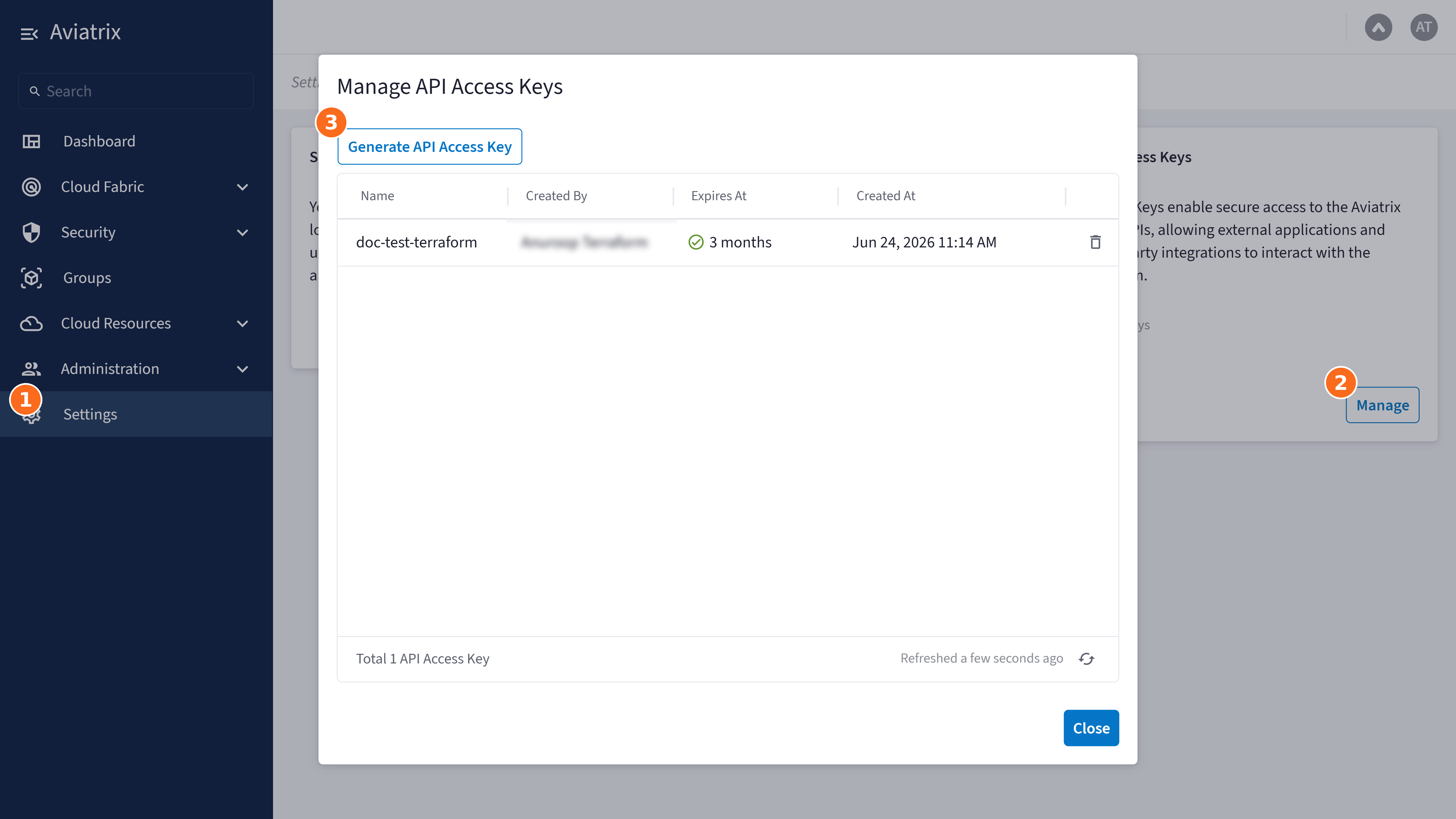
- Under API Access Keys, click Manage. The Manage API Access Keys form opens.
- Click Generate API Access Key.
- Fill in the form with the following details:
- Name: A name for the API key.
- Key Expiration: The number of days until the API key expires.
- Permissions:
- Read Only: For read-only access to all resources.
- Admin: For full access to all resources.
- Click Generate API Access Key. A new API key is generated and displayed.
- Copy the API key and save it to a secure location.
Related Topics
- Configure the Aviatrix Cloud Terraform Provider
— Create your Terraform files, configure the provider, and run
terraform init. - Onboard Cloud Accounts to Aviatrix Cloud with Terraform — Onboard your first AWS, Azure, or GCP account.
- Manage Networks with the Aviatrix Cloud Terraform Provider — Manage a VPC or VNet and enable egress inspection.
- Provider documentation (Terraform Registry) — Resource schemas, arguments, and data sources.