

Contact Support to enable Aviatrix Kubernetes
Firewall.
Onboard a Cluster Manually
Onboard a Kubernetes cluster to the Aviatrix PaaS console manually if you built it without using AKS or EKS. These clusters are not discoverable at the cloud service provider and are therefore not displayed on the Kubernetes Clusters tab until you onboard them.You cannot manually onboard non-cloud based Kubernetes clusters.Ensure that the
necessary permissions
are configured in your kubeconfig file before onboarding.
- On the Cloud Resources > Cloud Assets > Kubernetes Clusters tab, click Manually Onboard a Cluster.
-
In the Manually Onboard a Cluster dialog, enter the following information:
- Click Onboard.
Onboard a Cluster via Authentication Method (AWS only)
Select this option to onboard clusters created with AWS (EKS) and managed by your cloud provider. Onboarding via authentication method gives the Aviatrix PaaS console permissions to query the status of the cluster. Since these clusters were created with AWS (EKS) they are displayed on the Kubernetes Clusters tab after you onboard an AWS account that contains Kubernetes clusters. To onboard an AWS (EKS) cluster using an authentication method:- On the Cloud Assets > Kubernetes Clusters tab, click Onboard next to a discovered AWS (EKS) Kubernetes cluster.
- In the Onboard Cluster dialog, select one of the following onboarding methods: See below for the configuration steps for each method.
- Click Onboard.
Terraform
The Terraform
prerequisites
must be met before attempting to onboard clusters using Terraform.
- Copy the Terraform script text to your clipboard.
- Paste the Terraform script into the main.tf file.
- Edit the script to point to the credentials in the providers.tf file. Provider information for AWS (EKS) and Kubernetes must be in this file.
-
Run
terraform initwithin the Terraform directory. -
Run
terraform applywithin the Terraform directory. - Go back to Onboard a Cluster via Authentication Method (AWS only) to complete the onboarding process.
- Check AWS to see creation/updating of resources for Kubernetes.
Command Line
The eksctl and kubectl
tools
must be installed before attempting to onboard clusters using Command Line.
-
In the Onboard Cluster dialog, copy the first section of the command to the
clipboard.
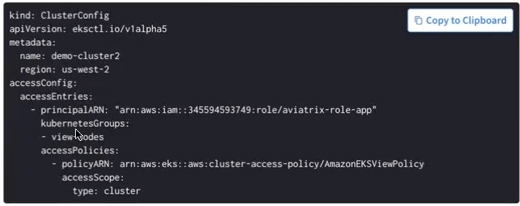
- Paste the command into eksctl.
-
Apply the configuration in eksctl to create the accessentry.yaml file (you
can copy this from the Onboard Cluster dialog):
-
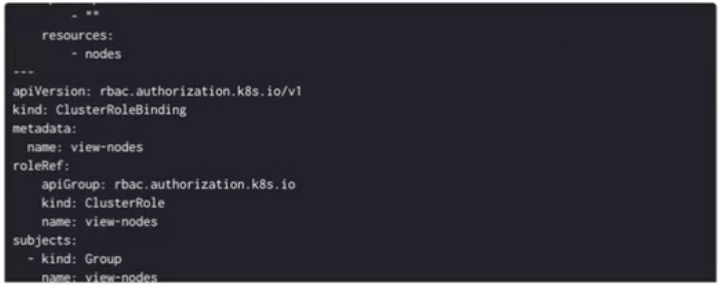
In the Onboard Cluster dialog, copy the cluster-role.yaml command.
-
Paste the command into kubectl.
If desired, you can run the
kubectl configcommand now to make sure you are in the correct cluster before applying the configuration. -
Apply the configuration in kubectl to create the cluster-role.yaml file (you
can copy this from the Onboard Cluster dialog). This gives the Aviatrix
console permission to view the individual nodes in the cluster.
- Go back to Onboard a Cluster via Authentication Method (AWS only) to complete the onboarding process.
Upload Kubeconfig File
Ensure that the kubeconfig file has the proper
permissions
before attempting to onboard the cluster.
- In the Onboard Cluster dialog, select the kubeconfig file to upload.
- Click Onboard.
Azure
If you are onboarding an Azure (AKS) cluster, you authenticate its configuration by uploading a kubeconfig file.Onboard an Azure (AKS) Cluster
- On the Cloud Assets > Kubernetes Clusters tab, click Onboard next to a discovered Azure (AKS) Kubernetes cluster.
-
In the Onboard Cluster dialog, select one of the following:
- Permissions on Cloud Account: Select if you have configured RBAC authentication for your AKS cluster in your Azure cloud account.
- Kubeconfig File: Select a kubeconfig file to upload. Ensure that the kubeconfig file has the proper permissions before attempting to onboard the cluster.
- Click Onboard.