

- Go to Cloud Fabric > Topology > Overview.
- Click the Filters tab on the right to go into filter view.
- You can use the Search to filter the Topology map by name, ID, type, etc. using letters, numbers, or characters.
-
You can configure the following filter criteria:
- Resources
- Cloud Regions/Sites
- Types
- SmartGroups
-
You can also filter by condition:
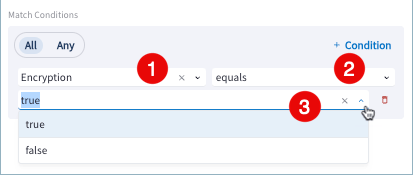
- Click All (matches all conditions) or Any (matches any condition) and then select + Condition.
- Click in the left selection field and select from Properties or Cloud Tags in the list that displays. For information about the properties you can filter on, see Topology Property Reference.
- Click in the right selection field and select a qualifier. The most common qualifiers are contains, does not contain, equals, does not equal, starts with, does not start with, ends with, does not end with.
-
Enter or select a value in the third field. When you select certain
qualifiers, you choose a corresponding value or values from another
drop-down list. For other qualifiers, you enter text.
- Continue adding conditions as needed. You can add up to ten filter conditions.
-
To save the selected filters as a reusable View:
- Click Save View at the top of the right pane.
- In the Save View dialog, enter a name for the view and click Save.
-
To remove all filter selections, click Reset Filters.
This action immediately clears all filter options you selected.
Modify a Topology View
If you have already created and saved a View, you can modify the filters for that view. To modify an existing Topology View, do the following.- Go to Cloud Fabric > Topology > Overview.
- Click the Filters tab on the right to go into filter view.
- Select a View from the drop-down list under Views.
- Click the caret ^ next to the Save button and select Save as New View.
- You can revert your changes by selecting Discard Changes.