Major Upgrade Paths
Use these paths when planning multi-version upgrades:- If your Controller is 6.9 or earlier, you must first upgrade to 7.0.
- If your Controller is 7.0, upgrade to 7.1.
- If your Controller is 7.1, upgrade to 7.2.
- For 7.2 and later, see Upgrade your Controller to the Latest Aviatrix Supported Images (AWS and Azure Only).
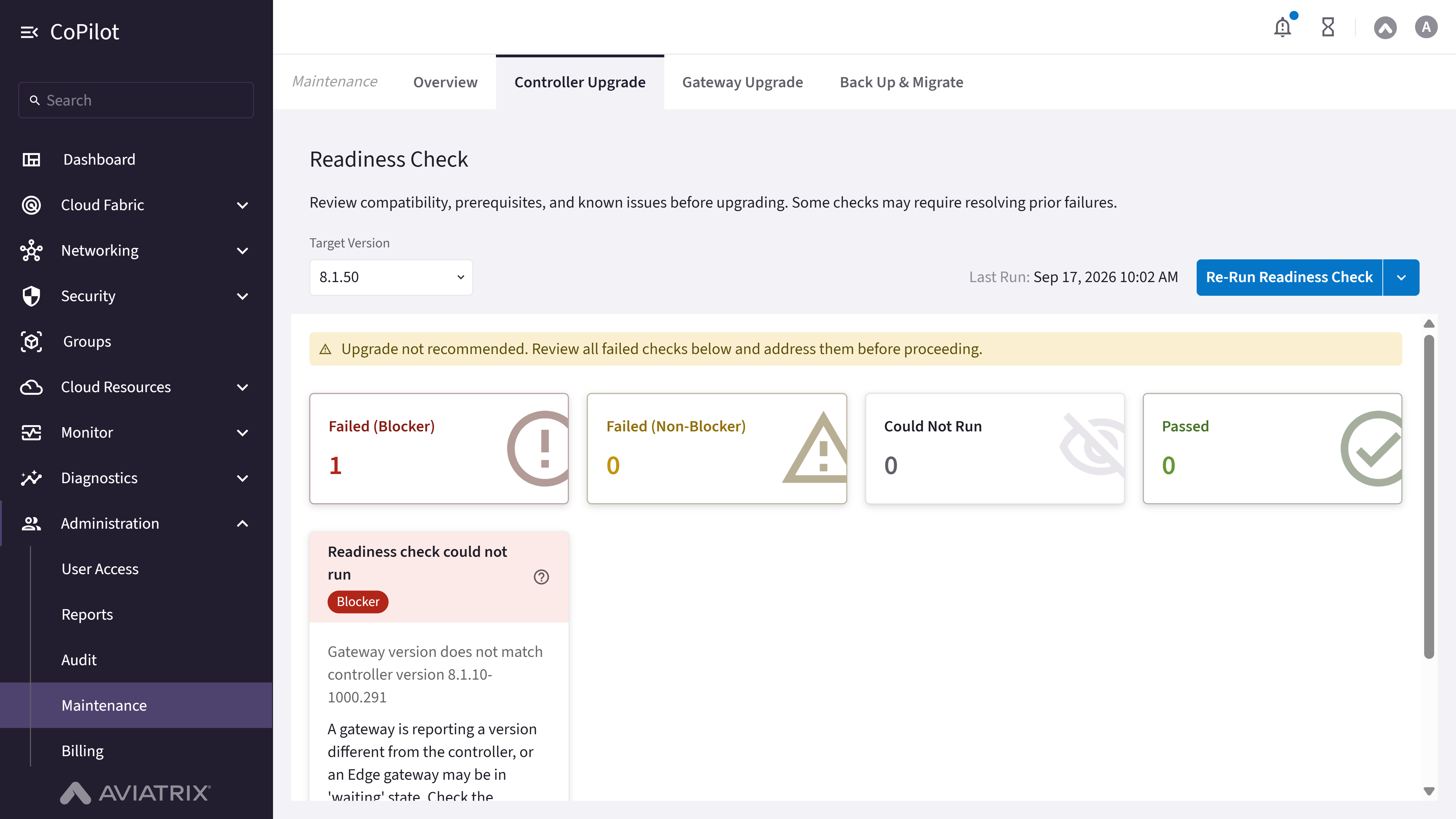
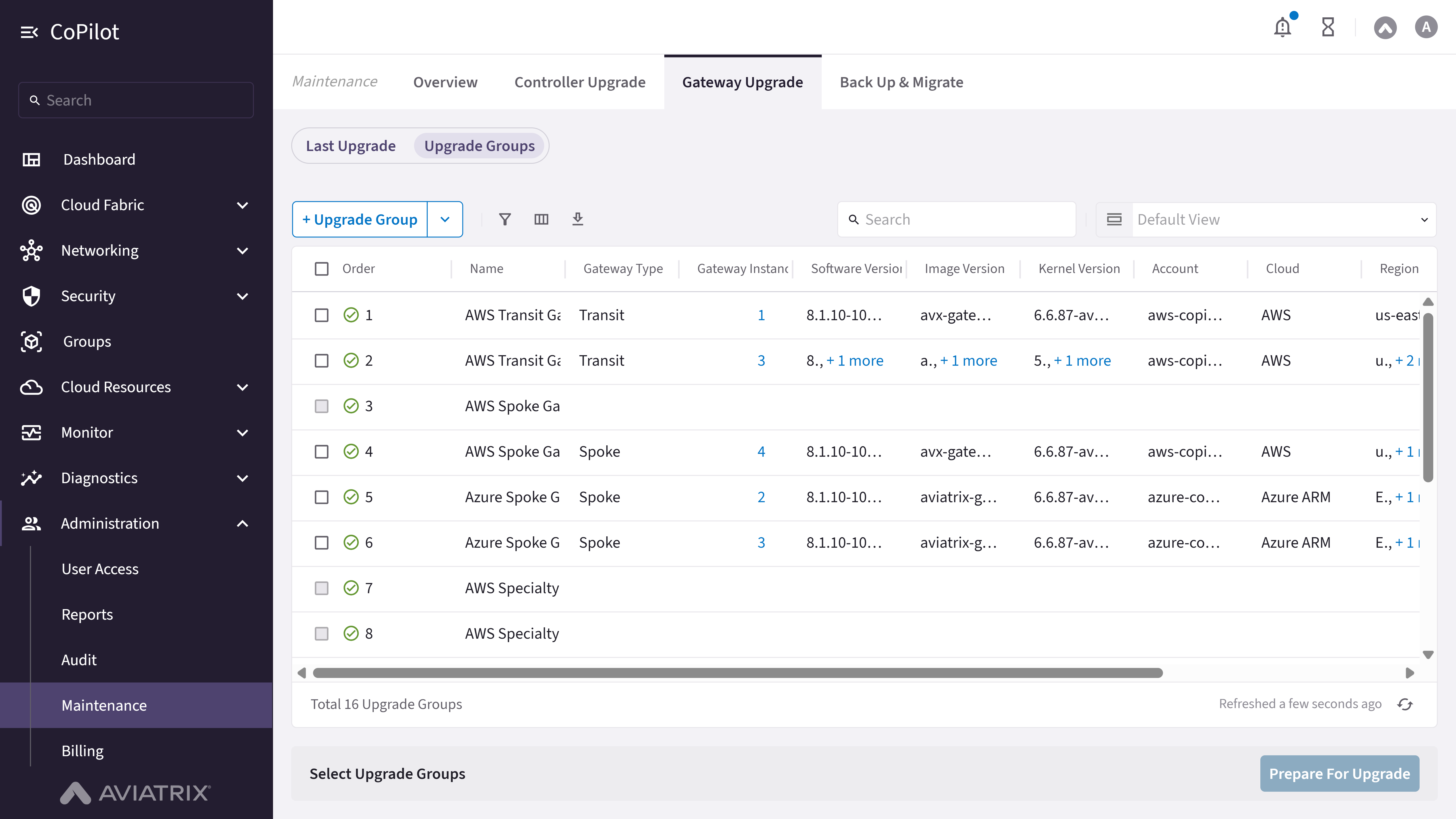
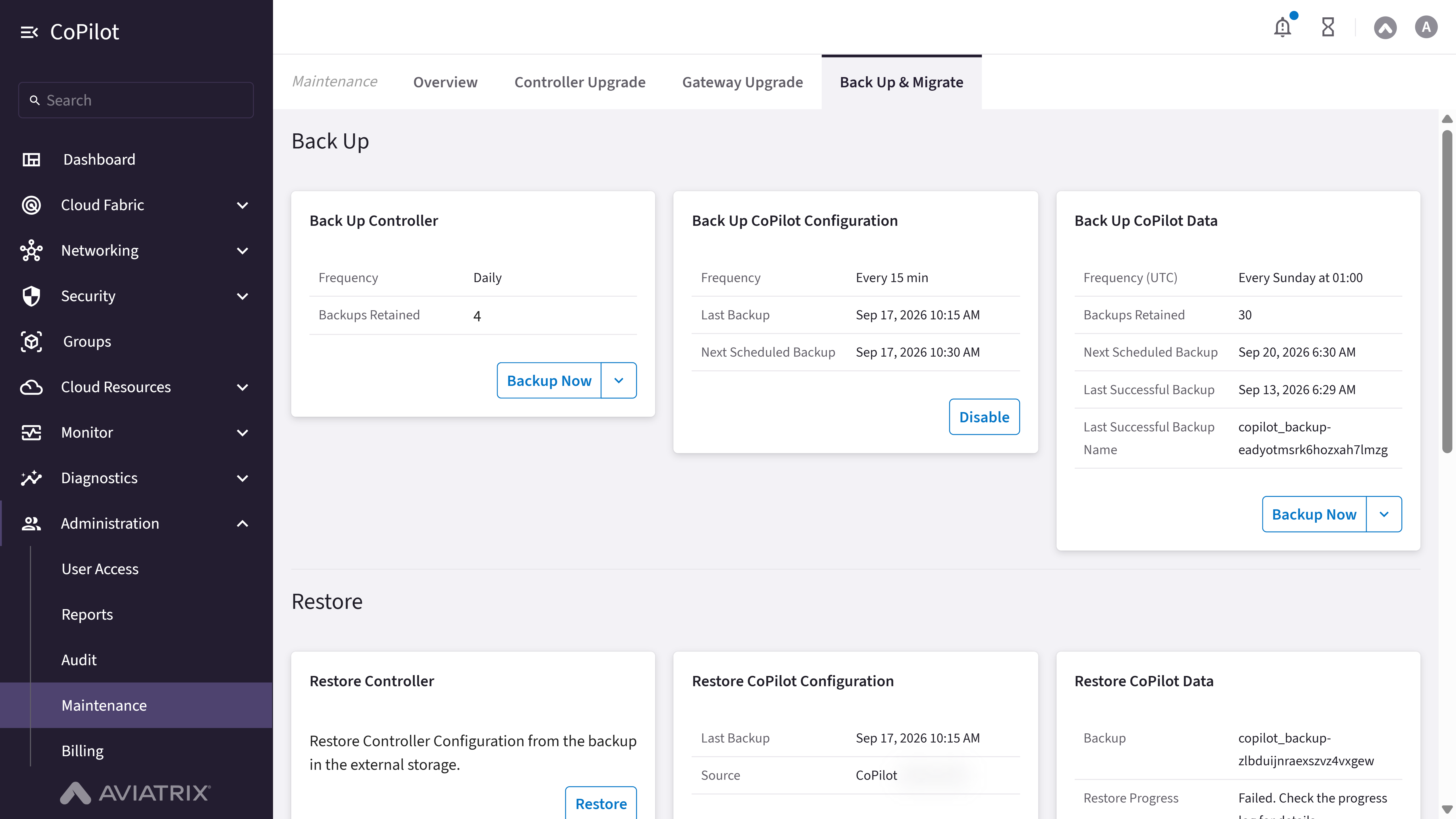
- Overview
- Controller Upgrade
- Gateway Upgrade
- Back Up & Migrate
Purpose
The Overview page summarizes gateway health and the recommended upgrade path for your Controller and gateways. Use it to see which gateways are down or on a different software version than the Controller, and to follow the guided upgrade timeline before you start Controller or gateway upgrades.Elements
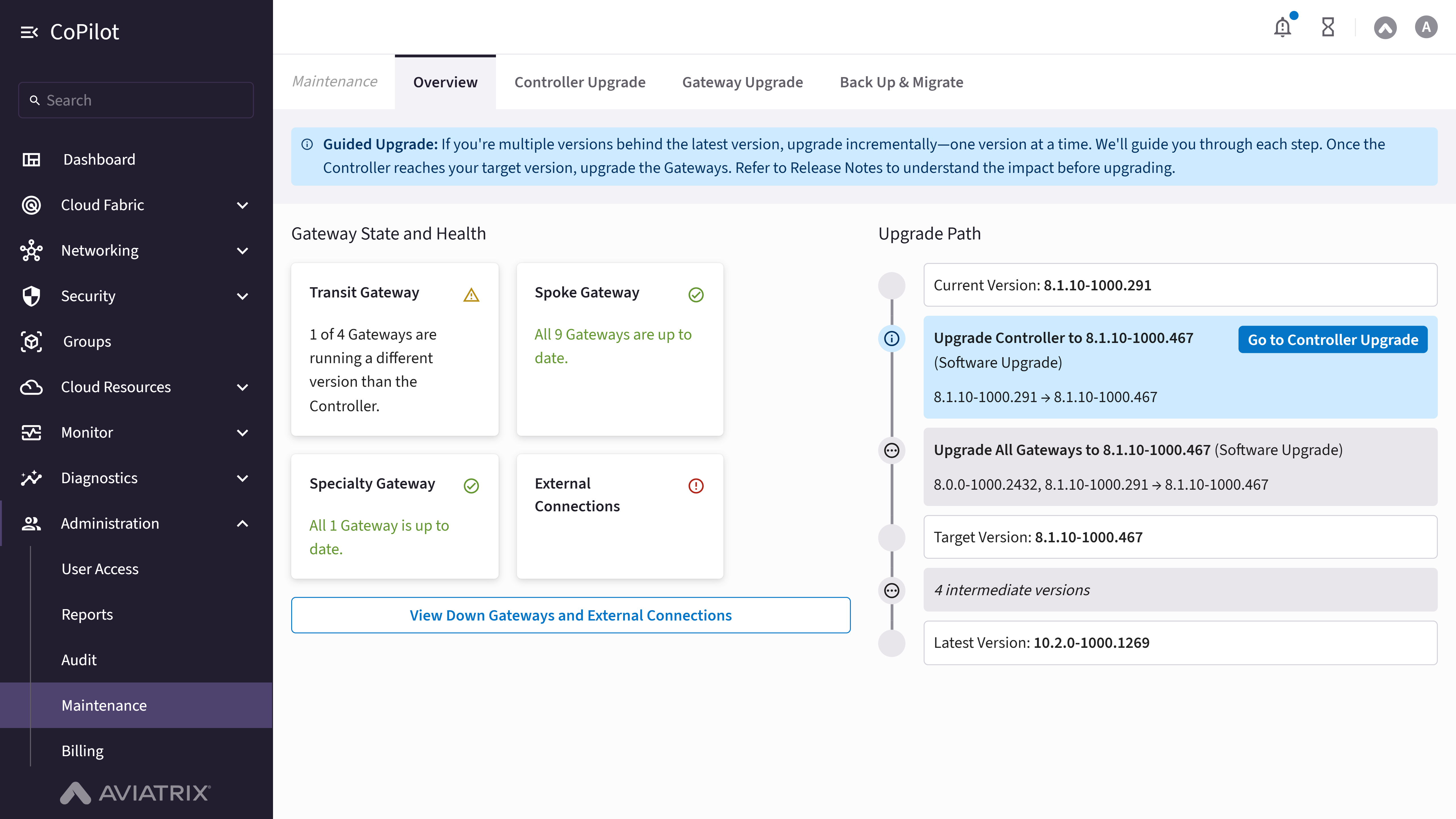
- Guided Upgrade alert: Reminds you to upgrade incrementally when several versions behind, to upgrade gateways only after the Controller reaches the target version, and to review Release Notes before upgrading.
- Gateway State and Health: Section showing health and version status by gateway role.
- Transit Gateway card: Status badge and message when one or more Transit Gateways run a different version than the Controller.
- Spoke Gateway card: Status badge and message when Spoke Gateways are down or not on the Controller version.
- Specialty Gateway card: Status badge and message when Specialty Gateways are down or not on the Controller version.
- External Connections card: Status badge for Site-to-Cloud external connection health.
- View Down Gateways and External Connections: Button that opens a dialog listing down gateways and external connections.
- Upgrade Path: Timeline of the recommended upgrade sequence.
- Current Version: Controller version at the start of the timeline (or Current Controller Version and Current Gateway Versions when gateways run a mixed version).
- Upgrade Controller to <version> (<upgrade type>): Controller upgrade step on the timeline, showing the source and target version and the upgrade type (Software or Image). Appears once per required Controller upgrade.
- Go to Controller Upgrade: Button on the active Controller upgrade step when the Controller is the next recommended action.
- Upgrade All Gateways to <version> (<upgrade type>) or Upgrade Selective Gateways to <version> (<upgrade type>): Gateway upgrade step on the timeline, showing the source and target version(s) and upgrade type. Uses Selective Gateways when only some gateways need upgrading.
- Go to Gateway Upgrade: Button on the active gateway upgrade step when gateway upgrades are the next recommended action.
- Target Version: Marker on the timeline for the target version at the end of the current path segment (when shown).
- <N> intermediate version(s): Italic timeline entry when additional Controller upgrade steps remain after the visible segment.
- Latest Version: Latest available Controller version in the upgrade catalog.
Actions
View Down Gateways and External Connections
View Down Gateways and External Connections
To view gateways and external connections that are down:
- Go to Administration > Maintenance > Overview.
- In Gateway State and Health, click View Down Gateways and External Connections.
Parameter Details
Go to Controller Upgrade from Overview
Go to Controller Upgrade from Overview
When the upgrade path shows a pending Controller upgrade:
- Go to Administration > Maintenance > Overview.
- In Upgrade Path, on the Upgrade Controller step, click Go to Controller Upgrade.
Go to Gateway Upgrade from Overview
Go to Gateway Upgrade from Overview
When the upgrade path shows gateway upgrades as the next step:
- Go to Administration > Maintenance > Overview.
- In Upgrade Path, on the Upgrade All Gateways step, click Go to Gateway Upgrade.