

Prerequisites
Ensure you have met the prerequisites for an Azure deployment. See Preparing for Your Azure Deployment for pre-deployment requirements and considerations.Azure Simple Product Launch Overview
The launch experience is currently available for Azure at launch.aviatrix.com. The launch experience automates the following:- Creation of a VNet for Controller and CoPilot (or you can select an existing VNet)
- Deployment and configuration of IAM
- Deployment of Controller and CoPilot into an existing or newly created VNet
- Creation of network security groups securing platform access to only your IP
- Initialization of Controller and CoPilot to current version
- Configuration and integration between Controller and CoPilot
The entire process completes in about 20 minutes when orchestrated with
Terraform.
Required Aviatrix License and Marketplace Offers
Three Azure Marketplace subscriptions are required to deploy the Aviatrix platform. You will subscribe to these offerings by accessing the Launch Aviatrix guided experience. For new deployments, you will subscribe to the following:If you subscribe to the free trial license, you receive notification emails
14, 7, and 1 day before the free trial expires and billing begins.
Launch Step Details
The Aviatrix launch experience guides you through a quick configuration process to get the Aviatrix Cloud Networking Platform up and running in your Azure environment. You can access the Aviatrix launch experience from launch.aviatrix.com.Step 1: Register an Aviatrix License
-
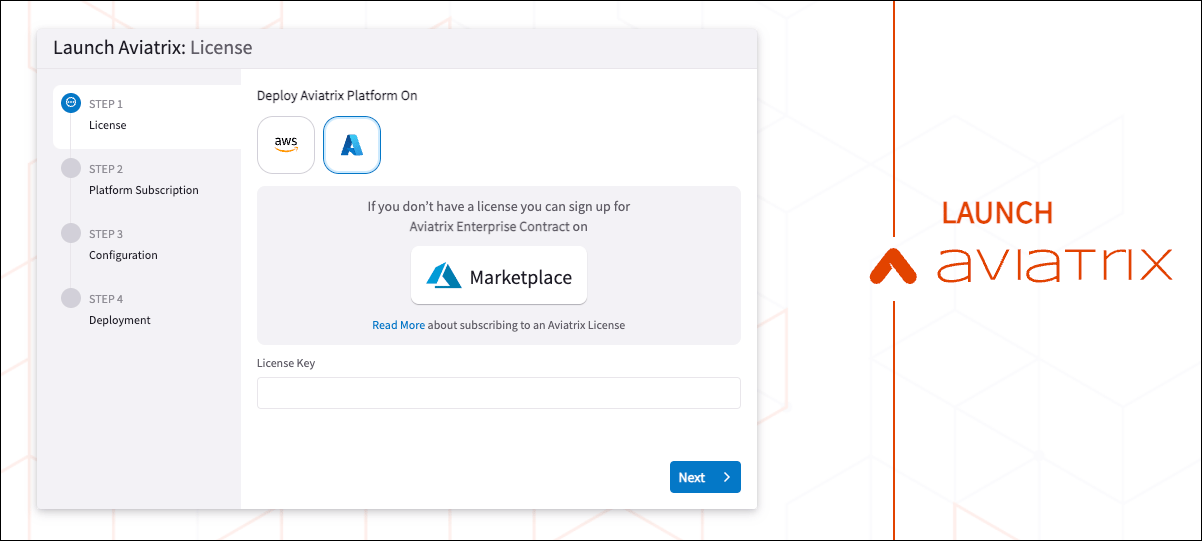
In the Launch Aviatrix licensing window, do one of the following:
- If you need a license, click your preferred CSP Marketplace to open the Marketplace listing in a separate tab and continue to the next step.
- If you already have a license, enter the key in the License Key field and skip to Platform Subscription.
-
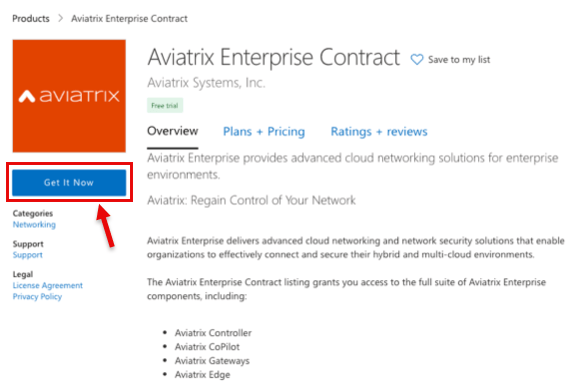
On the Aviatrix Enterprise Contract page, review the Plans + Pricing and
click Get It Now.
- Read and accept the acknowledgment notice and click Continue.
- On the Aviatrix Enterprise Contract page, select the Plan you want and click Subscribe.
- On Subscribe To Aviatrix Enterprise Contract, enter the name for a new resource group and verify the resource group location.
- Enter a descriptive name for the SaaS subscription and click Review + Subscribe.
- Review the subscription details and click Subscribe.
- When the subscription process completes, click Configure account now. You will be redirected back to Launch Aviatrix.
- Enter your business email address and click Verify Email. An email is sent to you from [email protected] that contains a verification code.
- Copy the code from the email, enter it in the field in Launch Aviatrix, and then click Next. A success page displays and shows your unique license key. This key and a subscription ID are also emailed to you.
- Click Next.
Step 2: Platform Subscription
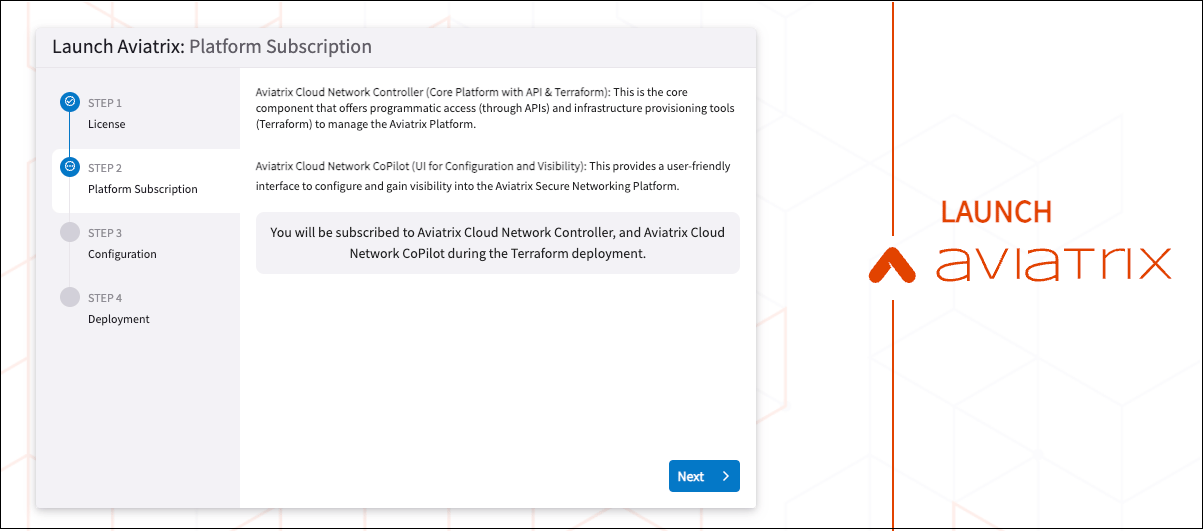
Review the information about Aviatrix Cloud Network Controller and Aviatrix Cloud Network CoPilot. They will be onboarded in a later step.- Click Next.
Step 3: Configuration
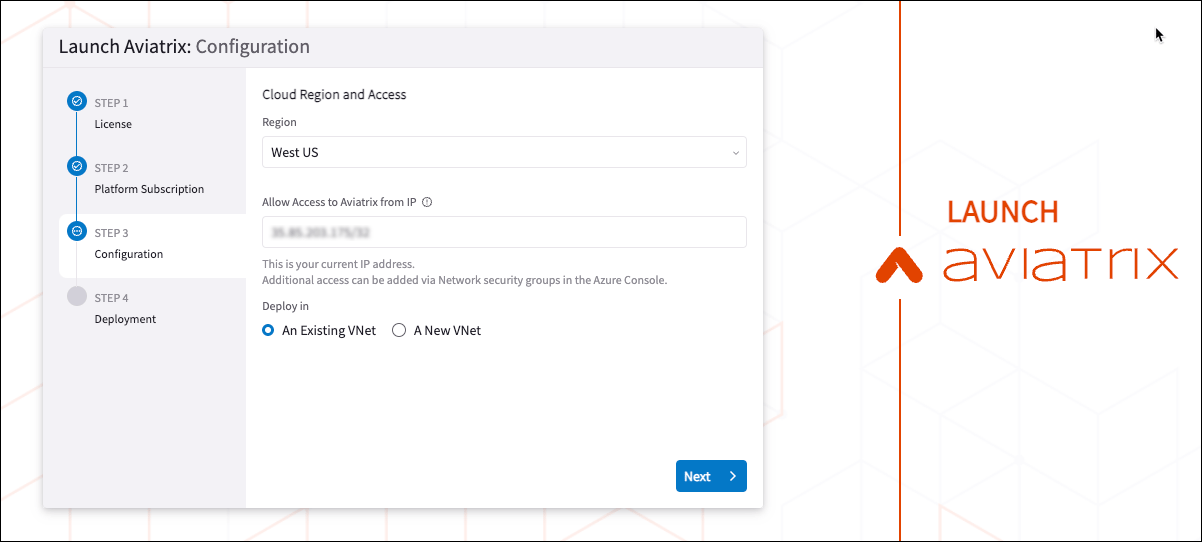
Provide configuration details for the Terraform template.- Select the Azure region for deployment.
- Confirm that the IP address you are currently using is displayed in the IP field. Your IP address populates automatically based on your client IP. The /32 is appended to the address to ensure that only the IP that initiated provisioning can initially access the Controller and CoPilot UIs. If needed, you can change the IP address after provisioning is complete.
- Click Next.
- Select whether an existing VNet or a new VNet should be used for deployment. If you choose an existing VNet, then during deployment you will be able to select which VNet and subnet to use. If you choose a new VNet, the VNet and Resource Group are automatically created for you during deployment.
Step 4: Deployment
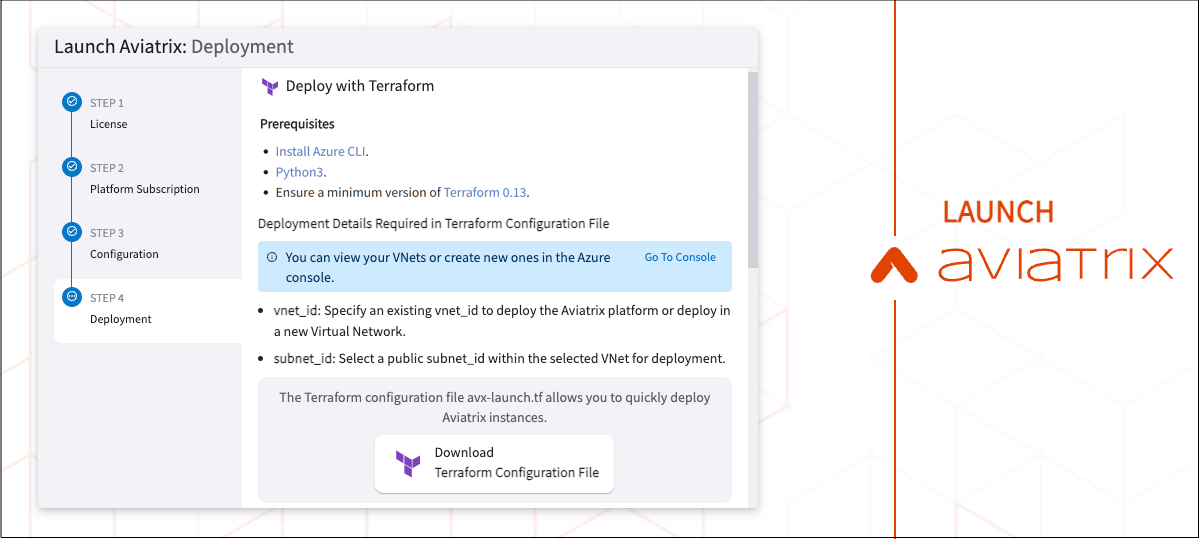
You can deploy Aviatrix Platform by using Terraform. You do not need to be familiar with Terraform modules to use this method. However, to deploy with Terraform, you must have done the following:- Installed the Azure CLI.
- Installed a minimum version of Python3.
- Installed a minimum version of Terraform 0.13.
- Name of the target resource group in your target region
- Name of the VNet in the resource group
- Name of the subnet in the VNet
- Subnet ID of the subnet
- Click Download Terraform Configuration File to download aviatrix-launch.tf.
-
Modify the following lines in the aviatrix-launch.tf file and save the
file:
For steps to get this information in the Azure portal, see Information Required for Azure Deployment to an Existing VNet.
-
In a terminal window, run the following commands in the directory in which
you saved the TF file:
-
Log in to Azure.
In the terminal output, you will need to select the Azure subscription to associate with the Aviatrix account.
-
Initialize Terraform.
-
Preview a list of the changes (execution plan) Terraform will implement.
If you get a message about the -out option, you can safely ignore it and continue.
-
Apply the changes and enter Yes when requested.
It takes about 14 minutes for the Terraform process to complete.
-
Log in to Azure.
-
Copy and save the output that results from the Terraform execution.
Example:
"Copilot_management_login" = <"https://172.31.255.255/">"password" = <";a1wkE:P#mad3,*f">"username" = "admin"You will use this information to log in to the Aviatrix Platform.
Access the CoPilot UI
Congratulations! You have successfully launched your Aviatrix platform.-
In a browser window, enter the IP address for Copilot_management_login
that you copied from the Terraform output.
Example:
"Copilot_management_login" = <"https://172.31.255.255/"> -
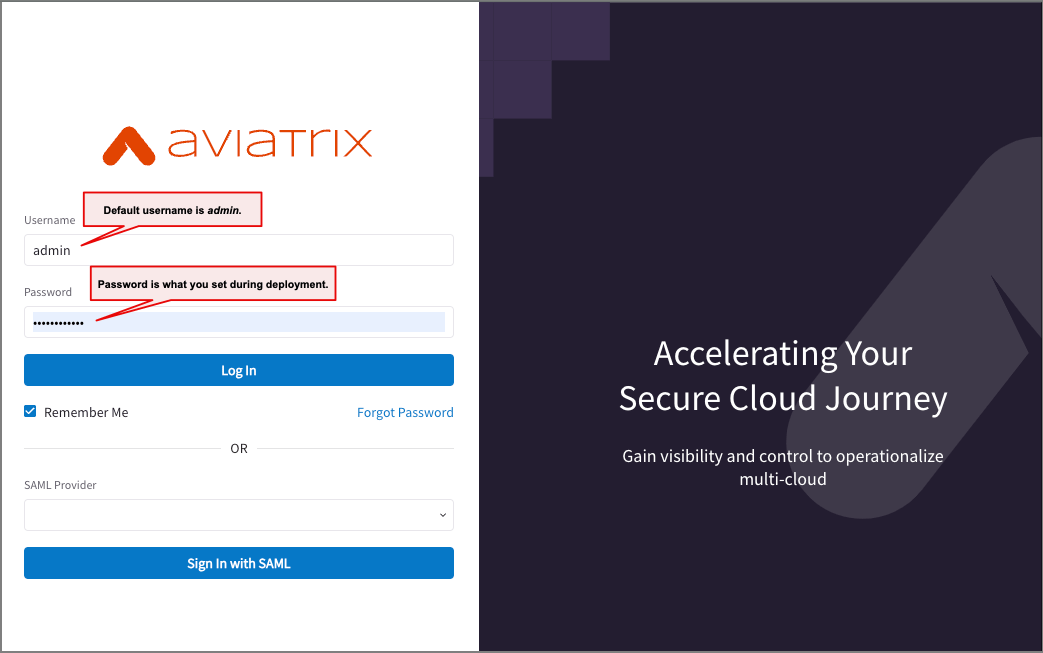
In the CoPilot login window, enter your credentials:
- Username: The default is admin.
- Password: Use the password from the Terraform output.