

- Obtain an API token from your Okta account.
- Set up Okta authentication.
- Create VPN Users for this Aviatrix Gateway.
- Test connectivity.
Obtaining the API Token from Okta
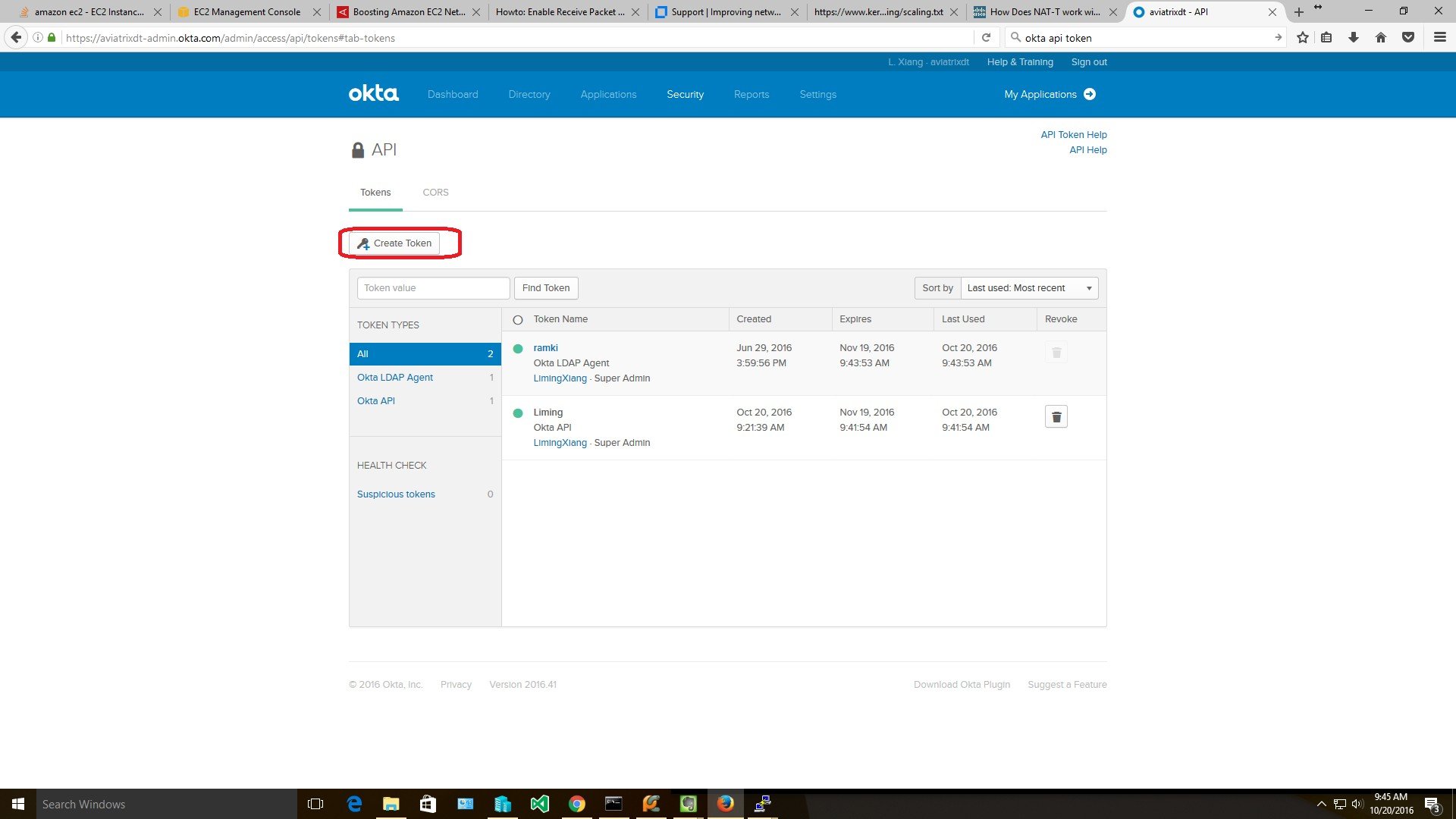
Follow the steps outlined in the Okta documentation to create a new API token.- Log in into your Okta account as a Super Admin. This allows the privilege to create a Token for API access.
-
Go to Security > API and click Create Token. Give the token a name (for
example, Aviatrix).
Copy the generated token value. You’ll need this token to allow the Aviatrix Gateway to access Okta.
Setting up Okta Authentication
- See this guide to create a new Aviatrix VPN Gateway.
- When you are ready to configure Okta, go to Aviatrix CoPilot > Cloud Fabric > UserVPN > select the UserVPN Gateways tab.
- Find the gateway and click the Edit icon.
- Find the Authentication setting, click on the dropdown option, and select Okta.
- Enter details about your Okta environment:
- Click Save.
Creating User(s)
Create a UserVPN user.-
(Optional) Enter the user’s email where the .ovpn file will be emailed.
If an email is not provided, users will need to download their .ovpn file from the Controller.
- (Optional) Select a profile for this user.
- Click OK.
Validating
- Use the .ovpn file emailed to your test account or download it from Aviatrix VPN Users.
- Add the configuration to your VPN client.
-
Connect and log in.
Since Aviatrix Okta authentication uses API authentication, it uses the default sign on policy of Okta. If you have configured Multi-factor Authentication in Okta, then during VPN login, the end user needs to append his MFA token to the password during authentication.