

Prerequisites
To onboard your GCP account, you need to have the following prerequisites:- A Google Cloud account with a project created.
- The project’s ID.
- A JSON key file for the service account with the necessary permissions to
manage GCP resources.
- The JSON key file must be downloaded from your GCP account. You will upload to the PaaS console.
- In the PaaS console, go to Cloud Resources > Cloud Accounts.
-
Click + Create Account and enter a name for the account.
This is the name that will be displayed in the Cloud Accounts list.
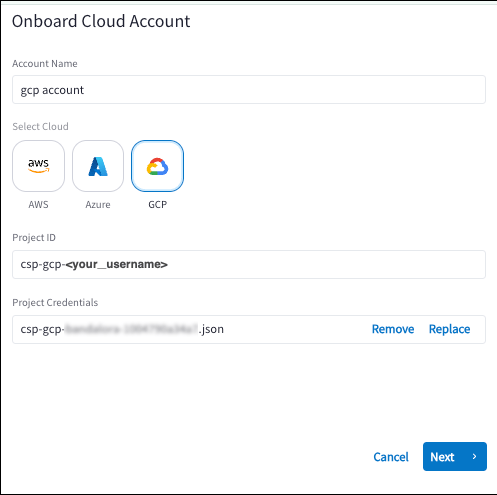
- Click the GCP logo.
-
Enter the following information.
- Click Next. Your GCP resources are discovered. The cloud account is visible on the Cloud Accounts page and VPCs, subnets, and VMs can be viewed on Cloud Resources > Cloud Assets.
Next Step
Collect GCP Project Information
Before you onboard your GCP account, you need to collect the following information from your GCP project:-
Project ID
The project ID is the unique identifier for your GCP project. It is used to
reference the project in API calls and other operations. You can find the
project ID on the GCP Console Welcome page or in the project settings.
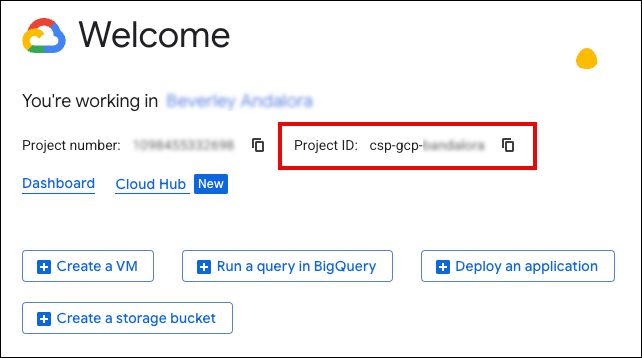
- Project Credentials (Key File) The project credentials are in a JSON file that contains the service account key. This file is used to authenticate and authorize access to your GCP resources. You can create and download the key file from the GCP Console under IAM & Admin > Service Accounts > Keys.
Create Key File Credentials in GCP
You need a JSON key file for the service account that has the necessary permissions to manage GCP resources. You will upload this file when onboarding your GCP account, to authenticate your GCP account in the PaaS console. To create a key file for your GCP project, follow these steps:-
In the GCP Console, go to IAM & Admin > Service Accounts.
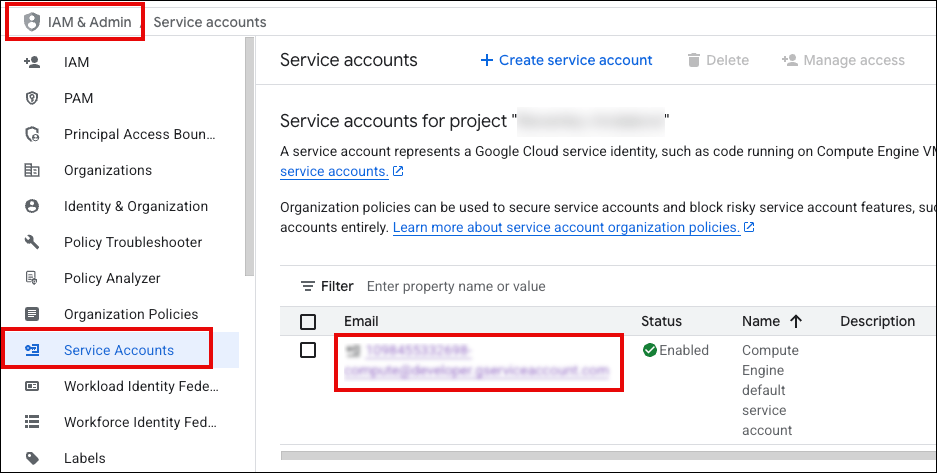
- (Optional) Create a service account that has the necessary permissions to manage GCP resources. You do not need to create a service account if you already have one with the required permissions.
- In the table, click the Email (name) for the service account you want to use.
-
Click Keys and then click Add Key > Create New Key.
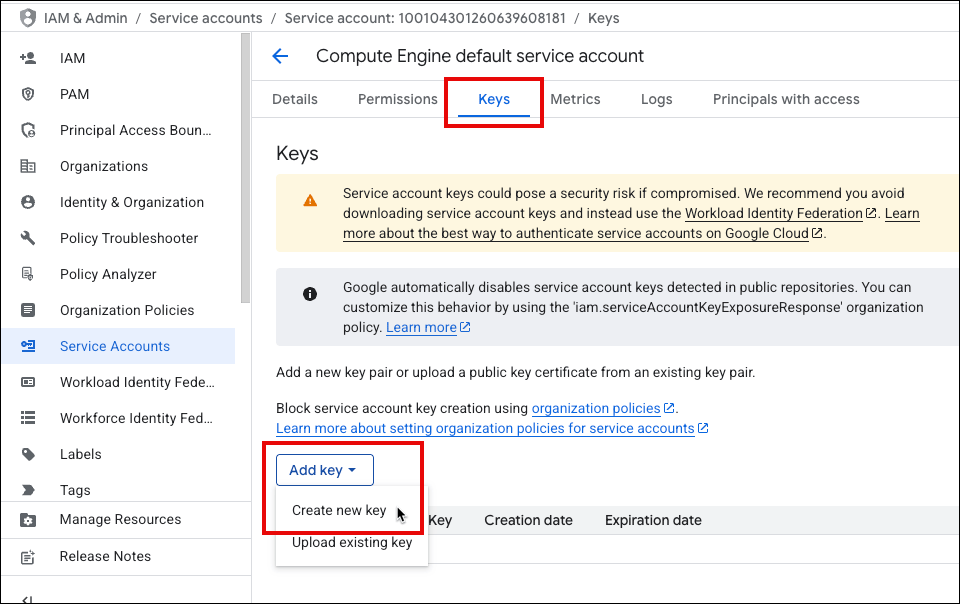
- Select JSON as the key type and click Create. The JSON key file is downloaded to your local machine. Save the JSON key file securely, as it contains sensitive information that should not be shared publicly.