-
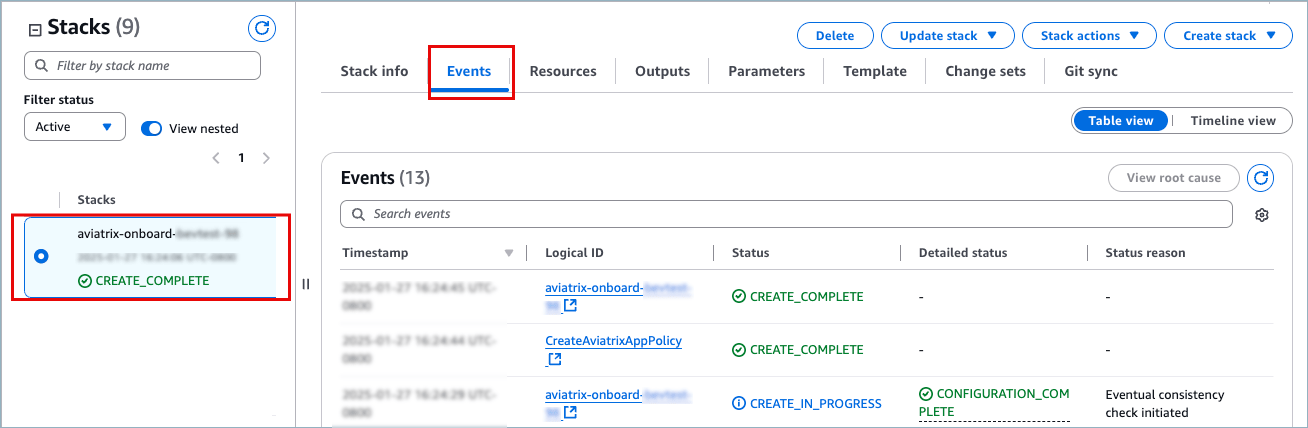
In AWS console, go to CloudFormation > Stacks.

- Select the failed stack. The default name is aviatrix-onboard-aws, but the name could have been modified.
-
In the pane that displays to the right, click the Events tab.
-
Scroll through the Events table and look for messages in the Status
reason column. Examples of some root cause descriptions:
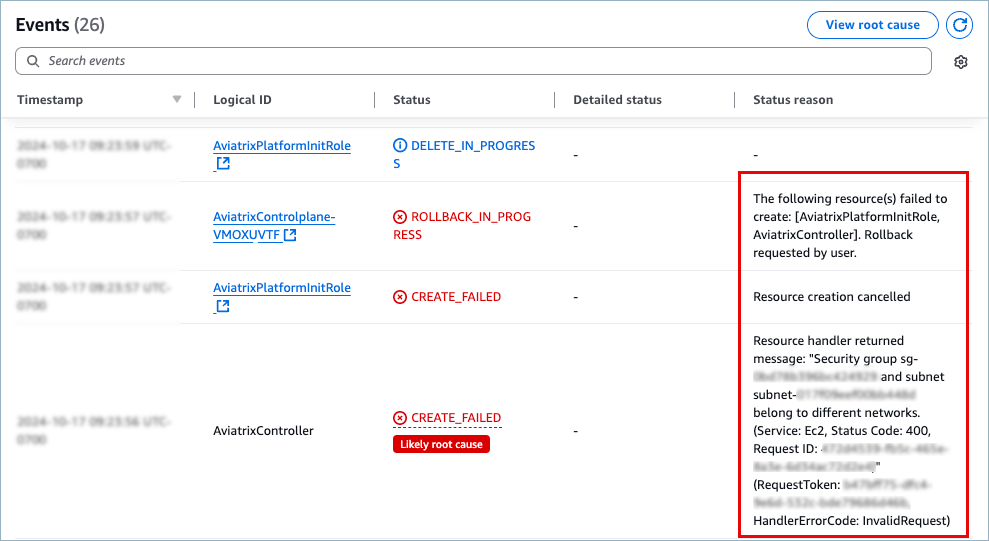
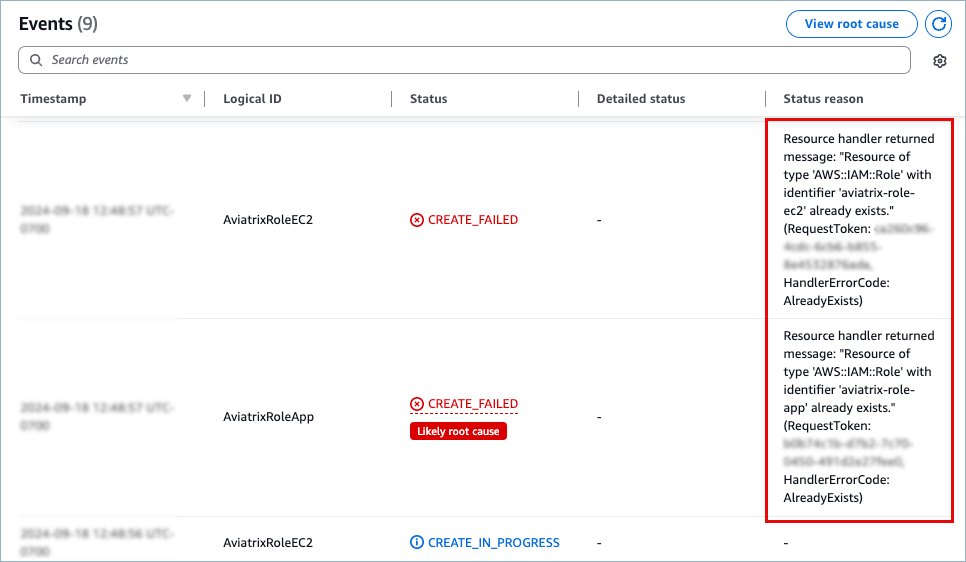
- Resolve the issues mentioned. If the problem is due to existing roles or policies, you will resolve those in the following steps.
- Click Delete to permanently remove the failed stack.
- Read the AWS warning and click Delete. Stack status changes to DELETE_COMPLETE after several seconds. If you refresh the Stacks pane, the stack name disappears.
- To remove the roles, go to AWS IAM > Access Management > Roles and select and delete the following:
- aviatrix-platform-app
aviatrix-role-ec2-<long-id>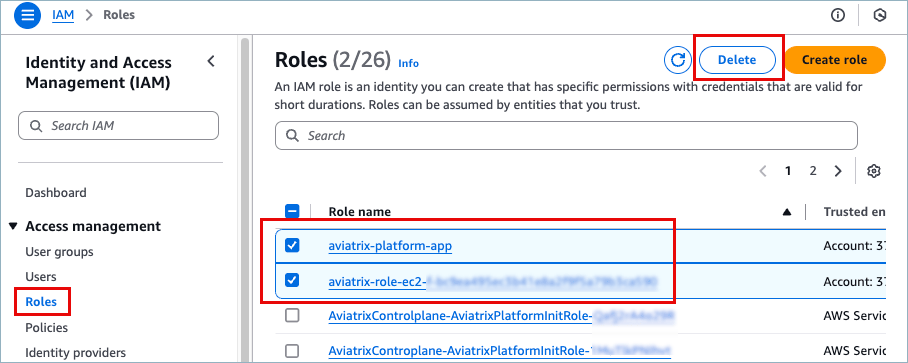
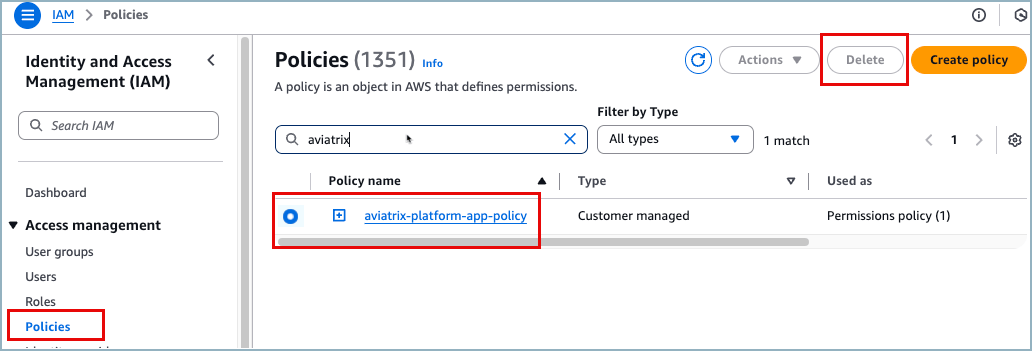
- To remove the policy, go to Access Management > Policies and then search for and delete the following:
- aviatrix-platform-app-policy