Dark Mode
You can set dark mode or light mode for the user interface by selecting the moon or sun icon in the toolbar.Time Zone
By default, the Aviatrix PaaS console uses the browser time zone (usually based on the operating system time and time zone settings). However, all time zones are supported. You can modify the time zone used in the UI. If you do so, all timestamps visible in the UI are rendered for the selected time zone. The timestamps in notification alerts (sent via email and webhook) use UTC regardless of the time zone configured in the console. If the UI time zone is set to something different from your browser time zone, then the time zone abbreviation displays in the toolbar. [.text-left]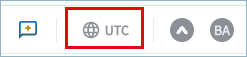
Configure the Time Zone
To configure a different time zone in the Aviatrix PaaS console, do the following:- Click the user icon in the toolbar.
- To toggle between Local and UTC time zones, click the world icon.
- To select a different time zone, click either Local or UTC under the world icon.
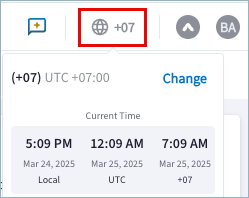
- Click in the time zone field, select from the list, and then click Save. The abbreviation for the selected time zone and world icon display in the toolbar (such as GMT, AWST, +07, and so forth).
- Click the time zone abbreviation to see your local time, the UTC time, and
the time for the time zone you selected. On the Current Time pane is also an
option to change the time zone. [.text-left]