The Vendor Integration function allows you to log into a firewall or firewall manager and change the route table on the firewall to program the routing for Transit FireNet, or to change routing if a gateway in Transit FireNet fails.
The Vendor Integration function allows you to log into a firewall or firewall
manager and change the route table on the firewall to program the routing for
Transit FireNet, or to change routing if a gateway in Transit FireNet fails.You can also use Vendor Integration to configure the RFC 1918 and non-RFC 1918
routes between the Aviatrix Gateway and the vendor’s firewall instance.To turn On IPv6 on an existing FireNet, revoke the existing Vendor Integration
settings, enable IPv6 on the FireNet, and then reconfigure Vendor Integration.Controller Version 9.0 extends IPv6 FireNet vendor support to Fortinet and Check
Point, in addition to Palo Alto Networks (supported from Release 8.2). IPv6
Vendor Integration applies to Palo Alto Networks standalone firewalls
(without Panorama) from Release 8.2, and to Fortinet and Check Point
from Release 9.0. The Controller blocks attaching firewall instances whose
firmware does not support IPv6 to an IPv6-enabled FireNet Gateway.
IPv6 vendor integration in Azure is currently not functional. If you require
vendor-driven IPv6 route programming in Azure, configure IPv6 routes manually
in the firewall.
You can only configure information on this dialog if a firewall is already
attached to the Transit FireNet.
From the Security > FireNet Gateways tab, click the vertical ellipsis iconin a FireNet Gateway row and select Manage Vendor Integration.
In the Vendor Integration dialog, select Through Firewall or Through
Firewall Manager. You should only select the latter if the Vendor is a Palo
Alto firewall (managed by Panorama).
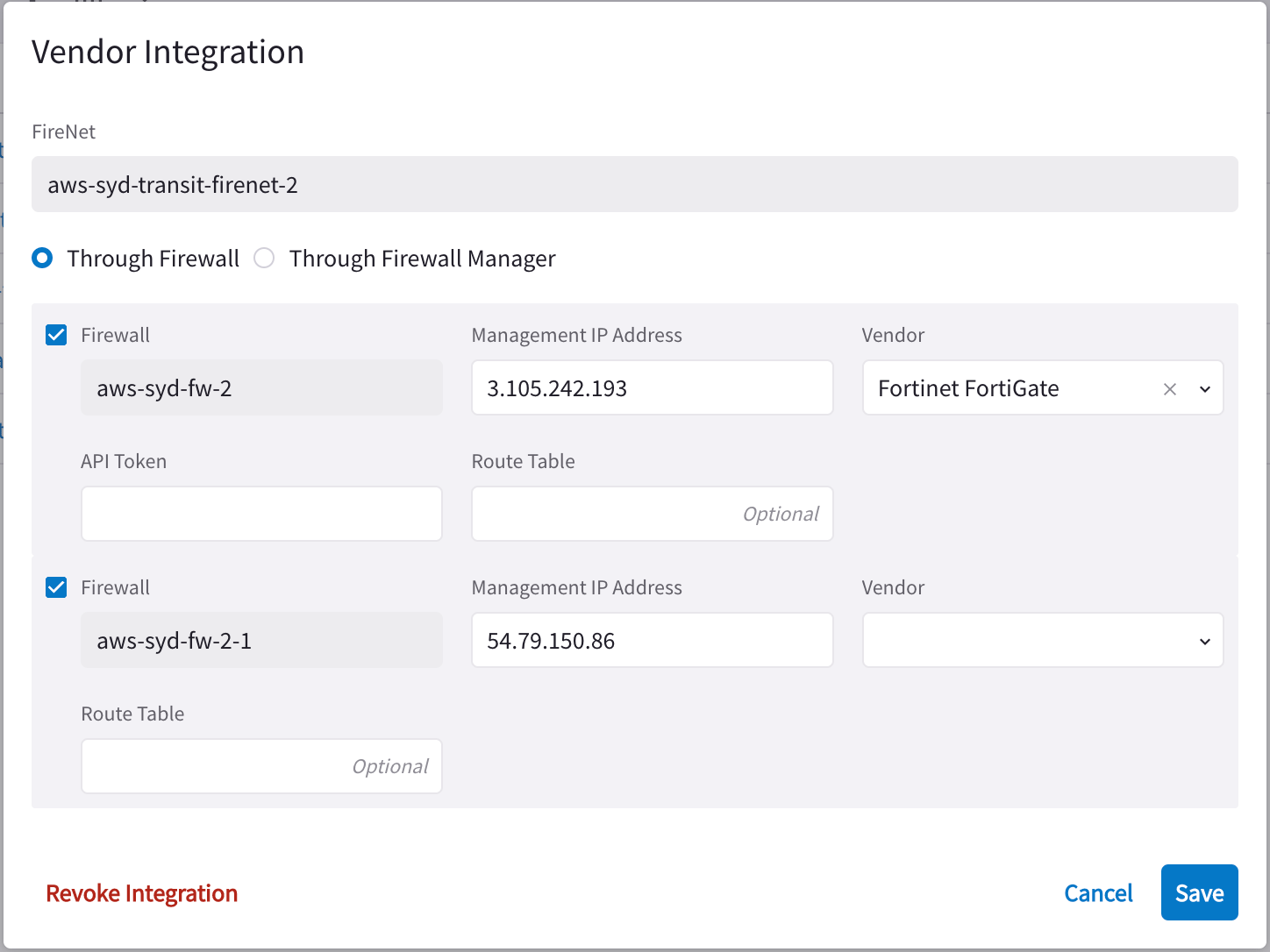
Configure the following:
Field
Description
Firewall
Name of the attached firewall (this is pre-populated with the name of the attached firewall).
The Vendor Integration tab only displays for a Transit FireNet if you have
configured a Firewall Manager (Panorama) and attached it to this Transit
FireNet.
You can click Sync Routes to Firewall on the FireNet Gateway Vendor
Integration tab (you must configure vendor integration first) or the details
panel for the firewall, to ensure that the FireNet routes are synced to the
selected firewall.
You can also sync routes to the firewall from the Security > FireNet > Firewall details tab.
Since vendor integration requires that the firewall be pinged periodically, you
should
configure the ‘ping’ ability
in the respective firewall UIs.
You can also sync routes to the firewall from the Security > FireNet > Firewall tab (click a firewall to see its details, and then click Sync Routes to Firewall).