Aviatrix automates the process of discovering and connecting Aviatrix Transit Gateway to AWS VGW.
Aviatrix automates the process of discovering and connecting Aviatrix Transit
Gateway to AWS VGW.Before connecting an Aviatrix Transit Gateway to AWS VGW, a VGW must have
already been created on the AWS console. In the AWS console, note the VGW ID
that is created for the VGW.When you setup the connection by providing the VGW ID, a Customer Gateway and a
Site2Cloud connection between the VGW and the Aviatrix Transit Gateway will be
automatically created. The Site2Cloud IPsec tunnel establishes a BGP session to
exchange routes between on-premises and the cloud.After successful creation of the connection, you can view connection in the AWS
console by navigating to Customer Gateways and Site-to-Site VPN Connections.
You are responsible for building the connection between VGW and on-premises.
The connection is either over the Internet, over Direct Connect, or both.
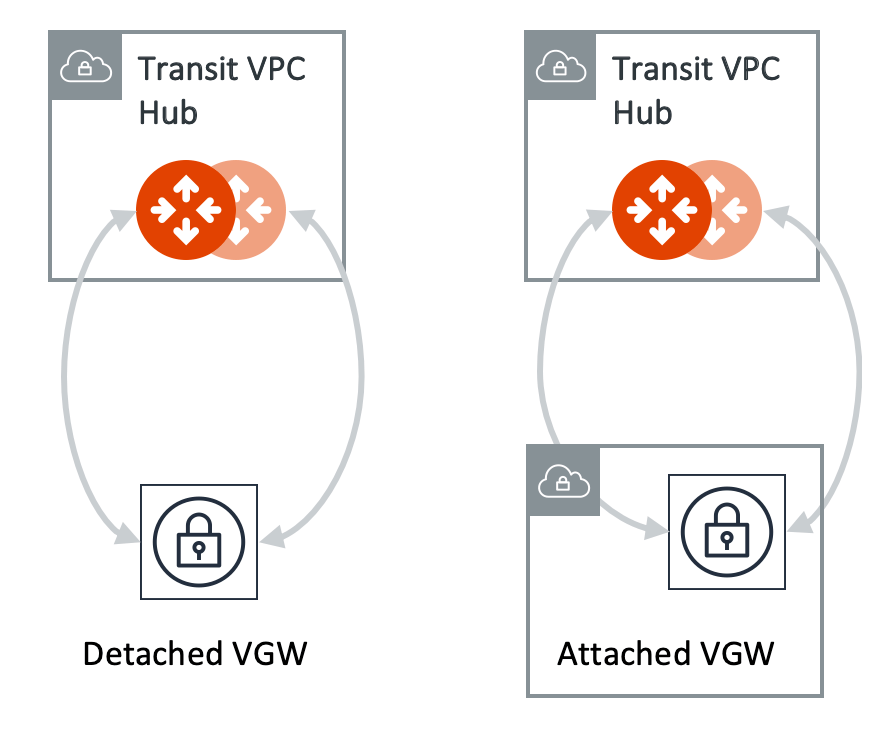
Aviatrix supports two types of connections: Detached VGW and Attached VGW.
The VGW should not be attached to the Transit VPC or VNet.The VGW can be attached to a VPC or VNet in a different AWS account in a
different region.
This document describes the workflow to connect an Aviatrix Transit Gateway to
an AWS Virtual Private Gateway (VGW).The procedure below assumes the AWS VGW is already deployed in the Transit VPC.To connect the Transit Gateway to AWS VGW (VPN Gateway):
In Aviatrix CoPilot, go to Networking > Connectivity > External Connections
(S2C) tab.
From the + External Connection dropdown menu, select AWS Virtual
Gateway.
Enter the following values:
Field
Description
Name
A name to identify the connection to the VGW.
Local Gateway
The Transit Gateway to connect to the VGW.
Local ASN
The BGP AS Number the Transit Gateway will use to exchange routes with the VGW.
VGW Account Name
The name of the AWS access account with which the VGW was created.
VGW Region
The AWS region where the VGW is located.
VGW ID
The unique identifier for the VGW.
Manual CIDR Approval
This is Off and disabled by default unless the Local Gateway you select has Manual Learned CIDR Approval turned On for Connection Level. Then it is On by default (not editable).
Click Save.
The new AWS VGW connection appears in the table.It takes a few minutes for the VPN connection to come up and routes from VGW to
be propagated. When the IPsec tunnel with a VGW is up, the Controller admin
should receive an email notification.If you log in to the AWS Console and select service VPC in the region where
the VGW is, you should see that the Customer Gateway and VPN Connections have
been created. Do not delete or modify them from AWS Console. These resources are
deleted if you disconnect the VGW.
You can check the tunnel connection between the AWS VGW and the Transit Gateway
from Diagnostics > Cloud Routes > BGP Info. Expand the Transit Gateway in
the list and check that the Status column shows Established.If some external connections for the selected Transit Gateway are Not
Established, the overall BGP Status for the Transit Gateway is Partially
Established.