Creating a Site2Cloud Connection
- Launch a Spoke or Transit Gateway in the subnet of VPC/VNet-AVX (public subnet in AWS, GCP, or OCI). Make note of the Gateway’s public IP address (35.161.77.0 in this example).
- Navigate to Networking > Connectivity > External Connections (S2C) and click Add New to create a Site2Cloud connection using the values for one of the below options (for either you can select either PSK or certificate-based authentication).
-
Substitute the following values:
- Local Gateway: select the Aviatrix Gateway created above
- Remote Device Type: Generic (or Sonicwall if your version of Controller is lower than Controller version 6.7. If using a higher Controller version, only select Generic or Aviatrix).
- Remote Device IP: Public IP of Sonicwall (66.7.242.225 in this example)
- Remote Subnet CIDR(s): 10.16.100.0/24 (on-prem network CIDR)
- Local Subnet CIDR(s): 10.0.0.0/16
- Pre-Shared Key is optional; it is auto-generated if not entered
Creating Address Objects for the VPN subnets
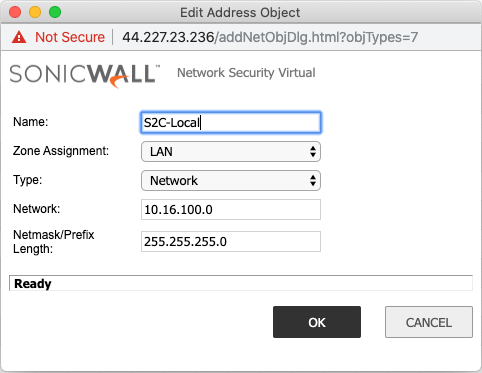
In the Sonicwall UI, go to Network > Address Objects > click Add.Creating an Address Object for the Local Network
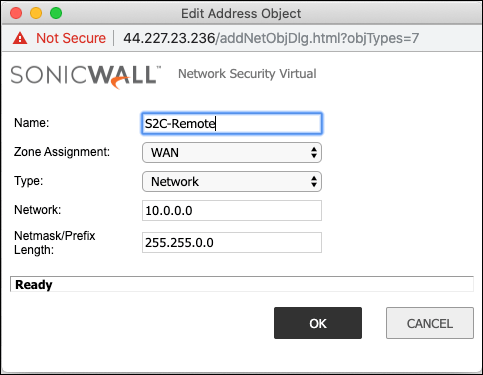
Creating an Address Object for the Cloud Network
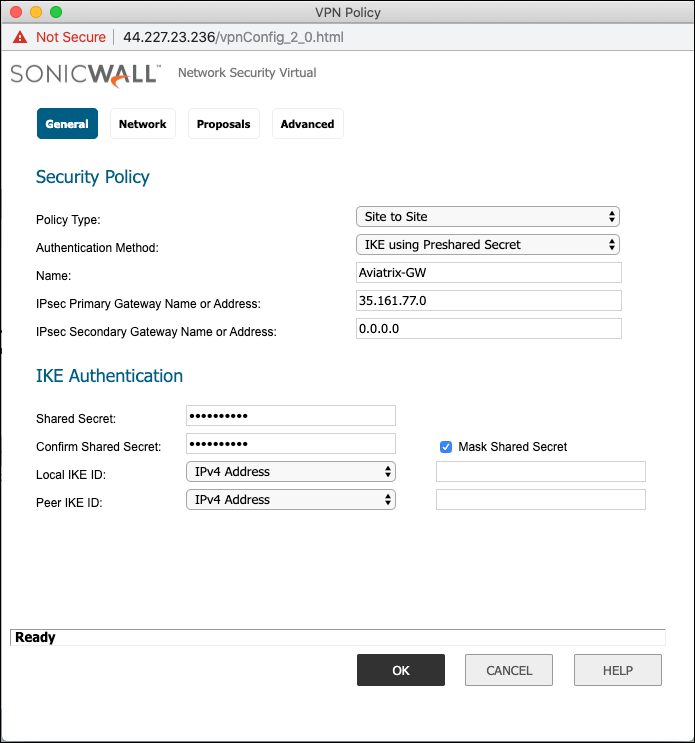
Configuring the VPN Tunnel
- Navigate to VPN > Settings > click Add.
-
On the General tab fill in the following fields:
Assigning the Local and Remote Address Objects to the Tunnel
- Select the Network tab and select the Address objects created above.
- Choose local network from list: e.g. Site2Cloud-local.
-
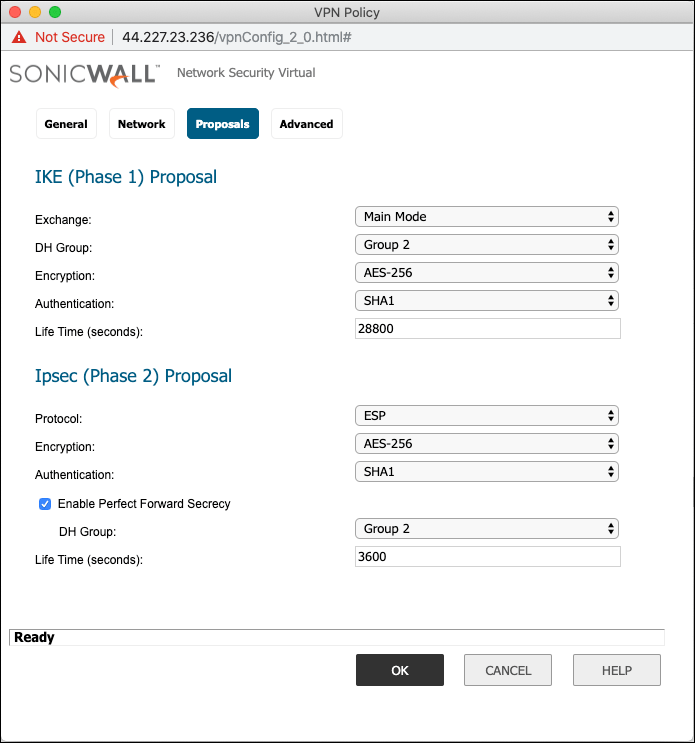
Select the Proposals tab and set the IKE and IPsec values.
IPsec (Phase 2) Proposals
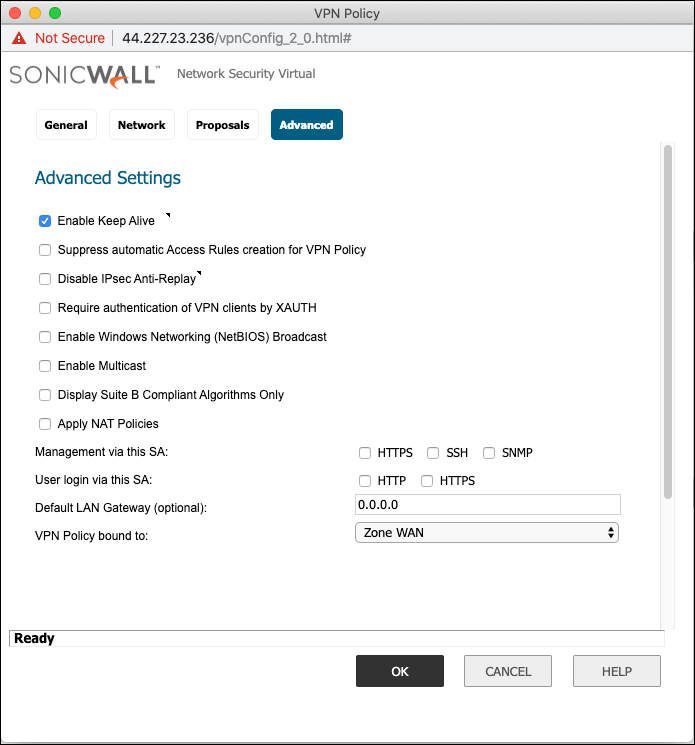
If the Secondary Peer IP is configured, then Peer IKE ID must be left blank or
else failover will not work properly.
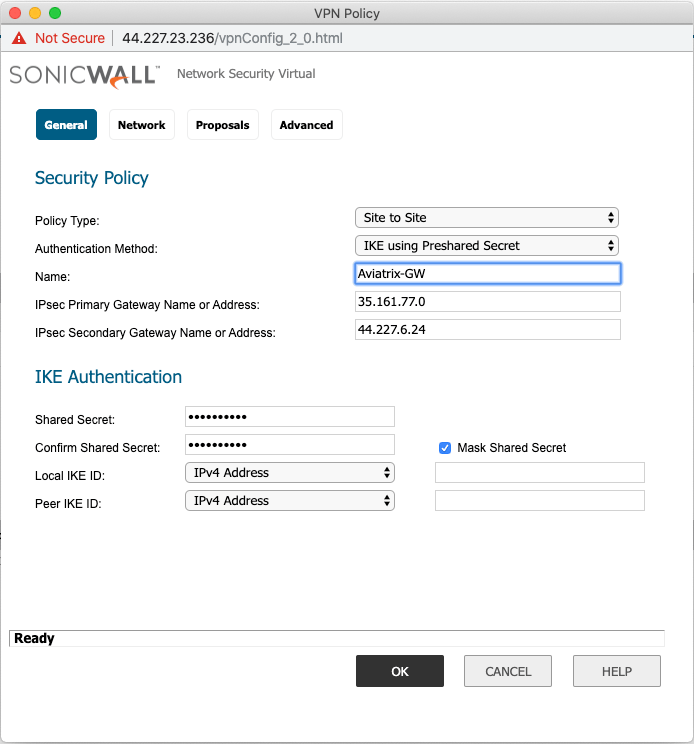
Advanced Settings
- Click the Advance tab.
- Mark the Enable Keep Alive checkbox.
-
Click OK to save.