

Connection Mode is only available for Transit Gateways. BGP Spoke Gateways
only support Gateway Mode.
Enabling Gateway Learned CIDR Approval
To set an approval process for the dynamically learned CIDRs on the Transit or Spoke Gateway, in Aviatrix CoPilot:- Go to Cloud Fabric > Gateways > Transit Gateways or Spoke Gateways tab, a table of gateways and their details appears.
- In the table, click the gateway name to enable learned CIDR approval.
- Go to the gateway’s Settings tab and expand Border Gateway Protocol (BGP) section.
-
Locate the Manual Learned CIDR Approval card and set Manual Approval
toggle to On.
If the Manual Approval toggle is set to Off, all learned routes on the gateway from its remote peer are approved.
- To approve learned CIDRs for all BGP connections on the Transit Gateway or Spoke Gateway, select Gateway Level. * To approve learned CIDRs for a specific BGP connection on the Transit Gateway, select Connection Level. An On External Connections dropdown menu appears.
Connection Level is only available for Transit Gateways. BGP Spoke Gateways only support Gateway Level.- From the On External Connections dropdown menu, select one or more BGP connections to enable learned CIDR approval. * Click Save.
Approving Learned CIDRs in CoPilot
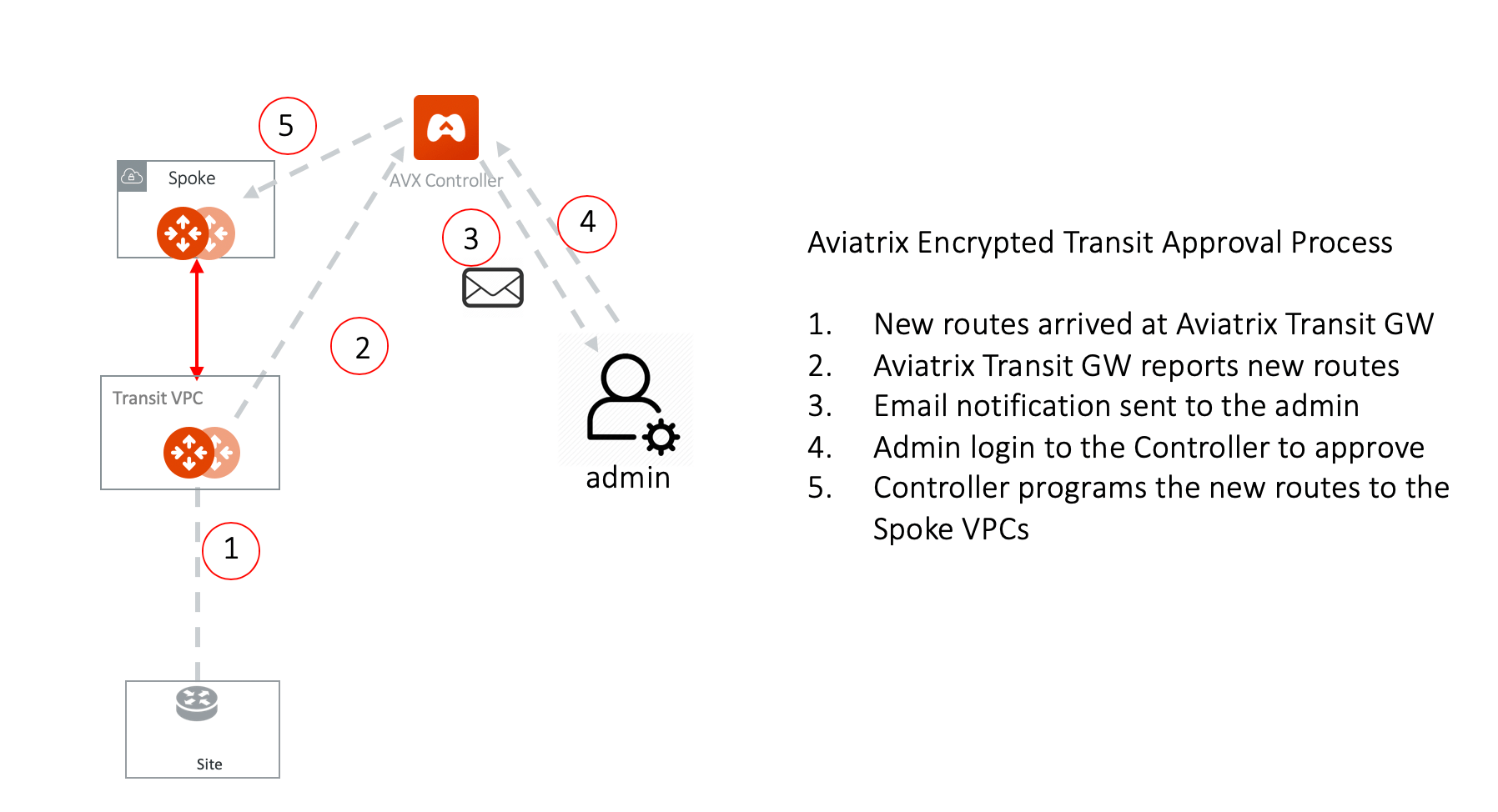
When Gateway Learned CIDR Approval is enabled, an email notification is sent to the Aviatrix Controller administrator to approve the learned CIDRs. On approval the learned CIDRs are propagated to the Spoke VPC or VNet route table.Approving Learned CIDRs Enabled for a Gateway
The following are the types of approval for a gateway:- Manual Approval: All learned CIDRs from all BGP connections on the gateway require approval.
- Pre-Approval: You can add one, multiple, or a range of CIDRs to a pre-approved CIDRs rule. Any learned CIDR that matches a pre-approved CIDR in the rule is automatically approved and propagated to the Spoke VPC or VNet route table without requiring manual approval.
Manual Approval
For Manual Approval of the learned CIDR, in Aviatrix CoPilot:- Go to Cloud Fabric > Gateways > Transit Gateways or Spoke Gateways tab, a table of gateways and their details appears.
- In the table, click the gateway name to approve CIDRs.
-
Click the Route Approval tab. A table of learned CIDRs appears.
The Route Approval tab only appears for a gateway if the Manual Approval toggle is set to On for the gateway.
- In the table, select the CIDRs and click + Approval Rules.
- To use the Free Range Routing (FRR) syntax, set the FRR Syntax toggle to On. See FRR Syntax for more information.
- To add CIDRs using a relationship operator between a Base CIDR and Prefix Length instead of using FRR syntax, set the FRR Syntax toggle to Off.
- Click +Rule. A new row appears in the Create Approval Rules table.
- In the new row, enter the Base CIDR, select the relationship operator, and enter the Prefix Length.
- Click Approve.
The CIDRs learned from the remote peer a approved.
Pre-Approval
For Pre-Approval of the learned CIDRs:- Go to Cloud Fabric > Gateways > Transit Gateways or Spoke Gateways tab, a table of gateways and their details appears.
- In the table, click the gateway name to approve CIDRs to propagate.
- Click the Route Approval tab. A table of learned CIDRs appears.
- Click Approval Rules.
- Click + Approval Rule. The Create Approval Rules dialog appears.
- Set the FRR Syntax toggle to On to use the Free Range Routing (FRR) syntax. See FRR Syntax for more information.
- To add CIDRs using a relationship operator between a Base CIDR and Prefix Length instead of using FRR syntax, set the FRR Syntax toggle to Off.
- Click +Rule. A new row appears in the Create Approval Rules table.
- In the new row, enter the Base CIDR, select the relationship operator, and enter the Prefix Length.
- Click Save Draft.
- Click Commit.
The added CIDRs are pre-approved when learned from the remote peer.
Approving Learned CIDRs Enabled for a BGP Connection
The following are the types of approval for an external connection:- Manual Approval: All learned CIDRs from all BGP connections on the external connection require approval.
- Pre-Approval: You can add one, multiple, or a range of CIDRs to a pre-approved CIDRs rule. Any learned CIDR that matches a pre-approved CIDR in the rule is automatically approved and propagated to the Spoke VPC or VNet route table without requiring manual approval.
Manual Approval
For Manual Approval of the learned CIDR, in Aviatrix CoPilot:- Go to Networking > Connectivity > External Connections (S2C) tab. A table of external connections and their details appears.
- Click the connection name to approve CIDRs.
-
Click the Route Approval tab, a table of learned CIDRs appears.
The Route Approval tab only appears for the connection if the Manual Learned CIDR Approval toggle is set to On for the connection.
- In the table, select the CIDRs and click + Approval Rules.
- Set the FRR Syntax toggle to On to use the Free Range Routing (FRR) syntax. See FRR Syntax for more information.
- To add CIDRs using a relationship operator between a Base CIDR and Prefix Length instead of using FRR syntax, set the FRR Syntax toggle to Off.
- Click +Rule. A new row appears in the Create Approval Rules table.
- In the new row, enter the Base CIDR, select the relationship operator, and enter the Prefix Length.
- Click Save Draft.
- Click Commit.
The CIDR learned from the remote peer is approved.
Pre-Approval
For Pre-Approval of the learned CIDRs:- Go to Networking > Connectivity > External Connections (S2C) tab. A table of external connections and their details appears.
- Click the connection name to approve CIDRs.
- Click the Route Approval tab.
- Click Approval Rules.
- Click + Approval Rule. The Create Approval Rules dialog appears.
- Set the FRR Syntax toggle to On to use the Free Range Routing (FRR) syntax. See FRR Syntax for more information.
- To add CIDRs using a relationship operator between a Base CIDR and Prefix Length instead of using FRR syntax, set the FRR Syntax toggle to Off.
- Click +Rule. A new row appears in the Create Approval Rules table.
- In the new row, enter the Base CIDR, select the relationship operator, and enter the Prefix Length.
- Click Save Draft.
- Click Commit.
The added CIDRs are pre-approved when learned from the remote peer.
FRR Syntax
Use Free Range Routing (FRR) syntax with “ge” (greater than or equal to) and “le” (less than or equal to) to match a range of prefixes. This approves multiple routes without needing to specify each exact match. For example,10.1.0.0/16 ge 16 le 24 matches any prefix within the 10.1.0.0/16
block that has a subnet mask between /16 and /24, where /16 and /24 are
inclusive.
Special Cases
0.0.0.0/0 le 32matches all CIDRs.0.0.0.0/0 ge 0only matches the exact default route.