- Aviatrix Transit Gateway Peering
- Transit Network Design Patterns
- Multicloud Transit Network Workflow Instructions (AWS/Azure/GCP/OCI)
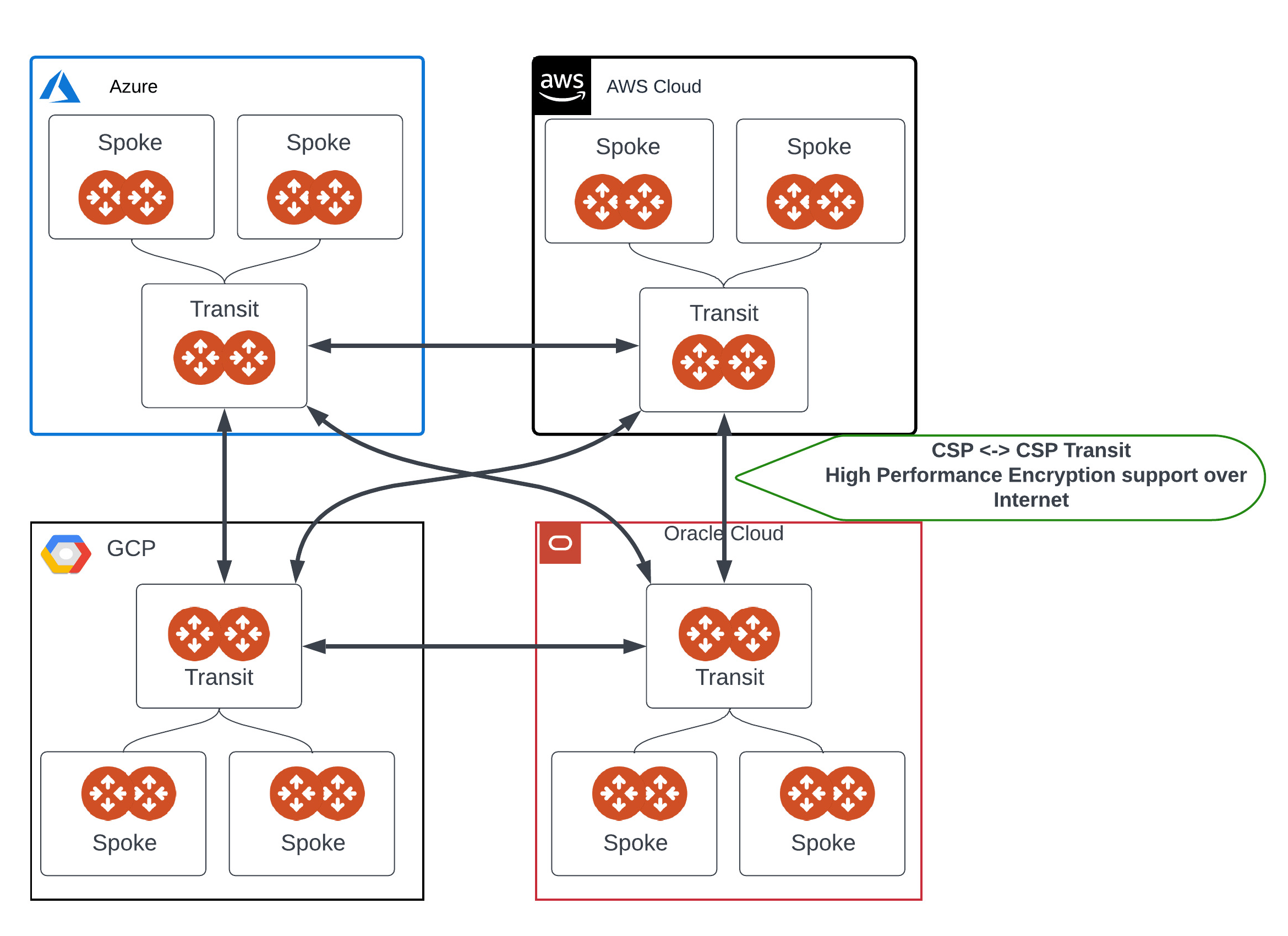
Topology
Prerequisites
- Upgrade Aviatrix Controller to the latest version. Refer to Upgrading the Aviatrix Cloud Network Platform .
- Create and launch the Aviatrix Transit Gateways with HA and High Performance Encryption Mode enabled in the clouds where you want to establish peered transit connection and attach the Spoke Gateways to the Transit Gateways. Refer to Multicloud Transit Network Workflow Instructions (AWS/Azure/GCP/OCI) .
- The Aviatrix Transit Gateway peering over public network solution requires HPE (High-Performance Encryption). Aviatrix Transit Gateways must have HPE enabled when the Transit Gateway is created for peered connection over the internet.
- This solution requires ActiveMesh 2.0. To migrate to ActiveMesh 2.0, refer to Migrating to ActiveMesh 2.0 .
Establishing Transit Gateway Peering over Public Internet
Before you begin, review Prerequisites for transit gateway peering over public network. The steps to establish transit gateway peering across cloud service providers over the public network are as follows:- CoPilot UI
- Terraform
To establish transit gateway peering across cloud service providers over
the public network using the CoPilot UI, follow these steps:The Transit Gateways are now peered together.
1
Navigate to the Transit Gateways
In Aviatrix CoPilot, go to Cloud Fabric > Gateways > Transit Gateways.
2
Edit the Transit Gateway
Click the edit  icon next to one of the Transit Gateways created in this workflow.
icon next to one of the Transit Gateways created in this workflow.3
Select the Transit Gateways to Peer
In the Attach To Transit Gateways field, select the Transit Gateways to peer with your selected Gateway.
4
Save the Configuration
Click Save.
Viewing the Peering Connections
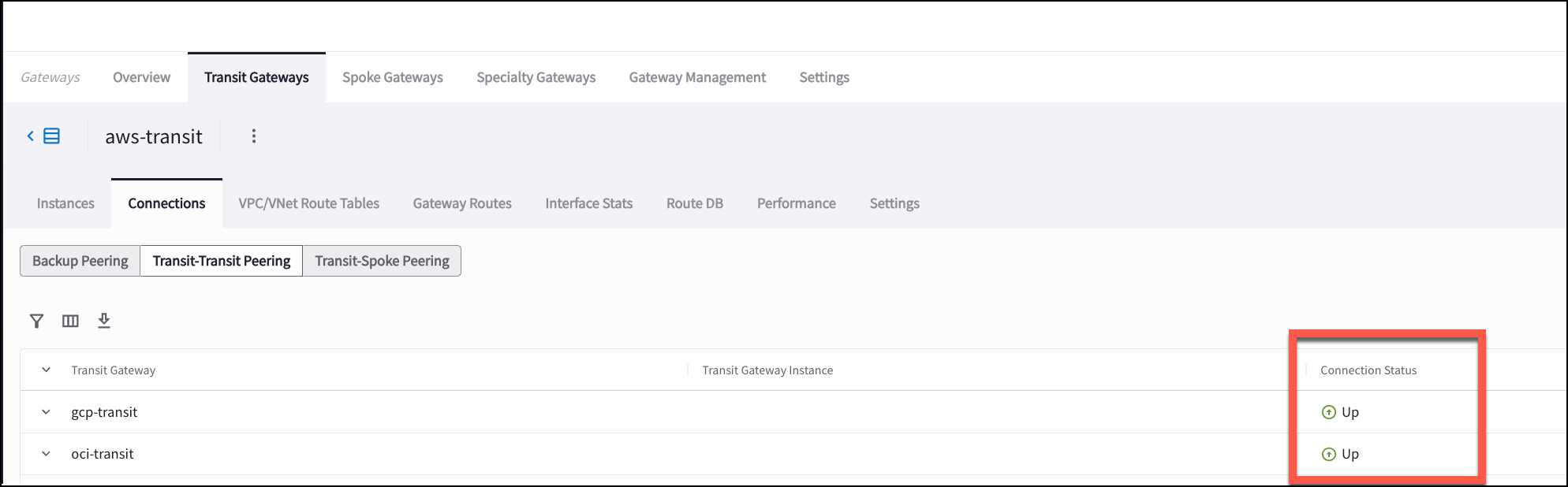
You can view the peering connections by clicking the name of the Transit Gateway, clicking the Attachments tab, and then clicking Transit-Transit Peering. This tab also displays the Connection Status for the peered Gateways. The Status may take a few minutes to update.