

Introduction
The purpose of this document is to provide the instructions for tuning network configurations for sub-10 seconds failover time when network address ranges on-prem and cloud are overlapping. The scenario is described in the following diagram.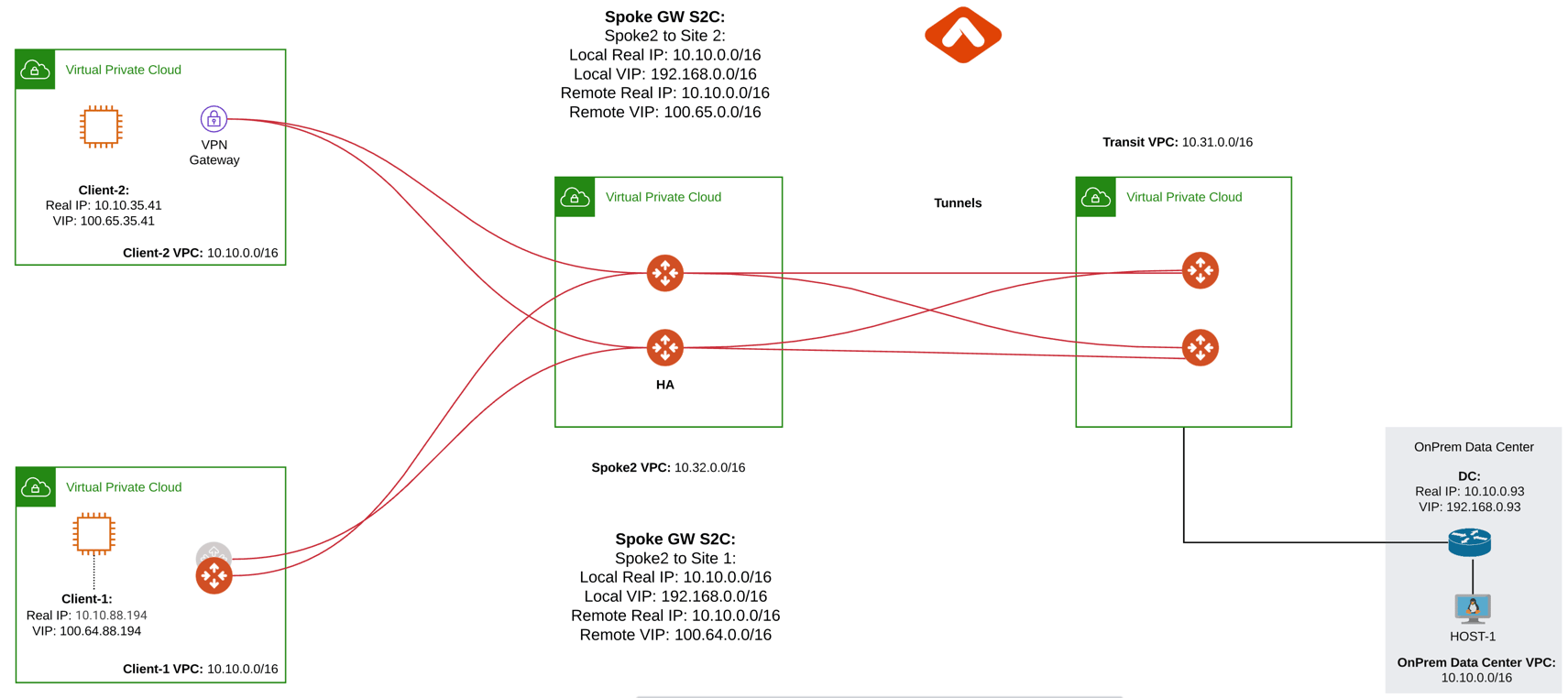
Configuration Steps
This example uses Aviatrix Gateway on client site to simulate fast convergence
environment
Step 1: Follow the Multicloud Transit workflow to launch gateways
Log in to the Controller console, go to Multi-CLOUD TRANSIT. Follow step 1, step 4 and step 6 respectively to launch transit and spoke gateways, and attach spoke gateways to transit. Create VPN tunnel between Transit Gateway and On-prem.Step 2: Create a Site2Cloud tunnel between Spoke Gateway and Client-1
2.1 Configure S2C from Spoke Gateway to Client-1
Go to Controller Console → Site2Cloud → Setup. Click “+Add New”. Fill the form and click OK. Select “Mapped” for the Connection Type field.2.2 Configure S2C from Client Side
Go to Controller Console → Site2Cloud → Setup. Click “+Add New”. Fill the form and click OK. Select “unmapped” for the Connection Type field.Step 3: Configure global parameters
Go to Controller Console → Settings → Advanced- Click on “Tunnel” tab and change “Status Change Detection Time” and save settings.
- Click on “Keepalive” tab and modify Keepalive Template Configuration
Step 4: Configure site2cloud parameters
Go to Aviatrix Controller’s Console → Site2Cloud → Setup.4.1 Spoke Gateway Side
Select Spoke Gateway VPC, spoke gateway to client site2cloud connection and click “Edit”- Make sure only one tunnel is UP and HA status Active-Standby
- DPD Timer is enabled, configure DPD timers as shown below and click “Save and Apply”.
- Forward Traffic to Transit Gateway is enabled
- Event Triggered HA is enabled
4.2 Client Side
Select Client VPC, client to spoke site2cloud connection and click “Edit”- Make sure only one tunnel is UP and HA status Active-Standby
- DPD Timer is enabled, configure DPD timers as shown below and click “Save and Apply”.
- Active Active HA is disabled
- Event Triggered HA is enabled