> ## Documentation Index
> Fetch the complete documentation index at: https://docs.aviatrix.com/llms.txt
> Use this file to discover all available pages before exploring further.
# Back Up and Restore Your Controller on CoPilot UI
> Back up and restore Aviatrix Controller configuration using the CoPilot UI.
Creating regular backups of your Aviatrix Controller is essential to ensure the
security and integrity of your network configurations.
This section discusses how to back up Controller Configuration and restore the
backups on CoPilot UI.
Starting from CoPilot version 3.14, you have the option to back up and restore your Aviatrix Controller directly from the CoPilot UI.
If you are using CoPilot version 3.13 or earlier, you can perform the Aviatrix
Controller backup and restore directly from the Controller UI. See
Back up and Restore Your Controller on Controller UI
for more details.
## Check Your Controller Version Compatibility
Starting from Controller v7.0, you can back up and restore Controller from
CoPilot UI.
See
Version Requirements for Controller and CoPilot Backup and Restore
for more details.
## Configure External Storage
You must configure external storage before you back up and restore Controller
Configuration.
1. Log into your CoPilot UI.
2. From **Settings** > **Maintenance** > **Back Up & Restore** > **Manage
Backups** > **External Storage**, click **Configure**.
3. Select the appropriate **Cloud Type** for the **Location**.
* For AWS:
* Select the **Account** name.
* Populate the **Bucket Name**.
* For GCP
* Select the **Account** name.
* Populate the **Bucket Name**.
* For OCI:
* Select the **Account** name.
* Select a region.
* Populate the **Bucket Name**.
* For Azure Arm/Azure Government/ARM China/AWS China/AWS GovCloud
* Select the **Account** name.
* Select a **Region**, **Storage Name**, and **Container Name**.
4. Click **Save** to create an association with an external storage.
## Back Up Your Controller Configuration on CoPilot UI
To back up your Aviatrix Controller Configuration on CoPilot UI, perform the
following steps:
1. Log into your CoPilot UI.
2. From **Settings** > **Maintenance** > **Back Up & Restore** > **Back Up
Controller**, click **Back Up Now** to initiate the backup process.
3. (Optional) Click the caret (^) next to the **Backup Now** button and select
**Edit Configuration** to modify the automatic Backup schedule. See
[Modify Automatic Backup Schedule for Controller](#modify-backup-schedule)
for more details.
CoPilot will create a backup file containing all your Controller configurations,
including network settings, gateways, and security policies. It is recommended
to store the backup file in a secure location for future use.
### Modify Automatic Backup Schedule for Controller The Aviatrix CoPilot UI
allows you to customize the automatic backup schedule for your Aviatrix
Controller. Once you have modified the automatic backup schedule, the CoPilot UI
will update the backup settings accordingly. This allows you to customize the
backup frequency and timing to align with your specific requirements.
To modify the automatic backup schedule for Controller, perform the following
steps:
1. Log into your CoPilot UI.
2. From **Settings** > **Maintenance** > **Back Up & Restore** > **Back Up
Controller**, click the caret (^) next to **Backup Now** and select **Edit
Configuration** to modify the backup schedule.
3. In the **Modify Automatic Backup Schedule for Controller** dialog, choose the
desired frequency for the backups. You can select either daily or weekly
backups.
4. Specify the time when you want the backups to be performed. Note that the
time is in UTC format.
5. Enter the maximum number of backups that to be saved to the external storage.
The default value is set to 1.
6. Click **Save** to save your changes.
## Restore your Controller Configuration on CoPilot UI
Restoring your Aviatrix Controller configuration from a backup is a crucial step
in recovering your network settings in the event of a failure or when migrating
to a new Controller.
1. Go to **Settings** > **Maintenance** > **Back Up & Restore** > **Restore
Controller**, click **Restore**.
2. Select the appropriate *Cloud Type* for the *Location*.
3. Enter the access key, secret key, and bucket name that used for the CoPilot
backup.
4. Select the file name of the backup file.
5. Click *Save*.
Note that restoring your Controller configuration will overwrite the existing
configuration on your Controller. Therefore, ensure that you have selected the
correct backup and have a backup of any recent changes or configurations made
after the backup.
### Restore Notes
* Make sure your Controller backup and Controller restore take place in the same
CSP (Cloud Service Provider): AWS, Azure, or GCP and share the same basic
configuration. For example, an AWS backup can only restore to another AWS
Controller.
* Note that in the case of AWS backups, an AWS Controller set up with IAM roles
cannot backup and restore to an AWS Controller set up with a secret key, or
vice versa.
* Aviatrix only supports restoring Controller backup to a brand new Aviatrix
Controller.
### Initialize a New Controller
If you are starting from a new Controller, follow these steps to get started:
1. Log into the Controller with the *admin* username and the default password.
2. Follow the initial steps to get the Controller up and running:
1. Shut down the older Controller.
2. Transfer the IP address to the new Controller.
3. Proceed to configure the new Controller by entering an email address.
4. Change your admin password.
5. Enter or skip the proxy configuration.
6. Allow the upgrade to run.
### Restore Controller Configurations on CoPilot UI
Follow the steps below to restore your Controller configuration on CoPilot UI:
1. Log into your CoPilot UI.
2. From **Settings** > **Maintenance** > **Back Up & Restore** > **Restore
Controller**, click **Restore**.
3. On the "Restore Controller" page:
* Select a *Cloud Type* for the *Location*:
* For AWS: \*\* If you would like to use an existing account, please make sure
you create one Access Account only with the *exact* Access Account Name that
was used in your previous Controller. Toggle the \*Use Cloud Account Name\*
button to on and select the account. Otherwise, enter an *Access Key* and
*Secret Key*.
\*\* Enter the *Bucket* and *File Name* of the file to restore. The file name
can be obtained from the external storage that is configured to store your
backups. It may display as "CloudN\_\\_save-cloudx-config.enc".
* For Azure: \*\* Enter the *Subscription ID* and *Directory ID*. \*\* Enter the
*Application Client ID* and *Application Client Secret*. \*\* Enter the
*Storage Name*, *Container Name,* and *File Name* of the file to restore. The
file name can be obtained from the external storage that is configured to
store your backups. It may display as "CloudN\_\\_save-cloudx-config.enc".
* For GCP:
\*\* Enter the *Bucket Name.* \*\* Upload the *GCP Project Credentials*. \*\* Enter
the *File Name* of the file to restore. The file name can be obtained from the
external storage that is configured to store your backups.
For ARM China: \*\* Enter the *Subscription ID* and *Directory ID*. \*\* Enter the
*Application Client ID* and *Application Client Secret*. \*\* Enter the *Storage
Name*, *Container Name,* and *File Name* of the file to restore. The file name
can be obtained from the external storage that is configured to store your
backups. It may display as "CloudN\_\\_save-cloudx-config.enc".
* For OCI: \*\* If you would like to use an existing account, make sure you create
one Access Account only with the *exact* Access Account Name that was used in
your previous Controller. Toggle the **Use Cloud Account Name** button to on
and select the account. Otherwise, enter a *Tenancy OCID*, *User OCID*,
*Compartment OCID*. And upload an *OCI Private Key*. \*\* Enter the *Bucket*,
*Region* and *File Name* of the file to restore. The file name can be obtained
from the external storage that is configured to store your backups. It may
display as "CloudN\_\\_save-cloudx-config.enc".
4. Click **Save** to initiate the restoration process.
5. The restoration process will begin, and you will see a message indicating
that successfully downloaded a backup file.
Once the restoration is completed, you will receive a confirmation message
indicating the successful restoration of your Controller configuration.
Verify that your network settings and configurations have been restored
correctly by checking the functionality of your Aviatrix Controller.
AWS S3 allows uploaded backup files to be encrypted in the server side
for more secure storage. The encryption is all done in the AWS S3 server
side. This server side secure storage is in addition to the already
encrypted Aviatrix Controller backups.
Follow the steps below to enable AWS Encrypted backups:
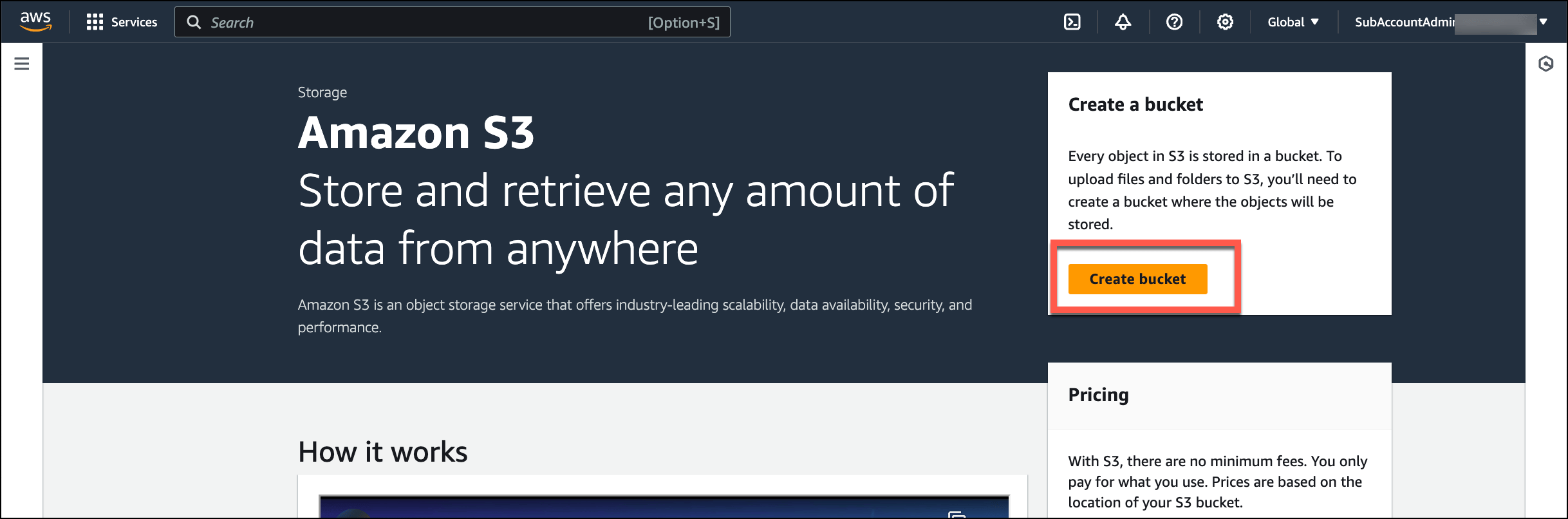
1. Create AWS S3 bucket.
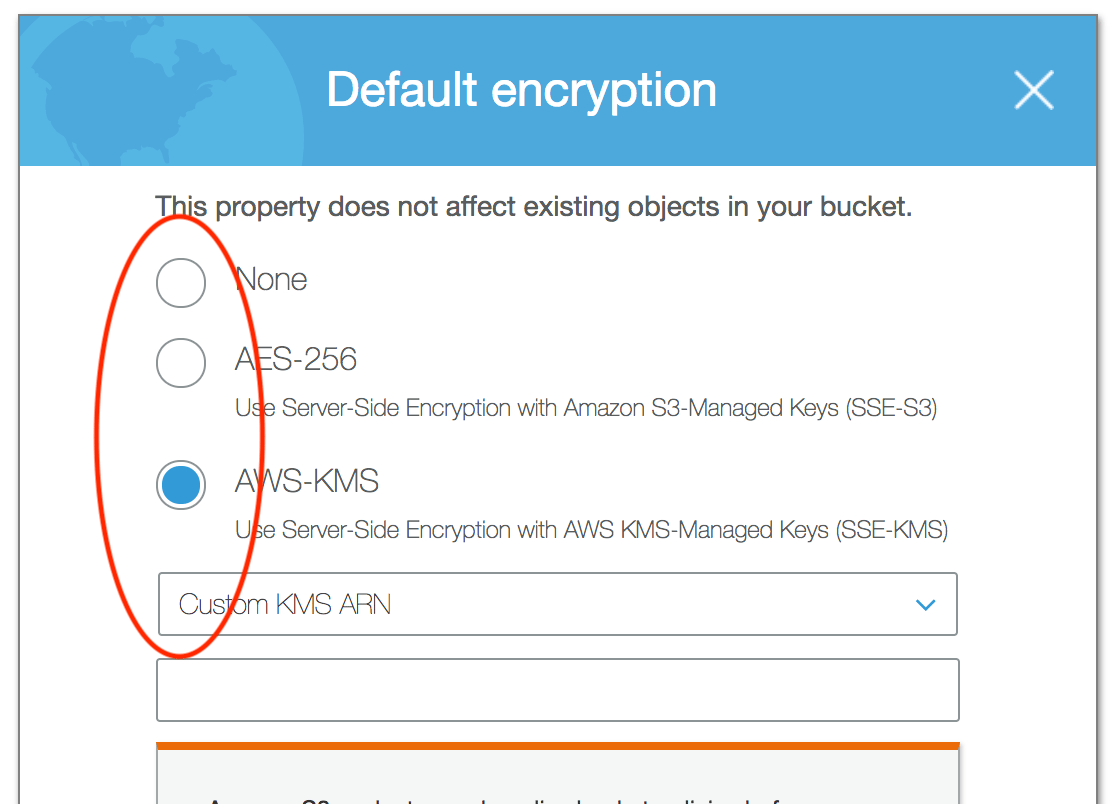
 2. After configuring other bucket properties, configure bucket server side encryption by selecting either **Server-side encryption with AWS Key Management Service keys (SSE-KMS)** or **Dual-layer server-side encryption with AWS Key Management Service keys (DSSE-KMS)**.
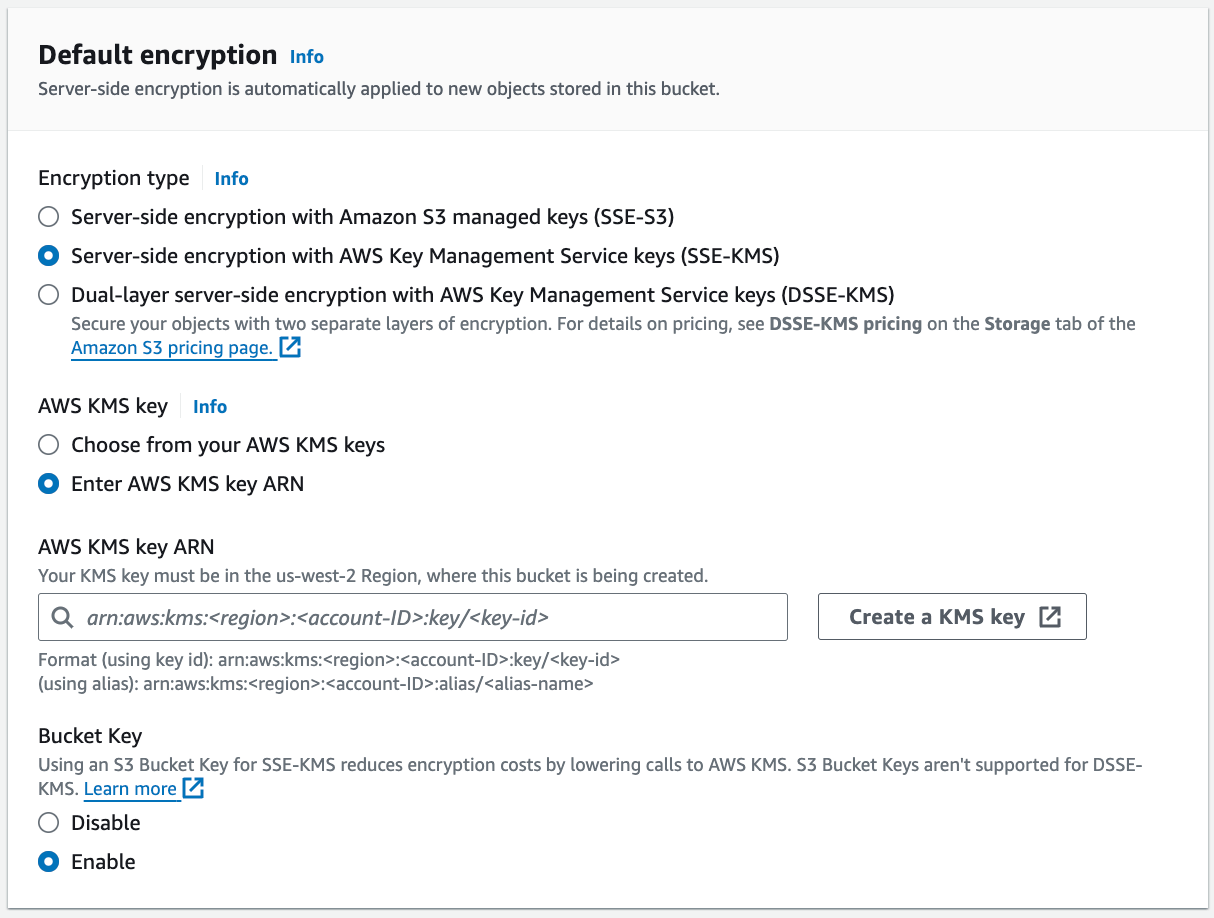
 3. Click **Create a KMS key** to create a new key. A separate tab opens where you can configure and save the key.
4. After the key is saved, go back to the Create bucket tab and enter the key in the **AWS KMS key ARN** field.
5. Click **Create bucket**.
Configure Azure Private Link for secure backups.
When using Azure Private Link for backups:
1. Ensure your Azure account has Private Link enabled.
2. Configure the storage account with Private Endpoint.
3. Update your backup settings to use the Private Link connection.
This documentation is built and hosted on [Mintlify](https://mintlify.com), a developer documentation platform.
3. Click **Create a KMS key** to create a new key. A separate tab opens where you can configure and save the key.
4. After the key is saved, go back to the Create bucket tab and enter the key in the **AWS KMS key ARN** field.
5. Click **Create bucket**.
Configure Azure Private Link for secure backups.
When using Azure Private Link for backups:
1. Ensure your Azure account has Private Link enabled.
2. Configure the storage account with Private Endpoint.
3. Update your backup settings to use the Private Link connection.
This documentation is built and hosted on [Mintlify](https://mintlify.com), a developer documentation platform.