> ## Documentation Index
> Fetch the complete documentation index at: https://docs.aviatrix.com/llms.txt
> Use this file to discover all available pages before exploring further.
# Installing Aviatrix Edge OS Using iDRAC Remote Console and ISO
> Install Aviatrix Edge OS on Dell hardware using iDRAC remote console and an ISO image.
This topic provides instructions for installing Aviatrix Edge OS on Dell
hardware by using iDRAC remote console and ISO.
If you prefer to use a USB installer to install Aviatrix Edge OS, follow the
instructions in
Installing Aviatrix Edge OS Using USB
.
These instructions require that a Dell iDRAC license is applied on the Dell
server, which would allow the operator to access the server's remote virtual
console and load virtual media. The license is typically applied at factory by
Dell, please choose enterprise iDRAC as described in Dell tech specs for
Aviatrix Edge.
This document does not cover user management for Dell iDRAC. You are
responsible to configure user access on the Dell server. You will need an
admin user or one with equivalent access to install Aviatrix Edge OS on the
server.
## 1. Prerequisites
Before you start to onboard and install the Edge OS on the edge device, make
sure these
prerequisite steps
are completed.
## 2. Onboard Edge Device onto Aviatrix Edge Platform
1. In Aviatrix CoPilot, go to **Cloud Fabric** > **Hybrid Cloud** > **Devices**
tab.
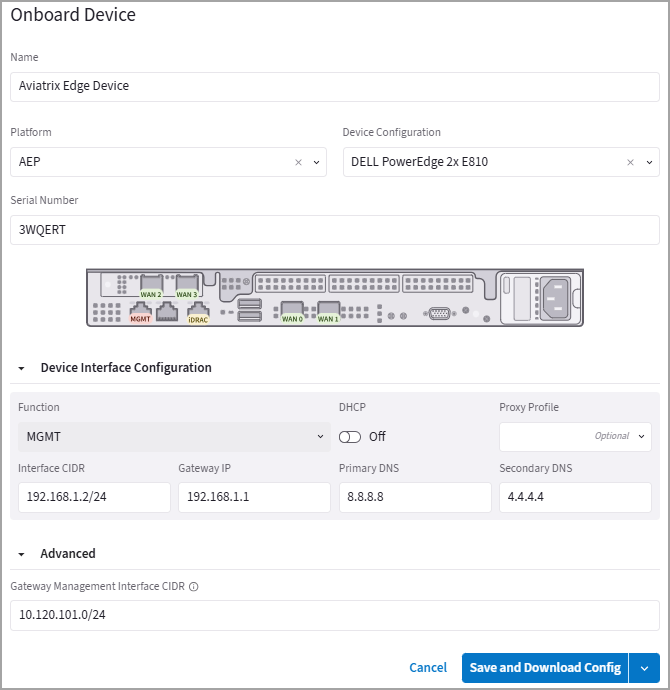
2. Click **Onboard Device**, then provide the following information.
| Field | Description |
| - | - |
| Name | A name to identify the edge device. |
| Platform | The Aviatrix Edge Platform Account where to onboard the device. |
| Device Configuration | Dell HW with single ethernet controller for Edge Spoke Gateway, select:
**DELL Poweredge 1x E810**
Dell HW with two ethernet controller for Edge Spoke or Transit Gateway, select:
**DELL Poweredge 2x E810** |
| Serial Number | The serial number of the edge device. |
3. Expand **Device Interface Configuration** and configure the device's
**Function MGMT** (Management) interface.
1. If you plan to use DHCP for the device Management interface, turn **DHCP**
toggle to **On**.
2. If you plan to configure a Static IP address for the device Management
interface, leave **DHCP** toggle to **Off**.
3. If **DHCP** is **Off**, enter the Static IP address for the Management
interface.
| Field | Description |
| - | - |
| Interface CIDR | The Static IP address of the Management interface. |
| Gateway IP | The Management Default Gateway IP address. |
| Primary DNS | The primary DNS server IP address. |
| Secondary DNS | (Optional) The secondary DNS server IP address. |
4. If you are using a proxy server to route internet traffic, from the **Proxy
Profile** dropdown menu, select the proxy profile to upload to the edge
device (see
Using a Proxy Profile on the Edge Device
).
5. Under **Advanced**, specify the Edge Management CIDR that will be used on the
Edge gateway interface. If a CIDR is not specified, the system auto assigns
10.100.101.0/24 CIDR range and assigns 10.100.101.2 IP address on the
interface.
If the auto assigned CIDR is used, ensure that this range does not overlap
with any other network.
 5. Save the configuration.
* When DHCP is selected for MGMT interface, click **Save**.
* When Static IP is selected for MGMT interface, from the **Save and Download
Config** drop-down menu, click **Save**.
This will download a **bootstrap-config.img** file (for example,
3QDDWX3-bootstrap-config.img). Your device will show up as **Provisioned** in
Copilot.
5. Save the configuration.
* When DHCP is selected for MGMT interface, click **Save**.
* When Static IP is selected for MGMT interface, from the **Save and Download
Config** drop-down menu, click **Save**.
This will download a **bootstrap-config.img** file (for example,
3QDDWX3-bootstrap-config.img). Your device will show up as **Provisioned** in
Copilot.
 6. If you need to change the management interface's configurations (from DHCP to
Static or vice versa), you can click Edit icon and update the configuration.
Save the changes you made to the device.
## 3. Install Aviatrix Edge OS on the Edge Device
Install Aviatrix Edge OS on the edge device.
1. Obtain the latest **iso** file published by Aviatrix from the
[Aviatrix Support site](https://support.aviatrix.com/downloads).
2. Download the latest, **production** Aviatrix Edge OS **.iso** file to a
jumphost which is in the same network as the Dell server. The jumphost
enables a fast upload of the ISO file to the server as compared to getting it
over the internet. If the server has fast internet access, you can mount the
ISO file from your laptop.
If the ISO file is fetched over the internet and if the download speed is
poor, it may increase the overall installation time. It is recommended that
the file be downloaded to a laptop/jumphost in the same network as the server.
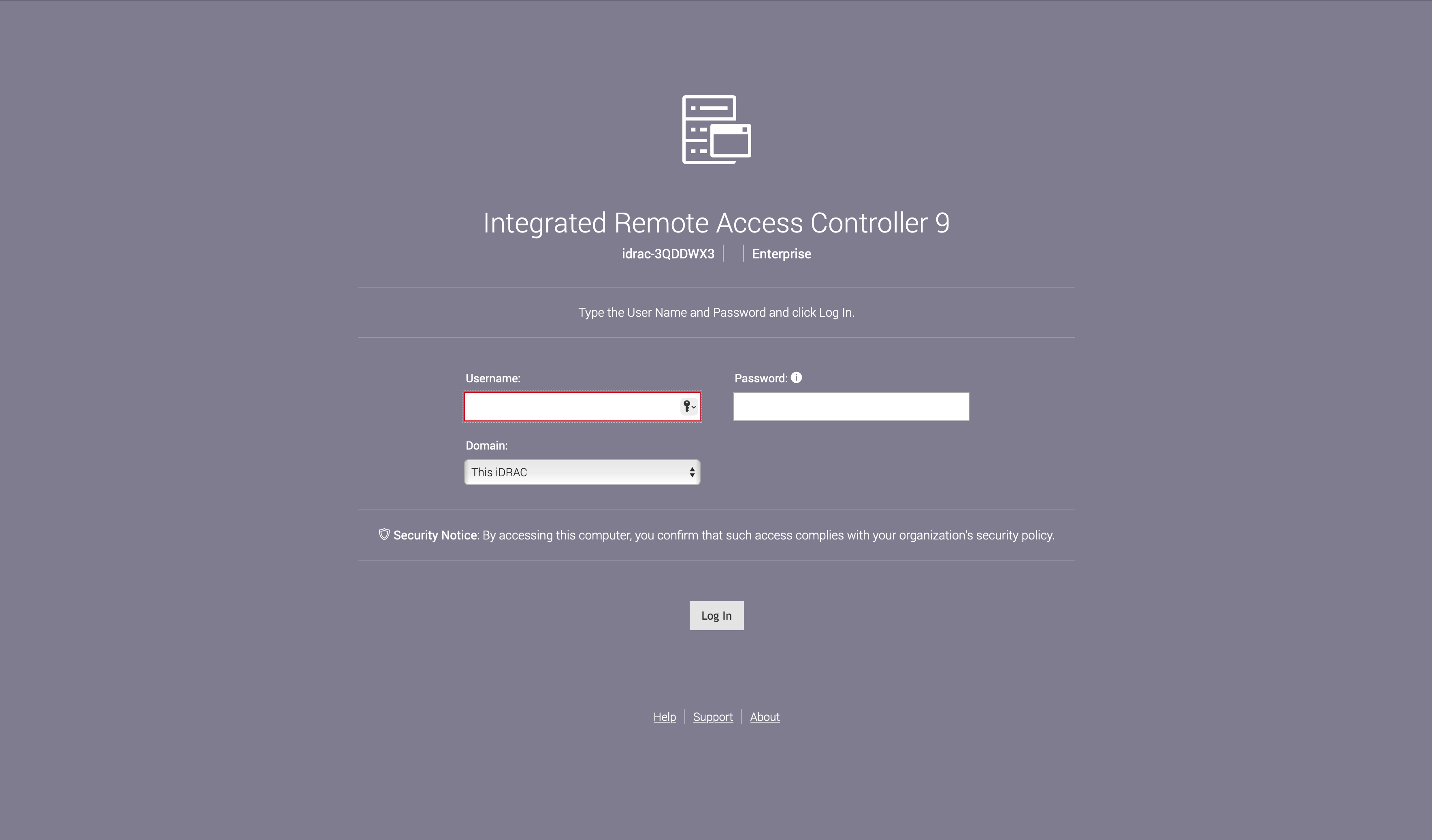
3. From the jumphost, login to the Dell server's iDRAC UI.
6. If you need to change the management interface's configurations (from DHCP to
Static or vice versa), you can click Edit icon and update the configuration.
Save the changes you made to the device.
## 3. Install Aviatrix Edge OS on the Edge Device
Install Aviatrix Edge OS on the edge device.
1. Obtain the latest **iso** file published by Aviatrix from the
[Aviatrix Support site](https://support.aviatrix.com/downloads).
2. Download the latest, **production** Aviatrix Edge OS **.iso** file to a
jumphost which is in the same network as the Dell server. The jumphost
enables a fast upload of the ISO file to the server as compared to getting it
over the internet. If the server has fast internet access, you can mount the
ISO file from your laptop.
If the ISO file is fetched over the internet and if the download speed is
poor, it may increase the overall installation time. It is recommended that
the file be downloaded to a laptop/jumphost in the same network as the server.
3. From the jumphost, login to the Dell server's iDRAC UI.
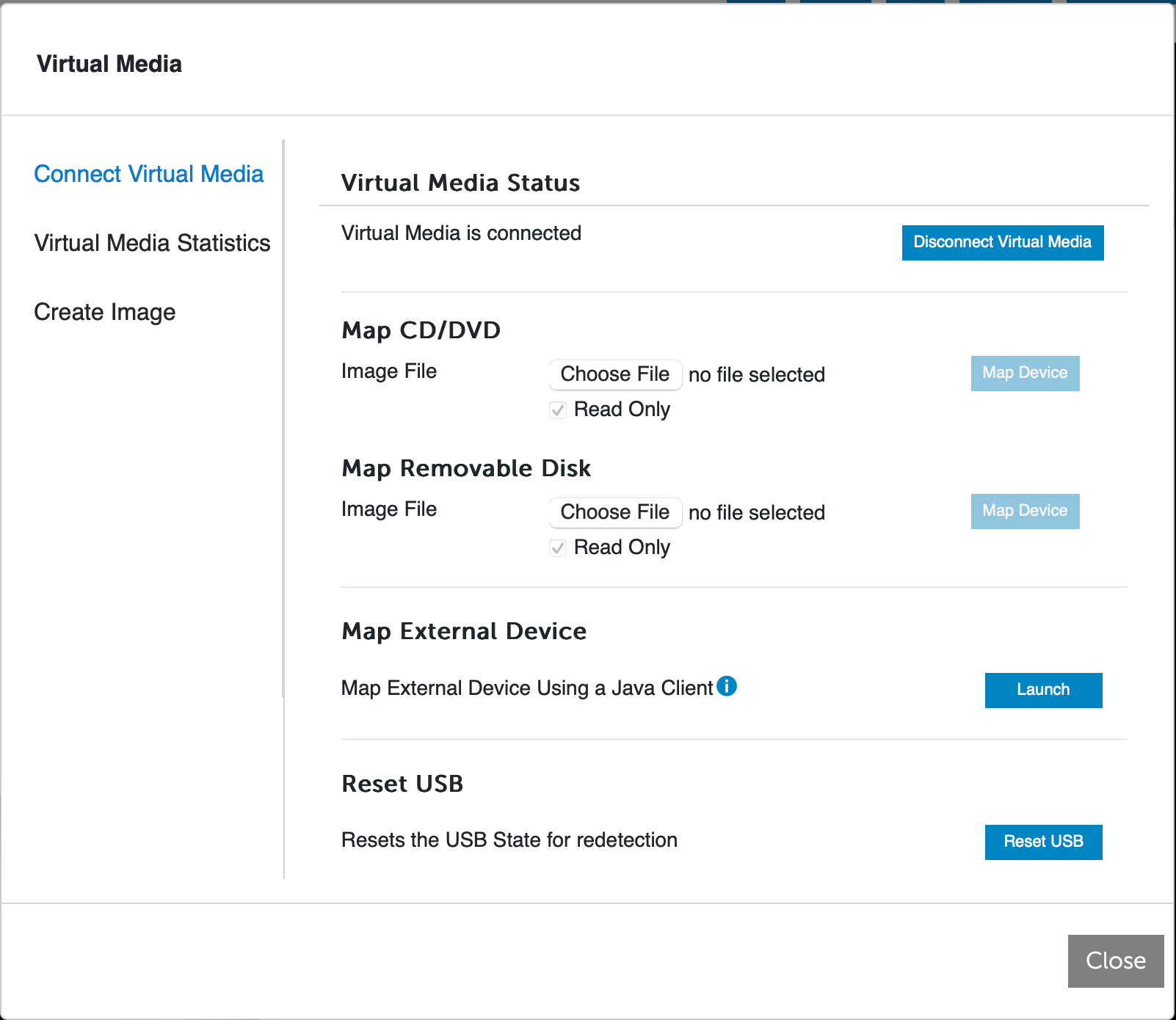
 4. Open the Virtual Console to the server. On the Virtual Console window, click
**Virtual Media > Connect Virtual Media > Connect Virtual Media**. Virtual
Media should show up as connected.
4. Open the Virtual Console to the server. On the Virtual Console window, click
**Virtual Media > Connect Virtual Media > Connect Virtual Media**. Virtual
Media should show up as connected.
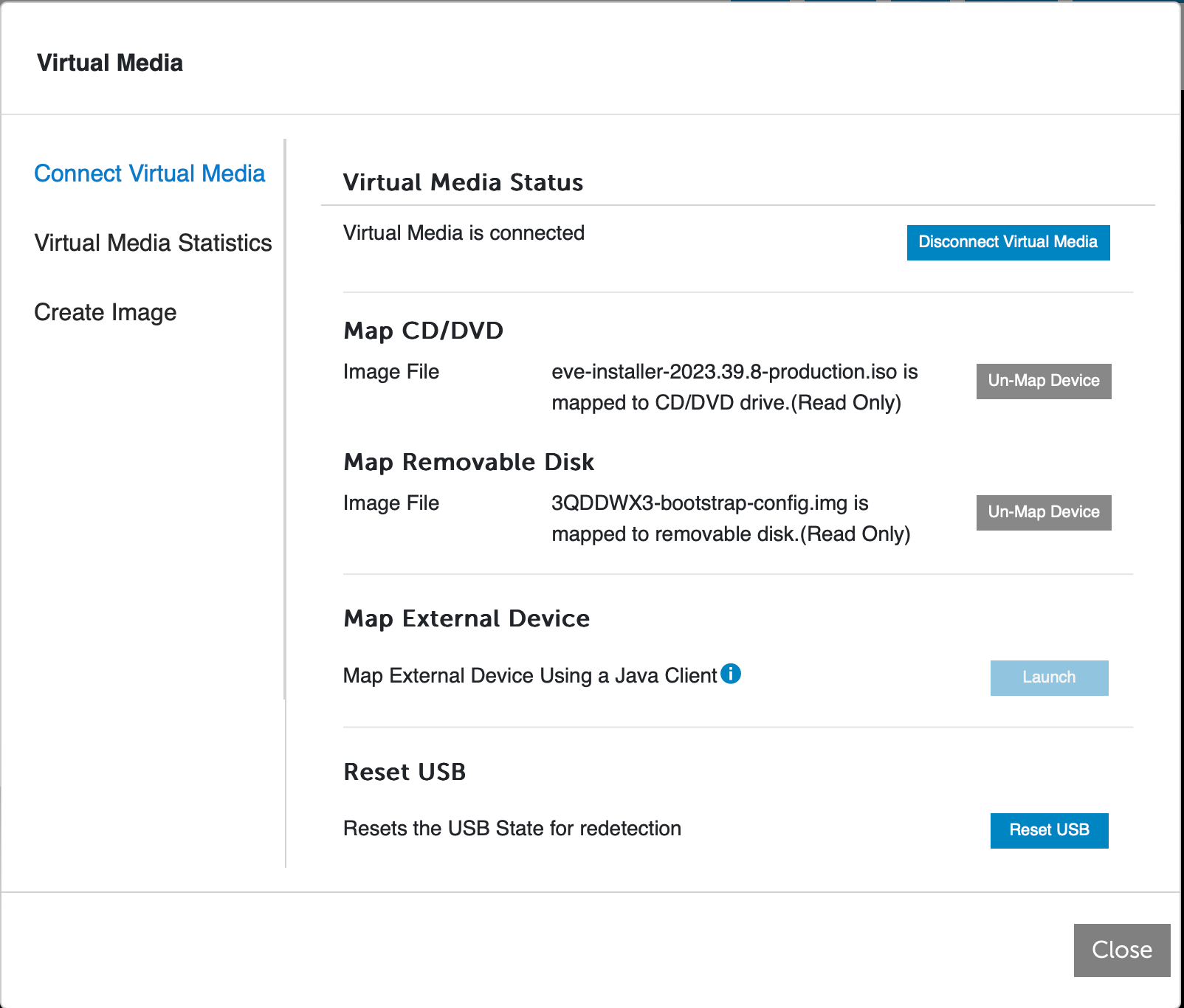
 5. Under **Map CD/DVD**, choose the Edge OS ISO file and click **Map Device**.
Under **Map Removable Disk**, select the **bootstrap-config.img** file and
again click **Map Device**. The removable disk is a virtual USB.
If you selected DHCP for the device's management interface, you do not need to
map a file to the removable disk. You only need the Edge OS ISO file.
Your virtual media dialog box should look like this:
5. Under **Map CD/DVD**, choose the Edge OS ISO file and click **Map Device**.
Under **Map Removable Disk**, select the **bootstrap-config.img** file and
again click **Map Device**. The removable disk is a virtual USB.
If you selected DHCP for the device's management interface, you do not need to
map a file to the removable disk. You only need the Edge OS ISO file.
Your virtual media dialog box should look like this:
 Close this dialog box.
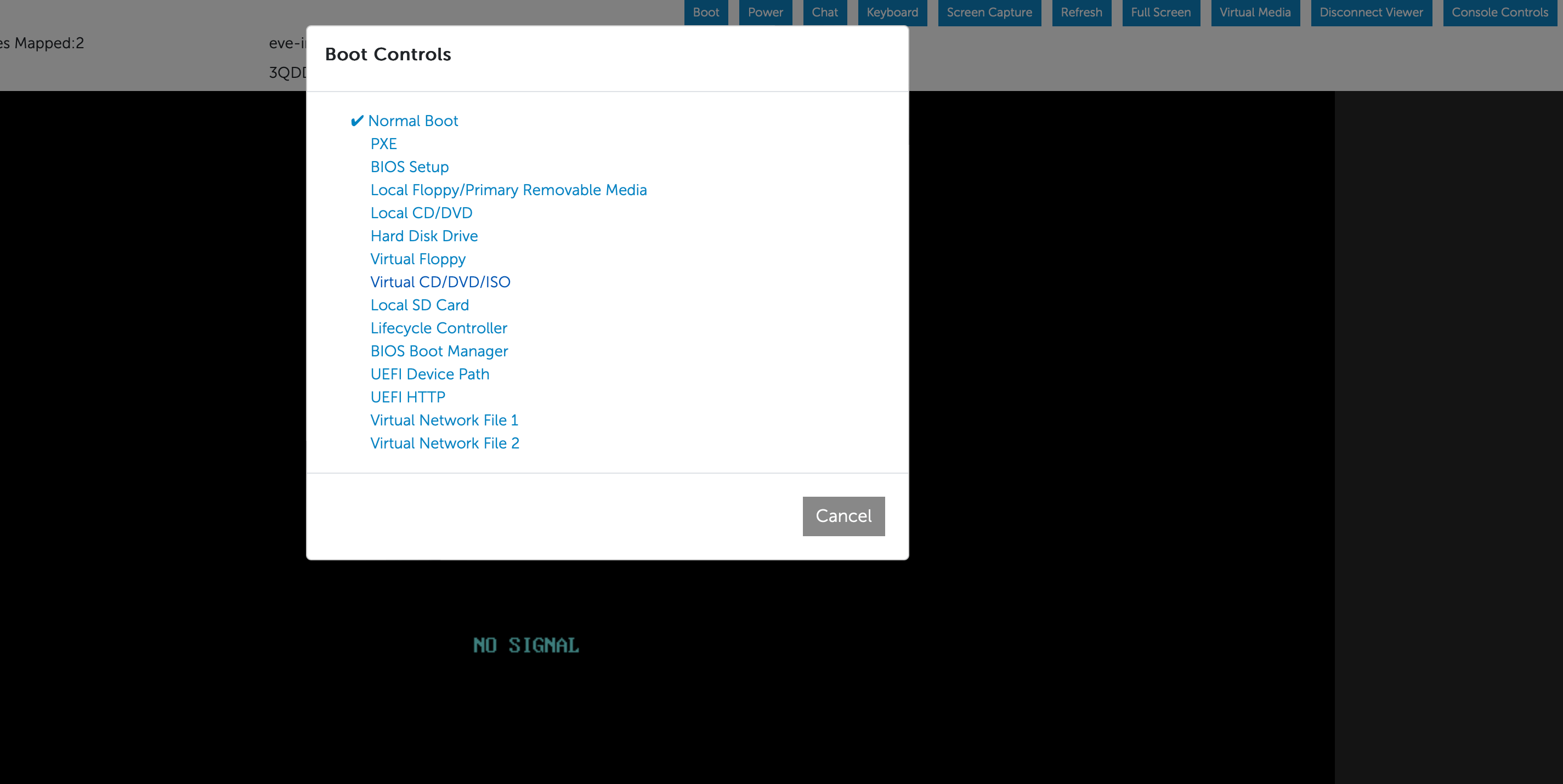
6. From the Virtual Console, click **Boot** and under **Boot Controls**, and
select **Virtual CD/DVD/ISO**. A dialog box will open, asking you to confirm
the boot action. Click **Yes**.
Close this dialog box.
6. From the Virtual Console, click **Boot** and under **Boot Controls**, and
select **Virtual CD/DVD/ISO**. A dialog box will open, asking you to confirm
the boot action. Click **Yes**.
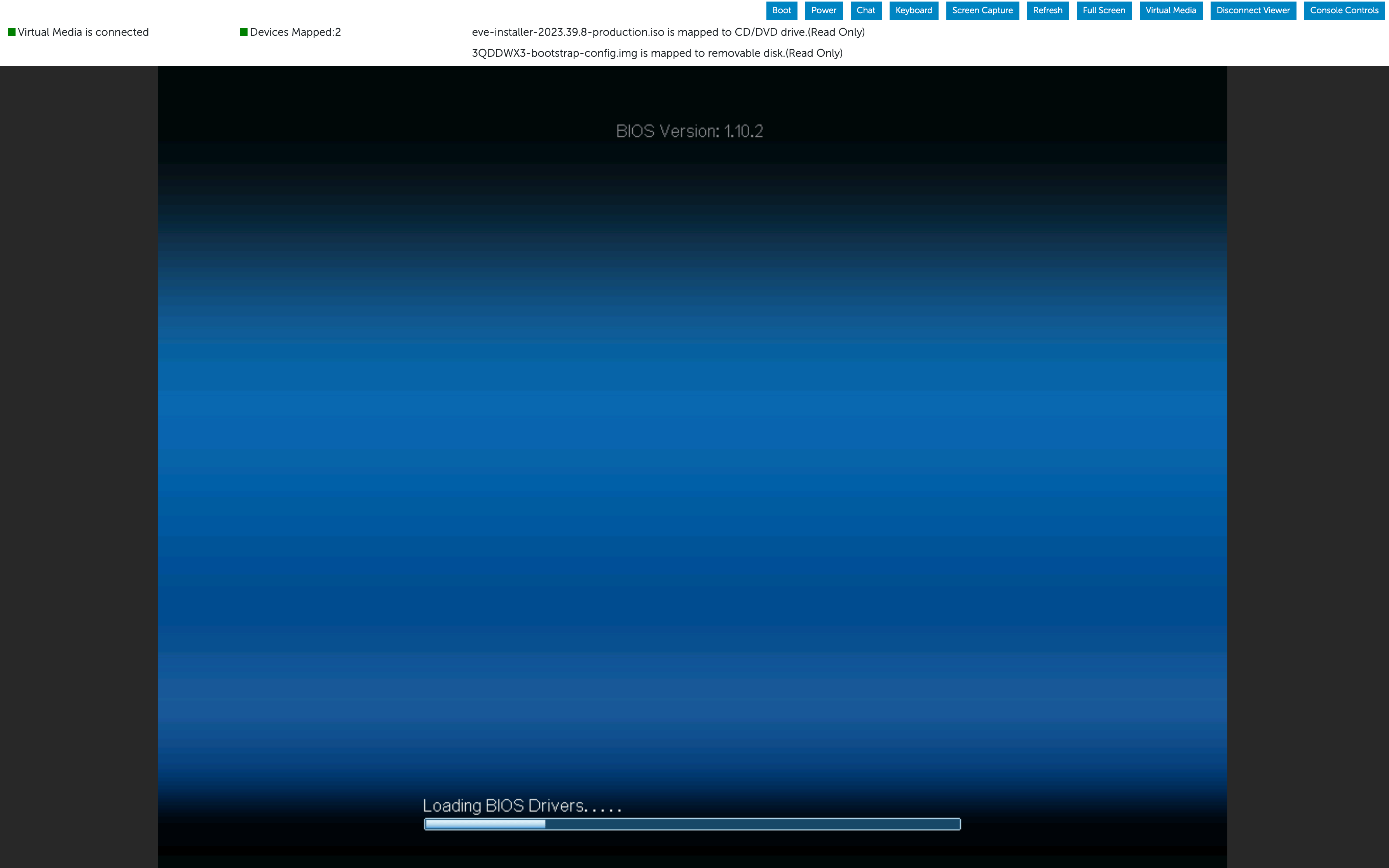
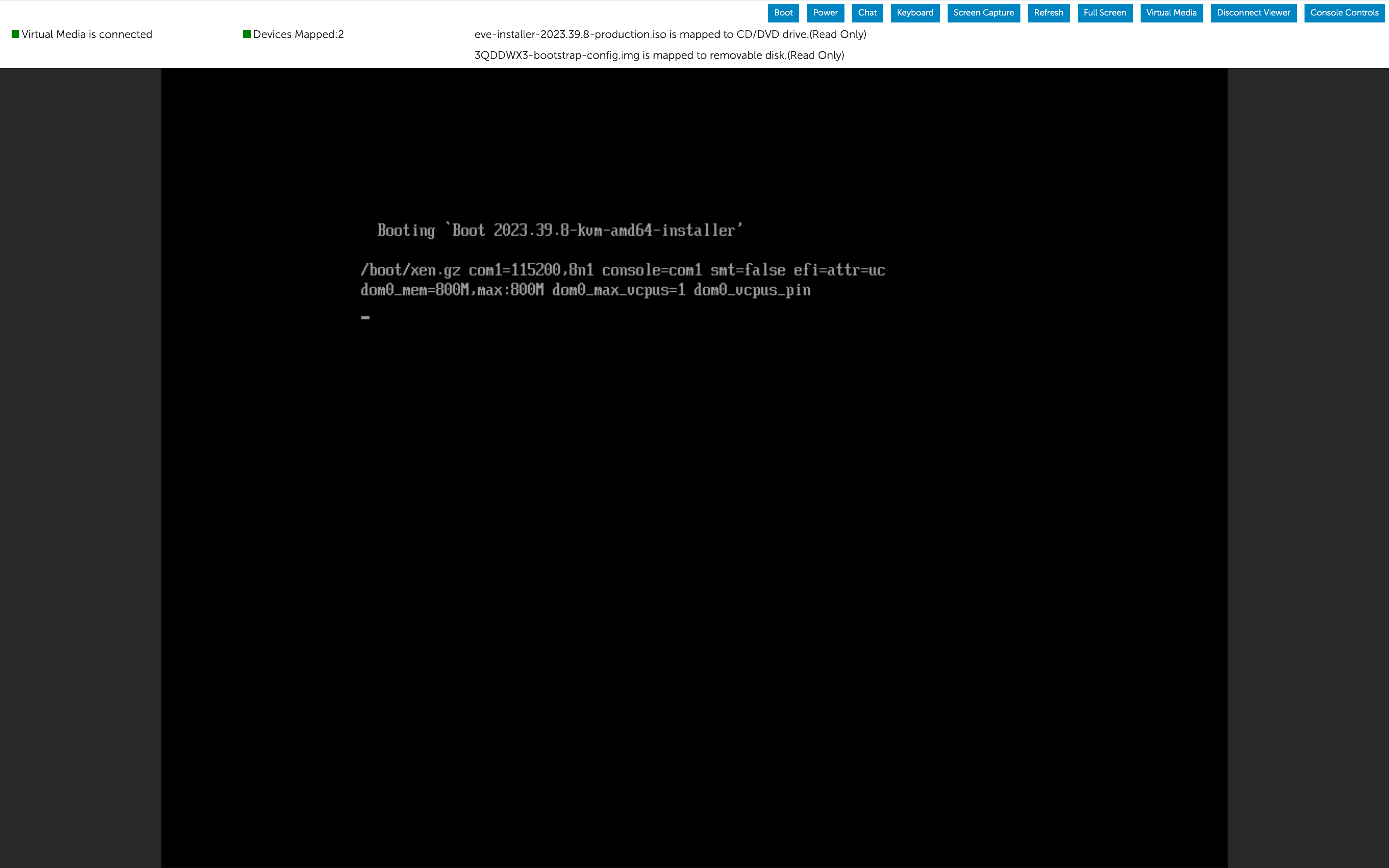
 7. From the Virtual Console, click **Power** and select the **Reset System (warm
boot)** option. This will start the installation of Aviatrix Edge OS (AEP
EvE) on the server.
Do not close the Virtual console window.
7. From the Virtual Console, click **Power** and select the **Reset System (warm
boot)** option. This will start the installation of Aviatrix Edge OS (AEP
EvE) on the server.
Do not close the Virtual console window.
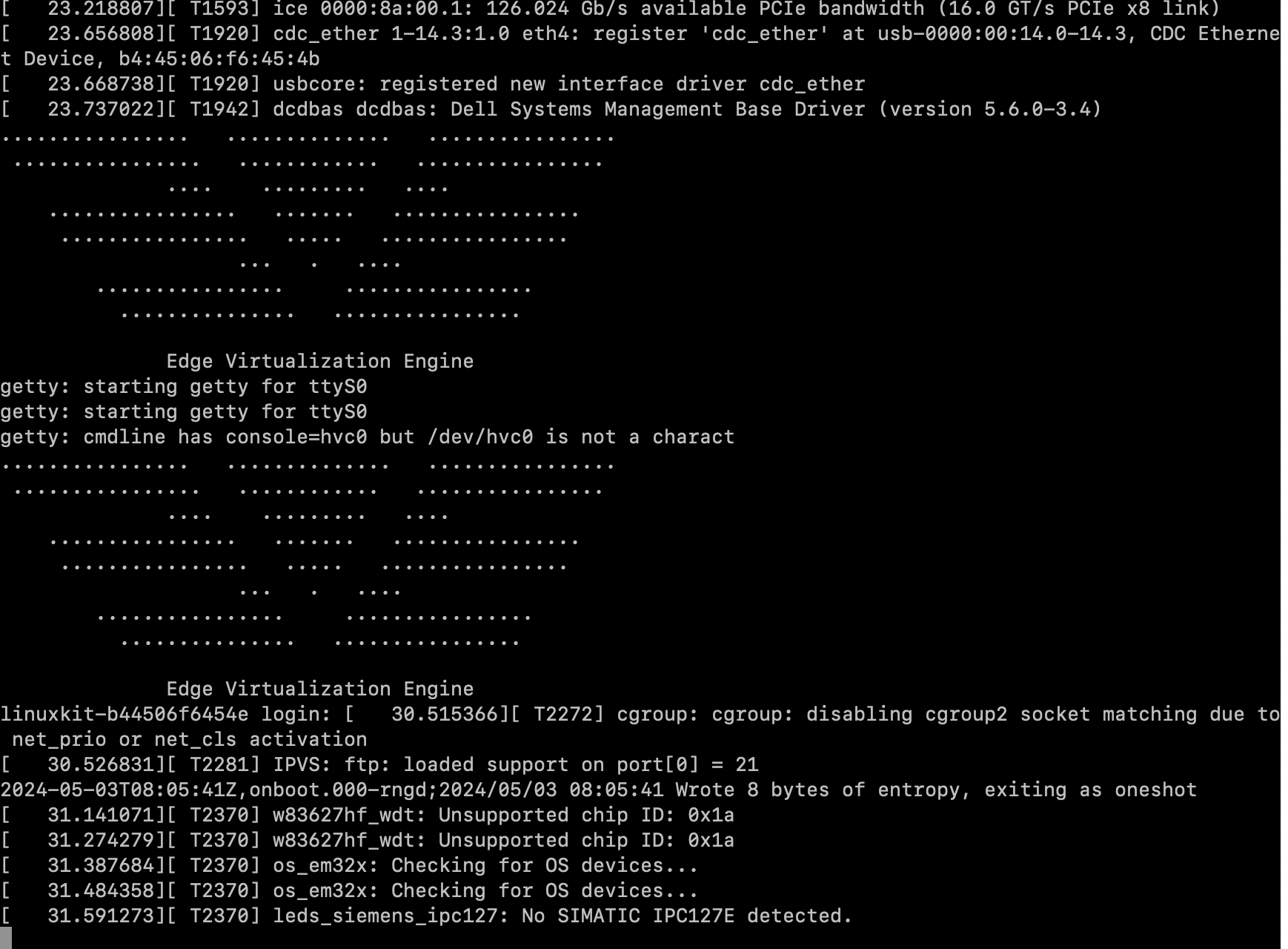
 8. If you have SSH access to the iDRAC, you can SSH to it and type **console
com2**. This will connect you to the serial console of the server and you
will see the Aviatrix Edge OS (AEP EvE) installation logs.
8. If you have SSH access to the iDRAC, you can SSH to it and type **console
com2**. This will connect you to the serial console of the server and you
will see the Aviatrix Edge OS (AEP EvE) installation logs.
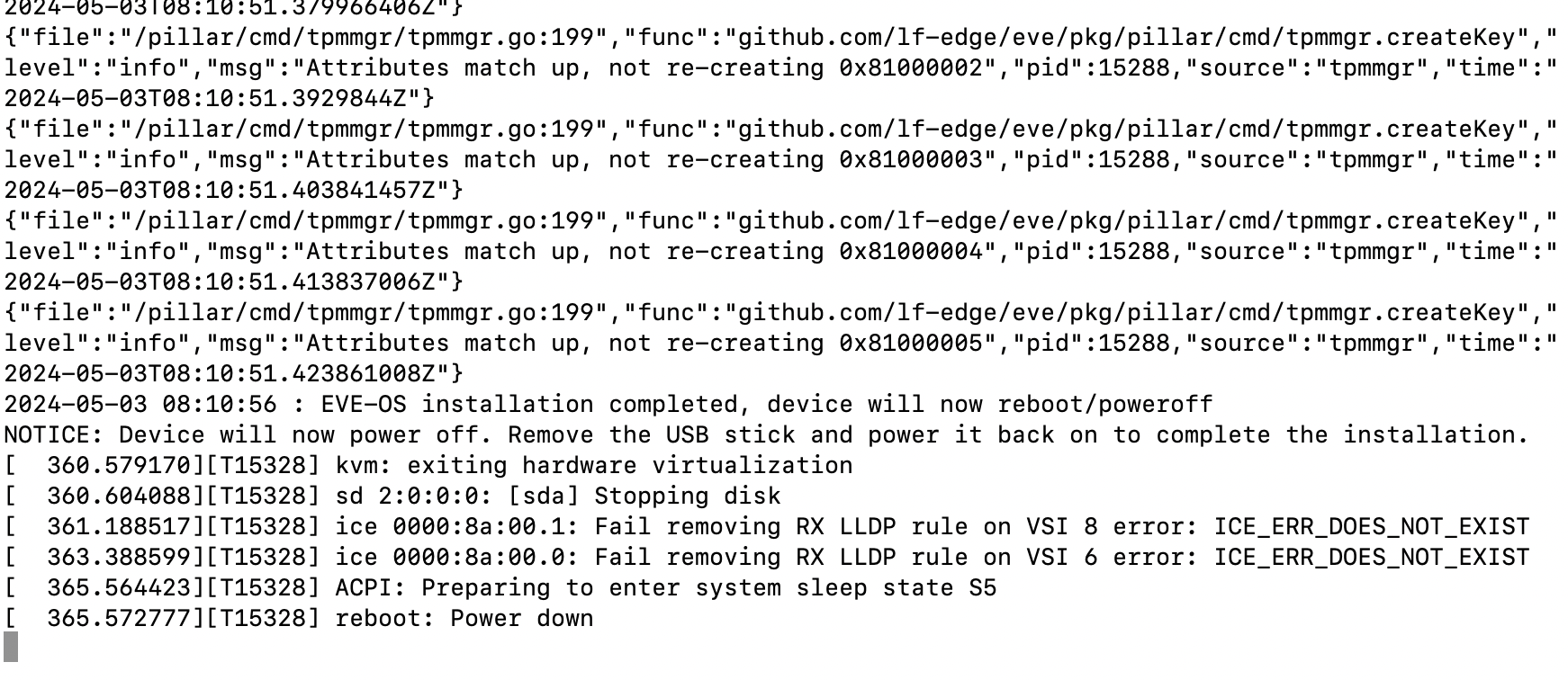
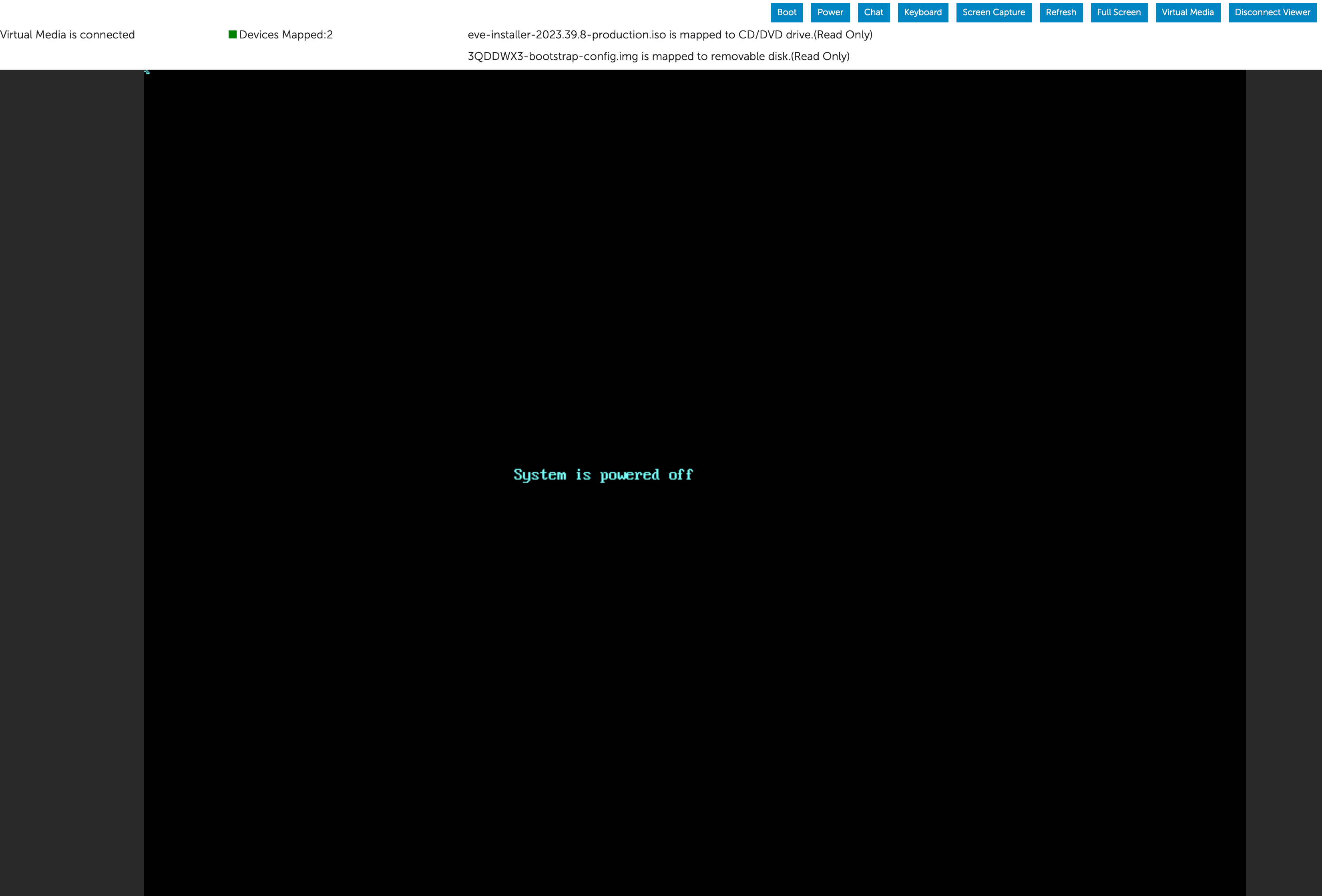
 9. The installation typically takes 10 to 15 minutes. It may vary depending on
where the ISO file is being uploaded to the server via the Virtual Console.
Once the installation is complete, the server will automatically power down.
This can also be confirmed from the EvE installation logs in the serial console.
9. The installation typically takes 10 to 15 minutes. It may vary depending on
where the ISO file is being uploaded to the server via the Virtual Console.
Once the installation is complete, the server will automatically power down.
This can also be confirmed from the EvE installation logs in the serial console.
 10. From the Virtual Console, go to **Virtual Media** and under **Map CD/DVD**,
click **Un-Map Device**. Confirm the un-map action by clicking **Yes**. This
will remove the ISO file from the Virtual Console.
If you had mapped a **bootstrap-config.img** file to the removable disk/virtual
USB, keep it as is. The system will configure the server's management interface
with the static IP information in this virtual USB.
10. From the Virtual Console, go to **Virtual Media** and under **Map CD/DVD**,
click **Un-Map Device**. Confirm the un-map action by clicking **Yes**. This
will remove the ISO file from the Virtual Console.
If you had mapped a **bootstrap-config.img** file to the removable disk/virtual
USB, keep it as is. The system will configure the server's management interface
with the static IP information in this virtual USB.
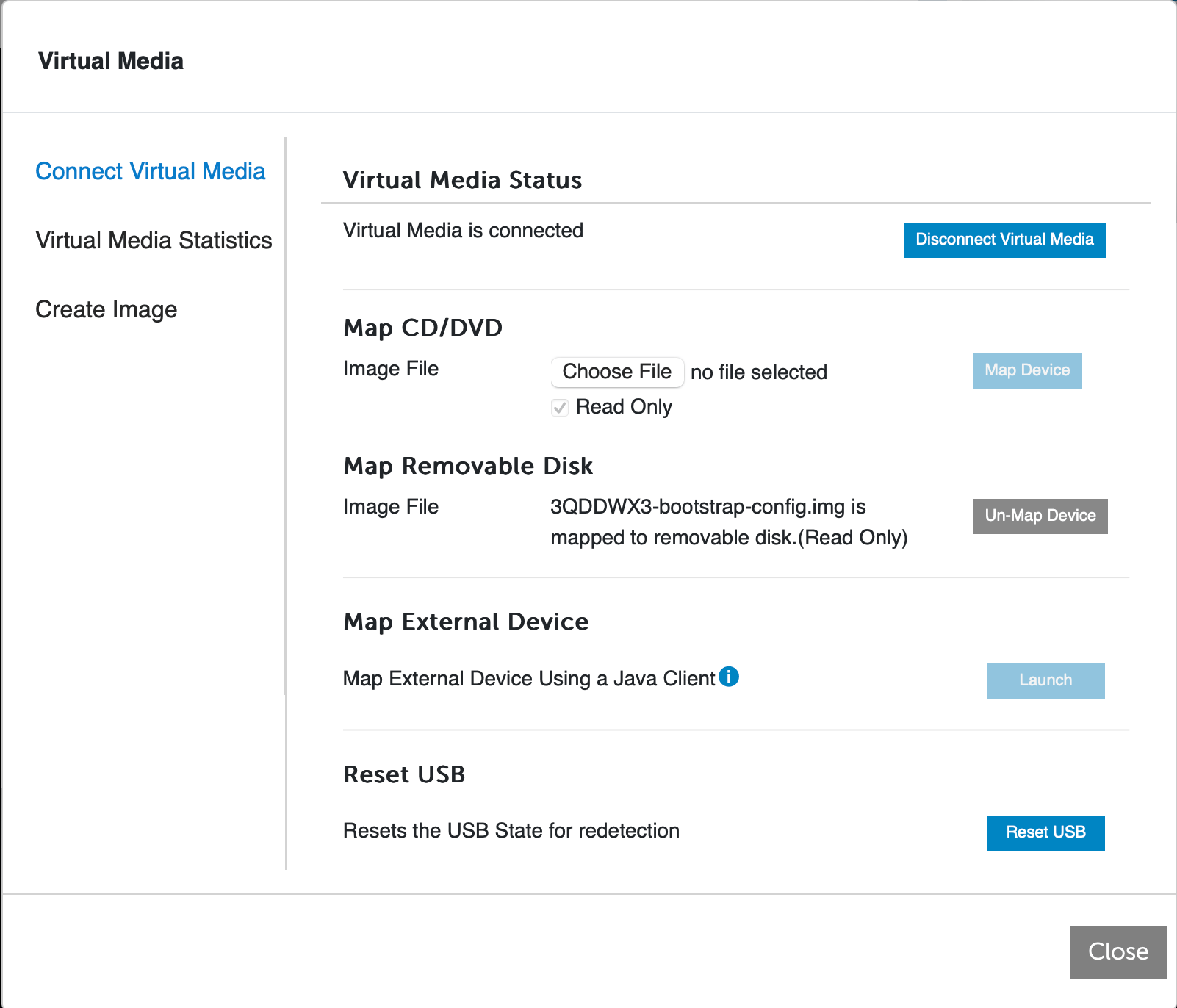 Click **Close** to save the changes.
11. From the Virtual Console, go to **Power**. You will see only one option this
time, **Power On System**. Confirm the power action by clicking on **Yes**.
Click **Close** to save the changes.
11. From the Virtual Console, go to **Power**. You will see only one option this
time, **Power On System**. Confirm the power action by clicking on **Yes**.
 12. Allow the server to power on. It will boot AEP EvE.
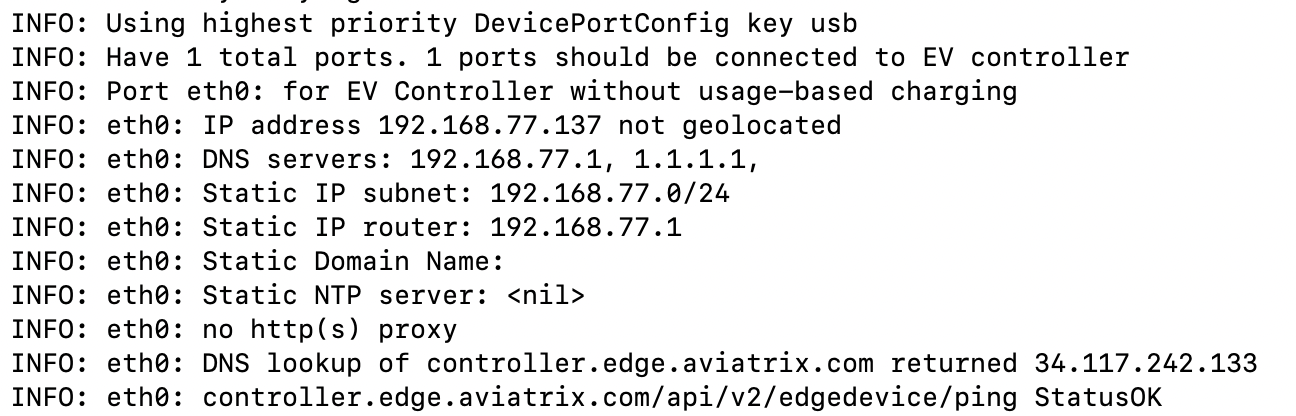
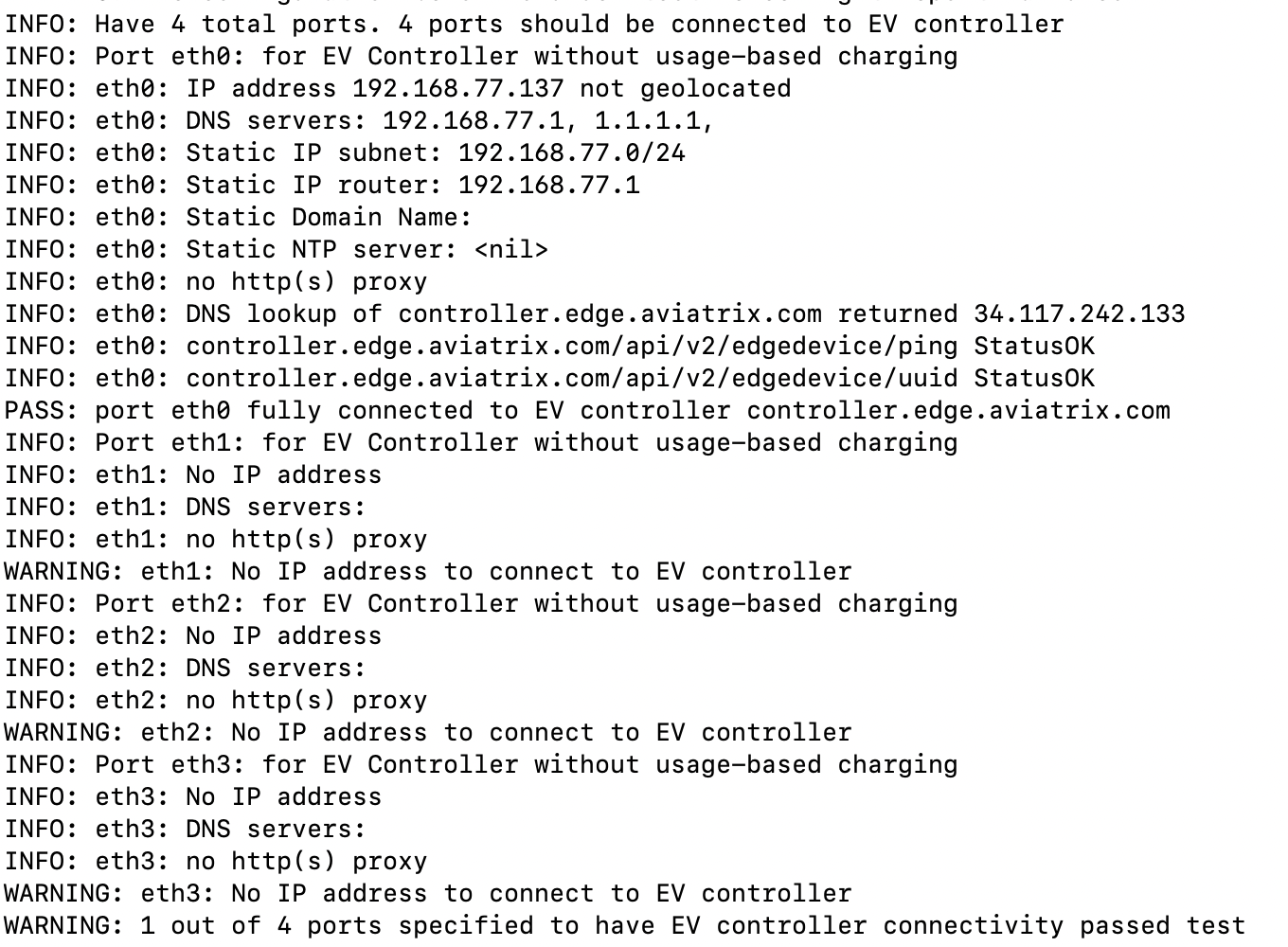
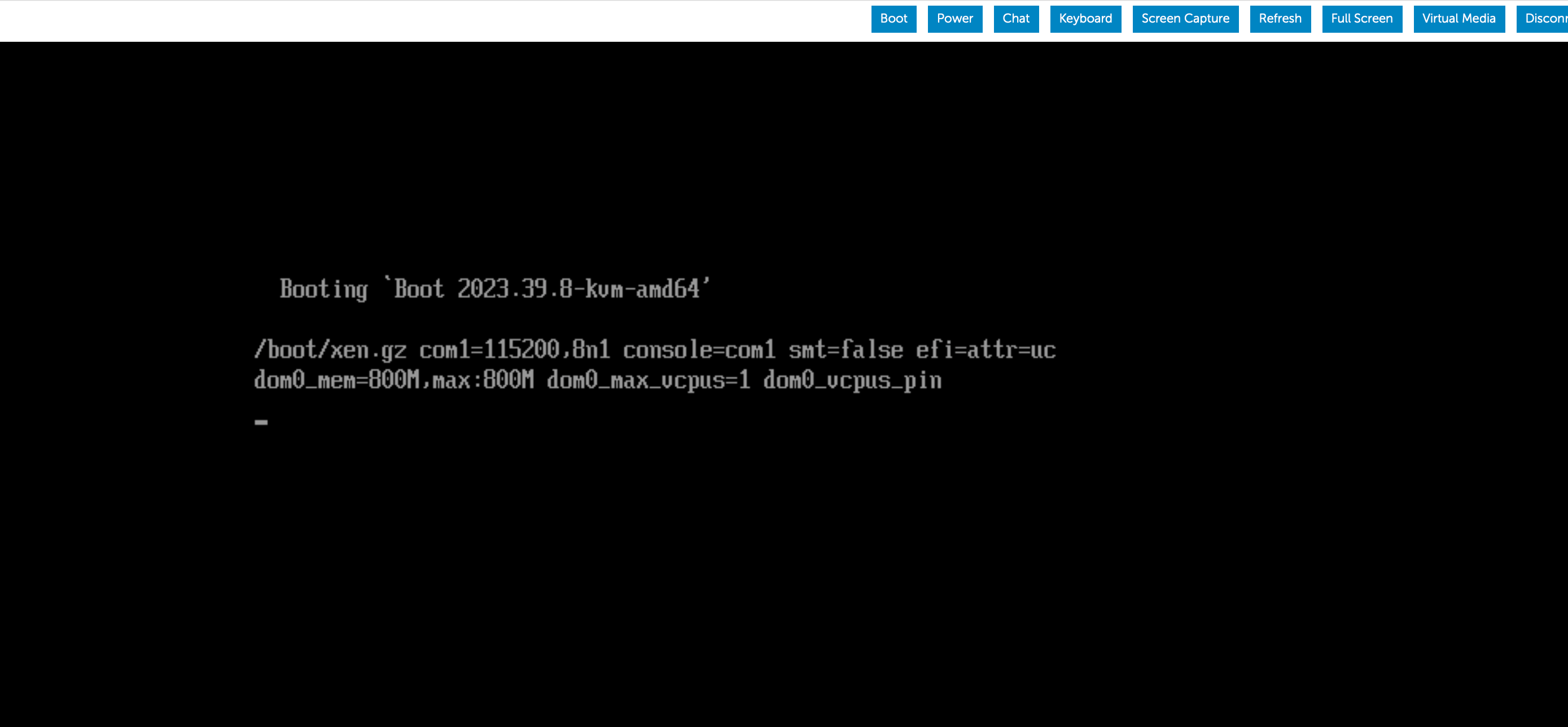 13. If you have access to the server's serial console, you will see the boot
logs. Aviatrix Edge OS will read the static IP configuration from the
virtual USB and configure it on the server. The server will dial out to AEP
(controller.edge.aviatrix.com) and connect to it. Look for logs (the actual
log text may vary) with these entries: **PASS: port eth0 fully connected to
EV controller controller.edge.aviatrix.com** and **1 out of 4 ports
specified to have EV controller connectivity passed test**.
13. If you have access to the server's serial console, you will see the boot
logs. Aviatrix Edge OS will read the static IP configuration from the
virtual USB and configure it on the server. The server will dial out to AEP
(controller.edge.aviatrix.com) and connect to it. Look for logs (the actual
log text may vary) with these entries: **PASS: port eth0 fully connected to
EV controller controller.edge.aviatrix.com** and **1 out of 4 ports
specified to have EV controller connectivity passed test**.
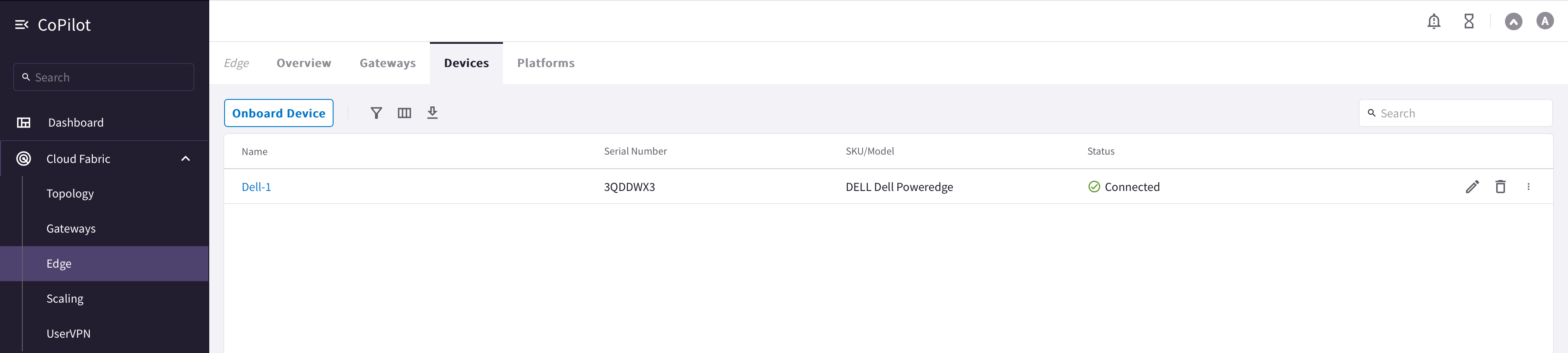
 14. The Dell device will show up as **Connected** in **Copilot (go to Cloud
Fabric > Hybrid Cloud > Devices)** and can now be used to launch an Edge
gateway. For details on how to launch an Edge Transit or Edge Spoke Gateway,
see
[Hybrid Cloud Connectivity](https://legacy.docs.aviatrix.com/documentation/latest/network/edge-connectivity.html).
14. The Dell device will show up as **Connected** in **Copilot (go to Cloud
Fabric > Hybrid Cloud > Devices)** and can now be used to launch an Edge
gateway. For details on how to launch an Edge Transit or Edge Spoke Gateway,
see
[Hybrid Cloud Connectivity](https://legacy.docs.aviatrix.com/documentation/latest/network/edge-connectivity.html).
 15. Return to the Virtual Console, go to **Virtual Media > Disconnect Virtual
Media**. Click **Yes**. This will unmap and disconnect all virtual media
files. Close the virtual media box. You can now also close the Virtual
Console.
AEP EvE installation is complete and it will persist across server reboots.
This documentation is built and hosted on [Mintlify](https://mintlify.com), a developer documentation platform.
15. Return to the Virtual Console, go to **Virtual Media > Disconnect Virtual
Media**. Click **Yes**. This will unmap and disconnect all virtual media
files. Close the virtual media box. You can now also close the Virtual
Console.
AEP EvE installation is complete and it will persist across server reboots.
This documentation is built and hosted on [Mintlify](https://mintlify.com), a developer documentation platform.