> ## Documentation Index
> Fetch the complete documentation index at: https://docs.aviatrix.com/llms.txt
> Use this file to discover all available pages before exploring further.
# Selecting Auto Right-Sizing Settings
> It is best to set the monitoring frequency before implementing any auto right-sizing recommendations.
It is best to set the monitoring frequency before implementing any auto
right-sizing recommendations.
In the Auto Right-Sizing Settings dialog, you determine how often
recommendations are generated from the continuous gateway monitoring, and which
VPC/VNets to exclude from recommendations.
1. On the Cloud Fabric > Scaling > Auto Right-Sizing tab, click **Settings**.
The Auto Right-Sizing Settings dialog displays.
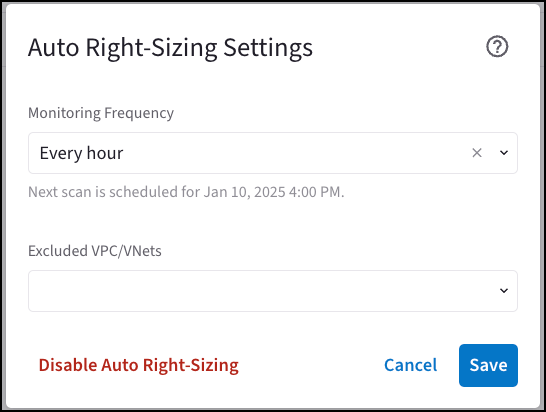 2. Select the Monitoring Frequency:
* Every 24 hours
* Every 12 hours
* Every hour
A message on the dialog indicates when the next monitoring scan is scheduled.
3. Select the VPC/VNets to exclude from the monitoring scan.
4. Click **Save**.
To include VPC/VNets in the monitoring scan again, open the Auto Right-Sizing
Settings dialog, remove the VPC/VNets from the Excluded VPC/VNets field, and
click **Save**.
## Related Topics
* Disabling Auto Right-Sizing
* About Auto Right-Sizing
* [Resizing Gateways with Auto Right-Sizing](https://legacy.docs.aviatrix.com/documentation/latest/network/auto-right-sizing-resizing.html?expand=true)
2. Select the Monitoring Frequency:
* Every 24 hours
* Every 12 hours
* Every hour
A message on the dialog indicates when the next monitoring scan is scheduled.
3. Select the VPC/VNets to exclude from the monitoring scan.
4. Click **Save**.
To include VPC/VNets in the monitoring scan again, open the Auto Right-Sizing
Settings dialog, remove the VPC/VNets from the Excluded VPC/VNets field, and
click **Save**.
## Related Topics
* Disabling Auto Right-Sizing
* About Auto Right-Sizing
* [Resizing Gateways with Auto Right-Sizing](https://legacy.docs.aviatrix.com/documentation/latest/network/auto-right-sizing-resizing.html?expand=true)