> ## Documentation Index
> Fetch the complete documentation index at: https://docs.aviatrix.com/llms.txt
> Use this file to discover all available pages before exploring further.
# Configuring Distributed Cloud Firewall
> This section describes the Distributed Cloud Firewall (DCF) functional area of Aviatrix CoPilot.
This section describes the Distributed Cloud Firewall (DCF) functional area of
Aviatrix CoPilot.
## DCF Constraints
* For any VNets that have Security Group Orchestration applied, and that are
included in a rule that is not enforced, the application security group (ASG)
in the network security group (NSG) rule remains associated with the VM even
though the NSG rule using the ASG is not present.
* Logging can consume a significant amount of disk space. You can
manage disk space settings
and
retention settings
. You can also configure how long to keep your [Distributed Cloud Firewall
logs](https://legacy.docs.aviatrix.com/documentation/latest/security/dcf-log-files.html?expand=true).
* A SmartGroup traffic flow can belong to more than one rule. If this occurs,
the priority of the rule determines the action that is taken first.
* DCF rules with WebGroups (Layer 7 (L7)) do not support
asymmetric traffic.
* This limitation does not apply to east-west traffic between spokes that have
symmetric routing enabled. This exception is in
Preview
for Controller 10.1 and is supported on AWS only. For more information, see
East-West Suricata IPS and TLS MITM Inspection Architecture.
* If there are cases where egress and east-west traffic DCF rules may overlap,
Layer 4 (L4)
rules should have a higher priority than L7 (WebGroups-based) rules.
* DCF on Transit does not support
hostname filtering
, L7 filtering,
SNI-based filtering
, or DNS reachability. If you want to filter traffic for DCF on Transit, you
must use SmartGroups or the Domain feature of WebGroups.
## Distributed Cloud Firewall Prerequisites
Before applying Distributed Cloud Firewall (DCF):
* [Enable the DCF feature](#enabling-the-distributed-cloud-firewall-feature).
* Ensure that DCF is
enforced on your cloud accounts and/or Edge
. You will be able to create DCF rules for non-enforced clouds, but they will
not be applied to the gateways in those clouds until those clouds are
enforced.
* Your version of CoPilot must be 2.0 or greater.
* Your version of Aviatrix Controller must be 6.7 or greater.
* Gateways must have their image updated to version 6.7 or greater.
* Network reachability should be configured between the VPCs that contain
applications that require connectivity. You configure network reachability
using
Connected Transit/MCNS
.
* Enable SNAT on the Spoke gateways enforcing Egress filtering.
* If you plan to use Cloud Tags in your SmartGroups, Cloud resources must be
tagged appropriately.
* Create the following groups, if you want to use them in your Distributed Cloud
Firewall configuration:
* SmartGroups
* WebGroups
If you select a WebGroup when creating a rule, the Destination Group must
be 'Public Internet'. Any Spoke gateways that are part of the Source Group
must contain a VPC/VNet Resource Type that has Local Egress enabled (Spoke
gateway).
* ExternalGroups
### Intrusion Detection
If you plan to enable Intrusion Detection in a Distributed Cloud Firewall
policy, remember:
* IDS cannot be applied to east-west traffic if HA VPC/VNets are being used.
* IDS can work with HA for egress traffic.
## Distributed Cloud Firewall Setup and Default Action Rule
Distributed Cloud Firewall (DCF) provides advanced traffic management
capabilities to enforce zero trust principles across your network. This document
focuses on enabling the DCF feature and configuring the Default Action Rule,
ensuring secure and consistent traffic handling in the absence of explicit
rules.
If you configured the ThreatIQ and/or Geoblocking features prior to Controller
version 7.2.4820, in 7.2.4820 you automatically receive a free Distributed
Cloud Firewall (DCF) license. If you did not configure the ThreatIQ and/or
Geoblocking features prior to Controller version 7.2.4820, you are expected to
purchase a DCF license. This will include the ExternalGroup feature (replaces
the ThreatIQ and Geoblocking features).
### Enabling the Distributed Cloud Firewall Feature
Enabling the Distributed Cloud Firewall feature allows you to create and manage
rules, rulesets, and policies to enforce zero trust principles.
If you enabled Distributed Cloud Firewall in a previous Controller version,
you do not need to enable it again.
To enable the Distributed Cloud Firewall (DCF) feature, if it is not enabled
already:
1. Go to the Security > Distributed Cloud Firewall > Policies tab.
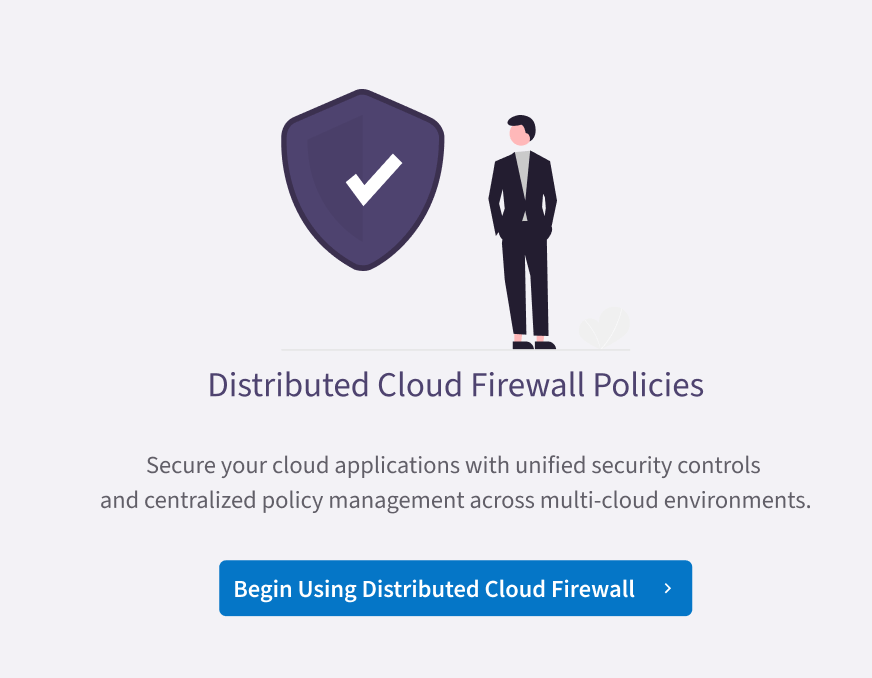
2. Click **Begin Using Distributed Cloud Firewall**.
3. Click **Begin** again to confirm the action and enable the feature.
### Default Action Rule for Distributed Cloud Firewall
Starting with Controller version 8.1, the Default Action Rule is automatically
created when DCF is enabled. Legacy rules such as Greenfield and
DefaultDenyAll are no longer generated; the Default Action Rule replaces their
function. The Default Action Rule cannot be deleted. When you upgrade to
Controller 8.1 or earlier, the existing DefaultDenyAll rule is converted to a
non-system rule, which you can delete. If you use Controller 8.0 or earlier,
both a [Greenfield Rule and a DefaultDenyAll
rule](#greenfield-rule-and-defaultdenyall-rule) are deleted.
After enabling the Distributed Cloud Firewall feature, a Default Action Rule is
created. This is a system rule used to enforce
zero trust principles
by controlling how traffic is handled in the absence of explicit rules. This
rule must be set to Deny after it is created, to ensure that traffic is not
permitted by default. The action of the Default Action Rule is enforced
globally; it is part of the broader policy evaluation framework and is evaluated
after all user-defined and system-defined rules/rulesets.
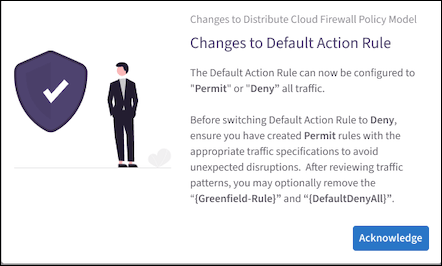
You may see the Manage Rules Better with Rulesets splash screen when you first
access the Policies tab. If so, click **Acknowledge** to continue.
#### New DCF Users
1. On the Security > Distributed Cloud Firewall > Policies tab, click **Begin
Using Distributed Cloud Firewall**.
2. You may have to click **Begin** again to confirm the action. This Default
Action Rule is then created on the Policies tab in the User Ruleset (formerly
the V1 Policy List ruleset).
 3. Change the action of the Default Action Rule to **Deny**. This is mandatory.
4. Continue with creating DCF rulesets and rules.
#### Existing DCF Users
1. On the Security > Distributed Cloud Firewall > Policies tab, click
**Acknowledge** on the splash screen that informs you about the Default
Action Rule.
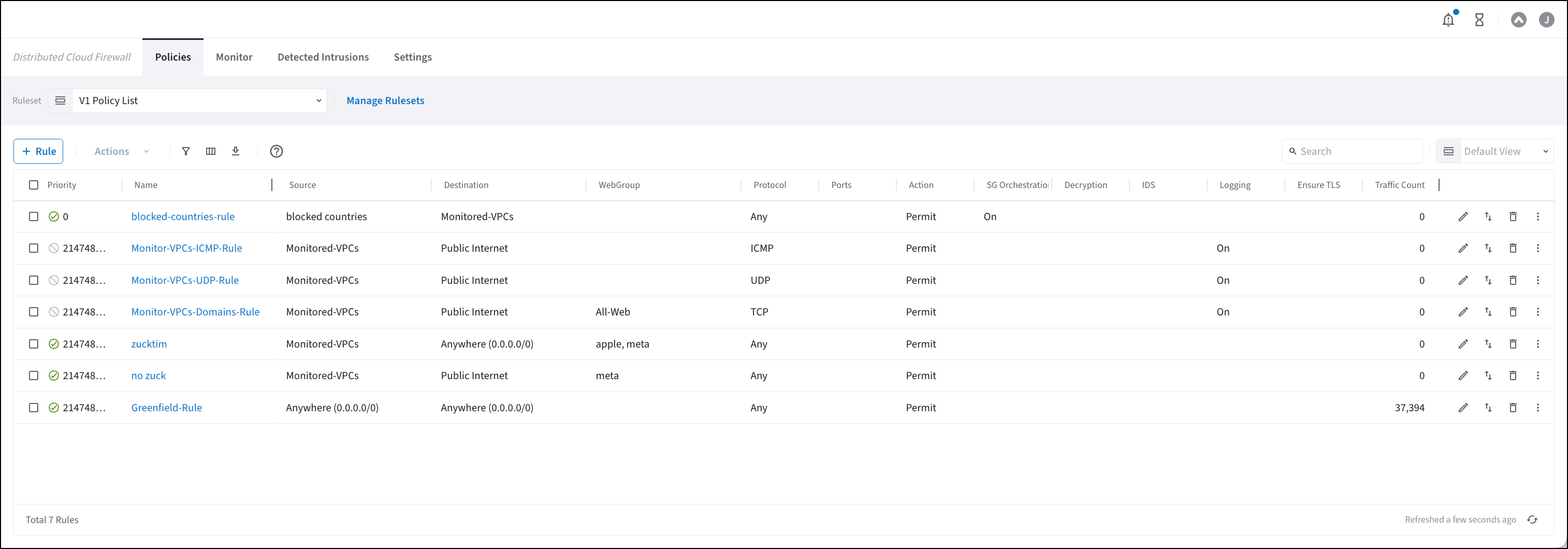
2. The Default Action Rule is displayed on the Policies tab in the V1 Policy
List ruleset. The Default Action Rule replaces the pre-existing
DefaultDenyAll rule, if you used the DCF feature prior to Controller 8.1. You
can delete the old DefaultDenyAll rule if it exists.
3. Change the action of the Default Action Rule to **Deny**. This is mandatory.
4. Continue with creating DCF rulesets and rules.
#### Existing DCF Users
1. On the Security > Distributed Cloud Firewall > Policies tab, click
**Acknowledge** on the splash screen that informs you about the Default
Action Rule.
2. The Default Action Rule is displayed on the Policies tab in the V1 Policy
List ruleset. The Default Action Rule replaces the pre-existing
DefaultDenyAll rule, if you used the DCF feature prior to Controller 8.1. You
can delete the old DefaultDenyAll rule if it exists.
 3. Change the action of the Default Action Rule to **Deny**.
4. You can delete the pre-existing Greenfield-Rule if it exists, assuming that
you have reviewed traffic patterns first.
#### Modifying the Default Action Rule
You can do the following to the Default Action Rule:
* Change the action from Permit to Deny
* Change the name of the rule
* Enable logging
### Greenfield Rule and DefaultDenyAll Rule
In Controller 8.0 and lower, the placeholder Greenfield Rule prevents traffic
from being dropped before you start configuring the rest of your rules. After
you create additional rules you can move the Greenfield Rule where needed in
your rule priority list. You can edit or delete the Greenfield Rule later, if
desired.
The Greenfield Rule is only enforced on gateways, and not on Security Groups
in the cloud.
By default (if you selected the recommended **Permit All Traffic** option), the
Greenfield Rule has the following attributes:
* Source/Destination Groups: Anywhere (0.0.0.0/0)
* Protocol: Any
* Action: Permit
* Logging: On
The DefaultDenyAll Rule blocks traffic to any CIDR covered in Distributed Cloud
Firewall rules. This rule is not editable.
### DCF-Related Features
If the Distributed Cloud Firewall feature is enabled, these features are
available:
* Enforcement on PSF Gateways
* Enforcement on External Connections
* Enforcement on Transit Egress
You must enable these features from the Security > Distributed Cloud Firewall >
Settings tab. With these features, you can enforce
DCF on PSF Gateways
,
External Connections
, or
Transit Egress gateways
.
* DCF on Kubernetes Clusters
is generally available (GA). To use this feature, you must enable it from
the
Discovery of Kubernetes Resources
card on the Groups > Settings tab.
## Creating Groups for Distributed Cloud Firewall
### SmartGroups
A Distributed Cloud Firewall (DCF) SmartGroup contains one or more filters to
identify cloud endpoints that map to an app domain. A filter specifies resource
matching criteria. Matching criteria could be a cloud tag; a resource attribute
(such as account name or region); a list of IP prefixes; or a Site2Cloud
external connection. All conditions within the filter must be satisfied to be
matched. A tag or resource attribute-based filter must be associated with a
resource type (VPC/VNet, subnet, or VM).
Creating SmartGroups
### WebGroups
A DCF WebGroup contains one or more domain names or URLs that assists in
filtering (and providing security to) Internet-bound traffic.
Creating WebGroups
### ExternalGroups
An ExternalGroup can contain countries, threat feeds, and SaaS-based services
(Azure and GitHub).
Managing the Relationship Between Feeds and ExternalGroups
## Creating Distributed Cloud Firewall Rules
After [creating your groups](#creating-groups-for-distributed-cloud-firewall),
you create Distributed Cloud Firewall (DCF) rules within one of the
system-defined rulesets to define the access control to apply on the traffic
between those groups.
If your SmartGroups contain Spoke Gateways, ensure that those Spoke Gateways
have
Egress enabled
.
If you have upgraded to Controller 8.0, you can use the **Policies** tab to
create and manage DCF rulesets.
3. Change the action of the Default Action Rule to **Deny**.
4. You can delete the pre-existing Greenfield-Rule if it exists, assuming that
you have reviewed traffic patterns first.
#### Modifying the Default Action Rule
You can do the following to the Default Action Rule:
* Change the action from Permit to Deny
* Change the name of the rule
* Enable logging
### Greenfield Rule and DefaultDenyAll Rule
In Controller 8.0 and lower, the placeholder Greenfield Rule prevents traffic
from being dropped before you start configuring the rest of your rules. After
you create additional rules you can move the Greenfield Rule where needed in
your rule priority list. You can edit or delete the Greenfield Rule later, if
desired.
The Greenfield Rule is only enforced on gateways, and not on Security Groups
in the cloud.
By default (if you selected the recommended **Permit All Traffic** option), the
Greenfield Rule has the following attributes:
* Source/Destination Groups: Anywhere (0.0.0.0/0)
* Protocol: Any
* Action: Permit
* Logging: On
The DefaultDenyAll Rule blocks traffic to any CIDR covered in Distributed Cloud
Firewall rules. This rule is not editable.
### DCF-Related Features
If the Distributed Cloud Firewall feature is enabled, these features are
available:
* Enforcement on PSF Gateways
* Enforcement on External Connections
* Enforcement on Transit Egress
You must enable these features from the Security > Distributed Cloud Firewall >
Settings tab. With these features, you can enforce
DCF on PSF Gateways
,
External Connections
, or
Transit Egress gateways
.
* DCF on Kubernetes Clusters
is generally available (GA). To use this feature, you must enable it from
the
Discovery of Kubernetes Resources
card on the Groups > Settings tab.
## Creating Groups for Distributed Cloud Firewall
### SmartGroups
A Distributed Cloud Firewall (DCF) SmartGroup contains one or more filters to
identify cloud endpoints that map to an app domain. A filter specifies resource
matching criteria. Matching criteria could be a cloud tag; a resource attribute
(such as account name or region); a list of IP prefixes; or a Site2Cloud
external connection. All conditions within the filter must be satisfied to be
matched. A tag or resource attribute-based filter must be associated with a
resource type (VPC/VNet, subnet, or VM).
Creating SmartGroups
### WebGroups
A DCF WebGroup contains one or more domain names or URLs that assists in
filtering (and providing security to) Internet-bound traffic.
Creating WebGroups
### ExternalGroups
An ExternalGroup can contain countries, threat feeds, and SaaS-based services
(Azure and GitHub).
Managing the Relationship Between Feeds and ExternalGroups
## Creating Distributed Cloud Firewall Rules
After [creating your groups](#creating-groups-for-distributed-cloud-firewall),
you create Distributed Cloud Firewall (DCF) rules within one of the
system-defined rulesets to define the access control to apply on the traffic
between those groups.
If your SmartGroups contain Spoke Gateways, ensure that those Spoke Gateways
have
Egress enabled
.
If you have upgraded to Controller 8.0, you can use the **Policies** tab to
create and manage DCF rulesets.
 For example, in the
workload isolation use case
, all traffic (e.g., ports and protocols) between the ShoppingCart application
and the Product Logging app must be blocked (Denied). You can decide which
policies to enforce, and if you want to log the actions related to a rule. These
rules are enforced (if enabled) on your Spoke gateways, and are executed against
the Spoke gateways in the order that they are shown in the rule list.
Creating a rule for the workload isolation use case would resemble the
following:
* Source Group: Shopping Cart application
* Destination Group: Product Logging app
* Action: Deny
* Protocol: Any
* Ports: 0-65535 (Any)
* Logging: Off
* Enforcement: On
To create a new Distributed Cloud Firewall rule:
1. In CoPilot, navigate to Security > Distributed Cloud Firewall > Policies.
2. Select a ruleset from the Ruleset list.
3. Click **+ Rule**. The Create Rule dialog displays.
For example, in the
workload isolation use case
, all traffic (e.g., ports and protocols) between the ShoppingCart application
and the Product Logging app must be blocked (Denied). You can decide which
policies to enforce, and if you want to log the actions related to a rule. These
rules are enforced (if enabled) on your Spoke gateways, and are executed against
the Spoke gateways in the order that they are shown in the rule list.
Creating a rule for the workload isolation use case would resemble the
following:
* Source Group: Shopping Cart application
* Destination Group: Product Logging app
* Action: Deny
* Protocol: Any
* Ports: 0-65535 (Any)
* Logging: Off
* Enforcement: On
To create a new Distributed Cloud Firewall rule:
1. In CoPilot, navigate to Security > Distributed Cloud Firewall > Policies.
2. Select a ruleset from the Ruleset list.
3. Click **+ Rule**. The Create Rule dialog displays.
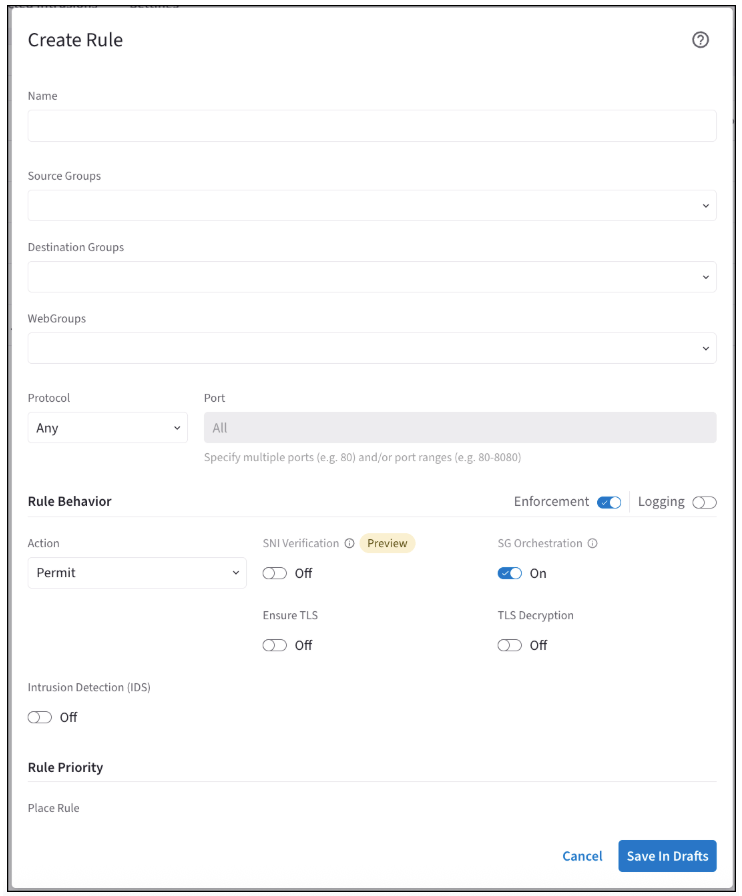 4. Use the
[Distributed Cloud Firewall Field Reference](https://legacy.docs.aviatrix.com/documentation/latest/security/dcf-rule-dialog-reference.html)
to create your rule.
If the Rule Behavior Action is Deny, the **SNI Verification** toggle is not
displayed.
The **SNI Verification** feature is only available with Controller 8.0.
### Tips for Rule Creation
* Always specify the port and protocol for HTTP/TLS or non-HTTP/TLS when the
domain names overlap.
* Or, you can prioritize HTTP/TLS rules in the DCF Rules list (but this means
that non-TLS/HTTP traffic will always be pulled through the web proxy).
* Save any changes on the Policies tab (changes to logging or enforcement)
before switching to another ruleset.
* When configuring TLS Decryption in DCF, note that while the configuration is
applied per rule, its operation is global. Once a connection is decrypted to
check a URL filter, it remains decrypted even if it does not match that rule's
filter. The connection may match a later rule without decryption requirements,
but it will already be decrypted due to the earlier rule. Therefore, carefully
consider the placement of rules requiring decryption.
### Viewing DCF Rule Details
You can click a DCF rule on the Security > Distributed Cloud Firewall > Policies
tab to view its configuration details, source and destination entities, and
statistics in the right-hand pane.
4. Use the
[Distributed Cloud Firewall Field Reference](https://legacy.docs.aviatrix.com/documentation/latest/security/dcf-rule-dialog-reference.html)
to create your rule.
If the Rule Behavior Action is Deny, the **SNI Verification** toggle is not
displayed.
The **SNI Verification** feature is only available with Controller 8.0.
### Tips for Rule Creation
* Always specify the port and protocol for HTTP/TLS or non-HTTP/TLS when the
domain names overlap.
* Or, you can prioritize HTTP/TLS rules in the DCF Rules list (but this means
that non-TLS/HTTP traffic will always be pulled through the web proxy).
* Save any changes on the Policies tab (changes to logging or enforcement)
before switching to another ruleset.
* When configuring TLS Decryption in DCF, note that while the configuration is
applied per rule, its operation is global. Once a connection is decrypted to
check a URL filter, it remains decrypted even if it does not match that rule's
filter. The connection may match a later rule without decryption requirements,
but it will already be decrypted due to the earlier rule. Therefore, carefully
consider the placement of rules requiring decryption.
### Viewing DCF Rule Details
You can click a DCF rule on the Security > Distributed Cloud Firewall > Policies
tab to view its configuration details, source and destination entities, and
statistics in the right-hand pane.
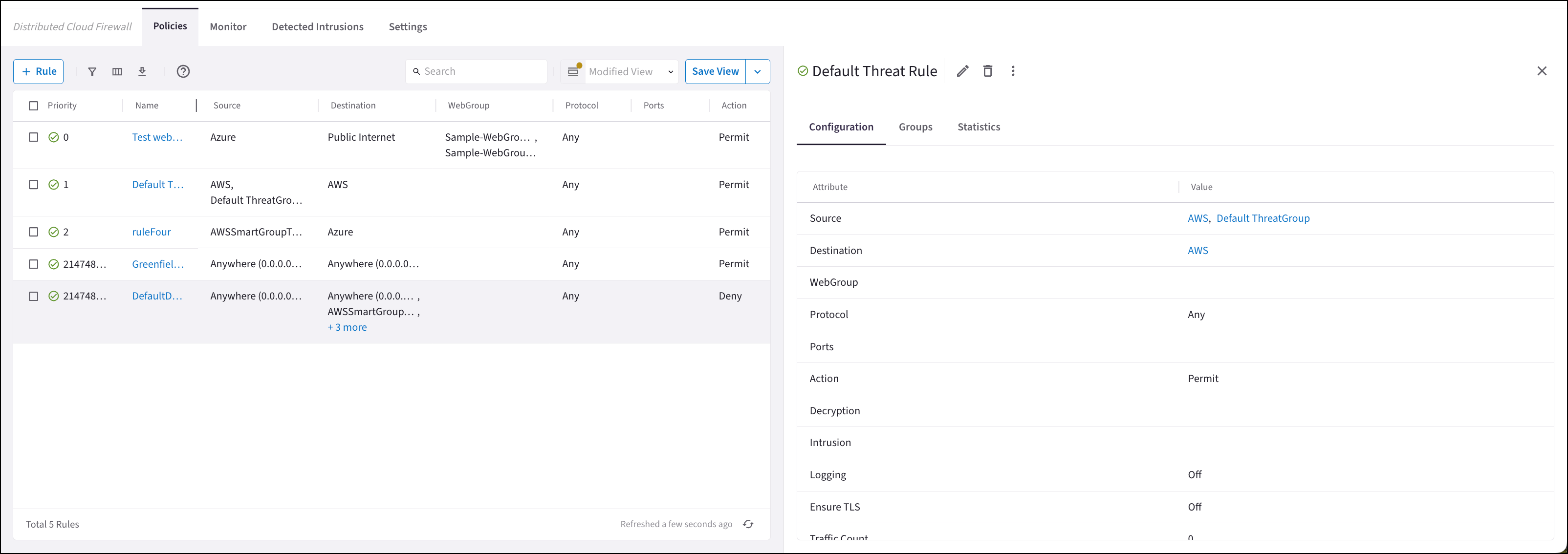 The Groups tab in the details pane shows the Source Entities, Destination
Entities, and WebGroups used in the rule. The Statistics tab shows the number of
hits for the rule, and the last time it was hit.
## Related Topics
* Disabling the Distributed Cloud Firewall Feature
* [Editing a Distributed Cloud Firewall Rule](https://legacy.docs.aviatrix.com/documentation/latest/security/dcf-rule-edit.html)
* [Deleting a Distributed Cloud Firewall Rule](https://legacy.docs.aviatrix.com/documentation/latest/security/dcf-rule-delete.html)
* DCF Actions
The Groups tab in the details pane shows the Source Entities, Destination
Entities, and WebGroups used in the rule. The Statistics tab shows the number of
hits for the rule, and the last time it was hit.
## Related Topics
* Disabling the Distributed Cloud Firewall Feature
* [Editing a Distributed Cloud Firewall Rule](https://legacy.docs.aviatrix.com/documentation/latest/security/dcf-rule-edit.html)
* [Deleting a Distributed Cloud Firewall Rule](https://legacy.docs.aviatrix.com/documentation/latest/security/dcf-rule-delete.html)
* DCF Actions