> ## Documentation Index
> Fetch the complete documentation index at: https://docs.aviatrix.com/llms.txt
> Use this file to discover all available pages before exploring further.
# Aviatrix SAML Authentication on OneLogin IdP
> This guide provides an example on how to configure Aviatrix to authenticate against a OneLogin IdP. When SAML client is used, your Aviatrix CoPilot acts as the Identity Service Provider (ISP) that redirects browser traffic from client to IdP (e.g., OneLogin) for authentication.
This guide provides an example on how to configure Aviatrix to authenticate
against a OneLogin IdP. When SAML client is used, your Aviatrix CoPilot acts as
the Identity Service Provider (ISP) that redirects browser traffic from client
to IdP (e.g., OneLogin) for authentication.
## Pre-Deployment Checklist
Before configuring SAML integration between Aviatrix and OneLogin, make sure the
following is completed:
1. The Aviatrix Controller is deployed.
2. Have a valid [OneLogin Account](#onelogin-account) with admin access.
3. Download and install the
Aviatrix SAML VPN client
.
### OneLogin Account
A valid OneLogin account with admin access is required to configure the
integration.
### Aviatrix CoPilot
All users must use the Aviatrix VPN client to connect to the system. Download
the client for your OS
here
.
## Configuration Steps
Follow these steps to configure Aviatrix to authenticate against your OneLogin
IDP:
1. Create a [OneLogin SAML App](#onelogin-saml-app) for Aviatrix.
2. Create a [SAML Endpoint](#aviatrix-copilot-saml-endpoint) in Aviatrix
CoPilot.
### OneLogin SAML App
Before you start, pick a short name to be used for the SAML application name. In
the notes below, we will refer to this as **aviatrix\_onelogin**, but it can be
any string.
We will use the string you select for the SAML application name to generate a
URL for OneLogin to connect with Aviatrix. This URL is defined below as
**SP\_ACS\_URL**. This URL should be constructed as:
```
https:///flask/saml/sso/
```
Replace **\** with the actual host name or
IP address of your CoPilot and **\** with the string
you chose to refer to the SAML application.
1. Log in to OneLogin as an administrator.
2. Add a new App (Apps > Add Apps).
3. Search for "SAML Test Connector."
4. Select **SAML Test Connector (Advanced)**.
5. Enter the Configuration values and click **Save**.
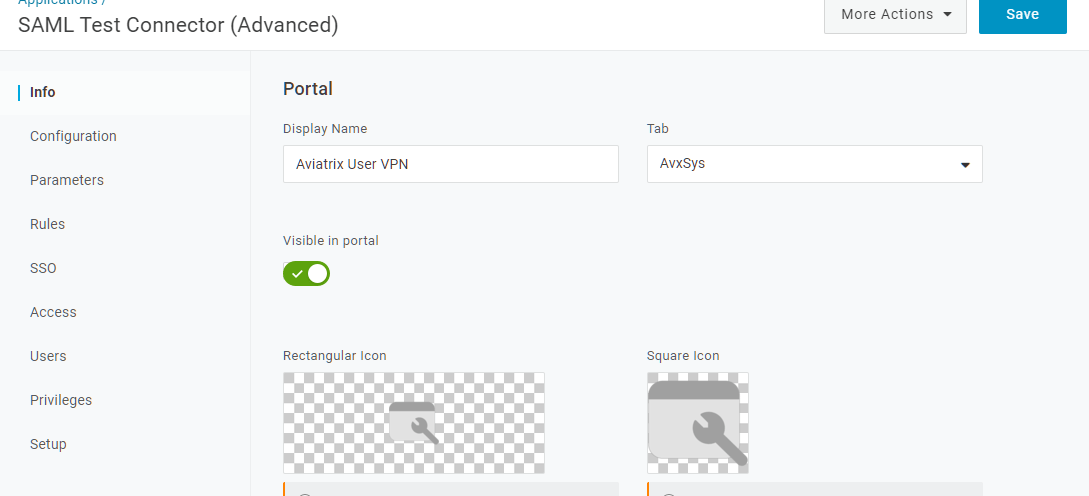 You can download the rectangular image from here:
 You can download the square image from here:
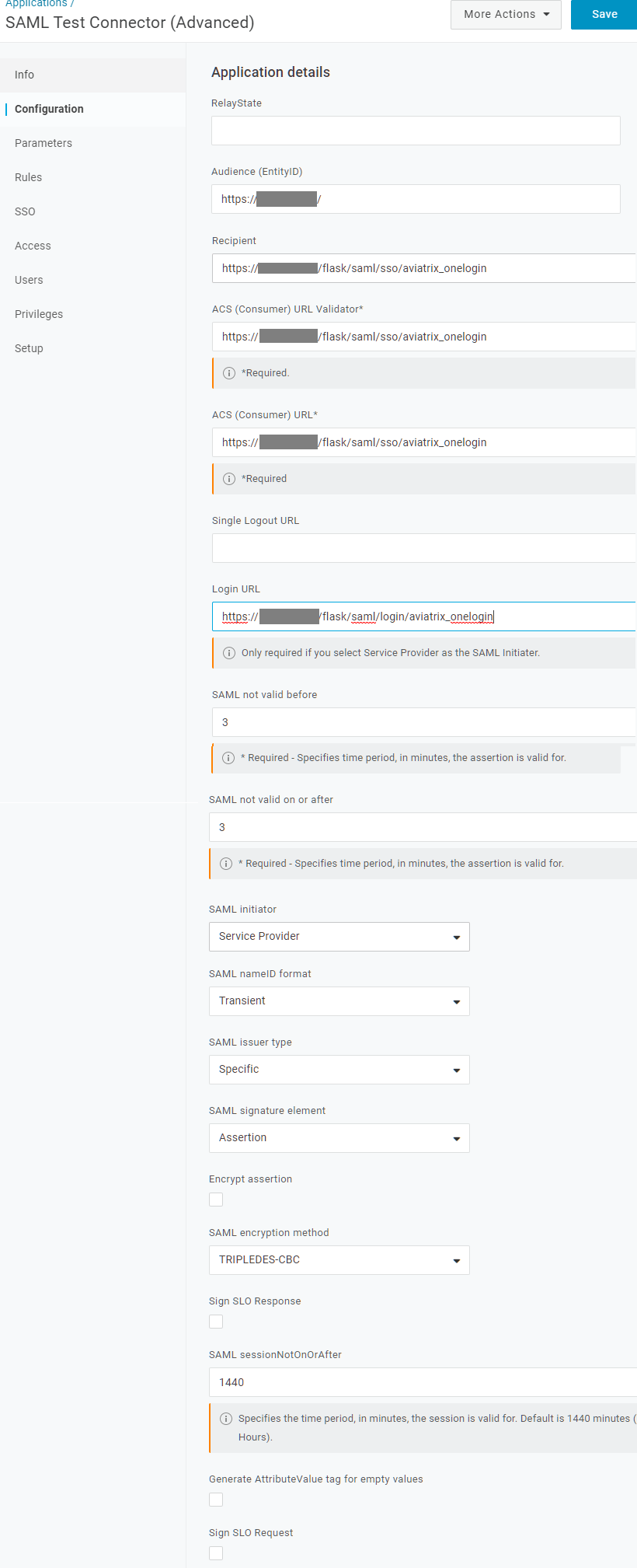
 6. Click on **Configuration** tab.
7. Enter the values.
| Field | Value |
| -------------------------------------------- | --------------------------- |
| RelayState | Blank |
| Audience(Entity ID) | **SP Entity ID** |
| Recipient | **SP\_ACS\_URL** |
| ACS (Consumer) URL Validator | **SP\_ACS\_URL** |
| ACS (Consumer) URL | **SP\_ACS\_URL** |
| Single Logout URL | Blank |
| Login URL | **SP Login(Test) URL** |
| SAML not valid before | 3 (default) |
| SAML not valid on or after | 3 (default) |
| SAML initiator | Service Provider |
| SAML nameID format | Transient |
| SAML issuer type | Specific (default) |
| SAML signature element | Assertion |
| Encrypt assertion | Unmarked checkbox (default) |
| SAML encryption method | TRIPLEDES-CBC (default) |
| Sign SLO Response | Unmarked checkbox (default) |
| SAML sessionNotOnOrAfter | 1440 (default) |
| Generate AttributeValue tag for empty values | Unmarked checkbox (default) |
| Sign SLO Request | Unmarked checkbox (default) |
6. Click on **Configuration** tab.
7. Enter the values.
| Field | Value |
| -------------------------------------------- | --------------------------- |
| RelayState | Blank |
| Audience(Entity ID) | **SP Entity ID** |
| Recipient | **SP\_ACS\_URL** |
| ACS (Consumer) URL Validator | **SP\_ACS\_URL** |
| ACS (Consumer) URL | **SP\_ACS\_URL** |
| Single Logout URL | Blank |
| Login URL | **SP Login(Test) URL** |
| SAML not valid before | 3 (default) |
| SAML not valid on or after | 3 (default) |
| SAML initiator | Service Provider |
| SAML nameID format | Transient |
| SAML issuer type | Specific (default) |
| SAML signature element | Assertion |
| Encrypt assertion | Unmarked checkbox (default) |
| SAML encryption method | TRIPLEDES-CBC (default) |
| Sign SLO Response | Unmarked checkbox (default) |
| SAML sessionNotOnOrAfter | 1440 (default) |
| Generate AttributeValue tag for empty values | Unmarked checkbox (default) |
| Sign SLO Request | Unmarked checkbox (default) |
 8. Click **Save**.
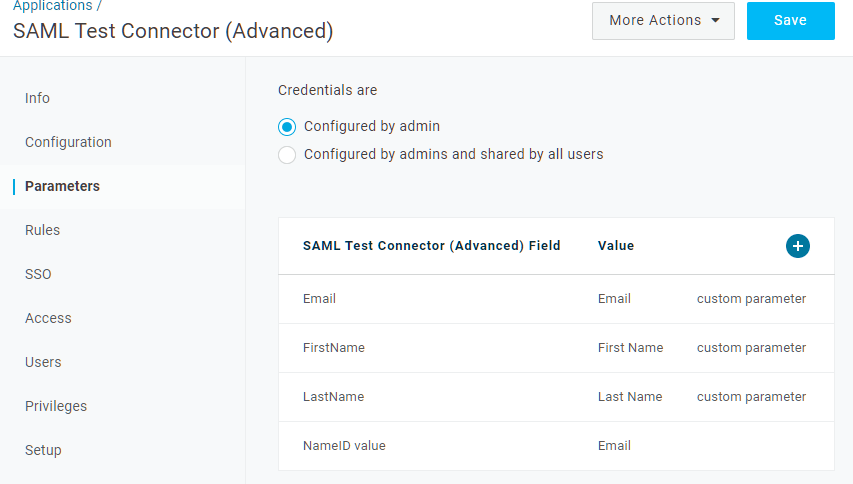
9. Select the **Parameters** tab.
10. Add the following custom parameters (case sensitive).
| Field | Value | Flags |
| --------- | ---------- | ------------------------- |
| Email | Email | Include in SAML assertion |
| FirstName | First Name | Include in SAML assertion |
| LastName | Last Name | Include in SAML assertion |
8. Click **Save**.
9. Select the **Parameters** tab.
10. Add the following custom parameters (case sensitive).
| Field | Value | Flags |
| --------- | ---------- | ------------------------- |
| Email | Email | Include in SAML assertion |
| FirstName | First Name | Include in SAML assertion |
| LastName | Last Name | Include in SAML assertion |
 11. Optionally, add a field to map to the profile in Aviatrix.
| Field | Value | Flags |
| ------- | -------------- | ------------------------- |
| Profile | (User Defined) | Include in SAML assertion |
12. Click **Save**.
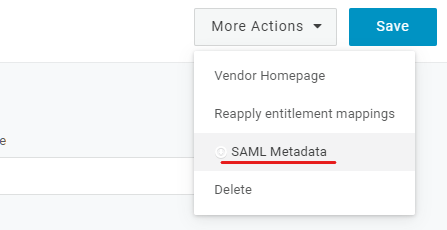
13. Click on **More actions** dropdown menu.
14. Copy the **Metadata URL**.
11. Optionally, add a field to map to the profile in Aviatrix.
| Field | Value | Flags |
| ------- | -------------- | ------------------------- |
| Profile | (User Defined) | Include in SAML assertion |
12. Click **Save**.
13. Click on **More actions** dropdown menu.
14. Copy the **Metadata URL**.
 ### Aviatrix CoPilot SAML Endpoint
1. Go to **Aviatrix CoPilot > CloudFabric > UserVPN > select the Settings tab**.
2. Under SAML, click **+ SAML Endpoint**.
3. Enter the following information:
| Field | Description |
| ---------------------------- | ------------------------------------------------------------- |
| Name | Pick |
| IPD Metadata Type | URL |
| IDP Metadata Text/URL | Paste in the **Metadata URL** obtained from the OneLogin app. |
| Entity ID | Select **Hostname**. |
| Custom SAML Request Template | Turn this setting off. |
## Testing the Integration
1. Log into **Aviatrix CoPilot > Cloud Fabric > UserVPN > select the Settings
tab**.
2. Under SAML, find the SAML endpoint. In the Test column, select the link
provided.
## Creating a VPN User
Create a new VPN user
. Use the VPN gateway created above.
## Validating
1. Go to **Aviatrix CoPilot > CloudFabric > UserVPN > select the Users tab**.
2. Download the configuration for your test user created in the previous step.
3. Open the Aviatrix VPN Client application.
4. Click **Load Conf** and select the file downloaded.
5. Click **Connect**.
### Aviatrix CoPilot SAML Endpoint
1. Go to **Aviatrix CoPilot > CloudFabric > UserVPN > select the Settings tab**.
2. Under SAML, click **+ SAML Endpoint**.
3. Enter the following information:
| Field | Description |
| ---------------------------- | ------------------------------------------------------------- |
| Name | Pick |
| IPD Metadata Type | URL |
| IDP Metadata Text/URL | Paste in the **Metadata URL** obtained from the OneLogin app. |
| Entity ID | Select **Hostname**. |
| Custom SAML Request Template | Turn this setting off. |
## Testing the Integration
1. Log into **Aviatrix CoPilot > Cloud Fabric > UserVPN > select the Settings
tab**.
2. Under SAML, find the SAML endpoint. In the Test column, select the link
provided.
## Creating a VPN User
Create a new VPN user
. Use the VPN gateway created above.
## Validating
1. Go to **Aviatrix CoPilot > CloudFabric > UserVPN > select the Users tab**.
2. Download the configuration for your test user created in the previous step.
3. Open the Aviatrix VPN Client application.
4. Click **Load Conf** and select the file downloaded.
5. Click **Connect**.