> ## Documentation Index
> Fetch the complete documentation index at: https://docs.aviatrix.com/llms.txt
> Use this file to discover all available pages before exploring further.
# Aviatrix VPN User Authentication with an Okta API Token
> There are two methods to authenticate a VPN user against Okta: using an Okta API Token or using the Aviatrix VPN SAML Client. This document shows you how to set up authentication using the Okta API Token.
There are two methods to authenticate a VPN user against Okta: using an Okta API
Token or using the
Aviatrix VPN SAML Client.
This document shows you how to set up authentication using the Okta API Token.
Okta API Token is a method where the Aviatrix VPN Gateway authenticates against
Okta on behalf of VPN clients using the standard Okta API. When this method is
used, you can continue to use a native OpenVPN® client such as Tunnelblick while
using MFA authentication.
Follow these steps to configure Okta authentication and MFA on a User VPN
Gateway in your environment:
1. Obtain an [API token](#obtaining-the-api-token-from-okta) from your Okta
account.
2. Set up [Okta authentication](#setting-up-okta-authentication).
3. Create [VPN Users](#creating-users) for this Aviatrix Gateway.
4. [Test](#validating) connectivity.
Okta authentication can be enabled either at the Aviatrix Gateway launch time
or after the Aviatrix Gateway is launched. We highly recommend you configure
Okta after the gateway is launched.
## Obtaining the API Token from Okta
Follow the steps outlined in the
[Okta documentation](https://developer.okta.com/docs/guides/create-an-api-token/main/)
to create a new API token.
1. Log in into your Okta account as a **Super Admin**. This allows the privilege
to create a Token for API access.
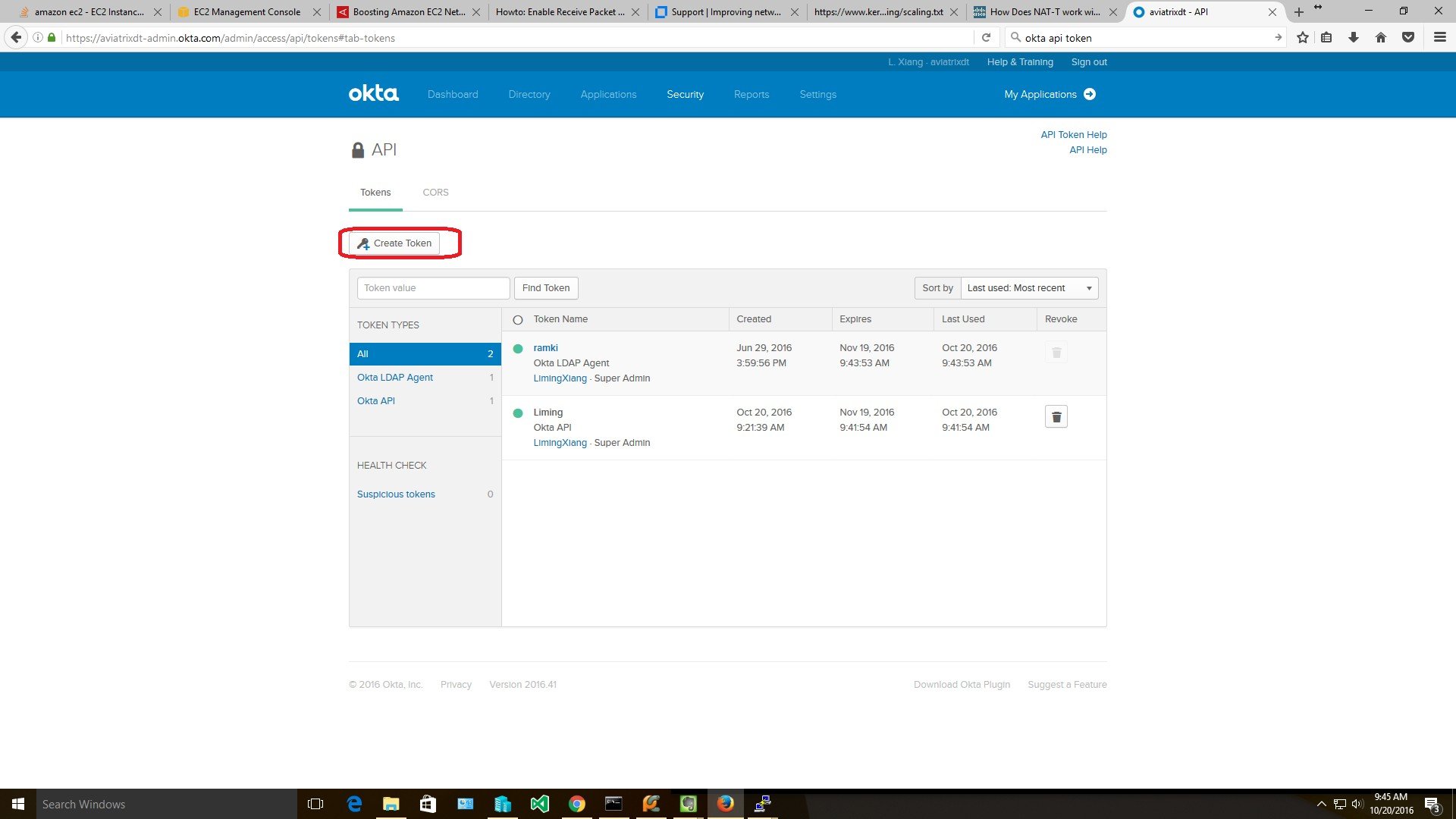
2. Go to Security > API and click **Create Token**. Give the token a name (for
example, Aviatrix).
Copy the generated token value. You'll need this token to allow the
Aviatrix Gateway to access Okta.
## Setting up Okta Authentication
1. See this guide
to create a new Aviatrix VPN Gateway.
2. When you are ready to configure Okta, go to **Aviatrix CoPilot > Cloud
Fabric > UserVPN > select the UserVPN Gateways tab**.
3. Find the gateway and click the Edit icon.
4. Find the Authentication setting, click on the dropdown option, and select
**Okta**.
5. Enter details about your Okta environment:
| Field | Description |
| --------------- | ---------------------------------------------------------------------------------------------------------------------------------------------------------------------------------------------------------------------------------------------------------------------------------------------------------------------------------------------------------------------------------------------------------------------------------------------------------------------------- |
| URL | Your Okta account login URL. (For example, [https://aviatrixtest.okta.com](https://aviatrixtest.okta.com).) |
| Token | The token value you copied earlier. |
| Username Suffix | If provided, the VPN username will be the account ID without the domain name. For example, if your Okta account is "[demoaviatrix@aviatrixtest.com](mailto:demoaviatrix@aviatrixtest.com)" and "aviatrixtest.com" is your Username Suffix, the VPN username should be "demoaviatrix". If no value is provided for this field, you must enter the full username including domain name (for example, "[demoaviatrix@aviatrixtest.com](mailto:demoaviatrix@aviatrixtest.com)"). |
 6. Click **Save**.
## Creating User(s)
Create a UserVPN user.
This username must match the username in Okta.
1. (Optional) Enter the user's email where the .ovpn file will be emailed.
If an email is not provided, users will need to download their .ovpn file
from the Controller.
2. (Optional) Select a profile for this user.
3. Click **OK**.
## Validating
1. Use the .ovpn file emailed to your test account or download it from Aviatrix
VPN Users.
2. Add the configuration to your VPN client.
3. Connect and log in.
Since Aviatrix Okta authentication uses API authentication, it uses the
default sign on policy of Okta. If you have configured Multi-factor
Authentication in Okta, then during VPN login, the end user needs to append
his MFA token to the password during authentication.
6. Click **Save**.
## Creating User(s)
Create a UserVPN user.
This username must match the username in Okta.
1. (Optional) Enter the user's email where the .ovpn file will be emailed.
If an email is not provided, users will need to download their .ovpn file
from the Controller.
2. (Optional) Select a profile for this user.
3. Click **OK**.
## Validating
1. Use the .ovpn file emailed to your test account or download it from Aviatrix
VPN Users.
2. Add the configuration to your VPN client.
3. Connect and log in.
Since Aviatrix Okta authentication uses API authentication, it uses the
default sign on policy of Okta. If you have configured Multi-factor
Authentication in Okta, then during VPN login, the end user needs to append
his MFA token to the password during authentication.