> ## Documentation Index
> Fetch the complete documentation index at: https://docs.aviatrix.com/llms.txt
> Use this file to discover all available pages before exploring further.
# Transit FireNet Workflow for AWS
> Follow the procedures in this document to apply FireNet to an AWS Transit gateway.
Follow the procedures in this document to apply FireNet to an AWS Transit
gateway.
## Transit FireNet Workflow Prerequisites
Configure vendor integration for your FireNet deployment.
Aviatrix supports integration with the following firewall vendors:
* Palo Alto Networks VM-Series
* Check Point CloudGuard
* Fortinet FortiGate
To configure vendor integration:
1. Navigate to **Security > FireNet > Vendor Integration**.
2. Select your firewall vendor.
3. Configure the integration settings as required.
4. Save your configuration.
* Subscribe to the firewall instance (AWS only)
.
* If you want to attach Spokes to your FireNet, you must create the Spokes
beforehand.
* Any Transit FireNet connections that use BGP over LAN must also have DNAT or
SNAT configured.
* For AWS TGW, ensure that a Firewall Domain is created in the AWS TGW before
adding FireNet functionality.
* If desired, you can create VPCs/VNets ahead of time that have the **Transit +
FireNet** VPC Function option selected, ensuring that the necessary subnets
and interfaces are already created in those VPC/VNets in preparation for using
the Transit FireNet feature. If when adding FireNet to a Transit gateway you
decide to use a VPC/VNet that does not have the **Transit + FireNet** function
selected, you must subsequently create the necessary subnets and interfaces in
the relevant cloud service provider.
* When FireNet is added to a Transit gateway, a firewall can be inserted into
the Aviatrix Transit VPC/VNet. East-west and egress traffic is inspected by
these firewalls, unless traffic inspection is explicitly disabled (by using an
Egress FireNet or disabling the Traffic Inspection option).
## Adding FireNet to an AWS Transit Gateway
Ensure you have completed any prerequisites before beginning.
See
[Minimum Gateway Instance Sizes for FireNet deployment](https://legacy.docs.aviatrix.com/documentation/latest/security/firenet-gateway-size.html)
for information on the interfaces/NICs created when you add FireNet to a Transit
Gateway.
1. On the Security > FireNet > FireNet Gateways tab, click **+Add FireNet**.
2. In the Add FireNet to Transit Gateway dialog, select if you want to add
FireNet functionality to an existing Transit gateway or on a new Transit
gateway.
If you are adding FireNet to an existing Transit gateway that has the **BGP
over LAN** slider On, that Transit gateway must also have DNAT/SNAT
configured.
Only Transit gateways that have the **Transit Egress Capability** toggle
enabled (selected when you create a Transit gateway from Cloud Fabric >
Gateways > Transit Gateways) are displayed in the Existing Transit Gateway
List.
3. If creating a new Transit gateway, enter a name in the **Name** field.
4. Configure the Transit FireNet using the information in the table below.
| Parameter | Description |
| ---------------------------------------------------------------------- | ------------------------------------------------------------------------------------------------------------------------------------------------------------------------------------------------------------------------------------------------------------------------------------------------------------------------------------------------------------------------------------------------------------------------------------------------------------------------------------------------------------------ |
| **Name** | A name for the Transit FireNet |
| **Cloud** (prepopulated if creating on an existing Transit gateway) | Select Cloud type: Standard, GovCloud, China |
| **Account** (pre-populated if creating on an existing Transit gateway) | The cloud access account for creating the Transit FireNet Gateway. |
| **Region** (pre-populated if creating on an existing Transit gateway) | The cloud region in which to create the Transit FireNet Gateway. |
| **VPC/VNet** | The VPC or VNet in the selected region in which to create the Spoke Gateway. |
| **Instance Size** | Minimum size: c5.xlarge. The minimum size may vary if HPE is enabled. |
| **High Performance Encryption (HPE)** | Turn On HPE for the FireNet deployment, for higher throughputs. |
| **Support for IPv6** | Turn On to enable IPv6 support on the FireNet gateway. |
| **Attach to Subnet** | FireNet is launched in this public subnet. |
| **Public IP** | Allocate a new, static public IP address to the new Transit gateway. |
| **Primary FireNet** | Select if you want this FireNet to be the Primary FireNet where firewalls are attached. |
| **Secondary FireNet** | Select if you want this to be a Secondary FireNet that will send traffic to the Primary FireNet to be inspected. Egress and traffic inspection are disabled when Secondary FireNet is selected. Secondary FireNet does not support IPv6. |
| **Attach Secondary FireNets** | Select the Secondary FireNets to attach to this Primary FireNet. |
| **Attach to Primary FireNet** | Select the Primary FireNet to which to attach this Secondary FireNet. |
| **Gateway Load Balancer** | Slide On to enable the AWS Gateway Load Balancer (differs from the Native AWS Load Balancer, which is part of the AWS TGW FireNet workflow). If the Gateway Load Balancer option was turned On as part of the Transit Gateway creation workflow (for AWS), it will be On and disabled in the Transit FireNet creation workflow. If the Gateway Load Balancer option was left Off as part of the Transit Gateway creation workflow (for AWS), it will be Off and disabled in the Transit FireNet creation workflow. |
| **Traffic Inspection** | If turned Off the FireNet gateway loops back all packets. If creating an AWS Transit Gateway with Secondary FireNet selected, Traffic Inspection is Off by default, and hidden. |
| **Egress** | Enable Egress (Internet-bound) traffic inspection. |
5. Click **Add**.
If you are
[attaching Secondary FireNets to Primary](#attaching-secondary-firenet-to-primary-firenet-aws-only)
(AWS only), the Attach Secondary FireNet to Primary FireNet dialog displays.
You can check the FireNet creation progress on the Monitor > Notifications >
Tasks tab.
### Primary and Secondary FireNet
In AWS you can deploy a FireNet architecture that consists of one Primary and up
to ten Secondary FireNet gateways. This allows you to scale to more than 125
HPE-enabled Spoke gateways and reduce the overall number of firewall
deployments.
 The Primary FireNet is the Transit Gateway where firewalls are attached. This
FireNet can have its own Spoke Gateways and Site2Cloud or external connections.
Secondary FireNet Transit Gateways send traffic to the Primary FireNet to be
inspected by the firewall. A Secondary FireNet can only attach to one Primary
FireNet. Secondary FireNets can bypass Primary if the traffic does not require
inspection. Traffic that does not require inspection is routed to the closest
next hop.
**Prerequisites for Primary and Secondary FireNet**
* [Segmentation](https://legacy.docs.aviatrix.com/documentation/latest/security/transit-firenet-settings.html/network-segmentation-secured)
must be enabled on the gateways that will function as the Primary and
Secondary FireNets before attachment occurs. You cannot enable segmentation
after attachment.
* SNAT/NAT cannot be configured for the FireNets in a Primary/Secondary FireNet
configuration.
**Prerequisites for Secondary FireNet**
* GWLB cannot be enabled
* No firewalls attached
* No
[egress static CIDR](https://legacy.docs.aviatrix.com/documentation/latest/security/transit-firenet-settings.html)
configured
* No
[exclude CIDR](https://legacy.docs.aviatrix.com/documentation/latest/security/firewall-associate-existing.html)
configured
* Local ASN configured
* Network segmentation enabled
Secondary FireNet does not support IPv6.
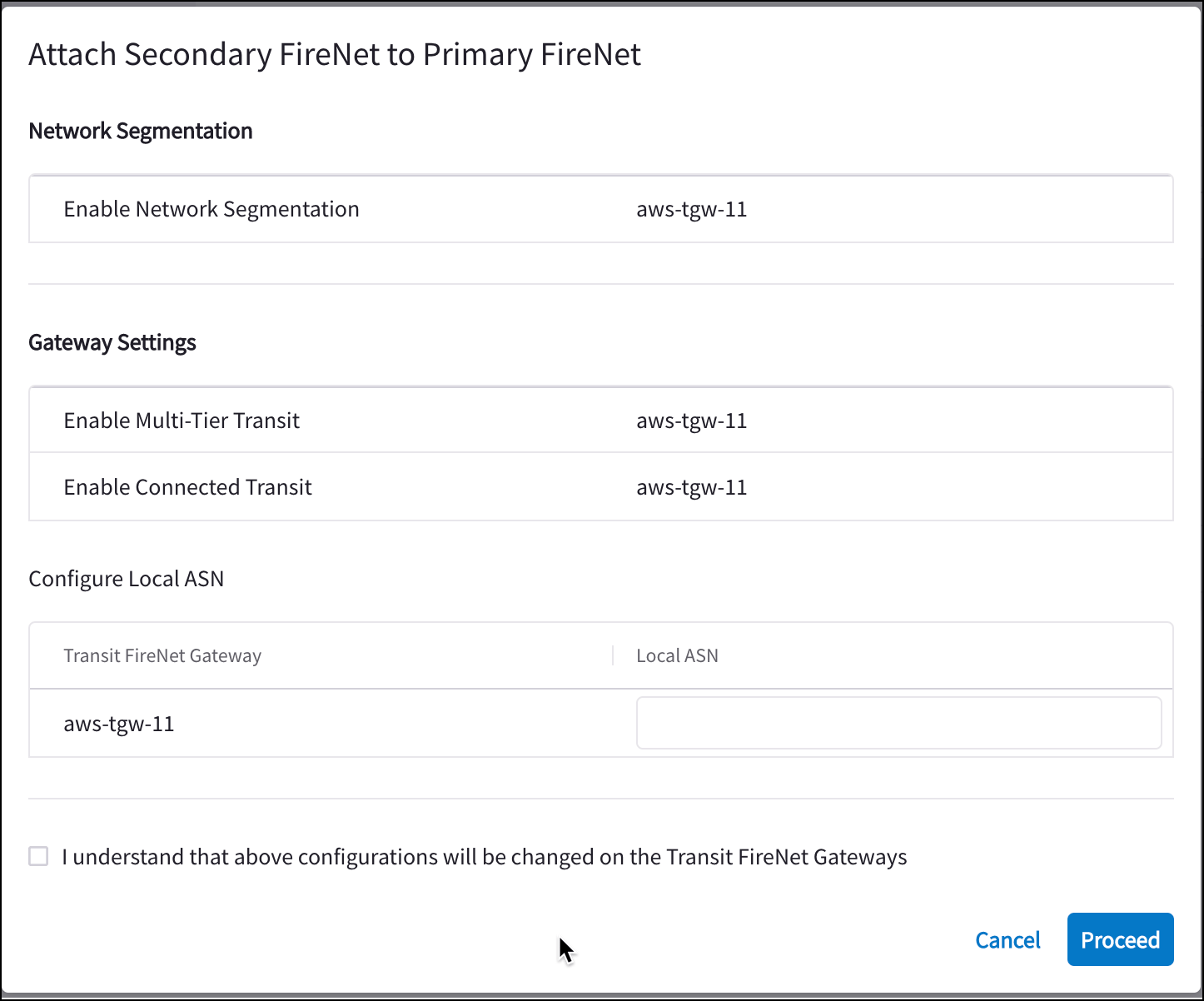
### Attaching Secondary FireNet to Primary FireNet (AWS only)
If you created and saved a Primary FireNet configuration that included Secondary
FireNet attachments, after saving you are prompted to attach your Secondary
FireNet to Primary.
1. Confirm that the Network Segmentation and Gateway Settings information is
correct for this Primary/Secondary attachment.
2. Enter the Local ASN number for the FireNet gateways (Primary and Secondary).
This is the ASN of the BGP device on your side of the connection.
3. Select the checkbox to indicate your acceptance of configuration changes on
the Transit FireNet gateways.
4. If the configuration is satisfactory, click **Proceed**. If not, click
**Cancel** and edit your FireNet configuration.
## Attaching a Spoke to a Transit FireNet
After [adding a Transit FireNet](#adding-firenet-to-an-aws-transit-gateway), you
can attach Spoke gateways. The GCP Spoke gateways can have Global
VPC enabled.
### Managing Gateway Attachment
1. Navigate to Cloud Fabric > Gateways > Spoke Gateways.
2. Click the Manage Gateway Attachments icon
The Primary FireNet is the Transit Gateway where firewalls are attached. This
FireNet can have its own Spoke Gateways and Site2Cloud or external connections.
Secondary FireNet Transit Gateways send traffic to the Primary FireNet to be
inspected by the firewall. A Secondary FireNet can only attach to one Primary
FireNet. Secondary FireNets can bypass Primary if the traffic does not require
inspection. Traffic that does not require inspection is routed to the closest
next hop.
**Prerequisites for Primary and Secondary FireNet**
* [Segmentation](https://legacy.docs.aviatrix.com/documentation/latest/security/transit-firenet-settings.html/network-segmentation-secured)
must be enabled on the gateways that will function as the Primary and
Secondary FireNets before attachment occurs. You cannot enable segmentation
after attachment.
* SNAT/NAT cannot be configured for the FireNets in a Primary/Secondary FireNet
configuration.
**Prerequisites for Secondary FireNet**
* GWLB cannot be enabled
* No firewalls attached
* No
[egress static CIDR](https://legacy.docs.aviatrix.com/documentation/latest/security/transit-firenet-settings.html)
configured
* No
[exclude CIDR](https://legacy.docs.aviatrix.com/documentation/latest/security/firewall-associate-existing.html)
configured
* Local ASN configured
* Network segmentation enabled
Secondary FireNet does not support IPv6.
### Attaching Secondary FireNet to Primary FireNet (AWS only)
If you created and saved a Primary FireNet configuration that included Secondary
FireNet attachments, after saving you are prompted to attach your Secondary
FireNet to Primary.
1. Confirm that the Network Segmentation and Gateway Settings information is
correct for this Primary/Secondary attachment.
2. Enter the Local ASN number for the FireNet gateways (Primary and Secondary).
This is the ASN of the BGP device on your side of the connection.
3. Select the checkbox to indicate your acceptance of configuration changes on
the Transit FireNet gateways.
4. If the configuration is satisfactory, click **Proceed**. If not, click
**Cancel** and edit your FireNet configuration.
## Attaching a Spoke to a Transit FireNet
After [adding a Transit FireNet](#adding-firenet-to-an-aws-transit-gateway), you
can attach Spoke gateways. The GCP Spoke gateways can have Global
VPC enabled.
### Managing Gateway Attachment
1. Navigate to Cloud Fabric > Gateways > Spoke Gateways.
2. Click the Manage Gateway Attachments icon  next
to a Spoke Gateway.
3. In the Manage Gateway Attachments dialog, click **Attachment** on the Transit
Gateway tab to select the Transit Gateway to which the Spoke Gateway will be
attached.
4. Click **Save**.
To detach a Spoke from a Transit FireNet, you can open the Manage Gateway
Attachment dialog, click the Delete icon
next
to a Spoke Gateway.
3. In the Manage Gateway Attachments dialog, click **Attachment** on the Transit
Gateway tab to select the Transit Gateway to which the Spoke Gateway will be
attached.
4. Click **Save**.
To detach a Spoke from a Transit FireNet, you can open the Manage Gateway
Attachment dialog, click the Delete icon  next to
the Transit gateway in the list, and click **Save**.
### Editing Transit Gateway Attachment for a Spoke Gateway
1. Navigate to Cloud Fabric > Gateways > Spoke Gateways.
2. Click the Edit icon
next to
the Transit gateway in the list, and click **Save**.
### Editing Transit Gateway Attachment for a Spoke Gateway
1. Navigate to Cloud Fabric > Gateways > Spoke Gateways.
2. Click the Edit icon  next
to the Spoke gateway.
3. Select the FireNet-enabled Transit gateway from the **Attach Transit
Gateway** drop-down, or the Egress Transit FireNet from the **Attach to
Egress Transit FireNet** drop-down.
4. Click **Save**.
You can detach a Spoke from a Transit FireNet by editing the Spoke gateway and
removing the Transit gateway from the **Attach Transit Gateway** drop-down.
## Deploying a Firewall
You can also
[associate an existing firewall](https://legacy.docs.aviatrix.com/documentation/latest/security/check-point-bootstrap.html).
Supported firewalls are Check Point CloudGuard, Fortinet FortiGate, and Palo
Alto VM-Series.
Supported firewall managers are Panorama (Palo Alto VM-Series).
After firewalls are launched, you can configure them to
check traffic flow.
**AWS only**: If you want to launch a firewall, you must first subscribe to a firewall
instance in the AWS Marketplace.
You can have more than one firewall in a FireNet Transit gateway.
1. On the Security > FireNet > Firewall tab, click **+Firewall** to open the
Deploy Firewall dialog and add a new firewall instance.
From here you can also import a firewall you previously created in your cloud
portal.
2. If deploying a new firewall, fill out the following fields:
| Field | Description |
| ------------------------------------------------------------------------- | ----------------------------------------------------------------------------------------------------------------------------------------------------------------------------------------------------------------------- |
| **Transit FireNet Gateway Instance** | Select the Transit FireNet gateway instance to associate with this firewall. |
| **Attach Firewall to FireNet after Launching** | Yes/No. Select Yes to enable the firewall (the firewall instance is inserted into the data path). If you select No, the firewall is not attached at this time. You can attach it later. |
| **Availability Domain** (OCI only) | Data center within a region |
| **Fault Domain** (OCI only) | Fault domain is within Availability Domain; fault domains let you distribute your instances so that they are not on the same physical hardware within a single Availability Domain |
| **Zone** (GCP) | Availability Zone |
| **Name** | Your name for the firewall instance |
| **Firewall Image** | The image for your desired firewall: Palo Alto, Check Point, or Fortinet FortiGate. |
| **Firewall Image Version** | Select a currently supported firewall image version. You can select a Palo Alto firewall version greater than 9.1.3 for a GCP Transit FireNet if you select one of the available Flex Next-Generation firewall options. |
| **Firewall Instance Size** | Select an instance size for the firewall. The available sizes vary based on the selected FireNet instance and type of firewall. |
| **Egress Interface Subnet** | Select the subnet to use for egress. |
| **Key Pair Name** (Check Point CloudGuard, Fortinet FortiGate) (optional) | Only displays if you enable Boostrap Configuration. Add a Key-Value pair for firewall authentication. |
| **Management Interface Subnet** (Palo Alto/AWS only) | Subnet of the Palo Alto firewall management interface. |
| **Authentication** (Azure) | Password or SSH Public Key. If you select Password, enter a password of your choice. If you select SSH Public Key, enter the SSH Public Key of the firewall. |
| **Username** (Azure) | Username of your choice ('admin' is not allowed). |
| **Bootstrap Configuration** (optional) | Enable/Disable. If you have enabled the Bootstrap Configuration to deploy your firewall, configure those fields before clicking **Save**. |
## Firewall Bootstrap Configuration
On the Deploy Firewall dialog, the Bootstrap Configuration option simplifies the
initial configuration setup of a firewall within the selected cloud.
The Bootstrap Configuration toggle is disabled by default if you have not
selected both a firewall instance and a firewall image.
After the Bootstrap Configuration toggle is enabled, you can configure your
bootstrap options. The fields to complete for bootstrap configuration depend on
the selected cloud for the Transit FireNet gateway instance, and the selected
firewall. Use the links in the below table to complete the bootstrap
configuration.
See the firewall example
configuration topics for specific firewall image versions, instance size,
and more.
| Firewall | AWS | Azure | GCP |
| ------------------ | --------------------------------------------------------------------------------------------------------------------------------------------------------------------------------------------------------------------------- | ---------------------------------------------------------------------------------------------------------------------------------------------------------------------------------------------------------------------------------------------------- | ------------------------------------- |
| Check Point | AWS S3 Bucket: IAM Role, S3 Bucket or User Data. [Bootstrap Configuration Example for Check Point Security Gateway in AWS/Azure](https://legacy.docs.aviatrix.com/documentation/latest/security/check-point-bootstrap.html) | Azure Storage or User Data. [Bootstrap Configuration Example for Check Point Security Gateway in AWS/Azure](https://legacy.docs.aviatrix.com/documentation/latest/security/fortigate-bootstrap-example.html) | Key-Value Pair |
| Fortinet FortiGate | AWS S3 Bucket: IAM Role, S3 Bucket or User Data. [Bootstrap Configuration Example for FortiGate Firewall in AWS](https://legacy.docs.aviatrix.com/documentation/latest/security/fortigate-bootstrap-azure.html) | Azure Storage: Storage, Container, SAS URL Config, SAS URL License or User Data. [Bootstrap Configuration Example for FortiGate Firewall in Azure](https://legacy.docs.aviatrix.com/documentation/latest/security/paloalto-bootstrap-aws.html) | Key-Value Pair |
| Palo Alto | AWS S3 Bucket: IAM Role, S3 Bucket or User Data. [Bootstrap Configuration Example for VM-Series in AWS](https://legacy.docs.aviatrix.com/documentation/latest/security/pan-bootstrap-example-azure.html) | Azure Storage: Storage, Storage Access Key, File-Share Folder, Share-Directory or User Data. [Bootstrap Configuration Example for VM-Series in Azure](https://legacy.docs.aviatrix.com/documentation/latest/security/azure-spoke-subnet-groups.html) | Bootstrap Bucket Name. Key-Value Pair |
3. Click **Save**. This launches the firewall and also associates it with the
selected Transit FireNet gateway.
## Configuring Transit FireNet Inspection Policies
By default, Transit FireNet inspects ingress and east-west traffic only.
The Policy tab and inspection policy procedure are not relevant for Egress
Transit FireNet because the traffic from this type of Transit gateway egresses
directly to the Internet without being inspected.
Policy configuration is not necessary for Egress Transit FireNet gateways (also,
the Policy tab is not displayed for these gateways).
On the FireNet Gateways Policy tab you can add or remove inspection policies for
the selected Transit FireNet. When an inspection policy is added the traffic
related to the Transit FireNet's attachment (Spoke/Edge gateway, peered Transit,
Site2Cloud external connection) is inspected by the firewall within the selected
Transit FireNet.
You can add inspection policies for a Transit FireNet if you have already
attached one of the following to the Transit FireNet:
* Spoke gateway (can attach Spoke gateways
[here](#attaching-a-spoke-to-a-transit-firenet))
* Edge gateway
* Peered Transit gateway
* Site2Cloud (added from Networking > Connectivity > External Connections)
**Azure only**: See
[Azure Spoke Subnet Groups](https://legacy.docs.aviatrix.com/documentation/latest/security/firewall-panorama-templates.html)
to synchronize and add subnet groups for Spoke Gateways attached to Azure
Transit FireNets. You cannot add subnet groups to a Spoke Gateway if it has
inspection enabled.
1. Navigate to Security > FireNet > FireNet Gateways and click a Transit FireNet
in the list.
2. Click the **Policy** tab. The list of attachments for that Transit FireNet
displays.
next
to the Spoke gateway.
3. Select the FireNet-enabled Transit gateway from the **Attach Transit
Gateway** drop-down, or the Egress Transit FireNet from the **Attach to
Egress Transit FireNet** drop-down.
4. Click **Save**.
You can detach a Spoke from a Transit FireNet by editing the Spoke gateway and
removing the Transit gateway from the **Attach Transit Gateway** drop-down.
## Deploying a Firewall
You can also
[associate an existing firewall](https://legacy.docs.aviatrix.com/documentation/latest/security/check-point-bootstrap.html).
Supported firewalls are Check Point CloudGuard, Fortinet FortiGate, and Palo
Alto VM-Series.
Supported firewall managers are Panorama (Palo Alto VM-Series).
After firewalls are launched, you can configure them to
check traffic flow.
**AWS only**: If you want to launch a firewall, you must first subscribe to a firewall
instance in the AWS Marketplace.
You can have more than one firewall in a FireNet Transit gateway.
1. On the Security > FireNet > Firewall tab, click **+Firewall** to open the
Deploy Firewall dialog and add a new firewall instance.
From here you can also import a firewall you previously created in your cloud
portal.
2. If deploying a new firewall, fill out the following fields:
| Field | Description |
| ------------------------------------------------------------------------- | ----------------------------------------------------------------------------------------------------------------------------------------------------------------------------------------------------------------------- |
| **Transit FireNet Gateway Instance** | Select the Transit FireNet gateway instance to associate with this firewall. |
| **Attach Firewall to FireNet after Launching** | Yes/No. Select Yes to enable the firewall (the firewall instance is inserted into the data path). If you select No, the firewall is not attached at this time. You can attach it later. |
| **Availability Domain** (OCI only) | Data center within a region |
| **Fault Domain** (OCI only) | Fault domain is within Availability Domain; fault domains let you distribute your instances so that they are not on the same physical hardware within a single Availability Domain |
| **Zone** (GCP) | Availability Zone |
| **Name** | Your name for the firewall instance |
| **Firewall Image** | The image for your desired firewall: Palo Alto, Check Point, or Fortinet FortiGate. |
| **Firewall Image Version** | Select a currently supported firewall image version. You can select a Palo Alto firewall version greater than 9.1.3 for a GCP Transit FireNet if you select one of the available Flex Next-Generation firewall options. |
| **Firewall Instance Size** | Select an instance size for the firewall. The available sizes vary based on the selected FireNet instance and type of firewall. |
| **Egress Interface Subnet** | Select the subnet to use for egress. |
| **Key Pair Name** (Check Point CloudGuard, Fortinet FortiGate) (optional) | Only displays if you enable Boostrap Configuration. Add a Key-Value pair for firewall authentication. |
| **Management Interface Subnet** (Palo Alto/AWS only) | Subnet of the Palo Alto firewall management interface. |
| **Authentication** (Azure) | Password or SSH Public Key. If you select Password, enter a password of your choice. If you select SSH Public Key, enter the SSH Public Key of the firewall. |
| **Username** (Azure) | Username of your choice ('admin' is not allowed). |
| **Bootstrap Configuration** (optional) | Enable/Disable. If you have enabled the Bootstrap Configuration to deploy your firewall, configure those fields before clicking **Save**. |
## Firewall Bootstrap Configuration
On the Deploy Firewall dialog, the Bootstrap Configuration option simplifies the
initial configuration setup of a firewall within the selected cloud.
The Bootstrap Configuration toggle is disabled by default if you have not
selected both a firewall instance and a firewall image.
After the Bootstrap Configuration toggle is enabled, you can configure your
bootstrap options. The fields to complete for bootstrap configuration depend on
the selected cloud for the Transit FireNet gateway instance, and the selected
firewall. Use the links in the below table to complete the bootstrap
configuration.
See the firewall example
configuration topics for specific firewall image versions, instance size,
and more.
| Firewall | AWS | Azure | GCP |
| ------------------ | --------------------------------------------------------------------------------------------------------------------------------------------------------------------------------------------------------------------------- | ---------------------------------------------------------------------------------------------------------------------------------------------------------------------------------------------------------------------------------------------------- | ------------------------------------- |
| Check Point | AWS S3 Bucket: IAM Role, S3 Bucket or User Data. [Bootstrap Configuration Example for Check Point Security Gateway in AWS/Azure](https://legacy.docs.aviatrix.com/documentation/latest/security/check-point-bootstrap.html) | Azure Storage or User Data. [Bootstrap Configuration Example for Check Point Security Gateway in AWS/Azure](https://legacy.docs.aviatrix.com/documentation/latest/security/fortigate-bootstrap-example.html) | Key-Value Pair |
| Fortinet FortiGate | AWS S3 Bucket: IAM Role, S3 Bucket or User Data. [Bootstrap Configuration Example for FortiGate Firewall in AWS](https://legacy.docs.aviatrix.com/documentation/latest/security/fortigate-bootstrap-azure.html) | Azure Storage: Storage, Container, SAS URL Config, SAS URL License or User Data. [Bootstrap Configuration Example for FortiGate Firewall in Azure](https://legacy.docs.aviatrix.com/documentation/latest/security/paloalto-bootstrap-aws.html) | Key-Value Pair |
| Palo Alto | AWS S3 Bucket: IAM Role, S3 Bucket or User Data. [Bootstrap Configuration Example for VM-Series in AWS](https://legacy.docs.aviatrix.com/documentation/latest/security/pan-bootstrap-example-azure.html) | Azure Storage: Storage, Storage Access Key, File-Share Folder, Share-Directory or User Data. [Bootstrap Configuration Example for VM-Series in Azure](https://legacy.docs.aviatrix.com/documentation/latest/security/azure-spoke-subnet-groups.html) | Bootstrap Bucket Name. Key-Value Pair |
3. Click **Save**. This launches the firewall and also associates it with the
selected Transit FireNet gateway.
## Configuring Transit FireNet Inspection Policies
By default, Transit FireNet inspects ingress and east-west traffic only.
The Policy tab and inspection policy procedure are not relevant for Egress
Transit FireNet because the traffic from this type of Transit gateway egresses
directly to the Internet without being inspected.
Policy configuration is not necessary for Egress Transit FireNet gateways (also,
the Policy tab is not displayed for these gateways).
On the FireNet Gateways Policy tab you can add or remove inspection policies for
the selected Transit FireNet. When an inspection policy is added the traffic
related to the Transit FireNet's attachment (Spoke/Edge gateway, peered Transit,
Site2Cloud external connection) is inspected by the firewall within the selected
Transit FireNet.
You can add inspection policies for a Transit FireNet if you have already
attached one of the following to the Transit FireNet:
* Spoke gateway (can attach Spoke gateways
[here](#attaching-a-spoke-to-a-transit-firenet))
* Edge gateway
* Peered Transit gateway
* Site2Cloud (added from Networking > Connectivity > External Connections)
**Azure only**: See
[Azure Spoke Subnet Groups](https://legacy.docs.aviatrix.com/documentation/latest/security/firewall-panorama-templates.html)
to synchronize and add subnet groups for Spoke Gateways attached to Azure
Transit FireNets. You cannot add subnet groups to a Spoke Gateway if it has
inspection enabled.
1. Navigate to Security > FireNet > FireNet Gateways and click a Transit FireNet
in the list.
2. Click the **Policy** tab. The list of attachments for that Transit FireNet
displays.
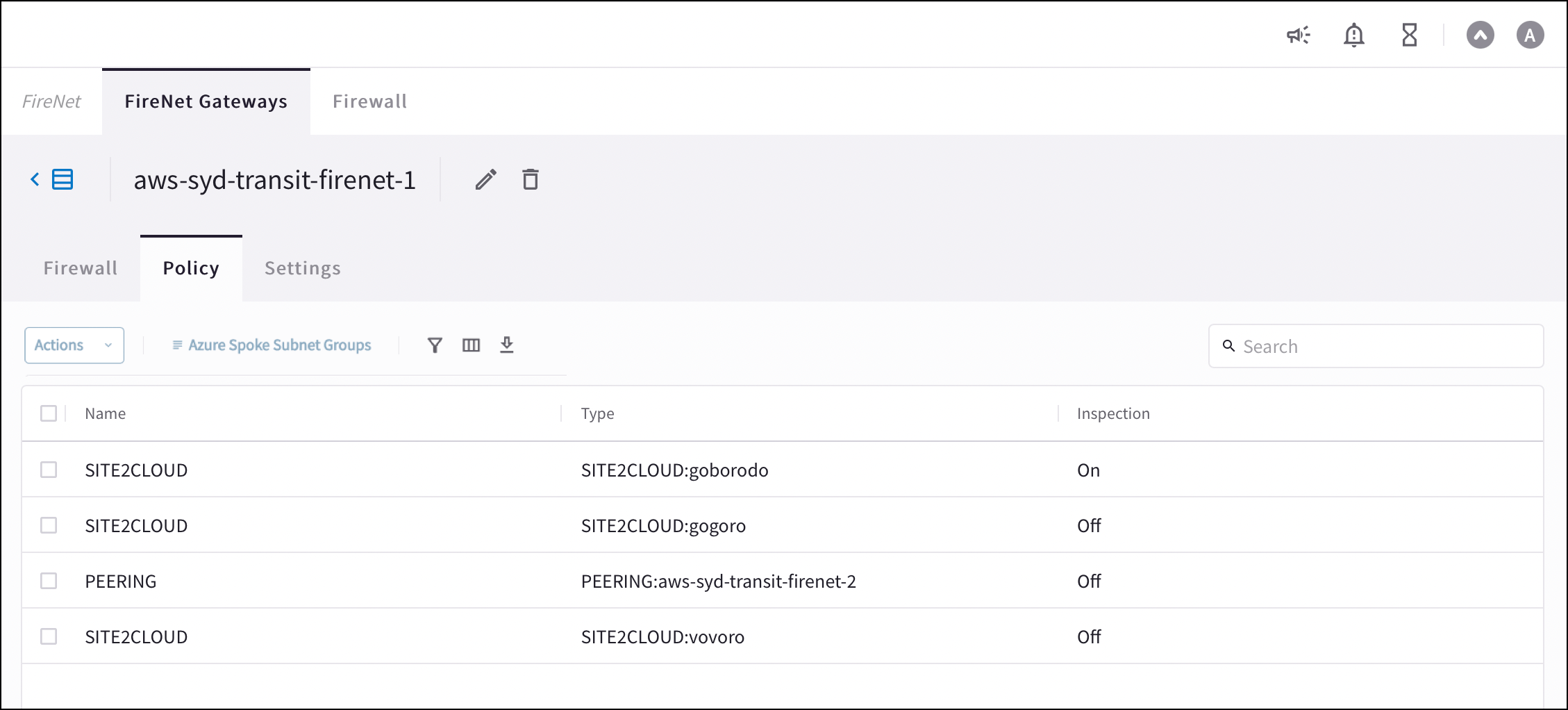 3. Select the attachments that you want to add for inspection.
4. From the **Actions** menu, select **Add**. The selected attachments now show
**On** in the Inspection column.
To remove an inspection policy, select the checkbox next to the attachment name,
and then select **Remove** from the **Actions** menu.
## Transit FireNet Vendor Integration
The Vendor Integration function allows you to log into a firewall or firewall
manager and change the route table on the firewall to program the routing for
Transit FireNet, or to change routing if a gateway in Transit FireNet fails.
You can also use Vendor Integration to configure the RFC 1918 and non-RFC 1918
routes between the Aviatrix Gateway and the vendor's firewall instance.
To turn On IPv6 on an existing FireNet, revoke the existing Vendor Integration
settings, enable IPv6 on the FireNet, and then reconfigure Vendor Integration.
The IPv6 Vendor Integration is only for Palo Alto Networks standalone firewalls
(without Panorama).
IPv6 vendor integration in Azure is currently not functional. If you require
vendor-driven IPv6 route programming in Azure, configure IPv6 routes manually
in the firewall.
You can only configure information on this dialog if a firewall is already
attached to the Transit FireNet.
### Configuring Vendor Integration
3. Select the attachments that you want to add for inspection.
4. From the **Actions** menu, select **Add**. The selected attachments now show
**On** in the Inspection column.
To remove an inspection policy, select the checkbox next to the attachment name,
and then select **Remove** from the **Actions** menu.
## Transit FireNet Vendor Integration
The Vendor Integration function allows you to log into a firewall or firewall
manager and change the route table on the firewall to program the routing for
Transit FireNet, or to change routing if a gateway in Transit FireNet fails.
You can also use Vendor Integration to configure the RFC 1918 and non-RFC 1918
routes between the Aviatrix Gateway and the vendor's firewall instance.
To turn On IPv6 on an existing FireNet, revoke the existing Vendor Integration
settings, enable IPv6 on the FireNet, and then reconfigure Vendor Integration.
The IPv6 Vendor Integration is only for Palo Alto Networks standalone firewalls
(without Panorama).
IPv6 vendor integration in Azure is currently not functional. If you require
vendor-driven IPv6 route programming in Azure, configure IPv6 routes manually
in the firewall.
You can only configure information on this dialog if a firewall is already
attached to the Transit FireNet.
### Configuring Vendor Integration
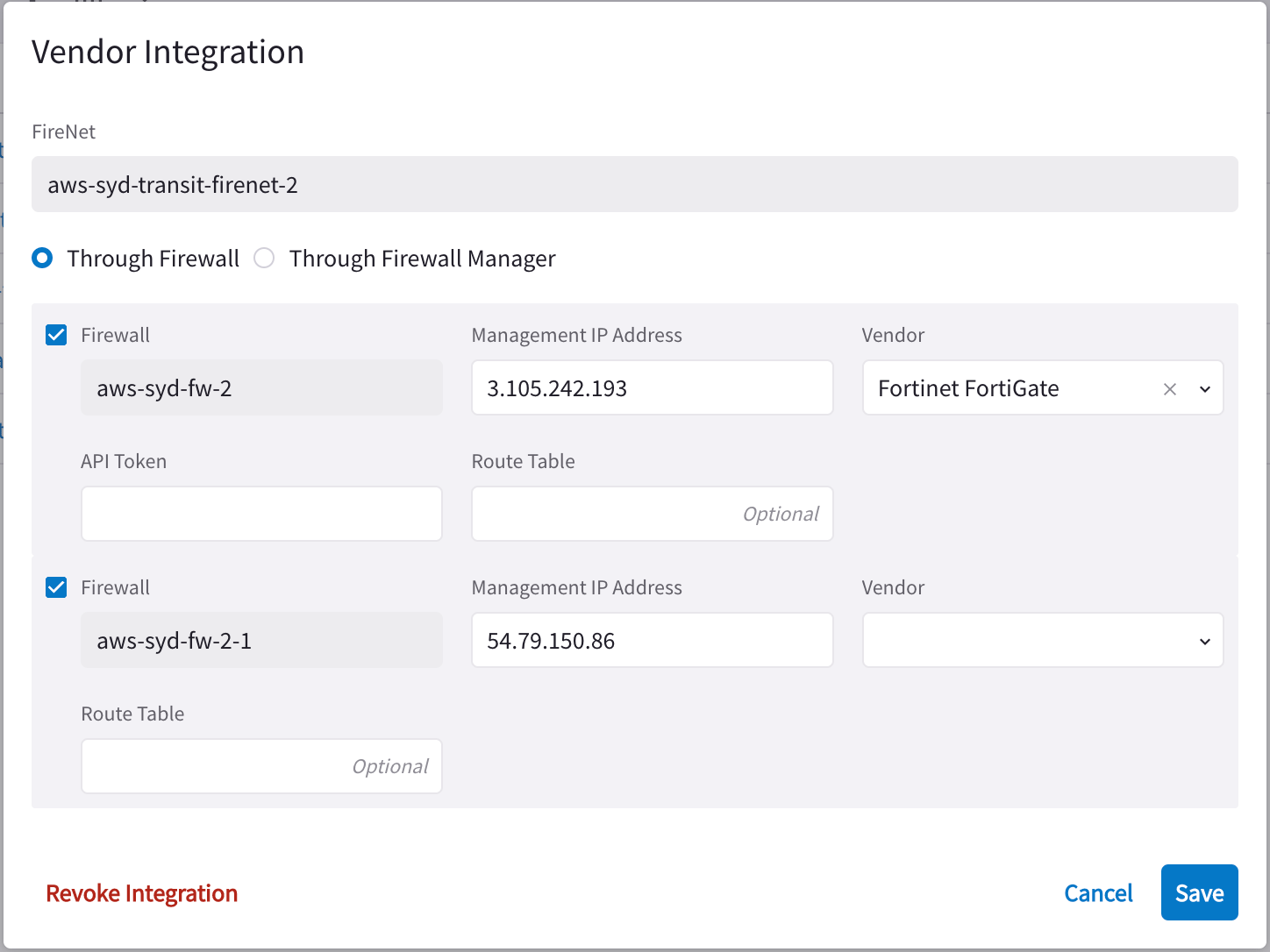 1. From the Security > FireNet Gateways tab, click the vertical ellipsis icon
 in a FireNet Gateway row and select **Manage Vendor Integration**.
2. In the Vendor Integration dialog, select **Through Firewall** or **Through
Firewall Manager**.
You should only select the latter if the Vendor is a Palo Alto firewall
(managed by Panorama).
3. Configure the following:
| Field | Description |
| ------------------------------------------------------------------ | ------------------------------------------------------------------------------------------------------------------------ |
| **Firewall** | Name of the attached firewall (this is pre-populated with the name of the attached firewall). |
| **Firewall Manager Vendor** (Through Firewall Manager option only) | Palo Alto Networks Panorama |
| **Management IP Address** | Management IP address of the firewall. |
| **Vendor** (Through Firewall option only) | Firewall vendor (Palo Alto Networks VM-Series, Fortinet FortiGate, Check Point CloudGuard). |
| **Authentication** (Check Point CloudGuard) | Password or Private Key |
| **Username** (Check Point, Palo Alto) | Username for logging on to the firewall. |
| **Password** (Check Point, Palo Alto) | Password for logging on to the firewall. |
| **Private Key** (Check Point) | If you selected Private Key authentication for your Check Point firewall, you must upload the private key here. |
| **FireNet Instance** | |
| **Template Name** (Firewall Manager Vendor only) | Name of the [template](https://legacy.docs.aviatrix.com/documentation/latest/security/firewall-panorama-templates.html). |
| **Template Stack Name** (Firewall Manager Vendor only) | Name of the [Template Stack](https://legacy.docs.aviatrix.com/documentation/latest/security/firenet-paloalto-icmp.html). |
| **Route Table** | Optional |
| **API Token** (Fortinet FortiGate only) | API token generated from the Fortinet FortiGate instance |
4. Click **Save**.
### Revoking Vendor Integration
You cannot revoke vendor integration for FireNet gateways that have the Generic
vendor selected.
To revoke Vendor Integration:
1. Select Vendor Integration as per step 1 above, and then click **Revoke
Integration** on the dialog.
2. When prompted about being sure you want to revoke, click **Revoke**.
### Syncing Routes to Firewall
The Vendor Integration tab only displays for a Transit FireNet if you have
configured a Firewall Manager (Panorama) and attached it to this Transit
FireNet.
You can click **Sync Routes to Firewall** on the FireNet Gateway Vendor
Integration tab (you must configure vendor integration first) or the details
panel for the firewall, to ensure that the FireNet routes are synced to the
selected firewall.
You can also sync routes to the firewall from the Security > FireNet > Firewall
details tab.
Since vendor integration requires that the firewall be pinged periodically, you
should
[configure the 'ping' ability](https://legacy.docs.aviatrix.com/documentation/latest/security/transit-firenet-edit.html)
in the respective firewall UIs.
You can also sync routes to the firewall from the Security > FireNet > Firewall
tab (click a firewall to see its details, and then click **Sync Routes to
Firewall**).
## Related Topics
* [Editing a Transit FireNet](https://legacy.docs.aviatrix.com/documentation/latest/security/transit-firenet-remove.html)
* [Removing Transit FireNet](https://legacy.docs.aviatrix.com/documentation/latest/security/transit-firenet-route-tables.html?expand=true)
* [Viewing FireNet route table information](https://legacy.docs.aviatrix.com/documentation/latest/security/firewall-manage-attachments.html)
* Detaching or deleting a firewall instance
*
Managing firewall attachments
* Configuring your firewalls to check FireNet traffic flow
* FireNet Design Patterns
* Transit FireNet Workflow for AWS TGW
in a FireNet Gateway row and select **Manage Vendor Integration**.
2. In the Vendor Integration dialog, select **Through Firewall** or **Through
Firewall Manager**.
You should only select the latter if the Vendor is a Palo Alto firewall
(managed by Panorama).
3. Configure the following:
| Field | Description |
| ------------------------------------------------------------------ | ------------------------------------------------------------------------------------------------------------------------ |
| **Firewall** | Name of the attached firewall (this is pre-populated with the name of the attached firewall). |
| **Firewall Manager Vendor** (Through Firewall Manager option only) | Palo Alto Networks Panorama |
| **Management IP Address** | Management IP address of the firewall. |
| **Vendor** (Through Firewall option only) | Firewall vendor (Palo Alto Networks VM-Series, Fortinet FortiGate, Check Point CloudGuard). |
| **Authentication** (Check Point CloudGuard) | Password or Private Key |
| **Username** (Check Point, Palo Alto) | Username for logging on to the firewall. |
| **Password** (Check Point, Palo Alto) | Password for logging on to the firewall. |
| **Private Key** (Check Point) | If you selected Private Key authentication for your Check Point firewall, you must upload the private key here. |
| **FireNet Instance** | |
| **Template Name** (Firewall Manager Vendor only) | Name of the [template](https://legacy.docs.aviatrix.com/documentation/latest/security/firewall-panorama-templates.html). |
| **Template Stack Name** (Firewall Manager Vendor only) | Name of the [Template Stack](https://legacy.docs.aviatrix.com/documentation/latest/security/firenet-paloalto-icmp.html). |
| **Route Table** | Optional |
| **API Token** (Fortinet FortiGate only) | API token generated from the Fortinet FortiGate instance |
4. Click **Save**.
### Revoking Vendor Integration
You cannot revoke vendor integration for FireNet gateways that have the Generic
vendor selected.
To revoke Vendor Integration:
1. Select Vendor Integration as per step 1 above, and then click **Revoke
Integration** on the dialog.
2. When prompted about being sure you want to revoke, click **Revoke**.
### Syncing Routes to Firewall
The Vendor Integration tab only displays for a Transit FireNet if you have
configured a Firewall Manager (Panorama) and attached it to this Transit
FireNet.
You can click **Sync Routes to Firewall** on the FireNet Gateway Vendor
Integration tab (you must configure vendor integration first) or the details
panel for the firewall, to ensure that the FireNet routes are synced to the
selected firewall.
You can also sync routes to the firewall from the Security > FireNet > Firewall
details tab.
Since vendor integration requires that the firewall be pinged periodically, you
should
[configure the 'ping' ability](https://legacy.docs.aviatrix.com/documentation/latest/security/transit-firenet-edit.html)
in the respective firewall UIs.
You can also sync routes to the firewall from the Security > FireNet > Firewall
tab (click a firewall to see its details, and then click **Sync Routes to
Firewall**).
## Related Topics
* [Editing a Transit FireNet](https://legacy.docs.aviatrix.com/documentation/latest/security/transit-firenet-remove.html)
* [Removing Transit FireNet](https://legacy.docs.aviatrix.com/documentation/latest/security/transit-firenet-route-tables.html?expand=true)
* [Viewing FireNet route table information](https://legacy.docs.aviatrix.com/documentation/latest/security/firewall-manage-attachments.html)
* Detaching or deleting a firewall instance
*
Managing firewall attachments
* Configuring your firewalls to check FireNet traffic flow
* FireNet Design Patterns
* Transit FireNet Workflow for AWS TGW