> ## Documentation Index
> Fetch the complete documentation index at: https://docs.aviatrix.com/llms.txt
> Use this file to discover all available pages before exploring further.
# Azure Ingress Firewall Setup Solution
> Step-by-step guide to set up an Azure ingress firewall solution using Aviatrix Transit FireNet for traffic inspection.
## Azure Ingress Traffic Inspection Firewall
This document illustrates a simple architecture for Ingress traffic inspection
firewall that leverages Azure Load Balancers,
Transit FireNet
, and
Azure Transit with Native Spoke VNets
. The solution also allows you to view the client IP address.
The deployment is shown in the below diagram.
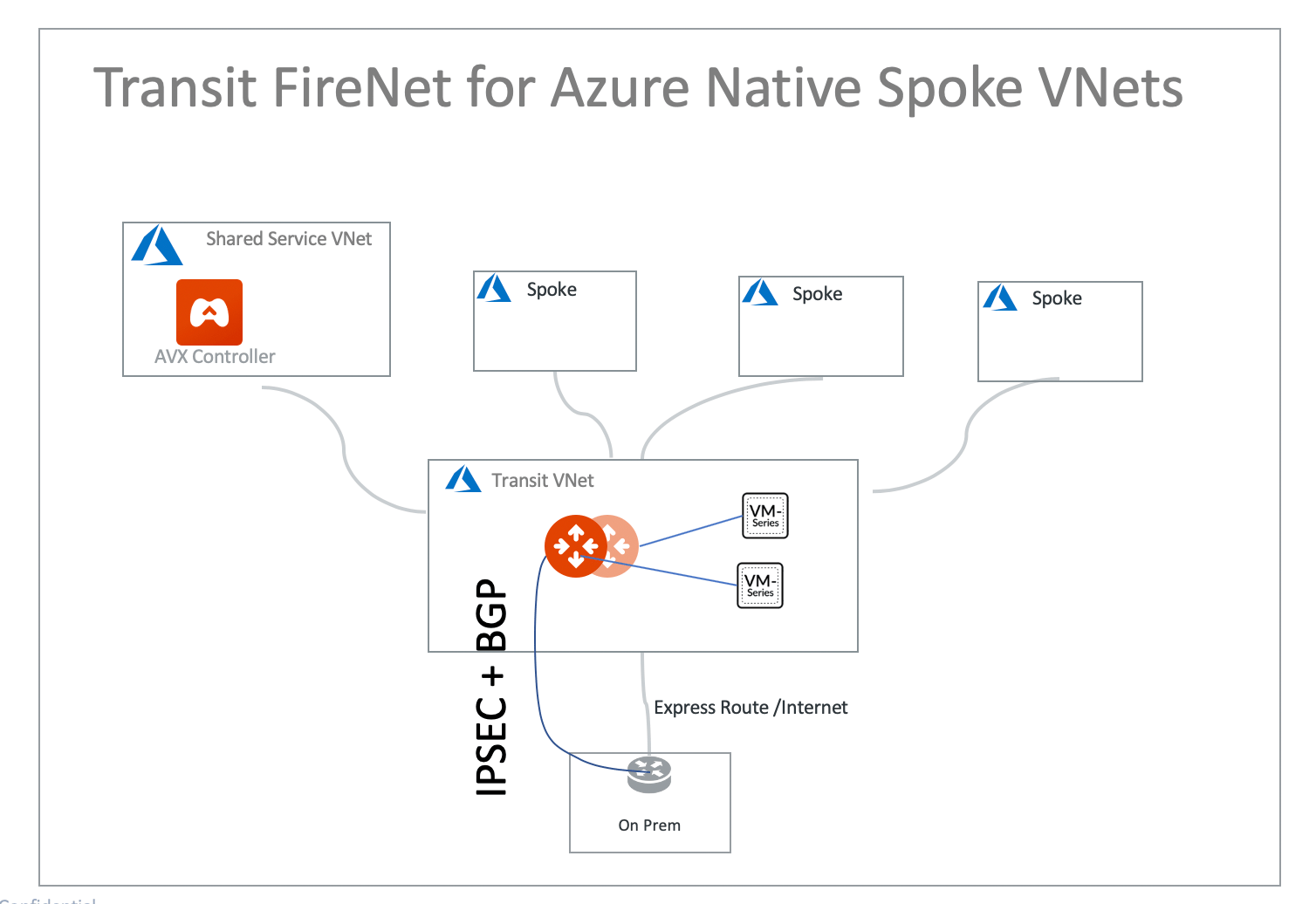 The key idea is that from a FireNet point of view, the ingress inspection is
simply a VNet-to-VNet traffic inspection. This is accomplished by:
1. Placing an Internet facing Azure Application Gateway in a Spoke VNet (in the
diagram, this spoke VNet is called Ingress Spoke VNet) to load balance
traffic to the VNet where applications
reside (Application Spoke VNet).
2. Managing Spoke Inspection Policies for the Application Spoke VNet traffic
that requires inspection with the Aviatrix Transit VNet.
In this unified architecture, firewalls can be used for Ingress, Egress,
North-South and VNet-to-VNet filtering. The solution does not need Azure Load
Balancers to directly attach to firewall instances which then requires firewall
instances to source NAT the incoming traffic from the Internet. Firewall
instances can scale out as applications scale for all traffic types.
This architecture works for [Azure Application
Gateway](https://docs.microsoft.com/en-us/azure/application-gateway/overview).
You can create multiple load balancers in the Ingress Spoke VNet.
## Prerequisite Setup for Azure Ingress Firewall Setup Solution
First, upgrade the Aviatrix
Controller to at least version **UserConnect-5.3.1428.**
Deploy the below topology in Azure:
### Azure VNets
* Aviatrix Transit VNet (i.e. 192.168.23.0/24)
* Ingress Spoke VNet (i.e. 10.20.0.0/16)
* Application Spoke VNet (i.e. 10.21.0.0/16)
### Azure Transit with Native Spoke VNets topology
Aviatrix Transit FireNet for Azure Encrypted Transit topology also supports
this Azure Ingress Firewall Solution.
## Deploy an Aviatrix Transit VNET for the Azure Ingress Firewall Setup Solution
Create an Aviatrix Transit VNet with the **Aviatrix FireNet VPC option enabled**.
1. In CoPilot, go to **Cloud Resources > Cloud Assets > VPC/VNets and Subnets**.
2. Click **+ VPC/Vnet** and create a new VPC with the Azure ARM Cloud Type.
3. From the VPC Function drop-down select **Transit + FireNet**.
4. Click **Save**.
### Deploying an Ingress Spoke VNET
Create an Ingress Spoke VNET by creating a VNet as per [Deploy an Aviatrix Transit VNet](#deploy-an-aviatrix-transit-vnet-for-the-azure-ingress-firewall-setup-solution). You can also use an existing VNet.
### Deploying an Application Spoke VNET for the Azure Ingress Firewall Setup Solution
Create an Application Spoke VNET as per the previous step or manually deploy it in the Azure portal. You can also use your existing Application VNET.
## Deploying Azure Transit with Native Spoke VNets Topology
Follow Global Transit Network
Workflow Instructions (AWS/Azure/GCP/OCI) to deploy Azure Transit with
Native Spoke VNets topology.
Create an Aviatrix Transit Gateway in Aviatrix Transit VNET by following the Launch
a Transit Gateway procedure.
For Azure deployment, the Aviatrix Transit Gateway must be launched with the
option Enable Transit FireNet Function enabled. The minimum Azure FireNet
gateway size is Standard\_B2ms.
## Managing Transit FireNet Policy for Azure Ingress Firewall Setup Solution
Follow
Aviatrix Transit FireNet creation
to deploy FireNets.
Launch firewall instances
.
Manage a spoke inspection policy for the Application Spoke VNET by referring to
Configuring FireNet Connection Policies
.
Here is the Firewall information in this example for your reference. Adjust it
depending on your requirements.
| **Example setting** | **Example value** |
| --------------------------- | --------------------------------------------------------------------------- |
| Firewall Image | Palo Alto Networks VM-Series Next-Generation Firewall Bundle 1 |
| Firewall Image Version | 9.1.0 |
| Firewall Instance Size | Standard\_D3\_v2 |
| Management Interface Subnet | Select the subnet whose name contains "gateway-and-firewall-mgmt" |
| Egress Interface Subnet | Select the subnet whose name contains "FW-ingress-egress" |
| Username | Applicable to Azure deployment only. "admin" as a username is not accepted. |
| Attach | Check |
Set up firewall configuration by referring to
Example Config for Palo Alto Network VM-Series
.
In Azure, instead of using the pem file, use username/password to ssh into
firewall instance to reset the password if needed. Additionally, use the same
username/password to login into the firewall UI.
## Launching an Apache2 Web server in Application Spoke VNET
In Application Spoke VNET, create an Ubuntu Server 18.04 LTS virtual machine and
install Apache2 HTTP Server with custom port 8080.
| Example Setting | Example Value |
| --------------- | ------------- |
| Protocol | HTTP |
| Port | 8080 |
[Install Apache2 HTTP Server](https://websiteforstudents.com/install-the-latest-apache2-2-4-34-on-ubuntu-16-04-17-10-18-04-lts-servers/)
on your Ubuntu server.
[Change the Apache default port to use custom port 8080](https://www.ostechnix.com/how-to-change-apache-ftp-and-ssh-default-port-to-a-custom-port-part-1/).
## Creating Azure Application Gateway
In Ingress Spoke VNET, create an Azure Application Gateway. Make sure you select
the following:
1. Create an Azure Application Gateway in Ingress Spoke VNET.
The key idea is that from a FireNet point of view, the ingress inspection is
simply a VNet-to-VNet traffic inspection. This is accomplished by:
1. Placing an Internet facing Azure Application Gateway in a Spoke VNet (in the
diagram, this spoke VNet is called Ingress Spoke VNet) to load balance
traffic to the VNet where applications
reside (Application Spoke VNet).
2. Managing Spoke Inspection Policies for the Application Spoke VNet traffic
that requires inspection with the Aviatrix Transit VNet.
In this unified architecture, firewalls can be used for Ingress, Egress,
North-South and VNet-to-VNet filtering. The solution does not need Azure Load
Balancers to directly attach to firewall instances which then requires firewall
instances to source NAT the incoming traffic from the Internet. Firewall
instances can scale out as applications scale for all traffic types.
This architecture works for [Azure Application
Gateway](https://docs.microsoft.com/en-us/azure/application-gateway/overview).
You can create multiple load balancers in the Ingress Spoke VNet.
## Prerequisite Setup for Azure Ingress Firewall Setup Solution
First, upgrade the Aviatrix
Controller to at least version **UserConnect-5.3.1428.**
Deploy the below topology in Azure:
### Azure VNets
* Aviatrix Transit VNet (i.e. 192.168.23.0/24)
* Ingress Spoke VNet (i.e. 10.20.0.0/16)
* Application Spoke VNet (i.e. 10.21.0.0/16)
### Azure Transit with Native Spoke VNets topology
Aviatrix Transit FireNet for Azure Encrypted Transit topology also supports
this Azure Ingress Firewall Solution.
## Deploy an Aviatrix Transit VNET for the Azure Ingress Firewall Setup Solution
Create an Aviatrix Transit VNet with the **Aviatrix FireNet VPC option enabled**.
1. In CoPilot, go to **Cloud Resources > Cloud Assets > VPC/VNets and Subnets**.
2. Click **+ VPC/Vnet** and create a new VPC with the Azure ARM Cloud Type.
3. From the VPC Function drop-down select **Transit + FireNet**.
4. Click **Save**.
### Deploying an Ingress Spoke VNET
Create an Ingress Spoke VNET by creating a VNet as per [Deploy an Aviatrix Transit VNet](#deploy-an-aviatrix-transit-vnet-for-the-azure-ingress-firewall-setup-solution). You can also use an existing VNet.
### Deploying an Application Spoke VNET for the Azure Ingress Firewall Setup Solution
Create an Application Spoke VNET as per the previous step or manually deploy it in the Azure portal. You can also use your existing Application VNET.
## Deploying Azure Transit with Native Spoke VNets Topology
Follow Global Transit Network
Workflow Instructions (AWS/Azure/GCP/OCI) to deploy Azure Transit with
Native Spoke VNets topology.
Create an Aviatrix Transit Gateway in Aviatrix Transit VNET by following the Launch
a Transit Gateway procedure.
For Azure deployment, the Aviatrix Transit Gateway must be launched with the
option Enable Transit FireNet Function enabled. The minimum Azure FireNet
gateway size is Standard\_B2ms.
## Managing Transit FireNet Policy for Azure Ingress Firewall Setup Solution
Follow
Aviatrix Transit FireNet creation
to deploy FireNets.
Launch firewall instances
.
Manage a spoke inspection policy for the Application Spoke VNET by referring to
Configuring FireNet Connection Policies
.
Here is the Firewall information in this example for your reference. Adjust it
depending on your requirements.
| **Example setting** | **Example value** |
| --------------------------- | --------------------------------------------------------------------------- |
| Firewall Image | Palo Alto Networks VM-Series Next-Generation Firewall Bundle 1 |
| Firewall Image Version | 9.1.0 |
| Firewall Instance Size | Standard\_D3\_v2 |
| Management Interface Subnet | Select the subnet whose name contains "gateway-and-firewall-mgmt" |
| Egress Interface Subnet | Select the subnet whose name contains "FW-ingress-egress" |
| Username | Applicable to Azure deployment only. "admin" as a username is not accepted. |
| Attach | Check |
Set up firewall configuration by referring to
Example Config for Palo Alto Network VM-Series
.
In Azure, instead of using the pem file, use username/password to ssh into
firewall instance to reset the password if needed. Additionally, use the same
username/password to login into the firewall UI.
## Launching an Apache2 Web server in Application Spoke VNET
In Application Spoke VNET, create an Ubuntu Server 18.04 LTS virtual machine and
install Apache2 HTTP Server with custom port 8080.
| Example Setting | Example Value |
| --------------- | ------------- |
| Protocol | HTTP |
| Port | 8080 |
[Install Apache2 HTTP Server](https://websiteforstudents.com/install-the-latest-apache2-2-4-34-on-ubuntu-16-04-17-10-18-04-lts-servers/)
on your Ubuntu server.
[Change the Apache default port to use custom port 8080](https://www.ostechnix.com/how-to-change-apache-ftp-and-ssh-default-port-to-a-custom-port-part-1/).
## Creating Azure Application Gateway
In Ingress Spoke VNET, create an Azure Application Gateway. Make sure you select
the following:
1. Create an Azure Application Gateway in Ingress Spoke VNET.
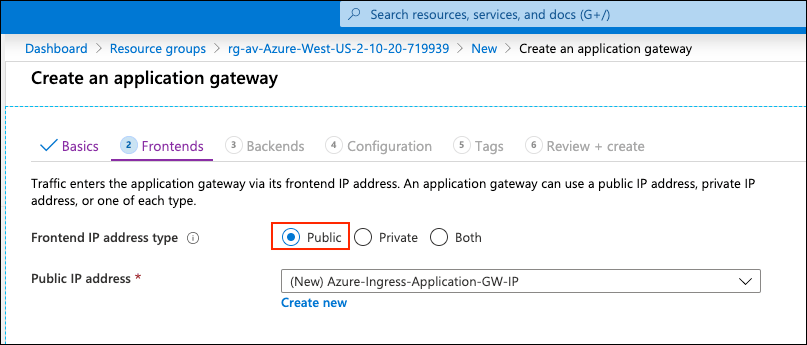
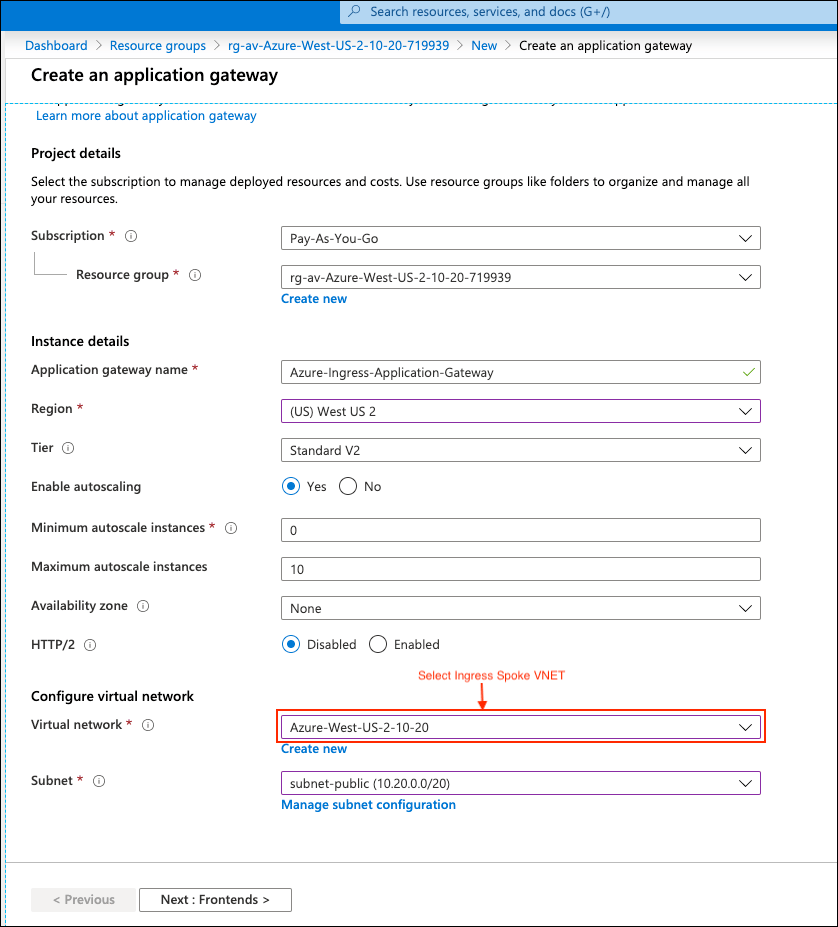 2. Under Frontends, select **Public** for the Frontend IP address type.
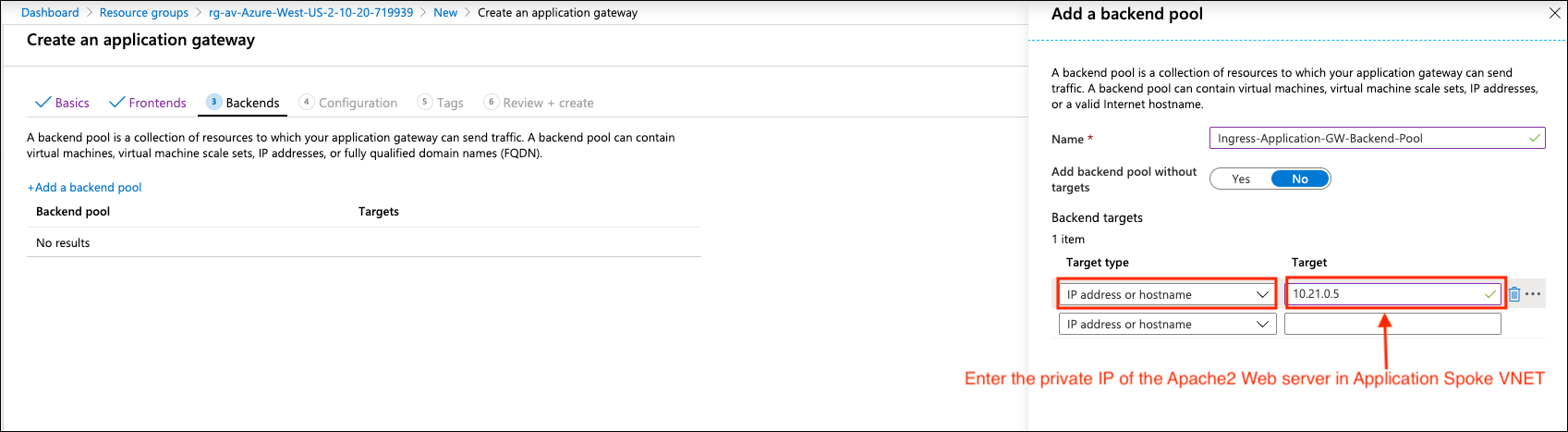
 3. Select **IP address or hostname** for Target type and configure the private
IP of Apache2 Web Server for Target in section Backends.
3. Select **IP address or hostname** for Target type and configure the private
IP of Apache2 Web Server for Target in section Backends.
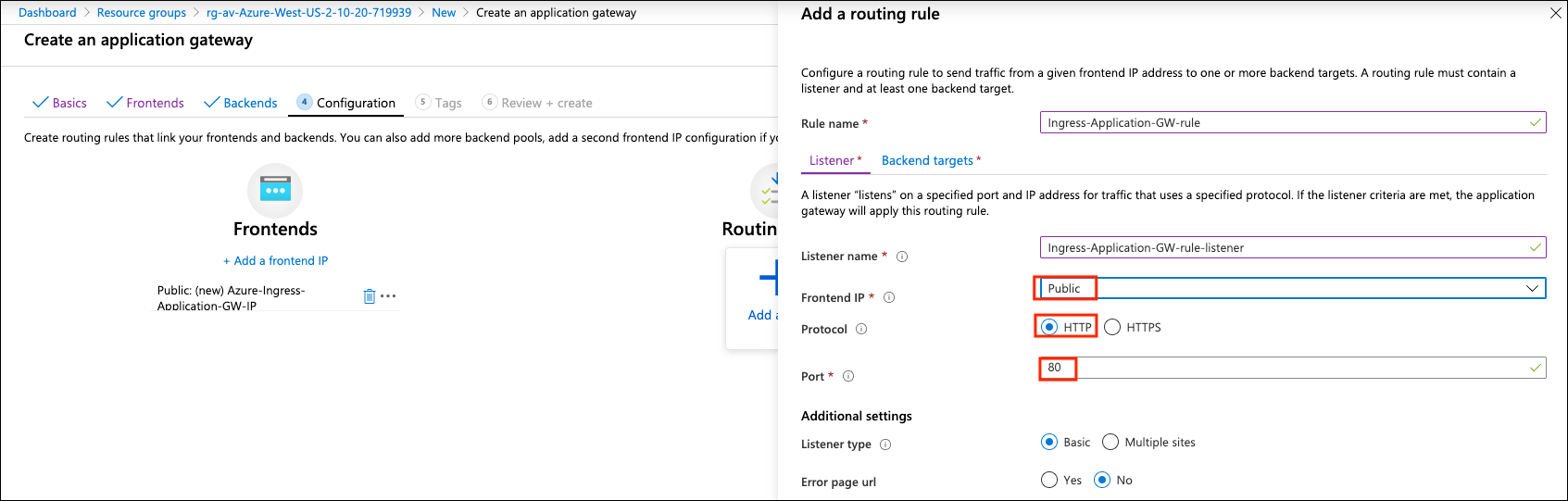
 4. Add a routing rule on the Listener depending on your requirements.
| Example setting | Example value |
| --------------- | ------------- |
| Frontend IP | Public |
| Protocol | HTTP |
| Port | 80 |
4. Add a routing rule on the Listener depending on your requirements.
| Example setting | Example value |
| --------------- | ------------- |
| Frontend IP | Public |
| Protocol | HTTP |
| Port | 80 |
 5. Add a routing rule on Backend targets and create an HTTP setting depending on
your requirement.
5. Add a routing rule on Backend targets and create an HTTP setting depending on
your requirement.
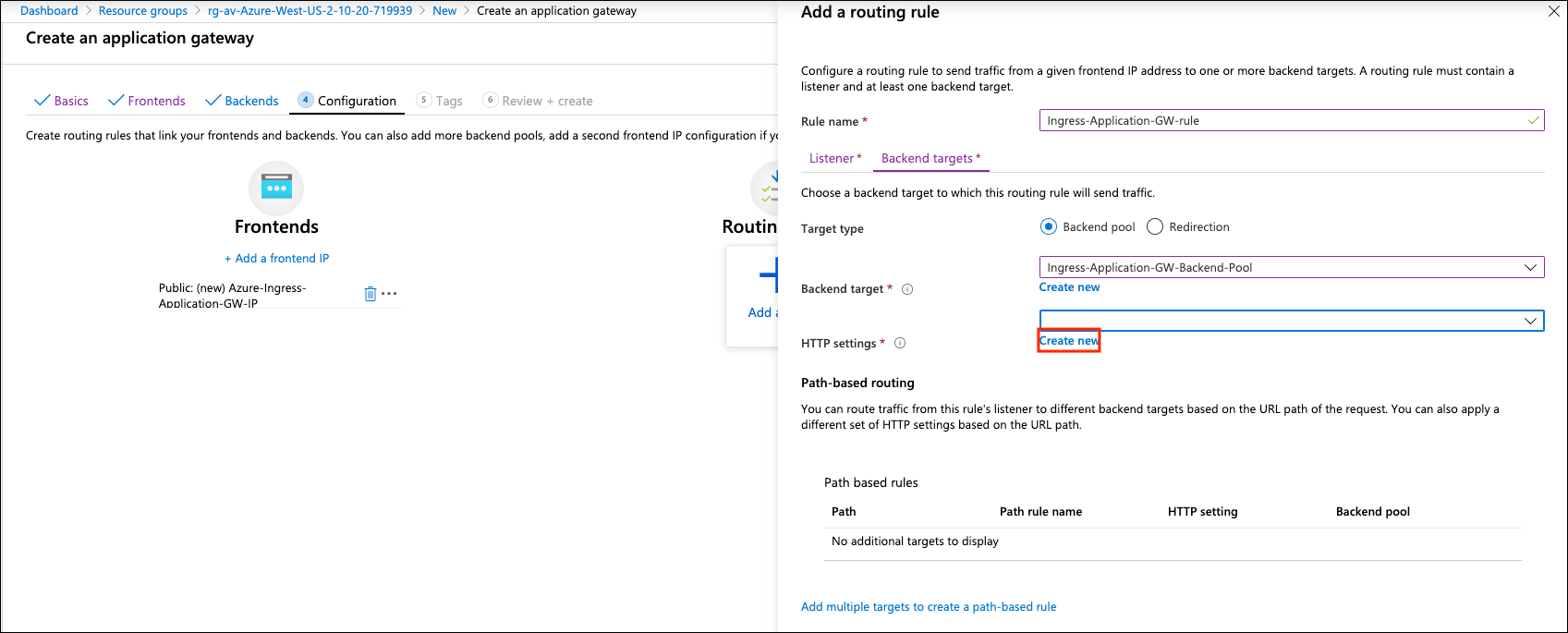 6. Click **Create new** on HTTP settings.
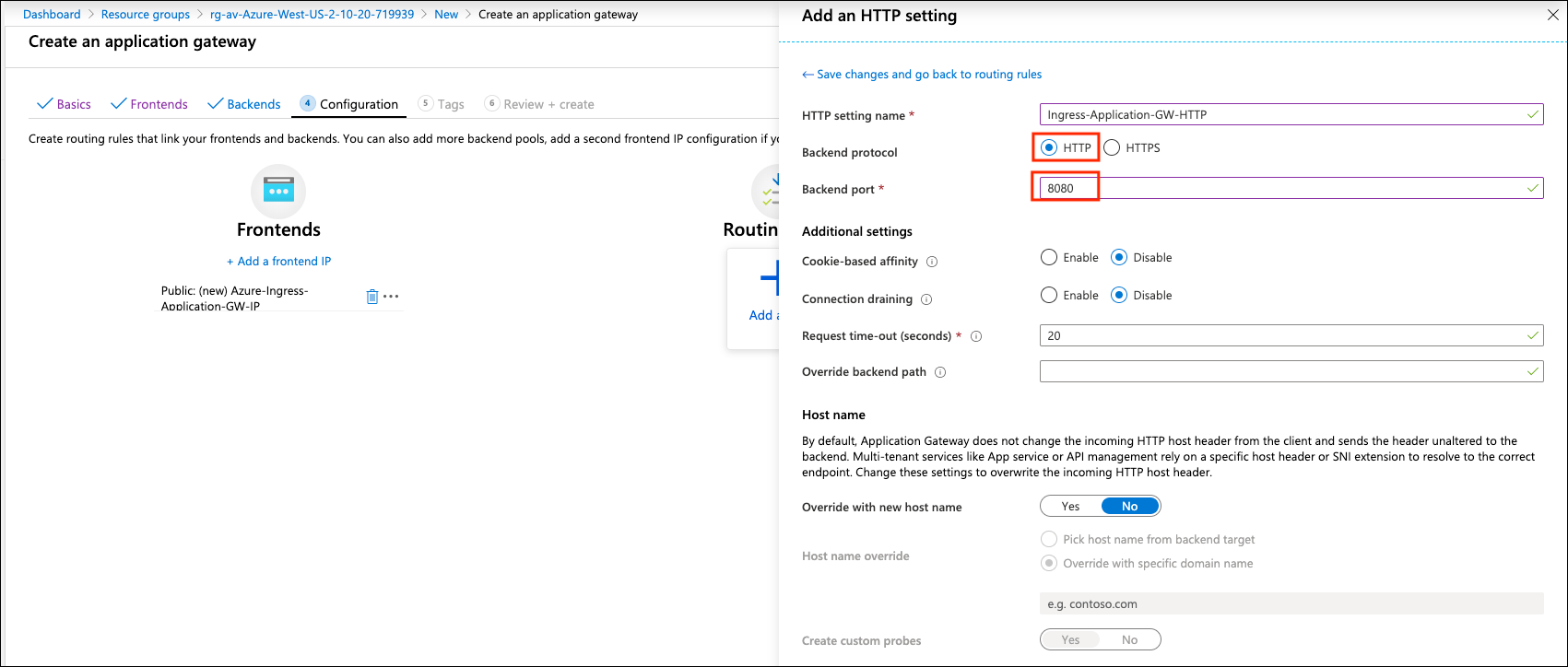 | Example Setting | Example Value |
| ---------------- | ------------- |
| Backend protocol | HTTP |
| Backend port | 8080 |
| Example Setting | Example Value |
| ---------------- | ------------- |
| Backend protocol | HTTP |
| Backend port | 8080 |
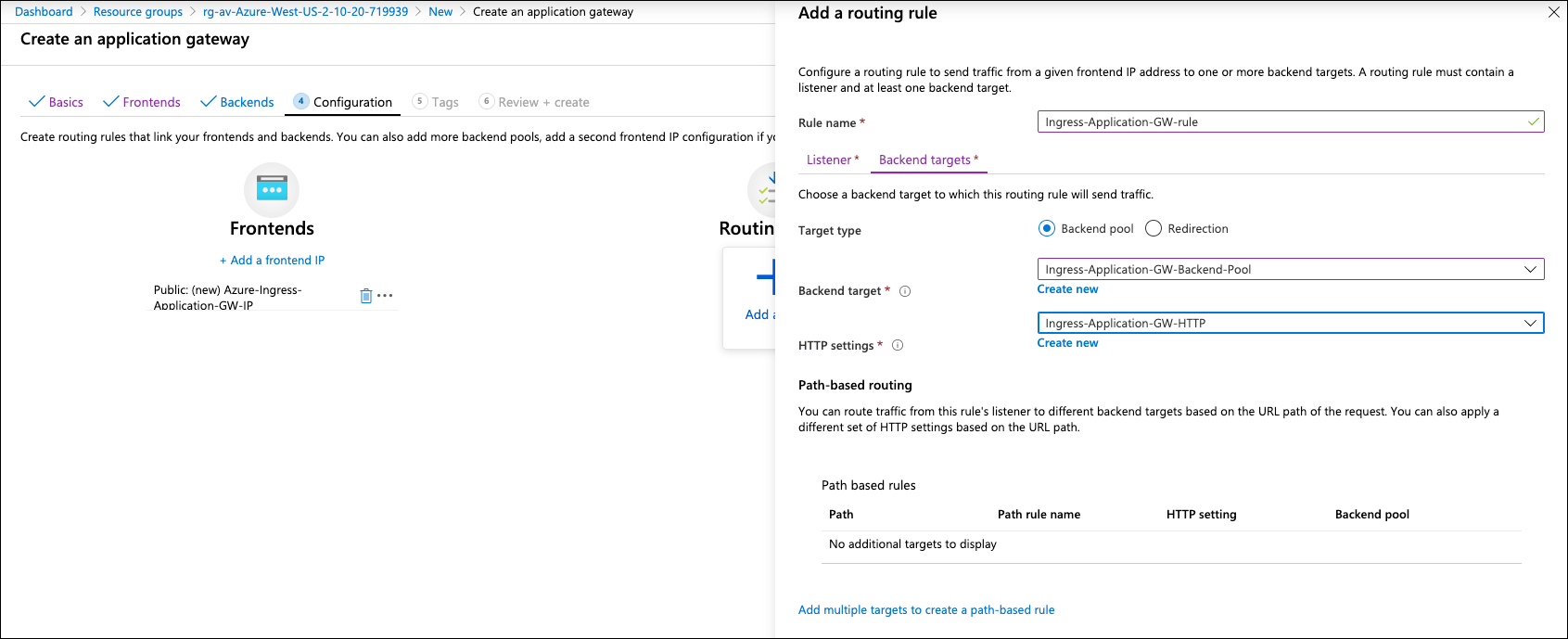 7. Review the configuration and click **Create** on the Review + create page.
Refer to [Quickstart: Direct web traffic with Azure Application Gateway -
Azure
portal](https://docs.microsoft.com/en-us/azure/application-gateway/quick-create-portal)
for more information.
## Ready to Go
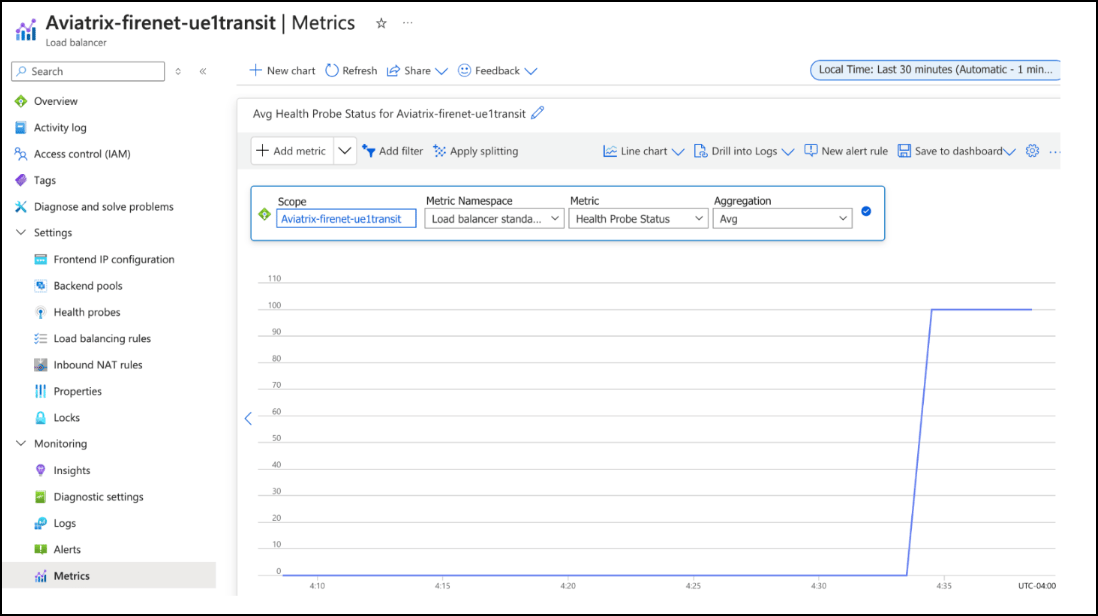
1. Make sure Server (backend pool) status is in a **Healthy** state from the
Azure portal page Application Gateway > Backend health.
7. Review the configuration and click **Create** on the Review + create page.
Refer to [Quickstart: Direct web traffic with Azure Application Gateway -
Azure
portal](https://docs.microsoft.com/en-us/azure/application-gateway/quick-create-portal)
for more information.
## Ready to Go
1. Make sure Server (backend pool) status is in a **Healthy** state from the
Azure portal page Application Gateway > Backend health.
 2. Run a http request targeting the Azure Application Gateway Public IP or DNS
name.
a. Find the Frontend public IP address of the Azure Application Gateway from
the Azure portal page Application Gateway > Overview.
2. Run a http request targeting the Azure Application Gateway Public IP or DNS
name.
a. Find the Frontend public IP address of the Azure Application Gateway from
the Azure portal page Application Gateway > Overview.
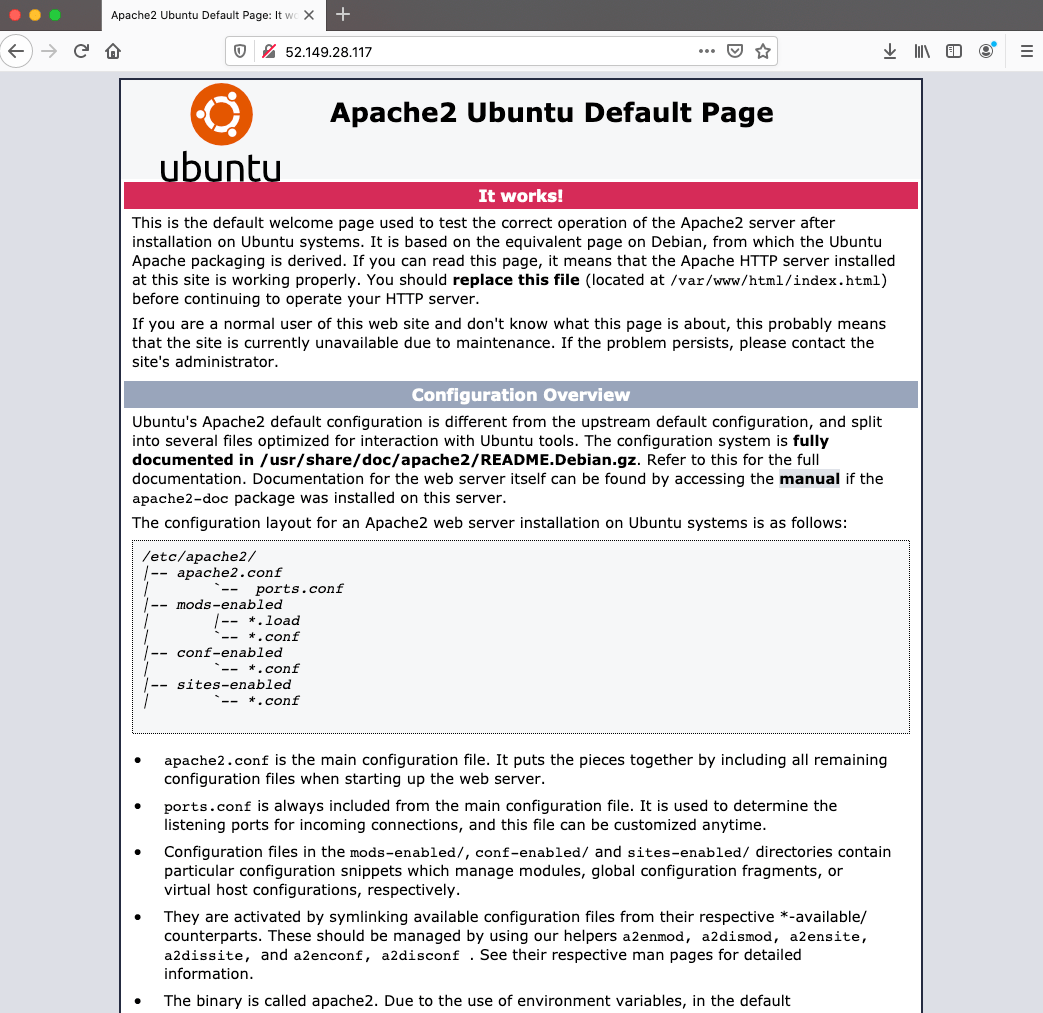
 b. Copy the Frontend public IP address of Azure Application Gateway and paste
it on a browser from your laptop/PC.
b. Copy the Frontend public IP address of Azure Application Gateway and paste
it on a browser from your laptop/PC.
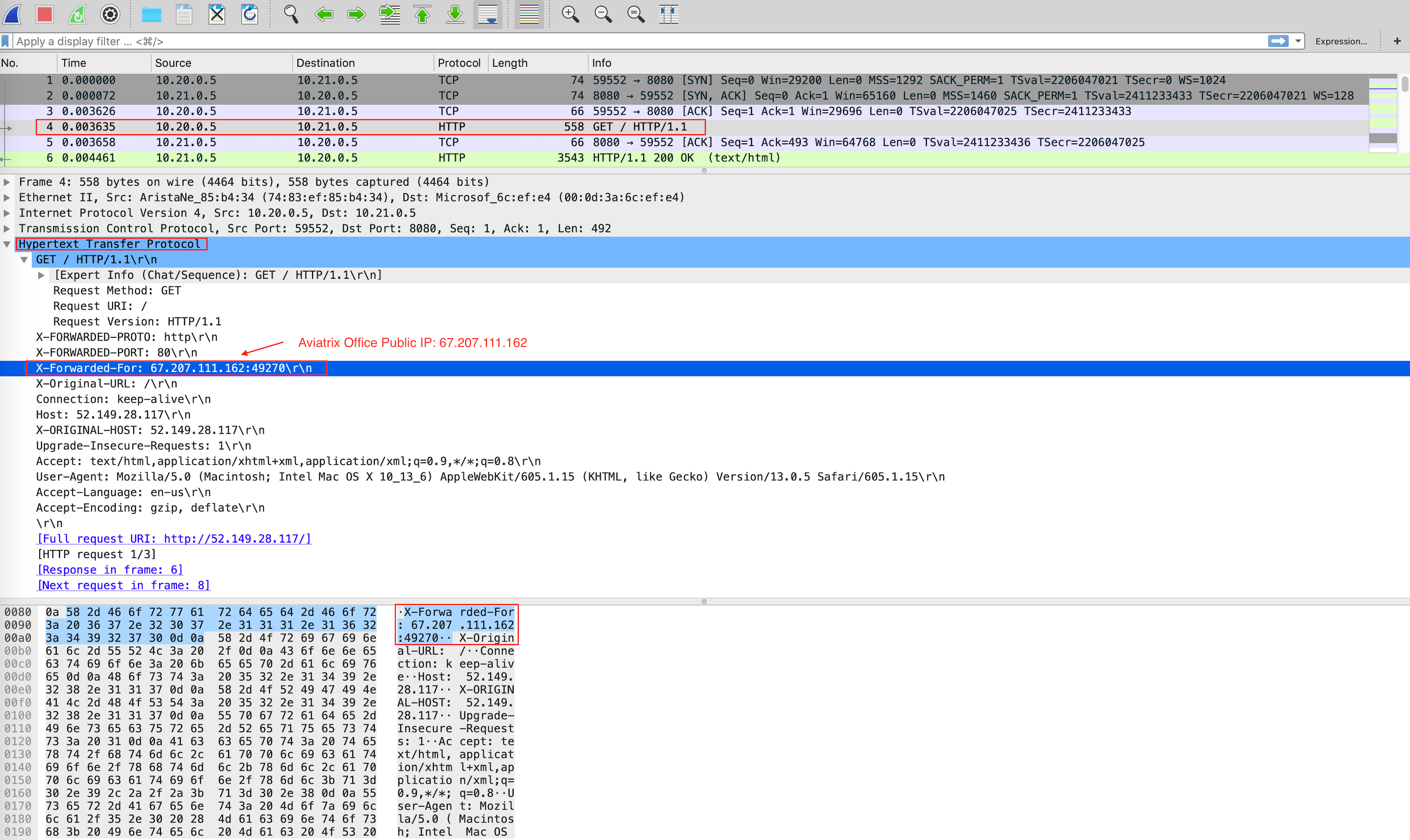
 c. Perform tcpdump with port 8080 on Apache2 Web server.
 Azure Application Gateway automatically preserves client original IP address
in the HTTP header field "X-Forwarded-For (XFF)". Here is an HTTP packet
example which is opened with Wireshark tool for your reference:
Azure Application Gateway automatically preserves client original IP address
in the HTTP header field "X-Forwarded-For (XFF)". Here is an HTTP packet
example which is opened with Wireshark tool for your reference:
 * [Does Application Gateway support X-Forwarded-For headers?](https://docs.microsoft.com/en-us/azure/application-gateway/application-gateway-faq#does-application-gateway-support-x-forwarded-for-headers)
* [What is X-Forwarded-For?](https://developer.mozilla.org/en-US/docs/Web/HTTP/Headers/X-Forwarded-For)
* [How do I see X-Forwarded-For in Wireshark?](https://osqa-ask.wireshark.org/questions/13384/display-http-header)
## Viewing Traffic Log on Firewall
You can view if traffic is forwarded to the firewall instance by logging in to
the Palo Alto VM-Series console. Go to **Monitor > Logs > Traffic**.
Perform http/https traffic from your laptop/PC to the public IP or the domain
name of Azure Application Gateway.
## Capturing Client IP in Logs
To view the client IP address in the access log, follow the instructions in
[How to save client IP in access logs](https://aws.amazon.com/premiumsupport/knowledge-center/elb-capture-client-ip-addresses/).
1. Find and open Apache configuration file.
```bash theme={null}
#vim /etc/apache2/apache2.conf
```
2. In the LogFormat section, add `%{X-Forwarded-For}i` as follows:
```
...
LogFormat "%{X-Forwarded-For}i %h %l %u %t \"%r\" %>s %b \"%{Referer}i\" \"%{User-Agent}i\"" combined
LogFormat "%h %l %u %t \"%r\" %>s %b" common
...
```
3. Save your changes.
4. Reload the Apache service.
```bash theme={null}
#systemctl reload apache2
```
5. Review the public/original client IP on apache2 access log.
* [Does Application Gateway support X-Forwarded-For headers?](https://docs.microsoft.com/en-us/azure/application-gateway/application-gateway-faq#does-application-gateway-support-x-forwarded-for-headers)
* [What is X-Forwarded-For?](https://developer.mozilla.org/en-US/docs/Web/HTTP/Headers/X-Forwarded-For)
* [How do I see X-Forwarded-For in Wireshark?](https://osqa-ask.wireshark.org/questions/13384/display-http-header)
## Viewing Traffic Log on Firewall
You can view if traffic is forwarded to the firewall instance by logging in to
the Palo Alto VM-Series console. Go to **Monitor > Logs > Traffic**.
Perform http/https traffic from your laptop/PC to the public IP or the domain
name of Azure Application Gateway.
## Capturing Client IP in Logs
To view the client IP address in the access log, follow the instructions in
[How to save client IP in access logs](https://aws.amazon.com/premiumsupport/knowledge-center/elb-capture-client-ip-addresses/).
1. Find and open Apache configuration file.
```bash theme={null}
#vim /etc/apache2/apache2.conf
```
2. In the LogFormat section, add `%{X-Forwarded-For}i` as follows:
```
...
LogFormat "%{X-Forwarded-For}i %h %l %u %t \"%r\" %>s %b \"%{Referer}i\" \"%{User-Agent}i\"" combined
LogFormat "%h %l %u %t \"%r\" %>s %b" common
...
```
3. Save your changes.
4. Reload the Apache service.
```bash theme={null}
#systemctl reload apache2
```
5. Review the public/original client IP on apache2 access log.
