> ## Documentation Index
> Fetch the complete documentation index at: https://docs.aviatrix.com/llms.txt
> Use this file to discover all available pages before exploring further.
# Set Up SAML Login for CoPilot
> If you use an identity provider (IdP) to allow your organization's team members to log in to Aviatrix Controller via SAML, they can log in to Aviatrix CoPilot via SAML authentication also provided the following setup is in place.
If you use an identity provider (IdP) to allow your organization's team members
to log in to Aviatrix Controller via SAML, they can log in to Aviatrix CoPilot
via SAML authentication also provided the following setup is in place.
If you launch CoPilot from the Controller user interface, you must manually
add the CoPilot public IP address to the Controller's security group.
Otherwise, the SAML Provider option will not be visible to CoPilot users on
the CoPilot login page.
To set up SAML login for CoPilot:
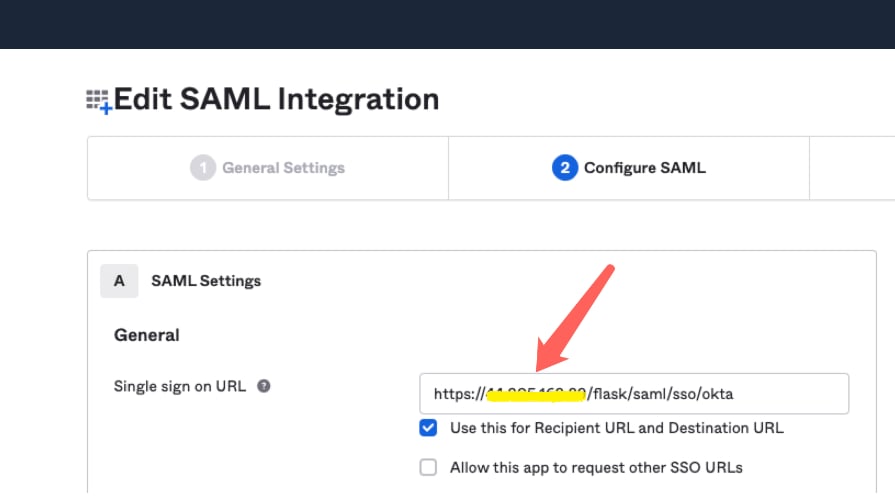
1. (Pre-requisite) Set up SAML login for Aviatrix Controller. This procedure
assumes you have already set up your IdP configuration in the IdP application
and associated the configuration in your Controller.
In your IdP application, take note of the value specified for the *Single
sign on URL* SAML setting to see if the SSO URL contains your Controller's
public IP address or your Controller's FQDN (either one can be used but this
value must match the value set in a later step).
 2. In Aviatrix CoPilot > Settings > Configuration locate the *Controller Public
IP/FQDN* field.
2. In Aviatrix CoPilot > Settings > Configuration locate the *Controller Public
IP/FQDN* field.
 3. Verify the value of the *Controller Public IP/FQDN* field matches the value
of the public IP address or the FQDN of your Controller — depending on which
one is set in the SSO URL in the SAML settings (these values must match). If
needed, update the field and click *Save*.
4. Verify your Controller is associated with your CoPilot. In Controller
> Settings > CoPilot > CoPilot Association, verify the slider is set to
> *Enabled* and the correct IP address of the CoPilot instance is specified.
* IP Address/Hostname field
Enter the static IP address for your running CoPilot instance/virtual
machine. This can be the private or public IP address of your CoPilot
instance/virtual machine.
The IP address specified here is used for connectivity between Controller
and CoPilot for intra-platform communication (such as API message
exchanges). If CoPilot is located in the same VPC/VNet as your Controller,
specifying a private IP can increase operational bandwidth and potentially
save on cost.
If you enter the private IP address here, and you want to be able to open
CoPilot in your web browser directly from your Controller, then specify the
public IP address in the *Public IP (Optional)* field.
* Public IP (Optional) field
If you specified the private IP address of your CoPilot instance in the "IP
Address/Hostname" field, enter the public IP address of your CoPilot
instance here if you want to be able to open CoPilot in your web browser
directly from your Controller.
3. Verify the value of the *Controller Public IP/FQDN* field matches the value
of the public IP address or the FQDN of your Controller — depending on which
one is set in the SSO URL in the SAML settings (these values must match). If
needed, update the field and click *Save*.
4. Verify your Controller is associated with your CoPilot. In Controller
> Settings > CoPilot > CoPilot Association, verify the slider is set to
> *Enabled* and the correct IP address of the CoPilot instance is specified.
* IP Address/Hostname field
Enter the static IP address for your running CoPilot instance/virtual
machine. This can be the private or public IP address of your CoPilot
instance/virtual machine.
The IP address specified here is used for connectivity between Controller
and CoPilot for intra-platform communication (such as API message
exchanges). If CoPilot is located in the same VPC/VNet as your Controller,
specifying a private IP can increase operational bandwidth and potentially
save on cost.
If you enter the private IP address here, and you want to be able to open
CoPilot in your web browser directly from your Controller, then specify the
public IP address in the *Public IP (Optional)* field.
* Public IP (Optional) field
If you specified the private IP address of your CoPilot instance in the "IP
Address/Hostname" field, enter the public IP address of your CoPilot
instance here if you want to be able to open CoPilot in your web browser
directly from your Controller.