> ## Documentation Index
> Fetch the complete documentation index at: https://docs.aviatrix.com/llms.txt
> Use this file to discover all available pages before exploring further.
# Role-Based Access Control (RBAC) or User Access Overview
> The Aviatrix Platform is a multicloud and multi-tenant enterprise platform. As such, the Aviatrix Platform manages multiple cloud accounts by requiring access by multiple administrators.
## Aviatrix User Access Management
The Aviatrix Platform is a multicloud and multi-tenant enterprise platform. As
such, the Aviatrix Platform manages multiple cloud accounts by requiring access
by multiple administrators. This user access provides access controls to protect
the security and integrity of the Aviatrix Platform while providing the ability
to delegate and limit specific Aviatrix features to groups defined by the admin
of the Controller.
Aviatrix user access aims to achieve two objectives:
* *Granular Access Control* An Aviatrix Platform administrator in a specific
permission group can perform certain tasks for a subset of Aviatrix
Access Account
. For example, an Administrative user can be limited to perform on his own AWS
account VPC attachment function.
* *Self Service* An Aviatrix Platform administrator in a specific permission
group can onboard its own cloud accounts on CoPilot and perform tasks. For
example, a CoPilot administrator can be allowed to onboard his own AWS account
in CoPilot and create a group of users for different tasks on this access
account. Another use case is for developers to have a read\_only login
permission to troubleshoot network connectivity issues.
## User Access in the Aviatrix Platform
Role-Based Access Control (RBAC), or user access, allows you to create a
hierarchy of administrators within the Aviatrix Platform. It has the flexibility
to permutate based on your requirements.
The best way to explain how Aviatrix Platform user access works is through
examples. Below are a few deployment examples.
## User Access Deployment Example 1
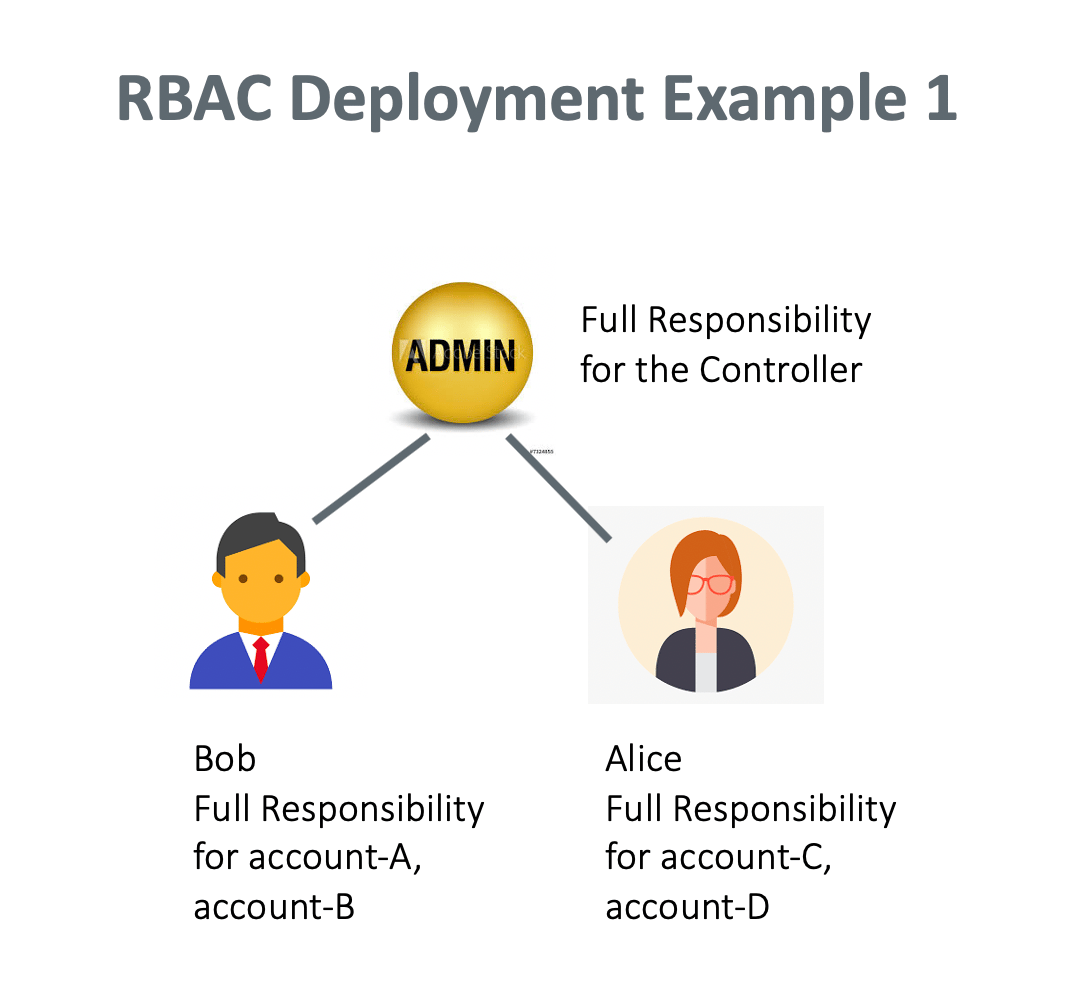
In this example, the CoPilot admin creates a user, Bob, who has full
responsibility to access account account-A and account-B. The CoPilot admin also
creates another user, Alice, who has full responsibility to access account-C and
account-D.
 ## Tasks carried out by an Admin
1. The admin
[creates an account admin group](https://legacy.docs.aviatrix.com/documentation/latest/platform-administration/accounts-and-users/users-and-permissions.html#start-help-create-permission-group).
The admin gives the group a name, such as "account-admins."
2. The admin gives this group permission to create Access Accounts.
3. The admin creates a new user Bob, and adds Bob to the account\_admins group.
The admin enters Bob in the name field and completes the other fields. For
Permission Groups, the admin selects account-admins created in step 1.
### Tasks carried out by Bob
1. Bob should receive an email to invite him to access CoPilot.
2. Bob logs in and creates a new permission group with full access. He enters a
permission group name, for example, "group-bob."
3. Bob associates himself with the Permission Group group-bob.
4. Bob grants group-bob All Write permissions.
5. Bob creates a new Access Account account-A. For Permission Groups, he selects
group-bob. This creates an access account that associates a cloud account
that Bob manages. For the Account Name field, Bob enters "account-A."
6. Bob can repeat the previous steps to create account-B. Now Bob has full
functional access to both account-A and account-B.
7. Apply Step 3 to Step 7 for Alice to manage account-C and account-D.
### Can Bob assign a teammate with subset of functional privileges?
Yes. The deployment is shown in the diagram below.
## Tasks carried out by an Admin
1. The admin
[creates an account admin group](https://legacy.docs.aviatrix.com/documentation/latest/platform-administration/accounts-and-users/users-and-permissions.html#start-help-create-permission-group).
The admin gives the group a name, such as "account-admins."
2. The admin gives this group permission to create Access Accounts.
3. The admin creates a new user Bob, and adds Bob to the account\_admins group.
The admin enters Bob in the name field and completes the other fields. For
Permission Groups, the admin selects account-admins created in step 1.
### Tasks carried out by Bob
1. Bob should receive an email to invite him to access CoPilot.
2. Bob logs in and creates a new permission group with full access. He enters a
permission group name, for example, "group-bob."
3. Bob associates himself with the Permission Group group-bob.
4. Bob grants group-bob All Write permissions.
5. Bob creates a new Access Account account-A. For Permission Groups, he selects
group-bob. This creates an access account that associates a cloud account
that Bob manages. For the Account Name field, Bob enters "account-A."
6. Bob can repeat the previous steps to create account-B. Now Bob has full
functional access to both account-A and account-B.
7. Apply Step 3 to Step 7 for Alice to manage account-C and account-D.
### Can Bob assign a teammate with subset of functional privileges?
Yes. The deployment is shown in the diagram below.
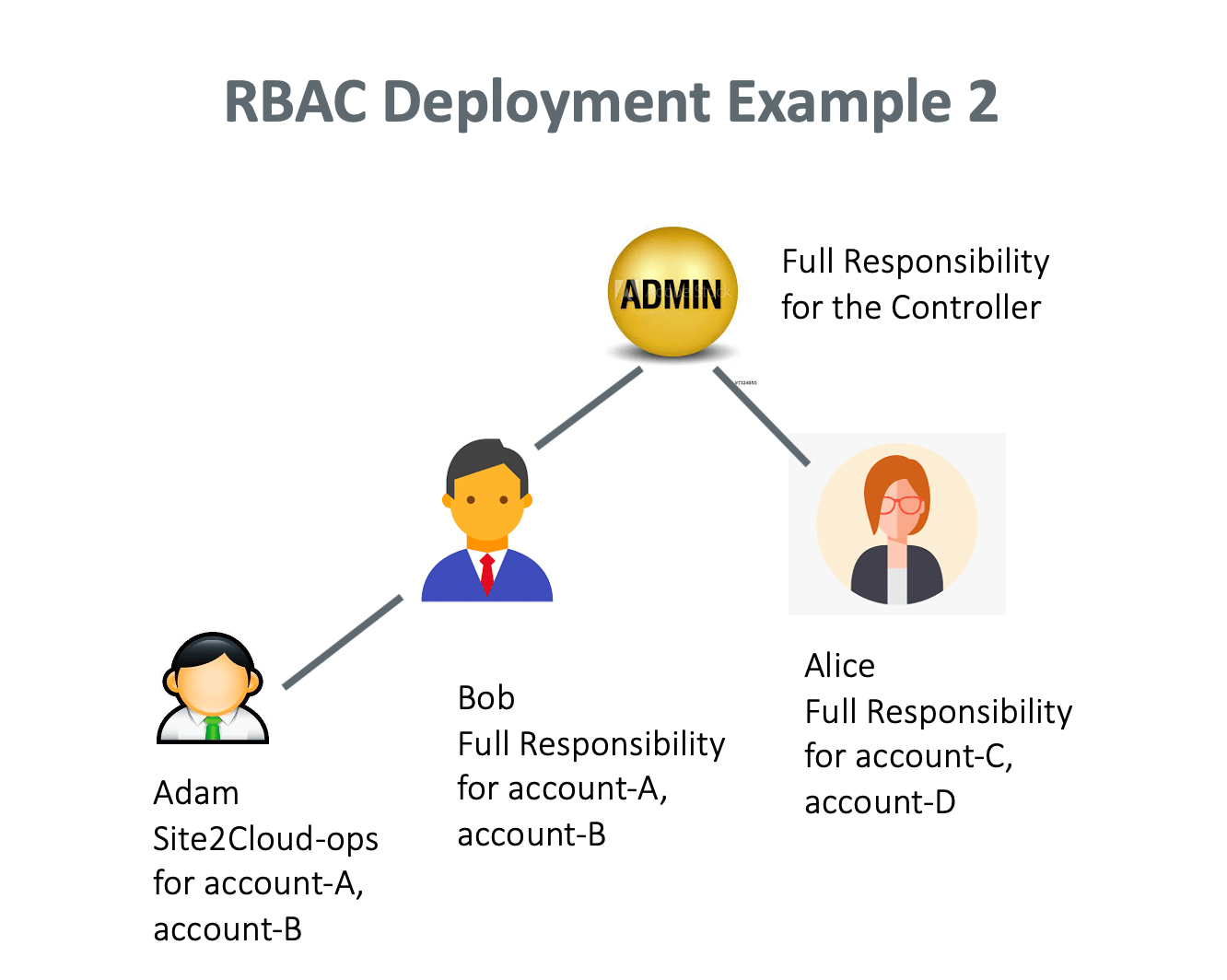 Bob should perform the following tasks to set it up.
1. Bob creates a new permission group, such as "Site2Cloud-ops."
2. Bob assigns himself to the Site2Cloud-ops group.
3. Bob clicks **Manage permission** for Site2Cloud-ops group to select
Site2Cloud permission for the group.
4. Bob clicks **Manage access accounts** for Site2Cloud-ops group to select
account-A.
5. Bob creates a new user such as "Adam" and associates Adam to Site2Cloud-ops
group.
After the above tasks, Adam will be able to log in and perform Site2Cloud tasks
for account-A. However, Adam cannot perform Site2Cloud tasks for Alice's
account.
## Adding a Read Only User
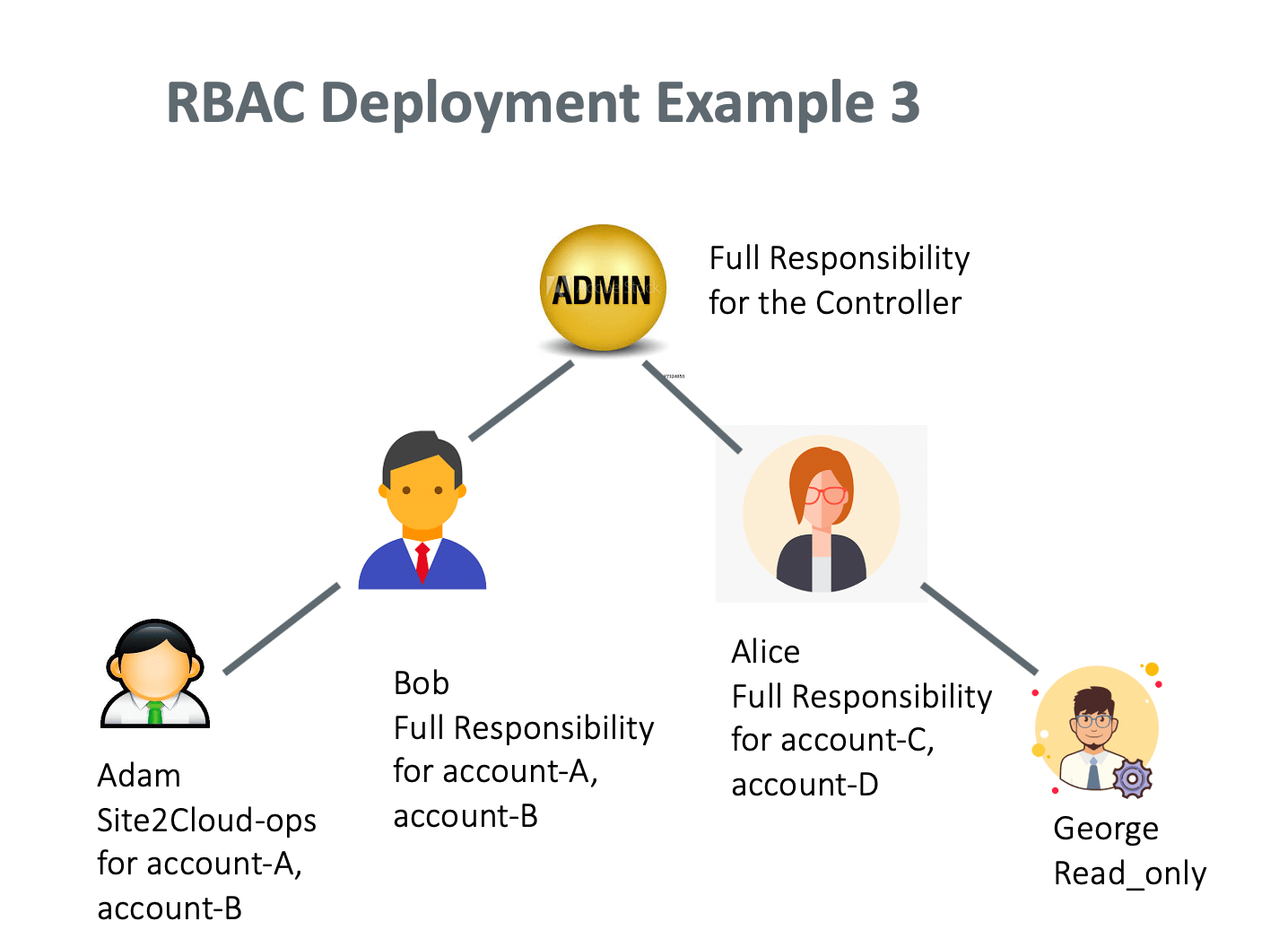
Read\_only user has visibility to all pages on the Aviatrix Platform and can
perform troubleshooting tasks. A read\_only user cannot make modifications to any
functions or accounts.
In this example, Alice creates a read\_only user George. Alice performs the
following steps.
1. Alice logs in and creates a new user named George.
2. Alice adds a User Name, User Email, and Password. For Permission Groups, she
selects read\_only.
Bob should perform the following tasks to set it up.
1. Bob creates a new permission group, such as "Site2Cloud-ops."
2. Bob assigns himself to the Site2Cloud-ops group.
3. Bob clicks **Manage permission** for Site2Cloud-ops group to select
Site2Cloud permission for the group.
4. Bob clicks **Manage access accounts** for Site2Cloud-ops group to select
account-A.
5. Bob creates a new user such as "Adam" and associates Adam to Site2Cloud-ops
group.
After the above tasks, Adam will be able to log in and perform Site2Cloud tasks
for account-A. However, Adam cannot perform Site2Cloud tasks for Alice's
account.
## Adding a Read Only User
Read\_only user has visibility to all pages on the Aviatrix Platform and can
perform troubleshooting tasks. A read\_only user cannot make modifications to any
functions or accounts.
In this example, Alice creates a read\_only user George. Alice performs the
following steps.
1. Alice logs in and creates a new user named George.
2. Alice adds a User Name, User Email, and Password. For Permission Groups, she
selects read\_only.
 ## Adding Multiple Admin Users
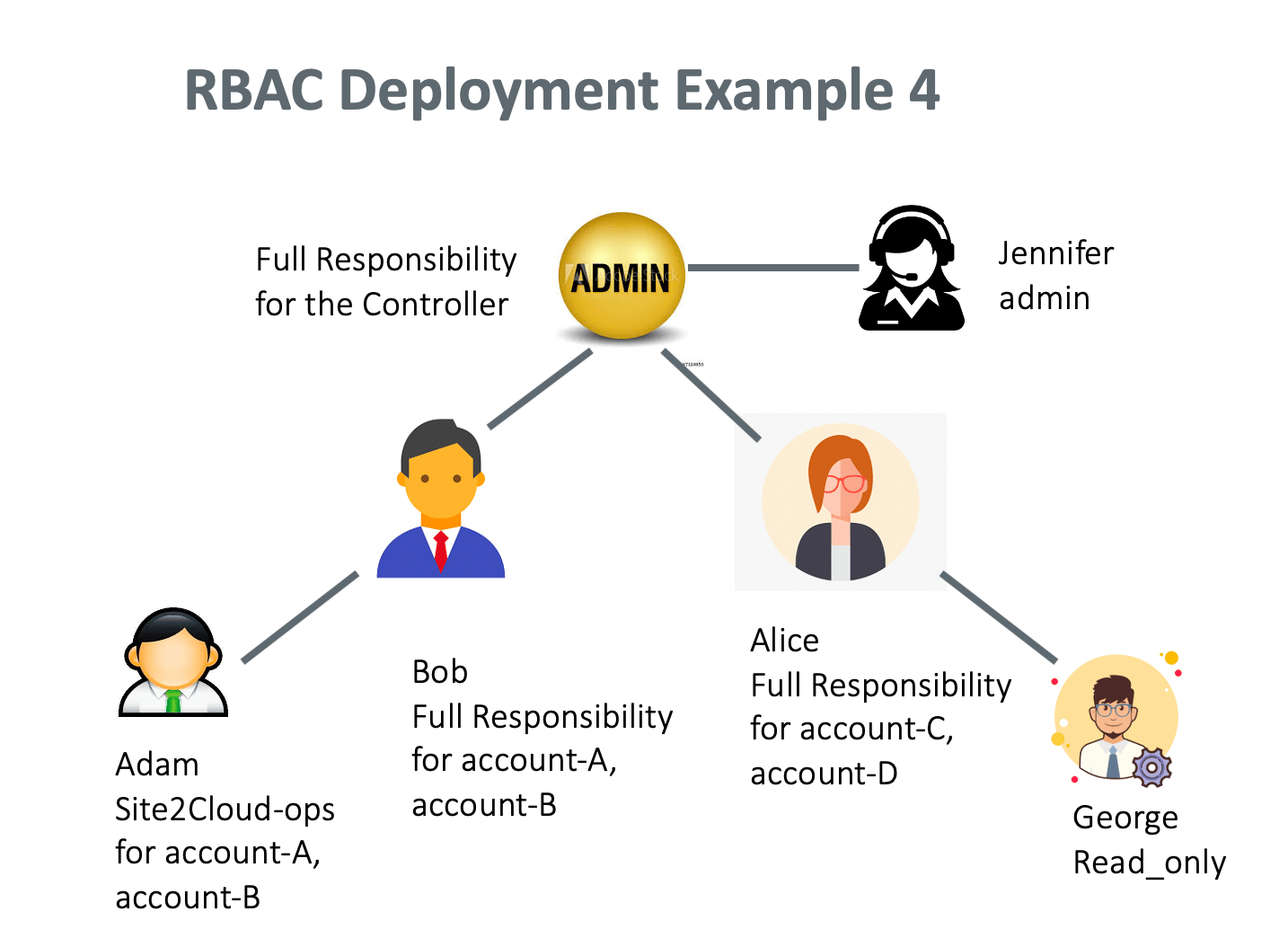
Yes. Only an admin can add more admin users. An admin user has the same
privilege as the login admin with full access to all pages and accounts.
In this example, an admin creates a new admin user, Jennifer. The admin performs
the following steps.
1. The admin logs in and creates a new user, Jennifer.
2. The admin adds the User Name "Jennifer," User Email, Password. For Permission
Groups, the admin selects **admin**.
## Adding Multiple Admin Users
Yes. Only an admin can add more admin users. An admin user has the same
privilege as the login admin with full access to all pages and accounts.
In this example, an admin creates a new admin user, Jennifer. The admin performs
the following steps.
1. The admin logs in and creates a new user, Jennifer.
2. The admin adds the User Name "Jennifer," User Email, Password. For Permission
Groups, the admin selects **admin**.
 ## Supporting Remote Authentications
CoPilot User Access supports remote authentication against LDAP, Duo, and other
SAML IDPs.
For LDAP and Duo, user access for the Aviatrix Platform supports authentication
only. The permissions are still validated locally on the Aviatrix Platform.
For other SAML IDPs, you can configure profile attribute associated with the
SAML user for permissions and avoid having to add users on the Aviatrix
Platform.
## Setting up SAML Login for User Access
The Aviatrix Platform login supports
SAML login.
You have the option of authorizing users by CoPilot configuration or through
SAML IDP Attribute. See
CoPilot SAML Authentication
.
## Supporting Remote Authentications
CoPilot User Access supports remote authentication against LDAP, Duo, and other
SAML IDPs.
For LDAP and Duo, user access for the Aviatrix Platform supports authentication
only. The permissions are still validated locally on the Aviatrix Platform.
For other SAML IDPs, you can configure profile attribute associated with the
SAML user for permissions and avoid having to add users on the Aviatrix
Platform.
## Setting up SAML Login for User Access
The Aviatrix Platform login supports
SAML login.
You have the option of authorizing users by CoPilot configuration or through
SAML IDP Attribute. See
CoPilot SAML Authentication
.