> ## Documentation Index
> Fetch the complete documentation index at: https://docs.aviatrix.com/llms.txt
> Use this file to discover all available pages before exploring further.
# IP Whitelist AWS Azure
> This document describes how to configure IAM policies (AWS) and Conditional Access (Azure) to prevent a malfunctioning Controller mistakenly restored from a backup assuming control of onboarded CSP accounts.
## IP-based Whitelisting of Aviatrix Controller in AWS and Azure
This document describes how to configure IAM policies
(AWS) and
[Conditional Access (Azure)](https://learn.microsoft.com/en-us/azure/active-directory/conditional-access/overview)
to prevent a malfunctioning Controller mistakenly restored from a backup
assuming control of onboarded CSP accounts.
### Whitelisting in AWS
In your AWS Console, do the following to whitelist the Controller Elastic IP:
1. Navigate to Access Management > Policies under Identity and Access Management
(IAM).
 2. Click *Create policy* and switch to the JSON editor.
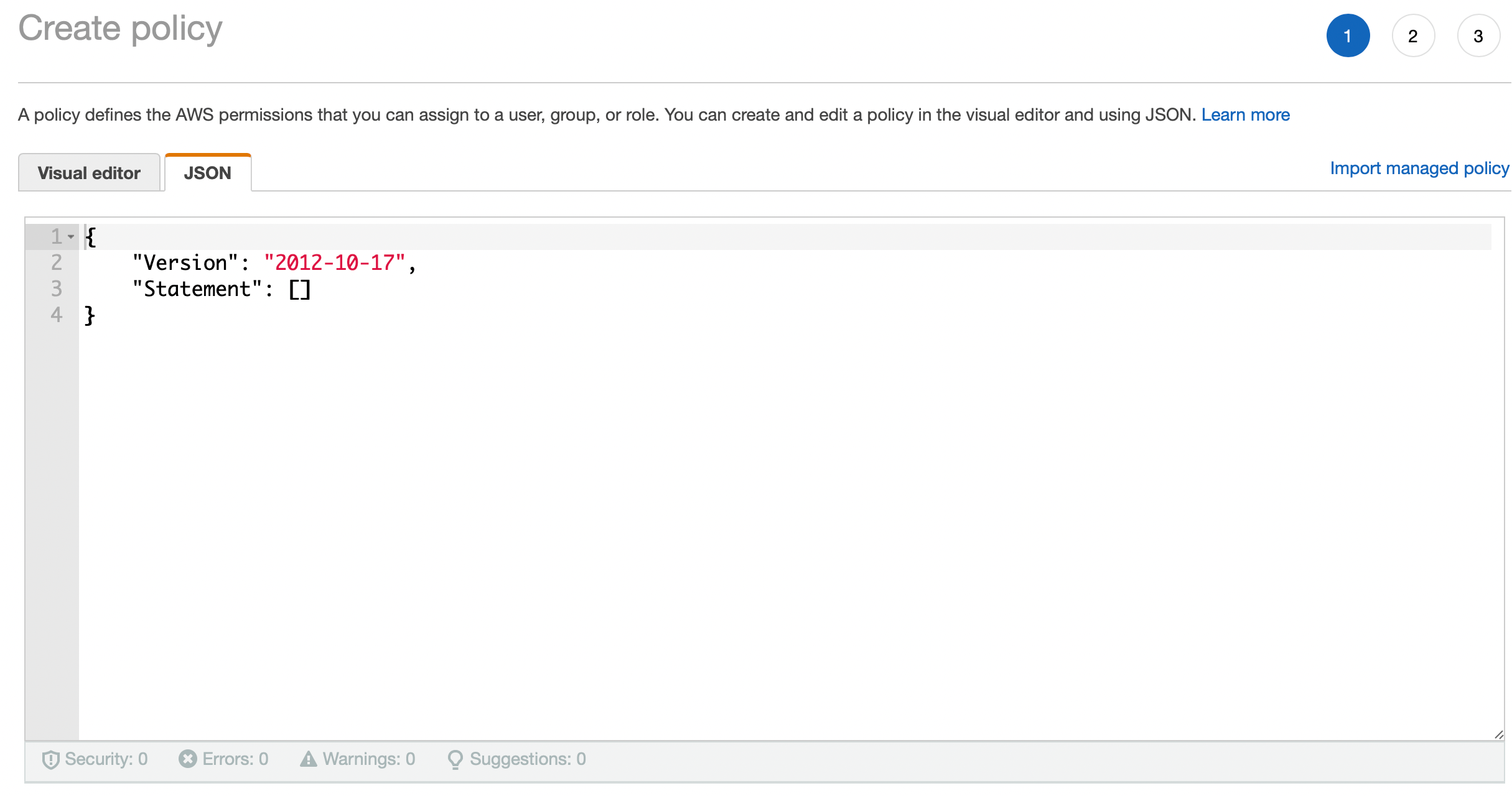 3. Paste the following code into the JSON policy editor (replace the placeholder
A.B.C.D/32 address with the Elastic IP of your Aviatrix Controller — for
example, 34.216.134.10):
```json theme={null}
{
"Version": "2012-10-17",
"Statement": [
{
"Action": "*",
"Resource": "*",
"Effect": "Deny",
"Condition": {
"NotIpAddress": {
"aws:SourceIp": ["A.B.C.D/32"]
}
}
}
]
}
```
4. Click *Next: Tags*.
5. Click *Next: Review*.
6. On the Create policy page, name the policy (for example,
aviatrix-controller-whitelist-policy) and give it a description (optional).
3. Paste the following code into the JSON policy editor (replace the placeholder
A.B.C.D/32 address with the Elastic IP of your Aviatrix Controller — for
example, 34.216.134.10):
```json theme={null}
{
"Version": "2012-10-17",
"Statement": [
{
"Action": "*",
"Resource": "*",
"Effect": "Deny",
"Condition": {
"NotIpAddress": {
"aws:SourceIp": ["A.B.C.D/32"]
}
}
}
]
}
```
4. Click *Next: Tags*.
5. Click *Next: Review*.
6. On the Create policy page, name the policy (for example,
aviatrix-controller-whitelist-policy) and give it a description (optional).
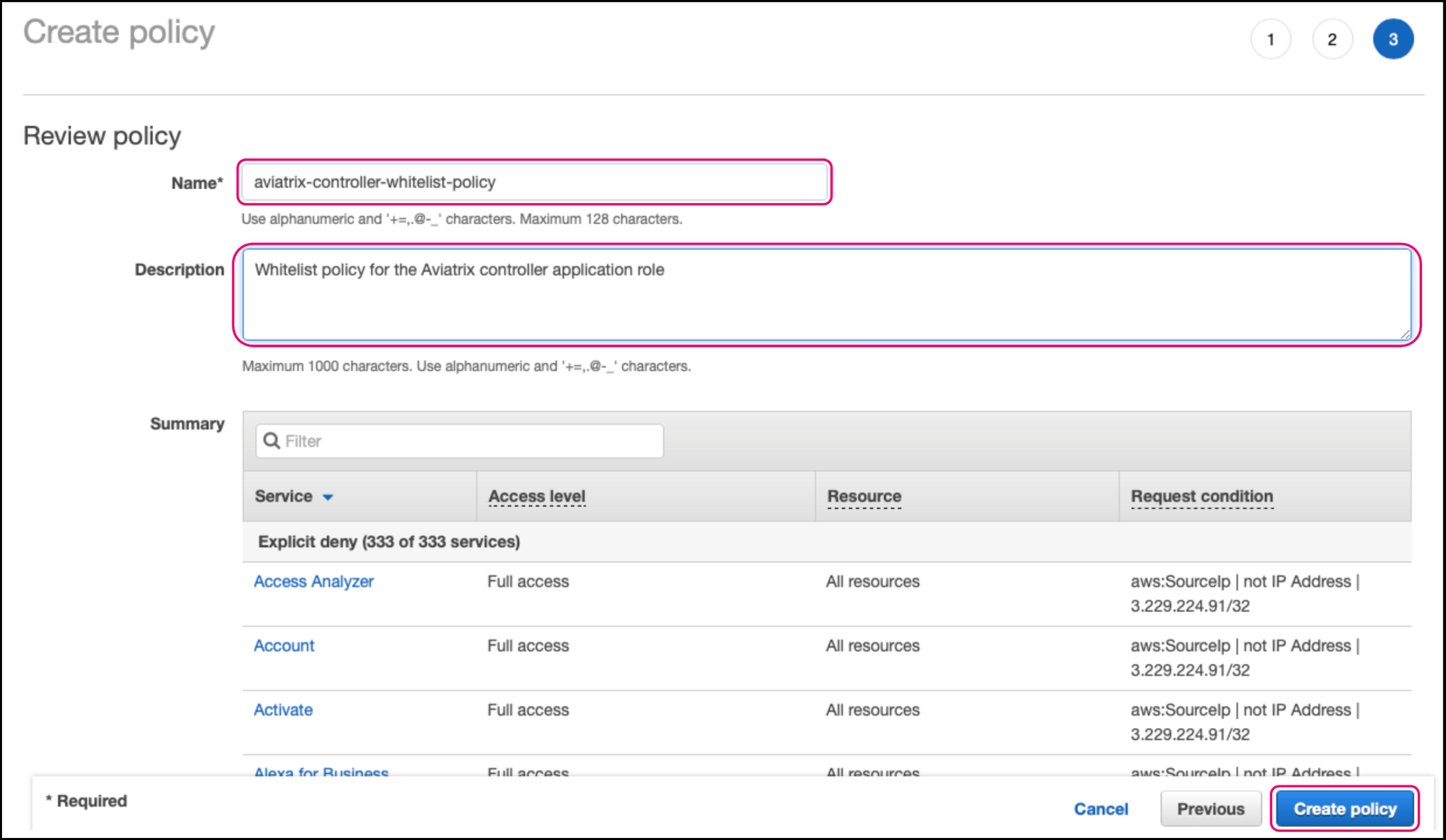 7. Click *Create policy*.
8. Switch to the Access management > Roles view and click the aviatrix-role-app.
7. Click *Create policy*.
8. Switch to the Access management > Roles view and click the aviatrix-role-app.
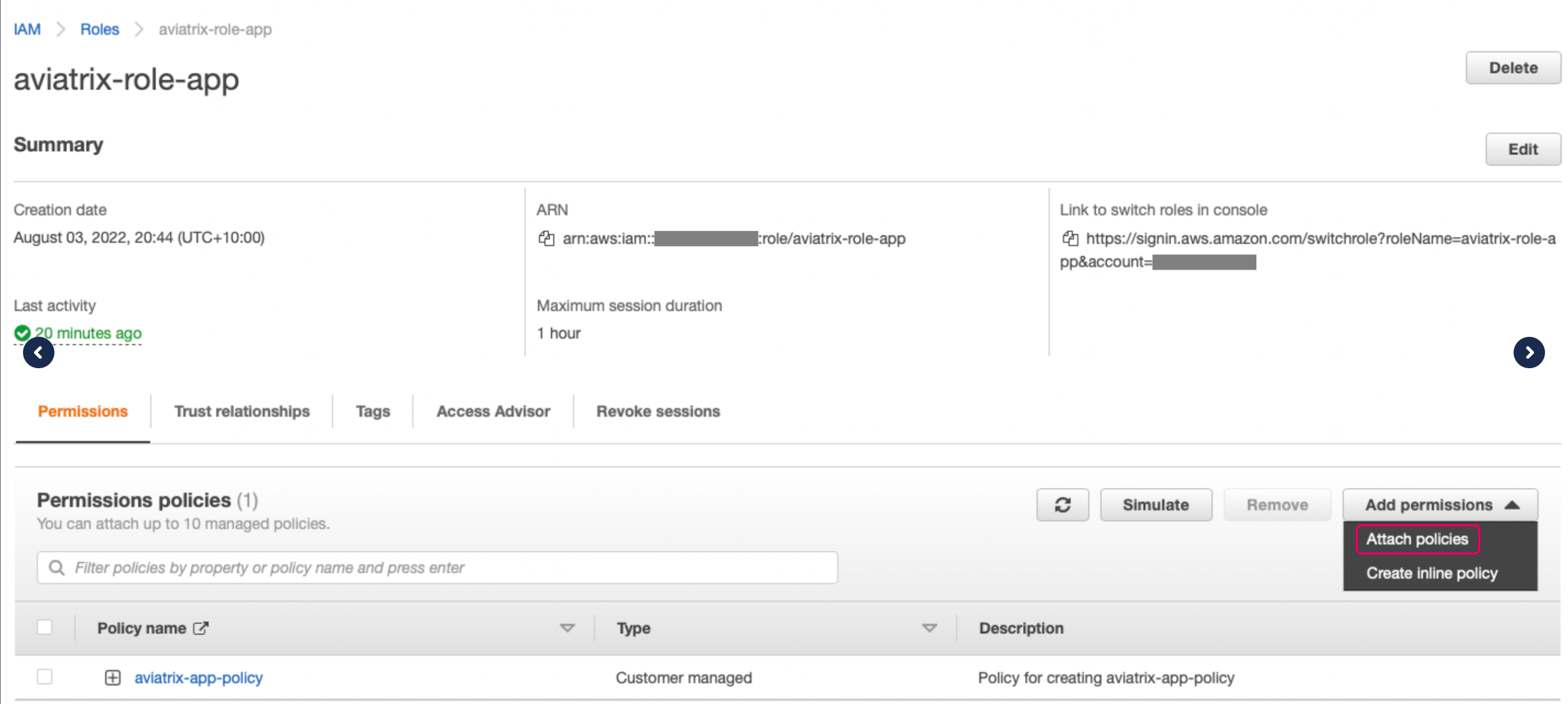
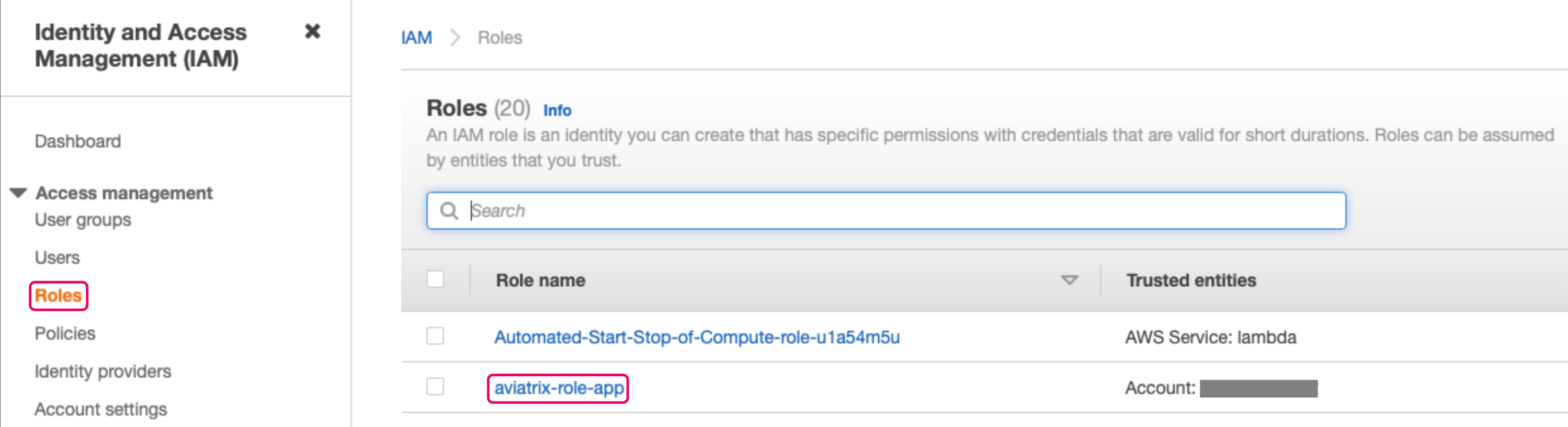 9. Select *Attach policies* from the Add permissions drop down menu.
 10. On the Add permissions page select the whitelist policy you just created and
click *Attach policies*.
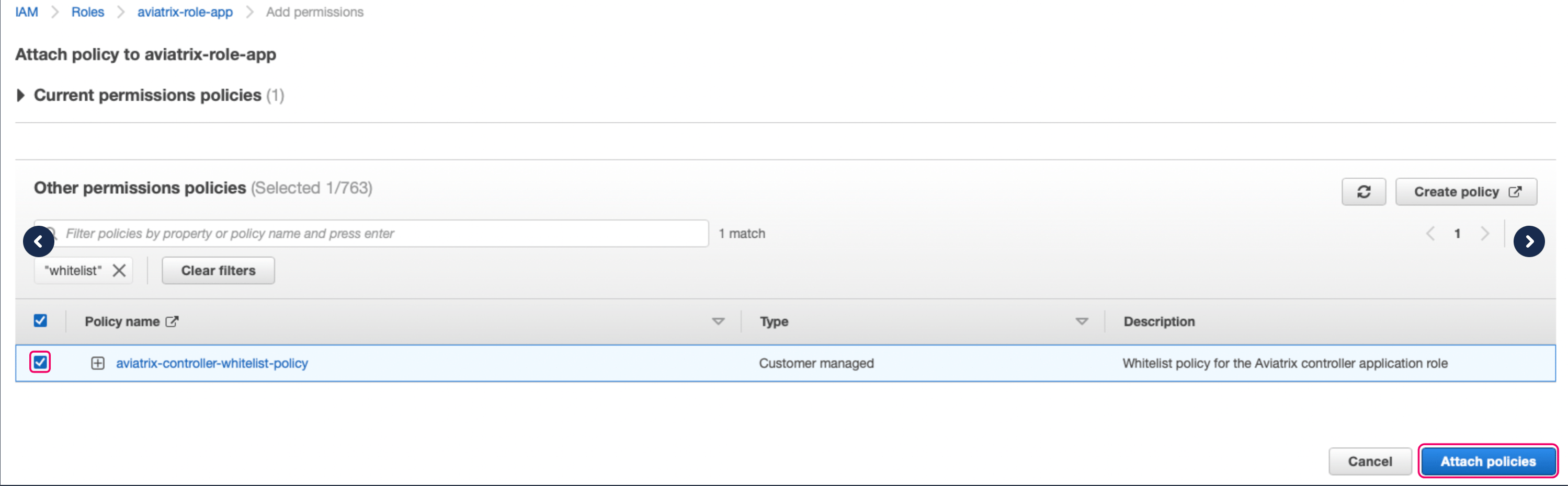
10. On the Add permissions page select the whitelist policy you just created and
click *Attach policies*.
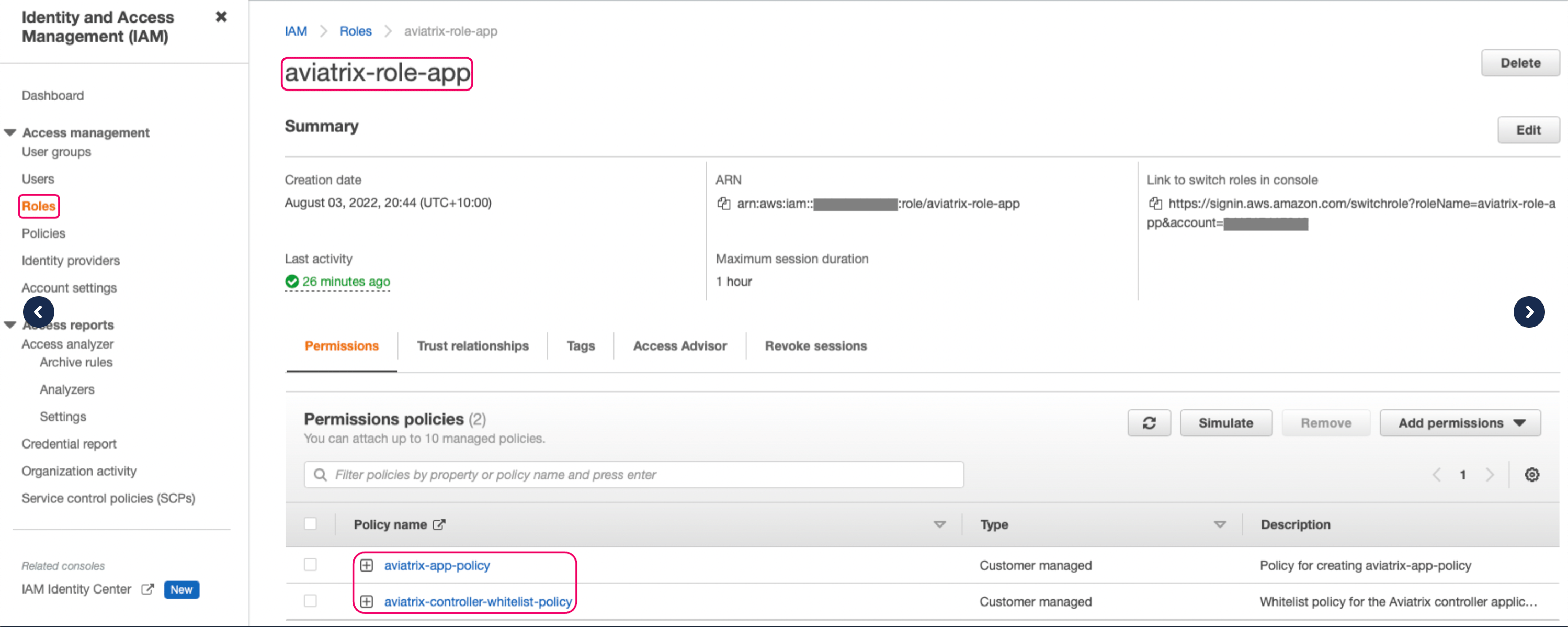
 11. You should now see two policies attached to the aviatrix-role-app:
 Your AWS account is now protected from unauthorized IP access and rogue
Controllers.
#### Updating the Whitelist Policy
You should update the whitelist policy when you:
* rebuild the Controller with a different Elastic IP
* Invoke the Controller IP migration process
You can append the Elastic IP of the new Controller to the existing policy as
shown in the following code snippet (replacing the placeholder IP addresses):
```json theme={null}
{
"Version": "2012-10-17",
"Statement": [
{
"Action": "*",
"Resource": "*",
"Effect": "Deny",
"Condition": {
"NotIpAddress": {
"aws:SourceIp": [
"A.B.C.D/32", <-- Old Controller EIP, note the trailing comma
"W.X.Y.Z/32" <-- New Controller EIP
]
}
}
}
]
}
```
Delete the comments before saving the policy.
Remove the old Controller Elastic IP from the policy after successful
migration or Controller rebuild.
### Whitelisting in Azure
Before configuring the IP-based Controller whitelisting in Azure you must:
* have the service principal set up as described in Azure Account Credential
Setup. The service principal may already exist if the Azure account was
previously onboarded in the Aviatrix Controller. If the service principal
already exists, you can determine its name by navigating to Microsoft Entra
ID > Manage > App Registrations in the Azure portal.
* an
[available Microsoft Entra ID Premium P1 license](https://azure.microsoft.com/en-us/pricing/details/active-directory/).
Do the following to check if you already have this license:
1. Go to Microsoft Entra ID > Manage > Licenses.
2. On the Licenses page, go to Manage > All products.
To configure whitelisting in Azure:
1. Navigate to Microsoft Entra ID > Conditional Access > Manage > Named
Locations in the Azure portal and create a new IP ranges location with the
current public IP address of the Controller.
Your AWS account is now protected from unauthorized IP access and rogue
Controllers.
#### Updating the Whitelist Policy
You should update the whitelist policy when you:
* rebuild the Controller with a different Elastic IP
* Invoke the Controller IP migration process
You can append the Elastic IP of the new Controller to the existing policy as
shown in the following code snippet (replacing the placeholder IP addresses):
```json theme={null}
{
"Version": "2012-10-17",
"Statement": [
{
"Action": "*",
"Resource": "*",
"Effect": "Deny",
"Condition": {
"NotIpAddress": {
"aws:SourceIp": [
"A.B.C.D/32", <-- Old Controller EIP, note the trailing comma
"W.X.Y.Z/32" <-- New Controller EIP
]
}
}
}
]
}
```
Delete the comments before saving the policy.
Remove the old Controller Elastic IP from the policy after successful
migration or Controller rebuild.
### Whitelisting in Azure
Before configuring the IP-based Controller whitelisting in Azure you must:
* have the service principal set up as described in Azure Account Credential
Setup. The service principal may already exist if the Azure account was
previously onboarded in the Aviatrix Controller. If the service principal
already exists, you can determine its name by navigating to Microsoft Entra
ID > Manage > App Registrations in the Azure portal.
* an
[available Microsoft Entra ID Premium P1 license](https://azure.microsoft.com/en-us/pricing/details/active-directory/).
Do the following to check if you already have this license:
1. Go to Microsoft Entra ID > Manage > Licenses.
2. On the Licenses page, go to Manage > All products.
To configure whitelisting in Azure:
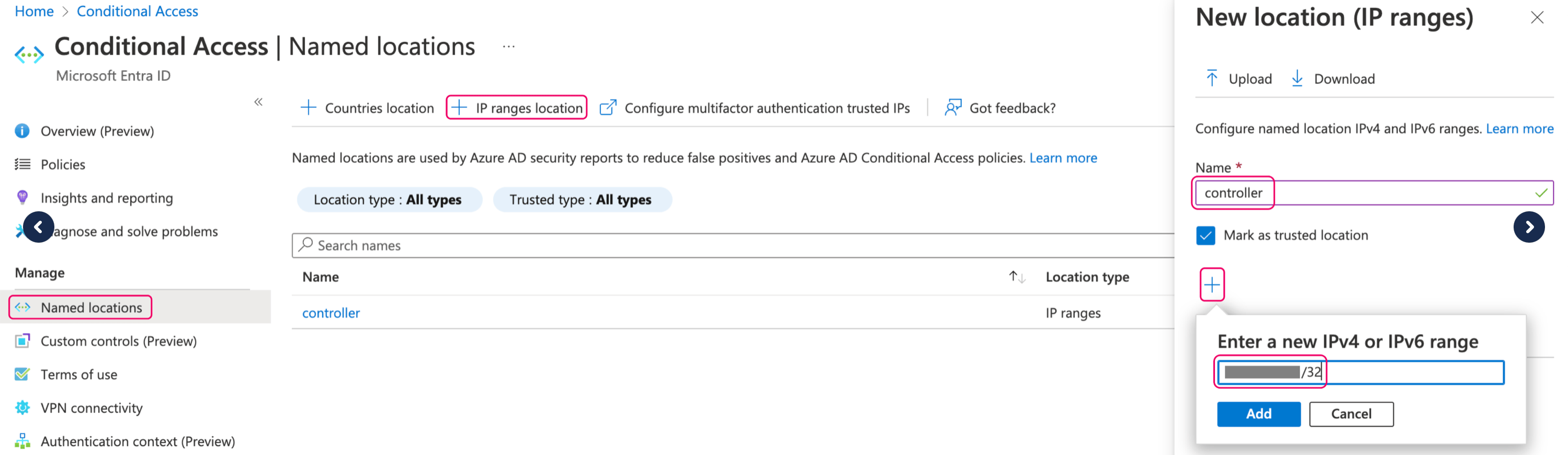
1. Navigate to Microsoft Entra ID > Conditional Access > Manage > Named
Locations in the Azure portal and create a new IP ranges location with the
current public IP address of the Controller.
 2. Navigate to Microsoft Entra ID Conditional Access > Policies in the Azure
portal and create a new policy.
2. Navigate to Microsoft Entra ID Conditional Access > Policies in the Azure
portal and create a new policy.
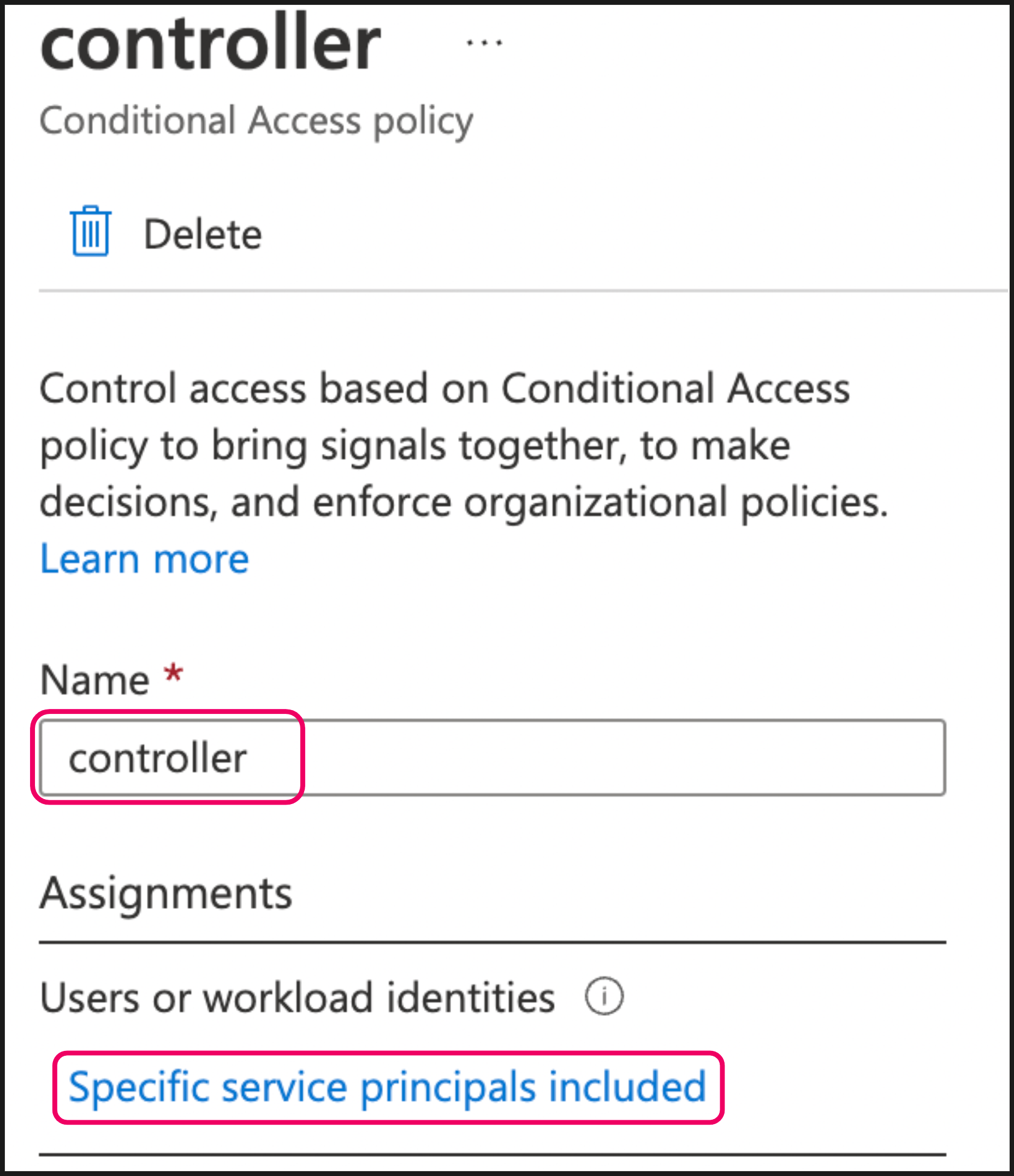
 3. Name the policy and click *Specific service principals included*.
 4. In the resulting dialog, do the following:
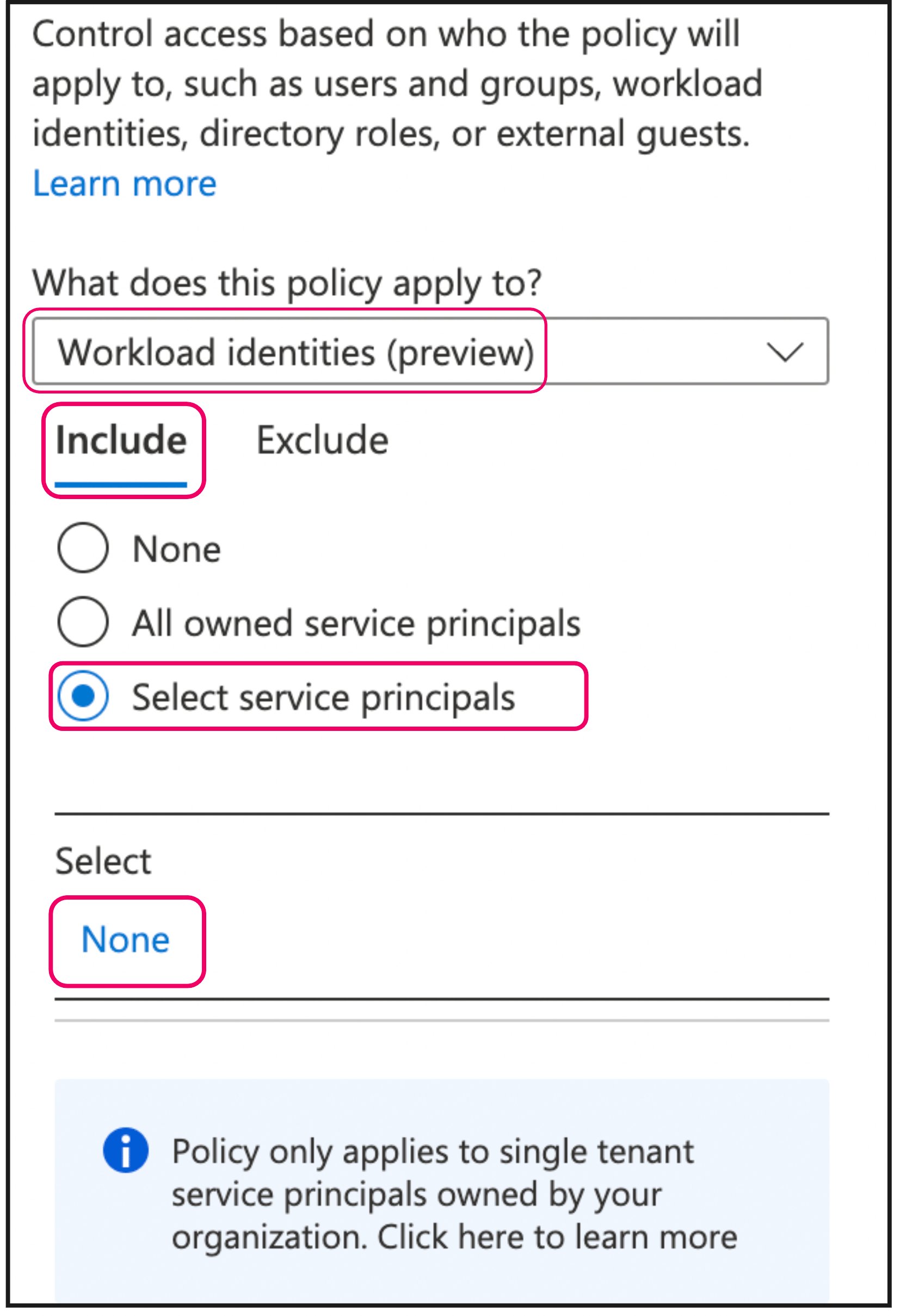 * Select *Workload identities* from the What does this policy apply to list
* Select the Include tab and select the *Select service principals* radio
button
* Click the *None* hyperlink
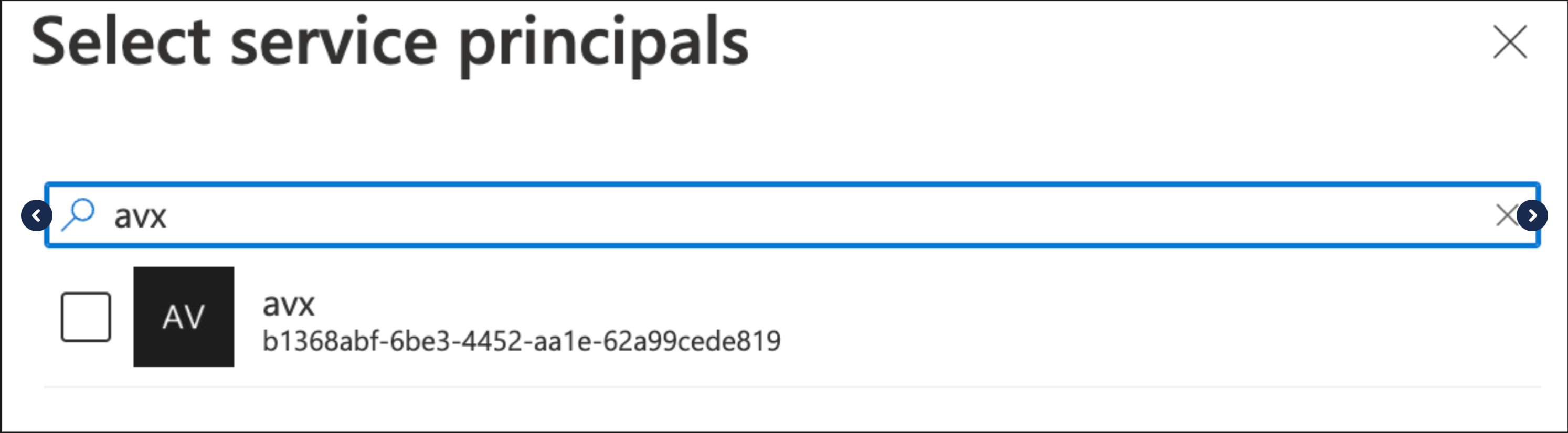
5. In the resulting dialog, select the principal you created/identified at the
beginning of this procedure.
* Select *Workload identities* from the What does this policy apply to list
* Select the Include tab and select the *Select service principals* radio
button
* Click the *None* hyperlink
5. In the resulting dialog, select the principal you created/identified at the
beginning of this procedure.
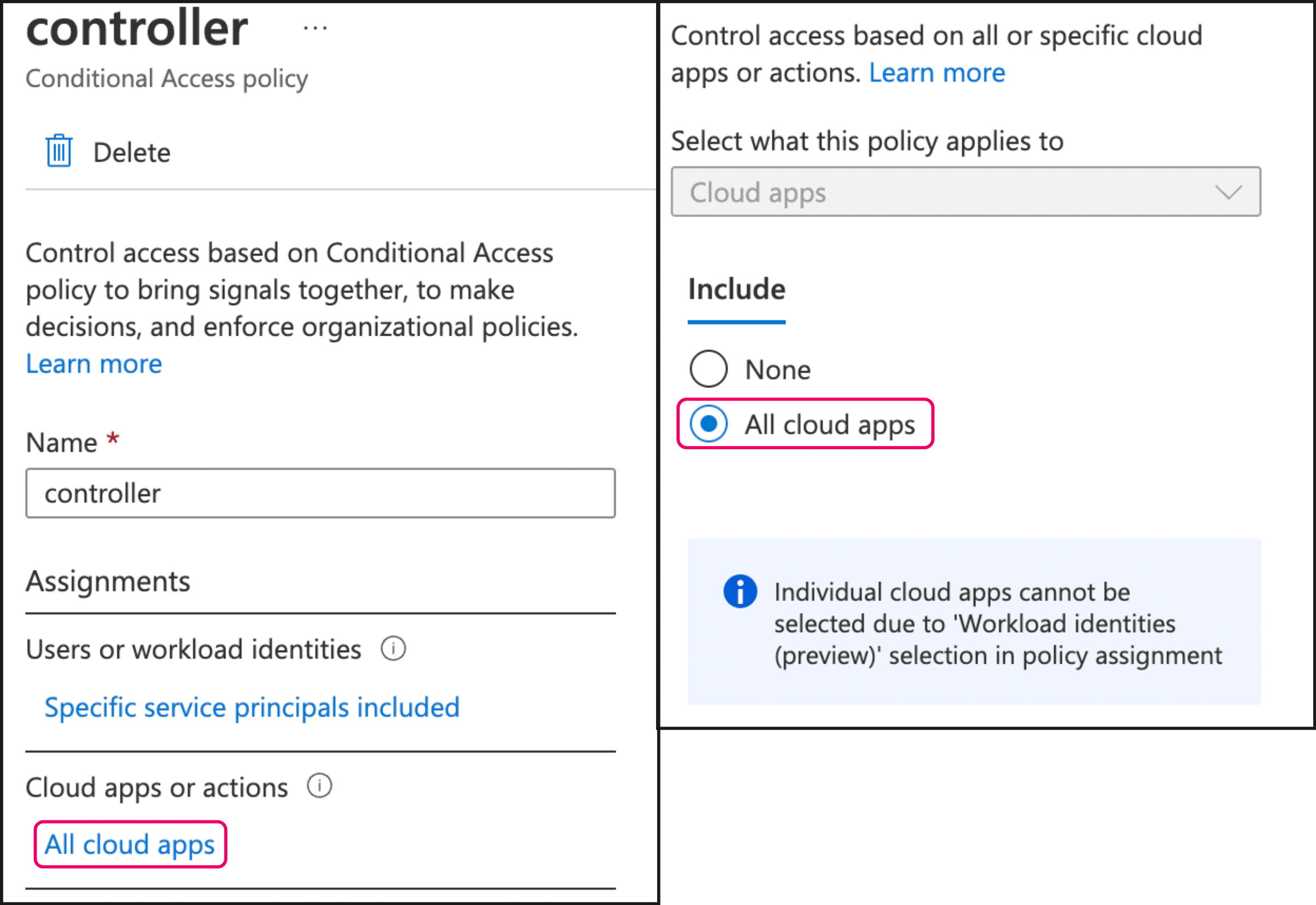
 6. In the Conditional Access Policy configuration screen, click *All cloud apps*
under Cloud apps or actions and then select the *All cloud apps* radio
button.
6. In the Conditional Access Policy configuration screen, click *All cloud apps*
under Cloud apps or actions and then select the *All cloud apps* radio
button.
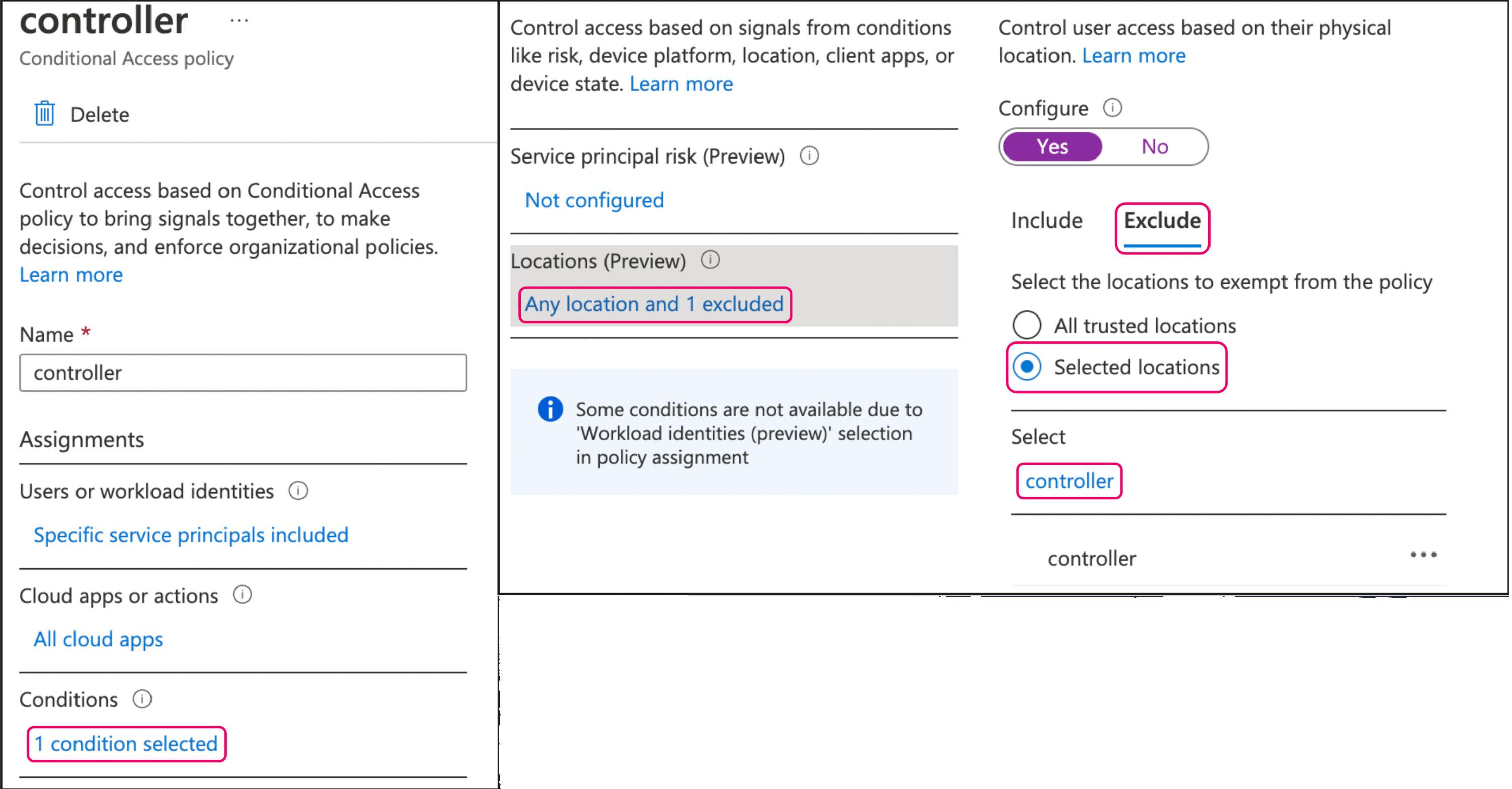
 7. After the condition is created, click the hyperlink in the Conditions section
and create a location-based exclusion by selecting the named location created
in step 1.
7. After the condition is created, click the hyperlink in the Conditions section
and create a location-based exclusion by selecting the named location created
in step 1.
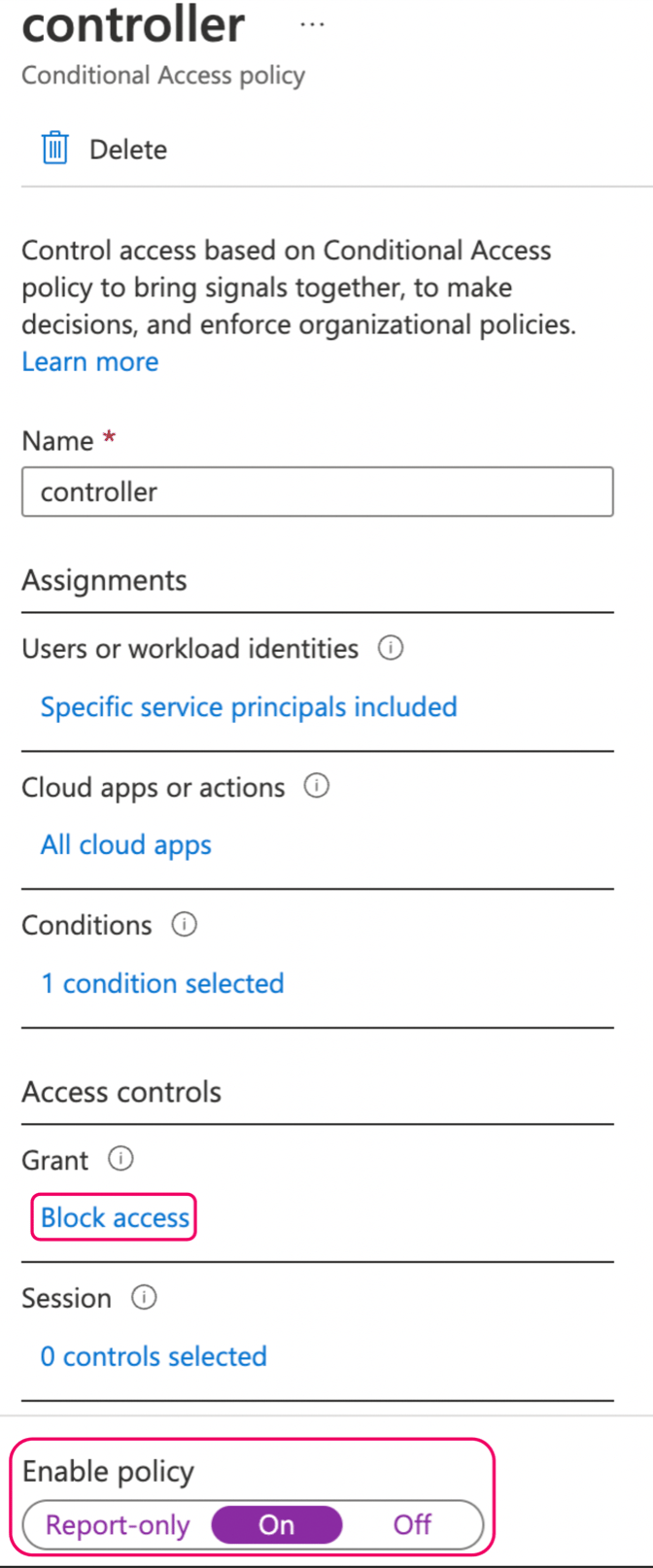
 8. To finalize the configuration, set the Access controls to *Block Access* and
set Enable policy to *On*.
8. To finalize the configuration, set the Access controls to *Block Access* and
set Enable policy to *On*.
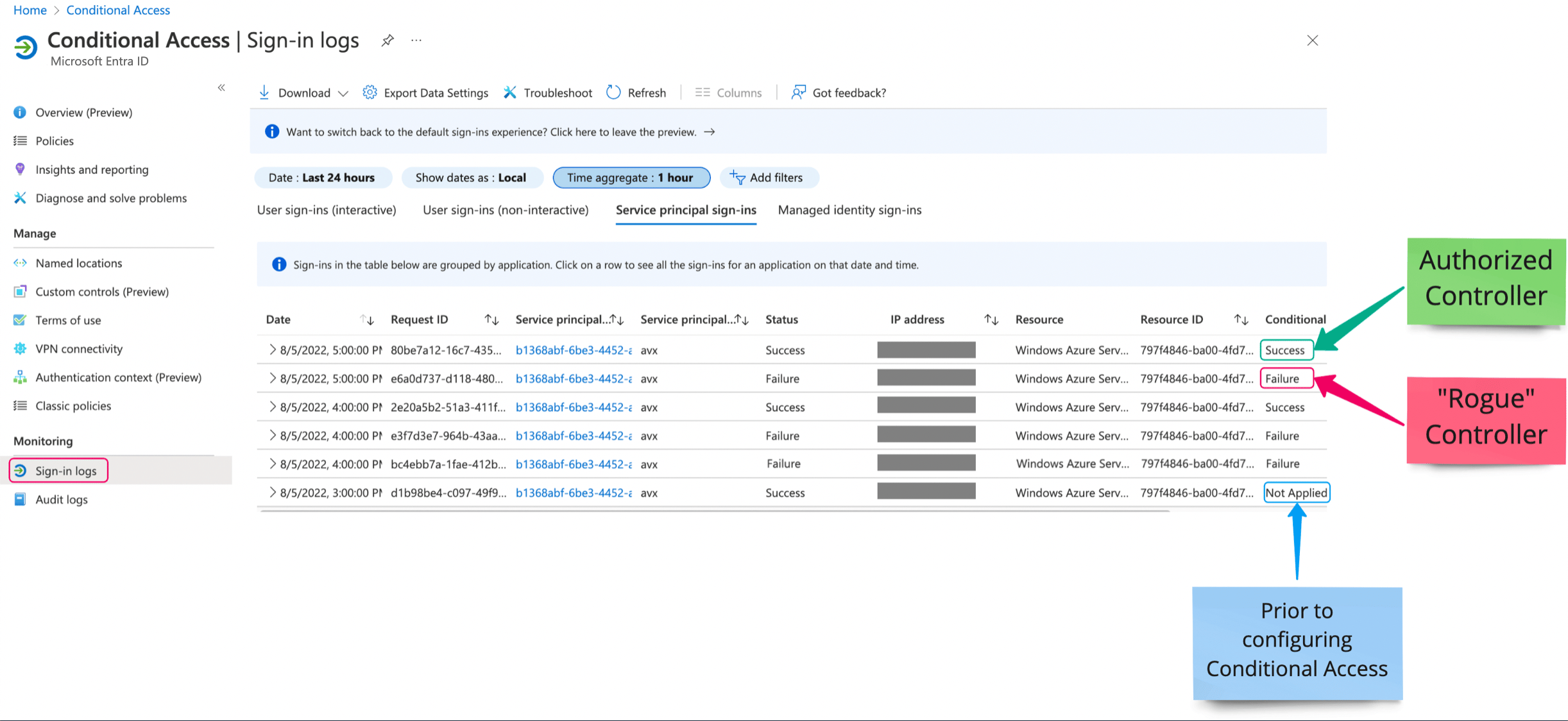
 #### Verifying Conditional Access Policy
To confirm that the Conditional Access policy has been applied successfully, you
can view the logs in Microsoft Entra ID Conditional Access > Monitoring >
Sign-in logs.
#### Verifying Conditional Access Policy
To confirm that the Conditional Access policy has been applied successfully, you
can view the logs in Microsoft Entra ID Conditional Access > Monitoring >
Sign-in logs.