> ## Documentation Index
> Fetch the complete documentation index at: https://docs.aviatrix.com/llms.txt
> Use this file to discover all available pages before exploring further.
# GCP Account Onboarding
> Before creating a cloud account for Google Cloud (GCP) on Aviatrix CoPilot, follow the steps below to make sure you have the credentials set up for API calls.
## GCP Credentials
Before creating a cloud account for Google Cloud (GCP) on Aviatrix CoPilot,
follow the steps below to make sure you have the credentials set up for API
calls.
1. [Create a Google Cloud account](https://cloud.google.com/). Continue to the
next step if you have already done so.
CoPilot supports multiple accounts with each account associated with a
different Google Cloud project, but there needs to be at least one account
to start with.
2. [Create a Google Cloud Project](https://console.cloud.google.com/project).
Continue to the next step if you have already created one.
Note that the project ID will be used in referencing the project by Aviatrix
CoPilot.
(As an example, we created a project Aviatrix-UCC. The project ID is
aviatrix-ucc-1214.)
## Required APIs
Enable the following Google Cloud APIs on the project before you onboard the
account:
* **Compute Engine API**
* **Cloud Resource Manager API**
* **Cloud Logging API**
The following APIs are optional and are required only if you use the
corresponding feature:
* **Kubernetes Engine API**: required only if you connect GKE clusters.
* **Cloud Functions API**: required only if you use Cloud Functions.
* **Cloud Run Admin API**: required only if you use Cloud Run.
* **Serverless VPC Access API**: required only if you use Cloud Functions or
Cloud Run with a VPC connector.
## Enable Compute Engine API on the Selected Project
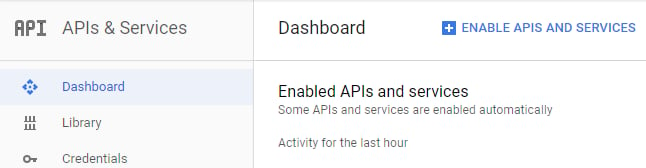
1. Go to your Google Cloud Platform console, click on the dropdown menu in the
top left, and select **APIs and Services**. At the Dashboard, click on
**Enable APIs and Services**.
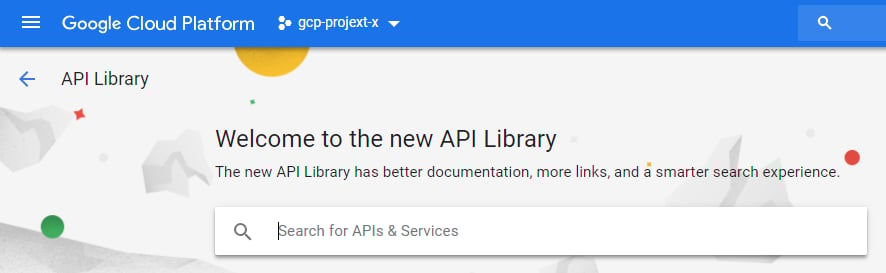
 2. On the Search box, enter "Compute Engine API" and select it from search
results.
2. On the Search box, enter "Compute Engine API" and select it from search
results.
 3. Click **Enable**.
## Create a Credential File
When you create a cloud account on the Aviatrix Controller for Google Cloud, you
will upload a Google Cloud Project Credentials file. Follow the steps below to
download the credential file from the Google Developer Console.
1. Open the
[Credential page](https://console.developers.google.com/project/_/apiui/credential).
2. Select the project you are creating credentials for.
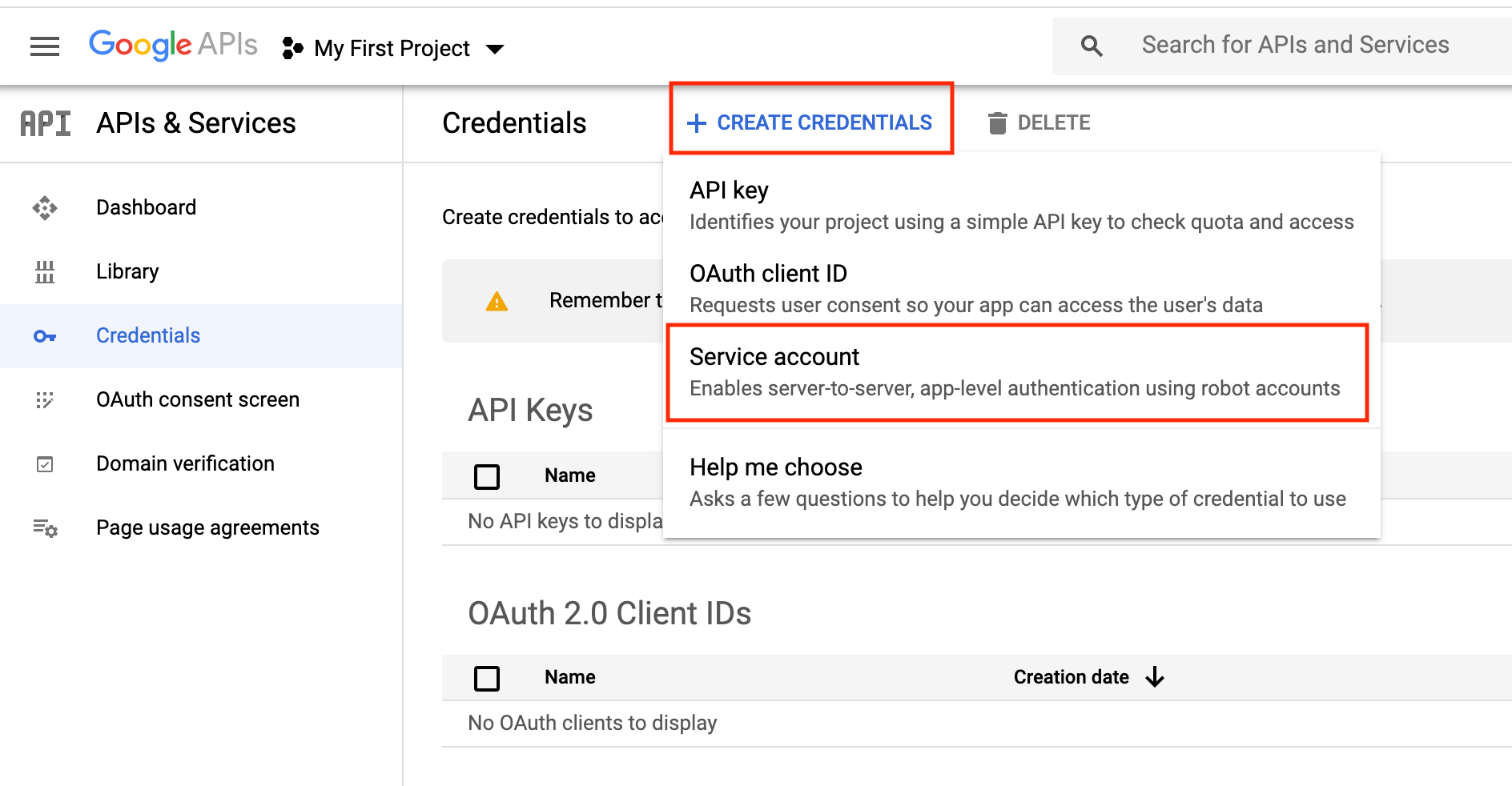
3. At Credentials, click **Create credentials** and select **Service account**
as shown below.
3. Click **Enable**.
## Create a Credential File
When you create a cloud account on the Aviatrix Controller for Google Cloud, you
will upload a Google Cloud Project Credentials file. Follow the steps below to
download the credential file from the Google Developer Console.
1. Open the
[Credential page](https://console.developers.google.com/project/_/apiui/credential).
2. Select the project you are creating credentials for.
3. At Credentials, click **Create credentials** and select **Service account**
as shown below.
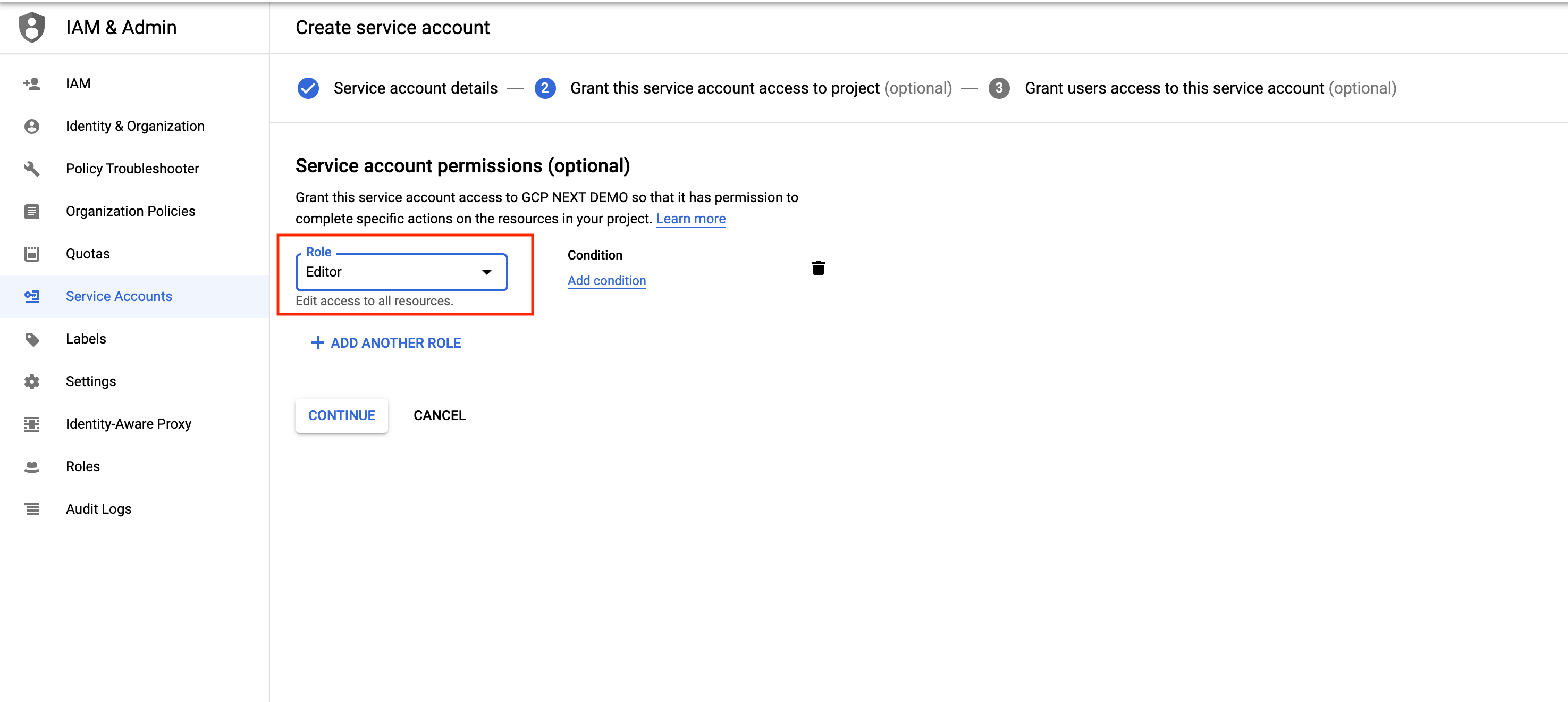
 4. At the Service Accounts, enter a service account name and click **Create**.
For Service account permissions, select Project, Editor, as shown below.
4. At the Service Accounts, enter a service account name and click **Create**.
For Service account permissions, select Project, Editor, as shown below.
 5. Select a service account and then select the Keys tab
6. Click the **Add Key** dropdown menu, and select **Create new key**.
7. Select the **JSON** radio button and click **Create**.
8. Click **Create**.
The credential file downloads to your local computer.
9. Upload the Project Credential file to the Aviatrix Controller at the Google
Cloud Platform account create page.
## Create a Service Account with Restricted Access
We recommend creating the service account with the Editor role, but in some
cases an organization might want to further restrict permission for the service
account. In such a situation, Aviatrix recommends having at least the following
roles assigned to the service account. These roles allow Aviatrix to perform its
functions properly, such as managing the compute resources, route tables,
firewall rules, shared service VPC network, etc.
1. Compute Admin
2. Service Account User
3. Organization Administrator (required for GCP Shared VPC)
4. Project IAM Admin (required for GCP Shared VPC)
5. Select a service account and then select the Keys tab
6. Click the **Add Key** dropdown menu, and select **Create new key**.
7. Select the **JSON** radio button and click **Create**.
8. Click **Create**.
The credential file downloads to your local computer.
9. Upload the Project Credential file to the Aviatrix Controller at the Google
Cloud Platform account create page.
## Create a Service Account with Restricted Access
We recommend creating the service account with the Editor role, but in some
cases an organization might want to further restrict permission for the service
account. In such a situation, Aviatrix recommends having at least the following
roles assigned to the service account. These roles allow Aviatrix to perform its
functions properly, such as managing the compute resources, route tables,
firewall rules, shared service VPC network, etc.
1. Compute Admin
2. Service Account User
3. Organization Administrator (required for GCP Shared VPC)
4. Project IAM Admin (required for GCP Shared VPC)
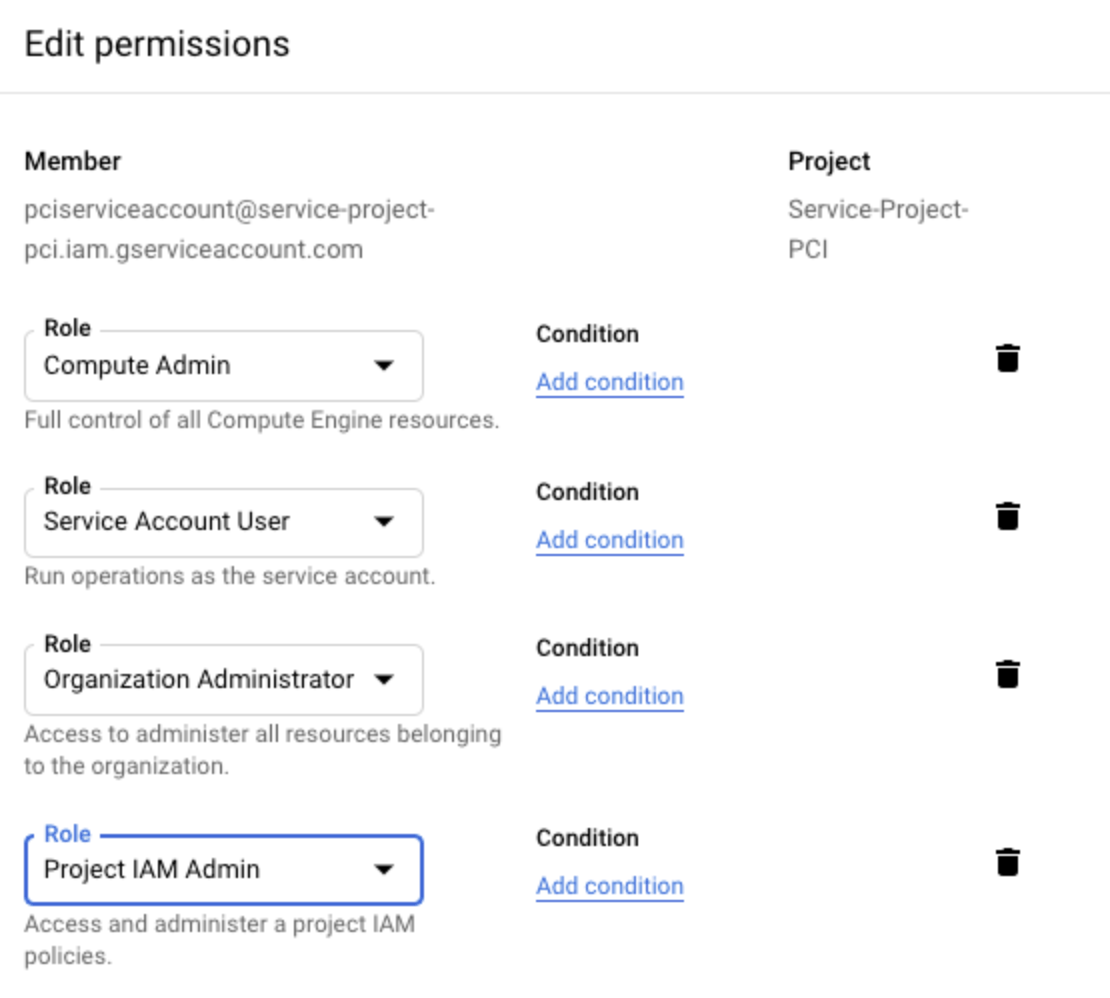 If an organization is currently using GCP Shared VPC or planning to use it in it
the future, then enabling Organization Administrator and Project IAM Admin is
also required.
In addition to restricting the GCP roles, you can restrict the rights for those
roles. You can grant roles permission to perform the following tasks:
```text theme={null}
compute.addresses.create
compute.addresses.createInternal
compute.addresses.delete
compute.addresses.deleteInternal
compute.addresses.get
compute.addresses.list
compute.addresses.use
compute.addresses.useInternal
compute.disks.create
compute.disks.get
compute.firewalls.create
compute.firewalls.delete
compute.firewalls.get
compute.firewalls.list
compute.firewalls.update
compute.forwardingRules.create
compute.forwardingRules.delete
compute.forwardingRules.list
compute.globalOperations.get
compute.healthChecks.create
compute.healthChecks.delete
compute.healthChecks.useReadOnly
compute.httpHealthChecks.get
compute.httpHealthChecks.useReadOnly
compute.images.create
compute.images.list
compute.images.useReadOnly
compute.instanceGroups.create
compute.instanceGroups.delete
compute.instanceGroups.get
compute.instanceGroups.update
compute.instanceGroups.use
compute.instances.create
compute.instances.delete
compute.instances.get
compute.instances.list
compute.instances.setDeletionProtection
compute.instances.setMachineType
compute.instances.setMetadata
compute.instances.setTags
compute.instances.start
compute.instances.stop
compute.instances.updateNetworkInterface
compute.instances.use
compute.licenses.get
compute.licenses.list
compute.machineTypes.list
compute.networks.addPeering
compute.networks.create
compute.networks.delete
compute.networks.get
compute.networks.list
compute.networks.listEffectiveTags
compute.networks.removePeering
compute.networks.updatePolicy
compute.networks.use
compute.projects.get
compute.projects.setCommonInstanceMetadata
compute.regionBackendServices.create
compute.regionBackendServices.delete
compute.regionBackendServices.get
compute.regionBackendServices.list
compute.regionBackendServices.update
compute.regionBackendServices.use
compute.regionOperations.get
compute.routes.create
compute.routes.delete
compute.routes.list
compute.subnetworks.create
compute.subnetworks.delete
compute.subnetworks.get
compute.subnetworks.list
compute.subnetworks.use
compute.subnetworks.useExternalIp
compute.targetPools.addInstance
compute.targetPools.create
compute.targetPools.delete
compute.targetPools.get
compute.targetPools.removeInstance
compute.targetPools.use
compute.zoneOperations.get
compute.zones.list
iam.serviceAccounts.actAs
logging.logEntries.create
pubsub.subscriptions.consume
pubsub.subscriptions.create
pubsub.subscriptions.delete
pubsub.subscriptions.get
pubsub.topics.attachSubscription
pubsub.topics.create
pubsub.topics.delete
pubsub.topics.get
pubsub.topics.publish
resourcemanager.projects.get
```
If you want to monitor egress traffic on a GCP cloud account, ensure that the
following APIs are enabled:
* container: `container.googleapis.com`
* cloud Resource Manager: `cloudresourcemanager.googleapis.com`
For more information about requirements for monitoring egress traffic on GCP,
see
Implementing Egress in an Aviatrix-Managed Network
.
GCP requires the following permissions to discover and connect to GKE clusters:
```text theme={null}
container.clusters.connect
container.clusters.get
container.clusters.list
container.endpointSlices.list
container.namespaces.list
container.nodes.list
container.pods.list
container.services.list
```
For more information about Kubernetes Engine (GKE) requirements, see
Kubernetes Prerequisites and Permissions
.
## Troubleshooting Tips
If the cloud account creation fails, check the error message on Aviatrix CoPilot
and try again with the steps provided in this document.
For additional support, please open a support ticket at the
[Aviatrix Support Portal](https://support.aviatrix.com).
If an organization is currently using GCP Shared VPC or planning to use it in it
the future, then enabling Organization Administrator and Project IAM Admin is
also required.
In addition to restricting the GCP roles, you can restrict the rights for those
roles. You can grant roles permission to perform the following tasks:
```text theme={null}
compute.addresses.create
compute.addresses.createInternal
compute.addresses.delete
compute.addresses.deleteInternal
compute.addresses.get
compute.addresses.list
compute.addresses.use
compute.addresses.useInternal
compute.disks.create
compute.disks.get
compute.firewalls.create
compute.firewalls.delete
compute.firewalls.get
compute.firewalls.list
compute.firewalls.update
compute.forwardingRules.create
compute.forwardingRules.delete
compute.forwardingRules.list
compute.globalOperations.get
compute.healthChecks.create
compute.healthChecks.delete
compute.healthChecks.useReadOnly
compute.httpHealthChecks.get
compute.httpHealthChecks.useReadOnly
compute.images.create
compute.images.list
compute.images.useReadOnly
compute.instanceGroups.create
compute.instanceGroups.delete
compute.instanceGroups.get
compute.instanceGroups.update
compute.instanceGroups.use
compute.instances.create
compute.instances.delete
compute.instances.get
compute.instances.list
compute.instances.setDeletionProtection
compute.instances.setMachineType
compute.instances.setMetadata
compute.instances.setTags
compute.instances.start
compute.instances.stop
compute.instances.updateNetworkInterface
compute.instances.use
compute.licenses.get
compute.licenses.list
compute.machineTypes.list
compute.networks.addPeering
compute.networks.create
compute.networks.delete
compute.networks.get
compute.networks.list
compute.networks.listEffectiveTags
compute.networks.removePeering
compute.networks.updatePolicy
compute.networks.use
compute.projects.get
compute.projects.setCommonInstanceMetadata
compute.regionBackendServices.create
compute.regionBackendServices.delete
compute.regionBackendServices.get
compute.regionBackendServices.list
compute.regionBackendServices.update
compute.regionBackendServices.use
compute.regionOperations.get
compute.routes.create
compute.routes.delete
compute.routes.list
compute.subnetworks.create
compute.subnetworks.delete
compute.subnetworks.get
compute.subnetworks.list
compute.subnetworks.use
compute.subnetworks.useExternalIp
compute.targetPools.addInstance
compute.targetPools.create
compute.targetPools.delete
compute.targetPools.get
compute.targetPools.removeInstance
compute.targetPools.use
compute.zoneOperations.get
compute.zones.list
iam.serviceAccounts.actAs
logging.logEntries.create
pubsub.subscriptions.consume
pubsub.subscriptions.create
pubsub.subscriptions.delete
pubsub.subscriptions.get
pubsub.topics.attachSubscription
pubsub.topics.create
pubsub.topics.delete
pubsub.topics.get
pubsub.topics.publish
resourcemanager.projects.get
```
If you want to monitor egress traffic on a GCP cloud account, ensure that the
following APIs are enabled:
* container: `container.googleapis.com`
* cloud Resource Manager: `cloudresourcemanager.googleapis.com`
For more information about requirements for monitoring egress traffic on GCP,
see
Implementing Egress in an Aviatrix-Managed Network
.
GCP requires the following permissions to discover and connect to GKE clusters:
```text theme={null}
container.clusters.connect
container.clusters.get
container.clusters.list
container.endpointSlices.list
container.namespaces.list
container.nodes.list
container.pods.list
container.services.list
```
For more information about Kubernetes Engine (GKE) requirements, see
Kubernetes Prerequisites and Permissions
.
## Troubleshooting Tips
If the cloud account creation fails, check the error message on Aviatrix CoPilot
and try again with the steps provided in this document.
For additional support, please open a support ticket at the
[Aviatrix Support Portal](https://support.aviatrix.com).