> ## Documentation Index
> Fetch the complete documentation index at: https://docs.aviatrix.com/llms.txt
> Use this file to discover all available pages before exploring further.
# Managing Access Accounts
> You can download the full set of logs to audit user access activities:
## Access Account
The Aviatrix Controller is a multicloud and multi-accounts platform. The
Controller uses your cloud provider API credentials to make API calls, for
example, to launch an Aviatrix gateway instance, on behalf of your cloud
accounts.
One cloud credential is represented as an Aviatrix access account on the
Controller. The Controller supports multiple Aviatrix accounts. One Aviatrix
account can have multiple service accounts from different clouds, one from each
cloud. For example, an Aviatrix account named DevOps can have an access account
for AWS, Azure ARM credentials, and GCP credentials.
* Starting from release 3.2, an access account for AWS only consists of the
12-digit account ID.
* For Azure, the account information consists of
Azure ARM credentials.
* For GCP (Google Cloud), the account information consists of
[GCP Credentials](https://docs.aviatrix.com/documentation/latest/getting-started/onboard-acct-gcp.html).
* For AWS China, please refer to
Account with Access Key
.
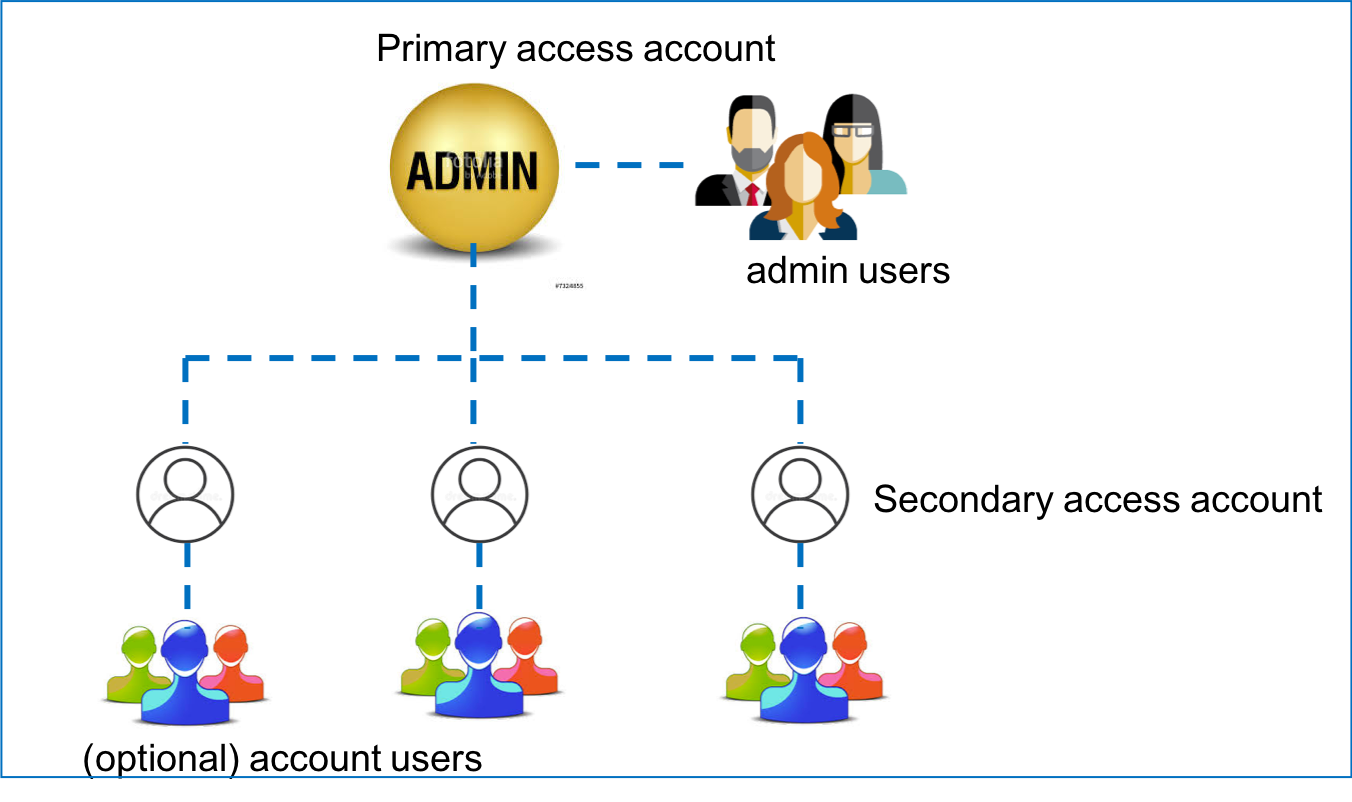
The Aviatrix account structure is shown in the diagram below, where admin is the
default user for the primary access account.
 To add more admin users, refer to
Admin Users and Duo Sign in
.
The primary access account is the first account on the Controller. This is the account you used to launch the Controller through the AWS, Azure, GCP, or OCI marketplaces, and the account where that Controller remains. For example, if you launched your Controller through the AWS marketplace, your primary access account is an AWS account.
After setting up your primary access account, you can:
* Launch Aviatrix Gateways in the VPC/VNets that belong to this account.
* Add access accounts from other Cloud Service Providers. For example, if you launched your Aviatrix Controller through the Azure marketplace, your can add access accounts for AWS, GCP, and OCI.
An Aviatrix Cloud Account corresponds to one cloud account of one
cloud type. You can create multiple Cloud Accounts to support multi
cloud and multi account deployment environment.
For AWS, a
primary access account
is created during the onboarding process. Using this account credential, the
Controller can launch gateways and build connectivity on VPCs that belong to
this AWS account. See
AWS IAM Roles and Policies
for the IAM roles and policies that make this possible.
## Setting Up Additional Access Accounts for Different Clouds
After you go through the onboarding process and create the primary access
account, you can create additional Aviatrix access accounts on the Controller.
This allows you to launch gateways and build connectivity across different cloud
accounts. For example, if you create a primary access account in Azure, where
you launched your Controller, you can add additional access accounts for AWS,
GCP, and OCI.
To launch an additional access account:
1. Go to your Aviatrix Controller > Accounts > Access Accounts.
2. Click *+ Add New* to create this new access account.
3. Enter a unique account name: for example, BU-Group-3.
4. Mark the radio button for the appropriate Cloud Service Provider. The fields
below change based on which Cloud Service Provider you chose. See the
following documents for more information on adding access accounts in each
cloud:
* AWS access accounts
*
If you launched your Controller in Azure, GCP, or OCI, leave the IAM roles
checkbox *unmarked* for any additional AWS access accounts, and provide an
access key and secret instead. See AWS IAM Roles and Policies for why IAM roles
do not work in this case.
* Azure access accounts
* GCP access accounts
* [OCI access accounts](https://docs.aviatrix.com/documentation/latest/getting-started/getting-started-guide-oracle.html#onboarding-oci-in-aviatrix-copilot)
* Alibaba access accounts
5. After entering the information required, scroll down and select any
RBAC or
permission groups this account should belong to.
6. Click *OK*.
* The new access account is created.
7. Now you can create connectivity between two VPC/VNets in different cloud
accounts.
If you use Terraform to create more AWS access accounts, you need to run the
CloudFormation script on each secondary account first, then use Terraform
account resource to create the account.
The CloudFormation script creates the IAM roles and policies and establishes a
trust relationship with the primary account (the account where the Controller is
launched). See
AWS IAM Roles and Policies
for the default trust relationship and how to harden it.
## Account Audit Logs
You can download the full set of logs to audit user access activities:
1. Go to **Administration > Audit** page on the CoPilot UI.
2. Select a desired time period. Then choose any filters as needed. Click
**Apply**.
3. Click the Download icon
To add more admin users, refer to
Admin Users and Duo Sign in
.
The primary access account is the first account on the Controller. This is the account you used to launch the Controller through the AWS, Azure, GCP, or OCI marketplaces, and the account where that Controller remains. For example, if you launched your Controller through the AWS marketplace, your primary access account is an AWS account.
After setting up your primary access account, you can:
* Launch Aviatrix Gateways in the VPC/VNets that belong to this account.
* Add access accounts from other Cloud Service Providers. For example, if you launched your Aviatrix Controller through the Azure marketplace, your can add access accounts for AWS, GCP, and OCI.
An Aviatrix Cloud Account corresponds to one cloud account of one
cloud type. You can create multiple Cloud Accounts to support multi
cloud and multi account deployment environment.
For AWS, a
primary access account
is created during the onboarding process. Using this account credential, the
Controller can launch gateways and build connectivity on VPCs that belong to
this AWS account. See
AWS IAM Roles and Policies
for the IAM roles and policies that make this possible.
## Setting Up Additional Access Accounts for Different Clouds
After you go through the onboarding process and create the primary access
account, you can create additional Aviatrix access accounts on the Controller.
This allows you to launch gateways and build connectivity across different cloud
accounts. For example, if you create a primary access account in Azure, where
you launched your Controller, you can add additional access accounts for AWS,
GCP, and OCI.
To launch an additional access account:
1. Go to your Aviatrix Controller > Accounts > Access Accounts.
2. Click *+ Add New* to create this new access account.
3. Enter a unique account name: for example, BU-Group-3.
4. Mark the radio button for the appropriate Cloud Service Provider. The fields
below change based on which Cloud Service Provider you chose. See the
following documents for more information on adding access accounts in each
cloud:
* AWS access accounts
*
If you launched your Controller in Azure, GCP, or OCI, leave the IAM roles
checkbox *unmarked* for any additional AWS access accounts, and provide an
access key and secret instead. See AWS IAM Roles and Policies for why IAM roles
do not work in this case.
* Azure access accounts
* GCP access accounts
* [OCI access accounts](https://docs.aviatrix.com/documentation/latest/getting-started/getting-started-guide-oracle.html#onboarding-oci-in-aviatrix-copilot)
* Alibaba access accounts
5. After entering the information required, scroll down and select any
RBAC or
permission groups this account should belong to.
6. Click *OK*.
* The new access account is created.
7. Now you can create connectivity between two VPC/VNets in different cloud
accounts.
If you use Terraform to create more AWS access accounts, you need to run the
CloudFormation script on each secondary account first, then use Terraform
account resource to create the account.
The CloudFormation script creates the IAM roles and policies and establishes a
trust relationship with the primary account (the account where the Controller is
launched). See
AWS IAM Roles and Policies
for the default trust relationship and how to harden it.
## Account Audit Logs
You can download the full set of logs to audit user access activities:
1. Go to **Administration > Audit** page on the CoPilot UI.
2. Select a desired time period. Then choose any filters as needed. Click
**Apply**.
3. Click the Download icon
 to download the API logs.