> ## Documentation Index
> Fetch the complete documentation index at: https://docs.aviatrix.com/llms.txt
> Use this file to discover all available pages before exploring further.
# Admin Users and Duo Sign in
> This document describes a reference design using the Aviatrix Controller console's user management and Duo authentication capability to manage multiple users with admin privileges.
## Admin Users and Duo Sign in
### Objectives
This document describes a reference design using the Aviatrix Controller
console's user management and Duo authentication capability to manage multiple
users with admin privileges.
As the cloud Ops team continues to expand to manage more cloud deployments, each
team member often needs their own username and password with admin privilege. In
addition to a username and password for login credentials, a 2FA authentication
can be added for enhanced security to manage cloud Controller. Duo
authentication is one of the supported methods. When enabled, it requires the
user to accept a push message on the user's mobile device from Duo service in
addition to username and password at the user login time.
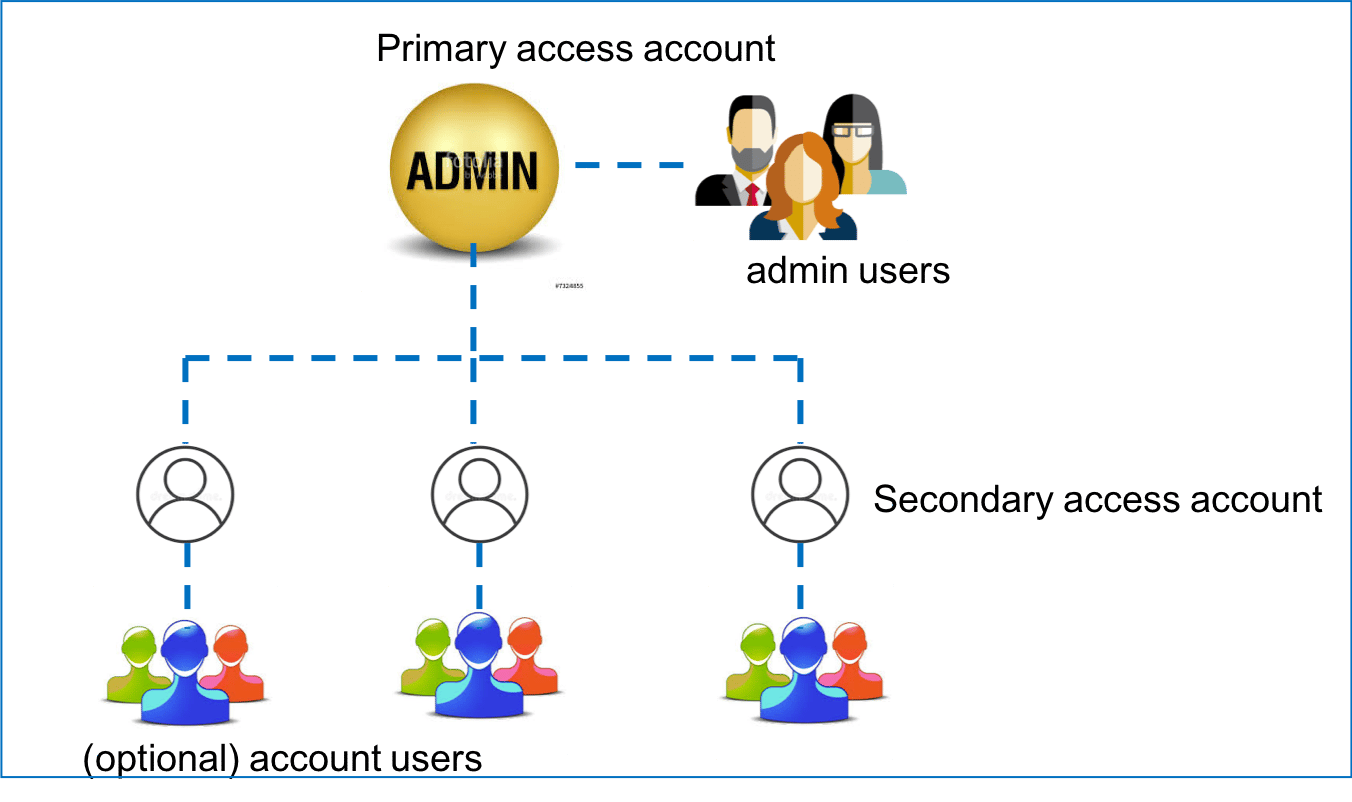
The following diagram illustrates the user relationship in a typical cloud Ops
department. In this example, the Ops team has created three secondary access
accounts. An access account is associated with one or more distinct cloud
provider's API credentials. Typically, a cloud account corresponds to an IAM
account of a distinct AWS and/or Azure account with a credit card.
A default user "admin" is created by the system. In the picture below, admin has
created three secondary access accounts. Additional users in admin and access
account are added by the admin or admin users.
 ## Configuration Workflow for Admin Users
### Adding a New Admin User
The page can be found at Accounts > Account Users > `+New User`.
After the primary access account is created during onboarding, additional admin
users can be added from this page.
When an admin user is created, changed, or deleted, an email is sent to the
admin's email address as a record for bookkeeping purposes. After the user is
added, the user can log in to the console with the specified username and
password. The user then has full access to the console like the admin. When the
user logs in to the console, the admin username will be displayed in the top
right corner.
### Deleting an Admin User
The same page can be used to delete an admin user when the user leaves the group
or the user role changes. After the delete button is clicked, a confirmation
email is sent to the admin's email address. Note that an admin cannot be deleted
by himself or herself though the user has the full console access. Typically,
the admin user is added or deleted by the special username admin.
### Changing an Admin User's Password
The admin user's password can be changed at the same page. An email notification
is sent to the admin's email address after the change is successfully done.
### Disabling an Admin Login
You need a local user with admin privileges to be created before you can
disable the "admin" account.
If you need to disable admin login for security reasons, go to Settings
> Controller > Login Customization. Click `Disable` to disable the admin login.
## Configuration Workflow for Duo Authentication
### Getting DUO API Credentials
Follow the [instructions](https://duo.com/docs/duoweb) to set up Duo API
credentials on the DUO Security website.
### Creating Duo Authentication
To enable Duo, go to Settings > Controller > Duo Login.
Enter the Duo integration key, secret key, and API hostname of your account in
Duo website described earlier. Currently, only Duo push is supported.
Once it is created successfully, the Duo push login applies to all users (admin
is exempt). Every user (listed in Settings > Manage Accounts > Users) who wants
to log in to the system must have a matching username in their Duo account.
### Removing Duo Authentication
The Duo authentication setup can be removed completely by clicking the Remove
button on the same page.
### Disabling/Enabling Duo Authentication
The authentication can be disabled or enabled without deleting the Duo
credential configuration.
### API Server Check
This button can be used to troubleshoot Duo API server connectivity when the API
failure is occurring.
## Configuration Workflow for Admin Users
### Adding a New Admin User
The page can be found at Accounts > Account Users > `+New User`.
After the primary access account is created during onboarding, additional admin
users can be added from this page.
When an admin user is created, changed, or deleted, an email is sent to the
admin's email address as a record for bookkeeping purposes. After the user is
added, the user can log in to the console with the specified username and
password. The user then has full access to the console like the admin. When the
user logs in to the console, the admin username will be displayed in the top
right corner.
### Deleting an Admin User
The same page can be used to delete an admin user when the user leaves the group
or the user role changes. After the delete button is clicked, a confirmation
email is sent to the admin's email address. Note that an admin cannot be deleted
by himself or herself though the user has the full console access. Typically,
the admin user is added or deleted by the special username admin.
### Changing an Admin User's Password
The admin user's password can be changed at the same page. An email notification
is sent to the admin's email address after the change is successfully done.
### Disabling an Admin Login
You need a local user with admin privileges to be created before you can
disable the "admin" account.
If you need to disable admin login for security reasons, go to Settings
> Controller > Login Customization. Click `Disable` to disable the admin login.
## Configuration Workflow for Duo Authentication
### Getting DUO API Credentials
Follow the [instructions](https://duo.com/docs/duoweb) to set up Duo API
credentials on the DUO Security website.
### Creating Duo Authentication
To enable Duo, go to Settings > Controller > Duo Login.
Enter the Duo integration key, secret key, and API hostname of your account in
Duo website described earlier. Currently, only Duo push is supported.
Once it is created successfully, the Duo push login applies to all users (admin
is exempt). Every user (listed in Settings > Manage Accounts > Users) who wants
to log in to the system must have a matching username in their Duo account.
### Removing Duo Authentication
The Duo authentication setup can be removed completely by clicking the Remove
button on the same page.
### Disabling/Enabling Duo Authentication
The authentication can be disabled or enabled without deleting the Duo
credential configuration.
### API Server Check
This button can be used to troubleshoot Duo API server connectivity when the API
failure is occurring.