> ## Documentation Index
> Fetch the complete documentation index at: https://docs.aviatrix.com/llms.txt
> Use this file to discover all available pages before exploring further.
# Upgrade Gateways in Groups
> The gateway group upgrade feature optimizes the gateway upgrade process by allowing you to categorize and manage gateway upgrades more efficiently. It enables the predefined grouping of gateways based on Cloud, Account, Region, Gateway type, Current image version, and Kernel version.
The gateway group upgrade feature optimizes the gateway upgrade process by
allowing you to categorize and manage gateway upgrades more efficiently. It
enables the predefined grouping of gateways based on Cloud, Account, Region,
Gateway type, Current image version, and Kernel version. By assigning a priority
order of the gateway groups, the gateway group upgrade can be operated in a
sequence determined by the priority levels, which can minimize the potential
disruption during the gateway upgrade.
From *CoPilot > Administration > Upgrade > Upgrade Plan*, you can access the
gateway group upgrade feature.
## Subgroup Division
Upon creating the gateway groups, each gateway upgrade group is automatically
subdivided into two subgroups:
* HA Group (High Availability Group): This subgroup includes gateway instances
that are part of the High Availability setup. These instances are critical for
ensuring uninterrupted network services during the upgrade process.
* Primary Group: This subgroup consists of primary gateway instances, which
handle the regular traffic and operations within the network.
## Upgrade Gateways in Groups
This gateway Upgrade group feature applies to both the software and image
upgrade. To upgrade gateways in groups, perform the following steps:
1. Create Gateway Groups. From *Administration > Upgrade > Upgrade Plan>*, click
the *+ Upgrade Group* and enter the group name, matching conditions, and
*group order number*. Then click *Save*. See
[Create a Gateway Group](#create-a-gateway-upgrade-group) for more details.
2. Select the groups that you want to upgrade from the listed groups.
3. Check and adjust the orders of gateway upgrade groups. The upgrade runs in
the sequence listed in the **Order** column. You can update the numeric order
directly in the table, or reorder groups using the *Move* menu (Above, Below,
Top, Bottom, or **By Order**). See
[Reorder Gateway Groups](#reorder-gateway-upgrade-groups).
4. Click *Prepare For Upgrade* next to the *+Upgrade Group*. Review the listed
gateway groups on the pop-up window.
5. Choose *Software Upgrade* or *Image Upgrade*. For the software upgrade, make
sure the software upgrade option is toggled on. By default, both the dry run
and software upgrade are on. Then click *Begin* to initialize the upgrade
process.
6. (Optional) For multiple upgrade groups, click *Start Next Upgrade* to start
the upgrade of the next group after each group upgrade completes.
7. Monitor the upgrade group status. From the *Upgrade Group Status* column, you
can check the upgrade group status. See
[Check Upgrade Group Status](#check-upgrade-group-status) for more details.
### Create a Gateway Upgrade Group
To create a gateway upgrade group, perform the following steps:
1. From *CoPilot > Administration > Upgrade > Upgrade Plan>*, click *+ Upgrade
Group* to create a gateway upgrade group.
2. In the Create Upgrade Group dialog, enter a group name.
3. Select matching conditions: Gateway type, cloud, region, account, gateway
name, current image version, and kernel version. You can combine the
conditions with *AND or OR*.
You can enable the Preview toggle to view the gateways that match the
selected criteria.
For those unassigned gateways, they will remain in the *Unassigned* group and will be placed at the bottom of the gateway list.
### Reorder Gateway Upgrade Groups
By default, the gateway groups are upgraded in an ascending sequence of the
**Order** column.
To change the upgrade order of a gateway group:
1. Select the checkbox next to the gateway group name.
2. Click the reorder icon (up-and-down arrows).
3. In the pop-up window, select one of the following:
* *Above* or *Below* – place the group relative to another group.
* *Top* or *Bottom* – move the group to the start or end of the list.
* **By Order** – directly enter a new numeric order for the group.
4. Alternatively, edit the **Order** column value directly in the Upgrade Plan
table.
5. Click *Save in Draft* to save the changes without applying them.
6. Click *Commit* to confirm and apply the changes.
## View Gateway Upgrade Process
To monitor the progress of the gateway upgrade, from *Gateway Upgrade*, click
*View Progress*. This will display a detailed view of the current gateway
upgrade status, including the completed steps, ongoing tasks, and any pending
actions.
### View Gateway Upgrade Groups
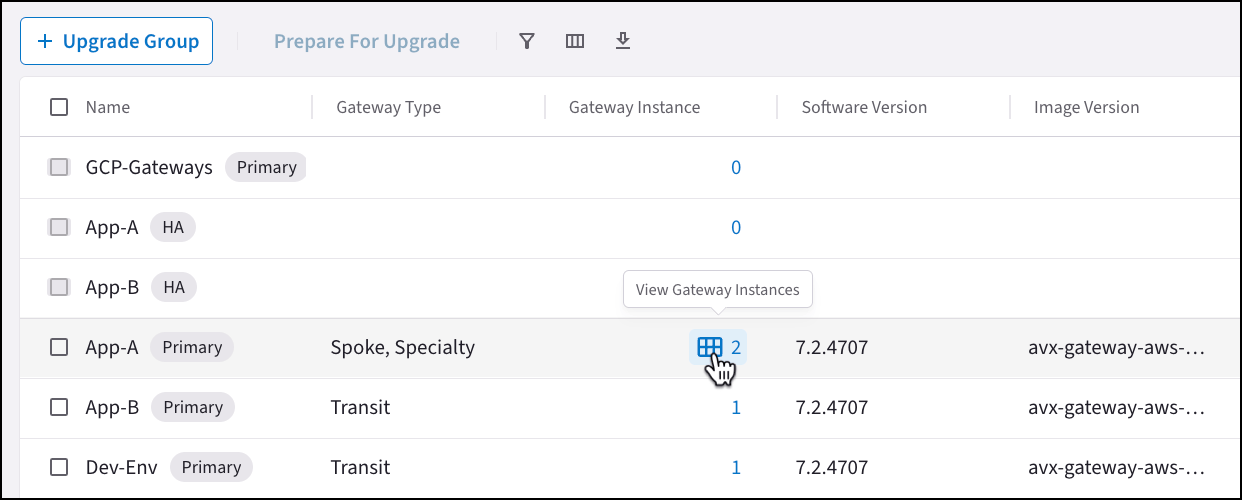
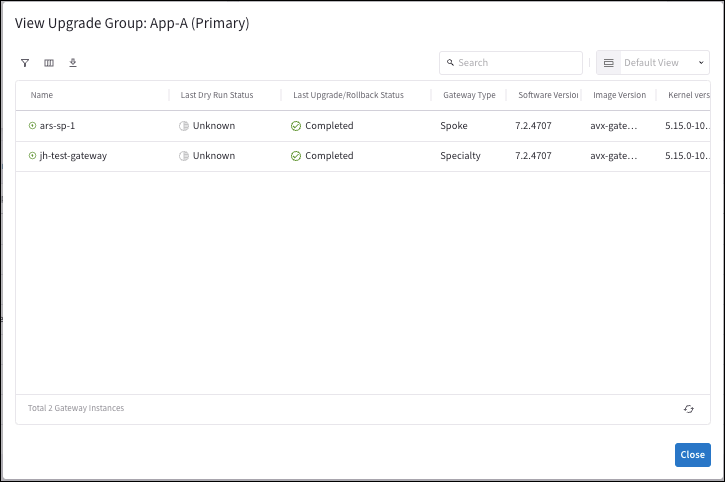
After creating a Gateway Upgrade Group, you can click the table icon next to the
gateway instance in the Upgrade Plan table to view the details of the Upgrade
Group.
 If the Last Upgrade/Rollback Status shows as anything but Complete (green), you
cannot upgrade the Gateway Group.
If the Last Upgrade/Rollback Status shows as anything but Complete (green), you
cannot upgrade the Gateway Group.
 ## Check Upgrade Group Status
To check the upgrade group status:
1. Review the *Upgrade Group Status* column of each upgrade group. A label of
*Completed* indicates that the upgrade of this upgrade group is finished.
2. To check the detailed upgrade information of each gateway within the group,
click the group name in the *Software Upgrade* section.
3. In the pop-up window, scroll left to view the *Last Upgrade/Rollback Status*.
## Rollback Gateway Upgrade
You cannot roll back the entire Gateway Group Upgrade. However, you can roll
back the upgrade of a specific gateway by following the steps below:
1. Go to the *CoPilot > Cloud Fabric > Gateways > Gateway Management* page
2. Click *Gateway Rollback* to roll back a specific gateway upgrade.
Be aware that a gateway upgrade rollback will cause temporary service disruption.
## Upgrade all Gateway Groups
If you want to upgrade all gateway groups in a listed sequence, perform the
following steps:
1. From *CoPilot > Administration > Upgrade > Upgrade Plan>*, click *Prepare For
Upgrade* under the *Gateways Requiring Upgrade*.
2. In the *Upgrade Gateways in All Upgrade Groups*, select either *Software
Upgrade* or *Image Upgrade*.
3. (Optional) Make sure the *Software Upgrade* is toggled on for the Software
Upgrade. By default, the dry run and software upgrade options are both on.
4. Click *Begin*.
5. Click *Start Next Upgrade* when each group upgrade has completed.
6. You can click *View Progress* to check the status of Upgrading Status.
## Cancel All Pending Gateway Upgrades
You cannot cancel or stop a Gateway Group Upgrade in progress. However, you can
cancel the pending gateway upgrades once the first gateway group upgrade
completes. To cancel all the pending gateway upgrades:
1. Confirm the completion of the first gateway group upgrade.
2. Click the dropdown caret adjacent to *Start Next Upgrade* within the
*Software Upgrade* section.
3. From the drop-down menu, click *Stop All Upcoming Upgrade* to cancel all
pending Gateway Group Upgrades.
## Check Upgrade Group Status
To check the upgrade group status:
1. Review the *Upgrade Group Status* column of each upgrade group. A label of
*Completed* indicates that the upgrade of this upgrade group is finished.
2. To check the detailed upgrade information of each gateway within the group,
click the group name in the *Software Upgrade* section.
3. In the pop-up window, scroll left to view the *Last Upgrade/Rollback Status*.
## Rollback Gateway Upgrade
You cannot roll back the entire Gateway Group Upgrade. However, you can roll
back the upgrade of a specific gateway by following the steps below:
1. Go to the *CoPilot > Cloud Fabric > Gateways > Gateway Management* page
2. Click *Gateway Rollback* to roll back a specific gateway upgrade.
Be aware that a gateway upgrade rollback will cause temporary service disruption.
## Upgrade all Gateway Groups
If you want to upgrade all gateway groups in a listed sequence, perform the
following steps:
1. From *CoPilot > Administration > Upgrade > Upgrade Plan>*, click *Prepare For
Upgrade* under the *Gateways Requiring Upgrade*.
2. In the *Upgrade Gateways in All Upgrade Groups*, select either *Software
Upgrade* or *Image Upgrade*.
3. (Optional) Make sure the *Software Upgrade* is toggled on for the Software
Upgrade. By default, the dry run and software upgrade options are both on.
4. Click *Begin*.
5. Click *Start Next Upgrade* when each group upgrade has completed.
6. You can click *View Progress* to check the status of Upgrading Status.
## Cancel All Pending Gateway Upgrades
You cannot cancel or stop a Gateway Group Upgrade in progress. However, you can
cancel the pending gateway upgrades once the first gateway group upgrade
completes. To cancel all the pending gateway upgrades:
1. Confirm the completion of the first gateway group upgrade.
2. Click the dropdown caret adjacent to *Start Next Upgrade* within the
*Software Upgrade* section.
3. From the drop-down menu, click *Stop All Upcoming Upgrade* to cancel all
pending Gateway Group Upgrades.