> ## Documentation Index
> Fetch the complete documentation index at: https://docs.aviatrix.com/llms.txt
> Use this file to discover all available pages before exploring further.
# Transit Gateway to JuniperSRX over the Internet Workflow
> This document describes how to build a Transit connection between an Aviatrix Transit gateway and a Juniper SRX.
This document describes how to build a Transit connection between an Aviatrix
Transit gateway and a Juniper SRX.
Aviatrix does not officially support Juniper SRX, but you can configure Juniper
SRX to work with the Aviatrix software. Aviatrix does not actively test our
software with Juniper SRX and you should rigorously test your configuration in a
development environment before deploying in a production system.
1. In CoPilot, navigate to Cloud Fabric > Gateways > Transit Gateways.
2. Create a Transit gateway in AWS that will connect to your Juniper SRX firewall.
3. To connect the Transit VPC gateway to Juniper SRX, navigate to Networking > Connectivity > External Connections (S2C) and [follow these instructions](https://legacy.docs.aviatrix.com/documentation/latest/network/external-connection-create-bgp-over-ipsec.html).
4. [Download the configuration](https://legacy.docs.aviatrix.com/documentation/latest/network/external-connection-download-configuration.html).
5. Ensure that your JuniperSRX is configured based on the information in the downloaded file. The following is a sample configuration based on the Site2Cloud configuration above.
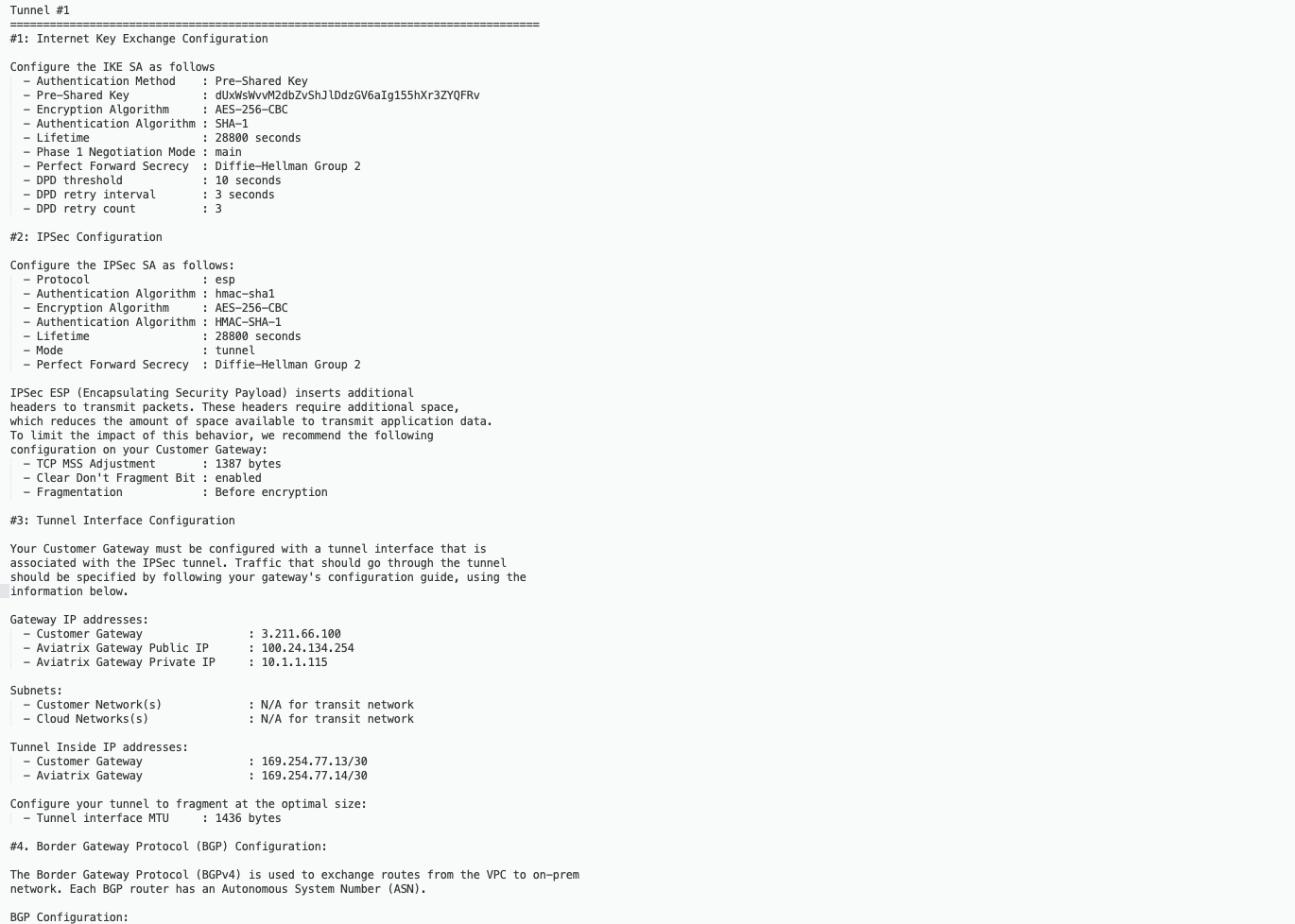 The tunnel IP addresses are configured accordingly with information from the
downloaded configuration file.
6. After configuring the router, in CoPilot navigate to Diagnostics > Cloud Routes > External Connections to confirm that the tunnel status has changed from Down to Up.
7. Navigate to Diagnostics > Cloud Routes > BGP Info to check the BGP routes for the Transit gateway you created. The Status should be Established. If some external connections for the selected Transit Gateway are Not Established, the overall BGP Status for the Transit Gateway is Partially Established.
The tunnel IP addresses are configured accordingly with information from the
downloaded configuration file.
6. After configuring the router, in CoPilot navigate to Diagnostics > Cloud Routes > External Connections to confirm that the tunnel status has changed from Down to Up.
7. Navigate to Diagnostics > Cloud Routes > BGP Info to check the BGP routes for the Transit gateway you created. The Status should be Established. If some external connections for the selected Transit Gateway are Not Established, the overall BGP Status for the Transit Gateway is Partially Established.