> ## Documentation Index
> Fetch the complete documentation index at: https://docs.aviatrix.com/llms.txt
> Use this file to discover all available pages before exploring further.
# BGP-Enabled Spoke Gateway to External Devices
> You can connect an external (or 3rd party) device ( Router or Firewall) to Aviatrix Spoke gateways that are enabled with BGP (and NAT).
You can connect an external (or 3rd party) device ( Router or Firewall) to
Aviatrix Spoke gateways that are enabled with BGP (and NAT).
BGP is run on top of a Site-to-Cloud (S2C) connection that terminates on
ActiveMesh Spoke gateways.
This document describes connecting an external device to an Aviatrix Spoke
gateway that is BGP-enabled.
Using BGP-enabled Spoke gateways is currently supported for AWS Commercial and
Azure Commercial cloud service providers, including Government regions.
## What is a use case for connecting a BGP-enabled Spoke gateway to an external router?
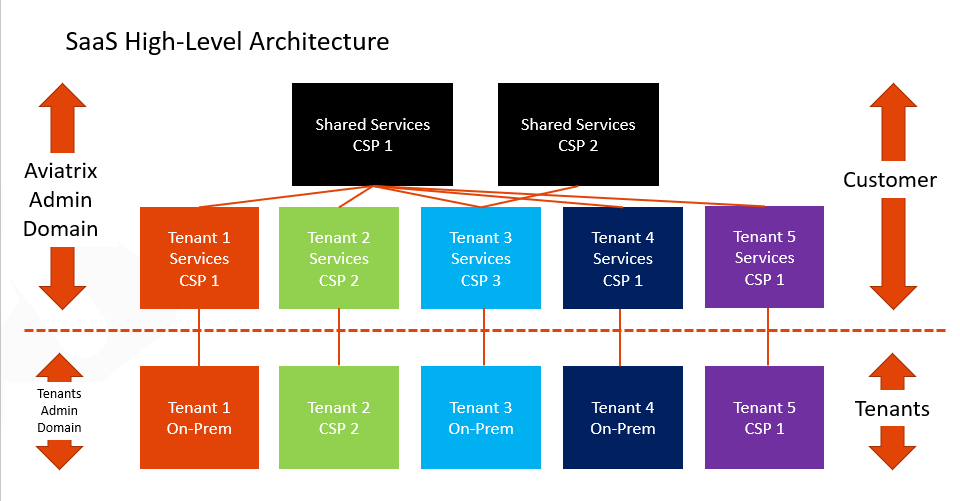
Previously, Software-as-a-Service (SaaS) providers with certain architectures
had to deploy Transit gateways for each of their tenants to enable the tenant to
connect to their in-cloud network.
By using BGP-enabled Spoke gateways in their network architecture, SaaS
providers can solve several requirements:
* **Requirement**: Connect a large number of tenants (1000+).
**Solution**: Distribute the tenants across Spoke gateways, for horizontal
scaling and blast radius minimization.
* **Requirement**: Provide both dedicated tenant services, and shared services.
**Solution**: Host dedicated services in tenant-specific Spoke VPCs. Host
shared services in common Spoke VPCs.
* **Requirement**: Onboard the tenants with BGP: dynamic control plane that fits
their operational model.
**Solution**: Terminate BGP on the tenant Spoke gateways.
* **Requirement**: Handle overlapping IPs across tenants, and between tenants
and shared services.
**Solution**: Use NAT on the tenant Spoke gateways.
* **Requirement**: Maintain isolation across tenants.
**Solution**: Use segmentation domains on the tenant Spoke gateways.
* **Requirement**: Provide the highest throughput to tenant services.
**Solution**: Horizontal scaling. Tenant services are directly hosted in the
Spoke VPC where BGP terminates. They are directly accessed by tenants, without
the transit layer to be a bottleneck.
 ## How does using a BGP-enabled Spoke gateway to an external device work?
The Aviatrix Spoke gateway runs a BGP session to an external router to
dynamically exchange routes. It also establishes an IPsec tunnel to the router
for packet forwarding. BGP is run on top of a S2C connection that terminates on
active-mesh Spoke gateways. All Spoke gateways must be active-mesh (no
standalone gateway). Each Spoke gateway must have a unique Autonomous System
(AS) number.
The following features are supported:
* Fully integrated with ActiveMesh 2.0 control plane.
* Route-based only.
* Active/Active HA is supported for ActiveMesh and for on-prem with ECMP across
multiple BGP connections. Active/Standby S2C is also supported.
* Co-existence of BGP S2C with static S2C connections under the same Spoke
gateway is supported.
* FireNet is supported. The inspection policy is the entire Spoke gateway
including all the BGP routes (not individual S2C BGP sessions).
The following features are not supported on a BGP-enabled Spoke gateway:
* Static Route-Based (Mapped) external connection)
* UserVPN
* Egress transit
* Customize Spoke VPC Routing Table
* Private VPC Default Route
* Skip Public VPC Route Table
* Select Route Tables upon Spoke Gateway Attachment to Transit
The following features configured on a Transit Gateway have no effect on a Spoke
VPC equipped with a BGP-enabled Spoke gateway (they still work for any other
Spoke VPC):
* Customize Attached Spoke VPC Routing Table
* Exclude Learned CIDRs to Spoke VPC
## How does using a BGP-enabled Spoke gateway to an external device work?
The Aviatrix Spoke gateway runs a BGP session to an external router to
dynamically exchange routes. It also establishes an IPsec tunnel to the router
for packet forwarding. BGP is run on top of a S2C connection that terminates on
active-mesh Spoke gateways. All Spoke gateways must be active-mesh (no
standalone gateway). Each Spoke gateway must have a unique Autonomous System
(AS) number.
The following features are supported:
* Fully integrated with ActiveMesh 2.0 control plane.
* Route-based only.
* Active/Active HA is supported for ActiveMesh and for on-prem with ECMP across
multiple BGP connections. Active/Standby S2C is also supported.
* Co-existence of BGP S2C with static S2C connections under the same Spoke
gateway is supported.
* FireNet is supported. The inspection policy is the entire Spoke gateway
including all the BGP routes (not individual S2C BGP sessions).
The following features are not supported on a BGP-enabled Spoke gateway:
* Static Route-Based (Mapped) external connection)
* UserVPN
* Egress transit
* Customize Spoke VPC Routing Table
* Private VPC Default Route
* Skip Public VPC Route Table
* Select Route Tables upon Spoke Gateway Attachment to Transit
The following features configured on a Transit Gateway have no effect on a Spoke
VPC equipped with a BGP-enabled Spoke gateway (they still work for any other
Spoke VPC):
* Customize Attached Spoke VPC Routing Table
* Exclude Learned CIDRs to Spoke VPC
 ### Interactions with Segmentation Domains
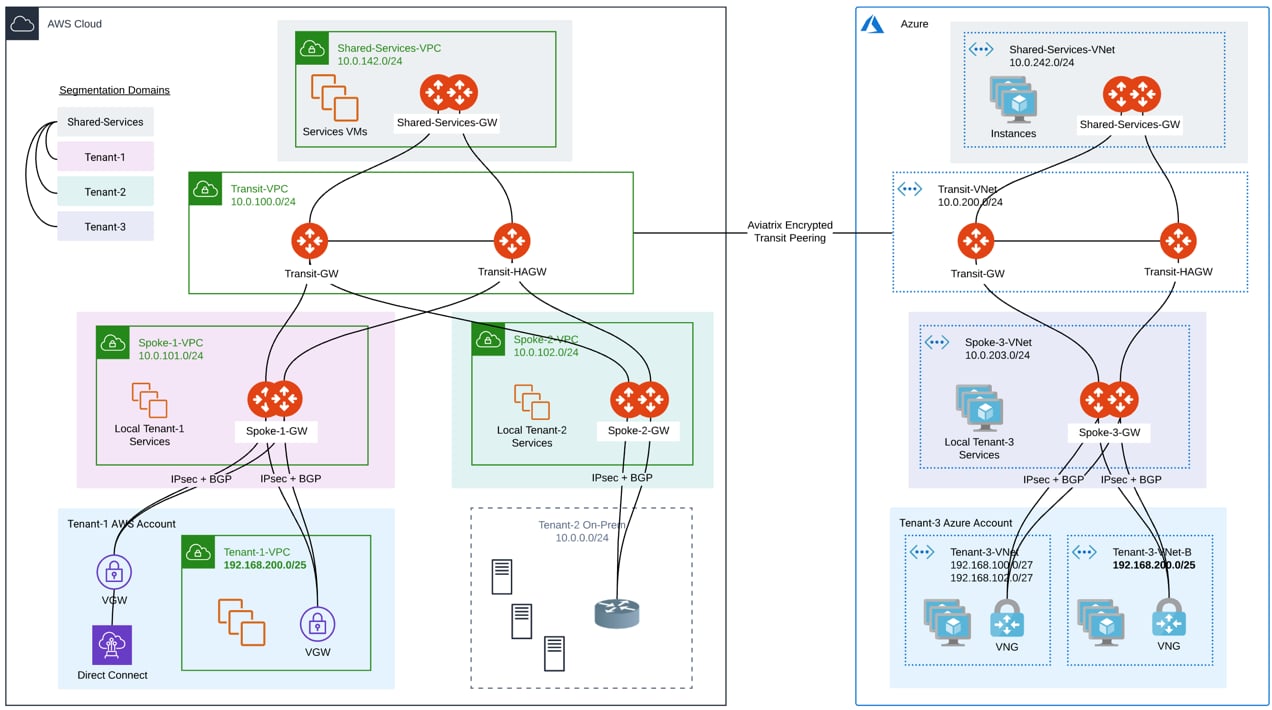
When using BGP-enabled Spoke gateways, SaaS providers can use segmentation
domains per Spoke gateway to enforce isolation across tenants. When segmentation
domains are set per BGP-enabled Spoke gateway, the Site-to-Cloud (S2C) BGP
connection respects the domain of the Spoke gateway for traffic enforcement and
route advertisement.
All S2C connections on a given Spoke gateway belong to the Spoke gateway domain
(currently, you cannot have different S2C connections on a given Spoke gateway
be assigned to different domains).
BGP routes of a tenant are always advertised to all other tenants connected with
S2C BGP under the same Spoke gateway. This cannot be controlled with
segmentation policies. It is controlled using the
[Connection Manual BGP Advertised Network List](https://legacy.docs.aviatrix.com/documentation/latest/network/bgp-connection-settings.html?expand=true).
BGP routes of a tenant are propagated into ActiveMesh based on the connection
policies of the Spoke gateway. ActiveMesh routes are advertised over BGP based
on the connection policies of the Spoke gateway.
### Interactions with NAT
* Customized NAT under Gateway config is supported (mapped NAT under S2C config
is not currently supported).
* S2C BGP connections are available as option in the NAT connection.
* ActiveMesh connections are available in the NAT connection but ONLY for
non-HPE spoke gateways.
* Many:1 and 1:1 NAT are possible.
* Active - Active HA for both gateways and S2C connections (with flow affinity)
is supported. This means that return traffic goes to the same Spoke Gateway
that performed NAT (not valid for Mapped NAT).
### Route Propagation
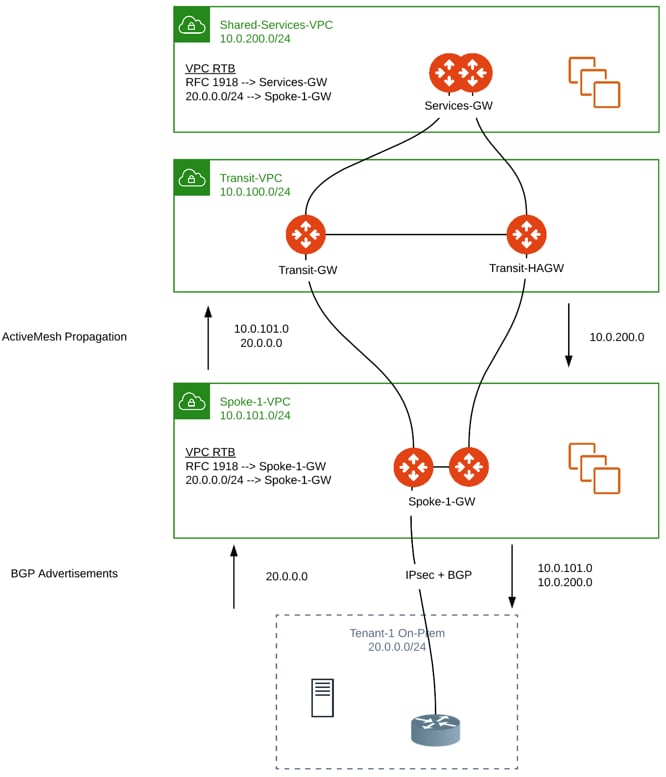
Spoke VPC CIDR + BGP prefixes received on the Spoke gateway are propagated into
ActiveMesh (Subnets outside of RFC 1918 are programmed on the VPC RTBs).
All CIDRs known to ActiveMesh (Spoke VPCs for all regions and clouds + BGP
prefixes + custom advertisements, etc.) are advertised over BGP on the Spoke
Gateway S2C BGP connections.
### Interactions with Segmentation Domains
When using BGP-enabled Spoke gateways, SaaS providers can use segmentation
domains per Spoke gateway to enforce isolation across tenants. When segmentation
domains are set per BGP-enabled Spoke gateway, the Site-to-Cloud (S2C) BGP
connection respects the domain of the Spoke gateway for traffic enforcement and
route advertisement.
All S2C connections on a given Spoke gateway belong to the Spoke gateway domain
(currently, you cannot have different S2C connections on a given Spoke gateway
be assigned to different domains).
BGP routes of a tenant are always advertised to all other tenants connected with
S2C BGP under the same Spoke gateway. This cannot be controlled with
segmentation policies. It is controlled using the
[Connection Manual BGP Advertised Network List](https://legacy.docs.aviatrix.com/documentation/latest/network/bgp-connection-settings.html?expand=true).
BGP routes of a tenant are propagated into ActiveMesh based on the connection
policies of the Spoke gateway. ActiveMesh routes are advertised over BGP based
on the connection policies of the Spoke gateway.
### Interactions with NAT
* Customized NAT under Gateway config is supported (mapped NAT under S2C config
is not currently supported).
* S2C BGP connections are available as option in the NAT connection.
* ActiveMesh connections are available in the NAT connection but ONLY for
non-HPE spoke gateways.
* Many:1 and 1:1 NAT are possible.
* Active - Active HA for both gateways and S2C connections (with flow affinity)
is supported. This means that return traffic goes to the same Spoke Gateway
that performed NAT (not valid for Mapped NAT).
### Route Propagation
Spoke VPC CIDR + BGP prefixes received on the Spoke gateway are propagated into
ActiveMesh (Subnets outside of RFC 1918 are programmed on the VPC RTBs).
All CIDRs known to ActiveMesh (Spoke VPCs for all regions and clouds + BGP
prefixes + custom advertisements, etc.) are advertised over BGP on the Spoke
Gateway S2C BGP connections.
 ### Connected Transit
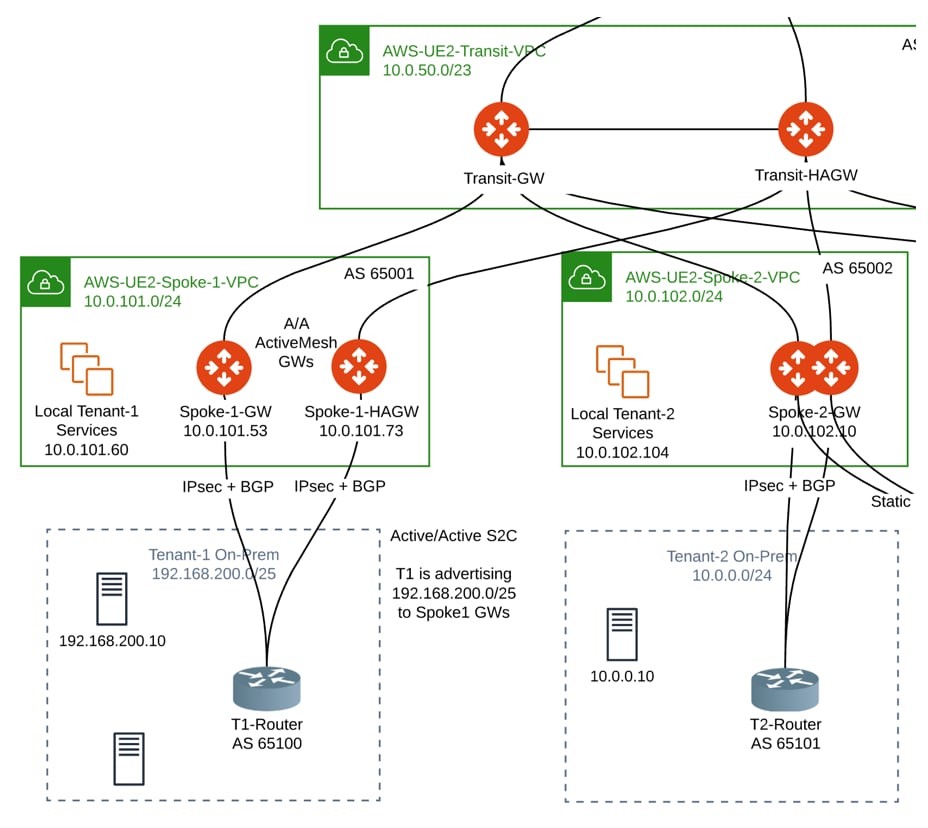
The propagation of BGP routes learned on a Spoke Gateway to other Spoke Gateways
under the same Transit complies with Connected Transit.
If Connected Transit = Disabled, those routes are not propagated to other Spoke
Gateways under the same Transit.
In this example, 192.168.200.0/25 learned via BGP on Spoke-1-GW is not
propagated to Spoke-2-GW:
### Connected Transit
The propagation of BGP routes learned on a Spoke Gateway to other Spoke Gateways
under the same Transit complies with Connected Transit.
If Connected Transit = Disabled, those routes are not propagated to other Spoke
Gateways under the same Transit.
In this example, 192.168.200.0/25 learned via BGP on Spoke-1-GW is not
propagated to Spoke-2-GW:
 ## How do I configure a BGP-enabled Spoke gateway and connect it to an external router?
This section describes how to:
* Create a Spoke Gateway that is BGP enabled.
* Create the S2C BGP tunnel (build a Site2Cloud IPsec BGP attachment for the
newly created spoke).
* Configure your router with the connection details.
* Configure additional settings.
### Create a BGP-Enabled Spoke Gateway
BGP must be enabled at the creation of the Spoke Gateway. A Spoke Gateway
enabled with BGP has a few restrictions compared to a non-BGP Spoke. For
information about these restrictions, see [How does using a BGP enabled spoke
gateway to an external device
work?](#how-does-using-a-bgp-enabled-spoke-gateway-to-an-external-device-work)
1. Navigate to Cloud Fabric > Gateways > Spoke Gateways and
[complete these steps](https://legacy.docs.aviatrix.com/documentation/latest/network/spoke-gateway-about.html?expand=true).
2. Ensure that the **BGP** toggle is set to On.
You can enable HA for the Spoke gateway if desired. For best practice, the HA
gateway should be launched on a different public subnet in a different
Availability Zone.
If the Spoke gateway is connected to VGW, you cannot disable the Spoke HA
gateway.
3. After saving the Spoke gateway, navigate to Networking > Connectivity >
External Connections (S2C). This is where you connect the Spoke gateway to
the external device (device in an on-prem network). In this case, you will
build a site-to-cloud (S2C) BGP over IPsec connection as instructed in the
next section.
### Create the S2C BGP Tunnel
You use the External Device option on the Spoke Gateway to build a BGP tunnel
directly to the on-prem device for exchanging routes with a remote site.
To create the S2C BGP tunnel:
1. On the Connectivity > External Connections (S2C) tab, click **+External
Connection**.
2. In the Add External Connection dialog, enter a name for the connection and
select **Connect Public Cloud to External Device**.
3. From the **External Device** list, select one of the BGP options as described
in the below table.
4. Specify the rest of the parameters (defined below) and click **Save**.
Remember that some of the parameters described below are not applicable to
BGP.
5. Fill out the parameters required for your BGP selection and click **OK**. For
ActiveMesh design notes, see
ActiveMesh Design Notes
.
| **Setting** | **Value** |
| ------------------------------------------------------ | ---------------------------------------------------------------------------------------------------------------------------------------------------------------------------------------------------------------------------------------------------------------------------------------------------------------------------------------------------------------------------------- |
| Connect Public Cloud to | External Device |
| External Device | BGP over IPsec: select to run BGP and build an IPsec connection to a remote site.
## How do I configure a BGP-enabled Spoke gateway and connect it to an external router?
This section describes how to:
* Create a Spoke Gateway that is BGP enabled.
* Create the S2C BGP tunnel (build a Site2Cloud IPsec BGP attachment for the
newly created spoke).
* Configure your router with the connection details.
* Configure additional settings.
### Create a BGP-Enabled Spoke Gateway
BGP must be enabled at the creation of the Spoke Gateway. A Spoke Gateway
enabled with BGP has a few restrictions compared to a non-BGP Spoke. For
information about these restrictions, see [How does using a BGP enabled spoke
gateway to an external device
work?](#how-does-using-a-bgp-enabled-spoke-gateway-to-an-external-device-work)
1. Navigate to Cloud Fabric > Gateways > Spoke Gateways and
[complete these steps](https://legacy.docs.aviatrix.com/documentation/latest/network/spoke-gateway-about.html?expand=true).
2. Ensure that the **BGP** toggle is set to On.
You can enable HA for the Spoke gateway if desired. For best practice, the HA
gateway should be launched on a different public subnet in a different
Availability Zone.
If the Spoke gateway is connected to VGW, you cannot disable the Spoke HA
gateway.
3. After saving the Spoke gateway, navigate to Networking > Connectivity >
External Connections (S2C). This is where you connect the Spoke gateway to
the external device (device in an on-prem network). In this case, you will
build a site-to-cloud (S2C) BGP over IPsec connection as instructed in the
next section.
### Create the S2C BGP Tunnel
You use the External Device option on the Spoke Gateway to build a BGP tunnel
directly to the on-prem device for exchanging routes with a remote site.
To create the S2C BGP tunnel:
1. On the Connectivity > External Connections (S2C) tab, click **+External
Connection**.
2. In the Add External Connection dialog, enter a name for the connection and
select **Connect Public Cloud to External Device**.
3. From the **External Device** list, select one of the BGP options as described
in the below table.
4. Specify the rest of the parameters (defined below) and click **Save**.
Remember that some of the parameters described below are not applicable to
BGP.
5. Fill out the parameters required for your BGP selection and click **OK**. For
ActiveMesh design notes, see
ActiveMesh Design Notes
.
| **Setting** | **Value** |
| ------------------------------------------------------ | ---------------------------------------------------------------------------------------------------------------------------------------------------------------------------------------------------------------------------------------------------------------------------------------------------------------------------------------------------------------------------------- |
| Connect Public Cloud to | External Device |
| External Device | BGP over IPsec: select to run BGP and build an IPsec connection to a remote site.
BGP over GRE: select to run BGP and build a GRE connection to a remote site.
BGP over LAN: select to run BGP and data plane via a LAN interface in the same VPC/VNet. |
| Local Gateway | The Spoke gateway you created (must have BGP enabled). |
| Local ASN | The BGP AS number the Spoke gateway will use to exchange routes with the external device. |
| Remote ASN | When BGP is selected, the remote ASN for backup should be the same as the primary remote ASN. The Remote ASN is the BGP AS number the external device will use to exchange routes with the Transit Gateway. |
| BGP ActiveMesh | Enable full mesh BGP connections to the external devices. |
| Over Private Network | Select this option if your underlying infrastructure is private network, such as AWS Direct Connect and Azure Express Route. See [How does using a BGP-enabled Spoke gateway to an external device work?](#how-does-using-a-bgp-enabled-spoke-gateway-to-an-external-device-work) for more information. When this option is selected, BGP and IPSEC run over private IP addresses. |
| IKEv2 | Select the option to connect to the remote site using IKEv2 protocol. |
| Algorithms | Optional parameters for configuring Phase 1 and Phase 2 Authentication, DH Groups, and Encryption. |
| Learned CIDR Approval | If BGP is enabled for the selected Spoke gateway, this field is set to On by default. Only Gateway Mode is supported for BGP Spoke Gateways; Connection Mode is not available. See [Gateway Learned CIDR Approval](https://legacy.docs.aviatrix.com/documentation/latest/network/bgp-connection-settings.html?expand=true#gateway-learned-cidr-approval) for more information. |
| Pre-shared Key (if Authentication Method is available) | Optional parameter. Leave it blank to auto-generate the pre-shared key. |
| Remote Device IP | IP address of the remote device. |
| Local Tunnel IP | Optional parameter. This field is for the tunnel inside IP address of the Spoke gateway. Leave it blank. |
| Remote Tunnel IP | Optional parameter. This field is for the tunnel inside IP address of the External device. Leave it blank. |
| Remote LAN IP (if BGP over LAN is selected) | The private IP of the LAN interface of the third-party cloud primary instance. |
| Local LAN IP (if BGP over LAN is selected) | Aviatrix detects the Local LAN IP automatically. |
| VPC Name/Site ID | The Spoke VPC ID where Transit GW was launched. |
| Connection Name | A unique name to identify the connection to the external device. |
| Remote Gateway | Select HA if there are two external devices. Only available for BGP over IPsec, BGP over GRE, Static Route-Based (ActiveMesh). |
### Configure the External Device
To configure the external device:
1. On the External Connections (S2C) tab, click the vertical ellipsis
 and then
select **Download Configuration**.
2. In the Download Configuration dialog, select the following:
* Vendor: select the device you are using (any device that is capable of
running IPsec and BGP).
* Platform: select the applicable platform for the chosen device.
* Software: automatically selected based on the Vendor/Platform you select.
3. Click **Download**.
4. Open the downloaded configuration template.
5. Use the information from the template to populate the necessary areas of your
external device (for example, your FortiGate firewall or your Cisco router).
### Verify Connection Status
Navigate to Diagnostics > Cloud Routes > External Connections. The Status and
Tunnel Status columns indicate if the tunnel is Up or Down.
### Verify the BGP Routes
Navigate to Diagnostics > Cloud Routes > BGP Info to verify the BGP routes.
The Status should be Established. If some external connections for the selected
Transit Gateway are Not Established, the overall BGP Status for the Transit
Gateway is Partially Established.
### Customize Spoke Advertised VPC/VNet CIDRs
You can customize Spoke Advertised VPC/VNet CIDRs for the Spoke gateway included
in this configuration. The CIDRs are propagated into ActiveMesh and into BGP as
belonging to the Spoke Gateway shown in the example.
1. Navigate to Cloud Fabric > Gateways > Spoke Gateways.
2. Select the Spoke gateway from this configuration.
3. On the Settings tab, on the Customize Spoke Advertised VPC/VNet CIDRs card,
enter the CIDRs to advertise. These will display under Advertised Routes on
the Diagnostics > Cloud Routes > BGP Info tab.
4. Click **Save**.
and then
select **Download Configuration**.
2. In the Download Configuration dialog, select the following:
* Vendor: select the device you are using (any device that is capable of
running IPsec and BGP).
* Platform: select the applicable platform for the chosen device.
* Software: automatically selected based on the Vendor/Platform you select.
3. Click **Download**.
4. Open the downloaded configuration template.
5. Use the information from the template to populate the necessary areas of your
external device (for example, your FortiGate firewall or your Cisco router).
### Verify Connection Status
Navigate to Diagnostics > Cloud Routes > External Connections. The Status and
Tunnel Status columns indicate if the tunnel is Up or Down.
### Verify the BGP Routes
Navigate to Diagnostics > Cloud Routes > BGP Info to verify the BGP routes.
The Status should be Established. If some external connections for the selected
Transit Gateway are Not Established, the overall BGP Status for the Transit
Gateway is Partially Established.
### Customize Spoke Advertised VPC/VNet CIDRs
You can customize Spoke Advertised VPC/VNet CIDRs for the Spoke gateway included
in this configuration. The CIDRs are propagated into ActiveMesh and into BGP as
belonging to the Spoke Gateway shown in the example.
1. Navigate to Cloud Fabric > Gateways > Spoke Gateways.
2. Select the Spoke gateway from this configuration.
3. On the Settings tab, on the Customize Spoke Advertised VPC/VNet CIDRs card,
enter the CIDRs to advertise. These will display under Advertised Routes on
the Diagnostics > Cloud Routes > BGP Info tab.
4. Click **Save**.
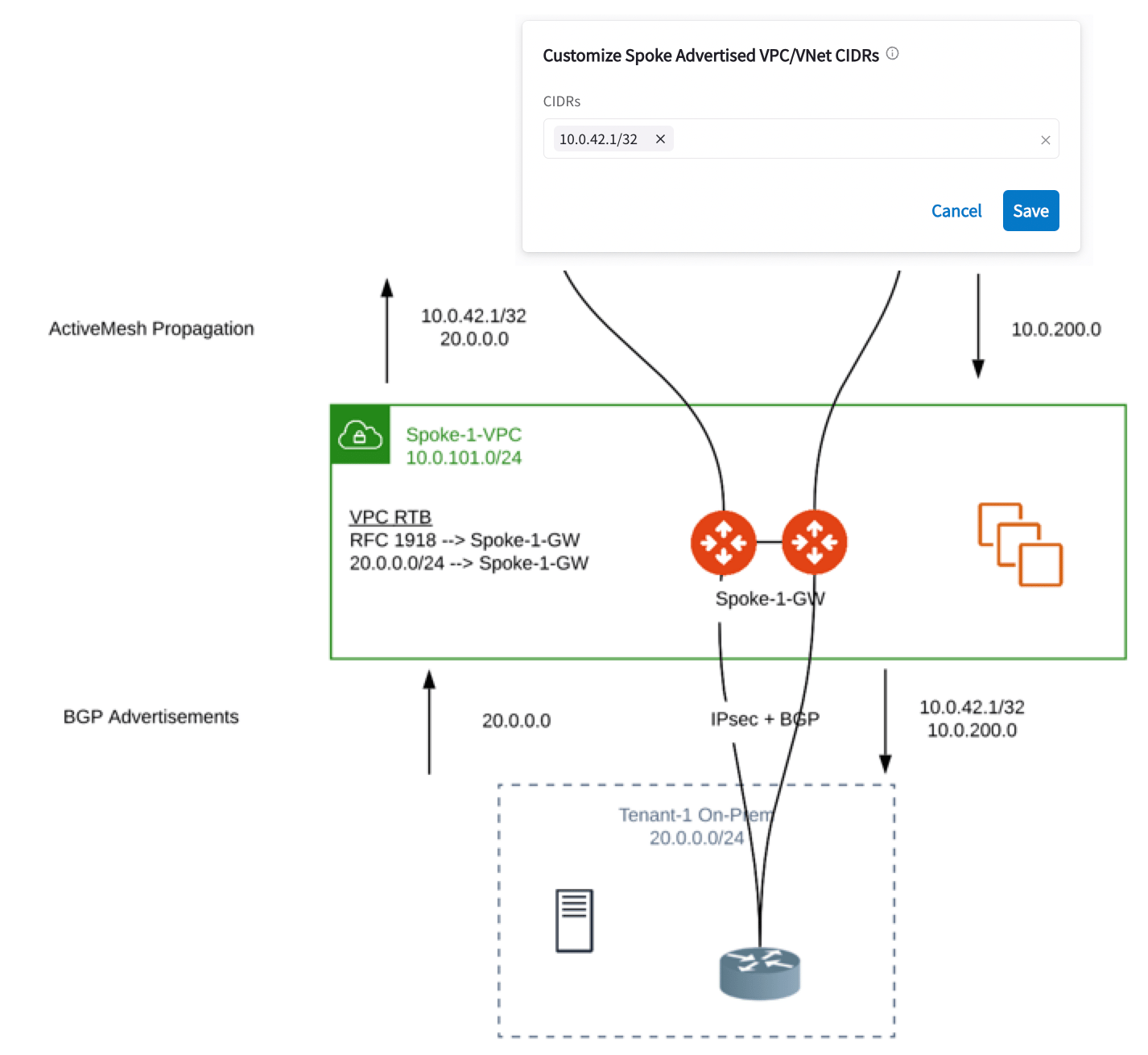 ActiveMesh propagation: those CIDRs are combined with the BGP prefixes received
on the S2C BGP connection(s) of the Spoke Gateway.
BGP advertisement: those CIDRs are combined with all other ActiveMesh CIDRs from
the Aviatrix Transit.
### Set Up BGP Route Control
Also on the Settings tab under Border Gateway Protocol (BGP), you can configure
the following
[BGP route control settings](https://legacy.docs.aviatrix.com/documentation/latest/network/bgp-connection-settings.html?expand=true):
* Local AS Number
* BGP ECMP
* Manual BGP Advertised CIDR List
### Delete the External Connection
To disconnect the external device from the BGP-enabled Spoke gateway, on the
Networking > Connectivity > External Connections (S2C) tab, click the Delete
icon
ActiveMesh propagation: those CIDRs are combined with the BGP prefixes received
on the S2C BGP connection(s) of the Spoke Gateway.
BGP advertisement: those CIDRs are combined with all other ActiveMesh CIDRs from
the Aviatrix Transit.
### Set Up BGP Route Control
Also on the Settings tab under Border Gateway Protocol (BGP), you can configure
the following
[BGP route control settings](https://legacy.docs.aviatrix.com/documentation/latest/network/bgp-connection-settings.html?expand=true):
* Local AS Number
* BGP ECMP
* Manual BGP Advertised CIDR List
### Delete the External Connection
To disconnect the external device from the BGP-enabled Spoke gateway, on the
Networking > Connectivity > External Connections (S2C) tab, click the Delete
icon  next to the connection you want to delete.