> ## Documentation Index
> Fetch the complete documentation index at: https://docs.aviatrix.com/llms.txt
> Use this file to discover all available pages before exploring further.
# Transit Gateway Integration with Azure VNG Workflow
> Currently, Aviatrix Multicloud Transit solution requires encryption for connectivity over Azure ExpressRoute or when connecting directly from an external device to on-premises.
Currently, Aviatrix Multicloud Transit solution requires encryption for
connectivity over Azure ExpressRoute or when connecting directly from an
external device to on-premises. However, there are scenarios where encryption is
not required and native network connectivity over ExpressRoute is preferred. In
such cases, the Aviatrix Transit solution, including Transit FireNet, can only
forward traffic between Spoke VNets or inspect east-west traffic, as shown
by these common Azure Transit Network design patterns
.
## Integration with Azure VNG
Multicloud Transit Integration with Azure Virtual Network Gateway (VNG) enables
Aviatrix Multicloud Transit solution to work cohesively with native Azure
Virtual Network Gateway (VNG). This integration allows the Aviatrix Transit
Gateway to inspect not only east-west and egress traffic, but also traffic from
on-premises to cloud. Both native Spoke VNets and Aviatrix Spoke Gateway based
Spoke VNets are supported.
## Data Packet Forwarding and Traffic Inspection
Data packets are forwarded natively to on-premises through Azure Virtual Network
Gateway (VNG), using either ExpressRoute or Internet connectivity. Aviatrix
Transit Gateways are deployed in the data path between VNG and Spoke VNets,
enabling advanced functions such as firewall inspection for traffic moving from
on-premises to Spoke and between the Spokes.
## Configurtion Workflow Overview
This setup is illustrated by a network design featuring two Spoke VNets: one
with an Aviatrix Spoke Gateway (172.60.0.0/16) and one native Spoke VNet
(172.50.0.0/16).
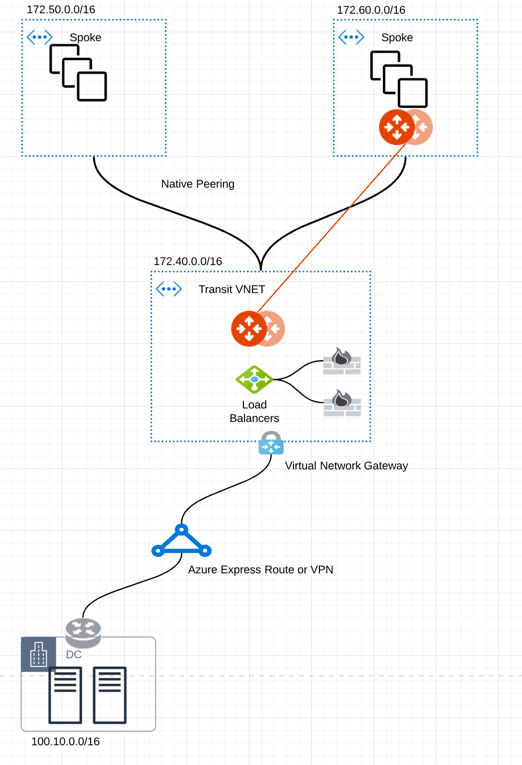 The key ideas for this solution are:
* The edge (WAN) router establishes a BGP session with Azure VNG via
ExpressRoute or VPN. The edge router advertises on-premises routes to Azure
VNG, while Azure VNG advertises Spoke VNet CIDRs.
* The Aviatrix Controller periodically retrieves route entries from the Transit
VNet VNG route table—these routes are advertised from on-premises. The
Controller then propagates these routes to both Spoke VNets and the Aviatrix
Transit Gateway.
* Azure native VNet Peering is configured between each Spoke VNet and the
Transit VNet VNG. The *Allow Remote Gateway* attribute is set on the Spoke
VNets to automatically advertise routes from the Spoke VNets to VNG to
on-premises.
* Traffic arriving from on-premises to the VNG is routed to the Azure Load
Balancer, which then forwards traffic to both Aviatrix Transit Gateways (for
active-mesh deployment). The same Load Balancer also distributes traffic to
firewalls for inspection.
* Traffic originating from Spoke VNet is routed directly to Aviatrix Transit
Gateway, which then forwards the traffic to the Azure Load Balancer.
## Prerequisite
Upgrade
Aviatrix Controller to the latest version.
We highly recommend to{" "}
create an Azure Transit VNET
with the *Transit + FireNet* option enabled, and create a VNG in this Transit
VNet.
## Connect VNG on On-Premises
If you have already created the VNG in Transit VNet, skip this section.
Setting up Azure ExpressRoute is your responsibility. For details, see:
* [Azure ExpressRoute landing page](https://azure.microsoft.com/en-us/products/expressroute/)
* [ExpressRoute documentation](https://docs.microsoft.com/en-us/azure/expressroute/)
* [Equinix ECX Fabric Microsoft Azure ExpressRoute](https://docs.equinix.com/fabric/connecting-service-provider/microsoft/azure-ne/)
if you select the Equinix solution.
Follow these steps to configure the workflow. Adjust the network topology as
needed for your specific requirements.
1. Create an ExpressRoute circuit. See
[Tutorial: Create and modify an ExpressRoute circuit](https://docs.microsoft.com/en-us/azure/expressroute/expressroute-howto-circuit-portal-resource-manager).
2. Create Azure private network for your ExpressRoute circuit. Refer to the
private peering section in
[Create and modify peering for an ExpressRoute circuit](https://docs.microsoft.com/en-us/azure/expressroute/expressroute-howto-routing-portal-resource-manager).
3. Create a VNG in Transit VNet
with *Transit + FireNet* enabled.
This process may take up to 45 minutes to complete.
For more information, see
[Configure a virtual network gateway for ExpressRoute using the Azure portal](https://docs.microsoft.com/en-us/azure/expressroute/expressroute-howto-add-gateway-portal-resource-manager).
4. Connect a virtual network to an ExpressRoute circuit. See
[Connect a virtual network to an ExpressRoute circuit using the portal](https://docs.microsoft.com/en-us/azure/expressroute/expressroute-howto-linkvnet-portal-resource-manager).
5. Check ExpressRoute Circuits by accessing the List Routes Table on the Azure
portal.
### Check ExpressRoute Circuits Routes Table in Azure
1. Log in to the Azure portal and search for "ExpressRoute circuits" using the
search bar.
2. Select the ExpressRoute circuit that you created.
3. Select the Azure private peering row.
4. Select *Get route table* to verify routes learned from on-premises.
## Connect Aviatrix Transit Gateway with VNG
Refer to
Global Transit Network Workflow
instructions for the following steps. Adjust the network topology as needed for
your specific requirements.
### Deploy an Aviatrix Multicloud Transit Gateway and HA in Azure
1. Deploy the Aviatrix Transit Gateway in the Azure Transit VNet
with High Availability and High Performance Encryption (HPE) enabled. HPE is
not required but an optional feature to increase throughput.
A minimum instance size of Standard\_D5\_v2 is required for
High Performance Encryption
to achieve higher throughput. For detail performance information, refer to
High Performance Encryption Performance Benchmarks
.
2. Add Transit FireNet to the Transit Gateway
.
### Connect Transit Gateway to Azure VNG
# Connect Transit Gateway to Azure VNG
This procedure assumes the Azure VNG is already deployed in the Transit VNet.
To connect the Transit Gateway to Azure VNG (VPN Gateway):
1. In Aviatrix CoPilot, go to **Networking** > **Connectivity** > External Connections (S2C) tab.
2. From the **+ External Connection** dropdown menu, select **Azure Virtual Network Gateway**.
3. Enter the following values:
| **Field** | **Description** |
| ---------------- | -------------------------------------------------------------------------------------------------------------------------------------------------------------------------------------- |
| Name | A name to identify the connection to VNG (VPN Gateway). |
| Aviatrix Gateway | The Transit Gateway to connect to the VNG (VPN Gateway).
The key ideas for this solution are:
* The edge (WAN) router establishes a BGP session with Azure VNG via
ExpressRoute or VPN. The edge router advertises on-premises routes to Azure
VNG, while Azure VNG advertises Spoke VNet CIDRs.
* The Aviatrix Controller periodically retrieves route entries from the Transit
VNet VNG route table—these routes are advertised from on-premises. The
Controller then propagates these routes to both Spoke VNets and the Aviatrix
Transit Gateway.
* Azure native VNet Peering is configured between each Spoke VNet and the
Transit VNet VNG. The *Allow Remote Gateway* attribute is set on the Spoke
VNets to automatically advertise routes from the Spoke VNets to VNG to
on-premises.
* Traffic arriving from on-premises to the VNG is routed to the Azure Load
Balancer, which then forwards traffic to both Aviatrix Transit Gateways (for
active-mesh deployment). The same Load Balancer also distributes traffic to
firewalls for inspection.
* Traffic originating from Spoke VNet is routed directly to Aviatrix Transit
Gateway, which then forwards the traffic to the Azure Load Balancer.
## Prerequisite
Upgrade
Aviatrix Controller to the latest version.
We highly recommend to{" "}
create an Azure Transit VNET
with the *Transit + FireNet* option enabled, and create a VNG in this Transit
VNet.
## Connect VNG on On-Premises
If you have already created the VNG in Transit VNet, skip this section.
Setting up Azure ExpressRoute is your responsibility. For details, see:
* [Azure ExpressRoute landing page](https://azure.microsoft.com/en-us/products/expressroute/)
* [ExpressRoute documentation](https://docs.microsoft.com/en-us/azure/expressroute/)
* [Equinix ECX Fabric Microsoft Azure ExpressRoute](https://docs.equinix.com/fabric/connecting-service-provider/microsoft/azure-ne/)
if you select the Equinix solution.
Follow these steps to configure the workflow. Adjust the network topology as
needed for your specific requirements.
1. Create an ExpressRoute circuit. See
[Tutorial: Create and modify an ExpressRoute circuit](https://docs.microsoft.com/en-us/azure/expressroute/expressroute-howto-circuit-portal-resource-manager).
2. Create Azure private network for your ExpressRoute circuit. Refer to the
private peering section in
[Create and modify peering for an ExpressRoute circuit](https://docs.microsoft.com/en-us/azure/expressroute/expressroute-howto-routing-portal-resource-manager).
3. Create a VNG in Transit VNet
with *Transit + FireNet* enabled.
This process may take up to 45 minutes to complete.
For more information, see
[Configure a virtual network gateway for ExpressRoute using the Azure portal](https://docs.microsoft.com/en-us/azure/expressroute/expressroute-howto-add-gateway-portal-resource-manager).
4. Connect a virtual network to an ExpressRoute circuit. See
[Connect a virtual network to an ExpressRoute circuit using the portal](https://docs.microsoft.com/en-us/azure/expressroute/expressroute-howto-linkvnet-portal-resource-manager).
5. Check ExpressRoute Circuits by accessing the List Routes Table on the Azure
portal.
### Check ExpressRoute Circuits Routes Table in Azure
1. Log in to the Azure portal and search for "ExpressRoute circuits" using the
search bar.
2. Select the ExpressRoute circuit that you created.
3. Select the Azure private peering row.
4. Select *Get route table* to verify routes learned from on-premises.
## Connect Aviatrix Transit Gateway with VNG
Refer to
Global Transit Network Workflow
instructions for the following steps. Adjust the network topology as needed for
your specific requirements.
### Deploy an Aviatrix Multicloud Transit Gateway and HA in Azure
1. Deploy the Aviatrix Transit Gateway in the Azure Transit VNet
with High Availability and High Performance Encryption (HPE) enabled. HPE is
not required but an optional feature to increase throughput.
A minimum instance size of Standard\_D5\_v2 is required for
High Performance Encryption
to achieve higher throughput. For detail performance information, refer to
High Performance Encryption Performance Benchmarks
.
2. Add Transit FireNet to the Transit Gateway
.
### Connect Transit Gateway to Azure VNG
# Connect Transit Gateway to Azure VNG
This procedure assumes the Azure VNG is already deployed in the Transit VNet.
To connect the Transit Gateway to Azure VNG (VPN Gateway):
1. In Aviatrix CoPilot, go to **Networking** > **Connectivity** > External Connections (S2C) tab.
2. From the **+ External Connection** dropdown menu, select **Azure Virtual Network Gateway**.
3. Enter the following values:
| **Field** | **Description** |
| ---------------- | -------------------------------------------------------------------------------------------------------------------------------------------------------------------------------------- |
| Name | A name to identify the connection to VNG (VPN Gateway). |
| Aviatrix Gateway | The Transit Gateway to connect to the VNG (VPN Gateway).
If Azure VNG has not been deployed in the Transit VNet, the connection process cannot complete.
|
| VNG Name | The name of the Azure VNG (VPN Gateway). |
4. Click **Save**.
The new Azure VNG connection appears in the table.
**External Connection to Azure Virtual Network Gateway**
| **Field** | **Description** |
| ---------------- | -------------------------------------------------------------------------------------------------------------------------------------------------------------------------------------- |
| Name | A name to identify the connection to VNG (VPN Gateway). |
| Aviatrix Gateway | The Transit Gateway to connect to the VNG (VPN Gateway).
If Azure VNG has not been deployed in the Transit VNet, the connection process cannot complete.
|
| VNG Name | The name of the Azure VNG (VPN Gateway). |
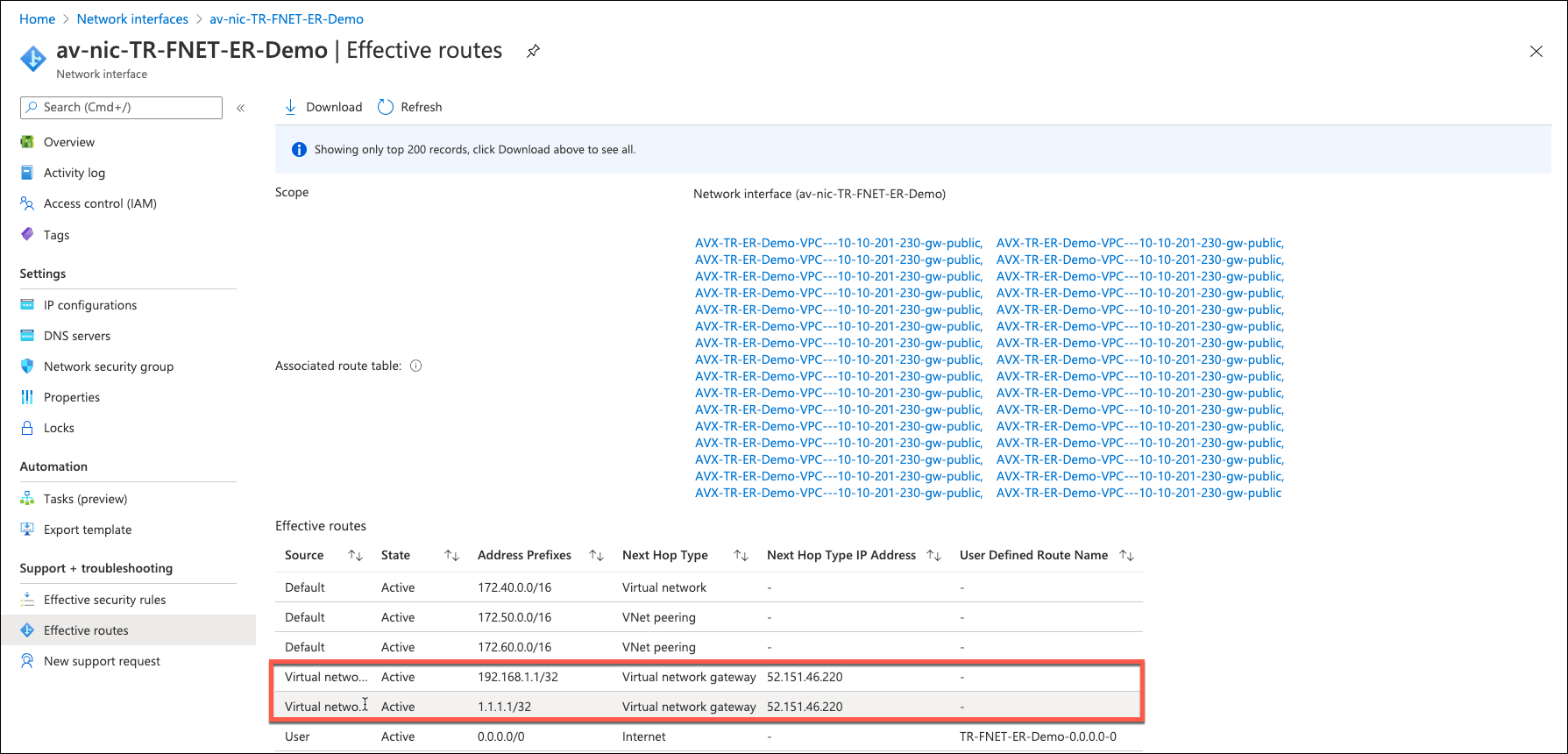
### Check Effective Routes Info on Azure Portal
1. Log in to the Azure portal and search for "Network interfaces" using the
search bar.
2. Select the interface associated with the Aviatrix Transit Gateway.
3. Go to the *Effective routes* page by selecting *Effective routes* under the
Support + troubleshooting section.
4. Review the route entry for On-premises, where the *Next Hop Type* should be
*Virtual network gateway*.
 ## Attach Spoke VNet to Aviatrix Transit Gateway
1. Deploy an Aviatrix Spoke Gateway in a Spoke VNet. You may create an Azure
VNET for Aviatrix Spoke Gateway by using the Aviatrix feature
Create a VNG in Transit VNet
or manually deploy it via the cloud portal. Alternatively, you can use
existing virtual network.
2. Deploy a Spoke Gateway in the Azure Spoke VNet
, ensuring High Availability is enabled. High Performance Encryption (HPE)
may also be enabled if required, though it is optional.
For optimal throughput with HPE mode, select an instance size of at least
Standard\_D5\_v2. For detail performance information, see{" "}
High Performance Encryption Performance Benchmarks
.
3. Attach the Spoke Gateways to the Transit Network.
1. Attach Spoke Gateways to Transit Network (Azure)
2. To attach the Azure Native VNet Spoke to Aviatrix Transit Gateway, follow
the steps in
Attach Native Azure VNET to Transit Network
.
## Ready to Go
You can now send traffic between cloud to on-premises via Azure ExpressRoute.
For FireNet deployment, follow the
Transit FireNet workflow
.
## Limitations
Only native Spoke VNet peering routes are advertised from VNG to on-premises;
non-native Spoke and Transit-to-Transit peerings are not included.
## Attach Spoke VNet to Aviatrix Transit Gateway
1. Deploy an Aviatrix Spoke Gateway in a Spoke VNet. You may create an Azure
VNET for Aviatrix Spoke Gateway by using the Aviatrix feature
Create a VNG in Transit VNet
or manually deploy it via the cloud portal. Alternatively, you can use
existing virtual network.
2. Deploy a Spoke Gateway in the Azure Spoke VNet
, ensuring High Availability is enabled. High Performance Encryption (HPE)
may also be enabled if required, though it is optional.
For optimal throughput with HPE mode, select an instance size of at least
Standard\_D5\_v2. For detail performance information, see{" "}
High Performance Encryption Performance Benchmarks
.
3. Attach the Spoke Gateways to the Transit Network.
1. Attach Spoke Gateways to Transit Network (Azure)
2. To attach the Azure Native VNet Spoke to Aviatrix Transit Gateway, follow
the steps in
Attach Native Azure VNET to Transit Network
.
## Ready to Go
You can now send traffic between cloud to on-premises via Azure ExpressRoute.
For FireNet deployment, follow the
Transit FireNet workflow
.
## Limitations
Only native Spoke VNet peering routes are advertised from VNG to on-premises;
non-native Spoke and Transit-to-Transit peerings are not included.