> ## Documentation Index
> Fetch the complete documentation index at: https://docs.aviatrix.com/llms.txt
> Use this file to discover all available pages before exploring further.
# Building Site to Site IPsec VPN Connection
> You can use Aviatrix gateways to connect one site to another. This solution requires one Aviatrix gateway in each location that needs to be connected. These on-premises gateways can be deployed as virtual machines on VMware, KVM or Hyper-V.
You can use Aviatrix gateways to connect one site to another. This solution
requires one Aviatrix gateway in each location that needs to be connected. These
on-premises gateways can be deployed as virtual machines on VMware, KVM or
Hyper-V.
## Environment Requirements
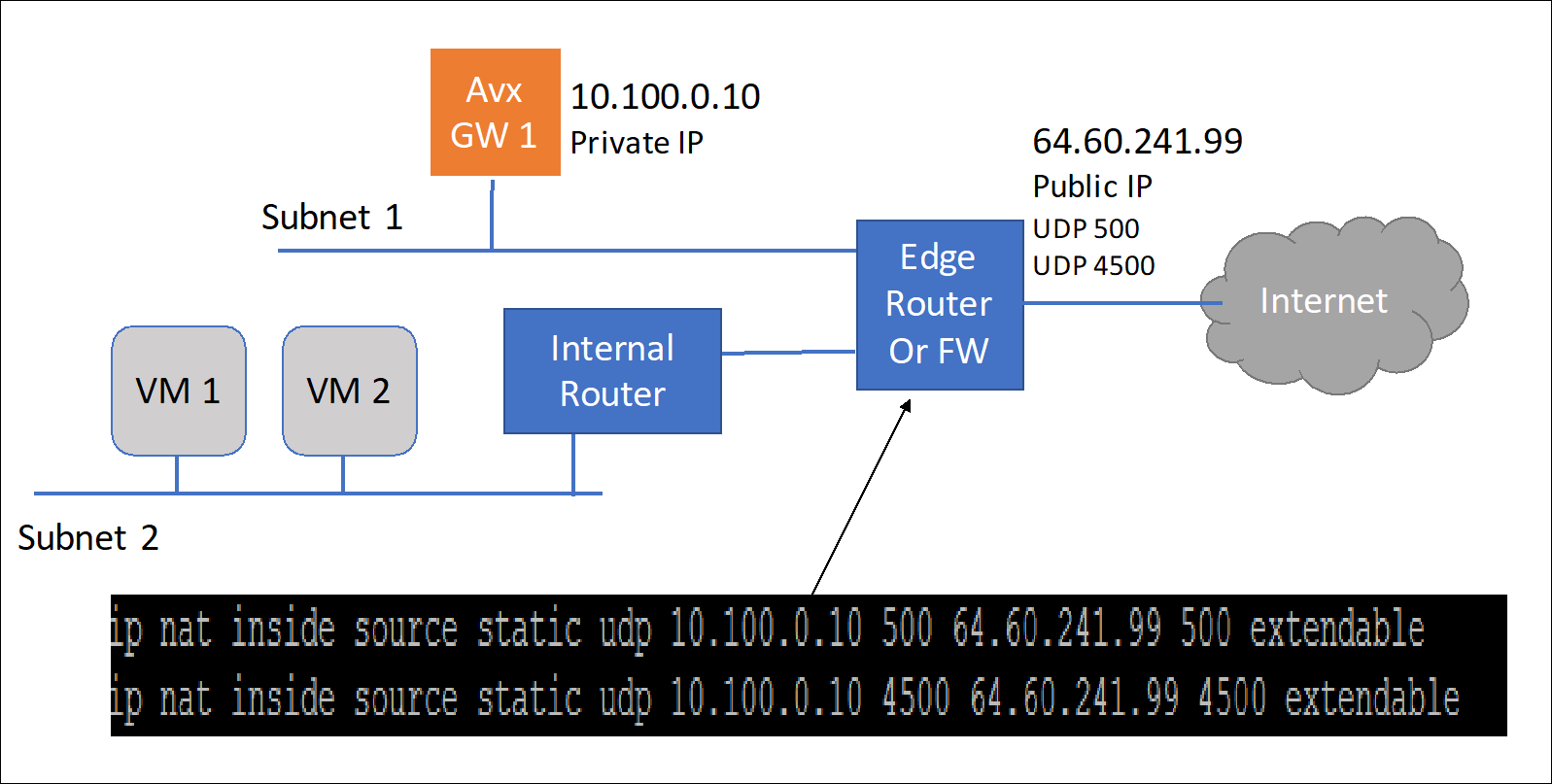
An Aviatrix Site to Site IPsec tunnel is accomplished by one gateway initiating
the session with the other gateway. For this to work at least one of the
Aviatrix virtual appliances needs to be accessible via a public IP address. This
can be accomplished by setting up the public IP address on the edge router in
the on-premises network and configuring NAT from that public IP address to the
Aviatrix VM with a 1-1 IP address NAT. The only ports that need to be forwarded
from the edge router to the VM are UDP ports 500 and 4500.
 On the other site, the second gateway does not need a public IP assigned to the
Aviatrix gateway. This second gateway will reach outbound to the first Aviatrix
GW (GW1).
On the other site, the second gateway does not need a public IP assigned to the
Aviatrix gateway. This second gateway will reach outbound to the first Aviatrix
GW (GW1).
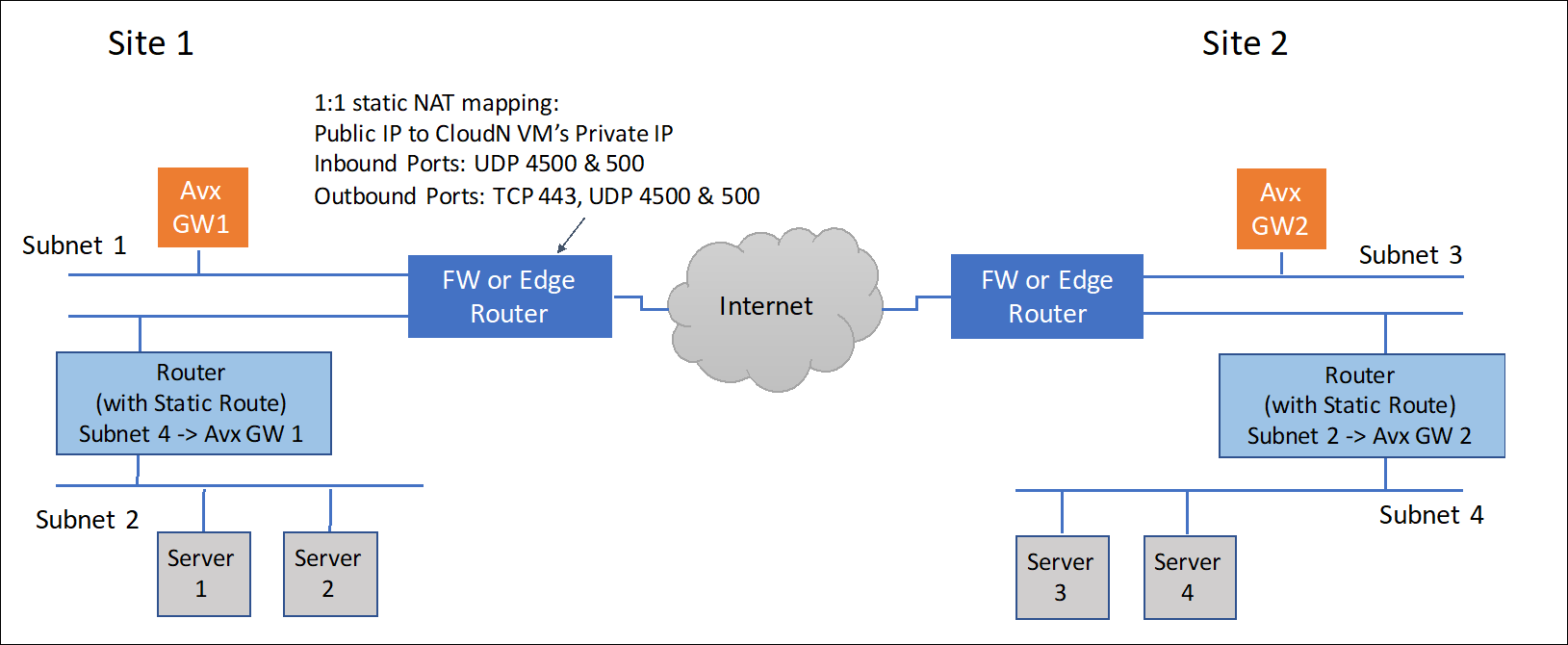
 The last requirement is to configure static routes in the internal routers
(default gateway of the Aviatrix VM) in both sites. This static route should
send traffic destined for the other site to the Aviatrix GW as the next hop.
The last requirement is to configure static routes in the internal routers
(default gateway of the Aviatrix VM) in both sites. This static route should
send traffic destined for the other site to the Aviatrix GW as the next hop.
 ## Steps to Configure IPSec Connectivity
1. Install an Aviatrix gateway in each site. See
[Creating a Spoke Gateway](https://legacy.docs.aviatrix.com/documentation/latest/network/gateway-spoke-create.html).
2. Configure an external connection (Site2Cloud) for Gateway 1. Aviatrix
Site2Cloud feature builds an encrypted connection between the two sites over
the Internet.
a. In CoPilot, go to *Networking* > *Connectivity* > *External Connections
(S2C)* and click *+External Connection*. b. Enter a name for the connection.
c. Select the *External Device* radio button, then click on the dropdown
menu and select *Static Route-Based* for route-based VPN connection or
*Static Policy-Based* for policy-based VPN connection. d. Follow the
instructions in
[Static Route-Based External Connection (Unmapped)](https://legacy.docs.aviatrix.com/documentation/latest/network/external-connection-create-static-route-based-unmapped.html)
or
[Static Policy-Based (Unmapped) External Connection Using Terraform](https://legacy.docs.aviatrix.com/documentation/latest/network/external-connection-create-static-policy-based-unmapped.html)
using the values in the table below:
| Field | Description |
| --------------------- | --------------------------------------- |
| Local Gateway | The name of Gateway 1 created above. |
| Local Subnet CIDR(s) | The subnet CIDR range(s) for Gateway 1. |
| Remote Device Type | Aviatrix |
| Remote Subnet CIDR(s) | The subnet CIDR range(s) for Gateway 2. |
| Remote Device IP | The public IP of Gateway 2. |
e. Click *Save*.
The connection is listed on the External Connections (S2C) tab.
3. [Download the configuration](https://legacy.docs.aviatrix.com/documentation/latest/network/external-connection-download-configuration.html).
4. Log in to Gateway 2's CoPilot on the other site.
5. On the *Networking* > *Connectivity* > *External Connections (S2C)* tab, add
a new connection using the downloaded configuration information above. This
will start the IPsec negotiations between both gateways.
You can check the status of the connection by going to *Diagnostics* >
*Cloud Routes* > *External Connections*.
## Steps to Configure IPSec Connectivity
1. Install an Aviatrix gateway in each site. See
[Creating a Spoke Gateway](https://legacy.docs.aviatrix.com/documentation/latest/network/gateway-spoke-create.html).
2. Configure an external connection (Site2Cloud) for Gateway 1. Aviatrix
Site2Cloud feature builds an encrypted connection between the two sites over
the Internet.
a. In CoPilot, go to *Networking* > *Connectivity* > *External Connections
(S2C)* and click *+External Connection*. b. Enter a name for the connection.
c. Select the *External Device* radio button, then click on the dropdown
menu and select *Static Route-Based* for route-based VPN connection or
*Static Policy-Based* for policy-based VPN connection. d. Follow the
instructions in
[Static Route-Based External Connection (Unmapped)](https://legacy.docs.aviatrix.com/documentation/latest/network/external-connection-create-static-route-based-unmapped.html)
or
[Static Policy-Based (Unmapped) External Connection Using Terraform](https://legacy.docs.aviatrix.com/documentation/latest/network/external-connection-create-static-policy-based-unmapped.html)
using the values in the table below:
| Field | Description |
| --------------------- | --------------------------------------- |
| Local Gateway | The name of Gateway 1 created above. |
| Local Subnet CIDR(s) | The subnet CIDR range(s) for Gateway 1. |
| Remote Device Type | Aviatrix |
| Remote Subnet CIDR(s) | The subnet CIDR range(s) for Gateway 2. |
| Remote Device IP | The public IP of Gateway 2. |
e. Click *Save*.
The connection is listed on the External Connections (S2C) tab.
3. [Download the configuration](https://legacy.docs.aviatrix.com/documentation/latest/network/external-connection-download-configuration.html).
4. Log in to Gateway 2's CoPilot on the other site.
5. On the *Networking* > *Connectivity* > *External Connections (S2C)* tab, add
a new connection using the downloaded configuration information above. This
will start the IPsec negotiations between both gateways.
You can check the status of the connection by going to *Diagnostics* >
*Cloud Routes* > *External Connections*.