> ## Documentation Index
> Fetch the complete documentation index at: https://docs.aviatrix.com/llms.txt
> Use this file to discover all available pages before exploring further.
# Site2Cloud With Customized SNAT
> This document demonstrates how to create a Site2Cloud connection between two VPCs by using a VGW and an Aviatrix gateway. The Aviatrix gateway also serves as a Source NAT device and translates source IPs of traffic initiated from a peering VPC to an IP address selected by users.
This document demonstrates how to create a Site2Cloud connection
between two VPCs by using a VGW and an Aviatrix gateway. The Aviatrix
gateway also serves as a Source NAT device and translates source IPs of
traffic initiated from a peering VPC to an IP address selected by users.
## Environment Requirements
There are two VPCs as illustrated in the diagram below. The VPC-1 CIDR is
10.0.0.0/16 and the VPC-2 CIDR is 172.19.0.0/16. The Site2Cloud connection
is between a VGW in VPC-1 and an Aviatrix gateway in VPC-2.
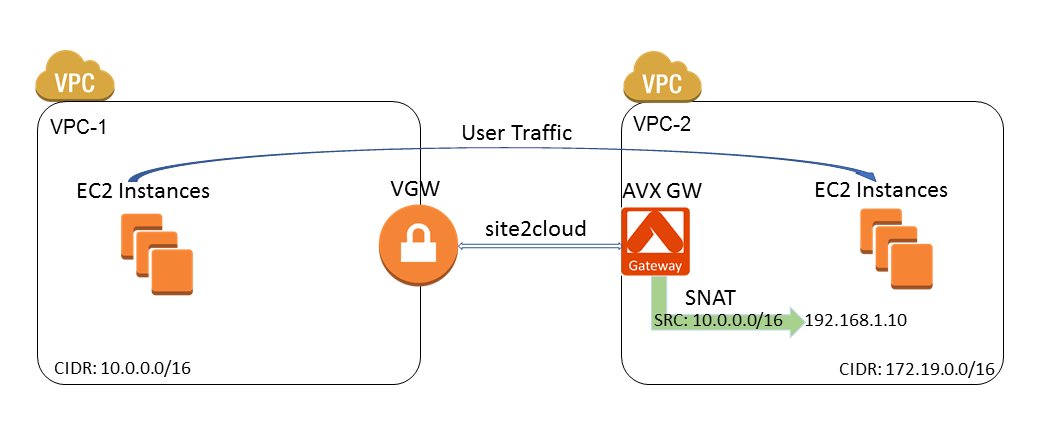 You will also configure customized SNAT at the Aviatrix gateway, which
translates the source IP of traffic initiated from VPC-1 (10.0.0.0/16)
to a user selected IP address (192.168.1.10 in this example). This
way, VPC-2 VMs will see all packets from VPC-1 with the same source IP
address (192.168.1.10).
## Steps to Configure Site2Cloud Connection and SNAT
1. Install an Aviatrix gateway in VPC-2 by following [these instructions](https://legacy.docs.aviatrix.com/documentation/latest/network/spoke-gateway-about.html?expand=true).
2. Create an Unmapped external connection between the VGW in VPC-1 and the Aviatrix gateway in VPC-2.
* [Static Route-Based](https://legacy.docs.aviatrix.com/documentation/latest/network/external-connection-create-static-route-based-unmapped.html)
* [Static Policy-Based](https://legacy.docs.aviatrix.com/documentation/latest/network/external-connection-create-static-policy-based-unmapped.html)
When creating the connection, select *Generic* for Remote Device Type.
3. Update VPC-1 Route Tables at AWS portal to ensure that traffic with VPC-2 (172.19.0.0/16) as the destination takes the VGW as "Target":
| **Field** | **Value** |
| ----------- | ------------- |
| Destination | 172.19.0.0/16 |
| Target | VGW ID |
4. Configure Customized SNAT at the Aviatrix gateway.
a. In Aviatrix CoPilot, go to Cloud Fabric > Gateways > Spoke Gateways.
b. Select the Aviatrix gateway created in VPC-2.
c. On the Settings tab, expand *Network Address Translation (NAT)* section.
d. Set Source NAT toggle *On*.
e. Select *Customized SNAT*.
f. Configure the following SNAT rule.
| **Field** | **Value** |
| ---------- | ------------------------------- |
| Src CIDR | VPC-1 CIDR (10.0.0.0/16) |
| Src Port | Leave it blank |
| Dst CIDR | VPC-2 CIDR (172.19.0.0/16) |
| Dst Port | Leave it blank |
| Protocol | all |
| Connection | None |
| Mark | Leave it blank |
| SNAT IPs | User selected IP (192.168.1.10) |
| SNAT Port | Leave it blank |
You will also configure customized SNAT at the Aviatrix gateway, which
translates the source IP of traffic initiated from VPC-1 (10.0.0.0/16)
to a user selected IP address (192.168.1.10 in this example). This
way, VPC-2 VMs will see all packets from VPC-1 with the same source IP
address (192.168.1.10).
## Steps to Configure Site2Cloud Connection and SNAT
1. Install an Aviatrix gateway in VPC-2 by following [these instructions](https://legacy.docs.aviatrix.com/documentation/latest/network/spoke-gateway-about.html?expand=true).
2. Create an Unmapped external connection between the VGW in VPC-1 and the Aviatrix gateway in VPC-2.
* [Static Route-Based](https://legacy.docs.aviatrix.com/documentation/latest/network/external-connection-create-static-route-based-unmapped.html)
* [Static Policy-Based](https://legacy.docs.aviatrix.com/documentation/latest/network/external-connection-create-static-policy-based-unmapped.html)
When creating the connection, select *Generic* for Remote Device Type.
3. Update VPC-1 Route Tables at AWS portal to ensure that traffic with VPC-2 (172.19.0.0/16) as the destination takes the VGW as "Target":
| **Field** | **Value** |
| ----------- | ------------- |
| Destination | 172.19.0.0/16 |
| Target | VGW ID |
4. Configure Customized SNAT at the Aviatrix gateway.
a. In Aviatrix CoPilot, go to Cloud Fabric > Gateways > Spoke Gateways.
b. Select the Aviatrix gateway created in VPC-2.
c. On the Settings tab, expand *Network Address Translation (NAT)* section.
d. Set Source NAT toggle *On*.
e. Select *Customized SNAT*.
f. Configure the following SNAT rule.
| **Field** | **Value** |
| ---------- | ------------------------------- |
| Src CIDR | VPC-1 CIDR (10.0.0.0/16) |
| Src Port | Leave it blank |
| Dst CIDR | VPC-2 CIDR (172.19.0.0/16) |
| Dst Port | Leave it blank |
| Protocol | all |
| Connection | None |
| Mark | Leave it blank |
| SNAT IPs | User selected IP (192.168.1.10) |
| SNAT Port | Leave it blank |
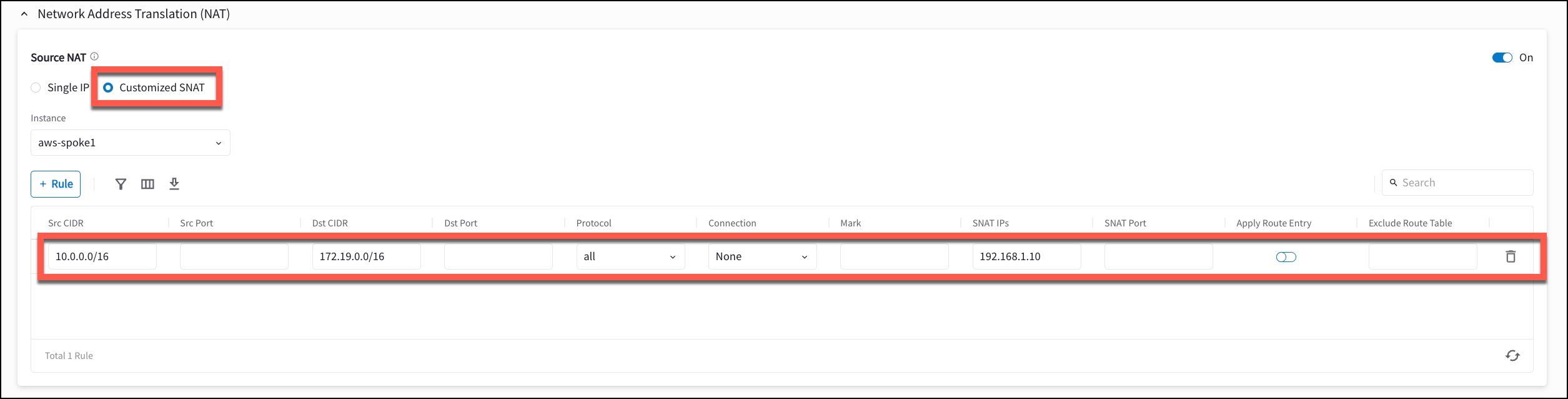 g. Click *Save*.
The rule appears in the table.
h. Set *Apply Route Entry* toggle *On* to commit the rule.
### Test Site2Cloud Connection and SNAT
Use the following tools to test the connection and verify the source IP NAT to the IP selected.
* Go to Diagnostics > Cloud Routes > External Connections to verify that the external connection status is Up.
* Ping from an Ubuntu VM in VPC-1 to another Ubuntu VM in VPC-2.
* Turn on "tcpdump icmp -n" at the Ubuntu VM in VPC-2. Verify the
source IP of the pings is 192.168.1.10.
## Related Topics
* Using Customized SNAT and DNAT on Spoke Gateway
* Site2Cloud with NAT to fix Overlapping VPC Subnets
g. Click *Save*.
The rule appears in the table.
h. Set *Apply Route Entry* toggle *On* to commit the rule.
### Test Site2Cloud Connection and SNAT
Use the following tools to test the connection and verify the source IP NAT to the IP selected.
* Go to Diagnostics > Cloud Routes > External Connections to verify that the external connection status is Up.
* Ping from an Ubuntu VM in VPC-1 to another Ubuntu VM in VPC-2.
* Turn on "tcpdump icmp -n" at the Ubuntu VM in VPC-2. Verify the
source IP of the pings is 192.168.1.10.
## Related Topics
* Using Customized SNAT and DNAT on Spoke Gateway
* Site2Cloud with NAT to fix Overlapping VPC Subnets