> ## Documentation Index
> Fetch the complete documentation index at: https://docs.aviatrix.com/llms.txt
> Use this file to discover all available pages before exploring further.
# Connect Overlapping VPC/VNet to On-prem
> Organizations usually plan out their cloud network address ranges. But there are times when a VPC/VNet CIDR overlaps with an on-prem network address range, yet still requires connectivity to on-prem.
Organizations usually plan out their cloud network address ranges. But there are
times when a VPC/VNet CIDR overlaps with an on-prem network address range, yet
still requires connectivity to on-prem.
In this document, the scenario is such that traffic is always initiated from
on-prem to VPC/VNet. The constraint is that there should be no source NAT nor
destination NAT performed in the on-prem network.
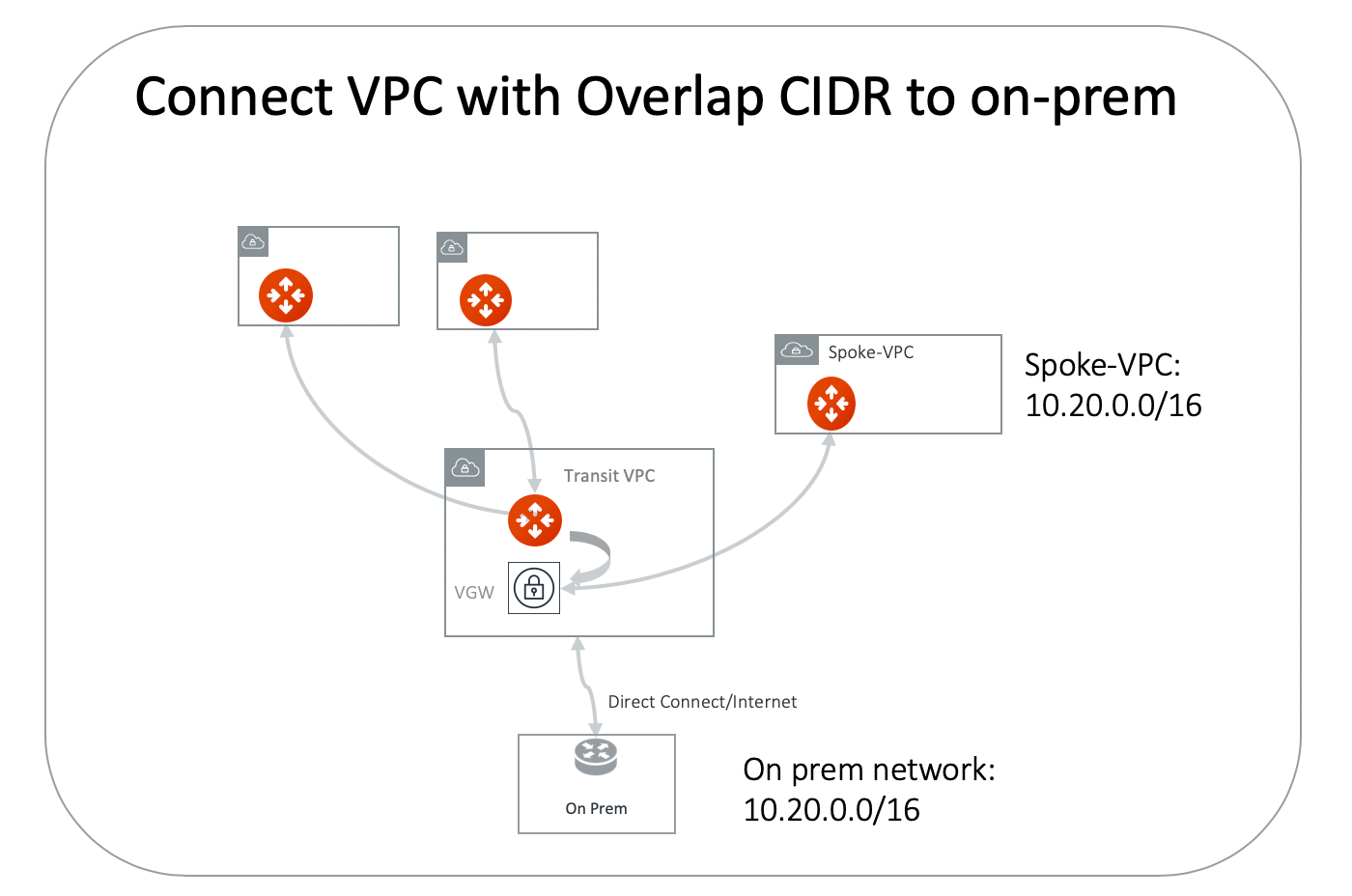
As shown in the diagram below, the on-prem network address range is
10.20.0.0/16. All other VPCs connect to on-prem via Aviatrix Transit solution.
However, there is one VPC named spoke-vpc with an identical CIDR of
10.20.0.0/16.
 Since the on-prem network does not perform any NAT functions, NAT must be
performed in the cloud network.
## Allocate Mapped Virtual Address Spaces
Allocate two 1-1 mapped corresponding virtual address spaces for the on-prem
network and spoke-vpc/vnet. For example, allocate the virtual network
100.105.0.0/16 for the on-prem network, and 100.101.0.0/16 for the
spoke-vpc/vnet virtual VPC/VNet CIDR. These two virtual address spaces must not
overlap with any on-prem or cloud address spaces.
## Launch an Aviatrix Gateway
Launch an Aviatrix Gateway
in the spoke-vpc/vnet.
## Build an IPsec Tunnel
Build an IPsec tunnel between spoke-vpc/vnet and the VPN Gateway (VGW/VPN
Connect).
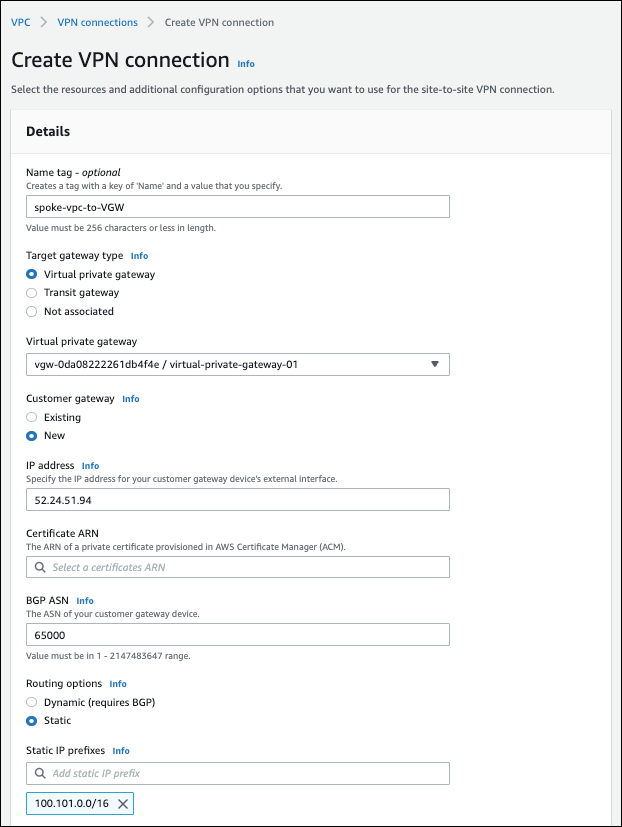
1. In the CSP Console (AWS, Azure, GCP, or OCI) for the VPC/VNet service, create
a VPN connection. Use the same VGW that is used for the Aviatrix Transit
solution to create an IPsec tunnel to spoke-vpc/vnet with static routes
100.101.0.0/16 configured, as shown below (AWS Console example).
Since the on-prem network does not perform any NAT functions, NAT must be
performed in the cloud network.
## Allocate Mapped Virtual Address Spaces
Allocate two 1-1 mapped corresponding virtual address spaces for the on-prem
network and spoke-vpc/vnet. For example, allocate the virtual network
100.105.0.0/16 for the on-prem network, and 100.101.0.0/16 for the
spoke-vpc/vnet virtual VPC/VNet CIDR. These two virtual address spaces must not
overlap with any on-prem or cloud address spaces.
## Launch an Aviatrix Gateway
Launch an Aviatrix Gateway
in the spoke-vpc/vnet.
## Build an IPsec Tunnel
Build an IPsec tunnel between spoke-vpc/vnet and the VPN Gateway (VGW/VPN
Connect).
1. In the CSP Console (AWS, Azure, GCP, or OCI) for the VPC/VNet service, create
a VPN connection. Use the same VGW that is used for the Aviatrix Transit
solution to create an IPsec tunnel to spoke-vpc/vnet with static routes
100.101.0.0/16 configured, as shown below (AWS Console example).
 2. Save the VPN connection.
3. Download the VPN configuration file. You will use some of this information
when creating the external connection.
## Create External Connection
1. In Aviatrix CoPilot, go to Networking > Connectivity > External Connections
(S2C).
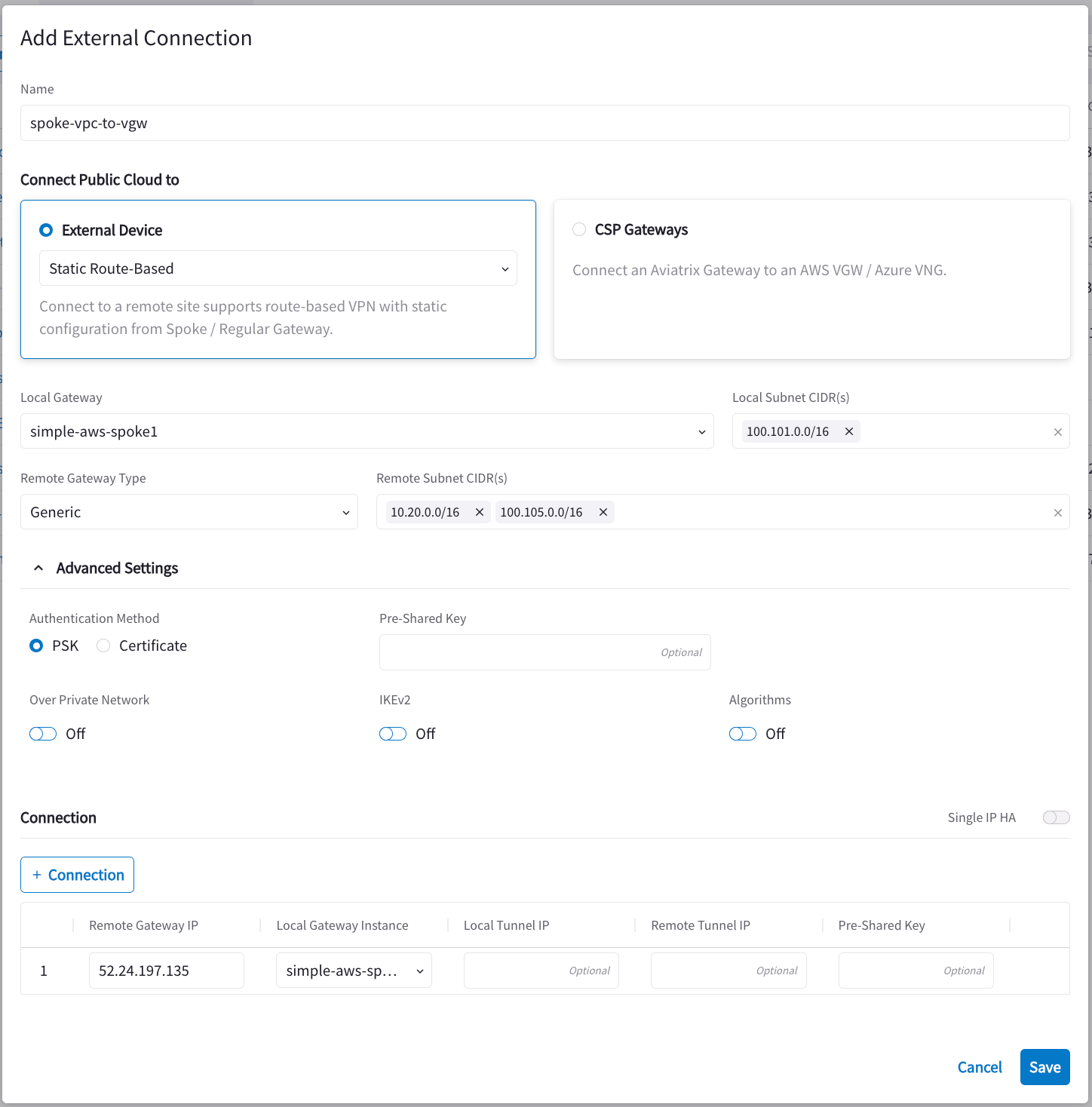
2. Create an Unmapped external connection for VPC/VNet-2 Gateway-2 using one of
these options:
* [Static Route-Based](https://legacy.docs.aviatrix.com/documentation/latest/network/external-connection-create-static-route-based-unmapped.html)
* [Static Policy-Based](https://legacy.docs.aviatrix.com/documentation/latest/network/external-connection-create-static-policy-based-unmapped.html)
3. Use these values:
| Field | Value |
| ----------------------- | ----------------------------------------------------------------------------------------------------------------------- |
| Name | spoke-vpc-to-to-tgw |
| Connect Public Cloud To | Static Route-Based (Unmapped) or Static Policy-Based (Unmapped) |
| Local Gateway | Select the Aviatrix Gateway created earlier in this document (in this example, the Aviatrix gateway for the spoke-vpc) |
| Local Subnet CIDR(s) | 100.101.0.0/16 (spoke-vpc virtual address) |
| Remote Device Type | Generic |
| Remote Subnet CIDR(s) | 10.20.0.0/16 (on-prem CIDR)
2. Save the VPN connection.
3. Download the VPN configuration file. You will use some of this information
when creating the external connection.
## Create External Connection
1. In Aviatrix CoPilot, go to Networking > Connectivity > External Connections
(S2C).
2. Create an Unmapped external connection for VPC/VNet-2 Gateway-2 using one of
these options:
* [Static Route-Based](https://legacy.docs.aviatrix.com/documentation/latest/network/external-connection-create-static-route-based-unmapped.html)
* [Static Policy-Based](https://legacy.docs.aviatrix.com/documentation/latest/network/external-connection-create-static-policy-based-unmapped.html)
3. Use these values:
| Field | Value |
| ----------------------- | ----------------------------------------------------------------------------------------------------------------------- |
| Name | spoke-vpc-to-to-tgw |
| Connect Public Cloud To | Static Route-Based (Unmapped) or Static Policy-Based (Unmapped) |
| Local Gateway | Select the Aviatrix Gateway created earlier in this document (in this example, the Aviatrix gateway for the spoke-vpc) |
| Local Subnet CIDR(s) | 100.101.0.0/16 (spoke-vpc virtual address) |
| Remote Device Type | Generic |
| Remote Subnet CIDR(s) | 10.20.0.0/16 (on-prem CIDR)
100.105.0.0/16 (on-prem virtual CIDR) |
| Pre-Shared Key | Optional (if needed, the tunnel #1 Pre-Shared Key from the downloaded VPN configuration file) |
| Remote Device IP | 52.24.197.135 (the Virtual Private Gateway Public IP from the downloaded VPN configuration file) |
| Local Gateway Instance | Select the Gateway instance to associate with this IP (especially important if you are adding a second instance for HA) |
 ## Perform both SNAT and DNAT Functions on the Aviatrix Gateway
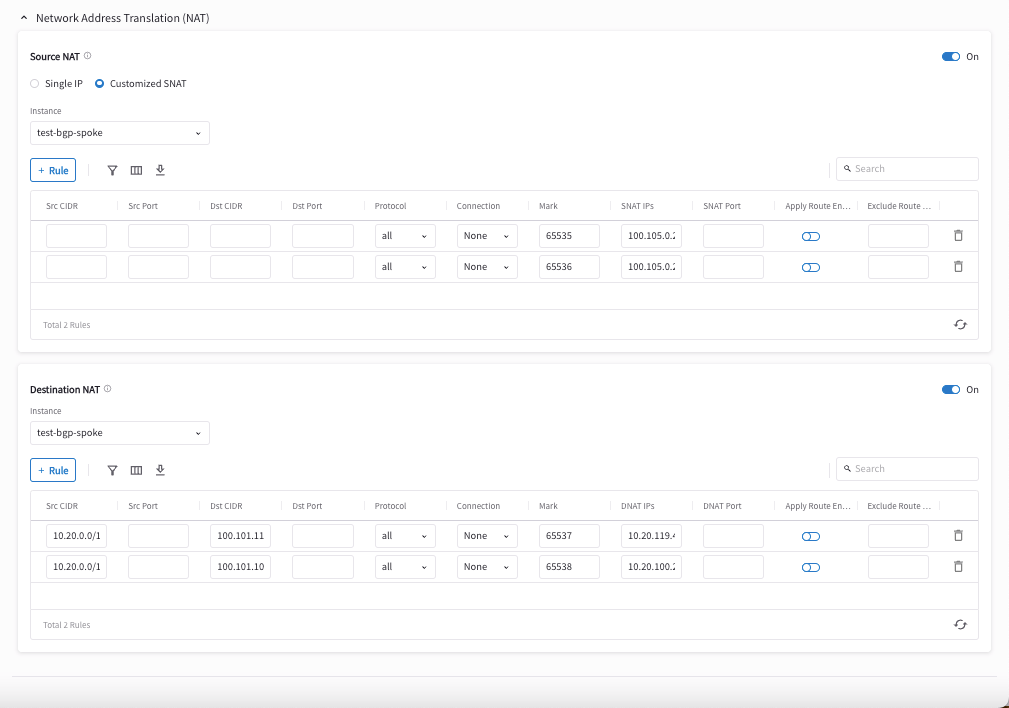
1. In Aviatrix CoPilot, go to Cloud Fabric > Gateways > Spoke Gateways and
select the 'spoke-vpc/vnet' gateway you created.
2. Click the Settings tab.
3. Expand the Network Address Translation area.
4. Turn **On** Source NAT.
5. Create a rule that matches the criteria in the following screenshot.
6. Turn **On** Destination NAT.
7. Create a rule that matches the criteria in the following screenshot.
You are translating the cloud virtual destination address to its real address
for each instance in the VPC/VNet.
1. Mark the session with a number that is easy to remember. In this example,
it is 119.
2. Scroll up to find Source NAT. Translate the marked session to any on-prem
virtual source address, as shown in the screenshot below.
## Perform both SNAT and DNAT Functions on the Aviatrix Gateway
1. In Aviatrix CoPilot, go to Cloud Fabric > Gateways > Spoke Gateways and
select the 'spoke-vpc/vnet' gateway you created.
2. Click the Settings tab.
3. Expand the Network Address Translation area.
4. Turn **On** Source NAT.
5. Create a rule that matches the criteria in the following screenshot.
6. Turn **On** Destination NAT.
7. Create a rule that matches the criteria in the following screenshot.
You are translating the cloud virtual destination address to its real address
for each instance in the VPC/VNet.
1. Mark the session with a number that is easy to remember. In this example,
it is 119.
2. Scroll up to find Source NAT. Translate the marked session to any on-prem
virtual source address, as shown in the screenshot below.
 Since the VPN Gateway (VGW/VPN Connect) normally runs a BGP session to on-prem
for a Transit Network, the spoke-vpc/vnet virtual CIDR 100.101.0.0/16 should be
propagated to on-prem. From on-prem, the destination IP address takes the range
100.101.0.0/16.
Since the VPN Gateway (VGW/VPN Connect) normally runs a BGP session to on-prem
for a Transit Network, the spoke-vpc/vnet virtual CIDR 100.101.0.0/16 should be
propagated to on-prem. From on-prem, the destination IP address takes the range
100.101.0.0/16.