> ## Documentation Index
> Fetch the complete documentation index at: https://docs.aviatrix.com/llms.txt
> Use this file to discover all available pages before exploring further.
# Site2Cloud External Connection Workflow
> This document describes how to establish connectivity between an Aviatrix gateway in AWS, Azure, or GCP and your on-premises router or firewall using Aviatrix Site2Cloud (S2C) external connection.
This document describes how to establish connectivity between an Aviatrix
gateway in AWS, Azure, or GCP and your on-premises router or firewall using
Aviatrix Site2Cloud (S2C) external connection.
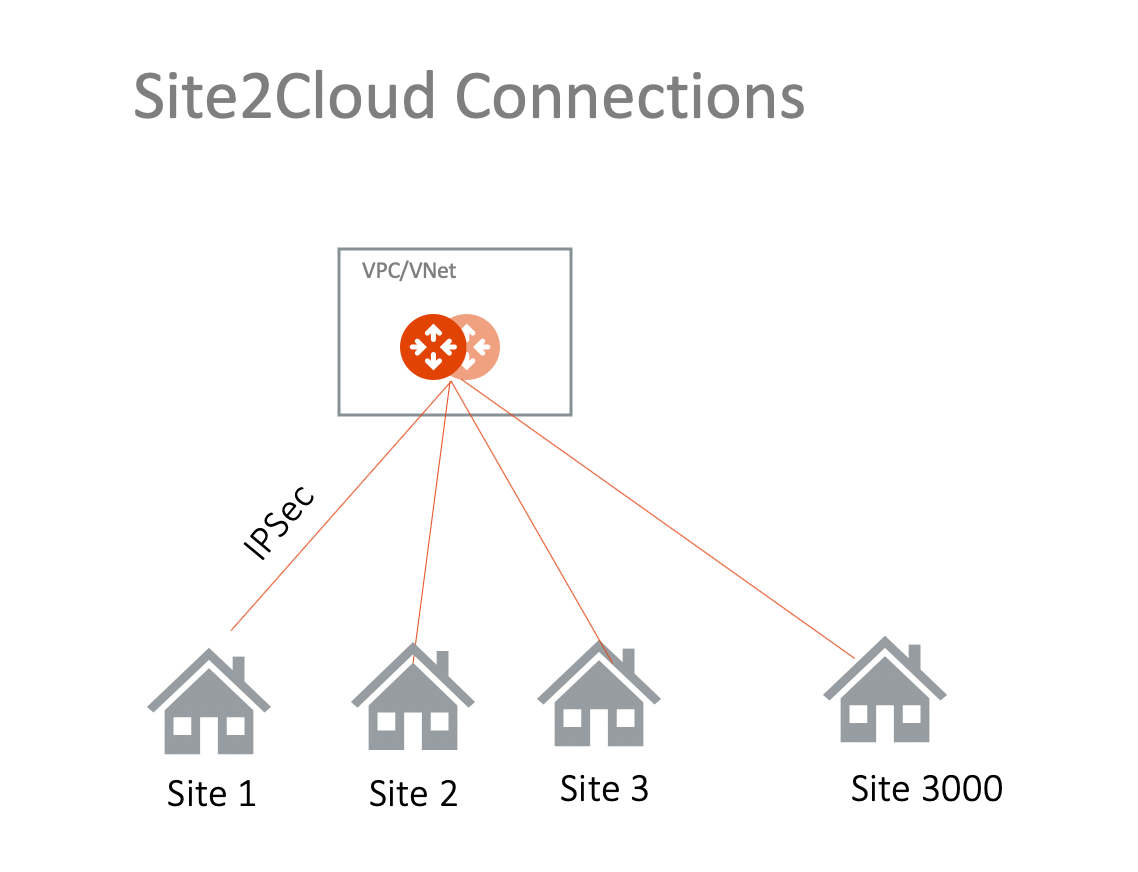
Aviatrix S2C external connection builds an encrypted connection between two
sites over the Internet in an easy-to-use and template-driven manner. On one end
of the tunnel is an Aviatrix Gateway. The other end could be an on-premises
router, firewall, or another public cloud VPC or VNet, that Aviatrix does not
manage.
 The following Site2Cloud external connections are supported:
* **Static Route-Based (Unmapped)**: connect to a remote site that supports
route-based VPN tunneling.
* **Static Route-Based (Mapped)**: connect overlapping networks between the
cloud and on-premises.
* **Static Policy-Based (Unmapped)**: connect to a remote site that supports
policy-based VPN tunneling.
## Supported Gateways
The following Aviatrix gateways are supported:
* Spoke Gateway (not BGP enabled) in AWS, Azure, and GCP
* Speciality Gateway
## Route-Based vs. Policy-Based Static Routing
The Aviatrix Platform supports both route-based and policy-based static routing.
The following Site2Cloud external connections are supported:
* Static Route-Based (Unmapped)]: connect to a remote site that supports
route-based VPN tunneling.
* Static Route-Based (Mapped)]: connect overlapping networks between the cloud
and on-premises.
* Static Policy-Based (Unmapped)]: connect to a remote site that supports
policy-based VPN tunneling.
### Route-Based
Route-Based routing uses routing tables to direct network traffic through the
VPN tunnel. Route-based tunnels leverage virtual tunnel interfaces (VTIs) to
establish connectivity between endpoints, ensuring that any traffic matching the
routing table criteria is transmitted through the VTI interface. It is typically
deployed for cloud-to-cloud or cloud-to-on-premises connectivity where
communication across multiple networks is required.
Route-based tunnels offer seamless integration with dynamic routing protocols,
such as BGP, and can handle large-scale, dynamic environments. The presence of
VTI interfaces streamlines setup and troubleshooting, as all tunnel traffic
flows through a predictable, logical interface and security policies can be
applied more broadly.
Starting with **Controller 9.0**, route-based IPSec Site-to-Cloud connections
can negotiate IKE phase 2 **Proxy-ID** selectors toward policy-based peers
when **Proxy-ID** is enabled. See{" "}
Proxy-ID for Routed IPSec Connections
.
### Policy-Based
Policy-based tunnels, in contrast to route-based tunnels, do not use virtual
tunnel interfaces (VTIs). Instead, all encrypted traffic traverses a single
physical interface (such as eth0). Policy-based routing employs explicit
policies, such as access control lists, to match and route traffic through the
tunnel.These policies explicitly define which source and destination IP
addresses, applications, or protocols are to be encrypted and tunneled. Only
traffic matching the defined policies is allowed through the tunnel.
This approach provides more restrictive and granular control over which data
traverses the tunnel, making it suitable for use cases in multi-cloud
architectures, where enforcing granular policies and segmenting traffic is
critical for both security and performance optimization.
## Unmapped vs. Mapped
The Aviatrix platform offers two types of static routing: Unmapped and Mapped.
### Unmapped
Unmapped Static Routing refers to static routes configured on an Aviatrix
gateway that are not associated with, nor propagated to, the underlying cloud
provider's route tables—such as AWS VPC route tables or Azure VNet route tables.
**Key Characteristics**
* No Association with Cloud Provider Route Tables: Routes exist solely on the
Aviatrix gateway and are invisible to the cloud provider's native routing
infrastructure.
* Interface and Tunnel Independence: These routes are not tied to specific
tunnels or interfaces, allowing flexibility in the path traffic uses to reach
its destination.
* Direct Use of Local and Remote Subnets: The VPN configuration utilizes the
actual (real) subnet CIDRs from both local and remote sites.
* No NAT: Network Address Translation is not performed. The real subnet
addresses remain unchanged as traffic traverses the VPN.
* Best for Non-Overlapping CIDRs: This method is appropriate when there is no
overlap between the local and remote networks' CIDR blocks.
**Ideal Use Cases**
* You want to keep routing simple and direct, with traffic reaching its
destination via any available route.
* There is no requirement to control which tunnel or interface traffic uses.
* There are no overlapping subnets between connected networks, so address
translation is unnecessary.
### Mapped
Mapped Static Routing, in contrast, involves propagating the static routes into
the cloud provider's route tables. This ensures that traffic originating from
any resource within a VPC or VNet is directed toward the Aviatrix gateway for
further processing.
Mapped Static Routing provides the advantage of not needing to configure
individual SNAT/DNAT rules.
**Key Characteristics**
* Propagated to Cloud Provider Route Tables: These routes are visible and
actionable within the cloud provider's native route tables, enabling
source-based traffic redirection.
* Association with Tunnels/Interfaces: Mapped static routes are tied to specific
VPN tunnels, gateways, or interfaces, ensuring traffic is routed over a
defined path.
* Use of NAT and Virtual CIDRs: Network Address Translation is employed to map
real subnet CIDRs to virtual (translated) subnet CIDRs for the VPN tunnel.
* Translation for Overlapping Networks: The local and/or remote subnets are
translated as needed, making this approach ideal for environments with
overlapping address spaces. It provides flexibility to build address
translations for many scenarios (multi-site CIDR overlapping with on-premises
CIDRs; multi-site CIDRs overlap and on-premises CIDRs do not overlap).
**Ideal Use Cases**
* When route control is needed at the source, and you must ensure traffic
follows a specific path.
* When there are overlapping subnet CIDRs between the local and remote sites,
requiring address translation.
* When you want to present different network views to remote sites for security
or segmentation purposes.
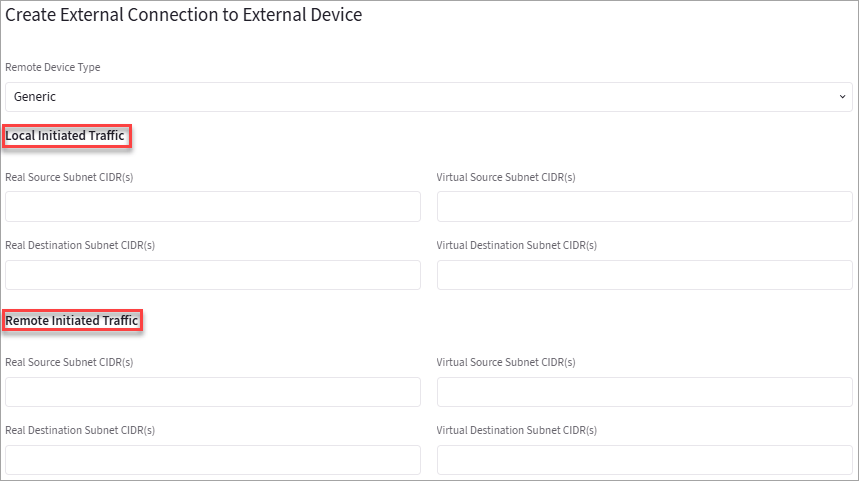
### Custom Mapped
The Custom Mapped option for the Static Route-Based Mapped routing provides more
complex Site2Cloud external connection configuration options. You can have
locally initiated traffic flows only; remotely initiated traffic flows only; and
differing NAT translation based on these local and remote initiated flows.
The following Site2Cloud external connections are supported:
* **Static Route-Based (Unmapped)**: connect to a remote site that supports
route-based VPN tunneling.
* **Static Route-Based (Mapped)**: connect overlapping networks between the
cloud and on-premises.
* **Static Policy-Based (Unmapped)**: connect to a remote site that supports
policy-based VPN tunneling.
## Supported Gateways
The following Aviatrix gateways are supported:
* Spoke Gateway (not BGP enabled) in AWS, Azure, and GCP
* Speciality Gateway
## Route-Based vs. Policy-Based Static Routing
The Aviatrix Platform supports both route-based and policy-based static routing.
The following Site2Cloud external connections are supported:
* Static Route-Based (Unmapped)]: connect to a remote site that supports
route-based VPN tunneling.
* Static Route-Based (Mapped)]: connect overlapping networks between the cloud
and on-premises.
* Static Policy-Based (Unmapped)]: connect to a remote site that supports
policy-based VPN tunneling.
### Route-Based
Route-Based routing uses routing tables to direct network traffic through the
VPN tunnel. Route-based tunnels leverage virtual tunnel interfaces (VTIs) to
establish connectivity between endpoints, ensuring that any traffic matching the
routing table criteria is transmitted through the VTI interface. It is typically
deployed for cloud-to-cloud or cloud-to-on-premises connectivity where
communication across multiple networks is required.
Route-based tunnels offer seamless integration with dynamic routing protocols,
such as BGP, and can handle large-scale, dynamic environments. The presence of
VTI interfaces streamlines setup and troubleshooting, as all tunnel traffic
flows through a predictable, logical interface and security policies can be
applied more broadly.
Starting with **Controller 9.0**, route-based IPSec Site-to-Cloud connections
can negotiate IKE phase 2 **Proxy-ID** selectors toward policy-based peers
when **Proxy-ID** is enabled. See{" "}
Proxy-ID for Routed IPSec Connections
.
### Policy-Based
Policy-based tunnels, in contrast to route-based tunnels, do not use virtual
tunnel interfaces (VTIs). Instead, all encrypted traffic traverses a single
physical interface (such as eth0). Policy-based routing employs explicit
policies, such as access control lists, to match and route traffic through the
tunnel.These policies explicitly define which source and destination IP
addresses, applications, or protocols are to be encrypted and tunneled. Only
traffic matching the defined policies is allowed through the tunnel.
This approach provides more restrictive and granular control over which data
traverses the tunnel, making it suitable for use cases in multi-cloud
architectures, where enforcing granular policies and segmenting traffic is
critical for both security and performance optimization.
## Unmapped vs. Mapped
The Aviatrix platform offers two types of static routing: Unmapped and Mapped.
### Unmapped
Unmapped Static Routing refers to static routes configured on an Aviatrix
gateway that are not associated with, nor propagated to, the underlying cloud
provider's route tables—such as AWS VPC route tables or Azure VNet route tables.
**Key Characteristics**
* No Association with Cloud Provider Route Tables: Routes exist solely on the
Aviatrix gateway and are invisible to the cloud provider's native routing
infrastructure.
* Interface and Tunnel Independence: These routes are not tied to specific
tunnels or interfaces, allowing flexibility in the path traffic uses to reach
its destination.
* Direct Use of Local and Remote Subnets: The VPN configuration utilizes the
actual (real) subnet CIDRs from both local and remote sites.
* No NAT: Network Address Translation is not performed. The real subnet
addresses remain unchanged as traffic traverses the VPN.
* Best for Non-Overlapping CIDRs: This method is appropriate when there is no
overlap between the local and remote networks' CIDR blocks.
**Ideal Use Cases**
* You want to keep routing simple and direct, with traffic reaching its
destination via any available route.
* There is no requirement to control which tunnel or interface traffic uses.
* There are no overlapping subnets between connected networks, so address
translation is unnecessary.
### Mapped
Mapped Static Routing, in contrast, involves propagating the static routes into
the cloud provider's route tables. This ensures that traffic originating from
any resource within a VPC or VNet is directed toward the Aviatrix gateway for
further processing.
Mapped Static Routing provides the advantage of not needing to configure
individual SNAT/DNAT rules.
**Key Characteristics**
* Propagated to Cloud Provider Route Tables: These routes are visible and
actionable within the cloud provider's native route tables, enabling
source-based traffic redirection.
* Association with Tunnels/Interfaces: Mapped static routes are tied to specific
VPN tunnels, gateways, or interfaces, ensuring traffic is routed over a
defined path.
* Use of NAT and Virtual CIDRs: Network Address Translation is employed to map
real subnet CIDRs to virtual (translated) subnet CIDRs for the VPN tunnel.
* Translation for Overlapping Networks: The local and/or remote subnets are
translated as needed, making this approach ideal for environments with
overlapping address spaces. It provides flexibility to build address
translations for many scenarios (multi-site CIDR overlapping with on-premises
CIDRs; multi-site CIDRs overlap and on-premises CIDRs do not overlap).
**Ideal Use Cases**
* When route control is needed at the source, and you must ensure traffic
follows a specific path.
* When there are overlapping subnet CIDRs between the local and remote sites,
requiring address translation.
* When you want to present different network views to remote sites for security
or segmentation purposes.
### Custom Mapped
The Custom Mapped option for the Static Route-Based Mapped routing provides more
complex Site2Cloud external connection configuration options. You can have
locally initiated traffic flows only; remotely initiated traffic flows only; and
differing NAT translation based on these local and remote initiated flows.
 ## Network Device Support
The Aviatrix Platform supports
[various on-premises firewall and router devices](https://legacy.docs.aviatrix.com/documentation/latest/network/s2c-configuration-other-devices.html)
that terminate VPN connections for establishing Site2Cloud external connections.
## Create a Site2Cloud External Connection
If you are planning to use certificate-based authentication for your
Site2Cloud connection, ensure that you have already{" "}
generated and exported the external device CA certificate
.
To establish a Site2Cloud external connection, you can create one of the
following connections:
* [Static Route-Based (Unmapped)](https://legacy.docs.aviatrix.com/documentation/latest/network/external-connection-create-static-route-based-unmapped.html):
connect to a remote site that supports route-based VPN from a Spoke Gateway.
* [Static Route-Based (Mapped)](https://legacy.docs.aviatrix.com/documentation/latest/network/external-connection-create-static-route-based-mapped.html):
connect overlapping networks between the cloud and on-prem from a Spoke
Gateway.
* [Static Policy-Based (Unmapped)](https://legacy.docs.aviatrix.com/documentation/latest/network/external-connection-create-static-policy-based-unmapped.html):
connect to a remote site that supports policy-based VPN with static
configuration from any local gateway (Unmapped).
## Create a Site2Cloud External Connection with High Availability
To establish a High Availability (remote backup or failover) connection in the
event that the primary remote connection becomes unavailable, you may configure
an additional remote device to serve as the failover connection.
## Network Device Support
The Aviatrix Platform supports
[various on-premises firewall and router devices](https://legacy.docs.aviatrix.com/documentation/latest/network/s2c-configuration-other-devices.html)
that terminate VPN connections for establishing Site2Cloud external connections.
## Create a Site2Cloud External Connection
If you are planning to use certificate-based authentication for your
Site2Cloud connection, ensure that you have already{" "}
generated and exported the external device CA certificate
.
To establish a Site2Cloud external connection, you can create one of the
following connections:
* [Static Route-Based (Unmapped)](https://legacy.docs.aviatrix.com/documentation/latest/network/external-connection-create-static-route-based-unmapped.html):
connect to a remote site that supports route-based VPN from a Spoke Gateway.
* [Static Route-Based (Mapped)](https://legacy.docs.aviatrix.com/documentation/latest/network/external-connection-create-static-route-based-mapped.html):
connect overlapping networks between the cloud and on-prem from a Spoke
Gateway.
* [Static Policy-Based (Unmapped)](https://legacy.docs.aviatrix.com/documentation/latest/network/external-connection-create-static-policy-based-unmapped.html):
connect to a remote site that supports policy-based VPN with static
configuration from any local gateway (Unmapped).
## Create a Site2Cloud External Connection with High Availability
To establish a High Availability (remote backup or failover) connection in the
event that the primary remote connection becomes unavailable, you may configure
an additional remote device to serve as the failover connection.
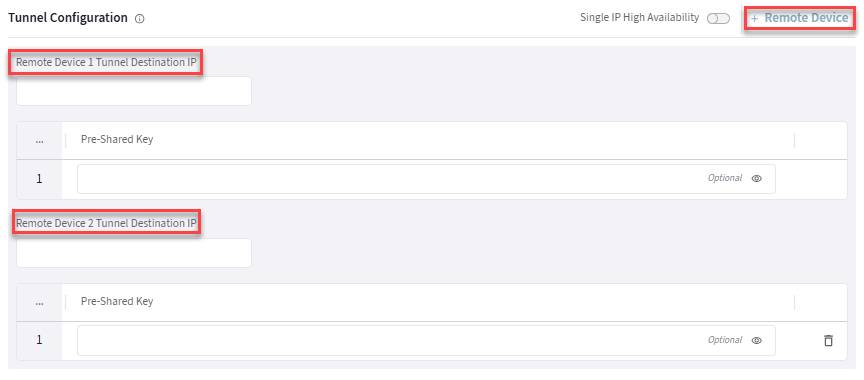 * If Mapped NAT is enabled, HA in the Site2Cloud (external) connection is not supported.
* You can use the same Pre-Shared Key for the HA connection (if PSK-based
authentication is selected).
## Download an External Connection Configuration
If you are connecting an Aviatrix gateway and an on-premises router or firewall,
Aviatrix can generate a configuration file that you can apply to your remote
router or firewall. The configuration file contains the Aviatrix gateway tunnel
details, such as the Public IPv4 and IPv6 addresses, VPC/VNet CIDR, pre-shared
key, and encryption algorithm. You can download the configuration file and then
import the details to your remote router or firewall to configure the other end
of the VPN tunnel.
After creating an external connection, to download an external connection
configuration:
1. In Aviatrix CoPilot, go to **Networking > Connectivity > External Connections
(S2C)** tab.
2. On the External Connections (S2C) tab, locate the connection you created and
click the vertical ellipsis icon on the right side of the row.
3. Select the following values:
* **Vendor**: Select your remote site device.
* Select **Generic** for anything that is not an Aviatrix gateway.
* Select **Aviatrix**, if you are connecting two Aviatrix gateways.
* **Platform and Software**:
* If you selected a Generic vendor, the Platform field is populated as
Generic, and the Software field is populated with Vendor Independent.
* If you selected the Aviatrix vendor, the Platform field is populated with
UCC, and the Software version is 1.0.
* If you selected a specific hardware vendor (such as Cisco), select from
the available platforms belonging to that vendor are displayed in the
Platform field (ISR, ASR, and CSR are for Cisco routers), and the
Software field is populated with the related software version.
4. Click **Download**.
## View an External Connection Details
After an external connection is created, you can view and change its settings.
To view the details of an external connection:
1. Go to **Networking** > **Connectivity** > **External Connections (S2C) tab**.
2. Select the external connection in the table.
3. Click the **Details** tab to review the general information about the
external connection.
4. Click the **Settings** tab to change the settings.
## Checking Tunnel Status
You can check the tunnel connection between the Aviatrix gateway and the remote
device from **Diagnostics > Cloud Routes > External Connections**. Locate the
external connection in the list and check that it's **Status** shows as
**Established**.
If the external connection is not established, you can troubleshoot network
connection from **Diagnostics > Diagnostic Tools**.
## Related Topics
* To learn about how Site2Cloud is used by the Distributed Cloud Firewall, see
External Connection (Site2Cloud) and Distributed Cloud Firewall
.
* Overview of Aviatrix Site2Cloud
* Aviatrix Integration with Microsoft's SSE Solution
* If Mapped NAT is enabled, HA in the Site2Cloud (external) connection is not supported.
* You can use the same Pre-Shared Key for the HA connection (if PSK-based
authentication is selected).
## Download an External Connection Configuration
If you are connecting an Aviatrix gateway and an on-premises router or firewall,
Aviatrix can generate a configuration file that you can apply to your remote
router or firewall. The configuration file contains the Aviatrix gateway tunnel
details, such as the Public IPv4 and IPv6 addresses, VPC/VNet CIDR, pre-shared
key, and encryption algorithm. You can download the configuration file and then
import the details to your remote router or firewall to configure the other end
of the VPN tunnel.
After creating an external connection, to download an external connection
configuration:
1. In Aviatrix CoPilot, go to **Networking > Connectivity > External Connections
(S2C)** tab.
2. On the External Connections (S2C) tab, locate the connection you created and
click the vertical ellipsis icon on the right side of the row.
3. Select the following values:
* **Vendor**: Select your remote site device.
* Select **Generic** for anything that is not an Aviatrix gateway.
* Select **Aviatrix**, if you are connecting two Aviatrix gateways.
* **Platform and Software**:
* If you selected a Generic vendor, the Platform field is populated as
Generic, and the Software field is populated with Vendor Independent.
* If you selected the Aviatrix vendor, the Platform field is populated with
UCC, and the Software version is 1.0.
* If you selected a specific hardware vendor (such as Cisco), select from
the available platforms belonging to that vendor are displayed in the
Platform field (ISR, ASR, and CSR are for Cisco routers), and the
Software field is populated with the related software version.
4. Click **Download**.
## View an External Connection Details
After an external connection is created, you can view and change its settings.
To view the details of an external connection:
1. Go to **Networking** > **Connectivity** > **External Connections (S2C) tab**.
2. Select the external connection in the table.
3. Click the **Details** tab to review the general information about the
external connection.
4. Click the **Settings** tab to change the settings.
## Checking Tunnel Status
You can check the tunnel connection between the Aviatrix gateway and the remote
device from **Diagnostics > Cloud Routes > External Connections**. Locate the
external connection in the list and check that it's **Status** shows as
**Established**.
If the external connection is not established, you can troubleshoot network
connection from **Diagnostics > Diagnostic Tools**.
## Related Topics
* To learn about how Site2Cloud is used by the Distributed Cloud Firewall, see
External Connection (Site2Cloud) and Distributed Cloud Firewall
.
* Overview of Aviatrix Site2Cloud
* Aviatrix Integration with Microsoft's SSE Solution