> ## Documentation Index
> Fetch the complete documentation index at: https://docs.aviatrix.com/llms.txt
> Use this file to discover all available pages before exploring further.
# Connect Networks With Overlapping CIDRs
> This document illustrates an example solution to a use case where a customer needs to:
## Connect Networks With Overlapping CIDRs
## The Scenario
This document illustrates an example solution to a use case where a customer
needs to:
* Connect certain on-prem hosts to certain virtual machine (EC2/GCE) instances
in a VPC/VNet over an IPsec tunnel over the Internet
* Their on-prem network range overlaps with the VPC/VNet CIDR range
* No NAT function will be performed on the customer side
* Traffic can be initiated from either side
This solution works for specific hosts and virtual machine instances on each
side.
The scenario is described in the following diagram, where VPC/VNet-2 represents
an on-prem environment.
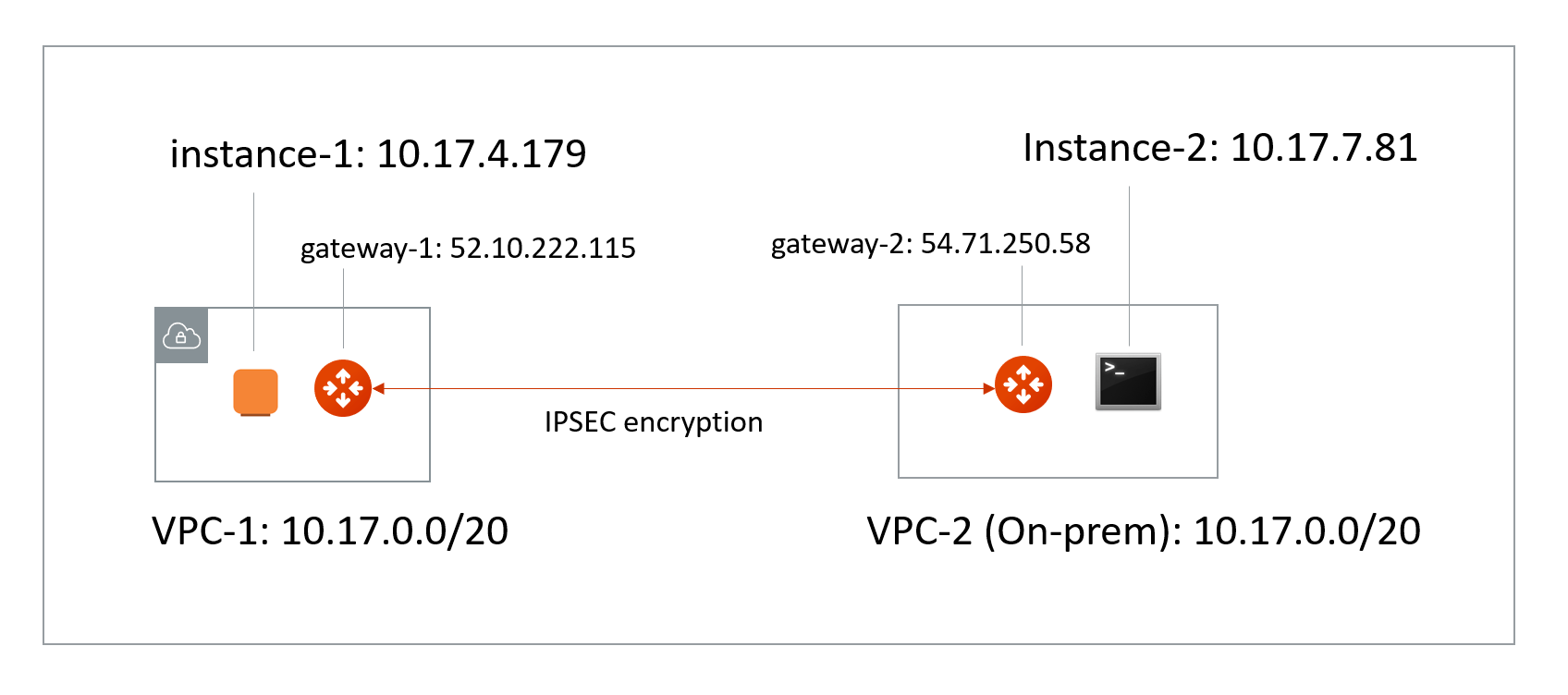 * VPC/VNet-1 CIDR = 10.17.0.0/20; instance-1 in VPC/VNet-1 has an IP address
10.17.4.179.
* VPC/VNet-2 CIDR = 10.17.0.0/20; instance-2 in VPC/VNet-2 has an IP address
10.17.7.81.
## The Solution
The solution is to build a Site2Cloud IPsec tunnel between VPC/VNet-1 and
VPC/VNet-2 and apply both source NAT (SNAT) and destination NAT (DNAT) on
VPC/VNet-1 gateway. The packet flow is demonstrated as below:
1. instance-1 sends a packet to instance-2 with a virtual destination IP
address, for example 172.16.0.43. From instance-1's point of view, the
destination instance is a virtual address - 172.16.0.43.
2. When the packet arrives at the VPC/VNet-1 gateway, the gateway does DNAT on
the packet to translate the virtual destination IP address to 10.17.7.81
which is the instance-2 physical IP address.
3. The gateway at VPC/VNet-1 then translates the packet source IP address
(10.17.4.179) to a virtual source IP address (for example, 192.168.0.43).
4. The packet then arrives at VPC/VNet-2 with destination IP address 10.17.7.81
and source IP address 192.168.0.43. From instance-2's point of view,
instance-1's address is a virtual IP address - 192.168.0.43.
5. When instance-2 sends a packet to instance-1, the destination is the virtual
IP address 192.168.0.43.
6. When the packet arrives at the VPC/VNet-1 gateway over the IPsec tunnel, the
VPC/VNet-1 gateway translates its destination IP address from virtual address
192.168.0.43 to 10.17.4.179.
7. The VPC/VNet-1 gateway then translates the source IP address of the packet
from 10.17.7.81 to virtual address 172.16.0.43.
## The Configuration Steps
### Launch Gateways
Create a
Spoke Gateway
. Leave optional parameters unchecked.
### Creating External Connections
1. Create a
[Static Route-Based (Mapped) external connection](https://legacy.docs.aviatrix.com/documentation/latest/network/external-connection-create-static-route-based-mapped.html)
for VPC-1/Gateway-1 using the following information:
| Field | Value |
| ----------------------------- | ----------------------------------------------------------------------------------------------------------------------- |
| Name | S2C-VPC-OnPrem (for example) |
| Connect Public Cloud To | Static Route-Based (Mapped) |
| Local Gateway | Select the Aviatrix Gateway created earlier in this document |
| Real Local Subnet CIDR(s) | 10.24.0.0/20 (VPC-Cloud Network CIDR; subnet of VPC-1) |
| Virtual Local Subnet CIDR(s) | Any/20 (VPC-Cloud Network Virtual CIDR) |
| Remote Device Type | Generic |
| Real Remote Subnet CIDR(s) | 10.24.0.0/20 (On-Prem Network CIDR; subnet of the on-prem router) |
| Virtual Remote Subnet CIDR(s) | Any/20 (On-Prem Network Virtual CIDR) |
| Pre-Shared Key | Optional (auto-generated if not entered) |
| Remote Device IP | Public IP of IOS Router WAN port (52.40.45.197 in this example) |
| Local Gateway Instance | Select the Gateway instance to associate with this IP (especially important if you are adding a second instance for HA) |
Leave optional parameters Off (Over Private Network/IKEv2/Algorithms). You can
add a secondary Connection (instance) for HA if required.
The Local & Remote Subnet (virtual) IP range can be anything but the subnet
should be the same as the Physical/Real subnet.
2. Click *Save*.
3. Create an Unmapped external connection for VPC/VNet-2 Gateway-2 using one of
these options:
* [Static Route-Based](https://legacy.docs.aviatrix.com/documentation/latest/network/external-connection-create-static-route-based-unmapped.html)
* [Static Policy-Based](https://legacy.docs.aviatrix.com/documentation/latest/network/external-connection-create-static-policy-based-unmapped.html)
| Field | Value |
| ----------------------- | ----------------------------------------------------------------------------------------------------------------------- |
| Name | VPC-2-to-VPC-1 (for example) |
| Connect Public Cloud To | Static Route-Based (Unmapped) or Static Policy-Based (Unmapped) |
| Local Gateway | Select the Aviatrix Gateway created earlier in this document |
| Local Subnet CIDR(s) | 10.17.7.81/32 |
| Remote Device Type | Generic |
| Remote Subnet CIDR(s) | 192.168.0.43/32 |
| Pre-Shared Key | Optional (auto-generated if not entered) |
| Remote Device IP | 52.10.222.115 |
| Local Gateway Instance | Select the Gateway instance to associate with this IP (especially important if you are adding a second instance for HA) |
4. Click *Save*.
5. Go to Diagnostics > Cloud Routes > External Connections tab to check the
tunnel status.
You do not need to download the configuration because both ends of the network are on the VPC/VNet.
Make sure the pre-shared Keys are the same for both ends. In the above example,
"Aviatrix101#" can be used as the pre-shared key.
### Configuring DNAT on Gateway-1
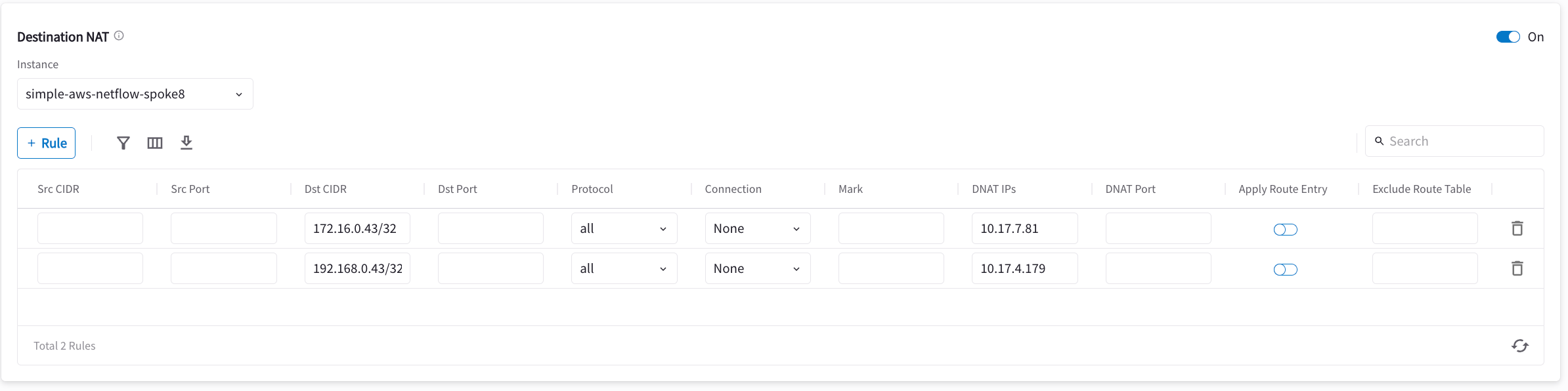
You now configure the gateway to translate the destination IP address
172.16.0.43 to the real private IP address 10.17.7.81, before routing happens.
1. Go to Cloud Fabric > Gateways > Spoke Gateways.
2. Click the name of the gateway you created earlier in this document.
3. Click the Settings tab and expand the Network Address Translation (NAT) area.
4. Turn *On* Destination NAT.
5. Add rules as per the screenshot below.
6. Turn *On* Apply Route Entry for each rule to commit the rule(s).
* VPC/VNet-1 CIDR = 10.17.0.0/20; instance-1 in VPC/VNet-1 has an IP address
10.17.4.179.
* VPC/VNet-2 CIDR = 10.17.0.0/20; instance-2 in VPC/VNet-2 has an IP address
10.17.7.81.
## The Solution
The solution is to build a Site2Cloud IPsec tunnel between VPC/VNet-1 and
VPC/VNet-2 and apply both source NAT (SNAT) and destination NAT (DNAT) on
VPC/VNet-1 gateway. The packet flow is demonstrated as below:
1. instance-1 sends a packet to instance-2 with a virtual destination IP
address, for example 172.16.0.43. From instance-1's point of view, the
destination instance is a virtual address - 172.16.0.43.
2. When the packet arrives at the VPC/VNet-1 gateway, the gateway does DNAT on
the packet to translate the virtual destination IP address to 10.17.7.81
which is the instance-2 physical IP address.
3. The gateway at VPC/VNet-1 then translates the packet source IP address
(10.17.4.179) to a virtual source IP address (for example, 192.168.0.43).
4. The packet then arrives at VPC/VNet-2 with destination IP address 10.17.7.81
and source IP address 192.168.0.43. From instance-2's point of view,
instance-1's address is a virtual IP address - 192.168.0.43.
5. When instance-2 sends a packet to instance-1, the destination is the virtual
IP address 192.168.0.43.
6. When the packet arrives at the VPC/VNet-1 gateway over the IPsec tunnel, the
VPC/VNet-1 gateway translates its destination IP address from virtual address
192.168.0.43 to 10.17.4.179.
7. The VPC/VNet-1 gateway then translates the source IP address of the packet
from 10.17.7.81 to virtual address 172.16.0.43.
## The Configuration Steps
### Launch Gateways
Create a
Spoke Gateway
. Leave optional parameters unchecked.
### Creating External Connections
1. Create a
[Static Route-Based (Mapped) external connection](https://legacy.docs.aviatrix.com/documentation/latest/network/external-connection-create-static-route-based-mapped.html)
for VPC-1/Gateway-1 using the following information:
| Field | Value |
| ----------------------------- | ----------------------------------------------------------------------------------------------------------------------- |
| Name | S2C-VPC-OnPrem (for example) |
| Connect Public Cloud To | Static Route-Based (Mapped) |
| Local Gateway | Select the Aviatrix Gateway created earlier in this document |
| Real Local Subnet CIDR(s) | 10.24.0.0/20 (VPC-Cloud Network CIDR; subnet of VPC-1) |
| Virtual Local Subnet CIDR(s) | Any/20 (VPC-Cloud Network Virtual CIDR) |
| Remote Device Type | Generic |
| Real Remote Subnet CIDR(s) | 10.24.0.0/20 (On-Prem Network CIDR; subnet of the on-prem router) |
| Virtual Remote Subnet CIDR(s) | Any/20 (On-Prem Network Virtual CIDR) |
| Pre-Shared Key | Optional (auto-generated if not entered) |
| Remote Device IP | Public IP of IOS Router WAN port (52.40.45.197 in this example) |
| Local Gateway Instance | Select the Gateway instance to associate with this IP (especially important if you are adding a second instance for HA) |
Leave optional parameters Off (Over Private Network/IKEv2/Algorithms). You can
add a secondary Connection (instance) for HA if required.
The Local & Remote Subnet (virtual) IP range can be anything but the subnet
should be the same as the Physical/Real subnet.
2. Click *Save*.
3. Create an Unmapped external connection for VPC/VNet-2 Gateway-2 using one of
these options:
* [Static Route-Based](https://legacy.docs.aviatrix.com/documentation/latest/network/external-connection-create-static-route-based-unmapped.html)
* [Static Policy-Based](https://legacy.docs.aviatrix.com/documentation/latest/network/external-connection-create-static-policy-based-unmapped.html)
| Field | Value |
| ----------------------- | ----------------------------------------------------------------------------------------------------------------------- |
| Name | VPC-2-to-VPC-1 (for example) |
| Connect Public Cloud To | Static Route-Based (Unmapped) or Static Policy-Based (Unmapped) |
| Local Gateway | Select the Aviatrix Gateway created earlier in this document |
| Local Subnet CIDR(s) | 10.17.7.81/32 |
| Remote Device Type | Generic |
| Remote Subnet CIDR(s) | 192.168.0.43/32 |
| Pre-Shared Key | Optional (auto-generated if not entered) |
| Remote Device IP | 52.10.222.115 |
| Local Gateway Instance | Select the Gateway instance to associate with this IP (especially important if you are adding a second instance for HA) |
4. Click *Save*.
5. Go to Diagnostics > Cloud Routes > External Connections tab to check the
tunnel status.
You do not need to download the configuration because both ends of the network are on the VPC/VNet.
Make sure the pre-shared Keys are the same for both ends. In the above example,
"Aviatrix101#" can be used as the pre-shared key.
### Configuring DNAT on Gateway-1
You now configure the gateway to translate the destination IP address
172.16.0.43 to the real private IP address 10.17.7.81, before routing happens.
1. Go to Cloud Fabric > Gateways > Spoke Gateways.
2. Click the name of the gateway you created earlier in this document.
3. Click the Settings tab and expand the Network Address Translation (NAT) area.
4. Turn *On* Destination NAT.
5. Add rules as per the screenshot below.
6. Turn *On* Apply Route Entry for each rule to commit the rule(s).
 ### Configuring SNAT on Gateway-1
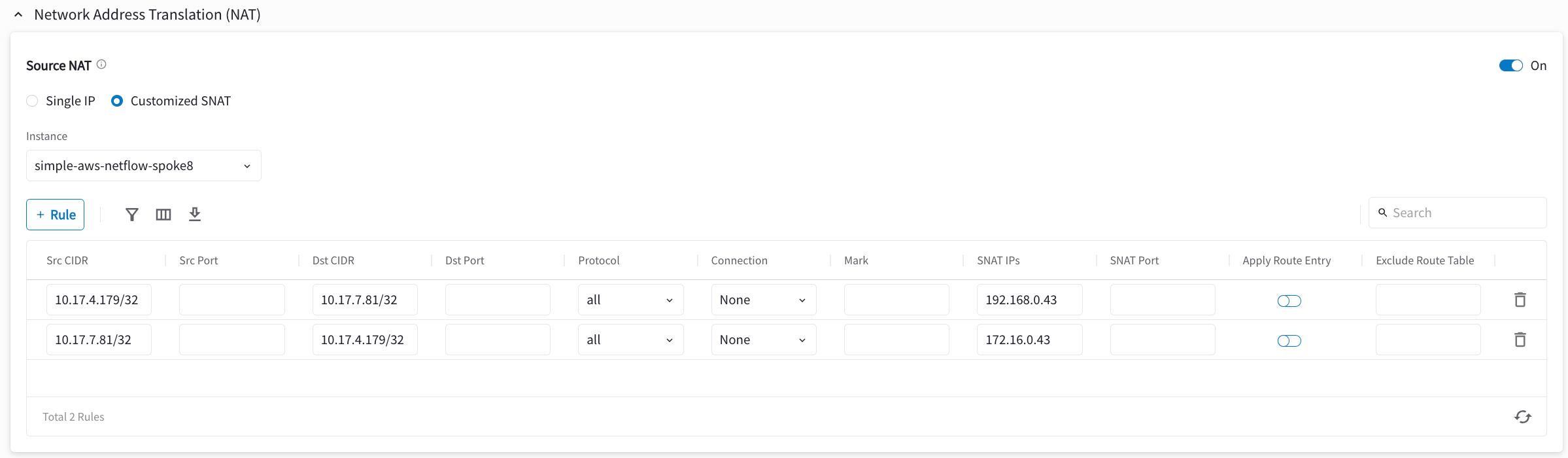
This step is to translate the packet source IP address after routing happens. In
this example, the address is translated from 10.17.7.81 to 172.16.0.43 for
packets going from on-prem (VPC/VNet-2) to VPC/VNet-1, and 10.17.4.179 to
192.168.4.43 for packets going from VPC/VNet-1 to on-prem (VPC/VNet-2).
On the same VPC/VNet-1 gateway, configure SNAT as shown below (turn *On* Source
NAT and then click *Customized SNAT*).
You can enter "Dst CIDR" as qualifier to reduce the scope of the rule as a good
practice. The reason that the address is 10.17.7.81/32 is that the destination
has already been translated after the DNAT rule before routing happens.
### Configuring SNAT on Gateway-1
This step is to translate the packet source IP address after routing happens. In
this example, the address is translated from 10.17.7.81 to 172.16.0.43 for
packets going from on-prem (VPC/VNet-2) to VPC/VNet-1, and 10.17.4.179 to
192.168.4.43 for packets going from VPC/VNet-1 to on-prem (VPC/VNet-2).
On the same VPC/VNet-1 gateway, configure SNAT as shown below (turn *On* Source
NAT and then click *Customized SNAT*).
You can enter "Dst CIDR" as qualifier to reduce the scope of the rule as a good
practice. The reason that the address is 10.17.7.81/32 is that the destination
has already been translated after the DNAT rule before routing happens.
 ## Testing the Site2Cloud Connection
Make sure your instance's Security Groups inbound rules are configured properly.
From instance-1, you should be able to ping host-1 by "ping 192.24.7.101". From
host-1, you should be able to ping instance-1 by "ping 172.24.1.4"
## Testing the Site2Cloud Connection
Make sure your instance's Security Groups inbound rules are configured properly.
From instance-1, you should be able to ping host-1 by "ping 192.24.7.101". From
host-1, you should be able to ping instance-1 by "ping 172.24.1.4"