> ## Documentation Index
> Fetch the complete documentation index at: https://docs.aviatrix.com/llms.txt
> Use this file to discover all available pages before exploring further.
# Aviatrix Gateway to Cisco Ios Router
> This document describes how to build an IPsec tunnel based Site2Cloud connection between an Aviatrix Gateway and a Cisco IOS router.
This document describes how to build an IPsec tunnel based Site2Cloud connection
between an Aviatrix Gateway and a Cisco IOS router.
The network setup is as follows:
**VPC/VNet-AVX (with Aviatrix Gateway)**
*VPC/VNet CIDR: 10.100.0.0/24*
**On-Prem (with Cisco IOS Router)**
*On-Prem Network CIDR: 10.10.2.0/24*
## Creating a Site2Cloud Connection
1. In Aviatrix CoPilot, launch an
Aviatrix Transit Gateway
at the subnet (public subnet for AWS, GCP, or OCI) of VPC/VNet-AVX. Collect
the Gateway's public IP addresses (52.4.65.172 in this example).
2. Navigate to Networking > Connectivity > External Connections (S2C) to create
a Site2Cloud connection using the values for one of the below options:
| Static Route-Based | Static Policy-Based |
| ----------------------------------------------------------------------------------------------------------------------------------------------- | ------------------------------------------------------------------------------------------------------------------------------------------------- |
| [Static Route-Based](https://legacy.docs.aviatrix.com/documentation/latest/network/external-connection-create-static-route-based-unmapped.html) | [Static Policy-Based](https://legacy.docs.aviatrix.com/documentation/latest/network/external-connection-create-static-policy-based-unmapped.html) |
Substitute the following values:
* Remote Device Type: Generic
* Algorithms: turn Off
* Remote Device IP: Public IP of IOS Router WAN port (52.9.196.2 in this
example)
* Remote Subnet CIDR(s): 10.10.2.0/24 (On-Prem Network CIDR) (VPC2 private
subnet)
* Local Subnet CIDR(s): 10.100.0.0/24 (VPC/VNet-AVX CIDR) (VPC1 private
subnet)
3. After the connection is created, select the vertical ellipsis  menu
for that connection and select **Download Configuration**.
4. In the Download Configuration dialog, select **Cisco** from the **Vendor**
dropdown menu.
5. Select **ISR, ASR, or CSR** from the Platform dropdown menu.
6. Select the appropriate Software version.
7. Click **Download**.
8. Save the configuration file as a reference for configuring your Cisco IOS
router.
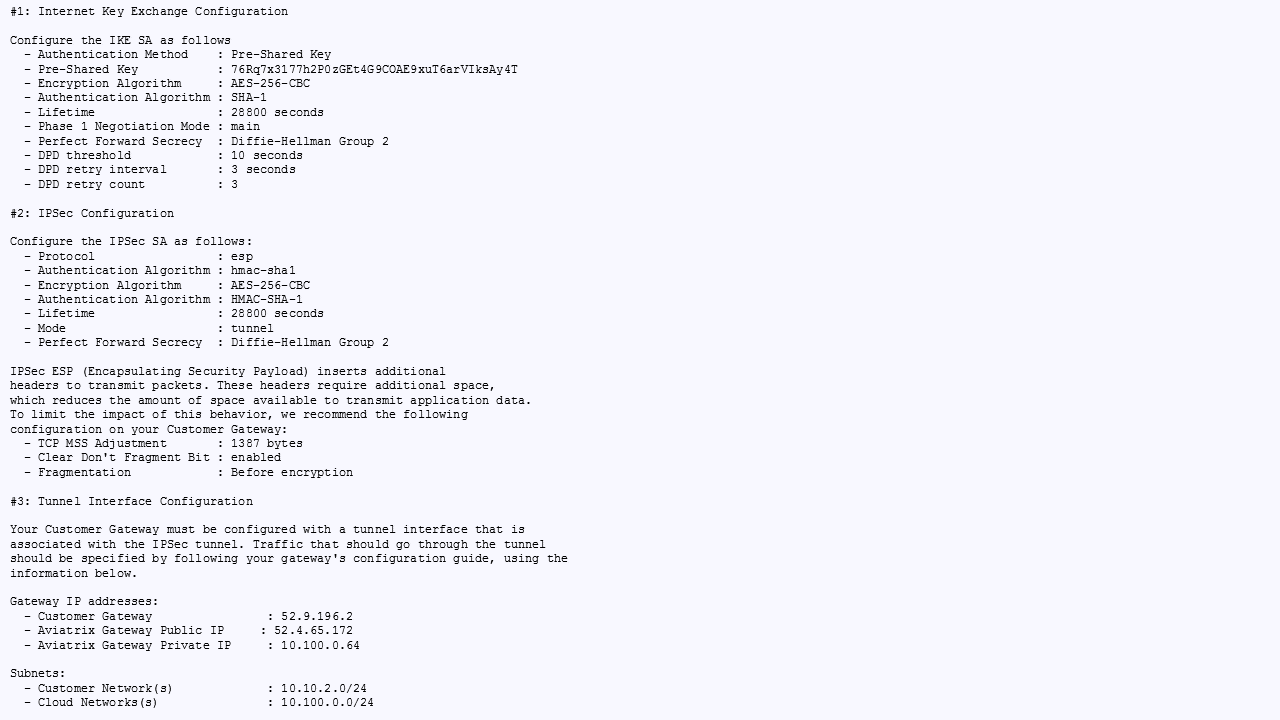
The following is a sample configuration based on the Site2Cloud configuration
above.
menu
for that connection and select **Download Configuration**.
4. In the Download Configuration dialog, select **Cisco** from the **Vendor**
dropdown menu.
5. Select **ISR, ASR, or CSR** from the Platform dropdown menu.
6. Select the appropriate Software version.
7. Click **Download**.
8. Save the configuration file as a reference for configuring your Cisco IOS
router.
The following is a sample configuration based on the Site2Cloud configuration
above.
 ## Configuring Cisco IOS Router
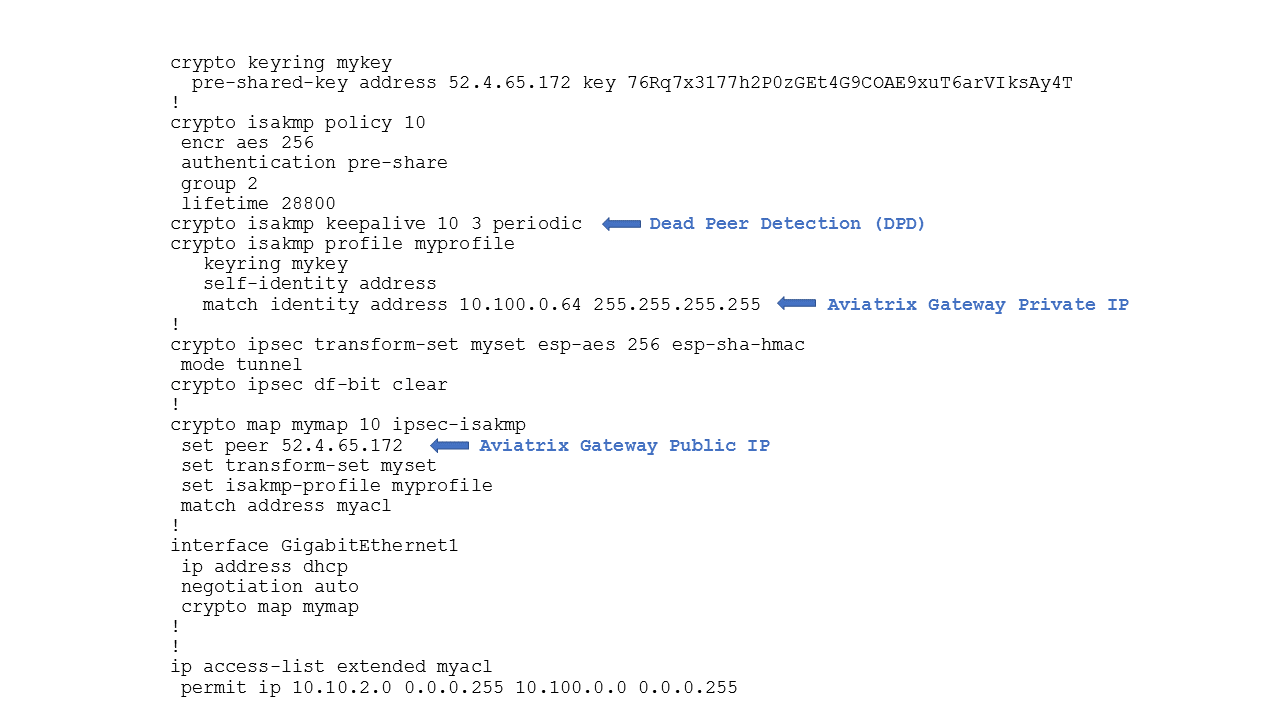
1. Either ssh into the Cisco router or connect to it directly through its
console port.
2. Apply the following IOS configuration to your router.
From version 5.0, we use the gateway's public IP address as the identifier, so
the "match identity address" should use the public IP instead of the private
IP as shown below.
## Configuring Cisco IOS Router
1. Either ssh into the Cisco router or connect to it directly through its
console port.
2. Apply the following IOS configuration to your router.
From version 5.0, we use the gateway's public IP address as the identifier, so
the "match identity address" should use the public IP instead of the private
IP as shown below.
 ## Verifying the Connection Status
In CoPilot, go to the Diagnostics > Cloud Routes > External Connections tab to
confirm the Status and Tunnel Status of the external connection.
## Troubleshooting
You can use the Diagnostic Tools (under Diagnostics in the left navigation menu)
to troubleshoot any connection issues.
For support, please open a support ticket at
[Aviatrix Support Portal](https://support.aviatrix.com).
## Appendix 1: Transit Connection to Cisco ISR/ASR Over the Internet
The following is the topology used for the sample configuration below:
## Verifying the Connection Status
In CoPilot, go to the Diagnostics > Cloud Routes > External Connections tab to
confirm the Status and Tunnel Status of the external connection.
## Troubleshooting
You can use the Diagnostic Tools (under Diagnostics in the left navigation menu)
to troubleshoot any connection issues.
For support, please open a support ticket at
[Aviatrix Support Portal](https://support.aviatrix.com).
## Appendix 1: Transit Connection to Cisco ISR/ASR Over the Internet
The following is the topology used for the sample configuration below:
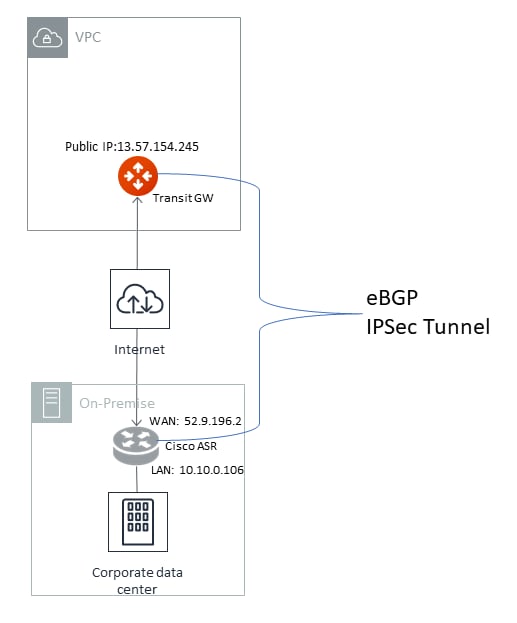 For connection over the Internet, an Aviatrix Transit Gateway and Cisco ISR/ASR
use each other's public IP to create an IPsec tunnel and establish a BGP
connection.
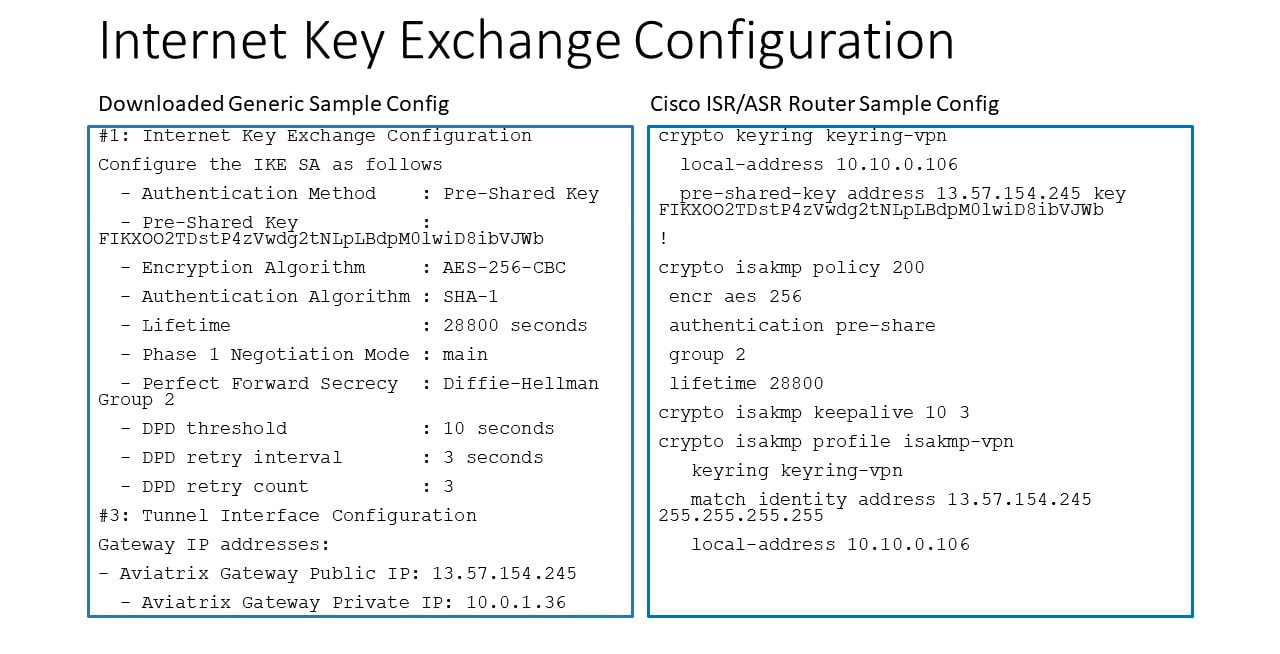
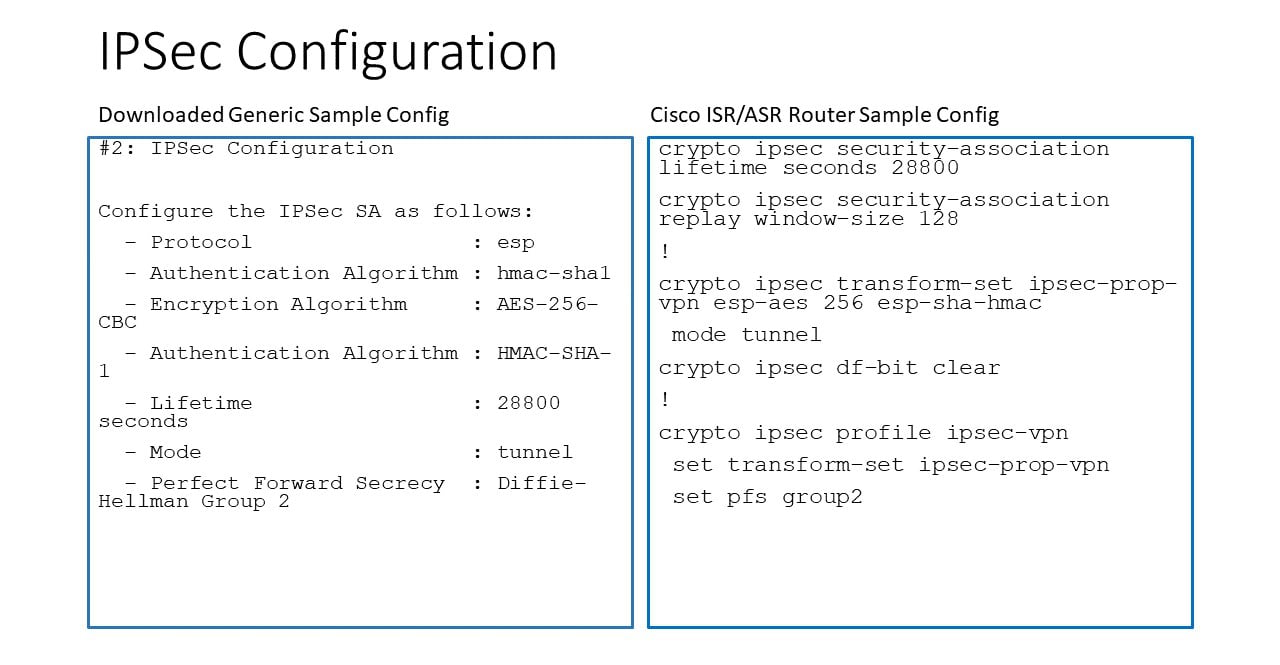
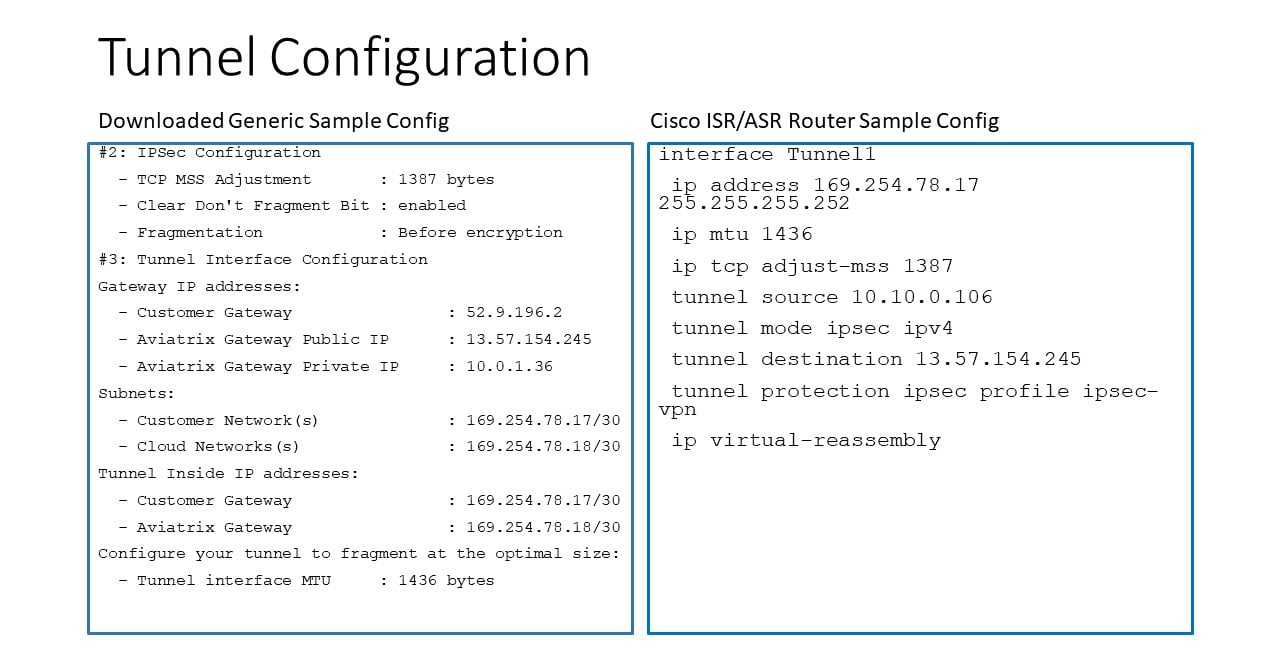
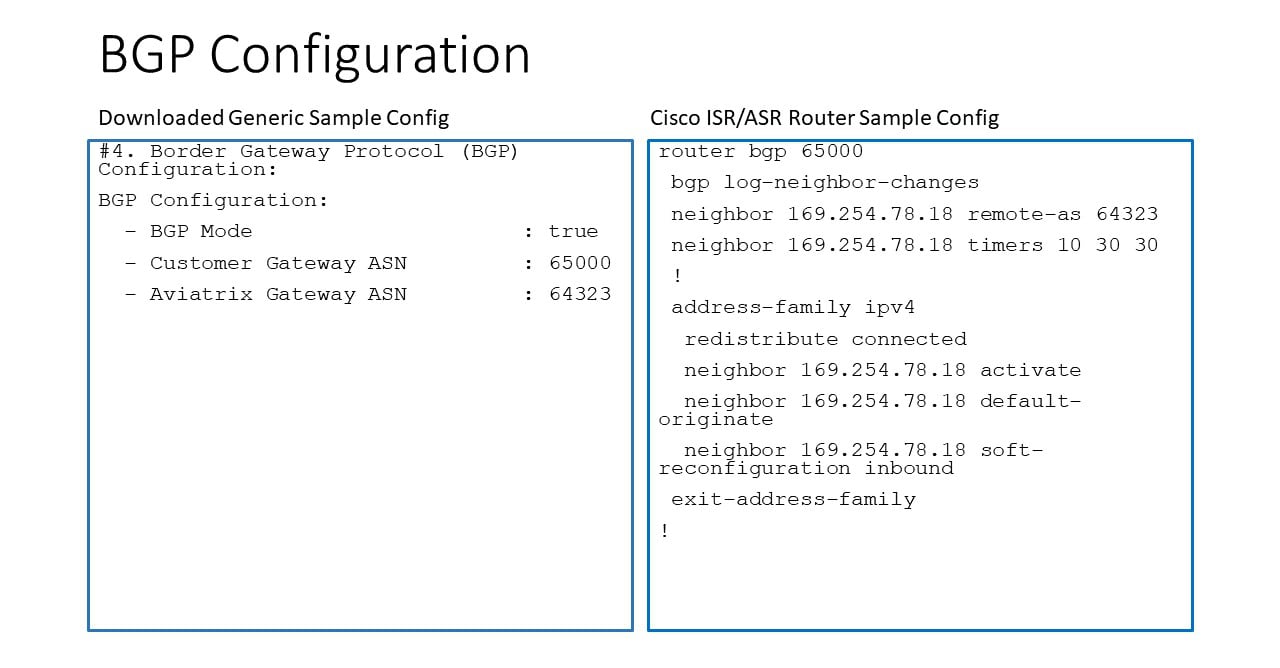
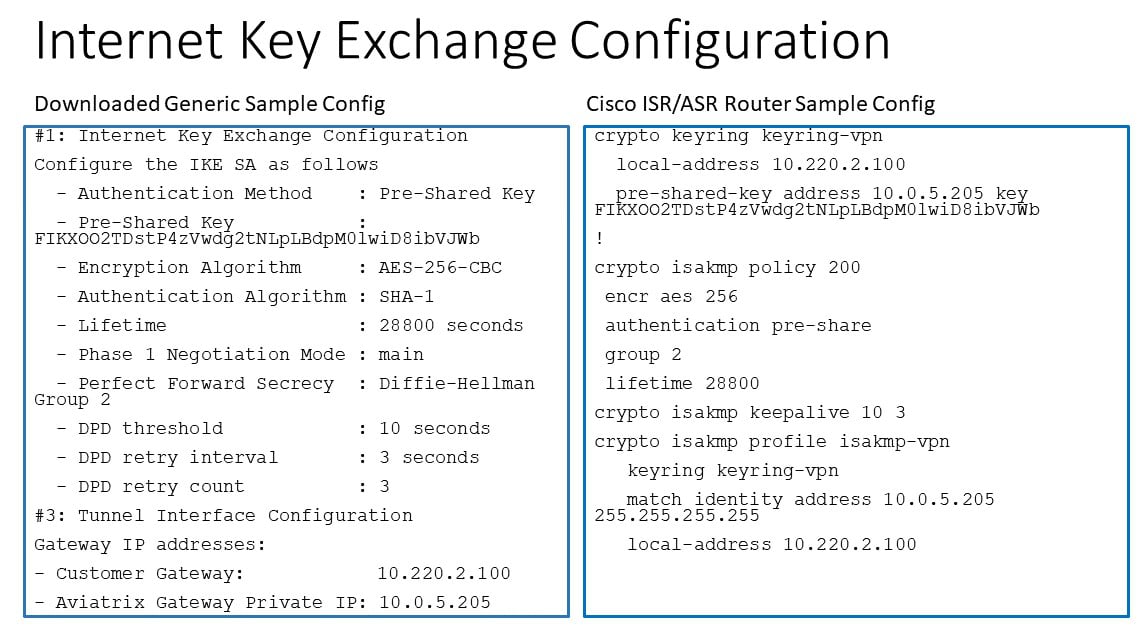
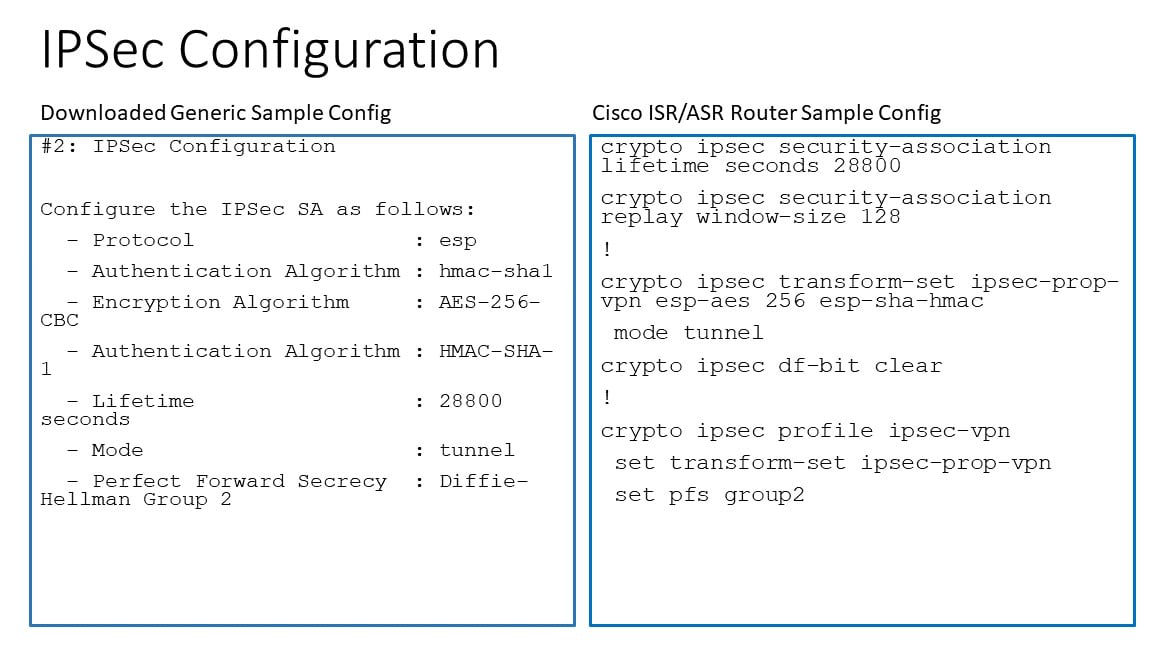
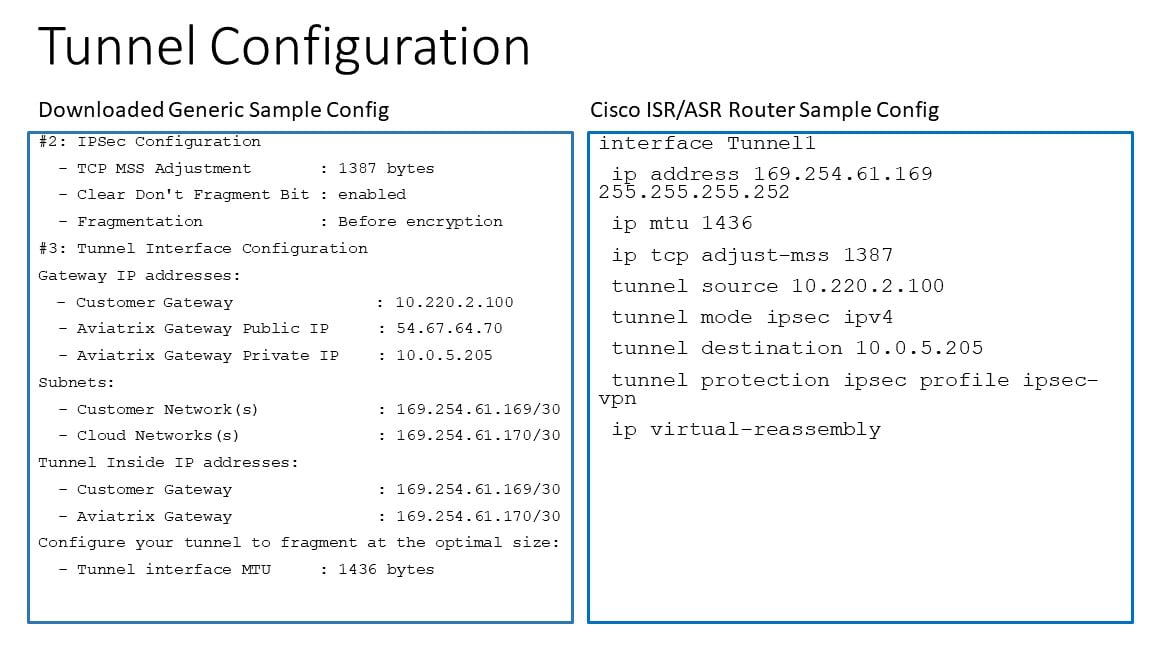
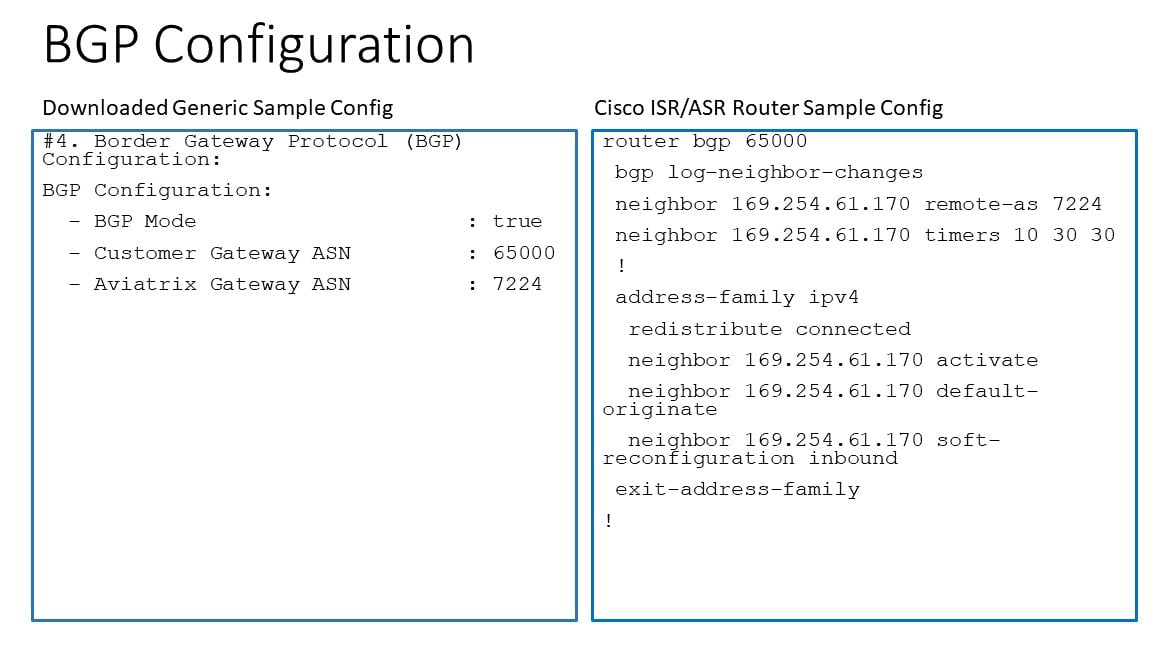
The following diagrams display mappings between a sample downloaded
configuration and its corresponding Cisco ISR/ASR router configuration:
For connection over the Internet, an Aviatrix Transit Gateway and Cisco ISR/ASR
use each other's public IP to create an IPsec tunnel and establish a BGP
connection.
The following diagrams display mappings between a sample downloaded
configuration and its corresponding Cisco ISR/ASR router configuration:
 ## Appendix 2: Transit Connection to Cisco ISR/ASR over Direct Connect
The following is the topology used for the sample configuration below:
## Appendix 2: Transit Connection to Cisco ISR/ASR over Direct Connect
The following is the topology used for the sample configuration below:
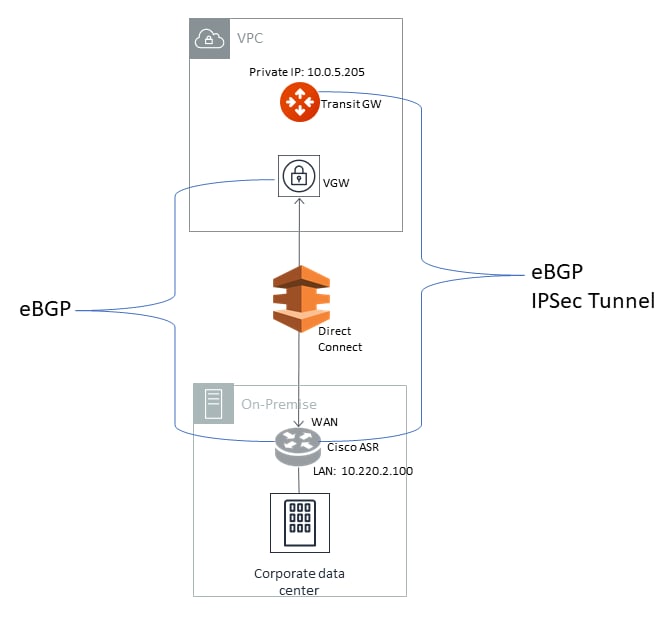 For connection over Direct Connect, the Aviatrix Transit Gateway and Cisco
ISR/ASR use each other's private IP to create an IPsec tunnel and establish BGP
connection.
The ASN number of the Aviatrix Transit Gateway created earlier in this
document (Local ASN) should be the same as the VGW's ASN number (7224 in this
example). Without it, the Transit VPC/VNet CIDR advertised from VGW to on-prem
ASR/ISR will be advertised by ASR/ISR back to the Aviatrix Transit Gateway.
With the same ASN number, the Aviatrix Transit Gateway will drop the route to
the Transit VPC/VNet CIDR.
The following diagrams display mappings between a sample configuration from
[Creating a Site2Cloud Connection](#creating-a-site2cloud-connection) and its
corresponding Cisco ISR/ASR router configuration:
For connection over Direct Connect, the Aviatrix Transit Gateway and Cisco
ISR/ASR use each other's private IP to create an IPsec tunnel and establish BGP
connection.
The ASN number of the Aviatrix Transit Gateway created earlier in this
document (Local ASN) should be the same as the VGW's ASN number (7224 in this
example). Without it, the Transit VPC/VNet CIDR advertised from VGW to on-prem
ASR/ISR will be advertised by ASR/ISR back to the Aviatrix Transit Gateway.
With the same ASN number, the Aviatrix Transit Gateway will drop the route to
the Transit VPC/VNet CIDR.
The following diagrams display mappings between a sample configuration from
[Creating a Site2Cloud Connection](#creating-a-site2cloud-connection) and its
corresponding Cisco ISR/ASR router configuration:
 ## Related Topics
* Overview of Transit Gateway to External Devices
* [Externaldevice Settings](https://legacy.docs.aviatrix.com/documentation/latest/network/externaldevice-settings.html)
## Related Topics
* Overview of Transit Gateway to External Devices
* [Externaldevice Settings](https://legacy.docs.aviatrix.com/documentation/latest/network/externaldevice-settings.html)