> ## Documentation Index
> Fetch the complete documentation index at: https://docs.aviatrix.com/llms.txt
> Use this file to discover all available pages before exploring further.
# Using Aviatrix Site2Cloud Tunnels to Access VPC Endpoints in Different Regions
> VPC Endpoints in AWS allow you to expose services to customers and partners over AWS PrivateLink. In situations where allowing resources to be accessed directly from the Internet is undesirable, VPC Endpoints can enable internal VPC connectivity to resources in other accounts.
[VPC Endpoints](https://docs.aws.amazon.com/vpc/latest/userguide/vpce-interface.html)
in AWS allow you to expose services to customers and partners over AWS
PrivateLink. In situations where allowing resources to be accessed directly from
the Internet is undesirable, VPC Endpoints can enable internal VPC connectivity
to resources in other accounts.
One limitation of Endpoints is that it is a regional construct, meaning you
can't use it to provide connectivity to resources across regions. In some cases
it's not possible to move these workloads.
This is where Aviatrix can help overcome that limitation.
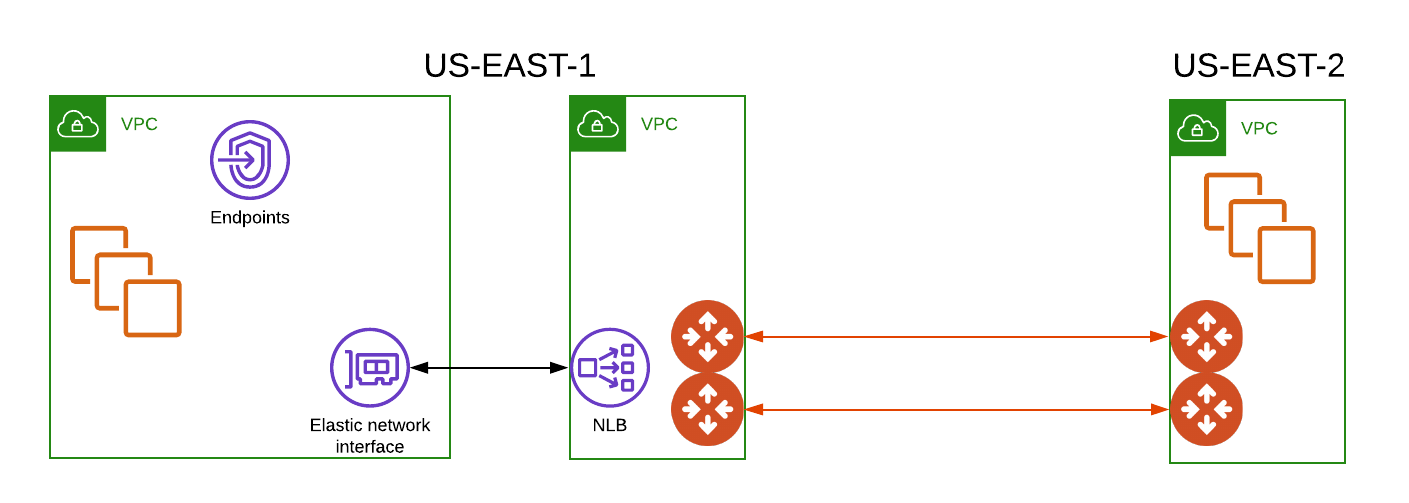
The end design will look similar to the diagram below.
 ## Environment Requirements
In this example there are:
* Two VPCs in US-East-1. One customer/partner VPC (10.10.10.0/24) with an
Endpoint, and our VPC (10.10.11.0/24) with an Endpoint Service tied to an
internal Load Balancer.
* One VPC (10.10.12.0/24) in US-East-2 that hosts our workload.
* A set of Aviatrix Gateways: two in Aviatrix VPC in US-East-1, and two in the
workload VPC in US-East-2. Deploying a set of HA Gateways is documented here.
Once deployed, a set of Site2Cloud tunnels will be built. Documentation for
building a tunnel between Aviatrix Gateways is here.
They should be built in an active-passive manner to avoid asymmetric routing in
AWS.
## Deploy an Internal Load Balancer in AWS
Before beginning, make sure you have private subnets in your Availability
Zones. You must select at least two Availability Zones in the following
procedure that traffic will be routed to, and the subnets in these
Availability Zones must be private to prevent the receipt of Internet traffic.
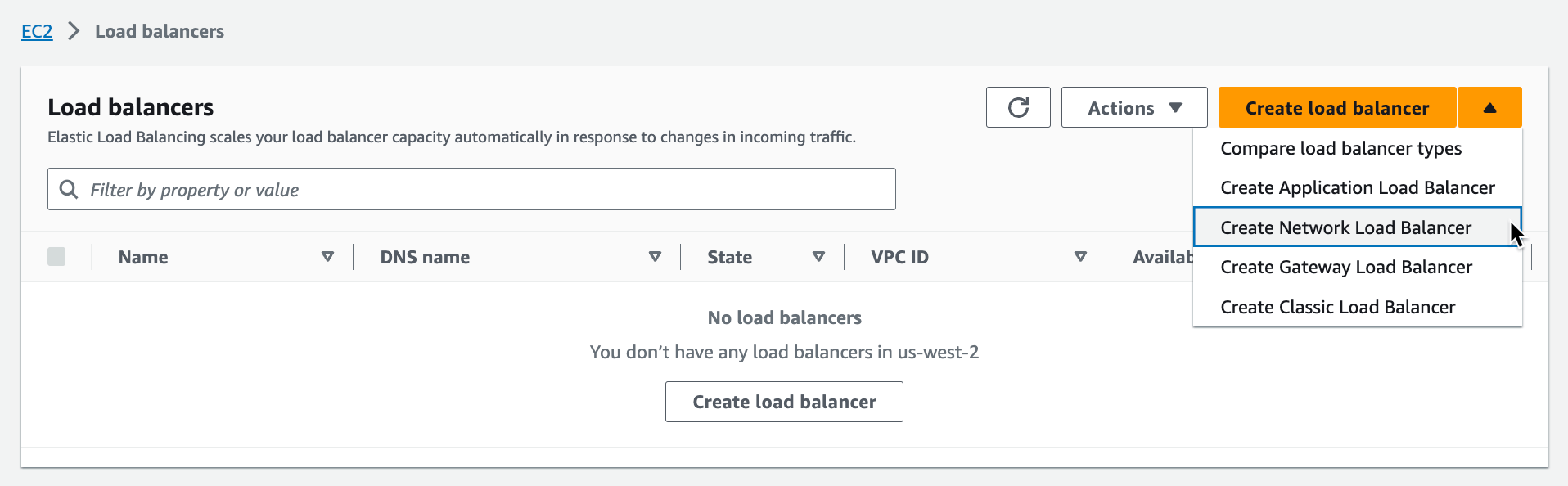
1. From the EC2 section in the AWS console, choose Load Balancers.
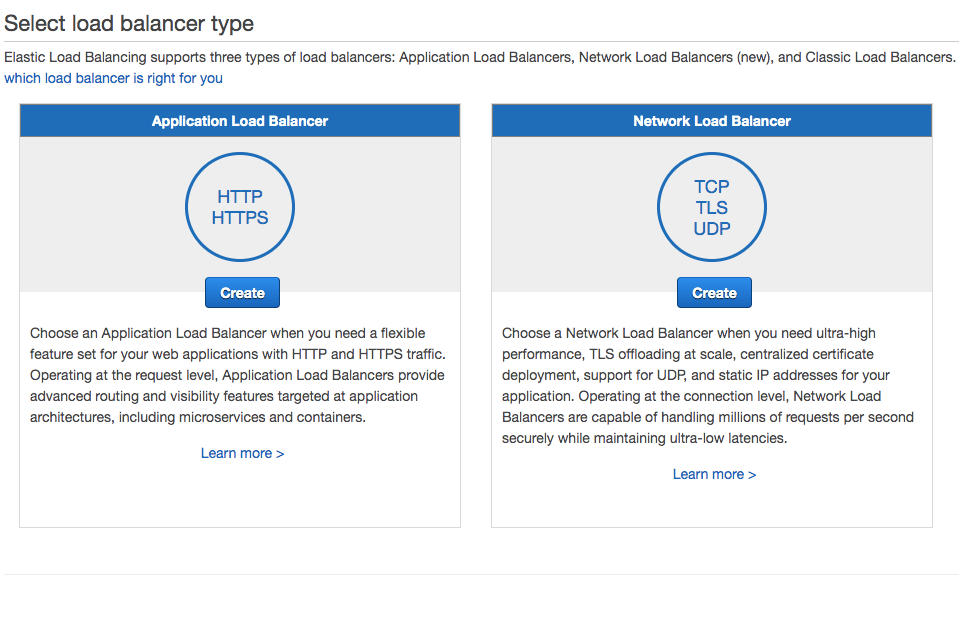
2. Click **Create Network Load Balancer**.
## Environment Requirements
In this example there are:
* Two VPCs in US-East-1. One customer/partner VPC (10.10.10.0/24) with an
Endpoint, and our VPC (10.10.11.0/24) with an Endpoint Service tied to an
internal Load Balancer.
* One VPC (10.10.12.0/24) in US-East-2 that hosts our workload.
* A set of Aviatrix Gateways: two in Aviatrix VPC in US-East-1, and two in the
workload VPC in US-East-2. Deploying a set of HA Gateways is documented here.
Once deployed, a set of Site2Cloud tunnels will be built. Documentation for
building a tunnel between Aviatrix Gateways is here.
They should be built in an active-passive manner to avoid asymmetric routing in
AWS.
## Deploy an Internal Load Balancer in AWS
Before beginning, make sure you have private subnets in your Availability
Zones. You must select at least two Availability Zones in the following
procedure that traffic will be routed to, and the subnets in these
Availability Zones must be private to prevent the receipt of Internet traffic.
1. From the EC2 section in the AWS console, choose Load Balancers.
2. Click **Create Network Load Balancer**.
 3. Give the load balancer a name.
4. Select the **Internal** Scheme.
5. Select the **IPv4** IP address type.
6. In the Network mapping area, select all the Availability Zones in the
US-East-1 VPC. Remember that these Availability Zones must contain private
subnets.
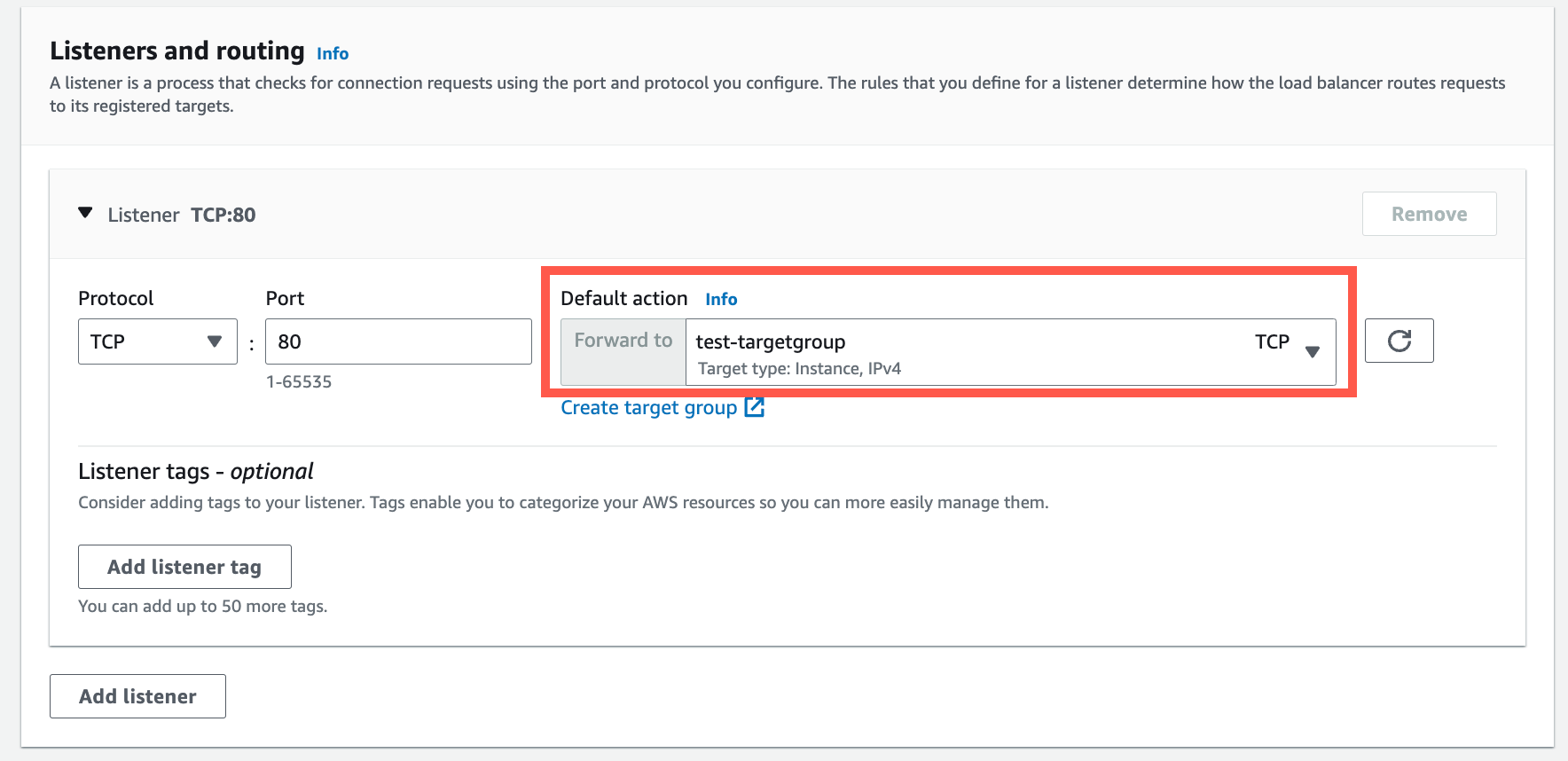
7. In the Listeners and routing area, select Protocol **TCP** and Port **80**.
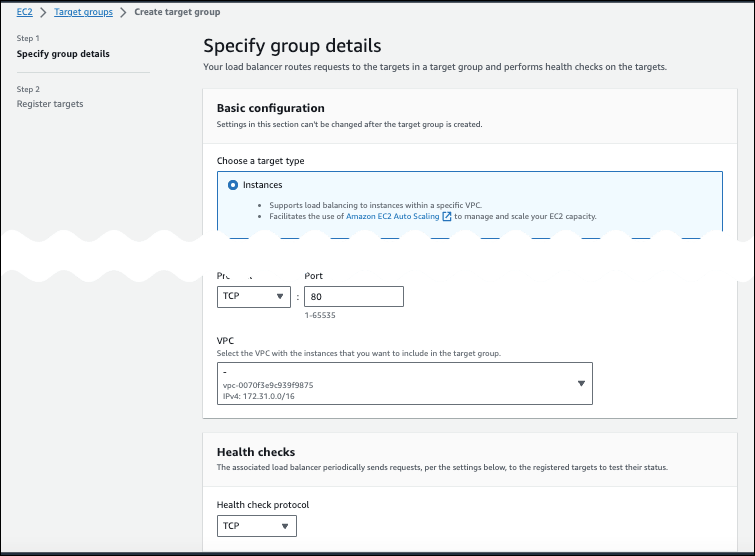
8. Also in this area, create a new target group using port 80 (this opens a new
tab in your browser). The target type is 'instance'. Health Checks will be
TCP-based.
3. Give the load balancer a name.
4. Select the **Internal** Scheme.
5. Select the **IPv4** IP address type.
6. In the Network mapping area, select all the Availability Zones in the
US-East-1 VPC. Remember that these Availability Zones must contain private
subnets.
7. In the Listeners and routing area, select Protocol **TCP** and Port **80**.
8. Also in this area, create a new target group using port 80 (this opens a new
tab in your browser). The target type is 'instance'. Health Checks will be
TCP-based.
 9. Click **Next**.
10. On the Register targets page, select the Aviatrix Gateways in our US-East-1
VPC and move them to Registered Targets.
11. Go back to the Load Balancer creation browser tab. In the Listeners and
routing area, select the target group you created above.
9. Click **Next**.
10. On the Register targets page, select the Aviatrix Gateways in our US-East-1
VPC and move them to Registered Targets.
11. Go back to the Load Balancer creation browser tab. In the Listeners and
routing area, select the target group you created above.
 12. Click **Create load balancer**.
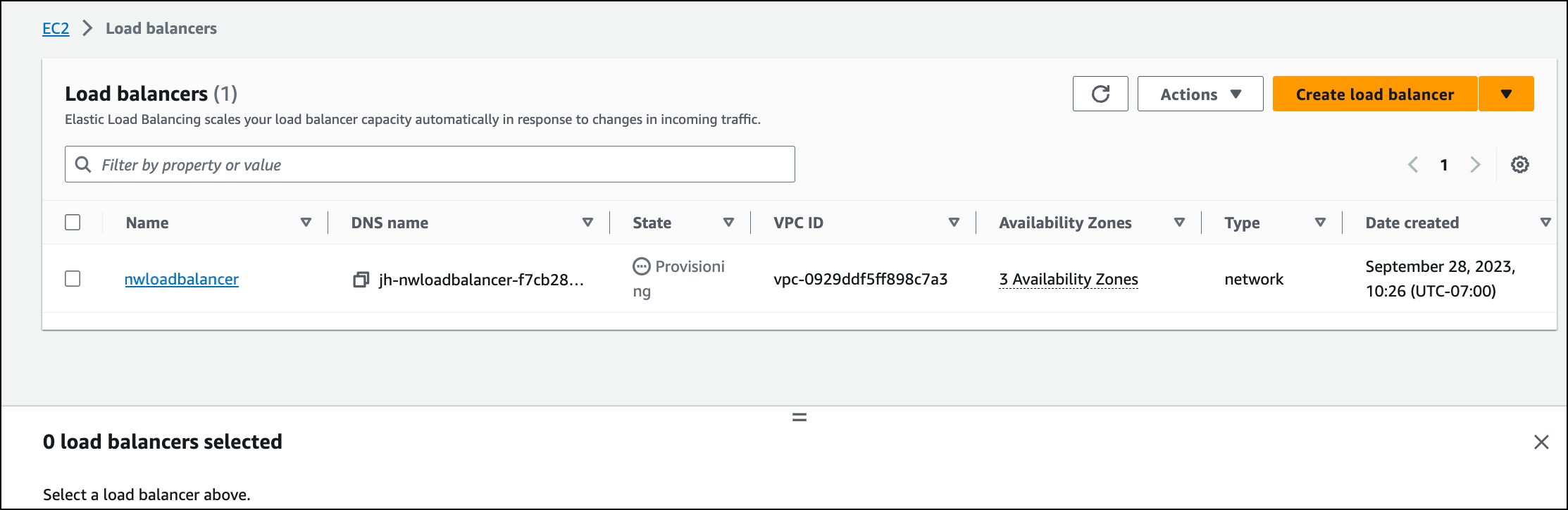
On the next tab you can view your load balancer.
12. Click **Create load balancer**.
On the next tab you can view your load balancer.
 ### Attach an Endpoint Service to Load Balancer
1. From the VPC dashboard area of the AWS console, click Endpoint Services.
2. Click **Create endpoint service**. The new Load Balancer will be in the list
as an available Network Load Balancer.
### Attach an Endpoint Service to Load Balancer
1. From the VPC dashboard area of the AWS console, click Endpoint Services.
2. Click **Create endpoint service**. The new Load Balancer will be in the list
as an available Network Load Balancer.
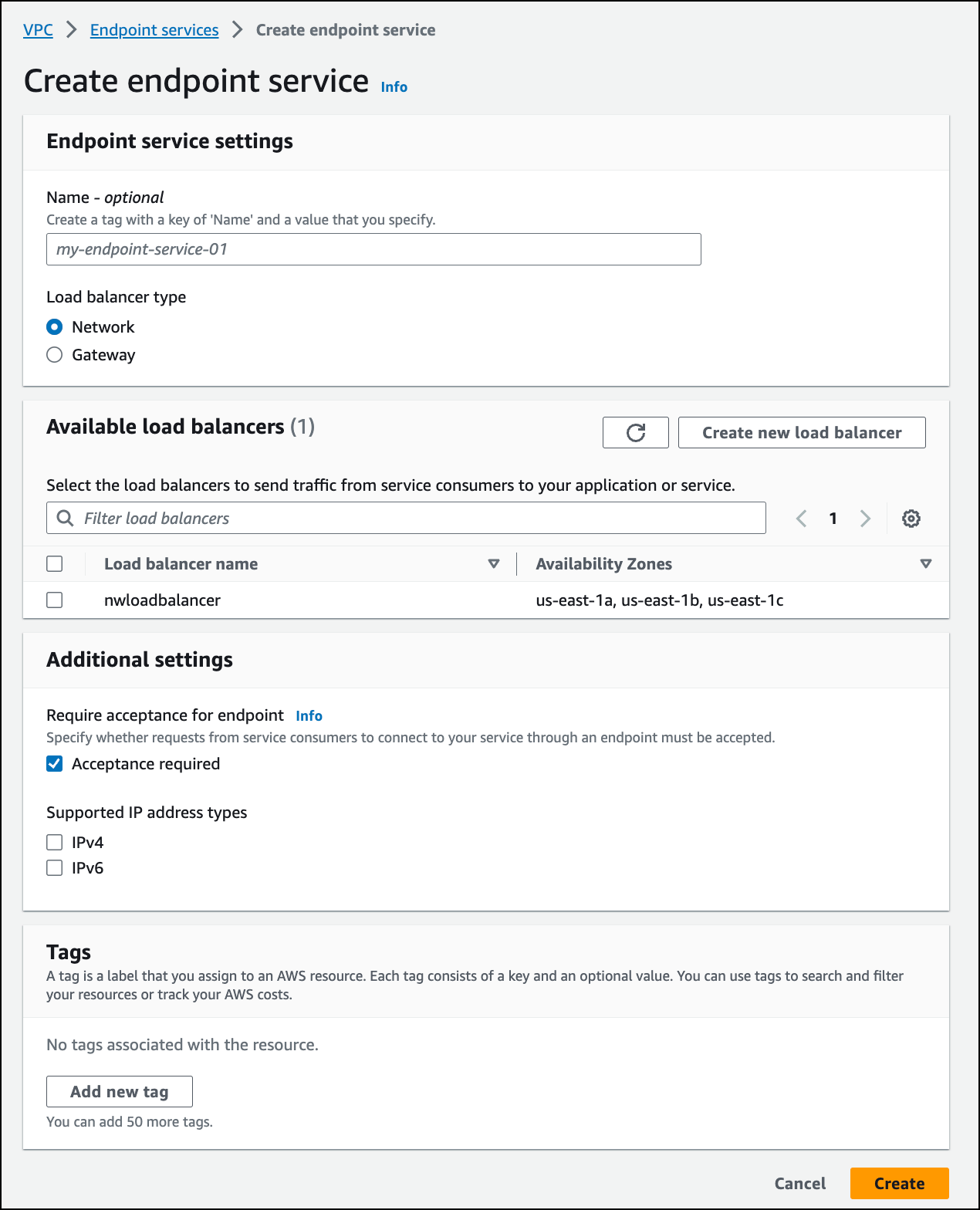 3. Enter a name for the endpoint.
4. Ensure that the **Network** Load balancer type is selected.
5. Under Available load balancers, select the load balancer you created.
6. Under Additional settings, select the **Acceptance required** checkbox.
7. Ensure that the **IPv4** supported IP address type is selected.
8. Click **Create**.
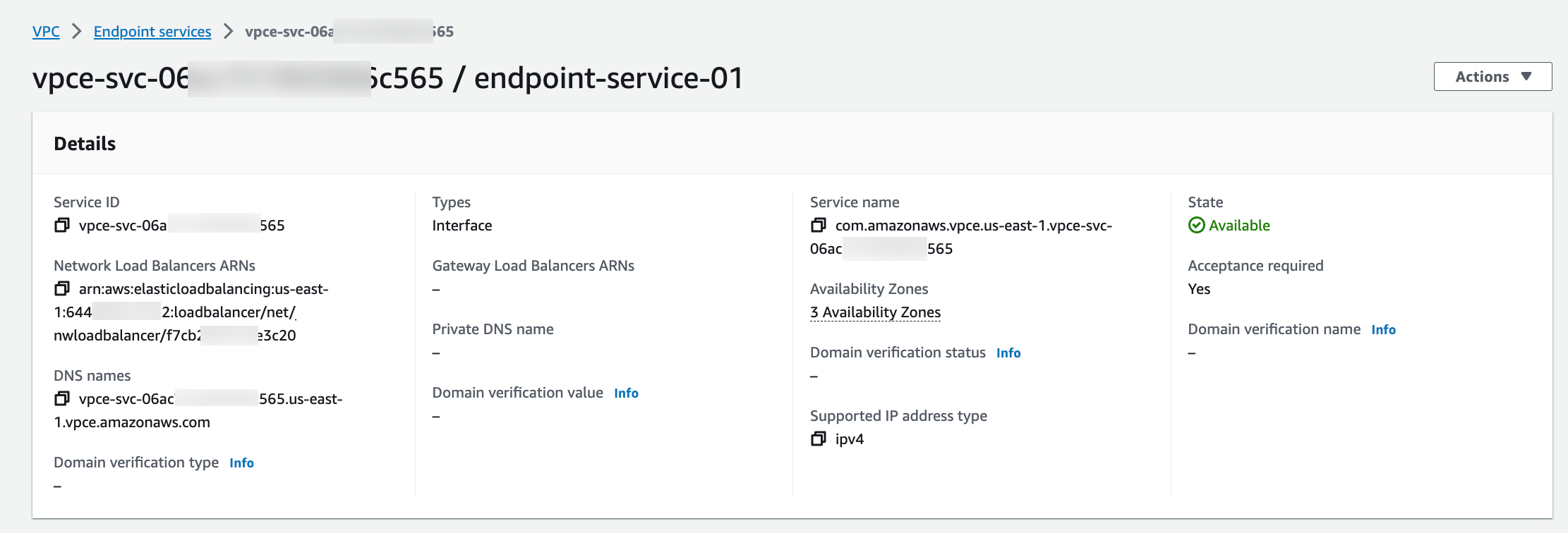
The Service ARN will be what our customer uses to register a service in their
VPC.
3. Enter a name for the endpoint.
4. Ensure that the **Network** Load balancer type is selected.
5. Under Available load balancers, select the load balancer you created.
6. Under Additional settings, select the **Acceptance required** checkbox.
7. Ensure that the **IPv4** supported IP address type is selected.
8. Click **Create**.
The Service ARN will be what our customer uses to register a service in their
VPC.
 ### Create Endpoint in Customer VPC
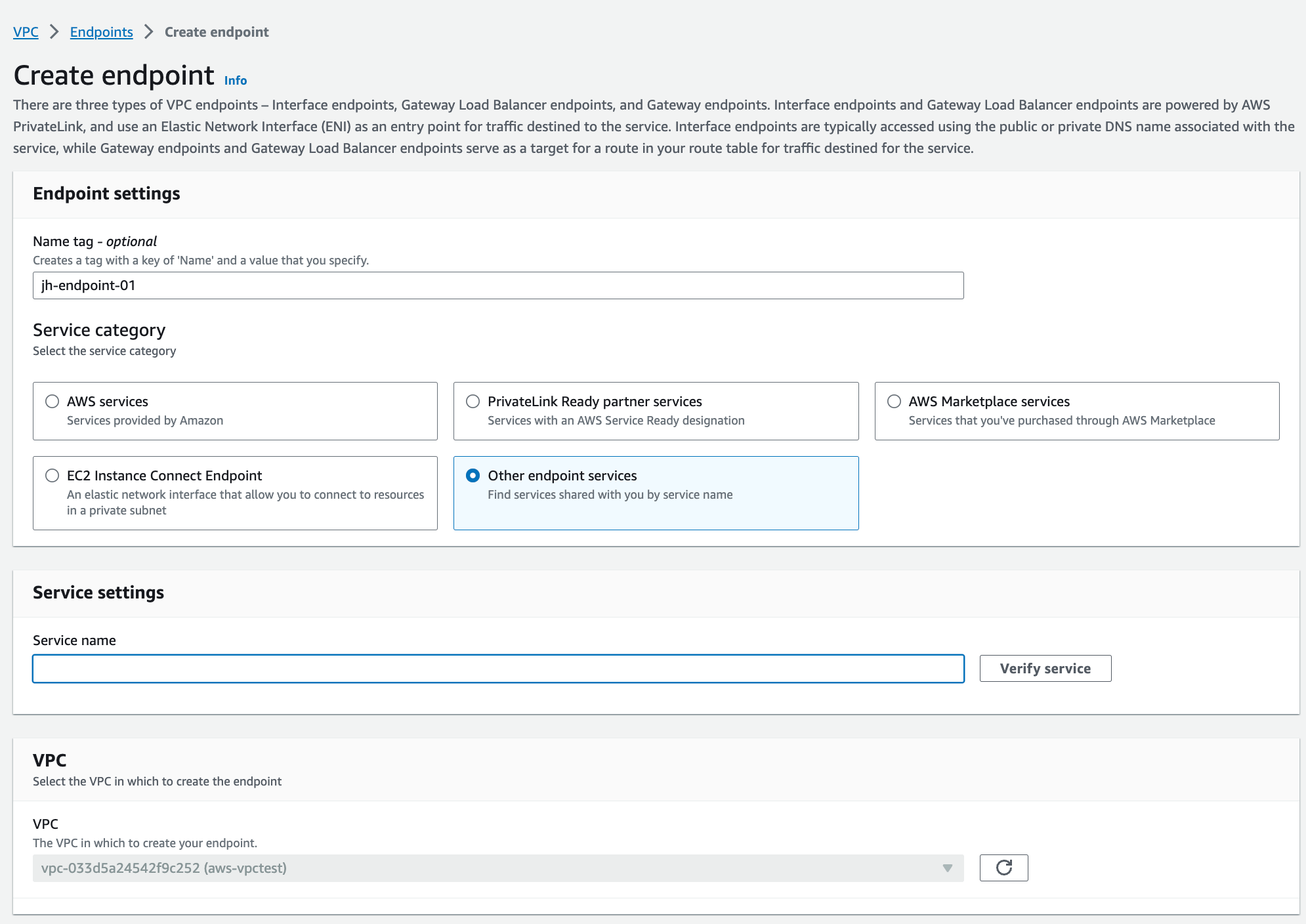
1. In the VPC area of the AWS console, create a new Endpoint.
2. Enter the ARN from the last step, and select the Customer VPC to expose an
endpoint in. Once built, the Endpoint DNS names can be used to route traffic.
### Create Endpoint in Customer VPC
1. In the VPC area of the AWS console, create a new Endpoint.
2. Enter the ARN from the last step, and select the Customer VPC to expose an
endpoint in. Once built, the Endpoint DNS names can be used to route traffic.
 ## Configure Destination NAT rules on Aviatrix Gateway
A Destination NAT (DNAT) rule sends traffic from our VPC in US-East-1 to the
workload VPC in US-East-2.
1. In Aviatrix CoPilot, click the name of the gateway associated with the VPC
you created in US-East-1.
2. On the Settings tab, expand the Network Address Translation (NAT) area.
3. Turn **On** Destination NAT.
4. Select the instance (not the HA instance).
5. Add a new rule with the following values:
* Src (Source) CIDR: 10.10.11.0/24 (source of US-East-1 VPC)
* Dst (Destination) CIDR: private IP of primary gateway
* Dst (Destination) Port: 80
* Protocol: TCP
* Connection: None
* DNAT IP: 10.10.12.69 (workload VPC available via Site2Cloud tunnel)
* DNAT port: 80
6. Click **Save**.
7. Turn **On** Apply Route Entry to commit the rule.
8. Select the HA instance and repeat steps 4-6 to create a second rule for
updating the Destination CIDR to point to the private IP of the HA gateway.
## Test Connections
Ensure health checks on your internal Load Balancer are healthy. Network
Security Groups on your workload VPC (10.10.12.0/24) allow traffic from the
Aviatrix VPC in US-East-1 (10.10.11.0/24).
Only one tunnel will be active in our scenario, and Aviatrix will update the
route tables to point to the active tunnel.
A simple way to test connectivity is to edit the /etc/hosts file on a Linux
instance to point to one of the DNS entries from the Endpoint in the Customer
VPC.
## Configure Destination NAT rules on Aviatrix Gateway
A Destination NAT (DNAT) rule sends traffic from our VPC in US-East-1 to the
workload VPC in US-East-2.
1. In Aviatrix CoPilot, click the name of the gateway associated with the VPC
you created in US-East-1.
2. On the Settings tab, expand the Network Address Translation (NAT) area.
3. Turn **On** Destination NAT.
4. Select the instance (not the HA instance).
5. Add a new rule with the following values:
* Src (Source) CIDR: 10.10.11.0/24 (source of US-East-1 VPC)
* Dst (Destination) CIDR: private IP of primary gateway
* Dst (Destination) Port: 80
* Protocol: TCP
* Connection: None
* DNAT IP: 10.10.12.69 (workload VPC available via Site2Cloud tunnel)
* DNAT port: 80
6. Click **Save**.
7. Turn **On** Apply Route Entry to commit the rule.
8. Select the HA instance and repeat steps 4-6 to create a second rule for
updating the Destination CIDR to point to the private IP of the HA gateway.
## Test Connections
Ensure health checks on your internal Load Balancer are healthy. Network
Security Groups on your workload VPC (10.10.12.0/24) allow traffic from the
Aviatrix VPC in US-East-1 (10.10.11.0/24).
Only one tunnel will be active in our scenario, and Aviatrix will update the
route tables to point to the active tunnel.
A simple way to test connectivity is to edit the /etc/hosts file on a Linux
instance to point to one of the DNS entries from the Endpoint in the Customer
VPC.