> ## Documentation Index
> Fetch the complete documentation index at: https://docs.aviatrix.com/llms.txt
> Use this file to discover all available pages before exploring further.
# Site2Cloud Solution for Encryption over Direct Connect/ExpressRoute
> AWS Direct Connect and Azure ExpressRoute provide a private routed circuit between an AWS VPC and an Azure VNet.
AWS Direct Connect and Azure ExpressRoute provide a private routed circuit
between an AWS VPC and an Azure VNet.
The Aviatrix Site2Cloud feature provides encryption over Direct Connect or
ExpressRoute. This document describes how to implement the feature over Express
Route. The same method applies to AWS.
The VNet VPN gateway that terminates the ExpressRoute connects VNet virtual
machines with the on-premises servers in a traditional routing domain. While
Azure ExpressRoute provides a private link between a on-premises network and an
Azure VNet without going through the Internet, packets between on-premises edge
and VNet travel through exchange points and third party provider networks and
are not encrypted.
## Aviatrix Solution for Encryption over ExpressRoute
The Aviatrix Site2Cloud solution can be applied to encrypt traffic over
ExpressRoute, as shown below.
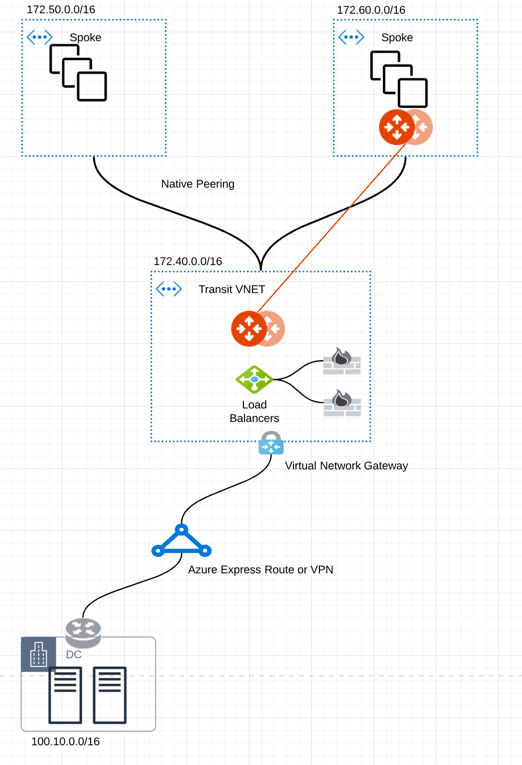 In the diagram above, an encrypted IPsec tunnel is established between an
Aviatrix gateway and the edge router.
An Aviatrix gateway is deployed in a separate subnet from the subnets where the
user virtual machines are launched. (The Controller is not drawn.) This is
necessary as the Aviatrix gateway is the router for user subnets to reach the
enterprise data center.
An Aviatrix gateway can be deployed in high availability (HA) where a backup
gateway is ready to take over should the primary IPsec tunnel go down.
## Configuration Workflow
Before you begin:
* Make sure your Controller is upgraded to the latest
version.
* Decide if you want to enable HA for the gateway.
The configuration workflow is as follows, with major steps highlighted.
1. Create an Aviatrix gateway in a VNet where you would like to connect to the
enterprise datacenter. Make sure the gateway is launched in a different
subnet from the user subnets.
* Create a Spoke Gateway
* Create a Specialty Gateway
If enabling HA, when creating the primary gateway, add a second gateway
Instance in the same VNet. The second Instance (for HA) should use a
different subnet from primary gateway and user subnets.
2. Create a Static
Route-Based external connection using the following information:
| Field | Value |
| ----------------------------- | -------------------------------------------------------------------------------------------------------------------------------------------------------------------------------------------------------------------------------------------------------------- |
| Local Gateway | Select the Gateway launched earlier as the primary gateway. |
| Real Local Subnet CIDR(s) | Specify a list of the source network CIDRs that will be encrypted. If left blank, the full CIDR is used. If you enter a value, make sure you include the VPC/VNet as well. These Local Subnets are advertised to Remote Subnets that the connection can reach. |
| Virtual Local Subnet CIDR(s) | A virtual local network CIDR that maps to the real local subnet |
| Remote Device Type | Select *Generic*. |
| Real Remote Subnet CIDR(s) | Enter the network CIDR of the Enterprise data center. If there are multiple subnets separate them with commas. |
| Virtual Remote Subnet CIDR(s) | A virtual remote network CIDR that maps to the real remote subnet |
| Pre-Shared Key | Optional (auto-generated if not entered) |
| Attach Over | Select *Private Network*. |
| Remote Device Destination IP | Enter the private IP address of the edge router for the Enterprise data center. |
3. If you added an HA entry to the Aviatrix Gateway created above, you can add
High Availability for this external connection. Click *+Connection* in the
Add External Connection dialog to add another row and enter the Remote Device
IP, Local Gateway Instance, Local Tunnel IP (optional), and Remote Tunnel IP
(optional) for the HA gateway.
4. Click *Save*.
## Download an External Connection Configuration
If you are connecting an Aviatrix gateway and an on-premises router or firewall,
Aviatrix can generate a configuration file that you can apply to your remote
router or firewall. The configuration file contains the Aviatrix gateway tunnel
details, such as the Public IPv4 and IPv6 addresses, VPC/VNet CIDR, pre-shared
key, and encryption algorithm. You can download the configuration file and then
import the details to your remote router or firewall to configure the other end
of the VPN tunnel.
After creating an external connection, to download an external connection
configuration:
1. In Aviatrix CoPilot, go to **Networking > Connectivity > External Connections
(S2C)** tab.
2. On the External Connections (S2C) tab, locate the connection you created and
click the vertical ellipsis
In the diagram above, an encrypted IPsec tunnel is established between an
Aviatrix gateway and the edge router.
An Aviatrix gateway is deployed in a separate subnet from the subnets where the
user virtual machines are launched. (The Controller is not drawn.) This is
necessary as the Aviatrix gateway is the router for user subnets to reach the
enterprise data center.
An Aviatrix gateway can be deployed in high availability (HA) where a backup
gateway is ready to take over should the primary IPsec tunnel go down.
## Configuration Workflow
Before you begin:
* Make sure your Controller is upgraded to the latest
version.
* Decide if you want to enable HA for the gateway.
The configuration workflow is as follows, with major steps highlighted.
1. Create an Aviatrix gateway in a VNet where you would like to connect to the
enterprise datacenter. Make sure the gateway is launched in a different
subnet from the user subnets.
* Create a Spoke Gateway
* Create a Specialty Gateway
If enabling HA, when creating the primary gateway, add a second gateway
Instance in the same VNet. The second Instance (for HA) should use a
different subnet from primary gateway and user subnets.
2. Create a Static
Route-Based external connection using the following information:
| Field | Value |
| ----------------------------- | -------------------------------------------------------------------------------------------------------------------------------------------------------------------------------------------------------------------------------------------------------------- |
| Local Gateway | Select the Gateway launched earlier as the primary gateway. |
| Real Local Subnet CIDR(s) | Specify a list of the source network CIDRs that will be encrypted. If left blank, the full CIDR is used. If you enter a value, make sure you include the VPC/VNet as well. These Local Subnets are advertised to Remote Subnets that the connection can reach. |
| Virtual Local Subnet CIDR(s) | A virtual local network CIDR that maps to the real local subnet |
| Remote Device Type | Select *Generic*. |
| Real Remote Subnet CIDR(s) | Enter the network CIDR of the Enterprise data center. If there are multiple subnets separate them with commas. |
| Virtual Remote Subnet CIDR(s) | A virtual remote network CIDR that maps to the real remote subnet |
| Pre-Shared Key | Optional (auto-generated if not entered) |
| Attach Over | Select *Private Network*. |
| Remote Device Destination IP | Enter the private IP address of the edge router for the Enterprise data center. |
3. If you added an HA entry to the Aviatrix Gateway created above, you can add
High Availability for this external connection. Click *+Connection* in the
Add External Connection dialog to add another row and enter the Remote Device
IP, Local Gateway Instance, Local Tunnel IP (optional), and Remote Tunnel IP
(optional) for the HA gateway.
4. Click *Save*.
## Download an External Connection Configuration
If you are connecting an Aviatrix gateway and an on-premises router or firewall,
Aviatrix can generate a configuration file that you can apply to your remote
router or firewall. The configuration file contains the Aviatrix gateway tunnel
details, such as the Public IPv4 and IPv6 addresses, VPC/VNet CIDR, pre-shared
key, and encryption algorithm. You can download the configuration file and then
import the details to your remote router or firewall to configure the other end
of the VPN tunnel.
After creating an external connection, to download an external connection
configuration:
1. In Aviatrix CoPilot, go to **Networking > Connectivity > External Connections
(S2C)** tab.
2. On the External Connections (S2C) tab, locate the connection you created and
click the vertical ellipsis  icon
on the right side of the row.
3. Select the following values:
* **Vendor**: Select your remote site device.
* Select **Generic** for anything that is not an Aviatrix gateway.
* Select **Aviatrix**, if you are connecting two Aviatrix gateways.
* **Platform and Software**:
* If you selected a Generic vendor, the Platform field is populated as
Generic, and the Software field is populated with Vendor Independent.
* If you selected the Aviatrix vendor, the Platform field is populated with
UCC, and the Software version is 1.0.
* If you selected a specific hardware vendor (such as Cisco), select from
the available platforms belonging to that vendor are displayed in the
Platform field (ISR, ASR, and CSR are for Cisco routers), and the
Software field is populated with the related software version.
4. Click **Download**.
At the enterprise data center or remote site, configure encryption on the edge
device. Make sure your peer network is Subnet2 and Subnet3, as shown in this
example.
## Related Topics
* [Externaldevice Settings](https://legacy.docs.aviatrix.com/documentation/latest/network/externaldevice-settings.html)
icon
on the right side of the row.
3. Select the following values:
* **Vendor**: Select your remote site device.
* Select **Generic** for anything that is not an Aviatrix gateway.
* Select **Aviatrix**, if you are connecting two Aviatrix gateways.
* **Platform and Software**:
* If you selected a Generic vendor, the Platform field is populated as
Generic, and the Software field is populated with Vendor Independent.
* If you selected the Aviatrix vendor, the Platform field is populated with
UCC, and the Software version is 1.0.
* If you selected a specific hardware vendor (such as Cisco), select from
the available platforms belonging to that vendor are displayed in the
Platform field (ISR, ASR, and CSR are for Cisco routers), and the
Software field is populated with the related software version.
4. Click **Download**.
At the enterprise data center or remote site, configure encryption on the edge
device. Make sure your peer network is Subnet2 and Subnet3, as shown in this
example.
## Related Topics
* [Externaldevice Settings](https://legacy.docs.aviatrix.com/documentation/latest/network/externaldevice-settings.html)