> ## Documentation Index
> Fetch the complete documentation index at: https://docs.aviatrix.com/llms.txt
> Use this file to discover all available pages before exploring further.
# Overview of AWS Transit Gateway Orchestrator Features
> The Aviatrix CoPilot > Networking > Connectivity > AWS TGW tab provides a list of AWS Transit Gateways. Select any AWS TGW on this page to review and create Attachments, Network Domains, Connection Policies, TGW Routes, or Approvals for any AWS TGW.
The **Aviatrix CoPilot > Networking > Connectivity > AWS TGW tab** provides a
list of AWS Transit Gateways. Select any AWS TGW on this page to review and
create Attachments, Network Domains, Connection Policies, TGW Routes, or
Approvals for any AWS TGW.
For background information, refer to the
TGW Orchestrator FAQ
.
On this page, you can:
* [Create](https://legacy.docs.aviatrix.com/documentation/latest/network/tgw-create.html)
an AWS TGW.
* [Edit](#audit-settings) audit settings.
* Create AWS TGW [attachments](#attachments-tab), including attachments to
Transit Gateways, VPCs, VPNs, Direct Connects, AWS TGW Peerings, and TGW
Connections.
* Create TGW-based [Network Domains](#creating-an-aws-tgw-network-domain).
* Review [connection policies](#connection-policies-tab).
* Review [TGW Routes](#tgw-routes-tab).
* Review [TGW Approvals](#approval-tab).
## Creating an AWS TGW
To use the AWS TGW (Transit Gateway) feature, you must first create an AWS
Transit Gateway.
This step creates an AWS Transit Gateway in a specified region with a specified
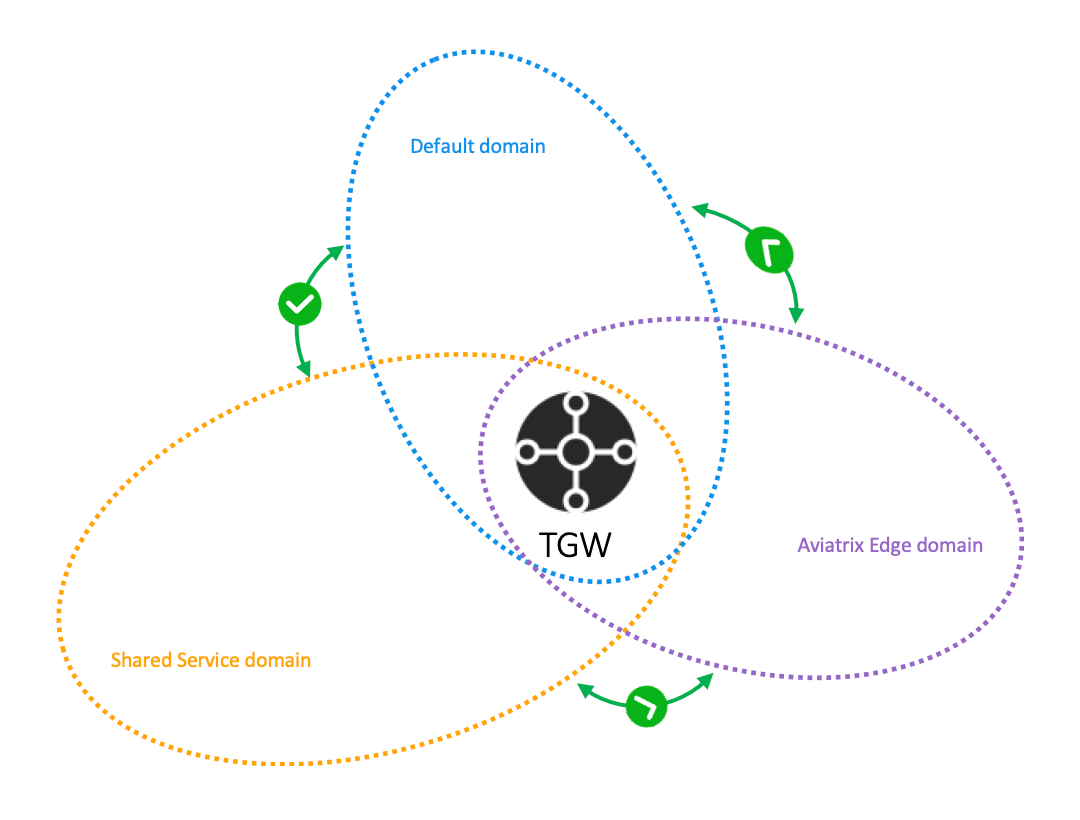
AWS account. Aviatrix CoPilot also automatically creates the **Default\_Domain**,
the **Shared\_Service\_Domain** and the **Aviatrix\_Edge\_Domain** and the
corresponding AWS Transit Gateway route tables.
The three domains are connected. If you attach a VPC to the Default Domain or
Shared Service Domain, the VPCs can communicate with each other and can access
on-prem environments through the Aviatrix Edge Domain.
The three domains are connected, implying that if you attach a VPC to the
Default Domain or Shared Service Domain, the VPCs can communicate with each
other and can access on-prem through the Aviatrix Edge Domain.
To create an AWS Transit Gateway:
1. Go to **Aviatrix CoPilot > Networking > Connectivity > select the AWS TGW
tab**.
2. Click **+ AWS TGW**.
 | Setting | Value |
| ----------------------- | ------------------------------------------------------------------------------------------------------------------------------------------------------------------------------------------------------------------------------------------------------------------------------------------------------------------------------------------------------------------------------------------------------------------------------------------------------------------------------------- |
| Account Name | An Aviatrix account that corresponds to an IAM role or account in AWS. |
| Region | One of the AWS regions. |
| TGW Name | The name of the AWS Transit Gateway. |
| AWS Side AS Number | TGW ASN number. The default AS number is 64512. |
| **Advanced Settings** | |
| FireNet Inspection Mode | Select either mode: **Domain-Based** - This mode allows you to specify a Spoke VPC/VNet that needs inspection by defining a connection policy of the Spoke VPC/VNet's Security Domain to the Firewall Domain. **Connection-Based** - This mode allows you to inspect traffic going across a specific pair of Security Domains. This inspection mode reduces the amount of traffic being inspected and reduces the instances size requirements on both FireNet Gateways and firewalls. |
| TGW CIDR(s) | Enter the TGW CIDR ranges. |
3. Click **Save**.
The AWS TGW is created. If for some reason it was not created, you can go to
Monitor > Notifications > Tasks and check what errors occurred during creation.
## Audit Settings
To edit audit settings:
1. Go to **Aviatrix CoPilot > Networking > Connectivity > AWS TGW tab**.
2. Click **Audit Settings**.
3. Turn the **Auto Edit (Every Night)** setting on to set up an audit every
night.
This setting is Off by default. When it is Off, only manual auditing occurs.
4. Click **Save**.
Your edits are saved.
## Attachments tab
The Attachments tab lists the TGW attachments. To review attachments:
1. Go to **Aviatrix CoPilot > Networking > Connectivity > select the AWS TGW
tab > select an existing AWS TGW**.
2. Select the **Attachments** tab.
Use the tabs under Attachments to review and create attachments to:
* [Transit Gateways](https://legacy.docs.aviatrix.com/documentation/latest/network/tgw-attach-transit-gw-to-tgw.html)
* [VPCs](https://legacy.docs.aviatrix.com/documentation/latest/network/tgw-vpc-attachment-create.html)
* [VPNs](https://legacy.docs.aviatrix.com/documentation/latest/network/tgw-vpn-connection-create.html)
* [Direct Connects](https://legacy.docs.aviatrix.com/documentation/latest/network/tgw-direct-connect.html)
* [AWS TGW Peerings](https://legacy.docs.aviatrix.com/documentation/latest/network/tgw-peering-attachment-create.html)
* [TGW Connections](https://legacy.docs.aviatrix.com/documentation/latest/network/tgw-connect.html)
## Network Domains tab
The Network Domains tab displays the TGW route table entries. You can also add
an AWS TGW network domain here.
### Creating an AWS TGW Network Domain
To create network domains in an AWS TGW:
1. Go to Networking > Connectivity > AWS TGW.
2. Click on an existing AWS TGW and go to the Network Domains tab.
3. Click **+ Network Domain**.
4. Enter a name for the network domain.
5. Select the network domain type:
* User Domain
* Aviatrix Firewall Domain: Select if this domain will be used in a Transit
FireNet configuration. You can then select a previously created AWS TGW
FireNet (optional).
If you select an AWS TGW FireNet, it must be in the same region as the AWS
TGW (for example, us-east-1).
* Native Firewall Domain: Select if this domain will be used for non-Aviatrix
Transit FireNet based firewall traffic inspection (only supports an
active-standby firewall deployment).
* Native Egress Domain: Select if this domain will be used for non-Aviatrix
Transit FireNet based Internet-bound traffic (only supports an active-standby
firewall deployment).
6. Click **Save**.
If you associate one of the above AWS TGW network domains to the network domain,
now any resources (regardless of whether they are AWS TGW or Aviatrix Transit)
that share the network domain can communicate with each other. The following is
now also possible:
* AWS TGW native Edge connections can route to Spokes attached to an Aviatrix
Transit network.
* Can peer an AVX Transit to an AWS TGW that is connected to on-prem. The
network domains in both of these domains will work across Transit gateway
peering and vice versa (but not AWS TGW peering).
* Any two Aviatrix network domains that are connected are able to route to TGW
Shared Services (for example, if Transit domain 1 is connected to Transit
domain 2, and TGW domain A is associated with Transit domain 1, then TGW
domain A can communicate with Spoke gateways in Transit domain 2).
* TGW domains associated with any two connected Aviatrix network domains can
communicate with each other (as long as they are not in the same TGW).
VPCs in the same AWS TGW but in different domains cannot communicate with each
other unless you configure a connection policy.
For a VPC attached to the TGW domains that are connected to an Edge domain,
its VPC CIDR is propagated to the main route table of the Transit gateway and
its connected Transit/Spoke gateways.
### Enabling Intra Domain Inspection
Intra domain inspection allows traffic between AWS TGW VPC/VNets in the same
Network Domain to be redirected to a Firewall Domain for inspection before
reaching the destination.
By default, traffic between VPCs in the same Network Domain does not get
inspected by firewalls in the FireNet deployment.
You can only enable Intra Domain Inspection if the selected AWS TGW has one of
its Firewall Domains selected in an AWS TGW FireNet.
To enable intra domain inspection:
1. Go to **Aviatrix CoPilot > Networking > Connectivity > select the AWS TGW
tab > select the AWS TGW > select the Network Domains tab**.
2. Find the Shared\_Service\_Domain in the table and click on the three dots icon
in its row. Select **Enable Intra Domain Inspection**.
3. In the dialog, select a Firewall Domain.
4. Click **Enable**.
### Enabling Egress Inspection
This option applies to connection-based inspection mode. When connection-based
inspection is enabled, use this option to enable Egress inspection for a
specific domain.
To enable intra domain inspection:
1. Go to **Aviatrix CoPilot > Networking > Connectivity > select the AWS TGW
tab > select the AWS TGW > select the Network Domains tab**.
2. Find the Network Domain in the table and click on the three dots icon in its
row. Select **Enable Egress Domain Inspection**.
## Connection Policies tab
To view Connection Policies:
1. Go to **Aviatrix CoPilot > Networking > Connectivity > select the AWS TGW
tab > select an existing AWS TGW**.
2. Select the **Connection Policies** tab.
3. Use the Network Domain dropdown menu to view all gateways in that domain that
are available for connection to this AWS TGW.
## Inspecting Inter Region Traffic
The Network Domain associated with each TGW Peering attachment is available for
user. The Network Domain has the name **peering\_\**. For example,
for the TGW with name tgw-1, the peering Network Domain is **peering\_tgw-1**.
You can specify a FireNet inspection policy on this Network Domain. When you do
so, it implies that any cross-region traffic is inspected.
To connect the peering domain with FireNet Domain:
1. Go to **Aviatrix CoPilot > Networking > Connectivity > select the AWS TGW
tab > select an existing AWS TGW**.
2. Select the **Connection Policies** tab.
3. Find the Network Domain in the table. In the Connection Policy column, click
the toggle switch to enable the connection.
4. Click **Commit**.
To avoid double inspections by two FireNet gateways associated with each TGW,
configure the connection policy between peering domain and FireNet domain on
only one TGW.
## TGW Routes tab
The TGW Routes tab displays the routes in each network domain. To review TGW
Routes:
1. Go to **Aviatrix CoPilot > Networking > Connectivity > select the AWS TGW
tab > select an existing AWS TGW**.
2. Select the **TGW Routes** tab.
3. Click on the **Network Domains** dropdown menu to select a different domain
to review.
## Approval tab
### TGW Approval
| Setting | Value |
| ----------------------- | ------------------------------------------------------------------------------------------------------------------------------------------------------------------------------------------------------------------------------------------------------------------------------------------------------------------------------------------------------------------------------------------------------------------------------------------------------------------------------------- |
| Account Name | An Aviatrix account that corresponds to an IAM role or account in AWS. |
| Region | One of the AWS regions. |
| TGW Name | The name of the AWS Transit Gateway. |
| AWS Side AS Number | TGW ASN number. The default AS number is 64512. |
| **Advanced Settings** | |
| FireNet Inspection Mode | Select either mode: **Domain-Based** - This mode allows you to specify a Spoke VPC/VNet that needs inspection by defining a connection policy of the Spoke VPC/VNet's Security Domain to the Firewall Domain. **Connection-Based** - This mode allows you to inspect traffic going across a specific pair of Security Domains. This inspection mode reduces the amount of traffic being inspected and reduces the instances size requirements on both FireNet Gateways and firewalls. |
| TGW CIDR(s) | Enter the TGW CIDR ranges. |
3. Click **Save**.
The AWS TGW is created. If for some reason it was not created, you can go to
Monitor > Notifications > Tasks and check what errors occurred during creation.
## Audit Settings
To edit audit settings:
1. Go to **Aviatrix CoPilot > Networking > Connectivity > AWS TGW tab**.
2. Click **Audit Settings**.
3. Turn the **Auto Edit (Every Night)** setting on to set up an audit every
night.
This setting is Off by default. When it is Off, only manual auditing occurs.
4. Click **Save**.
Your edits are saved.
## Attachments tab
The Attachments tab lists the TGW attachments. To review attachments:
1. Go to **Aviatrix CoPilot > Networking > Connectivity > select the AWS TGW
tab > select an existing AWS TGW**.
2. Select the **Attachments** tab.
Use the tabs under Attachments to review and create attachments to:
* [Transit Gateways](https://legacy.docs.aviatrix.com/documentation/latest/network/tgw-attach-transit-gw-to-tgw.html)
* [VPCs](https://legacy.docs.aviatrix.com/documentation/latest/network/tgw-vpc-attachment-create.html)
* [VPNs](https://legacy.docs.aviatrix.com/documentation/latest/network/tgw-vpn-connection-create.html)
* [Direct Connects](https://legacy.docs.aviatrix.com/documentation/latest/network/tgw-direct-connect.html)
* [AWS TGW Peerings](https://legacy.docs.aviatrix.com/documentation/latest/network/tgw-peering-attachment-create.html)
* [TGW Connections](https://legacy.docs.aviatrix.com/documentation/latest/network/tgw-connect.html)
## Network Domains tab
The Network Domains tab displays the TGW route table entries. You can also add
an AWS TGW network domain here.
### Creating an AWS TGW Network Domain
To create network domains in an AWS TGW:
1. Go to Networking > Connectivity > AWS TGW.
2. Click on an existing AWS TGW and go to the Network Domains tab.
3. Click **+ Network Domain**.
4. Enter a name for the network domain.
5. Select the network domain type:
* User Domain
* Aviatrix Firewall Domain: Select if this domain will be used in a Transit
FireNet configuration. You can then select a previously created AWS TGW
FireNet (optional).
If you select an AWS TGW FireNet, it must be in the same region as the AWS
TGW (for example, us-east-1).
* Native Firewall Domain: Select if this domain will be used for non-Aviatrix
Transit FireNet based firewall traffic inspection (only supports an
active-standby firewall deployment).
* Native Egress Domain: Select if this domain will be used for non-Aviatrix
Transit FireNet based Internet-bound traffic (only supports an active-standby
firewall deployment).
6. Click **Save**.
If you associate one of the above AWS TGW network domains to the network domain,
now any resources (regardless of whether they are AWS TGW or Aviatrix Transit)
that share the network domain can communicate with each other. The following is
now also possible:
* AWS TGW native Edge connections can route to Spokes attached to an Aviatrix
Transit network.
* Can peer an AVX Transit to an AWS TGW that is connected to on-prem. The
network domains in both of these domains will work across Transit gateway
peering and vice versa (but not AWS TGW peering).
* Any two Aviatrix network domains that are connected are able to route to TGW
Shared Services (for example, if Transit domain 1 is connected to Transit
domain 2, and TGW domain A is associated with Transit domain 1, then TGW
domain A can communicate with Spoke gateways in Transit domain 2).
* TGW domains associated with any two connected Aviatrix network domains can
communicate with each other (as long as they are not in the same TGW).
VPCs in the same AWS TGW but in different domains cannot communicate with each
other unless you configure a connection policy.
For a VPC attached to the TGW domains that are connected to an Edge domain,
its VPC CIDR is propagated to the main route table of the Transit gateway and
its connected Transit/Spoke gateways.
### Enabling Intra Domain Inspection
Intra domain inspection allows traffic between AWS TGW VPC/VNets in the same
Network Domain to be redirected to a Firewall Domain for inspection before
reaching the destination.
By default, traffic between VPCs in the same Network Domain does not get
inspected by firewalls in the FireNet deployment.
You can only enable Intra Domain Inspection if the selected AWS TGW has one of
its Firewall Domains selected in an AWS TGW FireNet.
To enable intra domain inspection:
1. Go to **Aviatrix CoPilot > Networking > Connectivity > select the AWS TGW
tab > select the AWS TGW > select the Network Domains tab**.
2. Find the Shared\_Service\_Domain in the table and click on the three dots icon
in its row. Select **Enable Intra Domain Inspection**.
3. In the dialog, select a Firewall Domain.
4. Click **Enable**.
### Enabling Egress Inspection
This option applies to connection-based inspection mode. When connection-based
inspection is enabled, use this option to enable Egress inspection for a
specific domain.
To enable intra domain inspection:
1. Go to **Aviatrix CoPilot > Networking > Connectivity > select the AWS TGW
tab > select the AWS TGW > select the Network Domains tab**.
2. Find the Network Domain in the table and click on the three dots icon in its
row. Select **Enable Egress Domain Inspection**.
## Connection Policies tab
To view Connection Policies:
1. Go to **Aviatrix CoPilot > Networking > Connectivity > select the AWS TGW
tab > select an existing AWS TGW**.
2. Select the **Connection Policies** tab.
3. Use the Network Domain dropdown menu to view all gateways in that domain that
are available for connection to this AWS TGW.
## Inspecting Inter Region Traffic
The Network Domain associated with each TGW Peering attachment is available for
user. The Network Domain has the name **peering\_\**. For example,
for the TGW with name tgw-1, the peering Network Domain is **peering\_tgw-1**.
You can specify a FireNet inspection policy on this Network Domain. When you do
so, it implies that any cross-region traffic is inspected.
To connect the peering domain with FireNet Domain:
1. Go to **Aviatrix CoPilot > Networking > Connectivity > select the AWS TGW
tab > select an existing AWS TGW**.
2. Select the **Connection Policies** tab.
3. Find the Network Domain in the table. In the Connection Policy column, click
the toggle switch to enable the connection.
4. Click **Commit**.
To avoid double inspections by two FireNet gateways associated with each TGW,
configure the connection policy between peering domain and FireNet domain on
only one TGW.
## TGW Routes tab
The TGW Routes tab displays the routes in each network domain. To review TGW
Routes:
1. Go to **Aviatrix CoPilot > Networking > Connectivity > select the AWS TGW
tab > select an existing AWS TGW**.
2. Select the **TGW Routes** tab.
3. Click on the **Network Domains** dropdown menu to select a different domain
to review.
## Approval tab
### TGW Approval
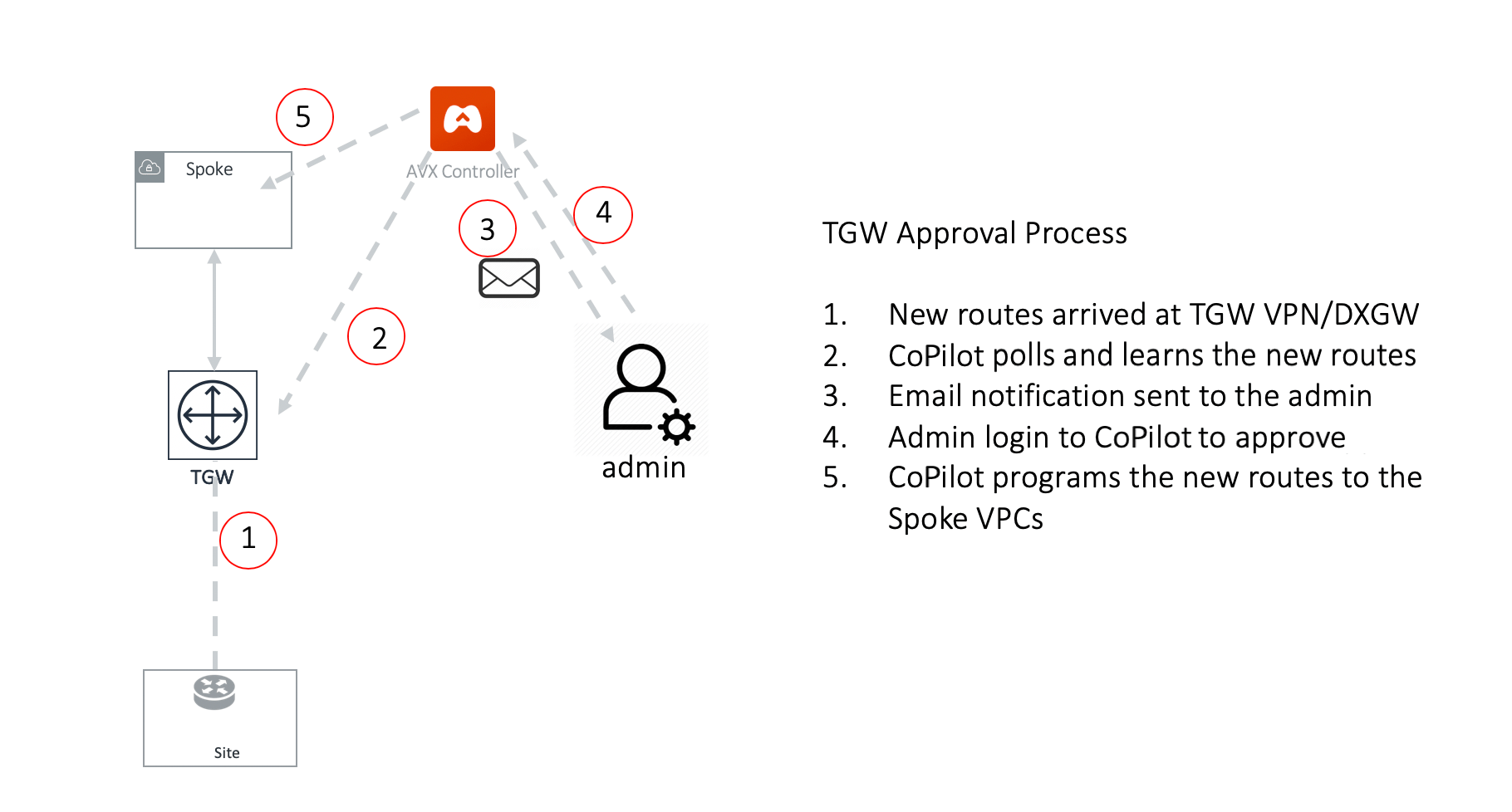 TGW VPN and TGW Direct Connect Gateway (TGW DXGW) dynamically learns BGP routes
from remote peer.
Aviatrix CoPilot periodically pulls the TGW route table and propagate these
routes to Spoke VPCs route table that have connection policy to the VPN.
There are scenarios where you require an approval process before these learned
CIDRs propagation take place. For example, a specific TGW VPN may be connected
to a partner network and you need to make sure undesirable routes, such as the
default route (0.0.0.0/0) are not propagated into your own network and
accidentally bring down the network.
Approval is enabled on per TGW VPN and TGW DXGW bases. When Approval is enabled
on a TGW VPN, dynamically learned routes trigger an email to the CoPilot admin.
To review Approvals:
1. Go to **Networking > Connectivity > select the AWS TGW tab > select the AWS
TGW > select the Approval tab**.
2. Click on the **AWS TGW Attachment** dropdown to select the attachment to
review.
3. Make sure **Learned CIDR Approval** is enabled.
4. All routes appear, both unapproved and already approved.
5. To approve an unapproved route, click **Approve** in its row. Now, the route
can be propagated.
6. To disapprove an approved route, click **Remove** in its row.
### How the Approval Feature Works
When Learned CIDR Approval is enabled, TGW route table route propagation to the
connected Network Domain is turned off. That is, the TGW VPN/DXGW learned routes
are statically programmed into the TGW route table of connected Network Domains
after the routes are approved.
This is illustrated in the following two examples.
#### Example 1: Two TGW VPN/DXGW in the same domain
TGW VPN and TGW Direct Connect Gateway (TGW DXGW) dynamically learns BGP routes
from remote peer.
Aviatrix CoPilot periodically pulls the TGW route table and propagate these
routes to Spoke VPCs route table that have connection policy to the VPN.
There are scenarios where you require an approval process before these learned
CIDRs propagation take place. For example, a specific TGW VPN may be connected
to a partner network and you need to make sure undesirable routes, such as the
default route (0.0.0.0/0) are not propagated into your own network and
accidentally bring down the network.
Approval is enabled on per TGW VPN and TGW DXGW bases. When Approval is enabled
on a TGW VPN, dynamically learned routes trigger an email to the CoPilot admin.
To review Approvals:
1. Go to **Networking > Connectivity > select the AWS TGW tab > select the AWS
TGW > select the Approval tab**.
2. Click on the **AWS TGW Attachment** dropdown to select the attachment to
review.
3. Make sure **Learned CIDR Approval** is enabled.
4. All routes appear, both unapproved and already approved.
5. To approve an unapproved route, click **Approve** in its row. Now, the route
can be propagated.
6. To disapprove an approved route, click **Remove** in its row.
### How the Approval Feature Works
When Learned CIDR Approval is enabled, TGW route table route propagation to the
connected Network Domain is turned off. That is, the TGW VPN/DXGW learned routes
are statically programmed into the TGW route table of connected Network Domains
after the routes are approved.
This is illustrated in the following two examples.
#### Example 1: Two TGW VPN/DXGW in the same domain
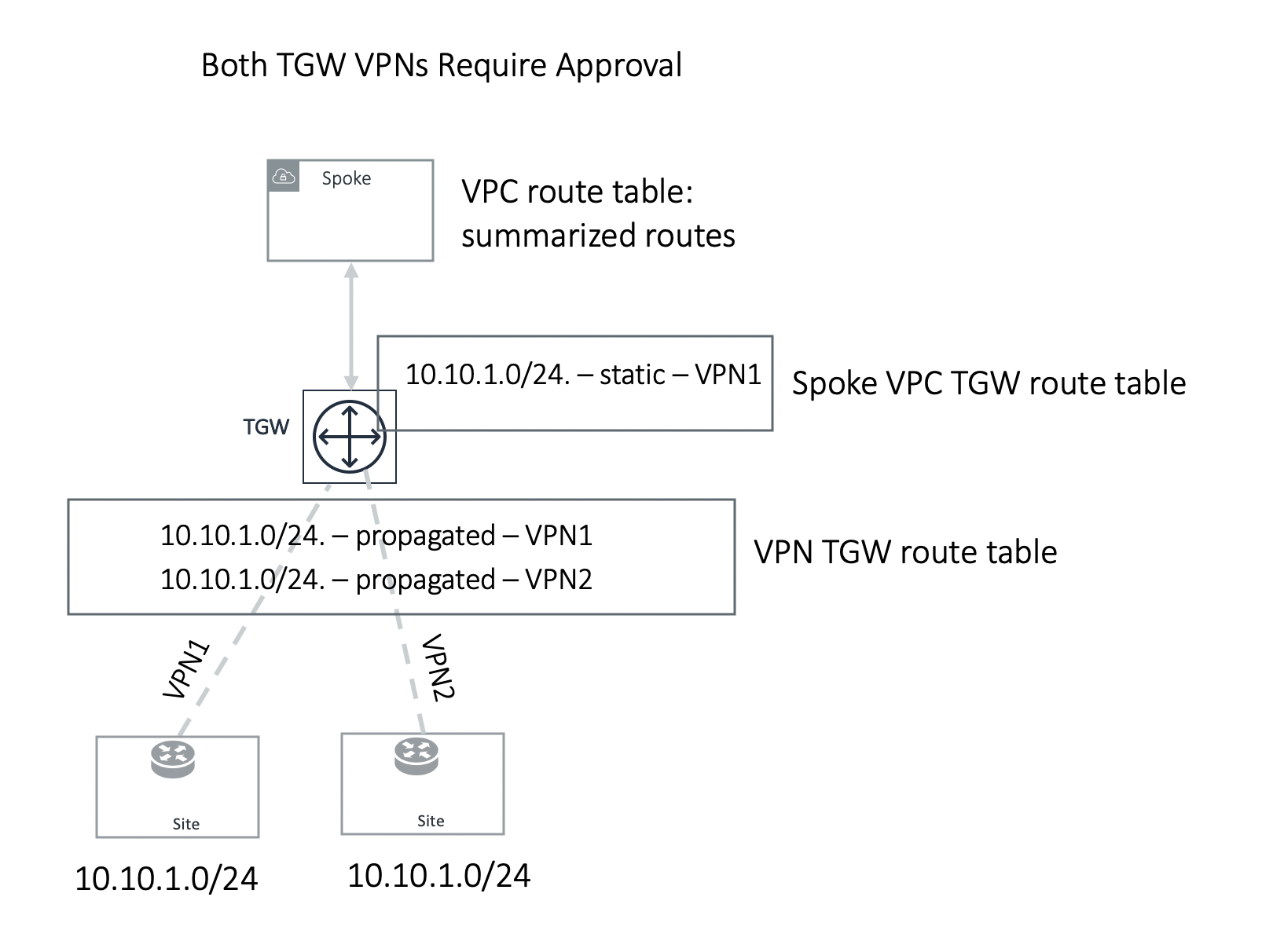 In the example above, two identical VPN CIDRs 10.10.1.0/24 are advertised to two
TGW VPNs but are in the same domain. Both have Approval enabled. Whichever VPN
attachment learns the CIDR first and is approved, its attachment is programmed
into Spoke associated TGW route table, in this case, VPN1 attachment is approved
first and is programmed into the Spoke associated TGW route table. VPN2 CIDR
should continue to remain in pending list. If VPN1 withdraw route 10.10.1.0/24,
you can initiate approval by moving the VPN2 pending CIDR to the approved panel,
and this time it should be programmed.
#### Example 2: One TGW VPN requires approval and another one does not
In the example above, two identical VPN CIDRs 10.10.1.0/24 are advertised to two
TGW VPNs but are in the same domain. Both have Approval enabled. Whichever VPN
attachment learns the CIDR first and is approved, its attachment is programmed
into Spoke associated TGW route table, in this case, VPN1 attachment is approved
first and is programmed into the Spoke associated TGW route table. VPN2 CIDR
should continue to remain in pending list. If VPN1 withdraw route 10.10.1.0/24,
you can initiate approval by moving the VPN2 pending CIDR to the approved panel,
and this time it should be programmed.
#### Example 2: One TGW VPN requires approval and another one does not
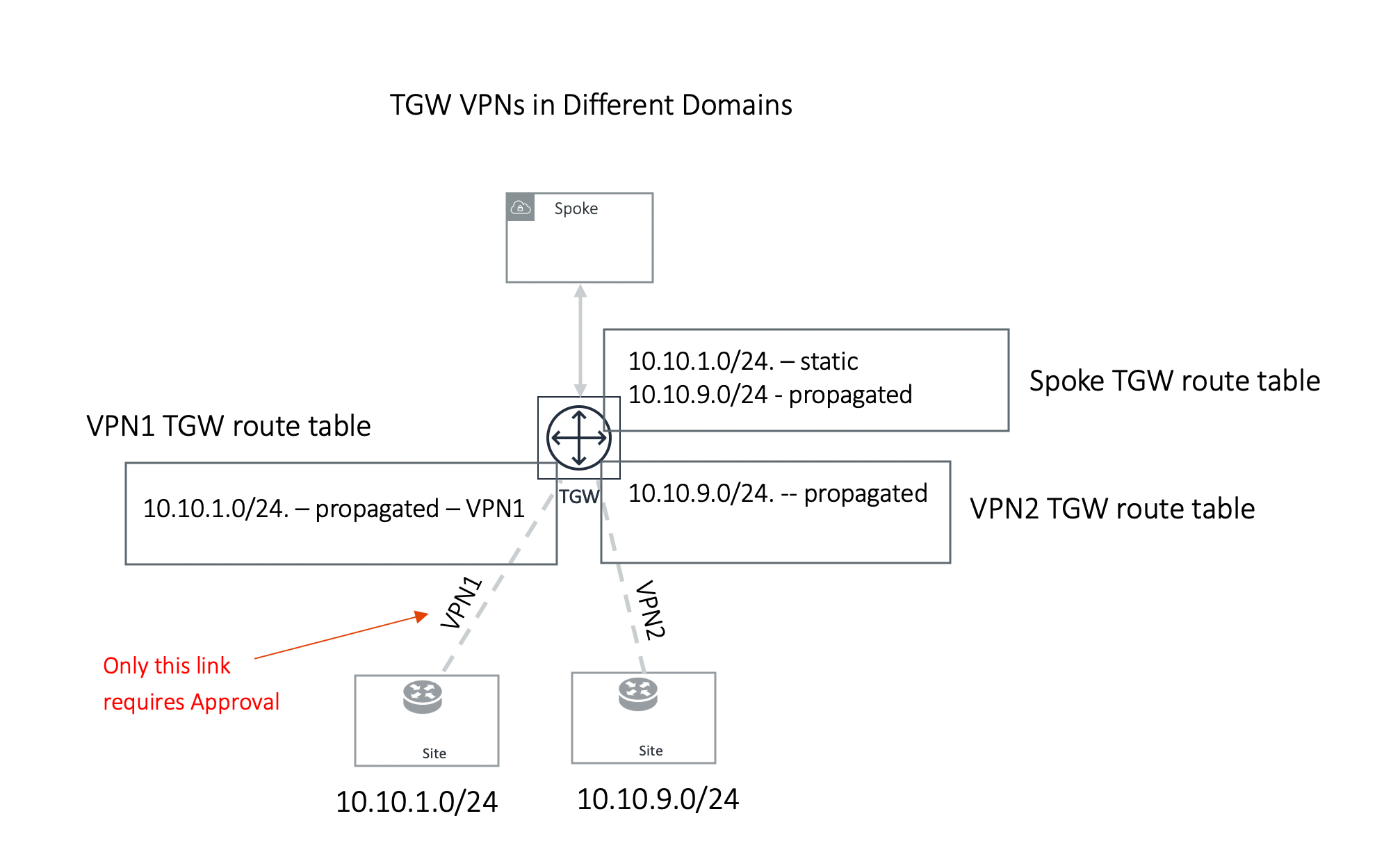 In the second example, TGW VPN2 link 10.10.9.0/24 is in a different domain and
does not require approval. Its route is propagated to the Spoke TGW route table,
while TGW VPN1 link 10.10.1.0/24 is statically programmed to Spoke TGW route
table after approval is initiated by the customer.
Note in the second example, if TGW VPN2 link advertises the same network CIDR
10.10.1.0/24, this CIDR will be propagated first and TGW VPN1 approval request
will be rejected and the CIDR 10.10.1.0/24 from TGW VPN1 remains in the approval
pending list.
In the second example, TGW VPN2 link 10.10.9.0/24 is in a different domain and
does not require approval. Its route is propagated to the Spoke TGW route table,
while TGW VPN1 link 10.10.1.0/24 is statically programmed to Spoke TGW route
table after approval is initiated by the customer.
Note in the second example, if TGW VPN2 link advertises the same network CIDR
10.10.1.0/24, this CIDR will be propagated first and TGW VPN1 approval request
will be rejected and the CIDR 10.10.1.0/24 from TGW VPN1 remains in the approval
pending list.