> ## Documentation Index
> Fetch the complete documentation index at: https://docs.aviatrix.com/llms.txt
> Use this file to discover all available pages before exploring further.
# Transit Gateway BGP Over LAN in Azure Workflow
> Transit BGP to LAN allows Aviatrix Transit Gateways to communicate with a pair of instances in different VNets in Azure without running any tunneling protocol such as IPsec or GRE.
## Introduction
Transit BGP to LAN allows Aviatrix Transit Gateways to communicate with a pair
of instances in different VNets in Azure without running any tunneling protocol
such as IPsec or GRE. One use case is to interoperate with third-party virtual
appliances such as SD-WAN cloud instances that do not have the capability to
support BGP over any tunneling protocols.
For example, integrating with SD-WAN gateways can be deployed as below where an
Aviatrix Multicloud Transit Gateway connects to a third-party cloud instance in
different VNets in Azure.
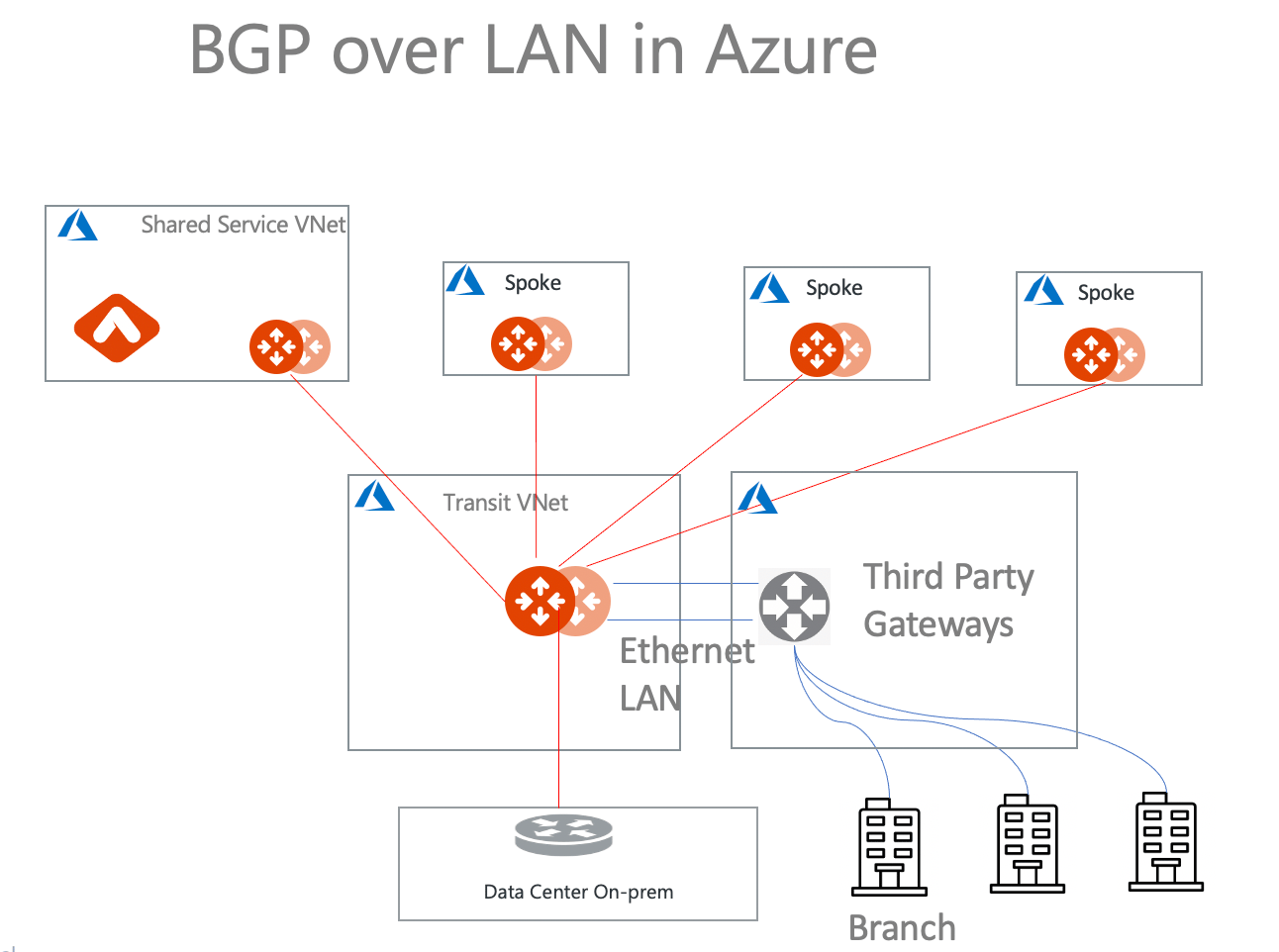 This document describes step-by-step instructions on how to build an Aviatrix
Transit Gateway to External Device using BGP over LAN in Azure:
1. [Deploy Aviatrix Multicloud Transit Solution](#deploying-aviatrix-multicloud-transit-solution)
2. [Launch Third-Party Cloud Instances](#launch-third-party-cloud-instances)
3. [Build BGP over LAN](#building-bgp-over-lan)
For other BGP over LAN workflows, please see:
* Multicloud Transit BGP over LAN in AWS Workflow
* Multicloud Transit BGP over LAN in GCP Workflow
For more information about Multicloud Transit Network and External Device,
please see:
* Multicloud Transit Network Workflow Instructions (AWS/Azure/GCP/OCI)
* Aviatrix Transit Gateway to External Devices
* Transit Network Design Patterns
- ActiveMesh 2.0 is required. To migrate to ActiveMesh 2.0, see [Migrating from Classic Aviatrix Encrypted Transit Network to Aviatrix ActiveMesh Transit Network](https://legacy.docs.aviatrix.com/documentation/latest/network/activemesh-migration.html).
- This solution is available in AWS and Azure. To configure this solution for AWS, see Multicloud Transit BGP over LAN in AWS Workflow. Please adjust the topology depending on your requirements.
- LAN interfaces for Aviatrix Transit Primary and third-party cloud instance must be in the different VNets.
### The key ideas for this solution are:
* A BGP session establishes between a third-party cloud instance and Aviatrix
Transit Gateway via each LAN interface in different VNets.
* Data plane traffic also runs between a third-party cloud instance and Aviatrix
Transit Gateway via each LAN interface without a tunnel protocol such as IPsec
and GRE.
### Prerequisites
* This feature is available for 6.3 and later.
Upgrade
Aviatrix Controller to at least version 6.3.
* In this example, you are going to deploy the below VNets in Azure:
* Transit VNets (i.e. 10.1.0.0/16 and 10.2.0.0/16) by creating a VNet with
the VPC Function Aviatrix FireNet VNet option enabled.
* Spoke VNets (i.e. 192.168.11.0/24 and 192.168.21.0/24) by creating a VNet as
per the previous step or manually deploying it in each cloud portal. You can
use your existing cloud network.
* Third-party cloud instance supports high throughput.
## Deploying Aviatrix Multicloud Transit Solution
Refer to Global Transit Network
Workflow Instructions for the below steps. Please adjust the topology
depending on your requirements.
1. Deploy
[Aviatrix Multicloud Transit Gateway and HA](https://legacy.docs.aviatrix.com/documentation/latest/network/gateway-transit-create.html)
with High Performance Encryption Mode enabled in Transit VNet.
Select the *BGP Over LAN* checkbox to enable that function.
See [Performance Benchmarks](#performance-benchmarks) for more information about
Gateway size and benchmark performance.
2. Deploy
[Spoke Gateway and HA](https://legacy.docs.aviatrix.com/documentation/latest/network/gateway-spoke-create.html)
to launch Aviatrix Spoke gateway and enable HA with High Performance
Encryption enabled in Spoke VNet.
3. Attach
[Spoke Gateways to Transit Network](https://legacy.docs.aviatrix.com/documentation/latest/network/spoke-gateway-attachments.html).
4. (Optional) You can
[attach Azure Spoke VNet via native peering](#creating-azure-vnet-peering-between-aviatrix-transit-vnet-and-third-party-cloud-instance-transit-vnet)
if you prefer not to encrypt the traffic between the Transit VNet and the
Spoke VNet.
In this example, this approach is selected to benchmark:
[Performance Benchmarks](#performance-benchmarks).
### Launch Third-Party Cloud Instances
Deploy third-party cloud instances in a separate Transit VNet.
1. Create a third-party cloud instance and put the MGMT interface in the public
gateway subnet.
2. Create a new public WAN subnet and a dedicated routing table for the WAN
interface if needed.
3. Create a new private LAN subnet and a dedicated routing table for the LAN
interface.
4. Make sure the IP forwarding function on third-party cloud instance interfaces
is enabled.
An Aviatrix Transit Gateway and third-party cloud instance CANNOT be deployed
in the same Transit VNet.
### Building BGP over LAN
#### Creating Azure VNet Peering Between Aviatrix Transit VNet and Third-Party Cloud Instance Transit VNet
1. In CoPilot, navigate to Networking > Connectivity > Native Peering.
2. Click *+Native Peering*.
3. In the Create Native Peering dialog, select Azure Cloud.
4. Select the VNet where the Aviatrix Transit gateway is located as Peer1.
5. Select the VNet where the third-party cloud instance is located as Peer2.
6. You can also select the route tables for each VNet by sliding Select Route
Tables to *On*.
7. Click *Save*.
#### Configuring BGP over LAN on Aviatrix Transit Gateway
1. In CoPilot, navigate to Networking > Connectivity > External Connections
(S2C).
2. Click *+External Connection*.
3. In the Add External Connection dialog, select *Connect Public Cloud to
External Device*.
4. Select *BGP over LAN* from the drop-down.
5. Enter the following information in the fields provided.
| Setting | Value |
| --------------------- | -------------------------------------------------------------------------------------------------------------------------------- |
| Name | Unique name to identify the external device connection. |
| Local Gateway | Select the Transit VPC ID where the Transit gateway was launched (BGP over LAN must have been enabled for this Transit gateway). |
| Local ASN | The local BGP AS number (for on-site equipment) the Spoke gateway will use to exchange routes with the external device. |
| Remote ASN | Enter the BGP AS number of the cloud location the external device will use to exchange routes with the Transit Gateway. |
| BGP ActiveMesh | Enable full mesh BGP connections to the external devices. |
| Learned CIDR Approval | Set to On by default if selected for the Local Gateway. Otherwise, it is set to Off. |
| Remote LAN IP | The private IP of the LAN interface of the third-party cloud primary instance. |
| Local LAN IP | Aviatrix detects the Local LAN IP automatically. |
6. To create the BGP connection, click *Save*.
The Transit Gateway route table is automatically updated with the user-defined
route 0.0.0.0/0 (default route) pointing to the SDWAN LAN IP.
#### (Optional) Downloading the BGP over LAN configuration sample from Aviatrix Controller
1. On the External Connections (S2C) tab, click the vertical ellipsis and then
select *Download Configuration*.
2. In the Download Configuration dialog, select the following:
* Vendor: select the device you are using (any device that is capable of running
IPsec and BGP).
* Platform: select the applicable platform for the chosen device.
* Software: automatically selected based on the Vendor/Platform you select.
3. Click *Download*.
#### Configuring BGP over LAN on Third-Party Cloud Instance
1. Log in to the Azure portal.
2. Create a user-defined routing table with default route (0.0.0.0/0) pointing
nexthop to the Aviatrix Primary Transit LAN IP for the subnet where the
third-party cloud primary instance LAN interface is located.
3. Create a user-defined routing table with default route (0.0.0.0/0) pointing
nexthop to the Aviatrix HA Transit LAN IP for the subnet where third-party
cloud HA instance's LAN interface is located, for HA deployment.
4. (Optional) Open the downloaded BGP over LAN configuration file.
5. Log in to the third-party cloud instance.
6. Program route to send traffic to the Aviatrix Transit LAN IP through the
third-party cloud instance LAN interface.
7. Configure the related BGP and LAN information in the third-party cloud
instance.
8. Check if the function 'eBGP multi-hop' is enabled, if the BGP session is not
established.
9. Repeat these steps for HA deployment.
You must create a default route 0.0.0.0/0 in the third-party cloud instance
LAN route table to point to the Aviatrix Transit LAN IP over VNET peering in
Azure.
#### Verifying LAN and Transit Status
* LAN status: Navigate to Diagnostics > Cloud Routes > External Connections. The
Status and Tunnel Status columns indicate if the tunnel is Up or Down.
* Transit gateway status: Navigate to Diagnostics > Cloud Routes > Gateway
Routes. The Gateway Status and Tunnel Status columns indicate if the gateway
and tunnel are Up or Down.
#### Verifying BGP Session Status
Navigate to Diagnostics > Cloud Routes > BGP Info to verify the BGP routes. The
Status should be Established. If some external connections for the selected
Transit Gateway are Not Established, the overall BGP Status for the Transit
Gateway is Partially Established.
### Ready to Go
At this point, run connectivity and performance test to ensure everything is
working correctly.
### Performance Benchmarks
#### End-to-End traffic via Native Spoke VNet - Aviatrix - Aviatrix - Native Spoke VNet
The performance test is done with a pair of Aviatrix Transit Gateways as the
third-party cloud instances, as shown below.
##### Multiple flows result by using iperf3 tool with TCP 128 connections
| Aviatrix Gateway size | Throughput (Gbps) |
| --------------------- | ----------------- |
| Standard\_D5\_v2 | 22 - 23 |
This document describes step-by-step instructions on how to build an Aviatrix
Transit Gateway to External Device using BGP over LAN in Azure:
1. [Deploy Aviatrix Multicloud Transit Solution](#deploying-aviatrix-multicloud-transit-solution)
2. [Launch Third-Party Cloud Instances](#launch-third-party-cloud-instances)
3. [Build BGP over LAN](#building-bgp-over-lan)
For other BGP over LAN workflows, please see:
* Multicloud Transit BGP over LAN in AWS Workflow
* Multicloud Transit BGP over LAN in GCP Workflow
For more information about Multicloud Transit Network and External Device,
please see:
* Multicloud Transit Network Workflow Instructions (AWS/Azure/GCP/OCI)
* Aviatrix Transit Gateway to External Devices
* Transit Network Design Patterns
- ActiveMesh 2.0 is required. To migrate to ActiveMesh 2.0, see [Migrating from Classic Aviatrix Encrypted Transit Network to Aviatrix ActiveMesh Transit Network](https://legacy.docs.aviatrix.com/documentation/latest/network/activemesh-migration.html).
- This solution is available in AWS and Azure. To configure this solution for AWS, see Multicloud Transit BGP over LAN in AWS Workflow. Please adjust the topology depending on your requirements.
- LAN interfaces for Aviatrix Transit Primary and third-party cloud instance must be in the different VNets.
### The key ideas for this solution are:
* A BGP session establishes between a third-party cloud instance and Aviatrix
Transit Gateway via each LAN interface in different VNets.
* Data plane traffic also runs between a third-party cloud instance and Aviatrix
Transit Gateway via each LAN interface without a tunnel protocol such as IPsec
and GRE.
### Prerequisites
* This feature is available for 6.3 and later.
Upgrade
Aviatrix Controller to at least version 6.3.
* In this example, you are going to deploy the below VNets in Azure:
* Transit VNets (i.e. 10.1.0.0/16 and 10.2.0.0/16) by creating a VNet with
the VPC Function Aviatrix FireNet VNet option enabled.
* Spoke VNets (i.e. 192.168.11.0/24 and 192.168.21.0/24) by creating a VNet as
per the previous step or manually deploying it in each cloud portal. You can
use your existing cloud network.
* Third-party cloud instance supports high throughput.
## Deploying Aviatrix Multicloud Transit Solution
Refer to Global Transit Network
Workflow Instructions for the below steps. Please adjust the topology
depending on your requirements.
1. Deploy
[Aviatrix Multicloud Transit Gateway and HA](https://legacy.docs.aviatrix.com/documentation/latest/network/gateway-transit-create.html)
with High Performance Encryption Mode enabled in Transit VNet.
Select the *BGP Over LAN* checkbox to enable that function.
See [Performance Benchmarks](#performance-benchmarks) for more information about
Gateway size and benchmark performance.
2. Deploy
[Spoke Gateway and HA](https://legacy.docs.aviatrix.com/documentation/latest/network/gateway-spoke-create.html)
to launch Aviatrix Spoke gateway and enable HA with High Performance
Encryption enabled in Spoke VNet.
3. Attach
[Spoke Gateways to Transit Network](https://legacy.docs.aviatrix.com/documentation/latest/network/spoke-gateway-attachments.html).
4. (Optional) You can
[attach Azure Spoke VNet via native peering](#creating-azure-vnet-peering-between-aviatrix-transit-vnet-and-third-party-cloud-instance-transit-vnet)
if you prefer not to encrypt the traffic between the Transit VNet and the
Spoke VNet.
In this example, this approach is selected to benchmark:
[Performance Benchmarks](#performance-benchmarks).
### Launch Third-Party Cloud Instances
Deploy third-party cloud instances in a separate Transit VNet.
1. Create a third-party cloud instance and put the MGMT interface in the public
gateway subnet.
2. Create a new public WAN subnet and a dedicated routing table for the WAN
interface if needed.
3. Create a new private LAN subnet and a dedicated routing table for the LAN
interface.
4. Make sure the IP forwarding function on third-party cloud instance interfaces
is enabled.
An Aviatrix Transit Gateway and third-party cloud instance CANNOT be deployed
in the same Transit VNet.
### Building BGP over LAN
#### Creating Azure VNet Peering Between Aviatrix Transit VNet and Third-Party Cloud Instance Transit VNet
1. In CoPilot, navigate to Networking > Connectivity > Native Peering.
2. Click *+Native Peering*.
3. In the Create Native Peering dialog, select Azure Cloud.
4. Select the VNet where the Aviatrix Transit gateway is located as Peer1.
5. Select the VNet where the third-party cloud instance is located as Peer2.
6. You can also select the route tables for each VNet by sliding Select Route
Tables to *On*.
7. Click *Save*.
#### Configuring BGP over LAN on Aviatrix Transit Gateway
1. In CoPilot, navigate to Networking > Connectivity > External Connections
(S2C).
2. Click *+External Connection*.
3. In the Add External Connection dialog, select *Connect Public Cloud to
External Device*.
4. Select *BGP over LAN* from the drop-down.
5. Enter the following information in the fields provided.
| Setting | Value |
| --------------------- | -------------------------------------------------------------------------------------------------------------------------------- |
| Name | Unique name to identify the external device connection. |
| Local Gateway | Select the Transit VPC ID where the Transit gateway was launched (BGP over LAN must have been enabled for this Transit gateway). |
| Local ASN | The local BGP AS number (for on-site equipment) the Spoke gateway will use to exchange routes with the external device. |
| Remote ASN | Enter the BGP AS number of the cloud location the external device will use to exchange routes with the Transit Gateway. |
| BGP ActiveMesh | Enable full mesh BGP connections to the external devices. |
| Learned CIDR Approval | Set to On by default if selected for the Local Gateway. Otherwise, it is set to Off. |
| Remote LAN IP | The private IP of the LAN interface of the third-party cloud primary instance. |
| Local LAN IP | Aviatrix detects the Local LAN IP automatically. |
6. To create the BGP connection, click *Save*.
The Transit Gateway route table is automatically updated with the user-defined
route 0.0.0.0/0 (default route) pointing to the SDWAN LAN IP.
#### (Optional) Downloading the BGP over LAN configuration sample from Aviatrix Controller
1. On the External Connections (S2C) tab, click the vertical ellipsis and then
select *Download Configuration*.
2. In the Download Configuration dialog, select the following:
* Vendor: select the device you are using (any device that is capable of running
IPsec and BGP).
* Platform: select the applicable platform for the chosen device.
* Software: automatically selected based on the Vendor/Platform you select.
3. Click *Download*.
#### Configuring BGP over LAN on Third-Party Cloud Instance
1. Log in to the Azure portal.
2. Create a user-defined routing table with default route (0.0.0.0/0) pointing
nexthop to the Aviatrix Primary Transit LAN IP for the subnet where the
third-party cloud primary instance LAN interface is located.
3. Create a user-defined routing table with default route (0.0.0.0/0) pointing
nexthop to the Aviatrix HA Transit LAN IP for the subnet where third-party
cloud HA instance's LAN interface is located, for HA deployment.
4. (Optional) Open the downloaded BGP over LAN configuration file.
5. Log in to the third-party cloud instance.
6. Program route to send traffic to the Aviatrix Transit LAN IP through the
third-party cloud instance LAN interface.
7. Configure the related BGP and LAN information in the third-party cloud
instance.
8. Check if the function 'eBGP multi-hop' is enabled, if the BGP session is not
established.
9. Repeat these steps for HA deployment.
You must create a default route 0.0.0.0/0 in the third-party cloud instance
LAN route table to point to the Aviatrix Transit LAN IP over VNET peering in
Azure.
#### Verifying LAN and Transit Status
* LAN status: Navigate to Diagnostics > Cloud Routes > External Connections. The
Status and Tunnel Status columns indicate if the tunnel is Up or Down.
* Transit gateway status: Navigate to Diagnostics > Cloud Routes > Gateway
Routes. The Gateway Status and Tunnel Status columns indicate if the gateway
and tunnel are Up or Down.
#### Verifying BGP Session Status
Navigate to Diagnostics > Cloud Routes > BGP Info to verify the BGP routes. The
Status should be Established. If some external connections for the selected
Transit Gateway are Not Established, the overall BGP Status for the Transit
Gateway is Partially Established.
### Ready to Go
At this point, run connectivity and performance test to ensure everything is
working correctly.
### Performance Benchmarks
#### End-to-End traffic via Native Spoke VNet - Aviatrix - Aviatrix - Native Spoke VNet
The performance test is done with a pair of Aviatrix Transit Gateways as the
third-party cloud instances, as shown below.
##### Multiple flows result by using iperf3 tool with TCP 128 connections
| Aviatrix Gateway size | Throughput (Gbps) |
| --------------------- | ----------------- |
| Standard\_D5\_v2 | 22 - 23 |