> ## Documentation Index
> Fetch the complete documentation index at: https://docs.aviatrix.com/llms.txt
> Use this file to discover all available pages before exploring further.
# Transit Gateway Peering over Public Network Workflow
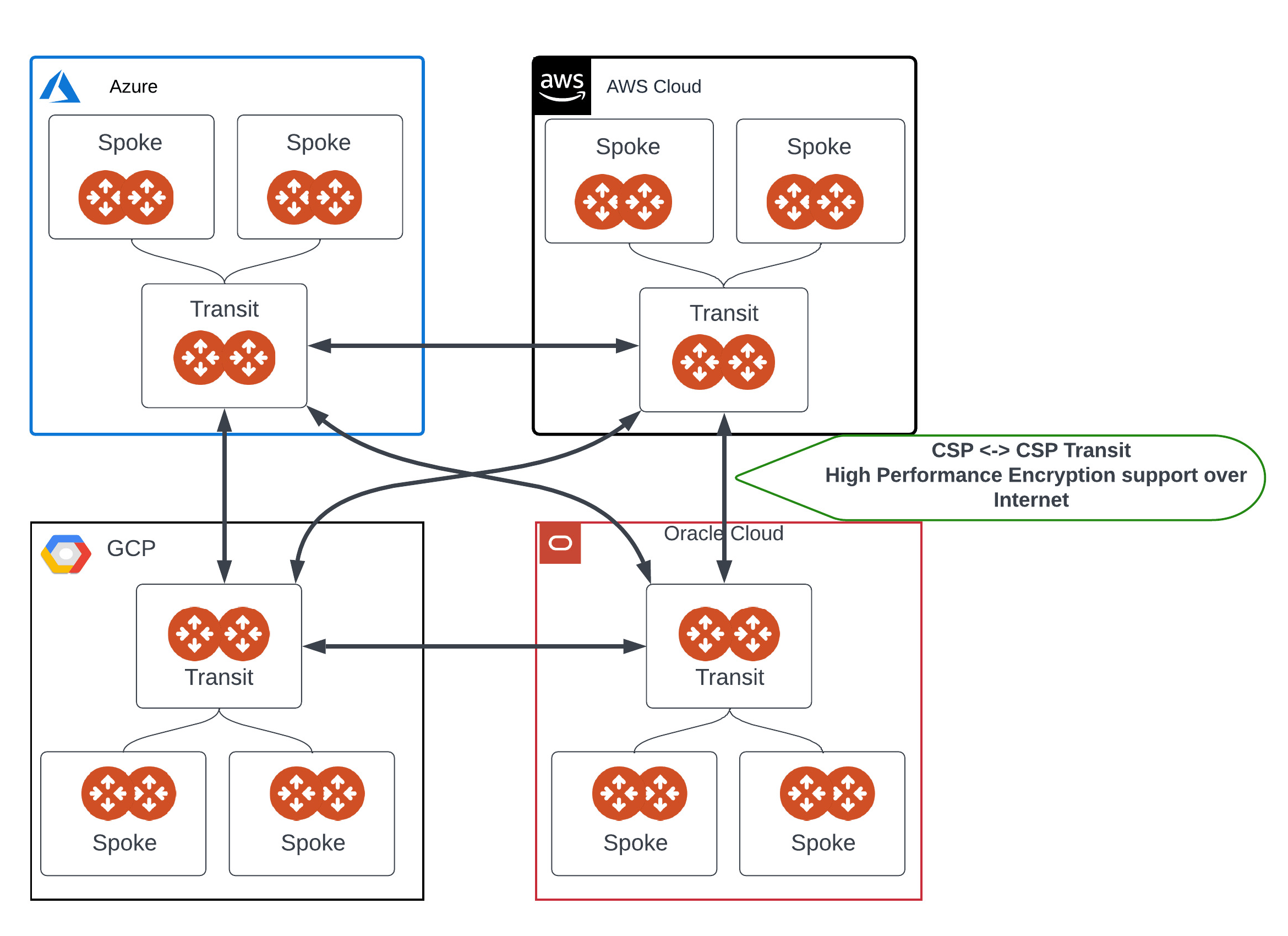
> Aviatrix Transit Gateway peering over public network expands Aviatrix Transit Gateway peering across multicloud where the connection between cloud service providers is over the internet.
Aviatrix Transit Gateway peering over public network expands Aviatrix Transit
Gateway peering across multicloud where the connection between cloud service
providers is over the internet. The Aviatrix Controller builds multiple tunnels
between the peered transit gateways using High Performance Encryption (HPE)
Mode, enabling high performance data throughput and data security.
For more information about Multicloud Transit Gateway encrypted peering, see the
following documents:
* Aviatrix Transit Gateway Peering
* Transit Network Design Patterns
* Multicloud Transit Network Workflow Instructions (AWS/Azure/GCP/OCI)
## Topology
 ## Prerequisites
1. Upgrade Aviatrix Controller to the latest version. Refer to
Upgrading the Aviatrix Cloud Network Platform
.
2. Create and launch the Aviatrix Transit Gateways with HA and High Performance
Encryption Mode enabled in the clouds where you want to establish peered
transit connection and attach the Spoke Gateways to the Transit Gateways.
Refer to
Multicloud Transit Network Workflow Instructions (AWS/Azure/GCP/OCI)
.
* The Aviatrix Transit Gateway peering over public network solution requires HPE
(High-Performance Encryption). Aviatrix Transit Gateways must have HPE enabled
when the Transit Gateway is created for peered connection over the internet.
* This solution requires ActiveMesh 2.0. To migrate to ActiveMesh 2.0, refer to
Migrating to ActiveMesh 2.0
.
## Establishing Transit Gateway Peering over Public Internet
Before you begin, review [Prerequisites](#prerequisites) for transit gateway peering over public network.
The steps to establish transit gateway peering across cloud service providers over the public network are as follows:
To establish transit gateway peering across cloud service providers over
the public network using the CoPilot UI, follow these steps:
In Aviatrix CoPilot, go to **Cloud Fabric** > **Gateways** > **Transit Gateways**.
Click the edit
## Prerequisites
1. Upgrade Aviatrix Controller to the latest version. Refer to
Upgrading the Aviatrix Cloud Network Platform
.
2. Create and launch the Aviatrix Transit Gateways with HA and High Performance
Encryption Mode enabled in the clouds where you want to establish peered
transit connection and attach the Spoke Gateways to the Transit Gateways.
Refer to
Multicloud Transit Network Workflow Instructions (AWS/Azure/GCP/OCI)
.
* The Aviatrix Transit Gateway peering over public network solution requires HPE
(High-Performance Encryption). Aviatrix Transit Gateways must have HPE enabled
when the Transit Gateway is created for peered connection over the internet.
* This solution requires ActiveMesh 2.0. To migrate to ActiveMesh 2.0, refer to
Migrating to ActiveMesh 2.0
.
## Establishing Transit Gateway Peering over Public Internet
Before you begin, review [Prerequisites](#prerequisites) for transit gateway peering over public network.
The steps to establish transit gateway peering across cloud service providers over the public network are as follows:
To establish transit gateway peering across cloud service providers over
the public network using the CoPilot UI, follow these steps:
In Aviatrix CoPilot, go to **Cloud Fabric** > **Gateways** > **Transit Gateways**.
Click the edit  icon next to one of the Transit Gateways created in this workflow.
In the **Attach To Transit Gateways** field, select the Transit Gateways to peer with your selected Gateway.
Click **Save**.
The Transit Gateways are now peered together.
To establish transit gateway peering across cloud service providers over the public network using the [Aviatrix Terraform provider](https://registry.terraform.io/providers/AviatrixSystems/aviatrix/latest), follow these steps:
Use the `aviatrix_transit_gateway` data source to retrieve the names of the existing transit gateways. The data source block checks if the transit gateway exists before creating the peering between them and helps to avoid errors.
```hcl theme={null}
data "aviatrix_transit_gateway" "csp1_transit_gateway" {
# Replace csp1_transit_gateway_name with the name of the transit gateway
gw_name = "csp1_transit_gateway_name"
}
data "aviatrix_transit_gateway" "csp2_transit_gateway" {
# Replace csp2_transit_gateway_name with the name of the transit gateway
gw_name = "csp2_transit_gateway_name"
}
```
Use the `aviatrix_transit_gateway_peering` resource block to create the peering. Reference the retrieved transit gateway names in the data source block to create dependency between the two data source blocks and the resource block.
The following code snippet creates the peering between the two Transit Gateways over public network.
```hcl theme={null}
resource "aviatrix_transit_gateway_peering" "transit_gateway_peering" {
transit_gateway_name1 = data.aviatrix_transit_gateway.csp1_transit_gateway.gw_name
transit_gateway_name2 = data.aviatrix_transit_gateway.csp2_transit_gateway.gw_name
}
```
Run `terraform plan`, review the planned changes, and then run `terraform apply` to make the changes.
### Examples
The following examples establish Transit Gateway peering over the public network using the Aviatrix Terraform provider.
A European business runs its line-of-business app on Azure in `West Europe` and a customer-data service on AWS in `eu-west-1`. There is no ExpressRoute or Direct Connect between the two clouds, so the two Transit Gateways are peered over the public network using HPE for encrypted line-rate east-west traffic.
```hcl theme={null}
data "aviatrix_transit_gateway" "transit_aws" {
gw_name = "transit-aws-euw1"
}
data "aviatrix_transit_gateway" "transit_azure" {
gw_name = "transit-azure-weu"
}
resource "aviatrix_transit_gateway_peering" "aws_to_azure" {
transit_gateway_name1 = data.aviatrix_transit_gateway.transit_aws.gw_name
transit_gateway_name2 = data.aviatrix_transit_gateway.transit_azure.gw_name
}
```
An organization runs an active-active deployment across AWS `us-east-1` and `us-west-2`, and uses public-network peering between the two Aviatrix Transit Gateways for cross-region failover (Disaster Recovery). Each region also has its own AWS Transit Gateway attached to on-prem over Direct Connect, and two things are excluded from the Aviatrix peering:
* A shared-services CIDR (`10.0.0.0/24`) that both regions already learn from on-prem. Excluding it prevents the peer from re-advertising a route that should only enter the fabric from on-prem.
* The region-local AWS TGW connection toward on-prem (`onprem-dx-use1` / `onprem-dx-usw2`). Excluding it stops on-prem traffic from looping through the cross-region peer.
```hcl theme={null}
data "aviatrix_transit_gateway" "transit_aws_use1" {
gw_name = "transit-aws-use1"
}
data "aviatrix_transit_gateway" "transit_aws_usw2" {
gw_name = "transit-aws-usw2"
}
resource "aviatrix_transit_gateway_peering" "aws_use1_to_usw2" {
transit_gateway_name1 = data.aviatrix_transit_gateway.transit_aws_use1.gw_name
transit_gateway_name2 = data.aviatrix_transit_gateway.transit_aws_usw2.gw_name
gateway1_excluded_network_cidrs = ["10.0.0.0/24"]
gateway2_excluded_network_cidrs = ["10.0.0.0/24"]
gateway1_excluded_tgw_connections = ["onprem-dx-use1"]
gateway2_excluded_tgw_connections = ["onprem-dx-usw2"]
}
```
`gateway1_excluded_tgw_connections` and `gateway2_excluded_tgw_connections` apply only to AWS Transit Gateway attachments. If one side of the peering is not AWS, set the argument only on the AWS side.
A SaaS provider runs front-end services on AWS, identity and licensing on Azure, and analytics on GCP. The three Aviatrix Transit Gateways are peered in a full mesh over the public internet so every Spoke can reach every other Spoke without hairpinning through a single hub.
```hcl theme={null}
data "aviatrix_transit_gateway" "transit_aws" {
gw_name = "transit-aws-euw1"
}
data "aviatrix_transit_gateway" "transit_azure" {
gw_name = "transit-azure-weu"
}
data "aviatrix_transit_gateway" "transit_gcp" {
gw_name = "transit-gcp-euw1"
}
resource "aviatrix_transit_gateway_peering" "aws_azure" {
transit_gateway_name1 = data.aviatrix_transit_gateway.transit_aws.gw_name
transit_gateway_name2 = data.aviatrix_transit_gateway.transit_azure.gw_name
}
resource "aviatrix_transit_gateway_peering" "aws_gcp" {
transit_gateway_name1 = data.aviatrix_transit_gateway.transit_aws.gw_name
transit_gateway_name2 = data.aviatrix_transit_gateway.transit_gcp.gw_name
}
resource "aviatrix_transit_gateway_peering" "azure_gcp" {
transit_gateway_name1 = data.aviatrix_transit_gateway.transit_azure.gw_name
transit_gateway_name2 = data.aviatrix_transit_gateway.transit_gcp.gw_name
}
```
***
## Viewing the Peering Connections
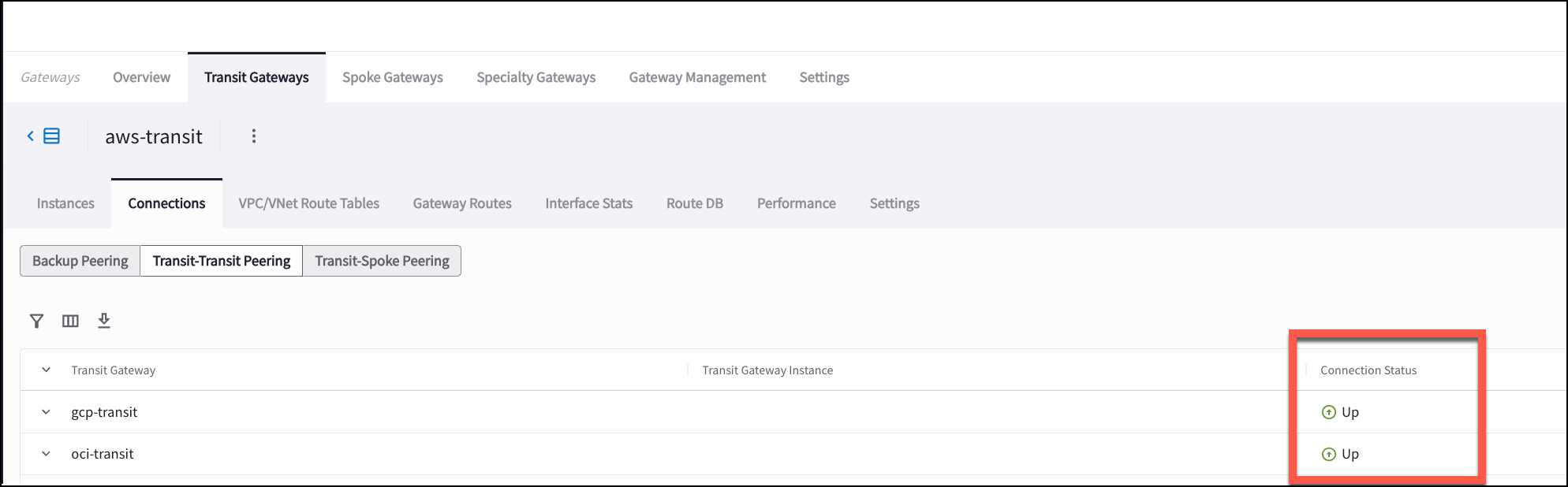
You can view the peering connections by clicking the name of the Transit Gateway, clicking the **Attachments** tab, and then clicking **Transit-Transit Peering**. This tab also displays the Connection Status for the peered Gateways. The Status may take a few minutes to update.
icon next to one of the Transit Gateways created in this workflow.
In the **Attach To Transit Gateways** field, select the Transit Gateways to peer with your selected Gateway.
Click **Save**.
The Transit Gateways are now peered together.
To establish transit gateway peering across cloud service providers over the public network using the [Aviatrix Terraform provider](https://registry.terraform.io/providers/AviatrixSystems/aviatrix/latest), follow these steps:
Use the `aviatrix_transit_gateway` data source to retrieve the names of the existing transit gateways. The data source block checks if the transit gateway exists before creating the peering between them and helps to avoid errors.
```hcl theme={null}
data "aviatrix_transit_gateway" "csp1_transit_gateway" {
# Replace csp1_transit_gateway_name with the name of the transit gateway
gw_name = "csp1_transit_gateway_name"
}
data "aviatrix_transit_gateway" "csp2_transit_gateway" {
# Replace csp2_transit_gateway_name with the name of the transit gateway
gw_name = "csp2_transit_gateway_name"
}
```
Use the `aviatrix_transit_gateway_peering` resource block to create the peering. Reference the retrieved transit gateway names in the data source block to create dependency between the two data source blocks and the resource block.
The following code snippet creates the peering between the two Transit Gateways over public network.
```hcl theme={null}
resource "aviatrix_transit_gateway_peering" "transit_gateway_peering" {
transit_gateway_name1 = data.aviatrix_transit_gateway.csp1_transit_gateway.gw_name
transit_gateway_name2 = data.aviatrix_transit_gateway.csp2_transit_gateway.gw_name
}
```
Run `terraform plan`, review the planned changes, and then run `terraform apply` to make the changes.
### Examples
The following examples establish Transit Gateway peering over the public network using the Aviatrix Terraform provider.
A European business runs its line-of-business app on Azure in `West Europe` and a customer-data service on AWS in `eu-west-1`. There is no ExpressRoute or Direct Connect between the two clouds, so the two Transit Gateways are peered over the public network using HPE for encrypted line-rate east-west traffic.
```hcl theme={null}
data "aviatrix_transit_gateway" "transit_aws" {
gw_name = "transit-aws-euw1"
}
data "aviatrix_transit_gateway" "transit_azure" {
gw_name = "transit-azure-weu"
}
resource "aviatrix_transit_gateway_peering" "aws_to_azure" {
transit_gateway_name1 = data.aviatrix_transit_gateway.transit_aws.gw_name
transit_gateway_name2 = data.aviatrix_transit_gateway.transit_azure.gw_name
}
```
An organization runs an active-active deployment across AWS `us-east-1` and `us-west-2`, and uses public-network peering between the two Aviatrix Transit Gateways for cross-region failover (Disaster Recovery). Each region also has its own AWS Transit Gateway attached to on-prem over Direct Connect, and two things are excluded from the Aviatrix peering:
* A shared-services CIDR (`10.0.0.0/24`) that both regions already learn from on-prem. Excluding it prevents the peer from re-advertising a route that should only enter the fabric from on-prem.
* The region-local AWS TGW connection toward on-prem (`onprem-dx-use1` / `onprem-dx-usw2`). Excluding it stops on-prem traffic from looping through the cross-region peer.
```hcl theme={null}
data "aviatrix_transit_gateway" "transit_aws_use1" {
gw_name = "transit-aws-use1"
}
data "aviatrix_transit_gateway" "transit_aws_usw2" {
gw_name = "transit-aws-usw2"
}
resource "aviatrix_transit_gateway_peering" "aws_use1_to_usw2" {
transit_gateway_name1 = data.aviatrix_transit_gateway.transit_aws_use1.gw_name
transit_gateway_name2 = data.aviatrix_transit_gateway.transit_aws_usw2.gw_name
gateway1_excluded_network_cidrs = ["10.0.0.0/24"]
gateway2_excluded_network_cidrs = ["10.0.0.0/24"]
gateway1_excluded_tgw_connections = ["onprem-dx-use1"]
gateway2_excluded_tgw_connections = ["onprem-dx-usw2"]
}
```
`gateway1_excluded_tgw_connections` and `gateway2_excluded_tgw_connections` apply only to AWS Transit Gateway attachments. If one side of the peering is not AWS, set the argument only on the AWS side.
A SaaS provider runs front-end services on AWS, identity and licensing on Azure, and analytics on GCP. The three Aviatrix Transit Gateways are peered in a full mesh over the public internet so every Spoke can reach every other Spoke without hairpinning through a single hub.
```hcl theme={null}
data "aviatrix_transit_gateway" "transit_aws" {
gw_name = "transit-aws-euw1"
}
data "aviatrix_transit_gateway" "transit_azure" {
gw_name = "transit-azure-weu"
}
data "aviatrix_transit_gateway" "transit_gcp" {
gw_name = "transit-gcp-euw1"
}
resource "aviatrix_transit_gateway_peering" "aws_azure" {
transit_gateway_name1 = data.aviatrix_transit_gateway.transit_aws.gw_name
transit_gateway_name2 = data.aviatrix_transit_gateway.transit_azure.gw_name
}
resource "aviatrix_transit_gateway_peering" "aws_gcp" {
transit_gateway_name1 = data.aviatrix_transit_gateway.transit_aws.gw_name
transit_gateway_name2 = data.aviatrix_transit_gateway.transit_gcp.gw_name
}
resource "aviatrix_transit_gateway_peering" "azure_gcp" {
transit_gateway_name1 = data.aviatrix_transit_gateway.transit_azure.gw_name
transit_gateway_name2 = data.aviatrix_transit_gateway.transit_gcp.gw_name
}
```
***
## Viewing the Peering Connections
You can view the peering connections by clicking the name of the Transit Gateway, clicking the **Attachments** tab, and then clicking **Transit-Transit Peering**. This tab also displays the Connection Status for the peered Gateways. The Status may take a few minutes to update.
 ## Related Topics
* [Aviatrix Terraform provider documentation](https://registry.terraform.io/providers/AviatrixSystems/aviatrix/latest/docs)
* Excluded Network CIDRs
* Excluded TGW Connections
## Related Topics
* [Aviatrix Terraform provider documentation](https://registry.terraform.io/providers/AviatrixSystems/aviatrix/latest/docs)
* Excluded Network CIDRs
* Excluded TGW Connections