> ## Documentation Index
> Fetch the complete documentation index at: https://docs.aviatrix.com/llms.txt
> Use this file to discover all available pages before exploring further.
# Transit Gateway Peering Over Private Network Workflow
> The Aviatrix Transit Gateway Peering over Private Network feature expands Transit Gateway peering to across multiclouds where there is a private network connectivity between the cloud providers via on-prem or a co-location.
The Aviatrix Transit Gateway Peering over Private Network feature expands
Transit Gateway peering to across multiclouds where there is a private network
connectivity between the cloud providers via on-prem or a co-location. This
enables customers to build high performance data networks while ensuring data
privacy by encrypting data in motion.
The solution applies to AWS Direct Connect, Azure ExpressRoute, and Google Cloud
Interconnect.
This document provides step-by-step instructions on how to build Aviatrix
Transit Gateway Peering with Private Network over AWS Direct Connect and Azure
ExpressRoute for R6.2 and later releases. In this document, you learn the
following:
1. Workflow for building underlay connectivity for private network with AWS
Direct Connect
2. Workflow for building underlay connectivity for private network with Azure
ExpressRoute
3. Workflow for Aviatrix Transit Gateway Peering with private network
* The Aviatrix Transit Gateway Peering over Private Network solution supports
only High Performance Encryption (HPE) mode where Aviatrix Transit Gateways
have High Performance Mode Encryption option enabled at gateway launch. \*
ActiveMesh 2.0 is required. To migrate to ActiveMesh 2.0, see [Migrating from
Classic Aviatrix Encrypted Transit Network to Aviatrix ActiveMesh Transit
Network](https://legacy.docs.aviatrix.com/documentation/latest/network/activemesh-migration.html).
* Private subnet reachability between two Transit CIDRs is your
responsibility, which is typically done via co-located providers. \* The
workflow shown here for building underlay connectivity for a private network
with AWS Direct Connect/Azure ExpressRoute is just an example. Please adjust
the topology depending on your requirements.
## Topology
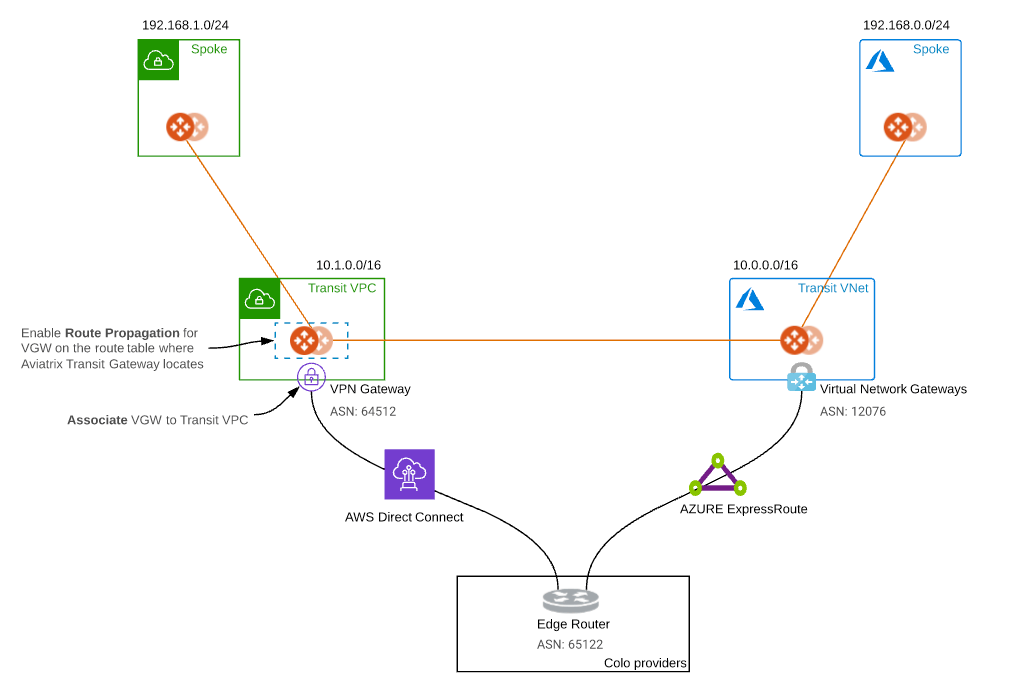 ### The key ideas for this solution are:
* The edge (WAN) router runs a BGP session to AWS VGW via AWS Direct Connect
where the edge router advertises the Azure Transit VNET CIDR and the AWS VGW
advertises the AWS Transit VPC CIDR.
* The edge (WAN) router runs a BGP session to Azure VNG via Azure ExpressRoute
where the edge router advertises the AWS Transit VPC CIDR and the Azure VNG
advertises the AZURE Transit VNET CIDR.
* The edge (WAN) router redistributes AWS Transit VPC CIDR and AZURE Transit
VNET CIDR.
* Once the reachability between two cloud transits over private network is
present, you are able to deploy Aviatrix Multi Cloud Global Transit Gateway
Encrypted Peering over a Private Network.
Reachability between two transit networks' private CIDRs is not the
responsibility of Aviatrix.
## Prerequisites
Upgrade Aviatrix Controller to the latest version.
In this example, we are going to deploy the below VPCs in AWS and Azure:
* AWS Aviatrix Transit VPC (i.e. 10.1.0.0/16)
* AWS Aviatrix Spoke VPC (i.e. 192.168.1.0/24)
* Azure Aviatrix Transit VNET (i.e. 10.0.0.0/16)
* Azure Aviatrix Spoke VNET (i.e. 192.168.0.0/24)
## Workflow on building underlay connectivity for private network with AWS Direct Connect
Building AWS Direct Connect is your responsibility. For more information about
AWS Direct Connect, see
[Connect Your Data Center to AWS](https://aws.amazon.com/getting-started/projects/connect-data-center-to-aws/).
Please adjust the topology depending on your requirements.
### Build AWS Direct Connect
Refer to
[Equinix ECX Fabric AWS Direct Connect](https://docs.equinix.com/en-us/Content/Interconnection/Fabric/connections/Fabric-aws-direct-connect.htm)
if you select an Equinix solution. The below is just an example.
### Associate AWS VGW to AWS Transit VPC
1. Log into the AWS VPC Portal.
2. On the VPC dashboard, click **Virtual private gateways**.
3. Select the Virtual Private Gateway that has the private virtual interface to
AWS Direct Connect.
4. From the Actions menu, select **Attach to VPC**.
5. Select the AWS Transit VPC and click **Attach to VPC**.
## Workflow on building underlay connectivity for private network with Azure ExpressRoute
Building Azure ExpressRoute is your responsibility. For more information about
Azure ExpressRoute, see the below documents:
* [Azure ExpressRoute](https://azure.microsoft.com/en-us/services/expressroute/)
* [ExpressRoute documentation](https://docs.microsoft.com/en-us/azure/expressroute/)
* [Equinix ECX Fabric Microsoft Azure ExpressRoute](https://docs.equinix.com/en-us/Content/Interconnection/Fabric/connections/Fabric-ms-azure.htm)
if you select the Equinix solution. The below is just an example.
Please adjust the topology depending on your requirements.
### Create an ExpressRoute circuit
Refer to
[Tutorial: Create and modify an ExpressRoute circuit](https://docs.microsoft.com/en-us/azure/expressroute/expressroute-howto-circuit-portal-resource-manager).
### Create Azure private peering for an ExpressRoute circuit
Refer to
[private peering section in Create and modify peering for an ExpressRoute circuit](https://docs.microsoft.com/en-us/azure/expressroute/expressroute-howto-routing-portal-resource-manager).
### Create a virtual network gateway for an ExpressRoute circuit
[Configure a virtual network gateway for ExpressRoute using the Azure portal](https://docs.microsoft.com/en-us/azure/expressroute/expressroute-howto-add-gateway-portal-resource-manager).
### Connect a virtual network to an ExpressRoute circuit
[Connect a virtual network to an ExpressRoute circuit using the portal](https://docs.microsoft.com/en-us/azure/expressroute/expressroute-howto-linkvnet-portal-resource-manager).
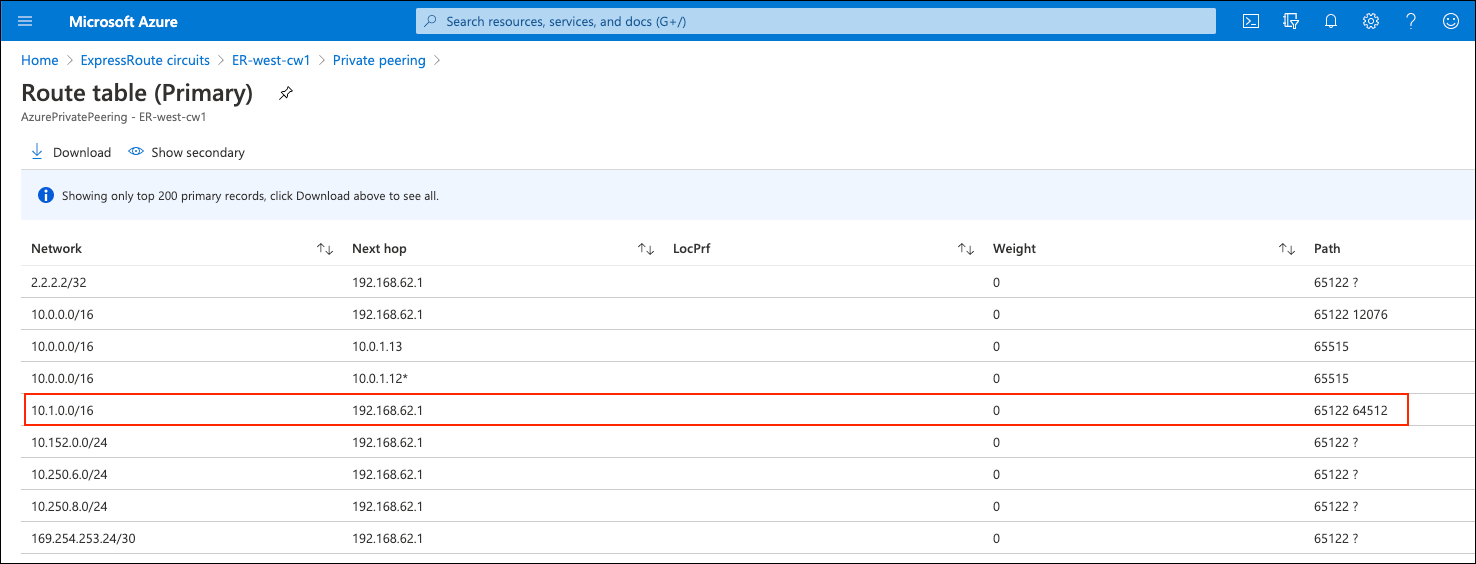
### Check Express Route Circuits - List Routes Table on Azure portal
1. Log in to the Azure Portal.
2. Search for "ExpressRoute circuits" in the search bar.
3. Select the "ExpressRoute circuits" that you created.
4. Select the Azure private peering row.
5. Click the hyperlink "Get route table".
6. Check whether the AWS Transit VPC's CIDR appears in the table with the ASN
Path of edge router and AWS VGW.
### The key ideas for this solution are:
* The edge (WAN) router runs a BGP session to AWS VGW via AWS Direct Connect
where the edge router advertises the Azure Transit VNET CIDR and the AWS VGW
advertises the AWS Transit VPC CIDR.
* The edge (WAN) router runs a BGP session to Azure VNG via Azure ExpressRoute
where the edge router advertises the AWS Transit VPC CIDR and the Azure VNG
advertises the AZURE Transit VNET CIDR.
* The edge (WAN) router redistributes AWS Transit VPC CIDR and AZURE Transit
VNET CIDR.
* Once the reachability between two cloud transits over private network is
present, you are able to deploy Aviatrix Multi Cloud Global Transit Gateway
Encrypted Peering over a Private Network.
Reachability between two transit networks' private CIDRs is not the
responsibility of Aviatrix.
## Prerequisites
Upgrade Aviatrix Controller to the latest version.
In this example, we are going to deploy the below VPCs in AWS and Azure:
* AWS Aviatrix Transit VPC (i.e. 10.1.0.0/16)
* AWS Aviatrix Spoke VPC (i.e. 192.168.1.0/24)
* Azure Aviatrix Transit VNET (i.e. 10.0.0.0/16)
* Azure Aviatrix Spoke VNET (i.e. 192.168.0.0/24)
## Workflow on building underlay connectivity for private network with AWS Direct Connect
Building AWS Direct Connect is your responsibility. For more information about
AWS Direct Connect, see
[Connect Your Data Center to AWS](https://aws.amazon.com/getting-started/projects/connect-data-center-to-aws/).
Please adjust the topology depending on your requirements.
### Build AWS Direct Connect
Refer to
[Equinix ECX Fabric AWS Direct Connect](https://docs.equinix.com/en-us/Content/Interconnection/Fabric/connections/Fabric-aws-direct-connect.htm)
if you select an Equinix solution. The below is just an example.
### Associate AWS VGW to AWS Transit VPC
1. Log into the AWS VPC Portal.
2. On the VPC dashboard, click **Virtual private gateways**.
3. Select the Virtual Private Gateway that has the private virtual interface to
AWS Direct Connect.
4. From the Actions menu, select **Attach to VPC**.
5. Select the AWS Transit VPC and click **Attach to VPC**.
## Workflow on building underlay connectivity for private network with Azure ExpressRoute
Building Azure ExpressRoute is your responsibility. For more information about
Azure ExpressRoute, see the below documents:
* [Azure ExpressRoute](https://azure.microsoft.com/en-us/services/expressroute/)
* [ExpressRoute documentation](https://docs.microsoft.com/en-us/azure/expressroute/)
* [Equinix ECX Fabric Microsoft Azure ExpressRoute](https://docs.equinix.com/en-us/Content/Interconnection/Fabric/connections/Fabric-ms-azure.htm)
if you select the Equinix solution. The below is just an example.
Please adjust the topology depending on your requirements.
### Create an ExpressRoute circuit
Refer to
[Tutorial: Create and modify an ExpressRoute circuit](https://docs.microsoft.com/en-us/azure/expressroute/expressroute-howto-circuit-portal-resource-manager).
### Create Azure private peering for an ExpressRoute circuit
Refer to
[private peering section in Create and modify peering for an ExpressRoute circuit](https://docs.microsoft.com/en-us/azure/expressroute/expressroute-howto-routing-portal-resource-manager).
### Create a virtual network gateway for an ExpressRoute circuit
[Configure a virtual network gateway for ExpressRoute using the Azure portal](https://docs.microsoft.com/en-us/azure/expressroute/expressroute-howto-add-gateway-portal-resource-manager).
### Connect a virtual network to an ExpressRoute circuit
[Connect a virtual network to an ExpressRoute circuit using the portal](https://docs.microsoft.com/en-us/azure/expressroute/expressroute-howto-linkvnet-portal-resource-manager).
### Check Express Route Circuits - List Routes Table on Azure portal
1. Log in to the Azure Portal.
2. Search for "ExpressRoute circuits" in the search bar.
3. Select the "ExpressRoute circuits" that you created.
4. Select the Azure private peering row.
5. Click the hyperlink "Get route table".
6. Check whether the AWS Transit VPC's CIDR appears in the table with the ASN
Path of edge router and AWS VGW.
 ## Workflow on Aviatrix Transit Gateway Peering with Private Network
Refer to Global Transit Network
Workflow Instructions and Aviatrix
Transit Gateway Peering for the below steps. Please adjust the topology
depending on your requirements.
### Deploy VPCs for Transit FireNet
* Create an AWS Transit VPC and Azure Transit VNET with **Transit + FireNet**
selected.
* Create an AWS Spoke VPC and Azure Spoke VNET as per the previous step or by
manually deploying in each cloud portal. You can use your existing cloud
network.
### Deploy Aviatrix Multicloud Transit Gateway and HA in AWS
Create an Aviatrix Transit Gateway with High Availability and High Performance
Encryption (HPE) mode.
An instance size of at least c5.xlarge is required for High Performance Mode
Encryption for higher throughput. The recommended minimum size for Transit in
AWS is c5n.4xlarge. Please refer to{" "}
High Performance Encryption Performance Benchmarks{" "}
for performance details.
### Enable Route Propagation on the subnet route table for the Aviatrix Transit Gateway on AWS portal
1. Log into the AWS VPC portal.
2. Locate the subnet route table for the Aviatrix Transit Gateway.
3. Select the Route Propagation tab.
4. Click **Edit route propagation**.
## Workflow on Aviatrix Transit Gateway Peering with Private Network
Refer to Global Transit Network
Workflow Instructions and Aviatrix
Transit Gateway Peering for the below steps. Please adjust the topology
depending on your requirements.
### Deploy VPCs for Transit FireNet
* Create an AWS Transit VPC and Azure Transit VNET with **Transit + FireNet**
selected.
* Create an AWS Spoke VPC and Azure Spoke VNET as per the previous step or by
manually deploying in each cloud portal. You can use your existing cloud
network.
### Deploy Aviatrix Multicloud Transit Gateway and HA in AWS
Create an Aviatrix Transit Gateway with High Availability and High Performance
Encryption (HPE) mode.
An instance size of at least c5.xlarge is required for High Performance Mode
Encryption for higher throughput. The recommended minimum size for Transit in
AWS is c5n.4xlarge. Please refer to{" "}
High Performance Encryption Performance Benchmarks{" "}
for performance details.
### Enable Route Propagation on the subnet route table for the Aviatrix Transit Gateway on AWS portal
1. Log into the AWS VPC portal.
2. Locate the subnet route table for the Aviatrix Transit Gateway.
3. Select the Route Propagation tab.
4. Click **Edit route propagation**.
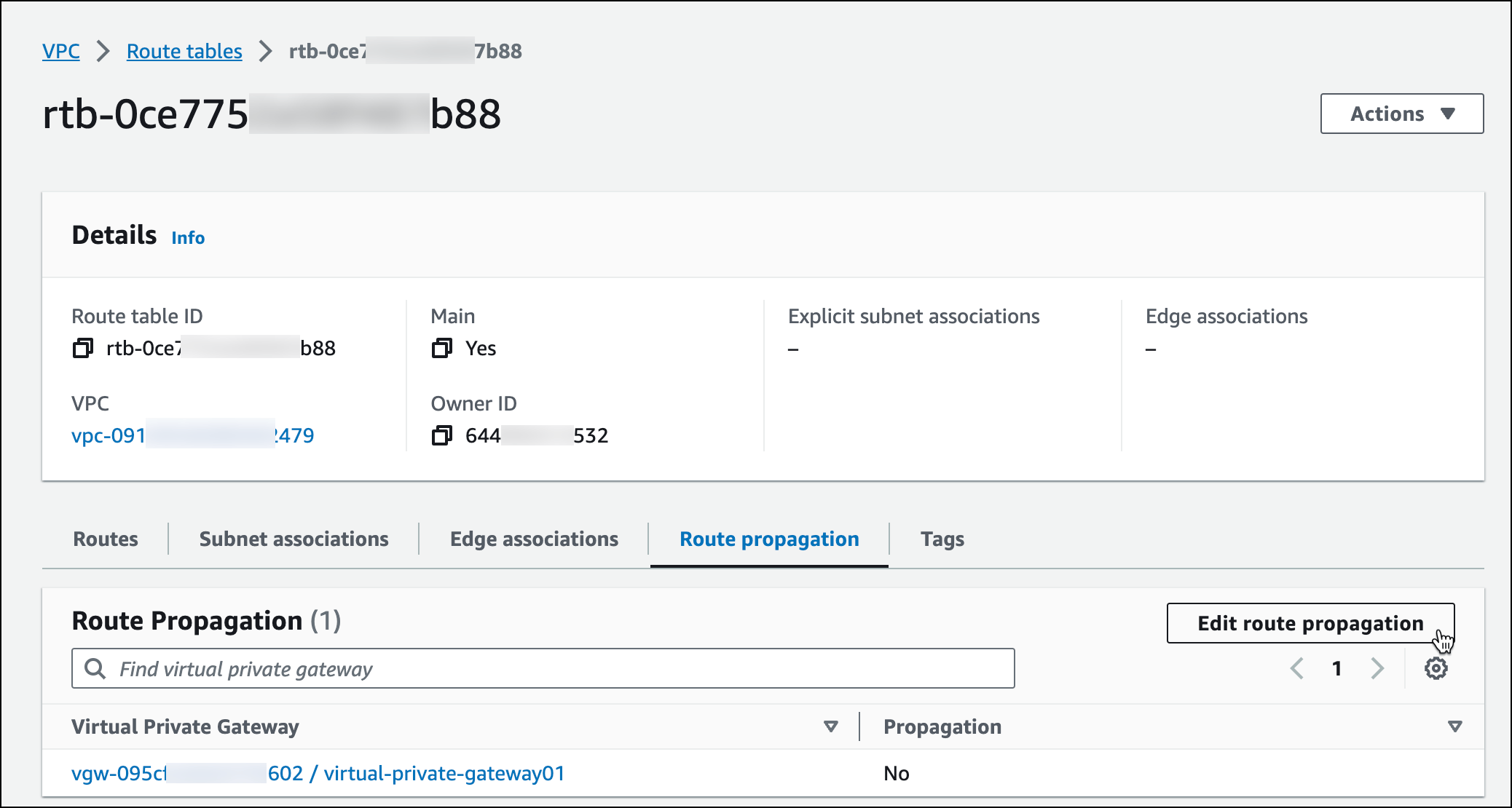 5. On the Edit route propagation tab, locate the AWS VGW that is associated with
this Transit VPC and select the **Enable** checkbox.
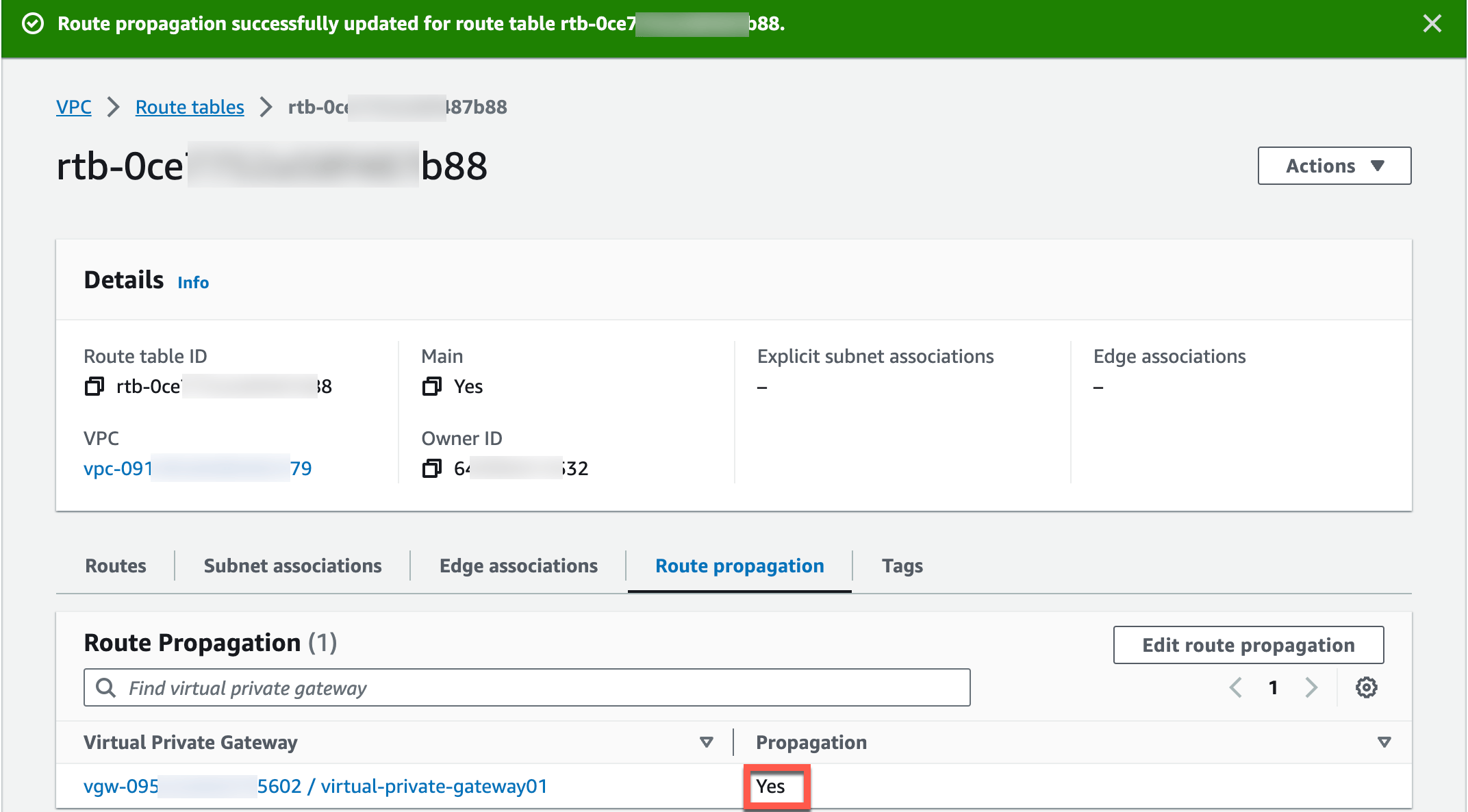
6. Click **Save**.
7. On the Route propagation tab, check if the Propagation status is Yes.
5. On the Edit route propagation tab, locate the AWS VGW that is associated with
this Transit VPC and select the **Enable** checkbox.
6. Click **Save**.
7. On the Route propagation tab, check if the Propagation status is Yes.
 ### Check route propagation on AWS portal
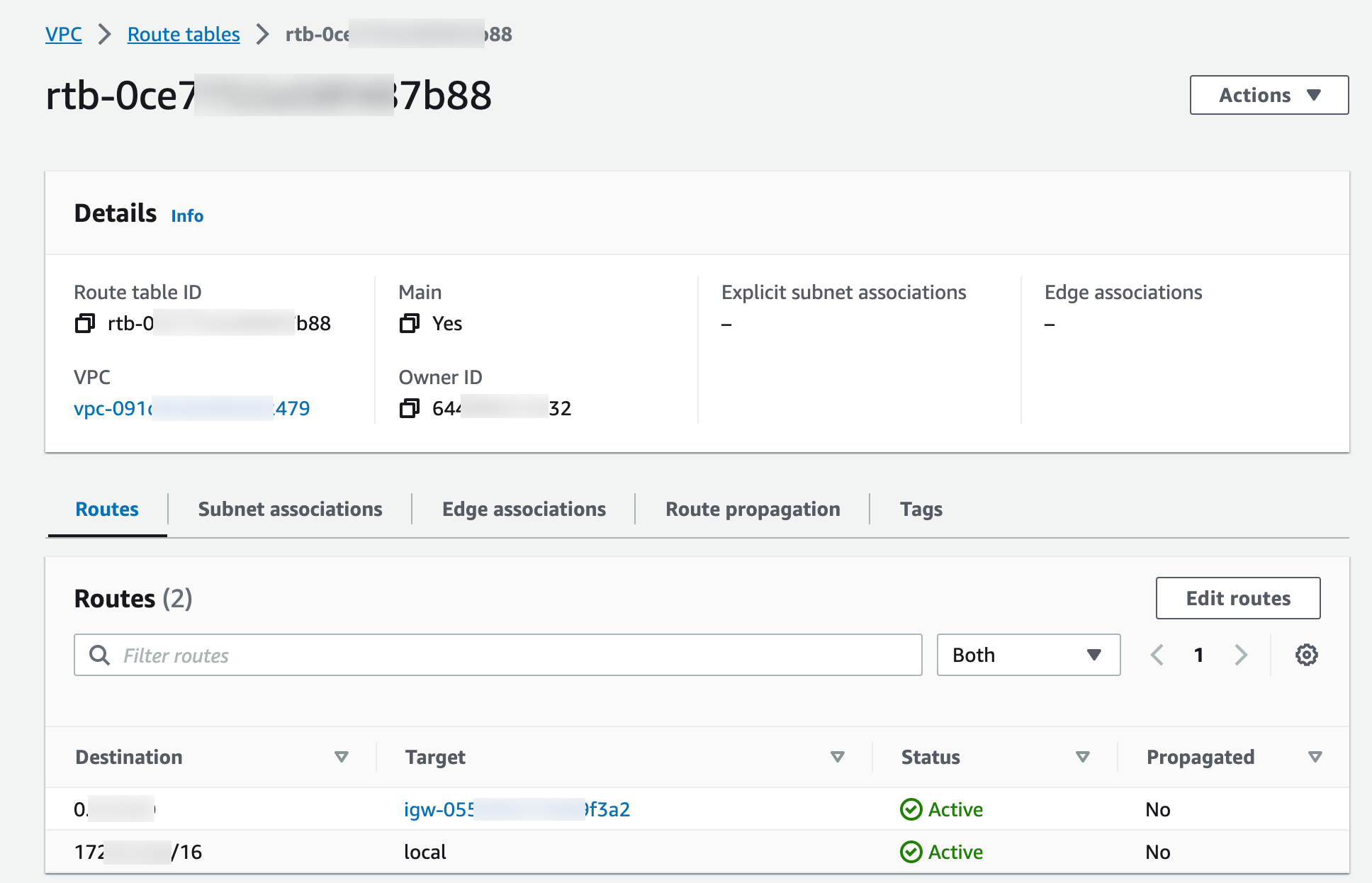
1. In the AWS VPC portal, locate the subnet route table for the Aviatrix Transit
Gateway.
2. On the Routes tab, check if there is a route entry pointing to the virtual
private gateway (this is the Azure Transit VNet CIDR pointing to the virtual
gateway).
### Check route propagation on AWS portal
1. In the AWS VPC portal, locate the subnet route table for the Aviatrix Transit
Gateway.
2. On the Routes tab, check if there is a route entry pointing to the virtual
private gateway (this is the Azure Transit VNet CIDR pointing to the virtual
gateway).
 ### Deploy Aviatrix Multicloud Transit Gateway and HA in Azure
* Deploy the Transit Aviatrix Gateway and enable HA with HPE enabled in the
Azure Transit VNET.
An instance size of at least Standard\_D5\_v2 will be required for High
Performance Encryption Mode Encryption for higher throughput. Please refer to
this{" "}
High Performance Encryption Performance Benchmarks{" "}
for performance details.
An instance size of at least Standard\_D5\_v2 will be required for High
Performance Encryption Mode Encryption for higher throughput. Please refer to
this{" "}
High Performance Encryption Performance Benchmarks{" "}
for performance details.
* Enable Transit FireNet Function (optional)
### Check Effective Routes on Azure Portal
1. Log into the Azure Portal.
2. Search for "Network interfaces" in the search bar.
3. Select the Aviatrix Transit Gateway's interface.
4. Click **Effective routes**.
5. Check if there is a route entry for the AWS Transit VPC's CIDR pointing to
the Next Hop Type Virtual network gateway.
### Deploy Aviatrix Multicloud Transit Gateway and HA in Azure
* Deploy the Transit Aviatrix Gateway and enable HA with HPE enabled in the
Azure Transit VNET.
An instance size of at least Standard\_D5\_v2 will be required for High
Performance Encryption Mode Encryption for higher throughput. Please refer to
this{" "}
High Performance Encryption Performance Benchmarks{" "}
for performance details.
An instance size of at least Standard\_D5\_v2 will be required for High
Performance Encryption Mode Encryption for higher throughput. Please refer to
this{" "}
High Performance Encryption Performance Benchmarks{" "}
for performance details.
* Enable Transit FireNet Function (optional)
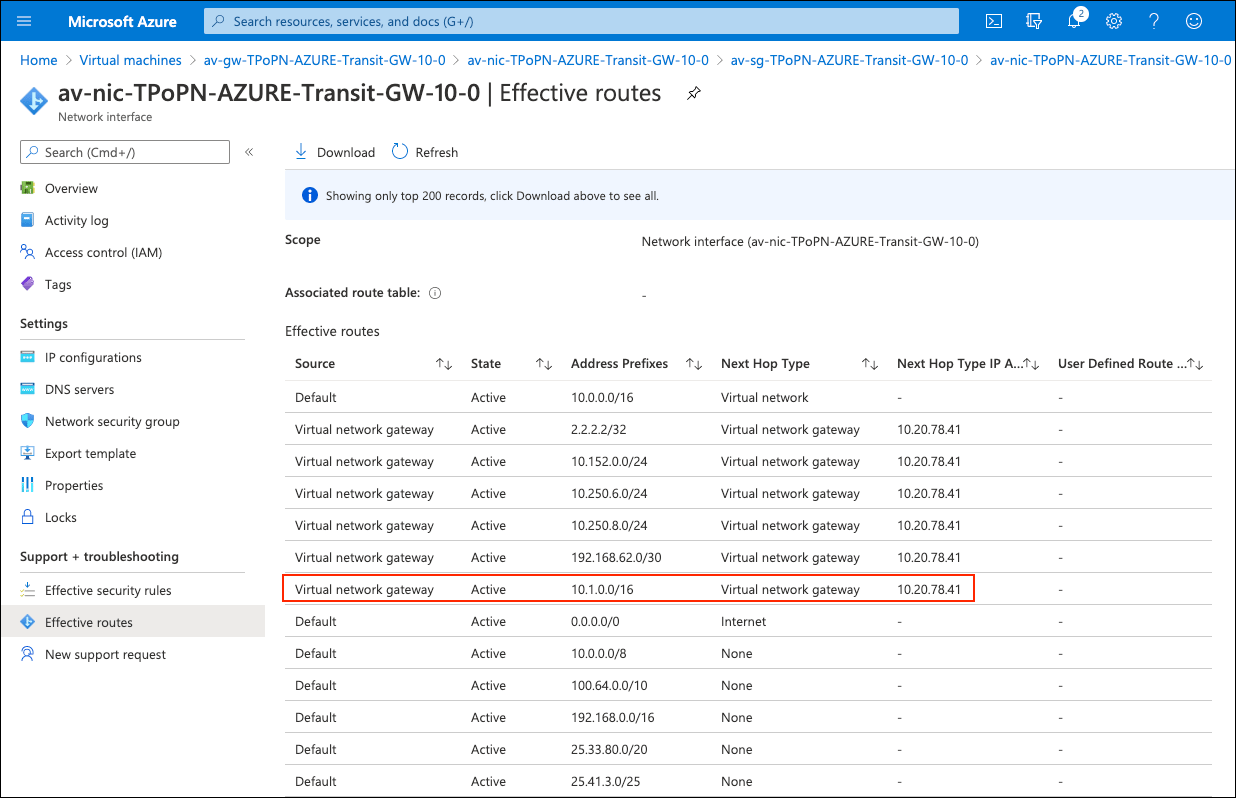
### Check Effective Routes on Azure Portal
1. Log into the Azure Portal.
2. Search for "Network interfaces" in the search bar.
3. Select the Aviatrix Transit Gateway's interface.
4. Click **Effective routes**.
5. Check if there is a route entry for the AWS Transit VPC's CIDR pointing to
the Next Hop Type Virtual network gateway.
 ### Establish Transit Gateway Peering over Private Network
1. In Aviatrix CoPilot, go to Cloud Fabric > Gateways > Transit Gateways and
click the edit
### Establish Transit Gateway Peering over Private Network
1. In Aviatrix CoPilot, go to Cloud Fabric > Gateways > Transit Gateways and
click the edit  icon
next to the AWS Transit Gateway.
2. Ensure that the Azure Transit Gateway is shown in the Peer to Transit
Gateways field (if not, click the dropdown in that field to add it).
3. Click **Save**.
### Deploy Spoke Gateway and HA
* [Deploy a Spoke Gateway](https://legacy.docs.aviatrix.com/documentation/latest/network/gateway-spoke-create.html)
in the AWS Spoke VPC with HA and High Performance Encryption Mode enabled.
An instance size of at least c5.xlarge will be required for
High Performance Encryption Mode Encryption
for higher throughput.
* [Deploy a Spoke Gateway](https://legacy.docs.aviatrix.com/documentation/latest/network/gateway-spoke-create.html)
in the Azure Spoke VNet with HA and HPE enabled.
An instance size of at least Standard\_D5\_v2 will be required for
High Performance Encryption Mode Encryption
for higher throughput. Please refer to this
High Performance Encryption Performance Benchmarks
for performance detail.
### Attach Spoke Gateways to Transit Network
See
[Attach Spoke Gateways to Transit Network](https://legacy.docs.aviatrix.com/documentation/latest/network/spoke-attach-transit.html)
to attach Aviatrix Spoke Gateways in AWS or Azure.
icon
next to the AWS Transit Gateway.
2. Ensure that the Azure Transit Gateway is shown in the Peer to Transit
Gateways field (if not, click the dropdown in that field to add it).
3. Click **Save**.
### Deploy Spoke Gateway and HA
* [Deploy a Spoke Gateway](https://legacy.docs.aviatrix.com/documentation/latest/network/gateway-spoke-create.html)
in the AWS Spoke VPC with HA and High Performance Encryption Mode enabled.
An instance size of at least c5.xlarge will be required for
High Performance Encryption Mode Encryption
for higher throughput.
* [Deploy a Spoke Gateway](https://legacy.docs.aviatrix.com/documentation/latest/network/gateway-spoke-create.html)
in the Azure Spoke VNet with HA and HPE enabled.
An instance size of at least Standard\_D5\_v2 will be required for
High Performance Encryption Mode Encryption
for higher throughput. Please refer to this
High Performance Encryption Performance Benchmarks
for performance detail.
### Attach Spoke Gateways to Transit Network
See
[Attach Spoke Gateways to Transit Network](https://legacy.docs.aviatrix.com/documentation/latest/network/spoke-attach-transit.html)
to attach Aviatrix Spoke Gateways in AWS or Azure.