> ## Documentation Index
> Fetch the complete documentation index at: https://docs.aviatrix.com/llms.txt
> Use this file to discover all available pages before exploring further.
# Tuning for Sub-10 Seconds Failover Time in Overlapping Networks
> The purpose of this document is to provide the instructions for tuning network configurations for sub-10 seconds failover time when network address ranges on-prem and cloud are overlapping.
## Introduction
The purpose of this document is to provide the instructions for tuning network
configurations for sub-10 seconds failover time when network address ranges
on-prem and cloud are overlapping.
The scenario is described in the following diagram.
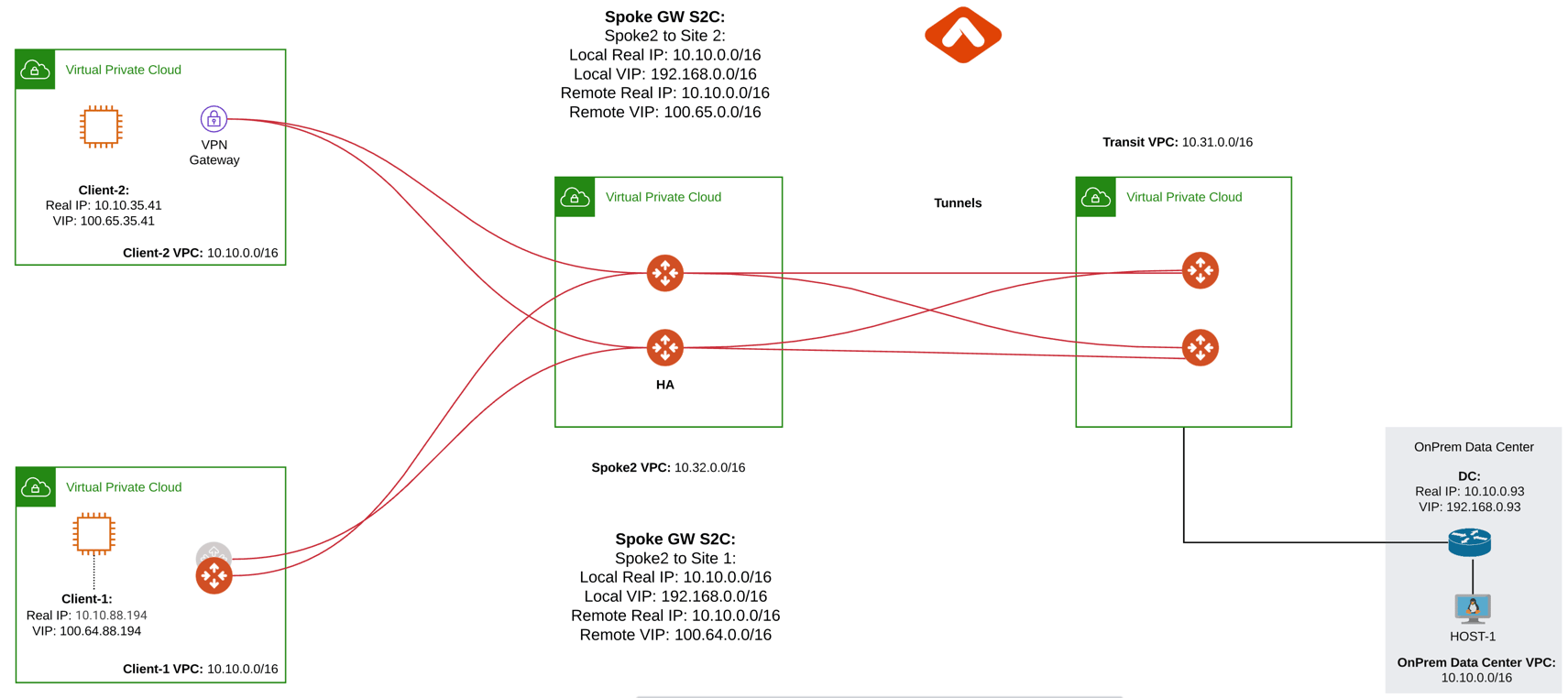 In the above diagram, Client-1 and Client-2 need to communicate with on-prem
network. However, both Client-1 and Client-2 network address ranges overlap with
each other, and worse yet, they both overlap with on-prem network address range
(10.0.0.0/16). Such scenarios happen when Client-1, Client-2 and the on-prem
networks belong to three different organizations.
The traditional solution is to build IPsec tunnel between the two networks and
use SNAT/DNAT rules to translate each addresses, as demonstrated in this example. Such solution requires
a potentially large number of SNAT/DNAT rules which is difficult to configure
and maintain.
With the introduction of Mapped
Site2Cloud for address overlapping networks, you no longer need to wrestle
with the individual SNAT/DNAT rules.
## Configuration Steps
This example uses Aviatrix Gateway on client site to simulate fast convergence
environment
### Step 1: Follow the Multicloud Transit workflow to launch gateways
Log in to the Controller console, go to Multi-CLOUD TRANSIT. Follow step 1, step
4 and step 6 respectively to launch transit and spoke gateways, and attach spoke
gateways to transit.
Create VPN tunnel between Transit Gateway and On-prem.
### Step 2: Create a Site2Cloud tunnel between Spoke Gateway and Client-1
#### 2.1 Configure S2C from Spoke Gateway to Client-1
Go to Controller Console → Site2Cloud → Setup.
Click "+Add New". Fill the form and click OK. Select "Mapped" for the Connection
Type field.
| **Field** | **Value** |
| ---------------------------------- | ----------------------------------------- |
| VPC ID/VNet Name | Choose VPC ID (Select Spoke Gateway VPC) |
| Connection Type | Mapped |
| Connection Name | Arbitrary (e.g. S2C-SPK-to-Client1) |
| Remote Gateway Type | Aviatrix |
| Tunnel Type | Route-based |
| Algorithms | Uncheck this box |
| IKEv2 | Uncheck this box |
| Over Private Network | Uncheck this box |
| Enable HA | Check this box |
| Primary Cloud Gateway | Select the Aviatrix Gateway created above |
| Backup Gateway | Select the Aviatrix Gateway HA |
| Remote Gateway IP Address | Public IP of Client-1 Primary Gateway |
| Remote Gateway IP Address (Backup) | Public IP of Client-1 Backup Gateway |
| Pre-shared Key | Optional (auto-generated if not entered) |
| Same Pre-shared Key as Primary | Check this box |
| Custom Mapped | Uncheck this box |
| Remote Subnet (Real) | 10.10.0.0/16 (Client-1 Real CIDR) |
| Remote Subnet (Virtual) | 100.64.0.0/16 (Client-1 Virtual CIDR) |
| Local Subnet (Real) | 10.10.0.0/16 (On-Prem Network CIDR) |
| Local Subnet (Virtual) | 192.168.0.0/16 (On-Prem Virtual CIDR) |
#### 2.2 Configure S2C from Client Side
Go to Controller Console → Site2Cloud → Setup.
Click "+Add New". Fill the form and click OK. Select "unmapped" for the
Connection Type field.
| **Field** | **Value** |
| ---------------------------------- | ------------------------------------------ |
| VPC ID/VNet Name | Choose VPC ID (Select Client-1 VPC) |
| Connection Type | Unmapped |
| Connection Name | Arbitrary (e.g. S2C-Client1-to-SPK-GW) |
| Remote Gateway Type | Aviatrix |
| Tunnel Type | Route-based |
| Algorithms | Uncheck this box |
| IKEv2 | Uncheck this box |
| Over Private Network | Uncheck this box |
| Enable HA | Check this box |
| Primary Cloud Gateway | Select the Aviatrix Gateway created above |
| Backup Gateway | Select the Aviatrix Gateway HA |
| Remote Gateway IP Address | Public IP of Spoke Primary Gateway |
| Remote Gateway IP Address (Backup) | Public IP of Spoke Backup Gateway |
| Pre-shared Key | Optional (auto-generated if not entered) |
| Same Pre-shared Key as Primary | Check this box |
| Remote Subnet | 192.168.0.0/16 (On-Prem Virtual CIDR) |
| Local Subnet | 10.10.0.0/16 (Client-1 Local Network CIDR) |
### Step 3: Configure global parameters
Go to Controller Console → Settings → Advanced
1. Click on "Tunnel" tab and change "Status Change Detection Time" and save
settings.
| **Field** | **Value** |
| --------------------- | ----------------- |
| Aviatrix Entity | Choose Controller |
| Detection time (secs) | 20 |
2. Click on "Keepalive" tab and modify Keepalive Template Configuration
| **Field** | **Value** |
| ---------------- | --------- |
| Keep Alive Speed | fast |
### Step 4: Configure site2cloud parameters
Go to Aviatrix Controller's Console → Site2Cloud → Setup.
#### 4.1 Spoke Gateway Side
Select Spoke Gateway VPC, spoke gateway to client site2cloud connection and
click "Edit"
1. Make sure only one tunnel is UP and HA status Active-Standby
2. DPD Timer is enabled, configure DPD timers as shown below and click "Save and
Apply".
| **Field** | **Value** |
| ------------- | --------- |
| Initial Delay | 1 |
| Retry | 1 |
| Maxfail | 1 |
3. Forward Traffic to Transit Gateway is enabled
4. Event Triggered HA is enabled
#### 4.2 Client Side
Select Client VPC, client to spoke site2cloud connection and click "Edit"
1. Make sure only one tunnel is UP and HA status Active-Standby
2. DPD Timer is enabled, configure DPD timers as shown below and click "Save and
Apply".
| **Field** | **Value** |
| ------------- | --------- |
| Initial Delay | 1 |
| Retry | 1 |
| Maxfail | 1 |
3. Active Active HA is disabled
4. Event Triggered HA is enabled
## Test site2cloud fast convergence
Bring down IPSec primary tunnel and measure convergence.
In the above diagram, Client-1 and Client-2 need to communicate with on-prem
network. However, both Client-1 and Client-2 network address ranges overlap with
each other, and worse yet, they both overlap with on-prem network address range
(10.0.0.0/16). Such scenarios happen when Client-1, Client-2 and the on-prem
networks belong to three different organizations.
The traditional solution is to build IPsec tunnel between the two networks and
use SNAT/DNAT rules to translate each addresses, as demonstrated in this example. Such solution requires
a potentially large number of SNAT/DNAT rules which is difficult to configure
and maintain.
With the introduction of Mapped
Site2Cloud for address overlapping networks, you no longer need to wrestle
with the individual SNAT/DNAT rules.
## Configuration Steps
This example uses Aviatrix Gateway on client site to simulate fast convergence
environment
### Step 1: Follow the Multicloud Transit workflow to launch gateways
Log in to the Controller console, go to Multi-CLOUD TRANSIT. Follow step 1, step
4 and step 6 respectively to launch transit and spoke gateways, and attach spoke
gateways to transit.
Create VPN tunnel between Transit Gateway and On-prem.
### Step 2: Create a Site2Cloud tunnel between Spoke Gateway and Client-1
#### 2.1 Configure S2C from Spoke Gateway to Client-1
Go to Controller Console → Site2Cloud → Setup.
Click "+Add New". Fill the form and click OK. Select "Mapped" for the Connection
Type field.
| **Field** | **Value** |
| ---------------------------------- | ----------------------------------------- |
| VPC ID/VNet Name | Choose VPC ID (Select Spoke Gateway VPC) |
| Connection Type | Mapped |
| Connection Name | Arbitrary (e.g. S2C-SPK-to-Client1) |
| Remote Gateway Type | Aviatrix |
| Tunnel Type | Route-based |
| Algorithms | Uncheck this box |
| IKEv2 | Uncheck this box |
| Over Private Network | Uncheck this box |
| Enable HA | Check this box |
| Primary Cloud Gateway | Select the Aviatrix Gateway created above |
| Backup Gateway | Select the Aviatrix Gateway HA |
| Remote Gateway IP Address | Public IP of Client-1 Primary Gateway |
| Remote Gateway IP Address (Backup) | Public IP of Client-1 Backup Gateway |
| Pre-shared Key | Optional (auto-generated if not entered) |
| Same Pre-shared Key as Primary | Check this box |
| Custom Mapped | Uncheck this box |
| Remote Subnet (Real) | 10.10.0.0/16 (Client-1 Real CIDR) |
| Remote Subnet (Virtual) | 100.64.0.0/16 (Client-1 Virtual CIDR) |
| Local Subnet (Real) | 10.10.0.0/16 (On-Prem Network CIDR) |
| Local Subnet (Virtual) | 192.168.0.0/16 (On-Prem Virtual CIDR) |
#### 2.2 Configure S2C from Client Side
Go to Controller Console → Site2Cloud → Setup.
Click "+Add New". Fill the form and click OK. Select "unmapped" for the
Connection Type field.
| **Field** | **Value** |
| ---------------------------------- | ------------------------------------------ |
| VPC ID/VNet Name | Choose VPC ID (Select Client-1 VPC) |
| Connection Type | Unmapped |
| Connection Name | Arbitrary (e.g. S2C-Client1-to-SPK-GW) |
| Remote Gateway Type | Aviatrix |
| Tunnel Type | Route-based |
| Algorithms | Uncheck this box |
| IKEv2 | Uncheck this box |
| Over Private Network | Uncheck this box |
| Enable HA | Check this box |
| Primary Cloud Gateway | Select the Aviatrix Gateway created above |
| Backup Gateway | Select the Aviatrix Gateway HA |
| Remote Gateway IP Address | Public IP of Spoke Primary Gateway |
| Remote Gateway IP Address (Backup) | Public IP of Spoke Backup Gateway |
| Pre-shared Key | Optional (auto-generated if not entered) |
| Same Pre-shared Key as Primary | Check this box |
| Remote Subnet | 192.168.0.0/16 (On-Prem Virtual CIDR) |
| Local Subnet | 10.10.0.0/16 (Client-1 Local Network CIDR) |
### Step 3: Configure global parameters
Go to Controller Console → Settings → Advanced
1. Click on "Tunnel" tab and change "Status Change Detection Time" and save
settings.
| **Field** | **Value** |
| --------------------- | ----------------- |
| Aviatrix Entity | Choose Controller |
| Detection time (secs) | 20 |
2. Click on "Keepalive" tab and modify Keepalive Template Configuration
| **Field** | **Value** |
| ---------------- | --------- |
| Keep Alive Speed | fast |
### Step 4: Configure site2cloud parameters
Go to Aviatrix Controller's Console → Site2Cloud → Setup.
#### 4.1 Spoke Gateway Side
Select Spoke Gateway VPC, spoke gateway to client site2cloud connection and
click "Edit"
1. Make sure only one tunnel is UP and HA status Active-Standby
2. DPD Timer is enabled, configure DPD timers as shown below and click "Save and
Apply".
| **Field** | **Value** |
| ------------- | --------- |
| Initial Delay | 1 |
| Retry | 1 |
| Maxfail | 1 |
3. Forward Traffic to Transit Gateway is enabled
4. Event Triggered HA is enabled
#### 4.2 Client Side
Select Client VPC, client to spoke site2cloud connection and click "Edit"
1. Make sure only one tunnel is UP and HA status Active-Standby
2. DPD Timer is enabled, configure DPD timers as shown below and click "Save and
Apply".
| **Field** | **Value** |
| ------------- | --------- |
| Initial Delay | 1 |
| Retry | 1 |
| Maxfail | 1 |
3. Active Active HA is disabled
4. Event Triggered HA is enabled
## Test site2cloud fast convergence
Bring down IPSec primary tunnel and measure convergence.