> ## Documentation Index
> Fetch the complete documentation index at: https://docs.aviatrix.com/llms.txt
> Use this file to discover all available pages before exploring further.
# Create Edge Spoke Gateway Attachments
> An Edge Spoke Gateway can be attached to multiple gateways for hybrid, multicloud, and LAN connectivity.
An Edge Spoke Gateway can be attached to multiple gateways for hybrid,
multicloud, and LAN connectivity.
* For encrypted connectivity from remote site to edge location, you can attach
an Edge Spoke Gateway deployed at the remote site to an Edge Transit Gateway
deployed at the edge location. See
[Attach an Edge Spoke Gateway to an Edge Transit Gateway](#attach-an-edge-spoke-gateway-to-an-edge-transit-gateway).
* For encrypted connectivity from edge location to cloud, you can attach an Edge
Spoke Gateway deployed at the edge location to a Transit Gateway in cloud. See
[Attach an Edge Spoke Gateway to a Transit Gateway](#attach-an-edge-spoke-gateway-to-a-transit-gateway).
## Attach an Edge Spoke Gateway to an Edge Transit Gateway
If you want to use Jumbo Frames for the attachment peering connection between
the Edge gateways, make sure to enable Jumbo Frames on the Edge gateways before
you create the attachment.
To attach an Edge Spoke Gateway to an Edge Transit Gateway:
1. In Aviatrix CoPilot, go to **Cloud Fabric > Hybrid Cloud > Edge Gateways >
Spoke Gateways** page.
2. In the table, locate the Edge Spoke Gateway to which you want to attach the
Edge Transit Gateway, then click the **Manage Gateway Attachments** icon  on the
right side of the row.
3. In Manage Gateway Attachments > Transit Gateway, click **+ Attachment** and
provide the following information.
| Field | Description |
| ----------------------------- | ------------------------------------------------------------------------------- |
| Transit Gateway | The remote Edge Transit Gateway to attach. |
| Local Edge Gateway Interface | The WAN interface of the local Edge Spoke Gateway to use for the attachment. |
| Remote Edge Gateway Interface | The WAN interface of the remote Edge Transit Gateway to use for the attachment. |
4. In the **Advanced** section, enter or select the following:
| Field | Description |
| --------------------- | ---------------------------------------------------------------------------------------------------------------------------------------------------------------------------------------------------------------------------------------------------------------------------------------------------------------------------------------------------------------------------------------------------------------------------------------------------------------------------------------------------------------------------------------------------- |
| Attach Over | The connection between the Edge gateways. It can be over a **Private Network** or the **Public Network**. On the Aviatrix Edge Platform (AEP), Edge Transit Gateway to Edge Spoke Gateway peering for high performance encryption is supported over private and public networks. On the Equinix and Megaport platforms, Edge Transit Gateway to Edge Spoke Gateway peering for high performance encryption is supported over private networks only. Regular encryption is supported over both private and public networks for all edge environments. |
| Jumbo Frame | Jumbo Frame improves performance for the connection between the Edge gateways. Jumbo Frame is applicable when the attachment is over a Private network. To use Jumbo Frames for the connection , set **Jumbo Frame** toggle to **On**. |
| ActiveMesh | ActiveMesh enables full mesh peering between the local and remote Edge gateways. For full mesh peering, set **ActiveMesh** toggle **On**. |
| Number of HPE Tunnels | The number of High Performance Encryption (HPE) tunnels to create for the attachment peering. **Single** creates a single tunnel. **Maximum** creates the maximum tunnels based on the gateway sizes and the number of interface IPs on the peering gateway. This option is available only for connection over a Private network. **Custom** allows you to specify the number of tunnels to create. |
5. To attach the Edge Spoke Gateway to another Edge Transit Gateway, click **+
Attachment** again and provide the required information.
You can attach an Edge Spoke Gateway to multiple Edge Transit Gateways. Each
attachment can be configured with different parameters, such as connecting
WAN interfaces, connection over private or public networks, and enabling
high-performance encryption.
6. Click **Save**.
## Attach an Edge Spoke Gateway to a Transit Gateway
To attach an Edge Spoke Gateway to a Transit Gateway, perform the prerequisites
then create the attachment.
### Prerequisites
Before you create the attachment:
* Ensure
**[Local ASN Number](https://legacy.docs.aviatrix.com/documentation/latest/network/bgp-connection-settings.html#local-as-number)**
is configured on Edge and Transit Gateway.
* If the Edge to Transit Gateway attachment is over public network, you need to
update the WAN Public IP on the Edge Gateway.
1. Go to **Cloud Fabric** > **Hybrid Cloud** > **Edge Gateways** tab.
2. Click **Spoke Gateways**.
3. Locate the Edge Gateway, and click its Edit icon on the right.
4. In **Edit Edge Gateway**, go to **Interface Configuration** and click
**WAN**.
5. In **Public IP**, click **Discover**.
on the
right side of the row.
3. In Manage Gateway Attachments > Transit Gateway, click **+ Attachment** and
provide the following information.
| Field | Description |
| ----------------------------- | ------------------------------------------------------------------------------- |
| Transit Gateway | The remote Edge Transit Gateway to attach. |
| Local Edge Gateway Interface | The WAN interface of the local Edge Spoke Gateway to use for the attachment. |
| Remote Edge Gateway Interface | The WAN interface of the remote Edge Transit Gateway to use for the attachment. |
4. In the **Advanced** section, enter or select the following:
| Field | Description |
| --------------------- | ---------------------------------------------------------------------------------------------------------------------------------------------------------------------------------------------------------------------------------------------------------------------------------------------------------------------------------------------------------------------------------------------------------------------------------------------------------------------------------------------------------------------------------------------------- |
| Attach Over | The connection between the Edge gateways. It can be over a **Private Network** or the **Public Network**. On the Aviatrix Edge Platform (AEP), Edge Transit Gateway to Edge Spoke Gateway peering for high performance encryption is supported over private and public networks. On the Equinix and Megaport platforms, Edge Transit Gateway to Edge Spoke Gateway peering for high performance encryption is supported over private networks only. Regular encryption is supported over both private and public networks for all edge environments. |
| Jumbo Frame | Jumbo Frame improves performance for the connection between the Edge gateways. Jumbo Frame is applicable when the attachment is over a Private network. To use Jumbo Frames for the connection , set **Jumbo Frame** toggle to **On**. |
| ActiveMesh | ActiveMesh enables full mesh peering between the local and remote Edge gateways. For full mesh peering, set **ActiveMesh** toggle **On**. |
| Number of HPE Tunnels | The number of High Performance Encryption (HPE) tunnels to create for the attachment peering. **Single** creates a single tunnel. **Maximum** creates the maximum tunnels based on the gateway sizes and the number of interface IPs on the peering gateway. This option is available only for connection over a Private network. **Custom** allows you to specify the number of tunnels to create. |
5. To attach the Edge Spoke Gateway to another Edge Transit Gateway, click **+
Attachment** again and provide the required information.
You can attach an Edge Spoke Gateway to multiple Edge Transit Gateways. Each
attachment can be configured with different parameters, such as connecting
WAN interfaces, connection over private or public networks, and enabling
high-performance encryption.
6. Click **Save**.
## Attach an Edge Spoke Gateway to a Transit Gateway
To attach an Edge Spoke Gateway to a Transit Gateway, perform the prerequisites
then create the attachment.
### Prerequisites
Before you create the attachment:
* Ensure
**[Local ASN Number](https://legacy.docs.aviatrix.com/documentation/latest/network/bgp-connection-settings.html#local-as-number)**
is configured on Edge and Transit Gateway.
* If the Edge to Transit Gateway attachment is over public network, you need to
update the WAN Public IP on the Edge Gateway.
1. Go to **Cloud Fabric** > **Hybrid Cloud** > **Edge Gateways** tab.
2. Click **Spoke Gateways**.
3. Locate the Edge Gateway, and click its Edit icon on the right.
4. In **Edit Edge Gateway**, go to **Interface Configuration** and click
**WAN**.
5. In **Public IP**, click **Discover**.
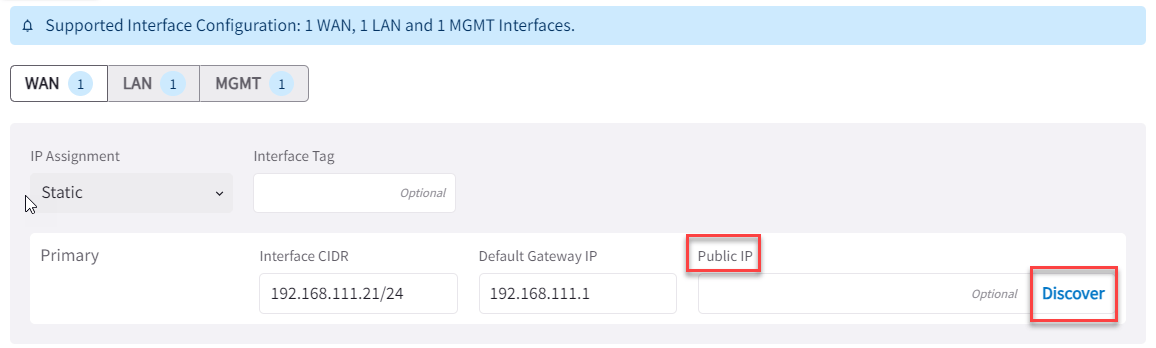 6. Verify the WAN Public IP and click **Save**.
### Attach Edge Spoke Gateway to Transit Gateway
To create a High Performance Encryption attachment peering, make sure the
Transit Gateway is created with High Performance Encryption enabled.
If you want Jumbo Frame enabled for the attachment peering, make sure to enable
Jumbo Frame on the Edge Gateway before you attach it to the Transit Gateway.
To create the attachment:
1. In Aviatrix CoPilot, go to **Cloud Fabric** > **Hybrid Cloud** > **Edge
Gateways** tab.
2. Click **Spoke Gateways**.
3. Locate the Edge Spoke Gateway, and click **Manage Gateway Attachments** icon
on the right side of the row.
4. In **Manage Gateway Attachments > Transit Gateway** tab, click
**+Attachment** and provide the following information.
| Field | Description |
| ---------------------------- | --------------------------------------------------------------------------------------------------------------------------------------------------------------------------------------------------------------------------------------------------------------------------------------------------------------------------------------------------------------------------------------------------- |
| Transit Gateway | The Transit Gateway in cloud to attach. |
| Local Edge Gateway Interface | The WAN interface of the local Edge Spoke Gateway to use for the attachment. |
| Attach Over | The connection between the Edge gateways. It can be over a **Private Network** or the **Public Network**. |
| ActiveMesh | ActiveMesh enables full mesh peering between the local and remote Edge gateways. For full mesh peering, set **ActiveMesh** toggle **On**. |
| Jumbo Frame | Jumbo Frame improves performance for the connection between the Edge gateways. Jumbo Frame is applicable when the attachment is over a Private network. To use Jumbo Frames for the connection , set **Jumbo Frame** toggle to **On**. |
| Number of HPE Tunnels | The number of High Performance Encryption (HPE) tunnels to create for the attachment peering. **Single** creates a single tunnel. **Maximum** creates the maximum tunnels based on the gateway sizes and the number of interface IPs on the peering gateway. This option is available only for connection over a Private network. **Custom** allows you to specify the number of tunnels to create. |
5. To attach the Edge Spoke Gateway to another Transit Gateway, click **+
Attachment** again and provide the required information.
You can attach an Edge Spoke Gateway to multiple Transit Gateways. Each
attachment can be configured with different parameters, such as connecting
interfaces, connection over private or public network, high-performance
encryption, and Jumbo Frame.
6. Click **Save**.
## Manage Gateway Attachments
You can attach an Edge Spoke Gateway to multiple Transit Gateways. Each
attachment can be configured with different parameters, such as connecting
interfaces, connection over private or public network, high-performance
encryption, and Jumbo Frame.
Click **+ Attachment** and provide the required information.
| Field | Description |
| ---------------------------- | ---------------------------------------------------------------------------- |
| Transit Gateway | The Transit Gateway in cloud to attach. |
| Local Edge Gateway Interface | The WAN interface of the local Edge Spoke Gateway to use for the attachment. |
**Advanced**
| Field | Description |
| --------------------- | --------------------------------------------------------------------------------------------------------------------------------------------------------------------------------------------------------------------------------------------------------------------------------------------------------------------------------------------------------------------------------------------------- |
| Attach Over | The connection between the Edge gateways. It can be over a **Private Network** or the **Public Network**. |
| ActiveMesh | ActiveMesh enables full mesh peering between the local and remote Edge gateways. For full mesh peering, set **ActiveMesh** toggle **On**. |
| Jumbo Frame | Jumbo Frame improves performance for the connection between the Edge gateways. Jumbo Frame is applicable when the attachment is over a Private network. To use Jumbo Frames for the connection , set **Jumbo Frame** toggle to **On**. |
| Number of HPE Tunnels | The number of High Performance Encryption (HPE) tunnels to create for the attachment peering. **Single** creates a single tunnel. **Maximum** creates the maximum tunnels based on the gateway sizes and the number of interface IPs on the peering gateway. This option is available only for connection over a Private network. **Custom** allows you to specify the number of tunnels to create. |
6. Verify the WAN Public IP and click **Save**.
### Attach Edge Spoke Gateway to Transit Gateway
To create a High Performance Encryption attachment peering, make sure the
Transit Gateway is created with High Performance Encryption enabled.
If you want Jumbo Frame enabled for the attachment peering, make sure to enable
Jumbo Frame on the Edge Gateway before you attach it to the Transit Gateway.
To create the attachment:
1. In Aviatrix CoPilot, go to **Cloud Fabric** > **Hybrid Cloud** > **Edge
Gateways** tab.
2. Click **Spoke Gateways**.
3. Locate the Edge Spoke Gateway, and click **Manage Gateway Attachments** icon
on the right side of the row.
4. In **Manage Gateway Attachments > Transit Gateway** tab, click
**+Attachment** and provide the following information.
| Field | Description |
| ---------------------------- | --------------------------------------------------------------------------------------------------------------------------------------------------------------------------------------------------------------------------------------------------------------------------------------------------------------------------------------------------------------------------------------------------- |
| Transit Gateway | The Transit Gateway in cloud to attach. |
| Local Edge Gateway Interface | The WAN interface of the local Edge Spoke Gateway to use for the attachment. |
| Attach Over | The connection between the Edge gateways. It can be over a **Private Network** or the **Public Network**. |
| ActiveMesh | ActiveMesh enables full mesh peering between the local and remote Edge gateways. For full mesh peering, set **ActiveMesh** toggle **On**. |
| Jumbo Frame | Jumbo Frame improves performance for the connection between the Edge gateways. Jumbo Frame is applicable when the attachment is over a Private network. To use Jumbo Frames for the connection , set **Jumbo Frame** toggle to **On**. |
| Number of HPE Tunnels | The number of High Performance Encryption (HPE) tunnels to create for the attachment peering. **Single** creates a single tunnel. **Maximum** creates the maximum tunnels based on the gateway sizes and the number of interface IPs on the peering gateway. This option is available only for connection over a Private network. **Custom** allows you to specify the number of tunnels to create. |
5. To attach the Edge Spoke Gateway to another Transit Gateway, click **+
Attachment** again and provide the required information.
You can attach an Edge Spoke Gateway to multiple Transit Gateways. Each
attachment can be configured with different parameters, such as connecting
interfaces, connection over private or public network, high-performance
encryption, and Jumbo Frame.
6. Click **Save**.
## Manage Gateway Attachments
You can attach an Edge Spoke Gateway to multiple Transit Gateways. Each
attachment can be configured with different parameters, such as connecting
interfaces, connection over private or public network, high-performance
encryption, and Jumbo Frame.
Click **+ Attachment** and provide the required information.
| Field | Description |
| ---------------------------- | ---------------------------------------------------------------------------- |
| Transit Gateway | The Transit Gateway in cloud to attach. |
| Local Edge Gateway Interface | The WAN interface of the local Edge Spoke Gateway to use for the attachment. |
**Advanced**
| Field | Description |
| --------------------- | --------------------------------------------------------------------------------------------------------------------------------------------------------------------------------------------------------------------------------------------------------------------------------------------------------------------------------------------------------------------------------------------------- |
| Attach Over | The connection between the Edge gateways. It can be over a **Private Network** or the **Public Network**. |
| ActiveMesh | ActiveMesh enables full mesh peering between the local and remote Edge gateways. For full mesh peering, set **ActiveMesh** toggle **On**. |
| Jumbo Frame | Jumbo Frame improves performance for the connection between the Edge gateways. Jumbo Frame is applicable when the attachment is over a Private network. To use Jumbo Frames for the connection , set **Jumbo Frame** toggle to **On**. |
| Number of HPE Tunnels | The number of High Performance Encryption (HPE) tunnels to create for the attachment peering. **Single** creates a single tunnel. **Maximum** creates the maximum tunnels based on the gateway sizes and the number of interface IPs on the peering gateway. This option is available only for connection over a Private network. **Custom** allows you to specify the number of tunnels to create. |