> ## Documentation Index
> Fetch the complete documentation index at: https://docs.aviatrix.com/llms.txt
> Use this file to discover all available pages before exploring further.
# SmartGroup Use Cases
> The following are examples of how to use SmartGroups in Distributed Cloud Firewall (DCF) policies.
The following are examples of how to use SmartGroups in Distributed Cloud
Firewall (DCF) policies.
## SmartGroups Use Case 1
Alex creates three SmartGroups:
* Smart Group 1 = Data\_Analytics
* Smart Group 2 = Customer\_Relationships
* Smart Group 3 = Public CIDR of Hosted Cloud\_Service
Alex has the following business objectives:
* Allow Data Analytics and Customer Relationships to communicate with the Cloud
Service on port 443.
* Deny all traffic between Data Analytics and Customer Relationships.
To achieve Distributed Cloud Firewall (DCF) objectives, Alex does the following
in **CoPilot Home > Security > Distributed Cloud Firewall**:
* Builds firewalling policies that allow traffic from Smart Group 1 and 2 to
communicate on port 443 with Smart Group 3.
* Creates a Deny All Policy for Smart Group 1 to communicate with Smart Group 2.
Note that after a SmartGroup is part of a policy, all traffic for that
SmartGroup is denied unless explicitly allowed by DCF rules.
## SmartGroup Use Case 2 (External Connection)
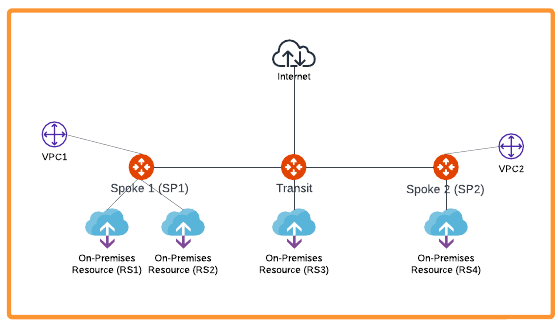 1. Create a SmartGroup for RS1 (Remote Site 1).
2. Create a SmartGroup for RS2 (Remote Site 2).
3. Create a DCF rule to allow traffic from RS1 to VPC2.
4. Create a DCF rule to deny traffic from RS2 to VPC2.
5. Create a DCF Egress rule to allow specific web domains from RS1 to the
Internet.
6. Create a DCF rule to allow TCP/22 traffic from VPC1 to RS2.
## SmartGroup Use Case 3 (Kubernetes)
Taylor manages a Kubernetes cluster with multiple node groups for different
workloads. Taylor creates two SmartGroups:
* Smart Group 1 = K8s-Prod-Nodes (includes all nodes labeled as
"environment=production")
* Smart Group 2 = K8s-Dev-Nodes (includes all nodes labeled as
"environment=development")
To create these SmartGroups:
1. Go to CoPilot Home > Security > SmartGroups.
2. Click **Create SmartGroup**.
3. For K8s-Prod-Nodes, select **Kubernetes Node** as the resource type and set
the label filter to `environment=production`.
4. For K8s-Dev-Nodes, select **Kubernetes Node** as the resource type and set
the label filter to `environment=development`.
5. Save each SmartGroup.
Taylor has the following business objectives:
* Allow only specific traffic (e.g., port 443) from K8s-Dev-Nodes to
K8s-Prod-Nodes for application testing.
* Deny all other traffic between development and production nodes.
* Monitor network usage between these node groups for auditing.
To achieve these objectives, Taylor creates Distributed Cloud Firewall (DCF)
rules:
1. Go to CoPilot Home > Security > Distributed Cloud Firewall.
2. Create a rule to **allow** TCP traffic on port 443 from SmartGroup
**K8s-Dev-Nodes** (source) to SmartGroup **K8s-Prod-Nodes** (destination).
3. Create a rule to **deny** all other traffic from **K8s-Dev-Nodes** to
**K8s-Prod-Nodes**.
4. (Optional) Add a rule to **log** or **monitor** all traffic between these
SmartGroups for auditing purposes.
This approach ensures that only approved application testing traffic is
permitted between development and production Kubernetes nodes, while all other
traffic is blocked and monitored.
## Related Topics
* General Guidelines for Migrating from Legacy ThreatIQ and Geoblocking to
Distributed Cloud Firewall
1. Create a SmartGroup for RS1 (Remote Site 1).
2. Create a SmartGroup for RS2 (Remote Site 2).
3. Create a DCF rule to allow traffic from RS1 to VPC2.
4. Create a DCF rule to deny traffic from RS2 to VPC2.
5. Create a DCF Egress rule to allow specific web domains from RS1 to the
Internet.
6. Create a DCF rule to allow TCP/22 traffic from VPC1 to RS2.
## SmartGroup Use Case 3 (Kubernetes)
Taylor manages a Kubernetes cluster with multiple node groups for different
workloads. Taylor creates two SmartGroups:
* Smart Group 1 = K8s-Prod-Nodes (includes all nodes labeled as
"environment=production")
* Smart Group 2 = K8s-Dev-Nodes (includes all nodes labeled as
"environment=development")
To create these SmartGroups:
1. Go to CoPilot Home > Security > SmartGroups.
2. Click **Create SmartGroup**.
3. For K8s-Prod-Nodes, select **Kubernetes Node** as the resource type and set
the label filter to `environment=production`.
4. For K8s-Dev-Nodes, select **Kubernetes Node** as the resource type and set
the label filter to `environment=development`.
5. Save each SmartGroup.
Taylor has the following business objectives:
* Allow only specific traffic (e.g., port 443) from K8s-Dev-Nodes to
K8s-Prod-Nodes for application testing.
* Deny all other traffic between development and production nodes.
* Monitor network usage between these node groups for auditing.
To achieve these objectives, Taylor creates Distributed Cloud Firewall (DCF)
rules:
1. Go to CoPilot Home > Security > Distributed Cloud Firewall.
2. Create a rule to **allow** TCP traffic on port 443 from SmartGroup
**K8s-Dev-Nodes** (source) to SmartGroup **K8s-Prod-Nodes** (destination).
3. Create a rule to **deny** all other traffic from **K8s-Dev-Nodes** to
**K8s-Prod-Nodes**.
4. (Optional) Add a rule to **log** or **monitor** all traffic between these
SmartGroups for auditing purposes.
This approach ensures that only approved application testing traffic is
permitted between development and production Kubernetes nodes, while all other
traffic is blocked and monitored.
## Related Topics
* General Guidelines for Migrating from Legacy ThreatIQ and Geoblocking to
Distributed Cloud Firewall