> ## Documentation Index
> Fetch the complete documentation index at: https://docs.aviatrix.com/llms.txt
> Use this file to discover all available pages before exploring further.
# Security Group Orchestration for Distributed Cloud Firewall
> After configuring your SmartGroups and Distributed Cloud Firewall rules, you can enable Security Group Orchestration for workload traffic that will remain in your virtual network.
After configuring your SmartGroups and Distributed Cloud Firewall rules, you can
enable Security Group Orchestration for workload traffic that will remain in
your virtual network.
Security Group Orchestration is available for AWS/AWS GovCloud (VMs only) and Azure.
You can use the
AppIQ FlightPath troubleshooting tool
to perform connectivity tests on the AWS or Azure instances secured with
Security Group Orchestration.
**Preview in Controller 10.1.** Starting in Controller 10.1, Security Group
Orchestration also supports AWS GovCloud as a Preview feature. See{" "}
Aviatrix Feature Modes{" "}
for guidance on adopting Preview features.
Security Group Orchestration for AWS GovCloud works the same as for commercial
AWS. Orchestration does not function if **Manage Enforcement on Clouds** is
turned off.
This feature utilizes cloud-native security features (such as network and
application security groups within Azure, and security groups within AWS) to
provide security control within the virtual network. Based on the SmartGroup and
Distributed Cloud Firewall rule configuration, Aviatrix will push these security
group policies to provide L4 access control for the workloads in the virtual
network.
The examples later in this document illustrate how the Security Group
Orchestration feature can be configured in your environment. The first example
for each cloud describes how you can configure Layer 4 access policies between
two applications in the same subnet, and the second example for each cloud
describes how you can configure secured communication between applications in
the same VNet but different subnets.
Security Group Orchestration is not performed on subnets that contain Aviatrix gateways. However, if a source Group within a DCF rule contains a CIDR that is located in a subnet that contains Aviatrix gateways, the rule is executed.
Security Group Orchestration is not currently supported for Kubernetes clusters
or shared VPCs. It is only supported for VPC/VNets, subnets, and VMs.
## System Prerequisites
* Upgrade to Controller version 7.0
* Enable the Distributed Cloud Firewall feature
## Enabling Security Group Orchestration
Before enabling Security Group Orchestration you must already have Spoke VNets
deployed with Aviatrix Gateways.
1. In CoPilot, navigate to Security > Distributed Firewall > Settings.
2. In the
Security Group Orchestration panel
, click **Manage**. The Manage Security Group Orchestration on VPC/VNets
dialog displays.
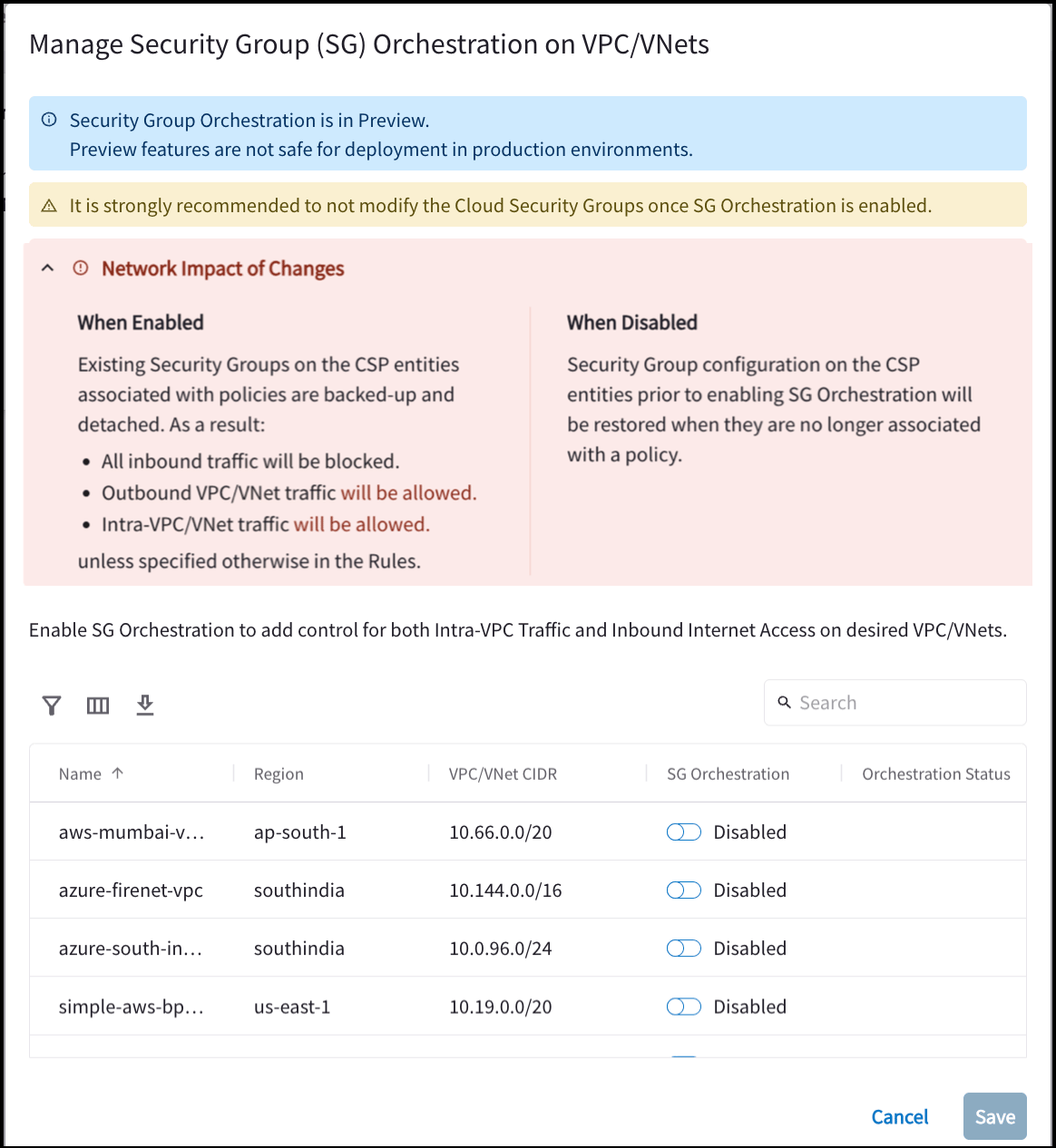 This shows all the VPC/VNets in your environment that contain an Aviatrix
gateway; if they are Enabled or Disabled; and the Security Group
Orchestration Status.
3. Enable one or more VPC/VNets for Security Group Orchestration.
4. Select the **I understand the network impact of the changes** checkbox.
5. Click **Save**.
6. Create your
SmartGroups
and
rules
. After the rules are committed, Security Group Orchestration is applied to
the SmartGroups in those rules.
When you create the rule, set the **SG Orchestration** toggle to **On**. If
this toggle is **Off**, Security Group Orchestration does not apply to that
rule. See{" "}
Create Firewall Rule{" "}
for the cases where the SG Orchestration toggle defaults to Off for new rules.
* [AWS Examples](#aws-examples)
* [Azure Examples](#azure-examples)
Click [here](#disabling-security-group-orchestration) for steps on how to
disable Security Group Orchestration.
## AWS Examples
This shows all the VPC/VNets in your environment that contain an Aviatrix
gateway; if they are Enabled or Disabled; and the Security Group
Orchestration Status.
3. Enable one or more VPC/VNets for Security Group Orchestration.
4. Select the **I understand the network impact of the changes** checkbox.
5. Click **Save**.
6. Create your
SmartGroups
and
rules
. After the rules are committed, Security Group Orchestration is applied to
the SmartGroups in those rules.
When you create the rule, set the **SG Orchestration** toggle to **On**. If
this toggle is **Off**, Security Group Orchestration does not apply to that
rule. See{" "}
Create Firewall Rule{" "}
for the cases where the SG Orchestration toggle defaults to Off for new rules.
* [AWS Examples](#aws-examples)
* [Azure Examples](#azure-examples)
Click [here](#disabling-security-group-orchestration) for steps on how to
disable Security Group Orchestration.
## AWS Examples
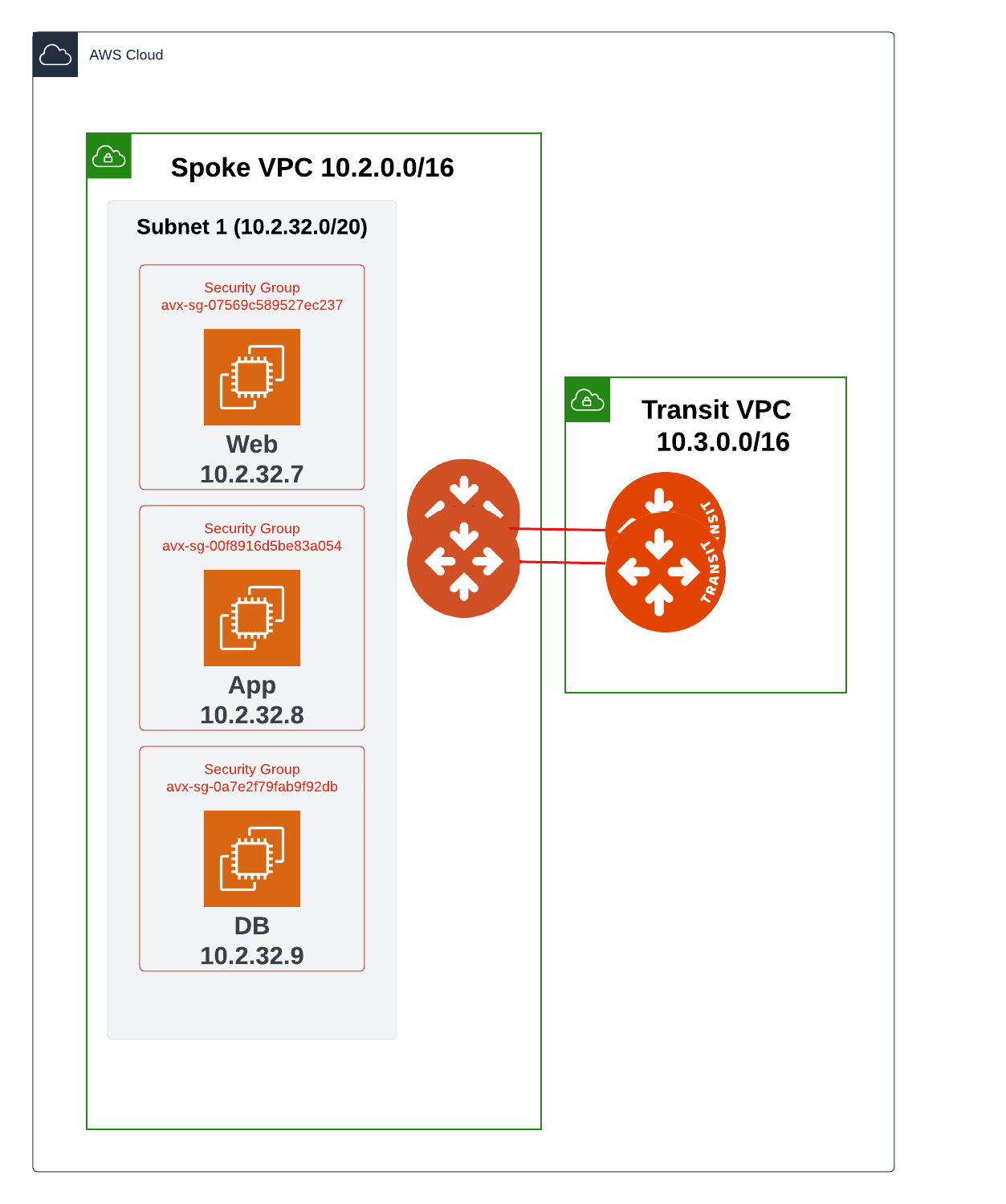
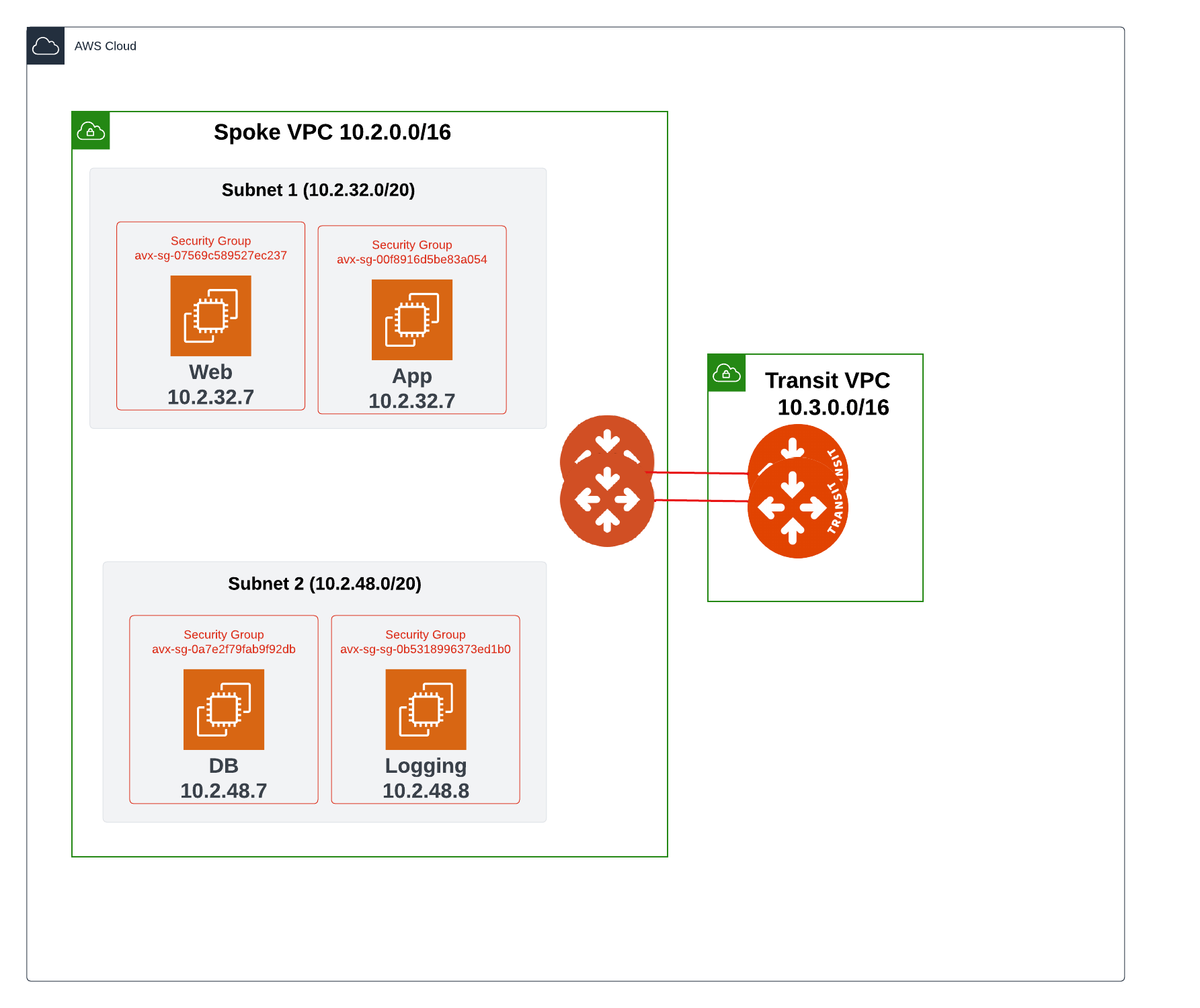
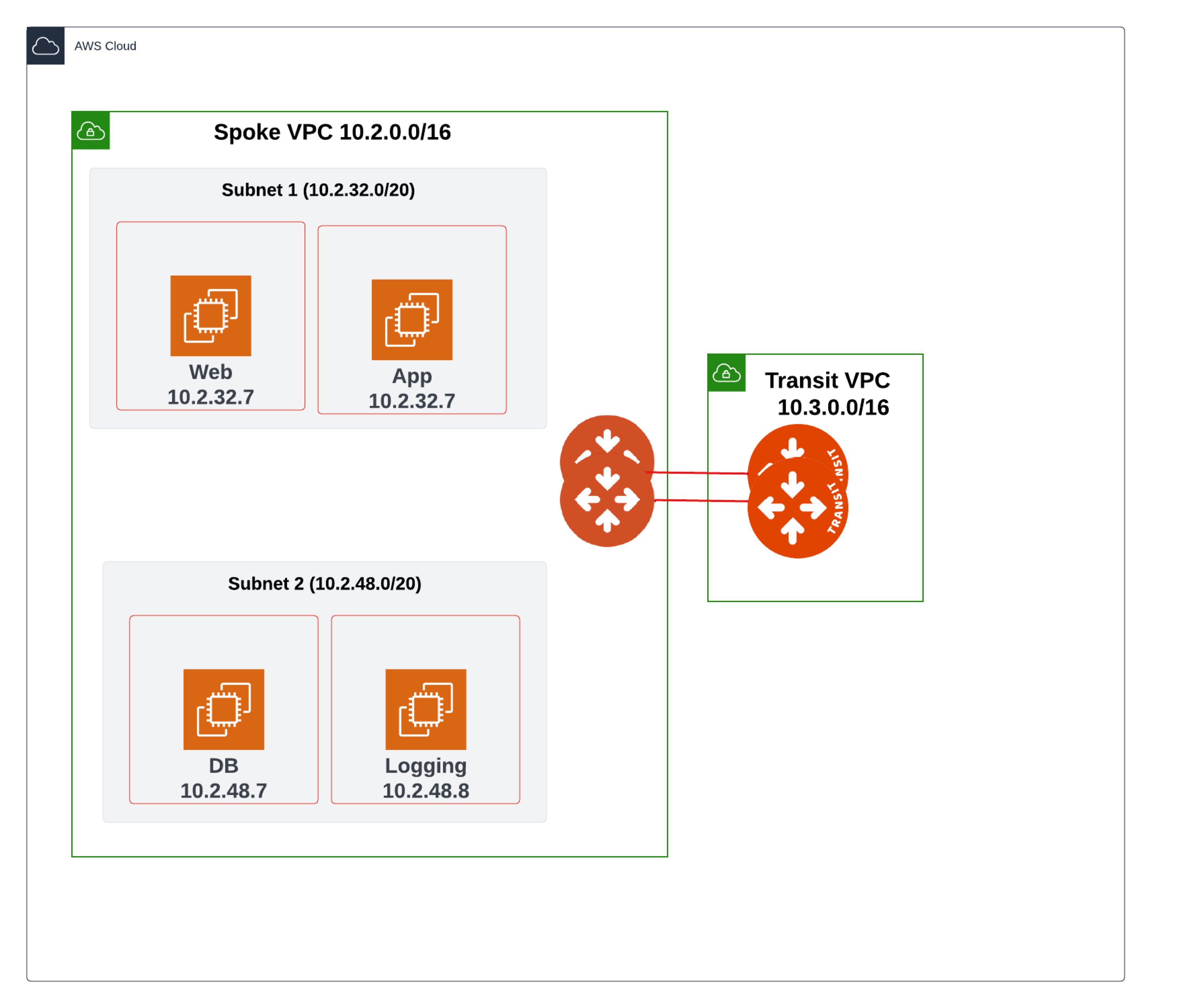 This topology diagram shows a three-tier application/architecture, consisting of
a Web server, an Application, and a Database. The Web server and the Application
are deployed in Subnet 1, and the Database is deployed in Subnet 2.
When Security Group Orchestration is enabled in AWS:
* VMs are secured immediately
* The maximum allowed number of Security Groups (SGs) is created on a single NIC
for the AWS account
* The SGs are attached to the VMs
* Your existing SGs are stored
- Aviatrix strongly recommends that you not modify any of the SGs created by Aviatrix.
- Any VMs or services containing a public IP address (the traffic path of which
is controlled by the NSG or Security Group) must be accounted for with an
appropriate
Distributed Cloud Firewall rule
that allows inbound access to the VM or service.
### AWS Example 1
This example will explain how to restrict communication between the Web server
and the App to be only over port 80, and traffic between App to DB to be only
over port 3306. This assumes you have already
enabled the Distributed Cloud Firewall feature
.
This topology diagram shows a three-tier application/architecture, consisting of
a Web server, an Application, and a Database. The Web server and the Application
are deployed in Subnet 1, and the Database is deployed in Subnet 2.
When Security Group Orchestration is enabled in AWS:
* VMs are secured immediately
* The maximum allowed number of Security Groups (SGs) is created on a single NIC
for the AWS account
* The SGs are attached to the VMs
* Your existing SGs are stored
- Aviatrix strongly recommends that you not modify any of the SGs created by Aviatrix.
- Any VMs or services containing a public IP address (the traffic path of which
is controlled by the NSG or Security Group) must be accounted for with an
appropriate
Distributed Cloud Firewall rule
that allows inbound access to the VM or service.
### AWS Example 1
This example will explain how to restrict communication between the Web server
and the App to be only over port 80, and traffic between App to DB to be only
over port 3306. This assumes you have already
enabled the Distributed Cloud Firewall feature
.
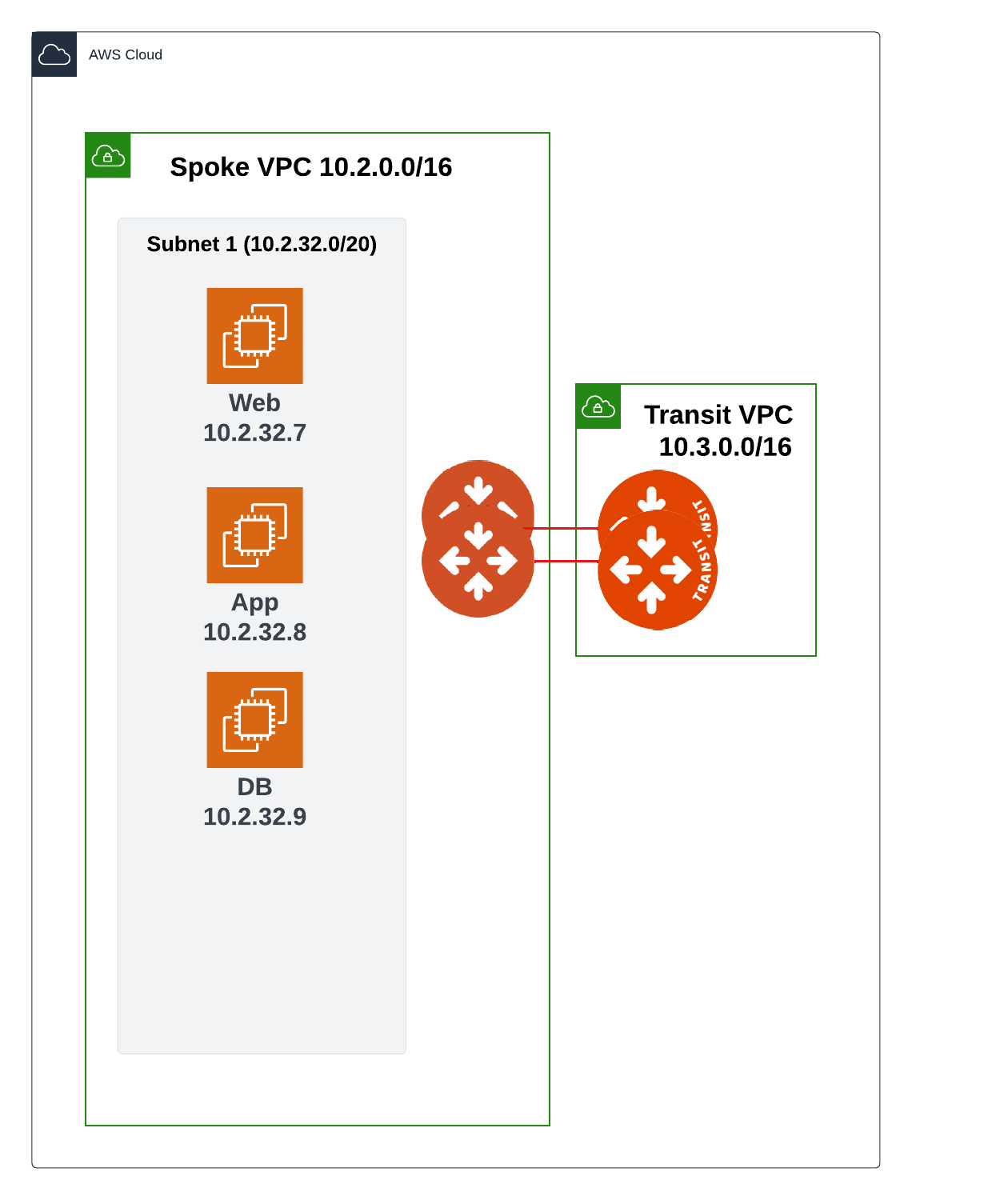 1. Follow the steps in
Creating SmartGroups
to create one SmartGroup that contains the Application, another that contains
the Web server, and another that contains the Database.
2. Follow the steps in
[Creating Distributed Cloud Firewall Rules](https://legacy.docs.aviatrix.com/documentation/latest/security/dcf-create-rules.html)
to:
* Create a rule with the Web server as the source, and the Application as the
destination with an allow action on protocol TCP and port 80.
* Create a rule with Application as the source and Database as the
Destination with an allow action on protocol TCP and port 3306.
3. On the Policies tab, commit the policies.
1. Follow the steps in
Creating SmartGroups
to create one SmartGroup that contains the Application, another that contains
the Web server, and another that contains the Database.
2. Follow the steps in
[Creating Distributed Cloud Firewall Rules](https://legacy.docs.aviatrix.com/documentation/latest/security/dcf-create-rules.html)
to:
* Create a rule with the Web server as the source, and the Application as the
destination with an allow action on protocol TCP and port 80.
* Create a rule with Application as the source and Database as the
Destination with an allow action on protocol TCP and port 3306.
3. On the Policies tab, commit the policies.
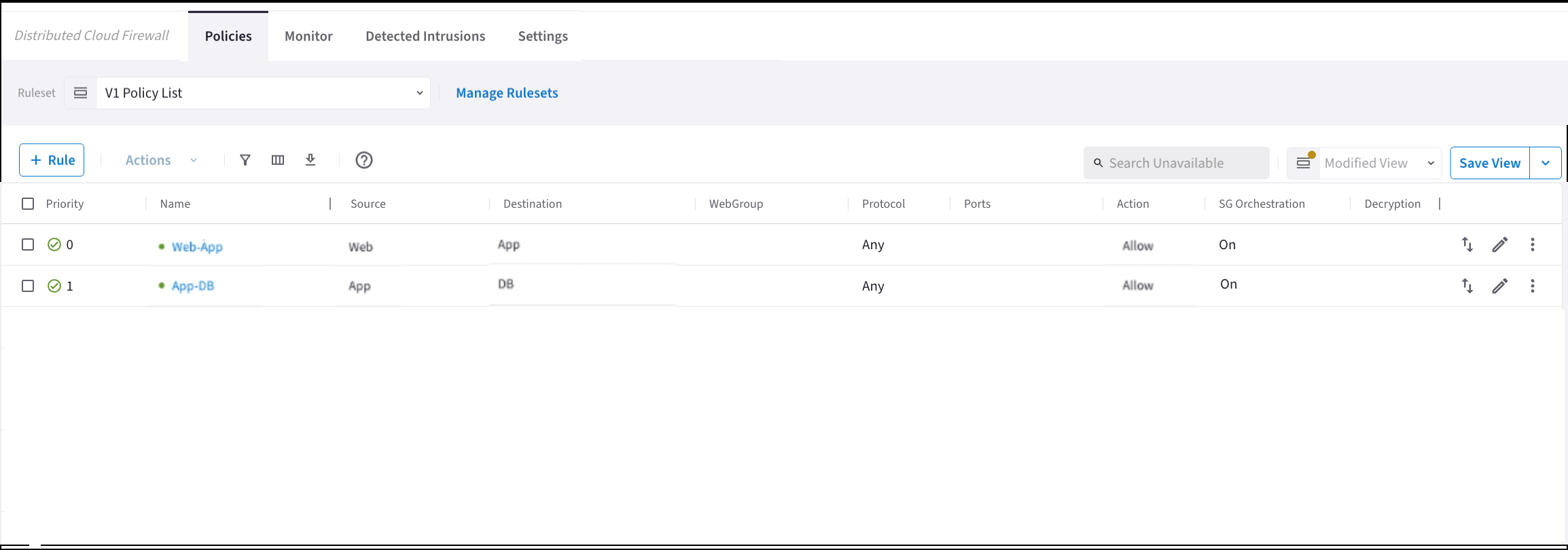 If you already have SGs attached to the application VMs, Aviatrix stores the
SG information before pushing Aviatrix-configured policies.
#### Rule Changes
After the change is committed, the Aviatrix platform computes the necessary
cloud native policy and pushes/programs security group configuration as shown
below:
* An SG is created for each of the SmartGroups (one for the Web server, one for
the Application, and one for the Database).
* An SG corresponding to the Web server is attached to all VMs belonging to the
Web server.
* An SG corresponding to the Application is attached to all VMs belonging to the
App.
* An SG corresponding to the Database is attached to all VMs belonging to the
Database.
If you already have SGs attached to the application VMs, Aviatrix stores the
SG information before pushing Aviatrix-configured policies.
#### Rule Changes
After the change is committed, the Aviatrix platform computes the necessary
cloud native policy and pushes/programs security group configuration as shown
below:
* An SG is created for each of the SmartGroups (one for the Web server, one for
the Application, and one for the Database).
* An SG corresponding to the Web server is attached to all VMs belonging to the
Web server.
* An SG corresponding to the Application is attached to all VMs belonging to the
App.
* An SG corresponding to the Database is attached to all VMs belonging to the
Database.
 ### AWS Example 2
This example is similar to Example 1, except that the Database resides in a
different Subnet (see the
[topology diagram at the beginning of the AWS section](#aws-examples)). It will
explain how to restrict communication between the Web server and the Application
residing in the same subnet to be over port 80, while restricting communication
between the Application and the Database residing in a different subnet
(Subnet 2) to be only over port 3306. This assumes you have already
enabled the Distributed Cloud Firewall feature
.
1. Follow the steps in
Creating SmartGroups
to create one SmartGroup that contains the Application, another that contains
the Web server, and another that contains the Database.
2. Follow the steps in
[Creating DCF Rules](https://legacy.docs.aviatrix.com/documentation/latest/security/dcf-create-rules.html)
to:
* Create a rule with the Web server as the source, and the Application as the
destination with an allow action on protocol TCP and port 80.
* Create a rule with Application as the source and Database as the
Destination with an allow action on protocol TCP and port 3306.
3. On the Policies tab, commit the policies.
After the commit, the same Aviatrix-created rule changes occur as described in
Example 1.
### AWS Example 2
This example is similar to Example 1, except that the Database resides in a
different Subnet (see the
[topology diagram at the beginning of the AWS section](#aws-examples)). It will
explain how to restrict communication between the Web server and the Application
residing in the same subnet to be over port 80, while restricting communication
between the Application and the Database residing in a different subnet
(Subnet 2) to be only over port 3306. This assumes you have already
enabled the Distributed Cloud Firewall feature
.
1. Follow the steps in
Creating SmartGroups
to create one SmartGroup that contains the Application, another that contains
the Web server, and another that contains the Database.
2. Follow the steps in
[Creating DCF Rules](https://legacy.docs.aviatrix.com/documentation/latest/security/dcf-create-rules.html)
to:
* Create a rule with the Web server as the source, and the Application as the
destination with an allow action on protocol TCP and port 80.
* Create a rule with Application as the source and Database as the
Destination with an allow action on protocol TCP and port 3306.
3. On the Policies tab, commit the policies.
After the commit, the same Aviatrix-created rule changes occur as described in
Example 1.
 ## Azure Examples
The examples in this section illustrate how the Security Group Orchestration
feature can be configured in your environment. The first example describes how
you can configure Layer 4 access policies between two applications in the same
subnet, and the second example describes how you can configure secured
communication between applications in the same VNet but different subnets.
When Security Group Orchestration is enabled for Azure:
* The Aviatrix platform creates a default application security group (ASG)
called AVXASG-DEFAULT in the selected VNets.
* The Aviatrix platform uses Azure's cloud native network security group (NSG)
at the subnet level to enforce the Distributed Cloud Firewall policies for the
resources in that subnet.
* To enforce zero-trust architecture, a default deny rule with a priority of
4095 is programmed at the bottom of the NSG rule set to ensure that all
communication is blocked until a specific rule that allows access is
configured.
* To ensure that this does not break traffic flow for VMs on subnets that are
not part of the Distributed Cloud Firewall rule model, the Aviatrix platform
assigns the default ASG to these VMs, along with adding a rule called
AVX-RULE-DEFAULT in the subnet ASG that allows communication to these VMs from
any source.
* Original resources that are within an Aviatrix-controlled subnet are kept, but
disassociated. The Aviatrix-created ASGs and NSGs are associated instead. When
Security Group Orchestration is disabled, the Aviatrix-created ASGs and NSGs
are disassociated, and the original resources are re-associated.
- Aviatrix strongly recommends that you not modify any of the ASGs or NSGs created by Aviatrix.
- Any VMs or services containing a public IP address (the traffic path of which
is controlled by the NSG or Security Group) must be accounted for with an
appropriate
Distributed Cloud Firewall rule
that allows inbound access to the VM or service.
In Controller versions later than 7.1, ASGs and NSGs will automatically use
the tag (key-value pair) "Aviatrix-Created-Resource". Versions of Controller
7.1 or earlier will use the tag "Aviatrix-Created-Resource Value". If you are
using an older version of Controller and you want to change this tag to
"Aviatrix-Created-Resource", you must contact [Aviatrix
Support](https://support.aviatrix.com/).
Aviatrix-created NSGs are blocked from attaching to the following types of
Azure subnets: AzureBastionSubnet, GatewaySubnet, AzureFirewallSubnet, and
RouteServerSubnet.
### Example 1
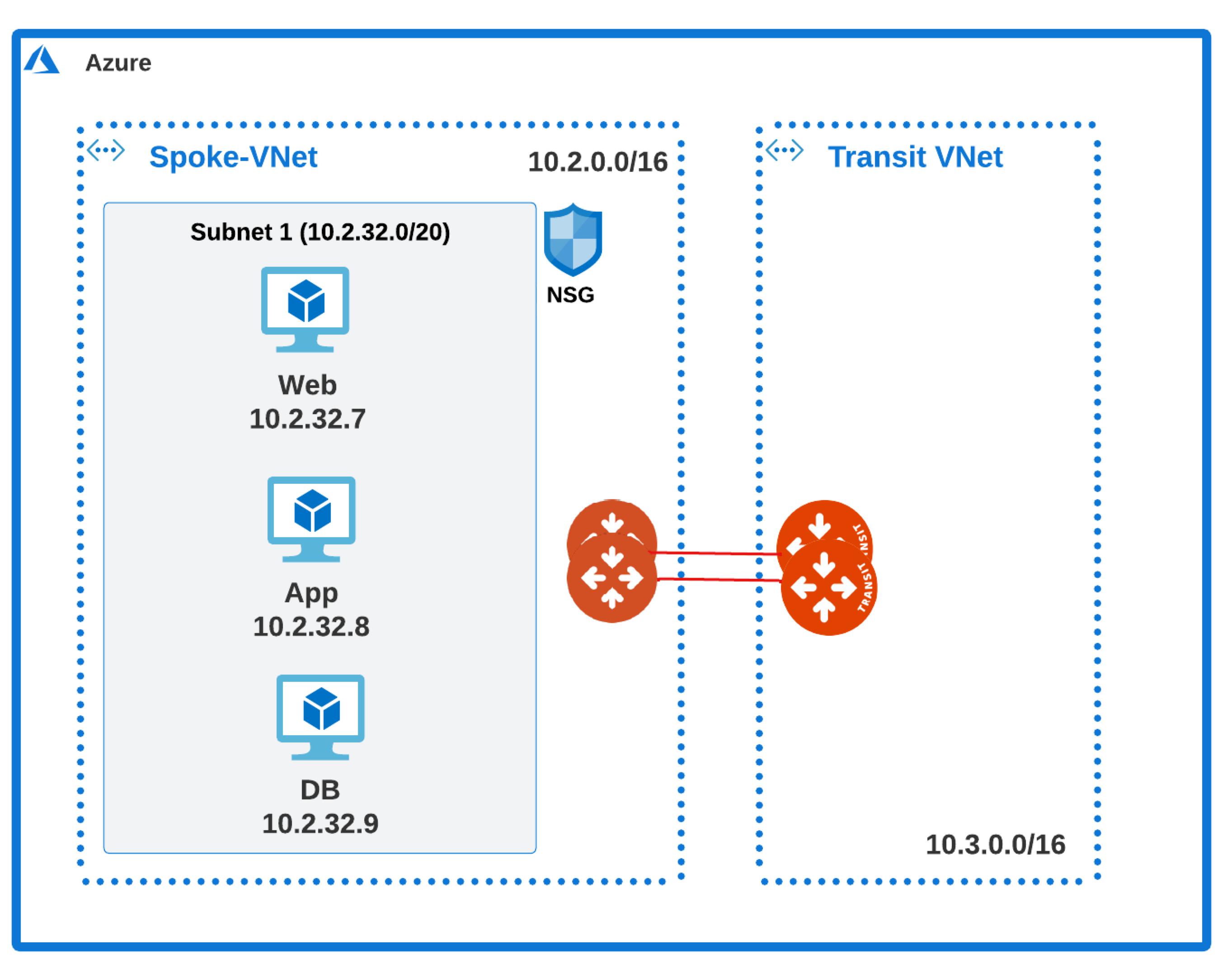
This example will explain how to restrict communication between the Web server
and the App to be only over port 80, and traffic between App to DB to be only
over port 3306. This assumes you have already
enabled the Distributed Cloud Firewall feature
.
## Azure Examples
The examples in this section illustrate how the Security Group Orchestration
feature can be configured in your environment. The first example describes how
you can configure Layer 4 access policies between two applications in the same
subnet, and the second example describes how you can configure secured
communication between applications in the same VNet but different subnets.
When Security Group Orchestration is enabled for Azure:
* The Aviatrix platform creates a default application security group (ASG)
called AVXASG-DEFAULT in the selected VNets.
* The Aviatrix platform uses Azure's cloud native network security group (NSG)
at the subnet level to enforce the Distributed Cloud Firewall policies for the
resources in that subnet.
* To enforce zero-trust architecture, a default deny rule with a priority of
4095 is programmed at the bottom of the NSG rule set to ensure that all
communication is blocked until a specific rule that allows access is
configured.
* To ensure that this does not break traffic flow for VMs on subnets that are
not part of the Distributed Cloud Firewall rule model, the Aviatrix platform
assigns the default ASG to these VMs, along with adding a rule called
AVX-RULE-DEFAULT in the subnet ASG that allows communication to these VMs from
any source.
* Original resources that are within an Aviatrix-controlled subnet are kept, but
disassociated. The Aviatrix-created ASGs and NSGs are associated instead. When
Security Group Orchestration is disabled, the Aviatrix-created ASGs and NSGs
are disassociated, and the original resources are re-associated.
- Aviatrix strongly recommends that you not modify any of the ASGs or NSGs created by Aviatrix.
- Any VMs or services containing a public IP address (the traffic path of which
is controlled by the NSG or Security Group) must be accounted for with an
appropriate
Distributed Cloud Firewall rule
that allows inbound access to the VM or service.
In Controller versions later than 7.1, ASGs and NSGs will automatically use
the tag (key-value pair) "Aviatrix-Created-Resource". Versions of Controller
7.1 or earlier will use the tag "Aviatrix-Created-Resource Value". If you are
using an older version of Controller and you want to change this tag to
"Aviatrix-Created-Resource", you must contact [Aviatrix
Support](https://support.aviatrix.com/).
Aviatrix-created NSGs are blocked from attaching to the following types of
Azure subnets: AzureBastionSubnet, GatewaySubnet, AzureFirewallSubnet, and
RouteServerSubnet.
### Example 1
This example will explain how to restrict communication between the Web server
and the App to be only over port 80, and traffic between App to DB to be only
over port 3306. This assumes you have already
enabled the Distributed Cloud Firewall feature
.
 1. Follow the steps in
Creating SmartGroups
to create one SmartGroup that contains the Application, another that contains
the Web server, and another that contains the Database.
2. Follow the steps in
[Creating DCF Rules](https://legacy.docs.aviatrix.com/documentation/latest/security/dcf-create-rules.html)
to:
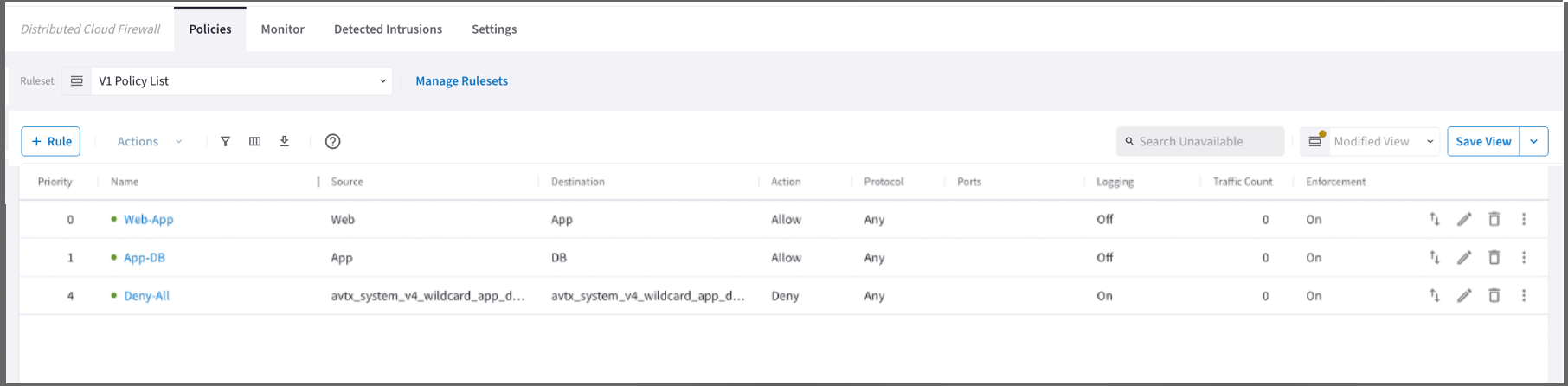
* Create a rule with the Web server as the source, and the Application as the
destination with an allow action on protocol TCP and port 80.
* Create a rule with Application as the source and Database as the
Destination with an allow action on protocol TCP and port 3306.
3. On the Policies tab, commit the policies.
1. Follow the steps in
Creating SmartGroups
to create one SmartGroup that contains the Application, another that contains
the Web server, and another that contains the Database.
2. Follow the steps in
[Creating DCF Rules](https://legacy.docs.aviatrix.com/documentation/latest/security/dcf-create-rules.html)
to:
* Create a rule with the Web server as the source, and the Application as the
destination with an allow action on protocol TCP and port 80.
* Create a rule with Application as the source and Database as the
Destination with an allow action on protocol TCP and port 3306.
3. On the Policies tab, commit the policies.
 If you already have ASGs attached to the application VMs, Aviatrix will store
the ASG information before pushing Aviatrix-configured policies.
#### Rule Changes
After the change is committed, the Aviatrix platform computes the necessary
cloud native policy and pushes/programs security group configuration as shown
below:
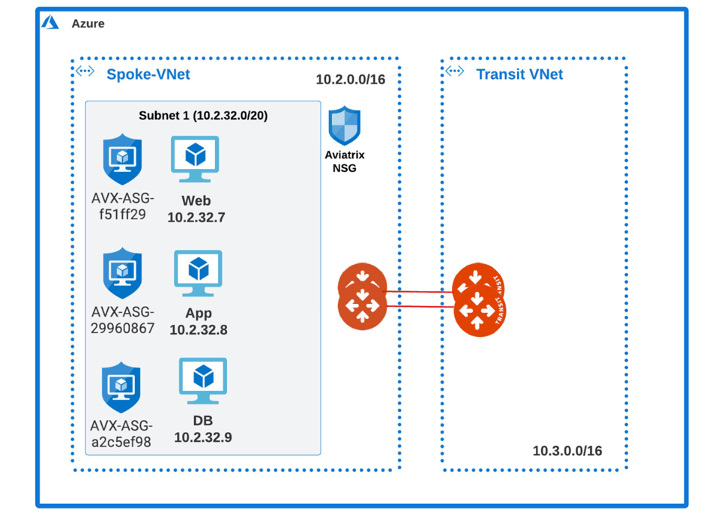
* An application security group is created for each of the SmartGroups (one for
the Web server, one for the Application, and one for the Database).
* An ASG corresponding to the Web server is attached to all VMs belonging to the
Web server.
* An ASG corresponding to the Application is attached to all VMs belonging to
the App.
* An ASG corresponding to the Database is attached to all VMs belonging to the
Database.
If you already have ASGs attached to the application VMs, Aviatrix will store
the ASG information before pushing Aviatrix-configured policies.
#### Rule Changes
After the change is committed, the Aviatrix platform computes the necessary
cloud native policy and pushes/programs security group configuration as shown
below:
* An application security group is created for each of the SmartGroups (one for
the Web server, one for the Application, and one for the Database).
* An ASG corresponding to the Web server is attached to all VMs belonging to the
Web server.
* An ASG corresponding to the Application is attached to all VMs belonging to
the App.
* An ASG corresponding to the Database is attached to all VMs belonging to the
Database.
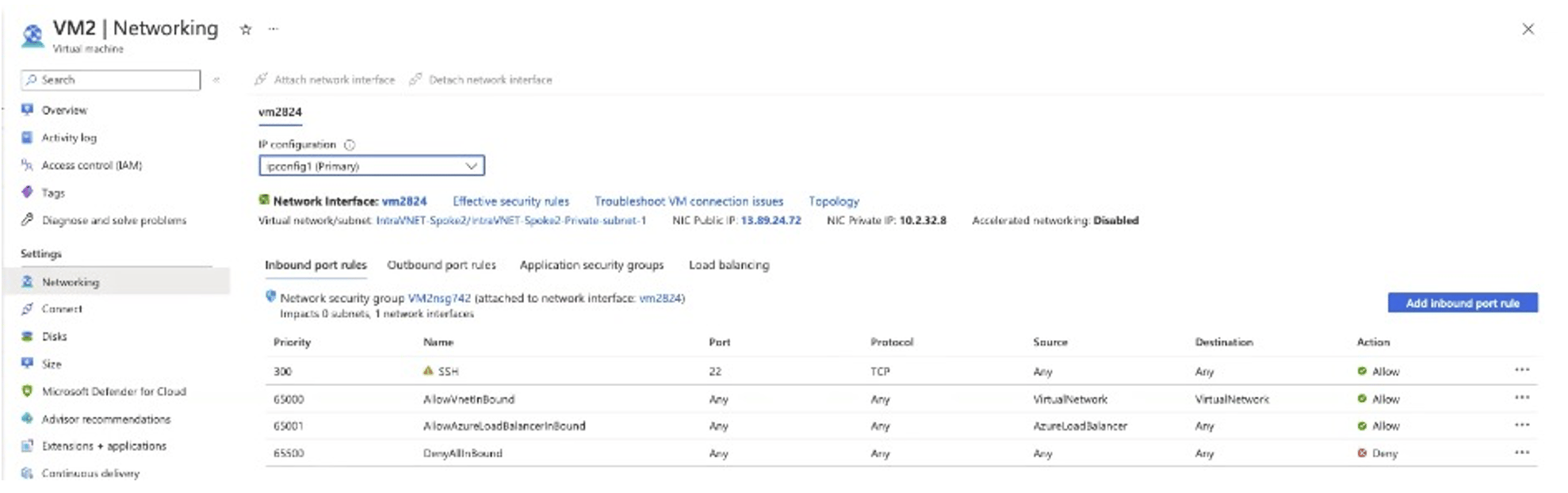
 * The Aviatrix platform creates and pushes/programs a new NSG at the subnet
level.
* The Aviatrix platform creates and pushes/programs a new NSG at the subnet
level.
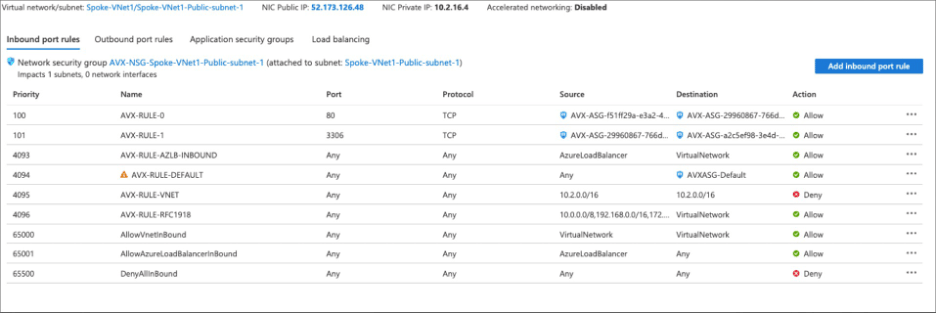
 * Aviatrix adds rules to the NSG to enforce the Distributed Cloud Firewall rule
configuration.
These are the Aviatrix-configured rules on Aviatrix-created NSGs:
* AVX-RULE-0 rule allows traffic between the Web server and App on TCP port 80.
* AVX-RULE-1 rule allows traffic between the App to the Database on TCP
port 3306.
* AVX-RULE-AZLB-INBOUND rule allows communication between an Azure load balancer
and your resources.
* AVX-RULE-DEFAULT rule is configured for the VMs that are part of this subnet
but not subject to any Distributed Cloud Firewall micro-segmentation rule.
More details on this rule are provided in Example 2.
* AVX-RULE-VNET rule denies any intra-VNet traffic.
* AVX-RULE-1918 allows Security Group Orchestration connectivity. Controls will
be applied through Aviatrix Security Group Orchestration before hitting this
rule.
* Aviatrix adds rules to the NSG to enforce the Distributed Cloud Firewall rule
configuration.
These are the Aviatrix-configured rules on Aviatrix-created NSGs:
* AVX-RULE-0 rule allows traffic between the Web server and App on TCP port 80.
* AVX-RULE-1 rule allows traffic between the App to the Database on TCP
port 3306.
* AVX-RULE-AZLB-INBOUND rule allows communication between an Azure load balancer
and your resources.
* AVX-RULE-DEFAULT rule is configured for the VMs that are part of this subnet
but not subject to any Distributed Cloud Firewall micro-segmentation rule.
More details on this rule are provided in Example 2.
* AVX-RULE-VNET rule denies any intra-VNet traffic.
* AVX-RULE-1918 allows Security Group Orchestration connectivity. Controls will
be applied through Aviatrix Security Group Orchestration before hitting this
rule.
 ### Example 2
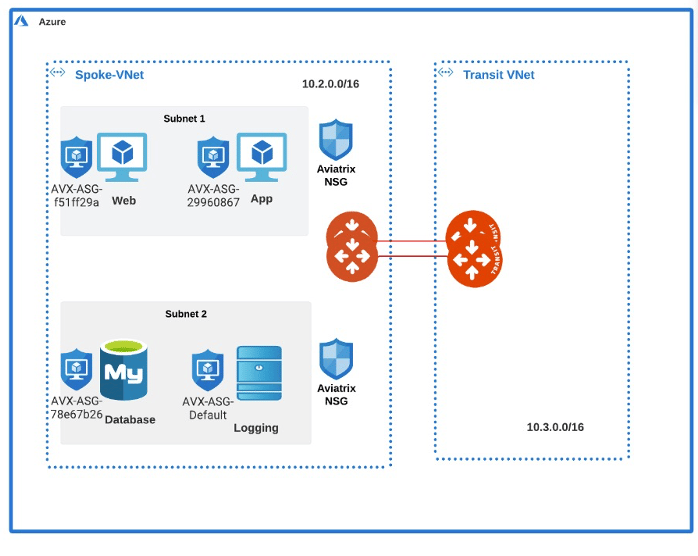
This example is similar to Example 1, except that the Database resides in a
different Subnet. It will explain how to restrict communication between the Web
server and the Application residing in the same subnet to be over port 80, while
restricting communication between the Application and the Database residing in a
different subnet (Subnet 2) to be only over port 3306. This assumes you have
already
enabled the Distributed Cloud Firewall feature
.
1. Follow the steps in
Creating SmartGroups
to create one SmartGroup that contains the Application, another that contains
the Web server, and another that contains the Database.
2. Follow the steps in
[Creating Rules](https://legacy.docs.aviatrix.com/documentation/latest/security/dcf-create-rules.html)
to:
* Create a rule with the Web server as the source, and the Application as the
destination with an allow action on protocol TCP and port 80.
* Create a rule with Application as the source and Database as the
Destination with an allow action on protocol TCP and port 3306.
3. On the Policies tab, commit the policies.
After the commit, the same Aviatrix-created rule changes occur as described in
Example 1. The additional change is that AVX-RULE-DEFAULT is created and
attached to the Logging app in Subnet 2. This is to ensure that the traffic for
the Logging application is unaffected. Any application that is not subject to a
rule via the Aviatrix platform will use AVX-RULE-DEFAULT.
AVX-RULE-DEFAULT is only added to the Aviatrix NSG if there are orphaned VMs
in the VNet. If there are no orphaned VMs in the VNet, AVX-RULE-DEFAULT is not
created in the Avatrix NSG.
### Example 2
This example is similar to Example 1, except that the Database resides in a
different Subnet. It will explain how to restrict communication between the Web
server and the Application residing in the same subnet to be over port 80, while
restricting communication between the Application and the Database residing in a
different subnet (Subnet 2) to be only over port 3306. This assumes you have
already
enabled the Distributed Cloud Firewall feature
.
1. Follow the steps in
Creating SmartGroups
to create one SmartGroup that contains the Application, another that contains
the Web server, and another that contains the Database.
2. Follow the steps in
[Creating Rules](https://legacy.docs.aviatrix.com/documentation/latest/security/dcf-create-rules.html)
to:
* Create a rule with the Web server as the source, and the Application as the
destination with an allow action on protocol TCP and port 80.
* Create a rule with Application as the source and Database as the
Destination with an allow action on protocol TCP and port 3306.
3. On the Policies tab, commit the policies.
After the commit, the same Aviatrix-created rule changes occur as described in
Example 1. The additional change is that AVX-RULE-DEFAULT is created and
attached to the Logging app in Subnet 2. This is to ensure that the traffic for
the Logging application is unaffected. Any application that is not subject to a
rule via the Aviatrix platform will use AVX-RULE-DEFAULT.
AVX-RULE-DEFAULT is only added to the Aviatrix NSG if there are orphaned VMs
in the VNet. If there are no orphaned VMs in the VNet, AVX-RULE-DEFAULT is not
created in the Avatrix NSG.
 ## Disabling Security Group Orchestration
1. In CoPilot, navigate to Security > Distributed Firewall > Settings.
2. In the Security Group Orchestration panel, click **Manage**. The Manage
Security Group Orchestration on VPC/VNets dialog displays.
3. Disable one or more VPC/VNets for Security Group Orchestration.
When Security Group Orchestration is disabled:
* AWS: Aviatrix-created SGs are disassociated.
* Azure: ASGs and NSGs are disassociated.
* The original resources are re-associated.
## Limitations
* Azure only: This feature is not supported with natively peered VNets.
* Azure only: Any rules with a deny action applied to a CIDR-based SmartGroup as
a destination where the CIDR does not belong to a VNet will not be enforced
via Azure NSG orchestration.
* AWS only: If a Distributed Cloud Firewall Allow rule with protocol set to Any
and ports set to All conflicts with a higher priority Deny rule, the Allow
rule is ignored.
## Disabling Security Group Orchestration
1. In CoPilot, navigate to Security > Distributed Firewall > Settings.
2. In the Security Group Orchestration panel, click **Manage**. The Manage
Security Group Orchestration on VPC/VNets dialog displays.
3. Disable one or more VPC/VNets for Security Group Orchestration.
When Security Group Orchestration is disabled:
* AWS: Aviatrix-created SGs are disassociated.
* Azure: ASGs and NSGs are disassociated.
* The original resources are re-associated.
## Limitations
* Azure only: This feature is not supported with natively peered VNets.
* Azure only: Any rules with a deny action applied to a CIDR-based SmartGroup as
a destination where the CIDR does not belong to a VNet will not be enforced
via Azure NSG orchestration.
* AWS only: If a Distributed Cloud Firewall Allow rule with protocol set to Any
and ports set to All conflicts with a higher priority Deny rule, the Allow
rule is ignored.