> ## Documentation Index
> Fetch the complete documentation index at: https://docs.aviatrix.com/llms.txt
> Use this file to discover all available pages before exploring further.
# Aviatrix UserVPN Design for Multi-Accounts and Multi-VPC/VNets
> This reference design helps you build an end-to-end secure cloud network, from users accessing the network (AWS VPC, Azure VNet, or GCP VPC) to routing packets among the VPC/VNets, such that once a user is connected via VPN, they can access any private resources in the cloud no matter where...
This reference design helps you build an end-to-end secure cloud network, from
users accessing the network (AWS VPC, Azure VNet, or GCP VPC) to routing packets
among the VPC/VNets, such that once a user is connected via VPN, they can access
any private resources in the cloud no matter where that resource is.
There are three use cases covered, from simple to more complex. You can decide
which one suits you or combine parts from different ones to create a network
that meet your requirements. You can easily build a full-mesh network.
## Multiple VPC/VNets in One Region
The network shown below has all VPC/VNets in the same region. The Aviatrix
Platform instance can be in the same VPC/VNet or a different VPC/VNet.
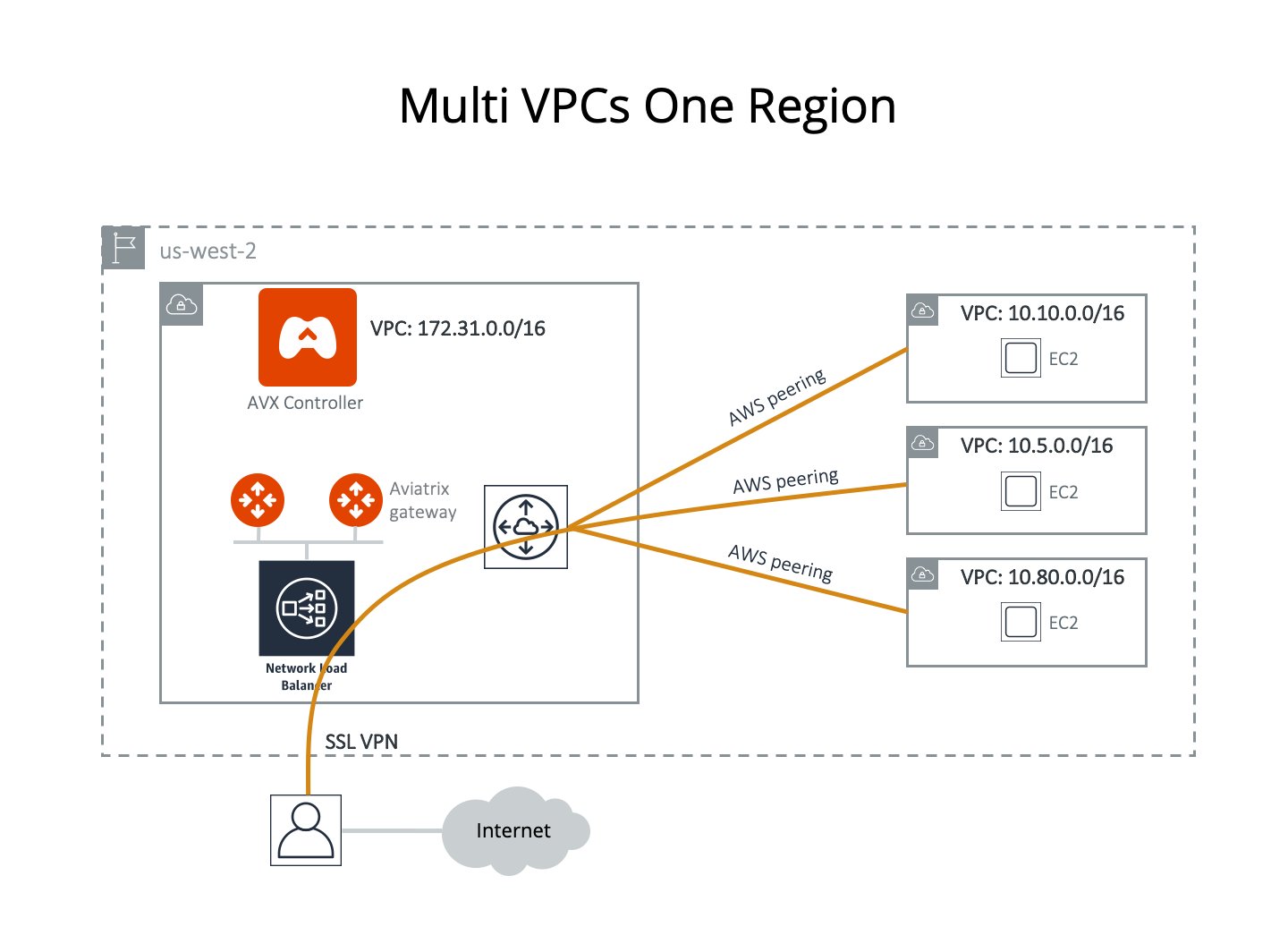 This example assumes that you have created four VPC/VNets in the same region
(us-west-2 in this case). You would like to use the VPC/VNet with CIDR
172.31.0.0/16 to host gateways where users connect to. After a user connects to
this VPC/VNet via SSL VPN, they should be able to access any instances in the
other VPC/VNets as long as their profile allows, without having to connect to
each VPC/VNet with SSL VPN.
Another requirement is split tunnel mode. That is, only traffic destined to the
cloud goes through the SSL tunnel. If a user does general browsing on the
Internet or watches movies, traffic should be routed via Wi-Fi > ISP > Internet
so that you do not have to pay the additional cost.
### Configuration Workflow
Hover your cursor over the fields to see their definitions. Do a software
upgrade if an upgrade alert message appears on your dashboard page.
The description in the steps below provides critical fields you need to select;
it may not include all fields. Make sure you have the correct VPC/VNet ID and
its region for the VPC/VNet ID field and region in each step.
1. Create a VPN Gateway
in VPC 172.31.0.0/16.
2. Repeat Step 1 to create more gateways with VPN enabled. Note that each
gateway must have a different VPN CIDR Block and name. You may select
different AZs for the Public Subnet field.
3. In CoPilot go to **Networking > Connectivity > Native Peering**.
4. Click **+ Native Peering**.
* For VPC/VNet 1, select the Account Name, Region, and VPC ID of one of the
gateways created.
* Do the same for VPC/VNet 2.
* Click **Save**.
* Repeat the above steps as many times as necessary for the gateways you
created.
5. Add Users and Profiles.
* Go to **Cloud Fabric > UserVPN > select the Profiles tab** to create as
many profiles as needed. The target field can be FQDN (DNS names or fully
qualified domain name).
* Go to **Cloud Fabric > UserVPN > select the Users tab** to add more users.
Associate each user with a profile. Note that if no profile is associated,
the user has full access to all resources. When a user is added to the
database, an email with a .ovpn file will be sent to the user with detailed
instructions.
6. Launch VPN connections from remote users to VPC/VNet1 (172.31.0.0/16). Once
the SSL VPN connection is established, this VPN user should be able to reach
all instances (in all VPC/VNets) to which they have access permission.
## Multiple VPC/VNets in Multi-Regions, Split Tunnel
The network shown below has VPC/VNets in different regions. The Aviatrix
Platform instance can be in the same or a different VPC/VNet.
This example assumes that you have created four VPC/VNets in the same region
(us-west-2 in this case). You would like to use the VPC/VNet with CIDR
172.31.0.0/16 to host gateways where users connect to. After a user connects to
this VPC/VNet via SSL VPN, they should be able to access any instances in the
other VPC/VNets as long as their profile allows, without having to connect to
each VPC/VNet with SSL VPN.
Another requirement is split tunnel mode. That is, only traffic destined to the
cloud goes through the SSL tunnel. If a user does general browsing on the
Internet or watches movies, traffic should be routed via Wi-Fi > ISP > Internet
so that you do not have to pay the additional cost.
### Configuration Workflow
Hover your cursor over the fields to see their definitions. Do a software
upgrade if an upgrade alert message appears on your dashboard page.
The description in the steps below provides critical fields you need to select;
it may not include all fields. Make sure you have the correct VPC/VNet ID and
its region for the VPC/VNet ID field and region in each step.
1. Create a VPN Gateway
in VPC 172.31.0.0/16.
2. Repeat Step 1 to create more gateways with VPN enabled. Note that each
gateway must have a different VPN CIDR Block and name. You may select
different AZs for the Public Subnet field.
3. In CoPilot go to **Networking > Connectivity > Native Peering**.
4. Click **+ Native Peering**.
* For VPC/VNet 1, select the Account Name, Region, and VPC ID of one of the
gateways created.
* Do the same for VPC/VNet 2.
* Click **Save**.
* Repeat the above steps as many times as necessary for the gateways you
created.
5. Add Users and Profiles.
* Go to **Cloud Fabric > UserVPN > select the Profiles tab** to create as
many profiles as needed. The target field can be FQDN (DNS names or fully
qualified domain name).
* Go to **Cloud Fabric > UserVPN > select the Users tab** to add more users.
Associate each user with a profile. Note that if no profile is associated,
the user has full access to all resources. When a user is added to the
database, an email with a .ovpn file will be sent to the user with detailed
instructions.
6. Launch VPN connections from remote users to VPC/VNet1 (172.31.0.0/16). Once
the SSL VPN connection is established, this VPN user should be able to reach
all instances (in all VPC/VNets) to which they have access permission.
## Multiple VPC/VNets in Multi-Regions, Split Tunnel
The network shown below has VPC/VNets in different regions. The Aviatrix
Platform instance can be in the same or a different VPC/VNet.
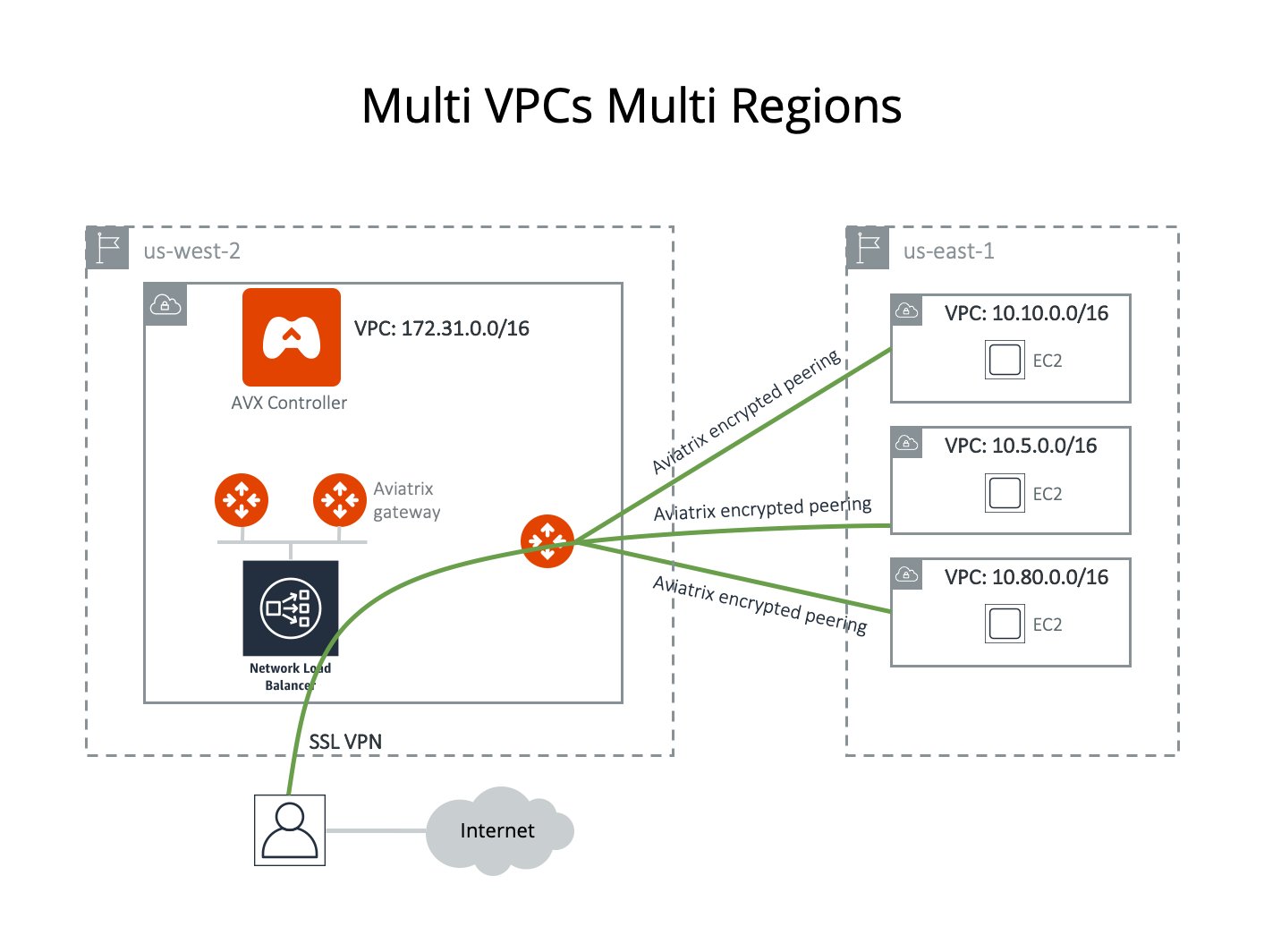 In this example, Aviatrix encrypted peering is used for connecting to remote
VPCs. You can also use AWS peering/Azure peering to accomplish the task.
Assume you have created four VPC/VNets. You would like to use the VPC/VNet with
CIDR 172.31.0.0/16 in us-west-2 to host gateways where users connect to. After a
user connects to this VPC/VNet via SSL VPN, they should be able to access any
instances in the other VPC/VNets as long as their profile allows, without having
to connect to each VPC/VNet with SSL VPN.
Another requirement is split tunnel mode. That is, only traffic originating from
the user and destined to resources in VPC/VNets is routed through the SSL VPN
tunnel. The traffic to the Internet will be routed through ISP instead of SSL
VPN tunnel.
### Configuration Workflow
Hover your cursor over the fields to see their definitions. The description in
each step does not include all fields. Make sure you have the correct VPC/VNet
ID and its region for the VPC ID field and region in each step.
1. Create a VPN Gateway
in VPC 172.31.0.0/16, keeping in mind the following: \* Select Split Tunnel
mode. \* For the Additional CIDRs field under Split Tunnel, enter any other
VPC/VNet or any network CIDRs you want to reach beyond the VPC/VNet you are
connecting to. \* In the example shown, you should enter
10.10.0.0/16,10.5.0.0/16, 10.80.0.0/16. It is a good idea to do some planning
to include future VPC/VNets or network address ranges.
In a case where you never have to worry about connecting to your corporate
VPN, you may consider entering the entire private network address range in the
Additional CIDRs range field, separated by commas:
172.16.0.0/12,10.0.0.0/8,192.168.0.0/16. Doing so means you do not have to
reconfigure the gateway if you need to add more VPC/VNets for networking with
different CIDR ranges in the future.
* (Optional) If you want to use a private DNS name to access the instance, you
can use the Nameservers and Search Domain fields under Split Tunnel. Enter
your private DNS name and search domain.
* If you use AWS Route 53 private hosted zone and records for your host names,
make sure the Nameserver is the DNS server of the VPC/VNet. In this case, you
should enter "172.31.0.2".
* Select **ELB** in the Load Balancer field.
2. Repeat Step 1 to create more VPN gateways. You may select different AZs for
the Attach to Subnet field.
3. Build encrypted routing networks to reach other VPC/VNets.
4. Launch a gateway without VPN capability in VPC/VNet 172.31.0.0/16. This is
the routing gateway. Make sure NAT is NOT enabled (since step 1 has enabled
NAT function for this VPC/VNet).
5. Repeat step 3 for VPC/VNet 10.10.0.0/16, 10.5.0.0/16 and 10.80.0.0/16. Enable
NAT for these gateways if you want instances in these 3 VPC/VNets to be able
to reach the Internet directly.
6. Connect the VPC/VNets using
[Spoke-Spoke peering](https://legacy.docs.aviatrix.com/documentation/latest/network/spoke-attach-spoke.html).
Note that each VPC/VNet is represented by one or more gateways. Make sure you
peer between gateways that do not have VPN capability.
7. (Optional) Set up Stateful Firewall Rules at the VPC/VNet level. Select the
gateway you just created to edit Security Policies to add any policies for
each VPC/VNet.
These steps complete the network infrastructure setup.
8. Add Users and Profiles.
* Go to Cloud Fabric > UserVPN > select the Profiles tab to create as many
profiles as needed. The target field can be FQDN (DNS names or fully
qualified domain name).
* Go to Cloud Fabric > UserVPN > select the Users tab to add as many users as
needed.
* Associate each user with a profile. Note that if no profile is associated,
the user has full access to all resources. When a user is added to the
database, an email with an .ovpn file will be sent to the user with
detailed instructions.
## Multiple VPC/VNets in Multi Regions / Full Tunnel / Your Own Firewall
The network shown below has VPC/VNets are in different regions. The Aviatrix
Platform instance can be in the same or a different VPC/VNet.
In this example, Aviatrix encrypted peering is used for connecting to remote
VPCs. You can also use AWS peering/Azure peering to accomplish the task.
Assume you have created four VPC/VNets. You would like to use the VPC/VNet with
CIDR 172.31.0.0/16 in us-west-2 to host gateways where users connect to. After a
user connects to this VPC/VNet via SSL VPN, they should be able to access any
instances in the other VPC/VNets as long as their profile allows, without having
to connect to each VPC/VNet with SSL VPN.
Another requirement is split tunnel mode. That is, only traffic originating from
the user and destined to resources in VPC/VNets is routed through the SSL VPN
tunnel. The traffic to the Internet will be routed through ISP instead of SSL
VPN tunnel.
### Configuration Workflow
Hover your cursor over the fields to see their definitions. The description in
each step does not include all fields. Make sure you have the correct VPC/VNet
ID and its region for the VPC ID field and region in each step.
1. Create a VPN Gateway
in VPC 172.31.0.0/16, keeping in mind the following: \* Select Split Tunnel
mode. \* For the Additional CIDRs field under Split Tunnel, enter any other
VPC/VNet or any network CIDRs you want to reach beyond the VPC/VNet you are
connecting to. \* In the example shown, you should enter
10.10.0.0/16,10.5.0.0/16, 10.80.0.0/16. It is a good idea to do some planning
to include future VPC/VNets or network address ranges.
In a case where you never have to worry about connecting to your corporate
VPN, you may consider entering the entire private network address range in the
Additional CIDRs range field, separated by commas:
172.16.0.0/12,10.0.0.0/8,192.168.0.0/16. Doing so means you do not have to
reconfigure the gateway if you need to add more VPC/VNets for networking with
different CIDR ranges in the future.
* (Optional) If you want to use a private DNS name to access the instance, you
can use the Nameservers and Search Domain fields under Split Tunnel. Enter
your private DNS name and search domain.
* If you use AWS Route 53 private hosted zone and records for your host names,
make sure the Nameserver is the DNS server of the VPC/VNet. In this case, you
should enter "172.31.0.2".
* Select **ELB** in the Load Balancer field.
2. Repeat Step 1 to create more VPN gateways. You may select different AZs for
the Attach to Subnet field.
3. Build encrypted routing networks to reach other VPC/VNets.
4. Launch a gateway without VPN capability in VPC/VNet 172.31.0.0/16. This is
the routing gateway. Make sure NAT is NOT enabled (since step 1 has enabled
NAT function for this VPC/VNet).
5. Repeat step 3 for VPC/VNet 10.10.0.0/16, 10.5.0.0/16 and 10.80.0.0/16. Enable
NAT for these gateways if you want instances in these 3 VPC/VNets to be able
to reach the Internet directly.
6. Connect the VPC/VNets using
[Spoke-Spoke peering](https://legacy.docs.aviatrix.com/documentation/latest/network/spoke-attach-spoke.html).
Note that each VPC/VNet is represented by one or more gateways. Make sure you
peer between gateways that do not have VPN capability.
7. (Optional) Set up Stateful Firewall Rules at the VPC/VNet level. Select the
gateway you just created to edit Security Policies to add any policies for
each VPC/VNet.
These steps complete the network infrastructure setup.
8. Add Users and Profiles.
* Go to Cloud Fabric > UserVPN > select the Profiles tab to create as many
profiles as needed. The target field can be FQDN (DNS names or fully
qualified domain name).
* Go to Cloud Fabric > UserVPN > select the Users tab to add as many users as
needed.
* Associate each user with a profile. Note that if no profile is associated,
the user has full access to all resources. When a user is added to the
database, an email with an .ovpn file will be sent to the user with
detailed instructions.
## Multiple VPC/VNets in Multi Regions / Full Tunnel / Your Own Firewall
The network shown below has VPC/VNets are in different regions. The Aviatrix
Platform instance can be in the same or a different VPC/VNet.
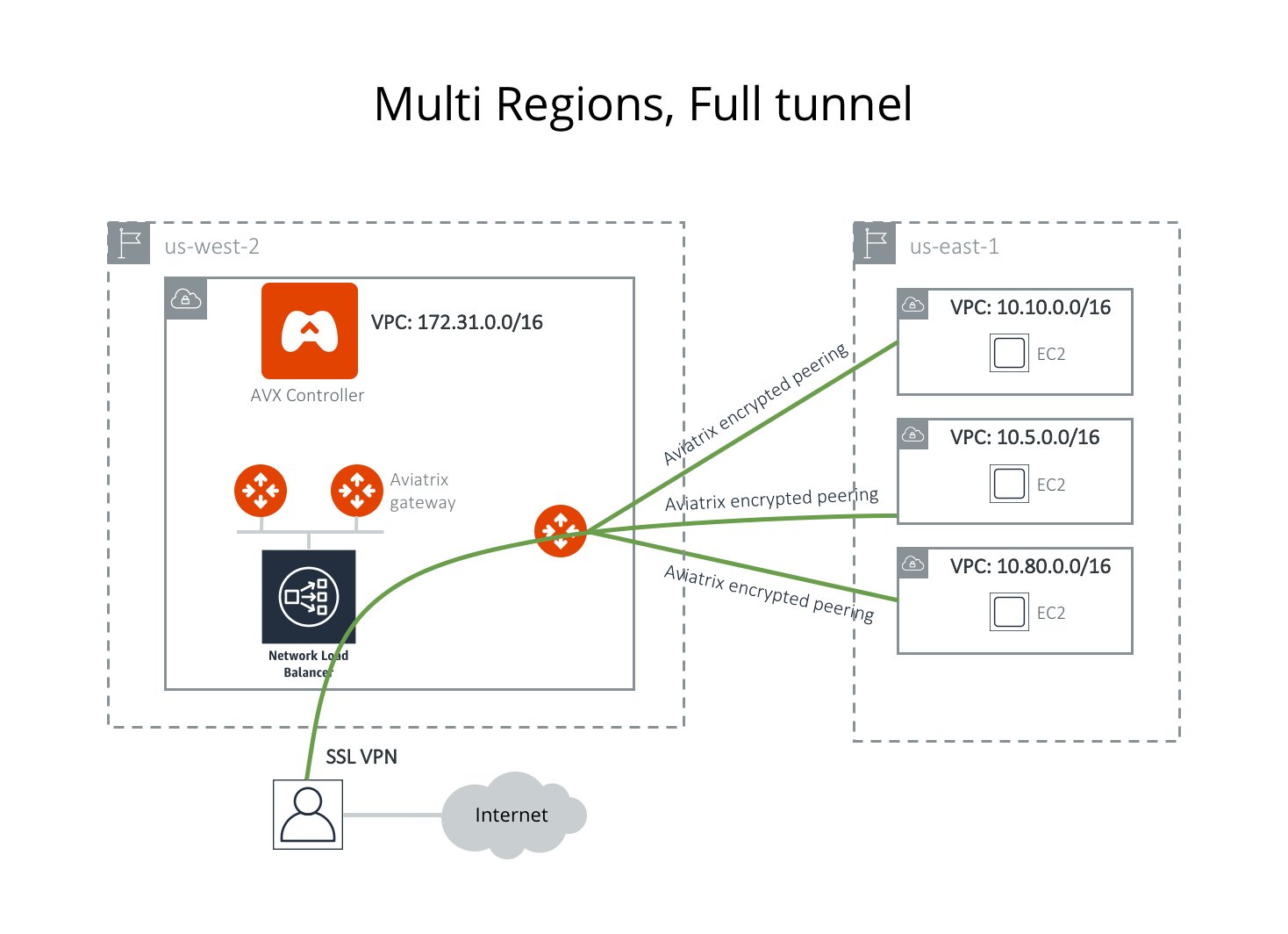 Assume the following:
* Four VPC/VNets have been created.
* You would like to use the VPC/VNet with CIDR 172.31.0.0/16 in us-west-2 to
host gateways where users connect to.
* Full tunnel mode: that is, all traffic originated from the user is routed
through SSL VPN. Your organization is required to run its own firewall
function for any Internet-bound traffic.
* After a user connects to this VPC/VNet via SSL VPN, they should be able to
access any instances in the other VPC/VNets as long as their profile allows,
without having to connect to each VPC/VNet with SSL VPN.
### Configuration Workflow
Hover your cursor over the fields to see their definitions. The description in
each step does not include all fields. Make sure you have the correct VPC/VNet
ID and its region for the VPC/VNet ID field and region in each step.
1. Create a VPN Gateway
in VPC/VNet 172.31.0.0/16. \* The VPN CIDR must be a subnet that is outside
your current VPC/VNet CIDR range and your laptop or device subnet range. In
the example above, you may enter 192.168.2.0/24. \* Turn **Off** Split Tunnel.
* Select **ELB** from the Load Balancer field. \* Enable Policy-Based Routing
(PBR). \* The PBR Subnet must be a subnet that is in the same AZ as the
primary subnet (Public Subnet where the gateway is launched). \* Enter the AWS
subnet default gateway for PBR Default Gateway field. For example, if PBR
Subnet is 172.31.48.0/20, the default Gateway field is 172.31.48.1. \*
(optionally) you can enable NAT Translation Logging to log every user's
activity to every server and site. This is useful for auditing and
compliance.
2. Repeat Step 1 to create more gateways with VPN enabled. You may select
different AZs for the Public Subnet field.
3. (Optional) If you have your own routing network to route between the VPCs and
one of your own backbone routers can route traffic to your own firewall for
Internet-bound traffic, you can skip this step and the next two steps (step 4
and 5).
Launch a gateway (not a VPN gateway) in VPC 172.31.0.0/16. Since this is the
routing gateway, make sure that NAT is not enabled for this gateway.
4. (Optional) Repeat step 3 for VPC 10.10.0.0/16, 10.5.0.0/16 and 10.80.0.0/16.
Select Enable NAT if you wish the instances in these VPCs to be able to reach
Internet directly.
5. (Optional) Connect the VPC/VNets using Spoke-Spoke peering. Note that each
VPC/VNet is represented by one or more gateways. Make sure you peer between
gateways that do not have VPN capability.
The steps above complete the network infrastructure setup.
6. Add Users and Profiles.
* Go to Cloud Fabric > UserVPN > select the Profiles tab to create as many
profiles as needed. The target field can be FQDN (DNS names or fully
qualified domain name).
* Go to Cloud Fabric > UserVPN > select the Users tab to add as many users as
needed.
* Associate each user with a profile. If no profile is associated, the user
has full access to all resources. When a user is added to the database, an
email with a .ovpn file will be sent to the user with detailed
instructions.
* Alternatively, you can
download
the .ovpn file directly.
## Use an AWS Transit Gateway to Access Multiple VPCs in One Region
You can use an AWS Transit Gateway (TGW) allow remote users to connect to
multiple VPCs in the same region, as shown below.
Assume the following:
* Four VPC/VNets have been created.
* You would like to use the VPC/VNet with CIDR 172.31.0.0/16 in us-west-2 to
host gateways where users connect to.
* Full tunnel mode: that is, all traffic originated from the user is routed
through SSL VPN. Your organization is required to run its own firewall
function for any Internet-bound traffic.
* After a user connects to this VPC/VNet via SSL VPN, they should be able to
access any instances in the other VPC/VNets as long as their profile allows,
without having to connect to each VPC/VNet with SSL VPN.
### Configuration Workflow
Hover your cursor over the fields to see their definitions. The description in
each step does not include all fields. Make sure you have the correct VPC/VNet
ID and its region for the VPC/VNet ID field and region in each step.
1. Create a VPN Gateway
in VPC/VNet 172.31.0.0/16. \* The VPN CIDR must be a subnet that is outside
your current VPC/VNet CIDR range and your laptop or device subnet range. In
the example above, you may enter 192.168.2.0/24. \* Turn **Off** Split Tunnel.
* Select **ELB** from the Load Balancer field. \* Enable Policy-Based Routing
(PBR). \* The PBR Subnet must be a subnet that is in the same AZ as the
primary subnet (Public Subnet where the gateway is launched). \* Enter the AWS
subnet default gateway for PBR Default Gateway field. For example, if PBR
Subnet is 172.31.48.0/20, the default Gateway field is 172.31.48.1. \*
(optionally) you can enable NAT Translation Logging to log every user's
activity to every server and site. This is useful for auditing and
compliance.
2. Repeat Step 1 to create more gateways with VPN enabled. You may select
different AZs for the Public Subnet field.
3. (Optional) If you have your own routing network to route between the VPCs and
one of your own backbone routers can route traffic to your own firewall for
Internet-bound traffic, you can skip this step and the next two steps (step 4
and 5).
Launch a gateway (not a VPN gateway) in VPC 172.31.0.0/16. Since this is the
routing gateway, make sure that NAT is not enabled for this gateway.
4. (Optional) Repeat step 3 for VPC 10.10.0.0/16, 10.5.0.0/16 and 10.80.0.0/16.
Select Enable NAT if you wish the instances in these VPCs to be able to reach
Internet directly.
5. (Optional) Connect the VPC/VNets using Spoke-Spoke peering. Note that each
VPC/VNet is represented by one or more gateways. Make sure you peer between
gateways that do not have VPN capability.
The steps above complete the network infrastructure setup.
6. Add Users and Profiles.
* Go to Cloud Fabric > UserVPN > select the Profiles tab to create as many
profiles as needed. The target field can be FQDN (DNS names or fully
qualified domain name).
* Go to Cloud Fabric > UserVPN > select the Users tab to add as many users as
needed.
* Associate each user with a profile. If no profile is associated, the user
has full access to all resources. When a user is added to the database, an
email with a .ovpn file will be sent to the user with detailed
instructions.
* Alternatively, you can
download
the .ovpn file directly.
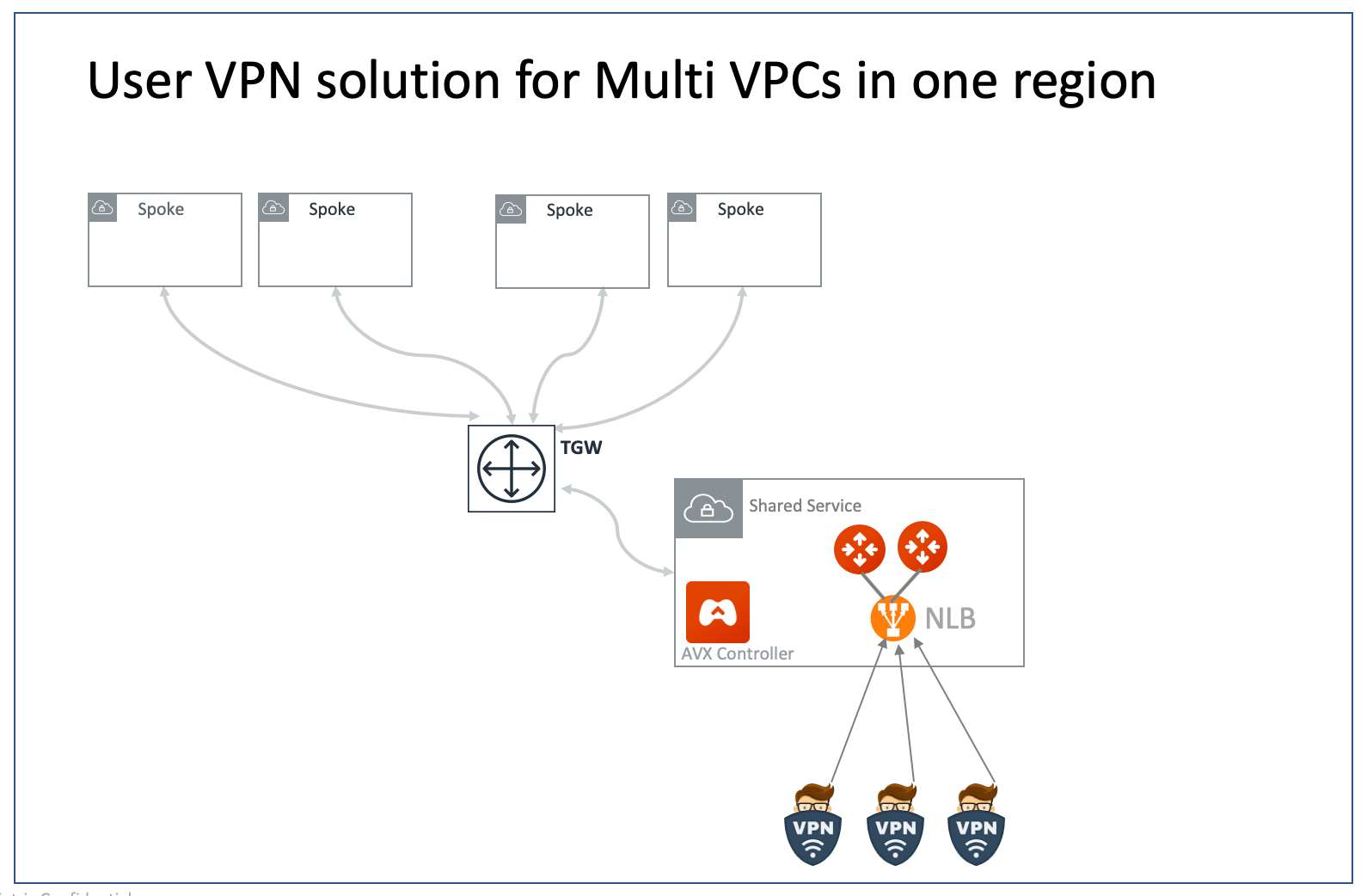
## Use an AWS Transit Gateway to Access Multiple VPCs in One Region
You can use an AWS Transit Gateway (TGW) allow remote users to connect to
multiple VPCs in the same region, as shown below.
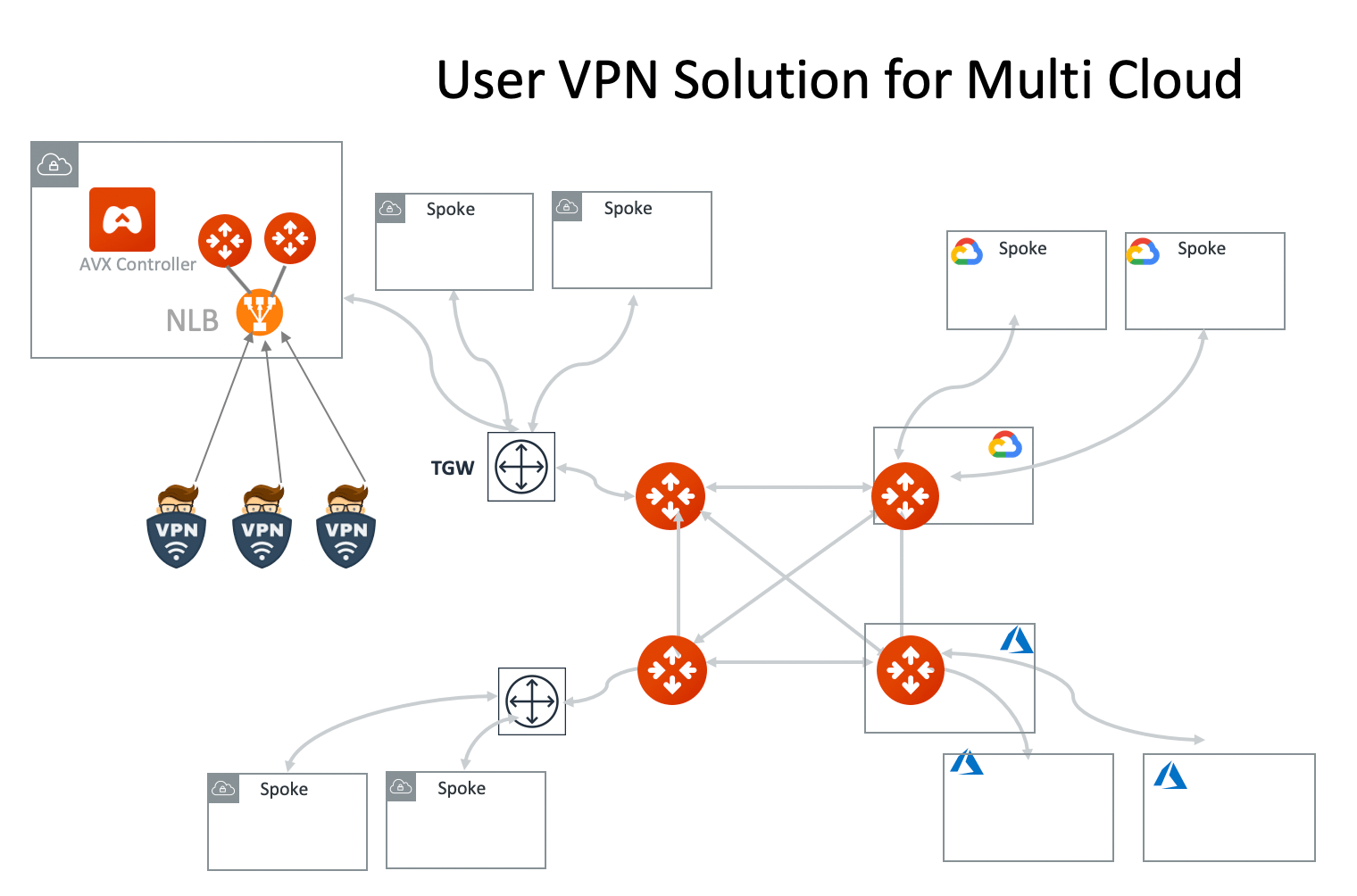
 ## UserVPN Solution for Multi Cloud
With Aviatrix multicloud support, you can build a global VPN solution that spans
to multi cloud.
## UserVPN Solution for Multi Cloud
With Aviatrix multicloud support, you can build a global VPN solution that spans
to multi cloud.